How to Convert MBOX to OLM File? Complete Guide
Many users face a common problem when they try to access MBOX file data in Outlook for Mac as it does not support MBOX format directly. This usually happens when someone switches from MBOX supported email client to Outlook Mac and want to access their old emails. In such cases users need a right way to convert MBOX to OLM so that the data can be easily imported.
In this blog, we will explain simple and effective methods to change your MBOX file into OLM file format. You will learn both the manual approach and a professional solution so you can choose the one that fits your needs.
Difference B/W MBOX & OLM File Extension
Before starting conversion process it is important to understand the difference between MBOX and OLM file extensions.
MBOX File Extension (.olm)
MBOX is a file format that includes multiple emails in a single file. It is commonly used by email clients like Mozilla Thunderbird and Apple Mail. All emails are saved one after another in a single database including attachments and metadata. This makes it easy to store and transfer large mailboxes but it is not supported by Outlook for Mac.
OLM File Extension (.olm)
OLM is a file format used by Microsoft Outlook for Mac to store mailbox data. It can contain emails, contacts, calendars and other items. Unlike MBOX the OLM file is fully compatible with Outlook Mac and allows users to import their data easily into application.
Manual Method to Convert MBOX to OLM (Preferred Approach)
If you are looking for a free way to export MBOX files in OLM format you can use try manual approach. This method involves using Mozilla Thunderbird, Apple Mail and Microsoft Outlook for Mac. Although the process takes time it works well when you have a small number of emails to transfer.
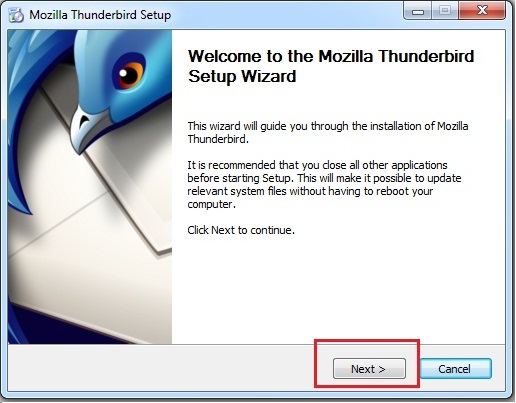
Step 1. Download and install Mozilla Thunderbird on your system.
Step 2. Run the application and add the ImportExportTools NG add-on.

Step 3. Go to Local Folders section, right-click and choose import MBOX file option.
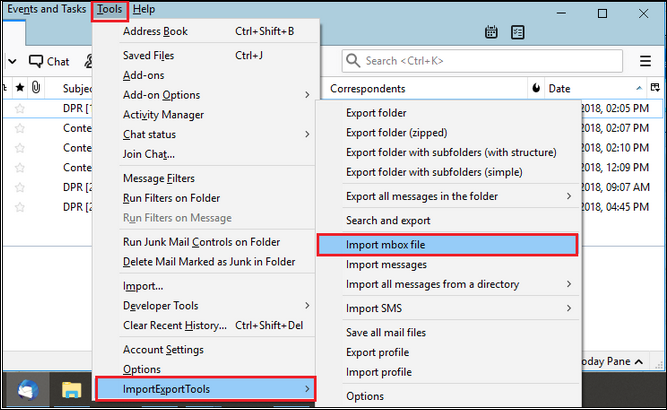
Step 4. Browse your system and select the MBOX file you want to convert.
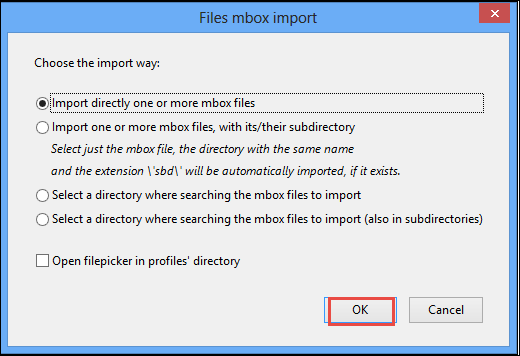
Step 5. Once added all your emails will be visible inside Thunderbird.
Step 6. Open the imported MBOX folder in Thunderbird.
Step 7. Now select all emails and drag or move them into the configured email account folder .
Step 8. After that Thunderbird will sync all emails and upload these emails to server.
Step 9. Open Outlook for Mac email client and add the same email account that you add in Thunderbird.
Step 10. Make sure IMAP sync option is enabled to download all emails in Outlook.
Step 11. Once the account is added Outlook will automatically sync all emails from the server.
Step 12. Wait until all MBOX emails appear in Outlook.
Step 13. After syncing go to Outlook for Mac menu and select the export option.
Step 14. Choose Export to OLM file select the mailbox data and choose a destination folder.
Step 15. Click Export and Outlook will create an OLM file containing all the imported MBOX emails. Save it to your desired location.
Step 16. After completion your emails will be available in Outlook for Mac and your MBOX to OLM conversion process will be completed.
Merits:
- It is a completely free solution
- Suitable for users with limited or personal data
However, it also has some demerits such as being time-consuming and requiring multiple steps. And also it requires switching between different applications.
How to Export MBOX Emails into OLM File Professionally?
As we have seen that manual solutions are not only time-consuming but also require technical knowledge, we recommend that you use an automated solution. Advik MBOX Converter allows you to convert single or multiple MBOX files into OLM format in just a few clicks. It supports maintaining email properties, attachments, and original folder hierarchy. It comes with an easy-to-use interface which is suitable for both technical and non-technical users, and also provides options like you can preview emails before conversion and select specific folders to export.
Click on the free download button and check its working process.


Steps to Convert MBOX File to OLM with Complete Data
Step 1. Install and open the suggested tool on your system. Read the following instructions mentioned and move ahead.
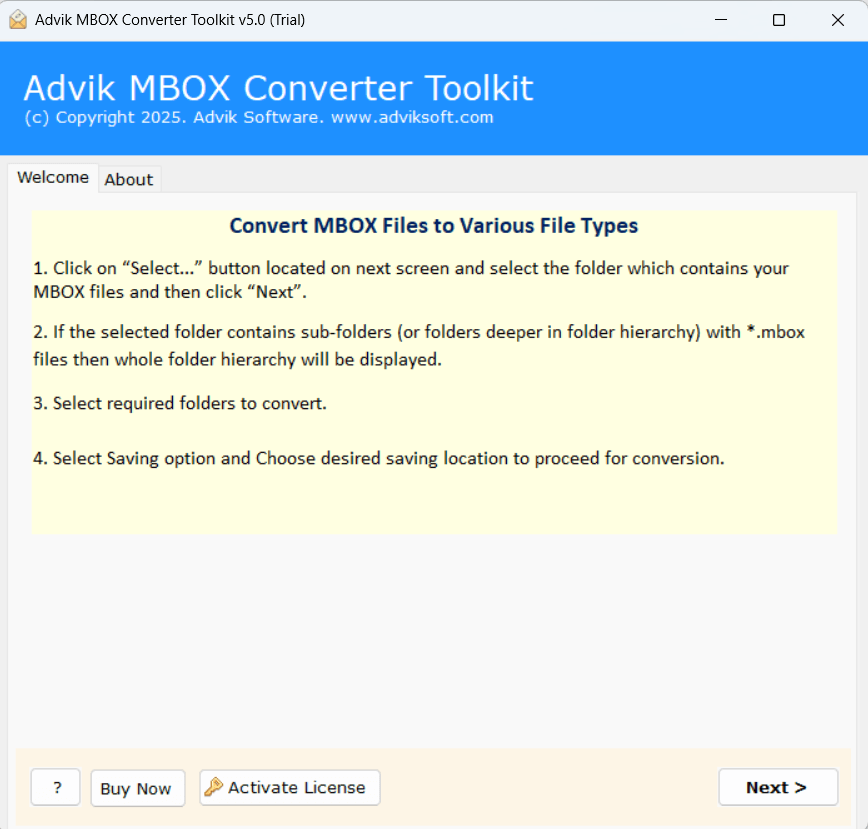
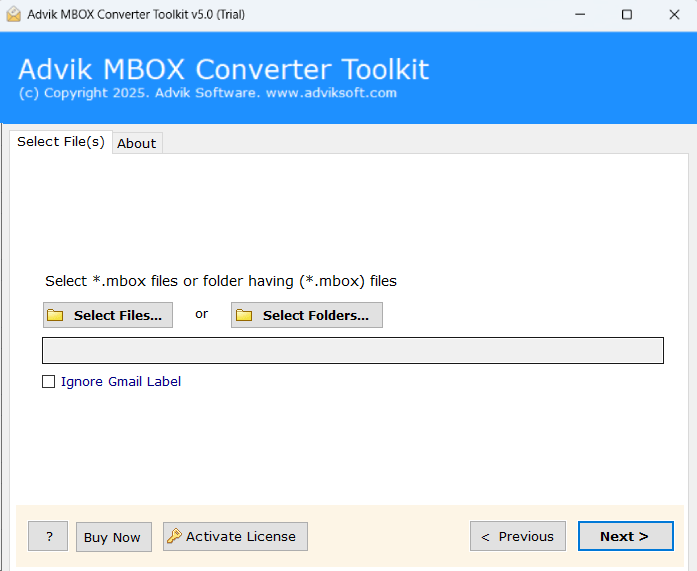
Step 2. Click on the Select Files or Select Folders option to add MBOX file into software panel.
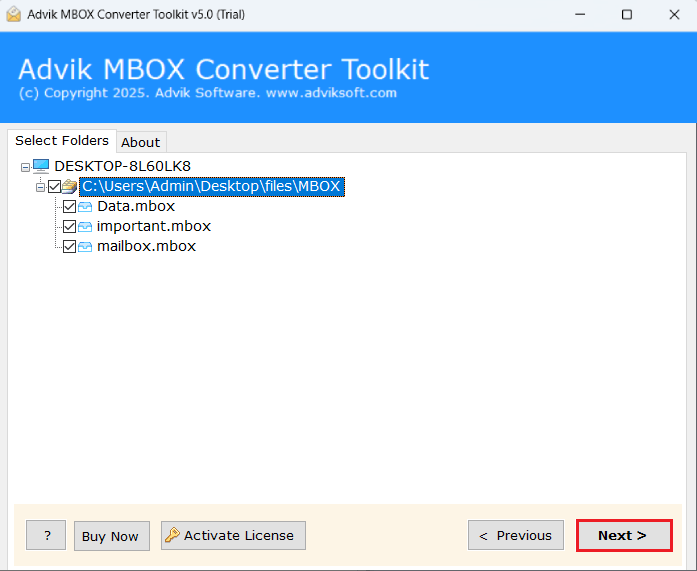
Step 3. Once your MBOX file is loaded, the tool will display all folders and emails. Select the required ones and click Next.
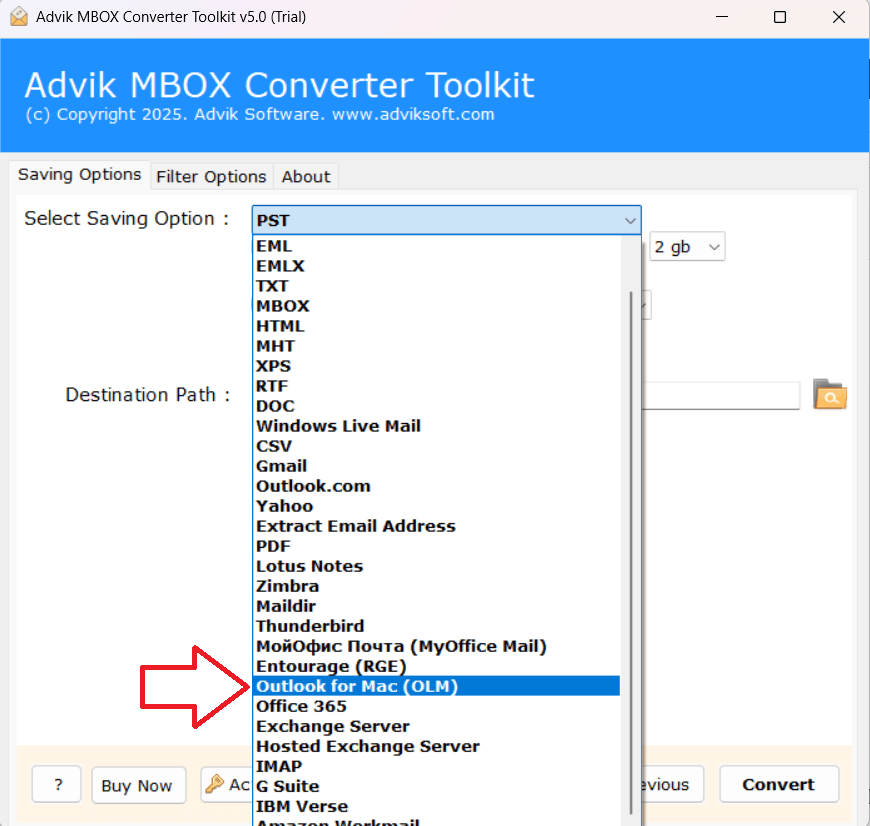
Step 4. Now, choose OLM as the saving format from the list of export options.
Step 5. Select the destination location where you want to save the resultant file.
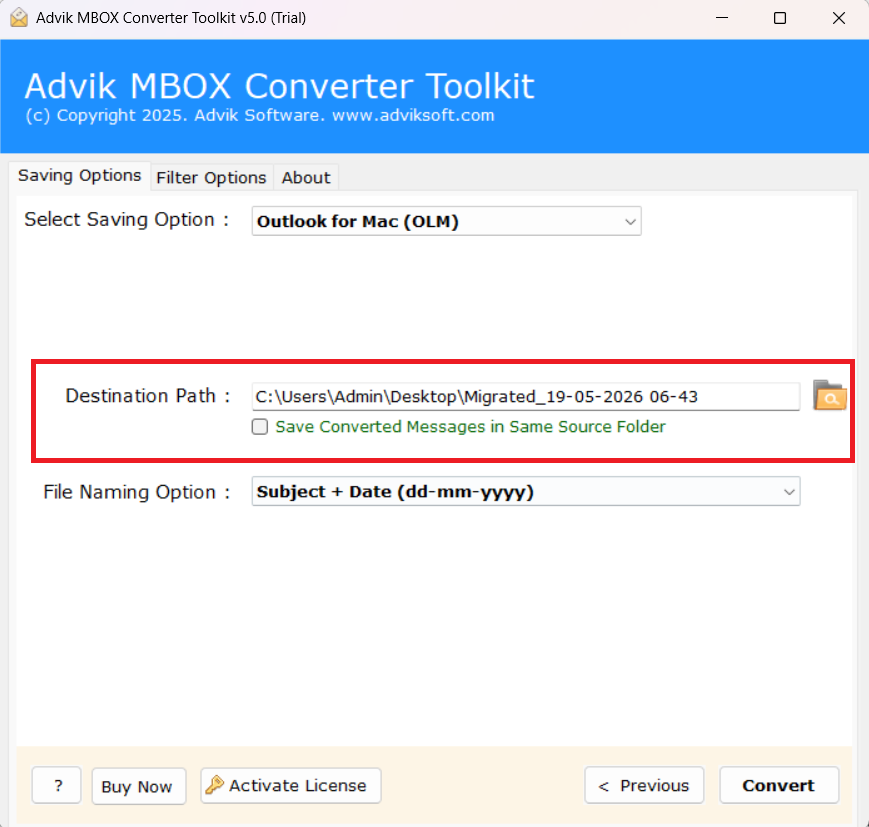
Step 6. Finally, click on the Convert button to start the conversion process.
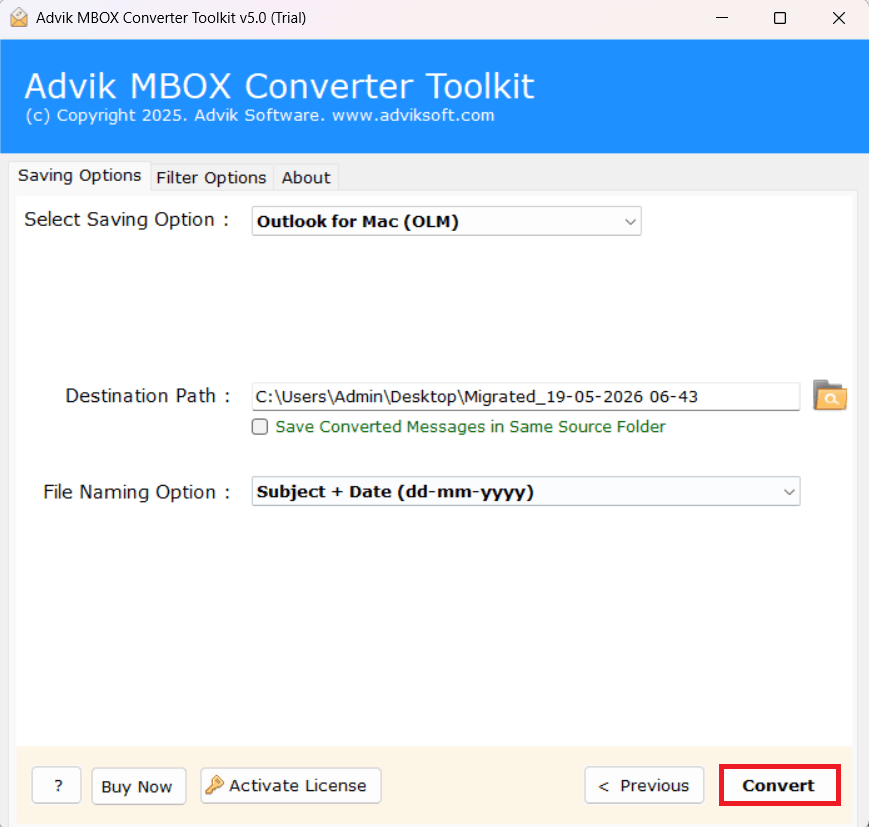
The software will begin exporting your MBOX emails into OLM format.
After the process is completed, a confirmation message will appear on your screen.
You will be taken to the selected destination folder to access your OLM file. Now you can access it in Outlook for Mac.
Real Life Use Cases for MBOX to OLM Conversion
- Switch to Outlook for Mac: When users move from MBOX supported email clients to Outlook for Mac, they need to convert MBOX files into OLM format to access their emails.
- Migrate Emails to Mac System: Individuals or organizations looking to switch to Mac system may require to convert MBOX to OLM to transfer all their emails.
- To Open Old Email Backup: If you have old MBOX backup files then this conversion will help you to open and read them in Outlook for Mac easily.
- To Change Email Client: When switching from any MBOX supported email client to Outlook Mac, conversion is required to continue using the same email data.
- To Manage Emails in One Place: Users who want all emails in one place may require this conversion as Outlook for Mac is a better place for better email management.
- To Share Emails with Mac Outlook Users: Converting MBOX files into OLM makes it easy to share emails with users who use Outlook for Mac.
Manual Method vs Professional Tool: Which is Better for MBOX to OLM Conversion?
| Features | Manual Method | Professional Method |
|---|---|---|
| Time Required | Takes Time | Fast and quick Solution |
| Attachments | Not properly maintained | transferred fully & maintained |
| Bulk Conversion | Not supported | Supported for multiple MBOX files |
| Selective Conversion | Not possible | Available |
| Folder Structure | May get disturbed | Maintains original structure |
Conclusion
We hope that after reading this comprehensive guide all your queries about how to convert MBOX to OLM files are clear now. As discussed above manual methods can be difficult and time-consuming when you have multiple emails. That’s why using a professional solution makes conversion process much easy. Explore the complete method one by one and then select as per your need and requirement. By following the simple steps mentioned above you can complete the conversion without any issue.
FAQs
Q1. Is there any free way to convert MBOX to OLM?
Ans. There is no direct free method available. But you can try some methods which claim to export MBOX emails into OLM file manually but they are complex. It will take a lot of time and may not convert all data properly. So, it’s upto you.
Q2. I have a large MBOX file. Will the tool handle it?
Ans. Yes, the software mentioned in this article is designed to handle any large MBOX files without any issue.
Q3. What should I do if my MBOX file is not loading in the tool?
Ans. Make sure your MBOX file is not corrupted and is properly exported from the email client. Also, try using select folder option if your file is not loading individually.
Q4. Where will my OLM file be saved after conversion?
Ans. You can choose your desire destination folder in the last steps before starting the conversion process. After completion your OLM file will be saved in that selected location.