How to Convert or Upgrade Microsoft 365 (Office 365) Personal to Business
If you have Microsoft 365 Personal and decide to switch to a business plan, the you should understand it first that you can’t convert personal microsoft account to business . Instead, you will need to purchase a Microsoft 365 business subscription, set up a separate business account (tenant), and then transfer the data you want to keep over using.
While, migrating data from personal account to business account (m365), you can also transfer emails, OneDrive files, and OneNote content and all other supported data to new business environment. You can then either keep your Microsoft 365 Personal subscription active or cancel it, depending on your needs.
In this guide, we’ll show you how to upgrade from Microsoft 365 Personal to Business, the differences between the two subscription types, how to transfer your data, and avoid common data-loss issues.
Can You Convert Microsoft 365 Personal to Business?
No, you cannot convert a personal Microsoft account to a Microsoft 365 business account.
Microsoft 365 Personal and Microsoft 365 Business are different accounts and use different organization structures. A personal account is used for individual use while a business account is associated with a Microsoft 365 organization (tenant) and gives you administrative controls for users, domains, licenses and business services.
However, Microsoft does support switching from a personal subscription to a business one.
How to Convert OfficNe 365 Personal to Business?
You can’t directly upgrade Office 365 home subscription to business subscription. You need to buy a Microsoft 365 Business plan and migrate your data. To do it, you need to carefully follow the below given steps;
Steps 1. Buy Microsoft 365 Business Plan
Microsoft offers various business plans:
- Microsoft 365 Business Basic: Web and mobile versions of Office apps, professional email, and Teams.
- Microsoft 365 Business Standard: It includes desktop apps plus collaboration tools.
- Microsoft 365 Business Premium: It adds advanced security and device management.
Review the plan and select the one that best suits your needs.
- Sign in to the Office 365 admin center using your existing account.
- Go to Billing and select Purchase services.
- Choose your preferred Business plan.
Step 2. Set Up Your Business Account
- Sign in to the Microsoft 365 Admin Center
- Add your business domain (e.g., yourdomain.com)
- Verify ownership of your domain via DNS records
- Create your professional email addresses in the new domain
Step 3. Migrate Data from Office 365 Personal to Business
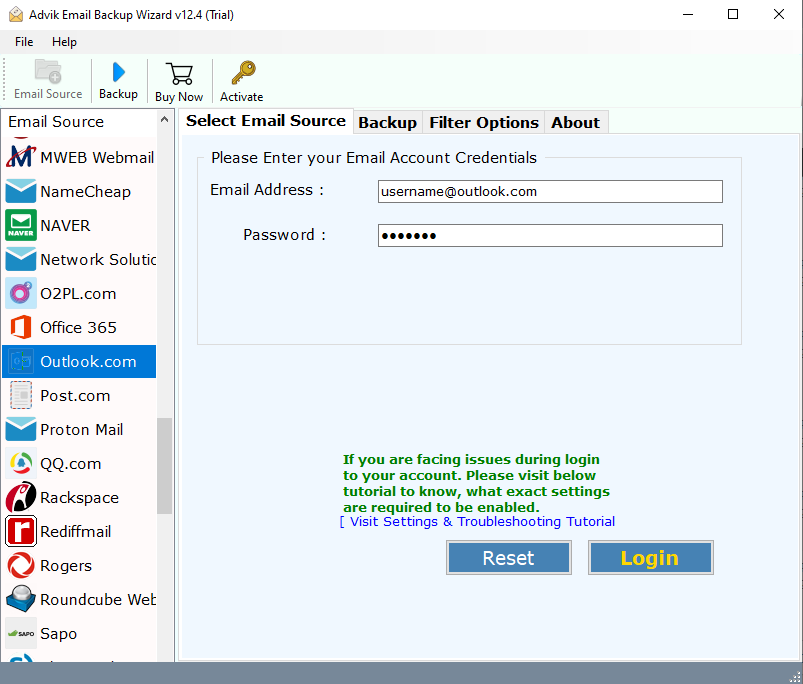
When you convert personal Office 365 to business, you need to move your data to access data in the new subscription. You can manually do it, but this is a lengthy and complicated process. For simple and quick migration, try the Advik Outlook.com Backup Tool on your system. The software can quickly switch from Microsoft 365 home to business in a few simple clicks. It can transfer all data in a single attempt. Additionally, it also offers advanced filter options to move only selected emails.


Steps to Upgrade Office 365 Personal to Business
1. Run the tool and enter your Outlook.com account login details to sign in.
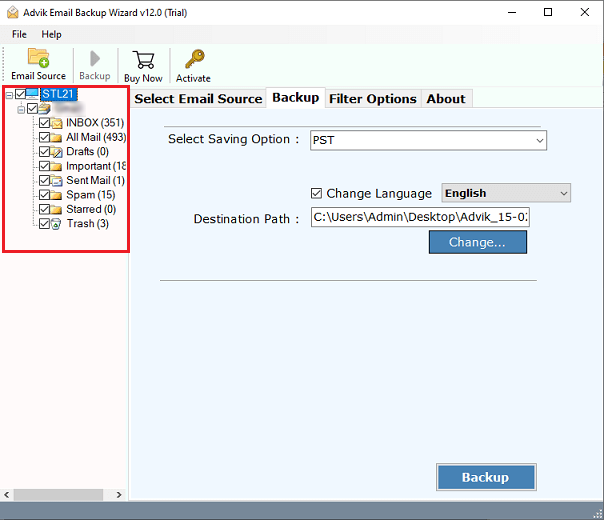
2. Choose the required mailbox folders.
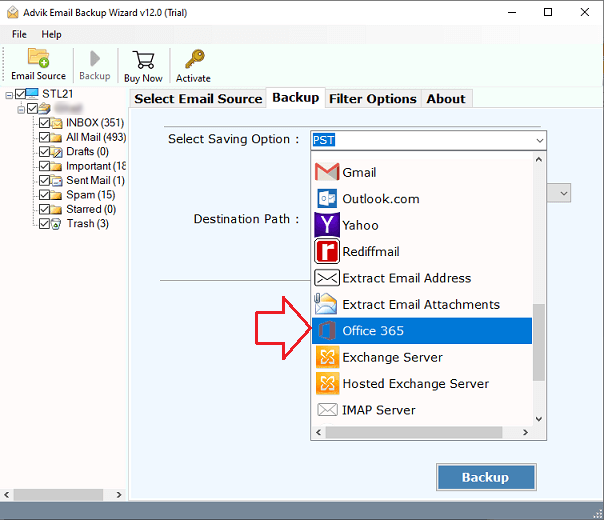
3. Select Office 365 as a saving option.
4. Enter Office 365 account email address and click Backup.
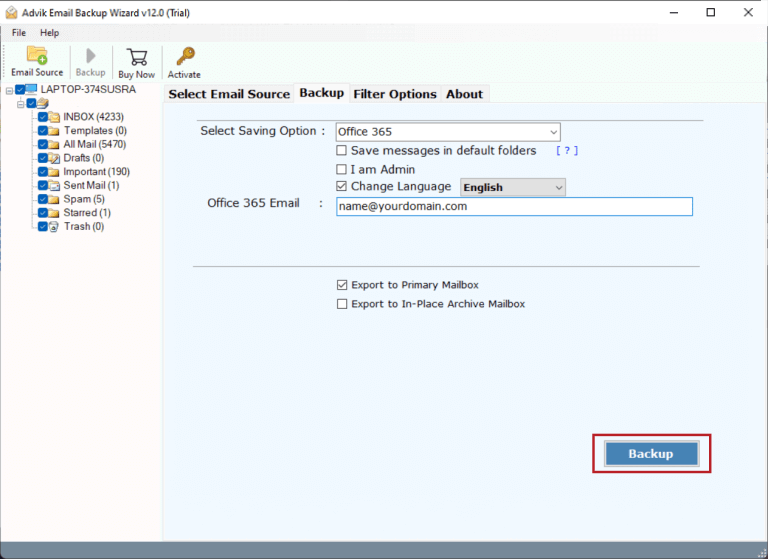
5. Type password of Office 365 account and click Sign in button.
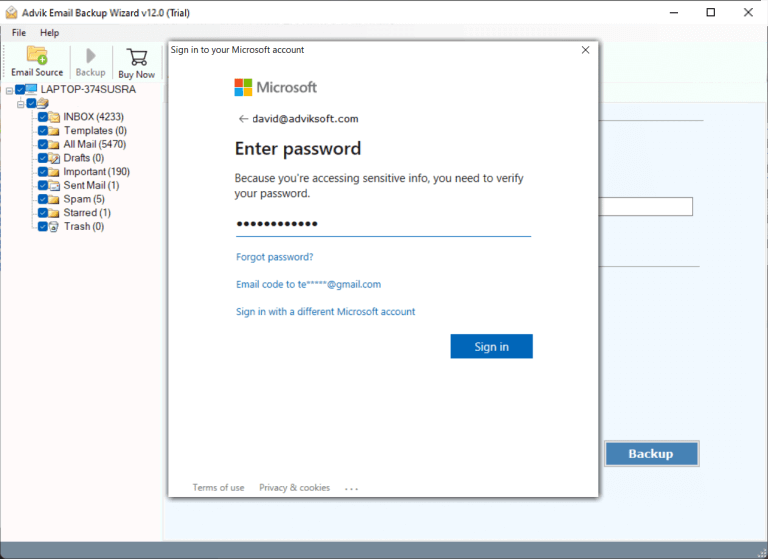
Done! The software will change Office 365 personal to business with data in a few seconds.
Step 4. Cancel your Personal Subscription
Once your Business account is successfully set up and data migration is complete, you can cancel your Personal plan or keep it for private use.
Follow the below given steps below to cancel the Office 365 home subscription.
- Go to https://account.microsoft.com/services and sign in.
- Search the subscription and select Payment and Billing, and then cancel.
- After that, choose Confirm cancellation and check your inbox for a confirmation email.
By following above steps, you can change from Office 365 personal to business account.
Conclusion
Upgrading your Microsoft 365 from home to business account becomes a necessity when you want to establish a professional identity. Here, we have discussed how to migrate Office 365 personal to business. You need to purchase a new Business plan, set up a professional account, and migrate your data to convert Office 365 home to business.
Frequently Asked Questions
Q1. How do I upgrade my Microsoft 365 from Personal to Business?
Ans. You can’t directly upgrade a Microsoft 365 Personal subscription to a Business subscription. Instead, purchase a Microsoft 365 Business plan and set up your business account separately. Then, transfer the email, OneDrive files, contacts, calendar, and other data you want to keep. Once you’ve confirmed everything is available in the new account, you can cancel the Personal subscription.
Q2. Can i upgrade my personal 365 account to a business account directly?
Ans. No. Microsoft 365 Personal and Microsoft 365 Business are different account types. You will need to purchase a Microsoft 365 Business subscription and set it up, then migrate your data.
Q3. How do I change from Microsoft 365 Personal to Microsoft 365 Business?
Ans. To change from Microsoft 365 Personal to Business, purchase a Microsoft 365 Business plan and configure the new business account.
Q4. Can I convert my own7 Microsoft account to a business account?
Ans. No, you cannot just change a personal Microsoft account to a Microsoft 365 work or business account. Microsoft 365 Business uses a separate business tenant and work account.
Q5. Will I lose my emails if I switch to Microsoft 365 Business?
Ans. Not right now. Your existing personal mailbox stays separate . Supported Outlook data can be moved into the new business mailbox . Check the migrated data before you cancel the old subscription.