How to Convert Outlook Meeting to Teams?
Jenny Lowrence | April 3rd, 2026 | Outlook
Nowadays, many people use Microsoft Outlook to schedule meetings. But a normal meeting invite is not always enough, especially when people are working from different locations. They often need features like video calls, chat, and screen sharing to communicate better. Instead of creating a new meeting again, users can convert Outlook meeting to Teams meeting. It saves time and makes their meeting more interactive and useful for everyone. In this post, we’ll discuss how to change Outlook meeting to Teams meeting. Here, we’ll provide reliable and effective ways to accomplish this task.
Why Convert Outlook Meeting to Teams?
Converting Outlook meeting into a Teams meeting offers several advantages.
- Microsoft Teams provides high-quality video and audio calls, making communication more interactive compared to traditional meetings.
- Once Outlook meeting is converted into Teams, participants can chat, share files, and collaborate during the meeting without switching platforms.
- By converting meetings, you enable online participation through Microsoft Teams, making it easy to join from anywhere.
- Real time coomunicatio and collaboration tools help Teams make decisions faster.
- It gives flexibility to join meetings via app, browser, or mobile devices.
How to Change Outlook Meeting to Teams Meeting Manually?
There are two different manual ways to convert Outlook meeting to Teams. You can use either the Outlook desktop application or web version.
Method 1. Convert Meetings Using Outlook Desktop
- Open Outlook application on your system.
- Click on Calendar tab from the bottom panel.
- You will see a New Teams Meeting option in the ribbon, click on it.
- Next, enter the names of members that you want to keep in the meeting to add members.
- After that, enter meeting subject, location, timing details, etc.
- Now, create message and click on Send button.
Done! This is how you can convert Outlook meeting to Teams meeting
Method 2. Change Meeting Using Outlook Web
- Log in to your Outlook Web App account using login credentials.
- Now, click on Calendar icon.
- Double-click on the schedule meetings and turn on the Teams meeting toggle.
- After that, click on Save button.
Done! Your Outlook meeting has been converted into a Teams Meeting.
Limitations of Manual Solution
Using both manual solutions, you can convert Outlook meeting to Microsoft Teams but there are some limitations:
- Users cannot convert multiple meetings at once. They need to repeat the steps for every meeting.
- Non-technical users face difficulty while converting Outlook calendar meeting to Teams meeting.
- If the add-ins option is disabled in Outlook, then the New Teams Meeting is greyed out in Outlook.
- If users use more than one Outlook account, the steps must be repeated for each account.
To overcome all the drawbacks of manual solution, you can use a professional solution.
How to Convert Outlook Calendar Meeting to Teams Meeting Professionally?
Try the Advik Outlook PST Converter on your system to convert Outlook meeting to Teams. The software can change single or multiple Outlook meetings in a single attempt. This is a secure and authentic program that preserves 100% data integrity during the process. The interface of this utility is very simple and easy to use. Both technical or non-technical users can easily use it.
Click on the below link to download it for FREE.


Steps to Convert Outlook Meeting to Teams
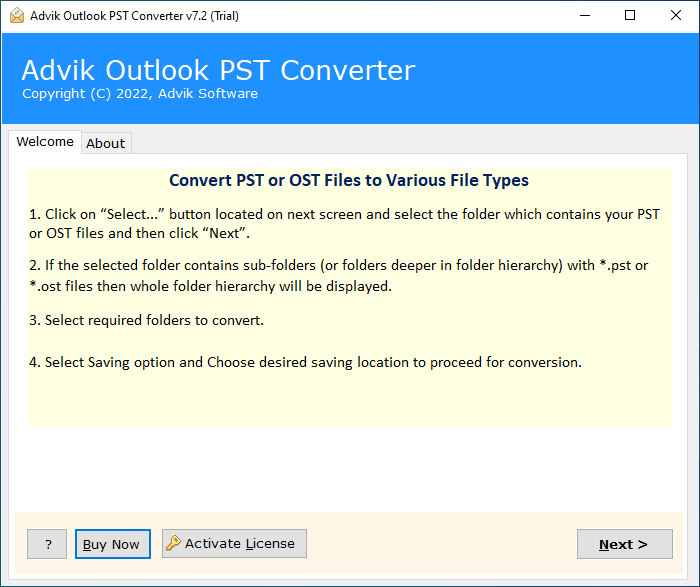
1. Run the tool on your system.
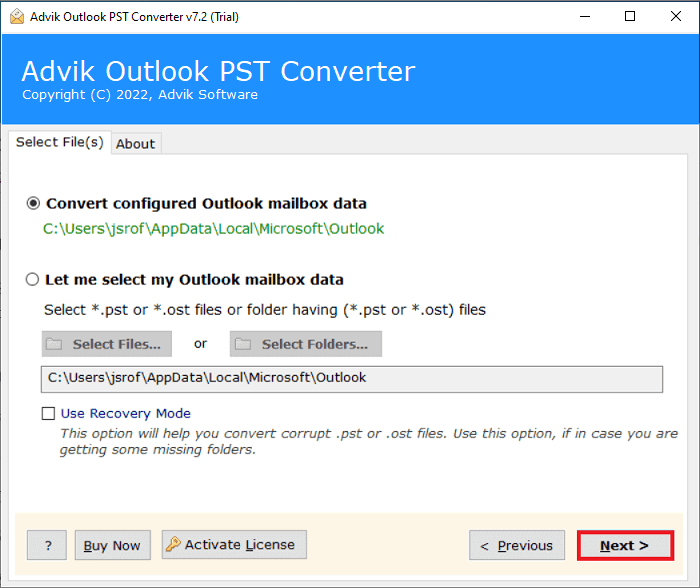
2. Choose your Outlook profile and click Next.
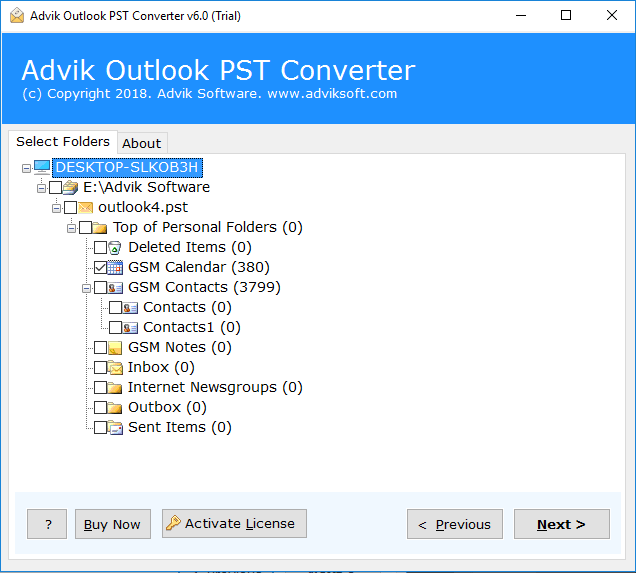
3. Select the Calendar folder and press Next.
4. Choose Office 365 as a saving option.
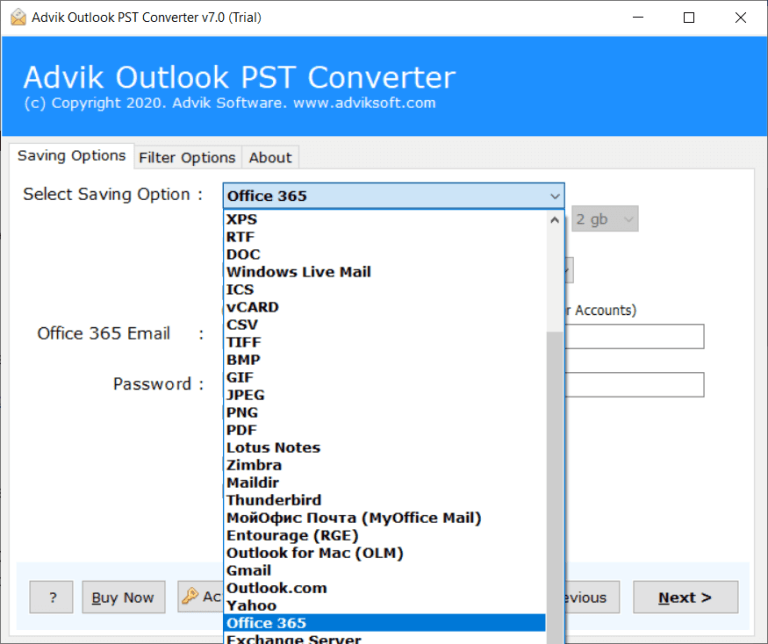
5. Enter Office 365 login credentials.
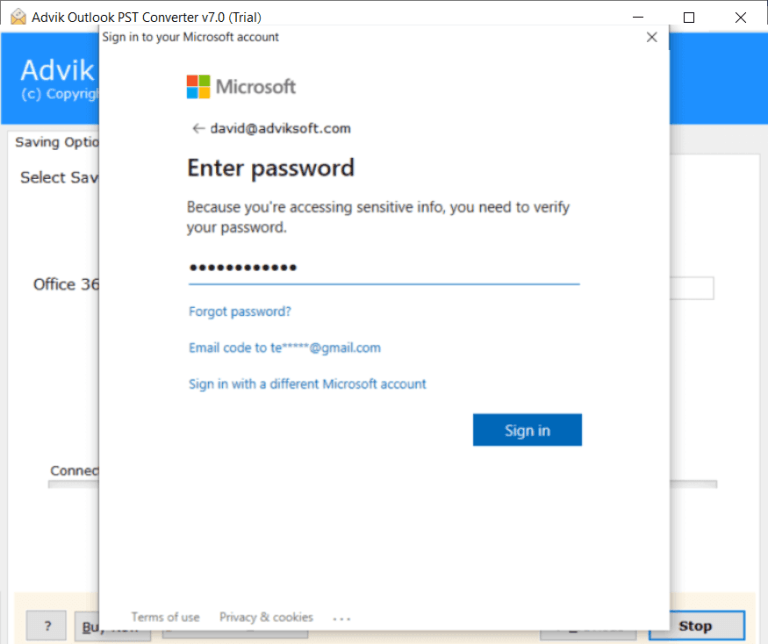
6. Click Next to initiate the conversion process.
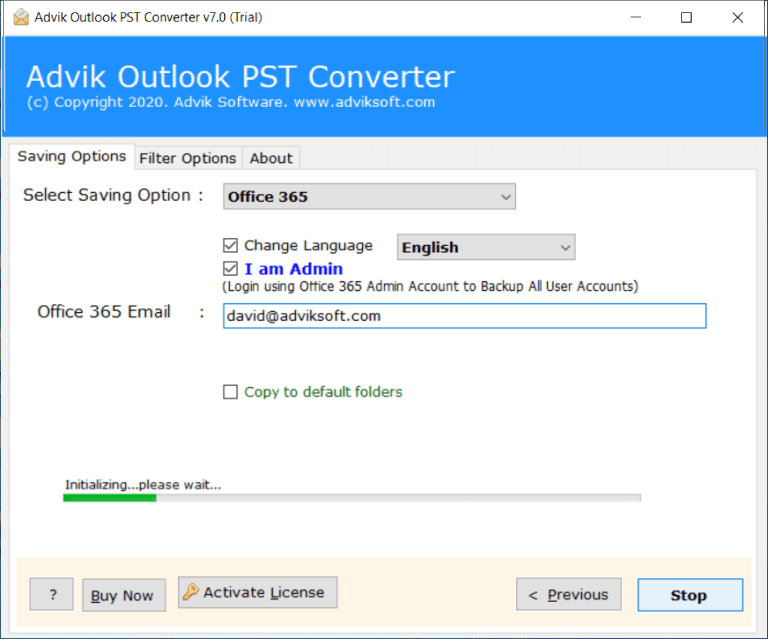
The software will start converting Outlook meeting to Teams meeting.
There are several advantages of using this automated tool. Some of them are:
- The software can convert Outlook meeting to Teams in bulk.
- The tool preserves all meeting details during the process.
- It allows you to choose Outlook meeting as per your needs.
- A simplified user graphical interface for all types of users.
- It supports all versions of Outlook and Windows OS.
- A free demo version to analyze its working procedure.
Final Words
In this post, we have discussed how to convert Outlook meeting to Teams. Here, we have explianed manual as well as profesional solution to change Outlook calendar meeting to Teams meeting. The manual method works well but it is time-consuming if you need to convert multiple Outlook meetings. While the professional solution can quickly change multiple meetings to Teams in one go. Now, you can choose any one that is best fits your needs.
