How to Convert PST File to HTML Format?
Sometimes, you may need to convert PST file to HTML format to access your emails more easily and securely. PST files require Microsoft Outlook to open, which is not always available on every system. In such situations, converting Outlook data into .html format becomes a practical and reliable solution.
HTML files can be opened in any web browser without installing additional software. This makes it easier to view, share, and archive your emails anytime, anywhere. Moreover, it preserves email formatting, structure, and attachments, ensuring no loss of important information.
In this guide, we will walk you through the most effective methods to convert PST to HTML, including both manual and professional solutions, so you can choose the best option based on your needs.
What are the benefits of this Conversion?
There are several advantages, some of which are listed here;
- It’s impossible to access PST emails without Outlook, but converting them into HTML gives easy accessibility.
- After converting, you can open your emails in any browser, such as Google Chrome, Firefox, Opera, etc.
- This file format is often considered the best for sharing and printing.
- HTML is smaller in file size and creates email archives.
- Accessing PST emails for legal or compliance needs is difficult, but .html file format solves this problem.
Real-Life Use Cases to Convert PST to HTML
The following are real user-based scenarios where PST-to-HTML conversion is needed.
#1. Easy Email Access Without Outlook
Scenario: A user needs to access important Outlook emails on a system where Microsoft Outlook is not installed.
Challenge: PST files cannot be opened without Outlook, and it is difficult to view emails on different devices.
Solution: Convert PST file into HTML format to make emails accessible via any web browser.
Result: The user can easily open and read emails anytime, anywhere without depending on Outlook.
#2. Secure Offline Email Access
Scenario: A user wants to access emails without internet or Outlook.
Challenge: PST files require Outlook and system dependency.
Solution: Convert emails into HTML for offline viewing.
Result: Users can securely access emails anytime without internet or software dependency.
#3. Publishing Emails on Websites
Scenario: A business wants to display email newsletters or communication on its website.
Challenge: PST files cannot be directly used for web publishing.
Solution: Convert PST emails into HTML format for easy integration into web pages.
Result: Emails can be published online with proper formatting and structure.
Now, if we are talking about the methods, below we have mentioned two native procedures. First of all, we will start with manual methods, but the first and most important step is having email files backed up to avoid any data loss. So, take a backup of your crucial data because no manual method is fully secure.
How to Convert PST File to HTML Web Page for Free?
This technique involves using Outlook application for the conversion process. The benefit of using this method is that it utilizes Outlook built-in feature instead of relying on third-party software.
1. Launch Microsoft Outlook on your Windows system.
2. Once opened, wait for all emails to load completely.
3. Go to the File tab & click on the Open & Export >> Import/Export tab.
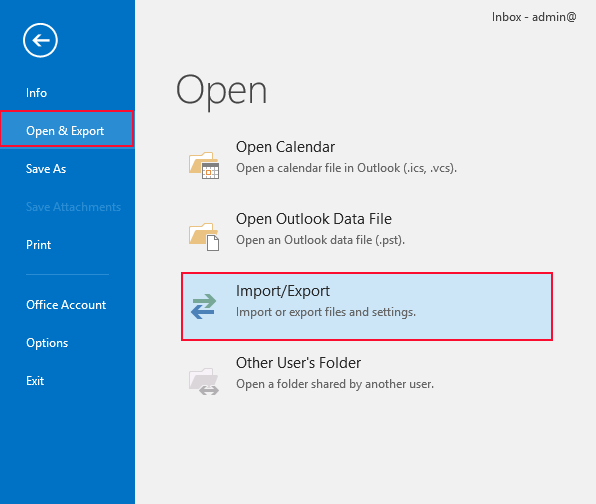
4. Select Outlook Data File (.pst) from the drop-down list.
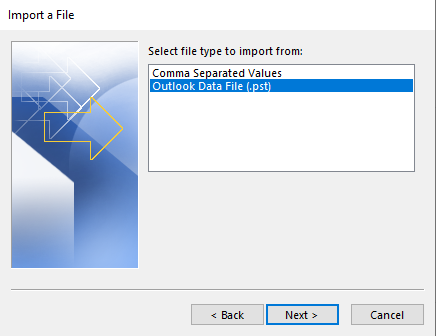
5. Browse and choose your PST file from your system.
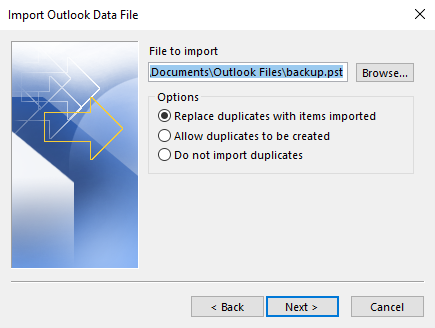
6. After this, the PST file will appear in the left panel with all folders and emails.
7. Navigate through the folders (Inbox, Sent, etc.)
8. Click on the specific email you want to convert and open it.
9. Now, click on the File option in the top menu.
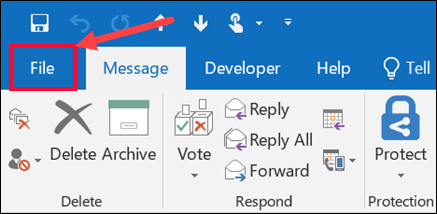
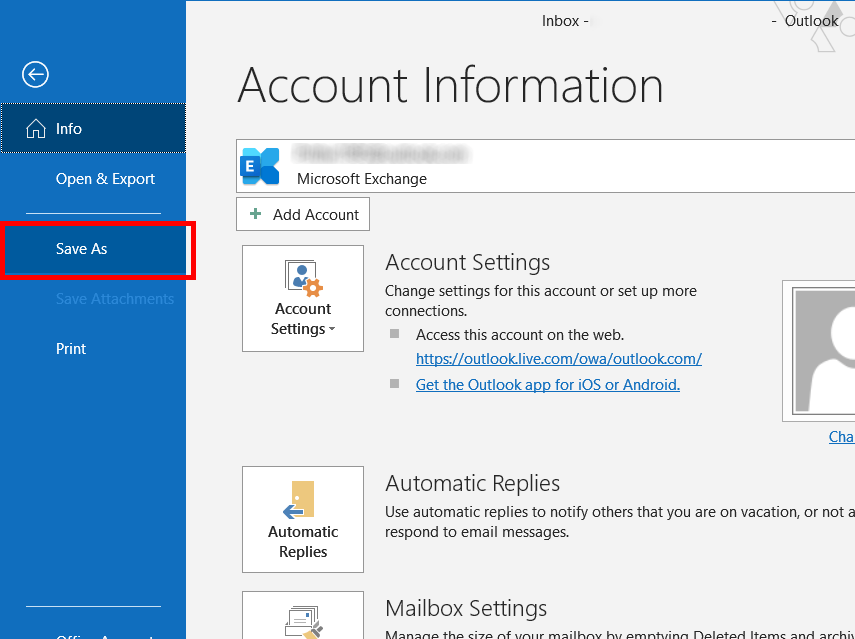
10. Choose Save As from the dropdown.
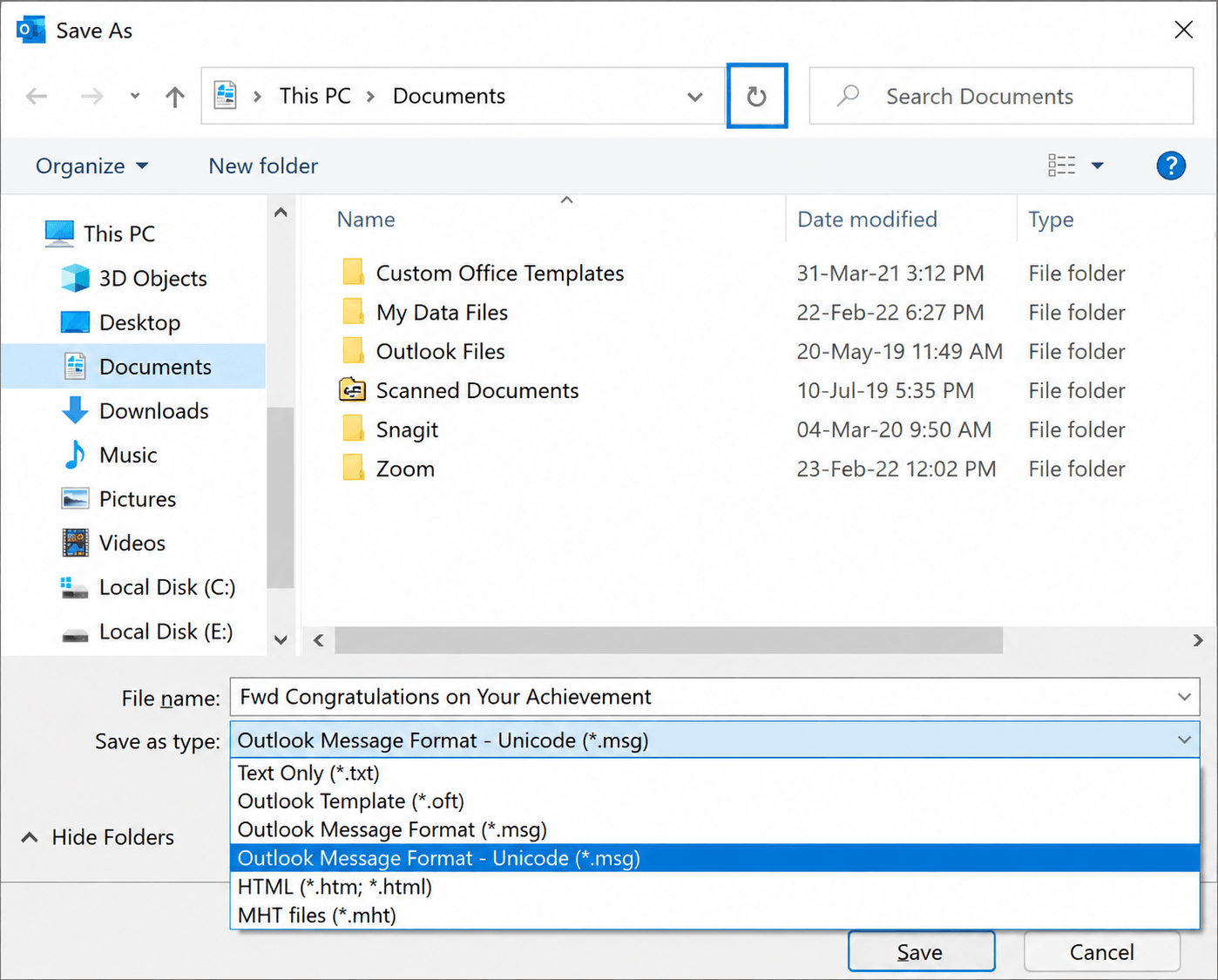
11. In the “Save As” dialog box, you will see Save as type where you select HTML or **HTML Format (.htm; .html) from the list.
12. Lastly, choose the destination location.
13. Enter a file name for your email & click on the Save button.
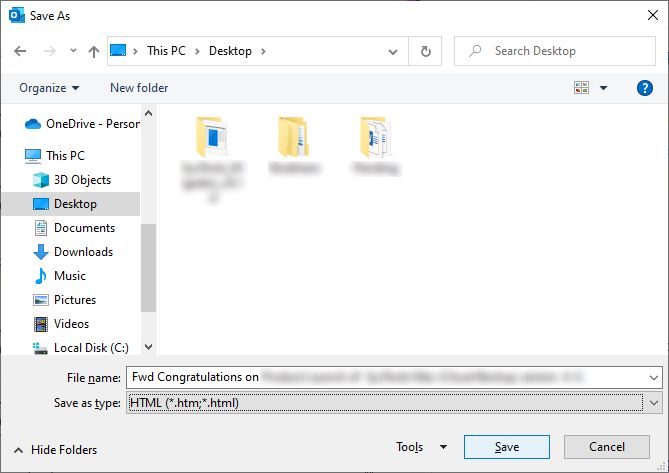
By following the step above, you can easily export PST files to HTML file format to open them in Chrome or any browser.
Why is a Manual Solution Not Recommended?
Manual solution comes free but along with several limitations. So, let’s know its various limitations and why professional software is needed to convert PST to HTML.
- The biggest concern about the manual technique is the risk of data loss. As, chances of human errors are high, a single mistake can lead to data loss.
- Email attachments will rarely migrate into HTML format via manual procedure.
- When the user has many PST files to convert, the manual method becomes very lengthy and time-consuming.
- Also, probabilities of alteration in header part of email and meta properties are very high.
- So, to avoid all these circumstances, you can also go with an automated solution which is explained below.
How to Export PST Files into HTML in Bulk?
Manual methods may look simple, but they come with many limitations such as data loss, missing attachments, and time consumption. To overcome these issues, using a professional solution like Advik PST Converter is highly recommended.
This advanced tool is specially designed to provide an easy way to convert complete emails from PST to HTML format. You can 100% trust this software as it maintains data integrity throughout the process and eliminates all the risks associated with manual methods. Also, there is no size and number bar on adding PST files plus it supports both ANSI and Unicode PST files.
Download the Free Demo version of PST to HTML converter and explore it’s functional aspects. This trial version allows users to convert the first 25 items from each folder. Once you are satisfied with it’s working, you can buy its premium edition and continue converting without any limitations.

Steps to Convert PST to HTML File with Attachments
Step 1. Run the software and read the instructions mentioned below.
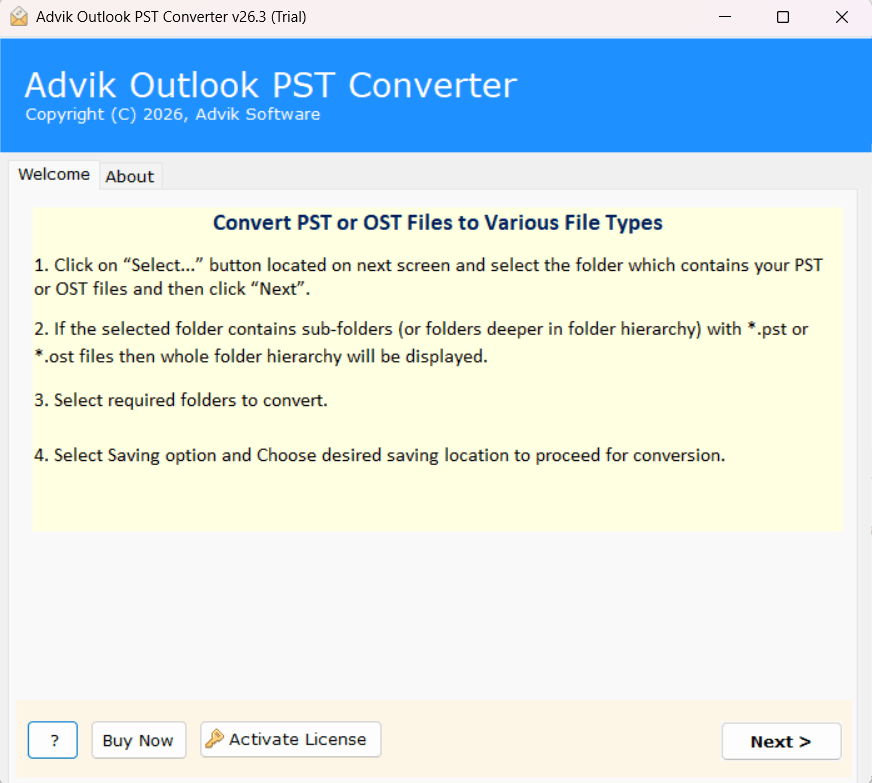
Step 2. Click Select Files or Folders to option to load .pst files.
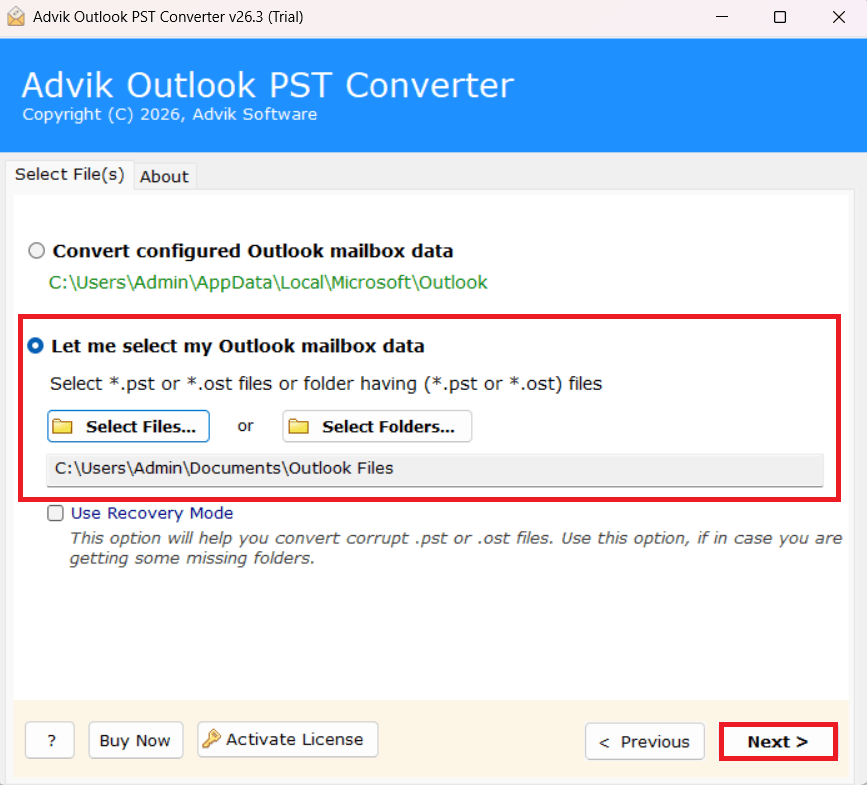
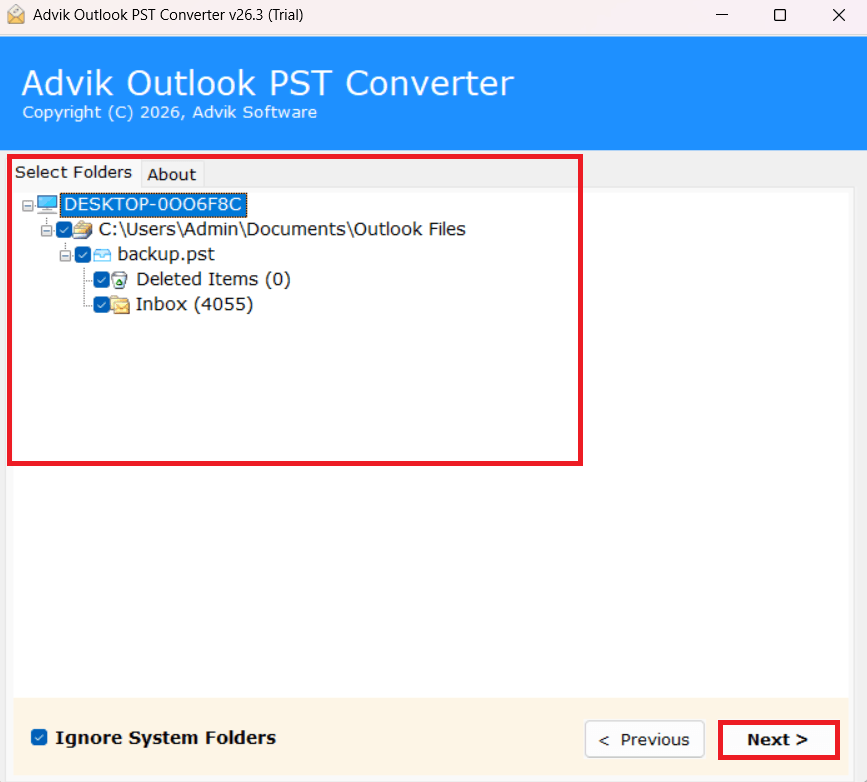
Step 3. Here, choose the required folders that you want to convert. Click Next.
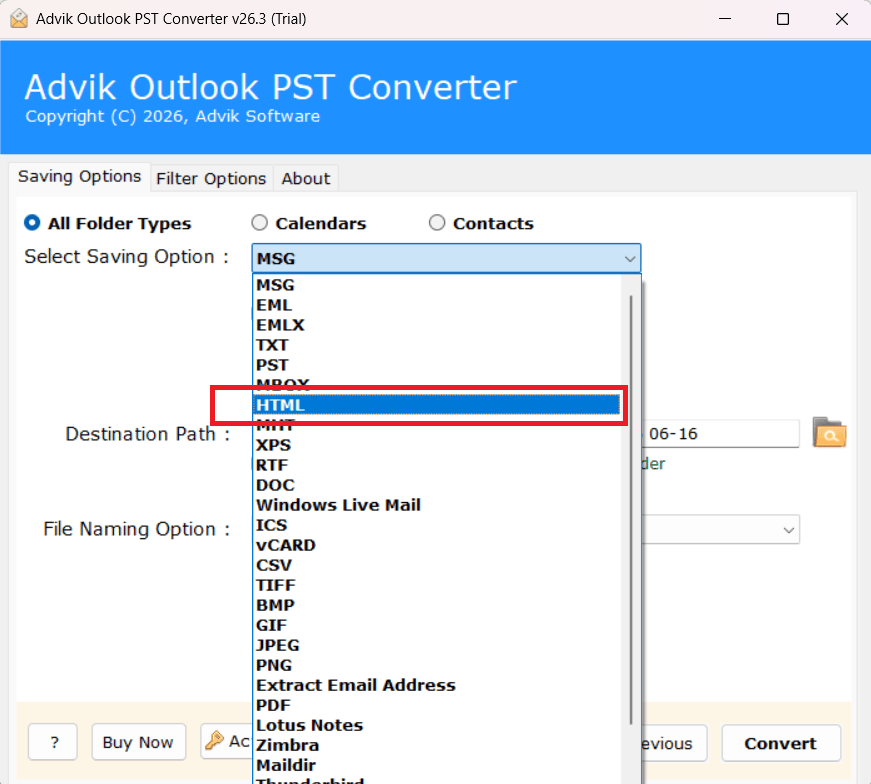
Step 4. After that, select HTML as a saving option from the drop-down list.
Step 5. Provide destination path to save the resultant files to desired location.
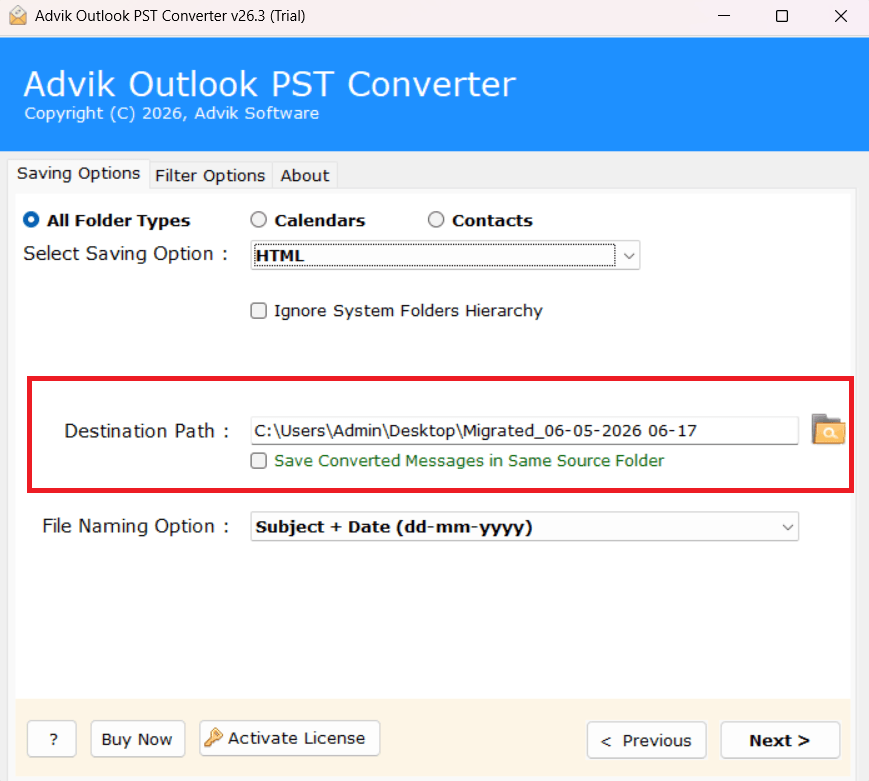
Step 6. Lastly, click on the Next button to start the conversion process.
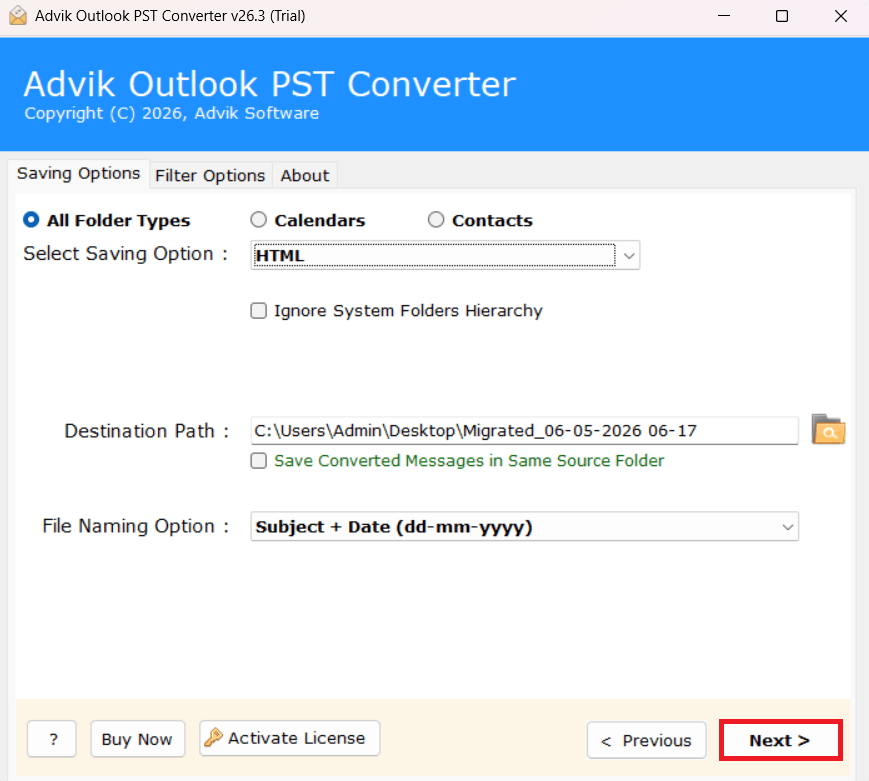
The process has been started and you will be confirmed within few minutes through a log report.
A pop-up message will appear on your screen, click OK to continue and you will be redirected to your chosen location.
Here, check all your converted PST emails in HTML format that you can open in any web browser.
Key Features of PST to HTML Converter Tool
- Convert Outlook PST files to HTML format with high accuracy
- Preserve original email formatting, layout, and structure
- Maintain folder hierarchy during the PST to HTML conversion
- Support bulk conversion of multiple PST files at once
- Convert emails into HTML format for web publishing and sharing
- Apply date filter to convert emails from a specific time range
- Support both ANSI and Unicode PST files of all sizes
- Keep email metadata like To, From, Subject, Date, and Time intact
- Provide multiple file naming options for better organization
- Support PST files from all Outlook versions (2021, 2019, 2016, etc.)
Conclusion
At present, most people are looking for how to convert PST file to HTML format. However, many users got stuck while exporting bulk emails into .html files. So, to help such users, we have also mentioned an automated tool that can easily handle bulk conversion and process the complete procedure in few easy steps as well. So, read both the methods carefully, analyze your needs and choose the best method as per your requirement.
Frequently Asked Questions
Q1. Will email metadata like sender, subject, and date remain intact in HTML format?
Ans. Yes, email metadata such as sender info, recipient’s details, subject, date, etc., remains intact during the process.
Q2. Can I export all emails from my .pst file in one go?
Ans. The manual method will allow you to change one email at a time while the software can convert all emails at once.
Q3. Is MS Outlook installed on my system when I use this tool?
Ans. No, MS Outlook installation is not required. You can add PST files from your system.