How to Convert PST to MSG Files? Step-by-Step Guide
PST and MSG are both Outlook’s native file extensions. Microsoft Outlook stores its complete mailbox data in PST files, but sometimes users only need individual email messages instead of the entire mailbox. MSG files allow users to save a single email message with complete email properties, attachments, formatting, and metadata
In that situation, converting PST file to MSG format becomes a practical solution. In this article, we will explain how to convert PST to MSG files. Here, we will show you three different methods to accomplish this conversion process.
What You’ll Learn
PST Vs MSG Extensions
A PST (Personal Storage Table) file is a data file used by Microsoft Outlook to store mailbox information locally on a system. It contains multiple data items such as:
- Emails
- Contacts
- Calendars
- Tasks
- Notes
- Attachments
- Archived data
MSG is a file format that stores a single Outlook email message with complete email data. An MSG file can store multiple attributes such as:
- Email headers including Cc, Bcc, To, Subject, etc.
- Message Body with content, HTML, or RTF
- Attachments and embedded media
- Metadata and properties
- Message ID and timestamps
Why Users Want to Convert PST to MSG Format?
Before jumping into the methods, let’s understand why users prefer PST to MSG conversion:
1. Easy Access to Individual Emails: MSG files store one email per file, making it easier to open, share, or manage specific messages.
2. Outlook Independence for Sharing: Although MSG files are associated with Outlook, they are easier to share individually compared to bulky PST files.
3. Better Email Organization: Users can organize emails into folders as separate MSG files for better management and retrieval.
4. Useful for Legal & Forensic Needs: MSG files are widely used in investigations and audits as they preserve email metadata.
5. Reduced Risk of Data Corruption: Large PST files are prone to corruption, whereas MSG files reduce this risk by splitting data.
Note: Always create a backup of your PST file before starting the conversion.
How to Export PST to MSG Files With Outlook?
Using MS Outlook, users can manually extract emails from PST file to MSG format. Here, we will discuss two different techniques to complete this conversion process.
In these methods, first you need to import PST file into Outlook, and after that you can export it into .msg format.
Method 1. Save As Option
Follow the steps below to convert PST to MSG format:
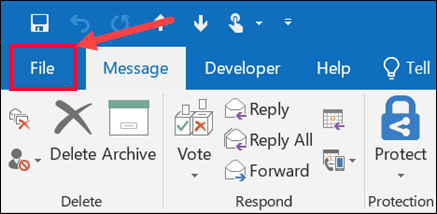
1. Open MS Outlook on your system and click on the File tab.
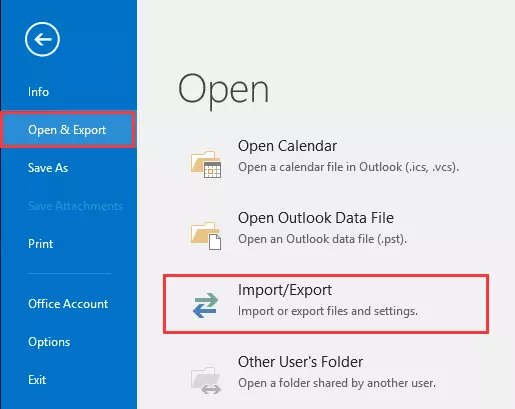
2. Click on Open & Export and select Import/Export option.
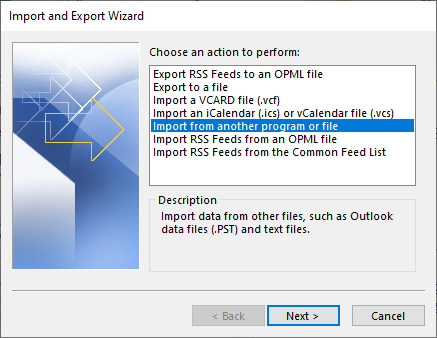
3. Choose Import from another program or file and click Next.
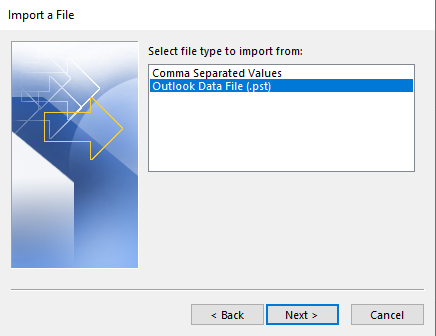
4. After that, select Outlook Data File (.pst) and press Next.
5. Click on Browse and choose .pst file that you want to import.
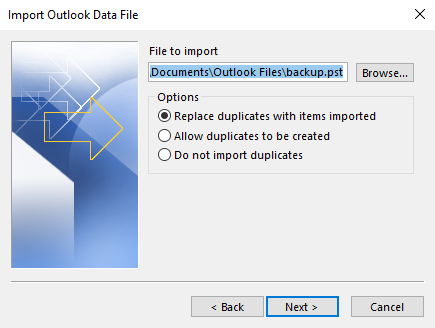
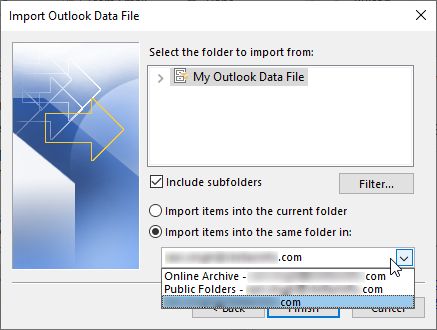
6. Select a folder to import and click the Finish button.
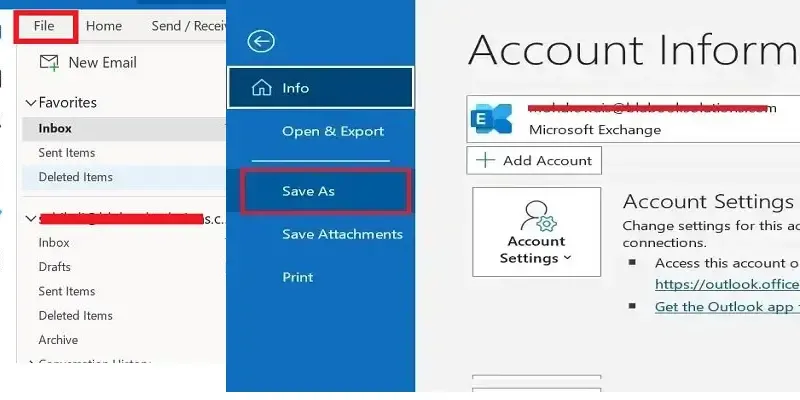
7. Now, click on File and choose the Save As option.
8. Enter the file name and choose a path to save it.
9. After that, select Outlook Message Format – Unicode as Save as type and click the Save button.
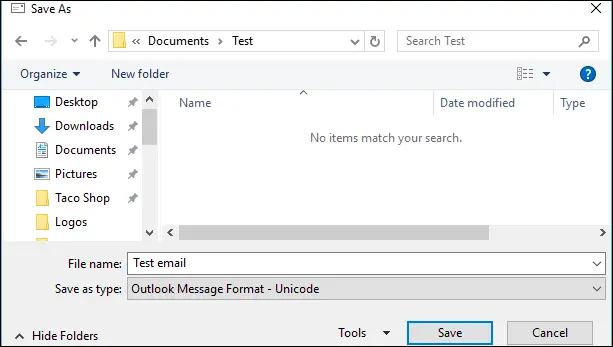
Now, you will get an exported MSG file in the selected location.
Method 2. Drag and Drop Method
1. Firstly, create a new folder on your system.
2. Now, launch the Outlook application on your system.
3. Go to File tab, click Open & Export, and choose Import/Export.
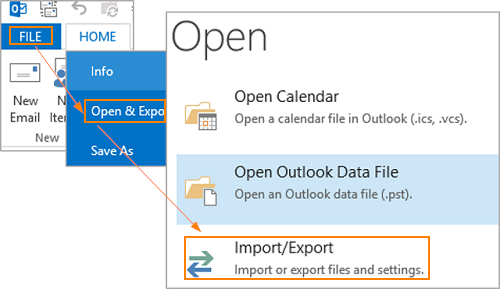
4. Next, select Import from another program or file and import .pst file.
5. After importing, your PST data is showing in Outlook.
6. Press CTRL + A to select all PST emails.
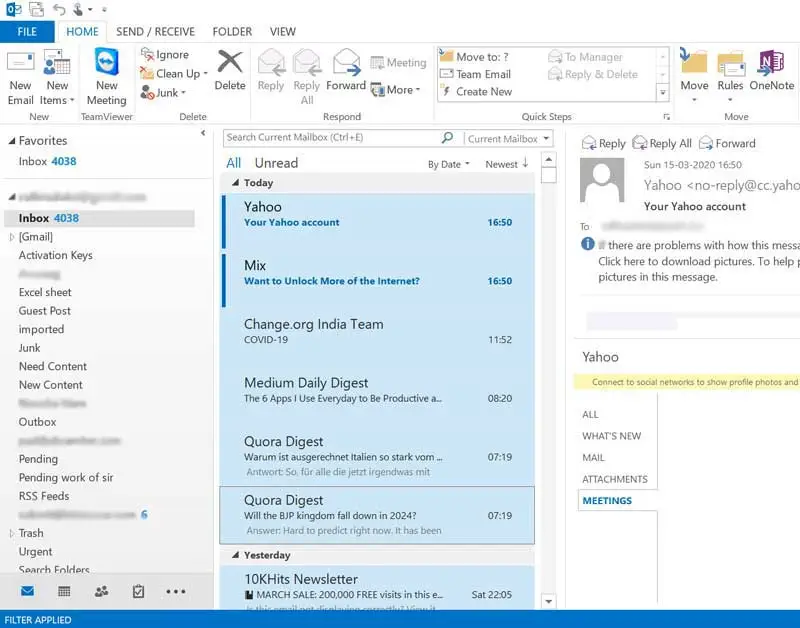
7. Drag and drop them into the newly created folder.
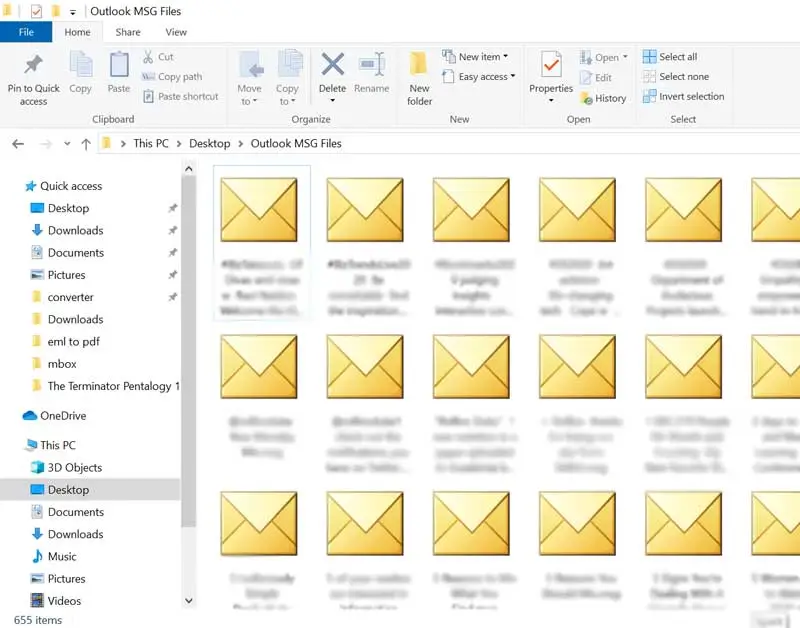
8. Open the output folder and get the exported files.
This is how you can manually extract MSG files from PST, but if MS Outlook is not installed on your system or you want bulk file conversion, then you can use an automated tool.
How to Convert PST File to MSG Without Outlook?
With the help of Advik PST Converter, you can export PST to MSG files. The software supports both types: ANSI and Unicode PST files. You can add the PST files in the application window in two ways: Select Files or Select Folders to convert single or multiple files in one go. Additionally, it offers advanced filter options for selective email conversion. It preserves email headers, signatures, hyperlinks, attachments, and other information as well during the process.
This program is easy to install and use on Windows computers. You can download the trial version to check its working functionality. The demo version allows you to export the first 25 items from each folder at no cost.


Steps to Extract PST to MSG Format
1. Run the PST to MSG Converter on your system.
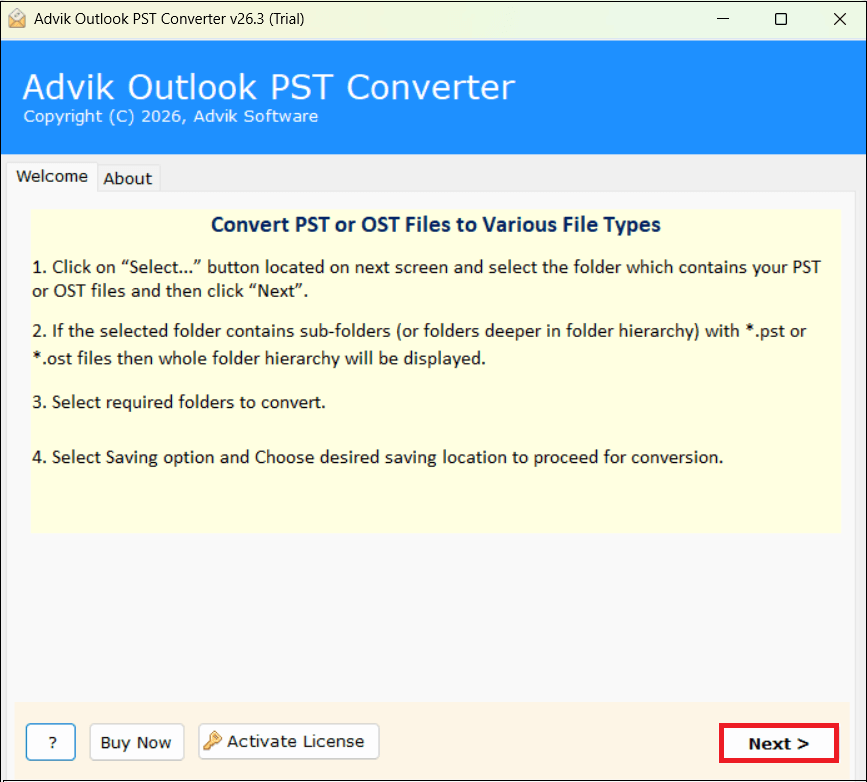
2. Click on Select Files or Select Folders to add .pst file.
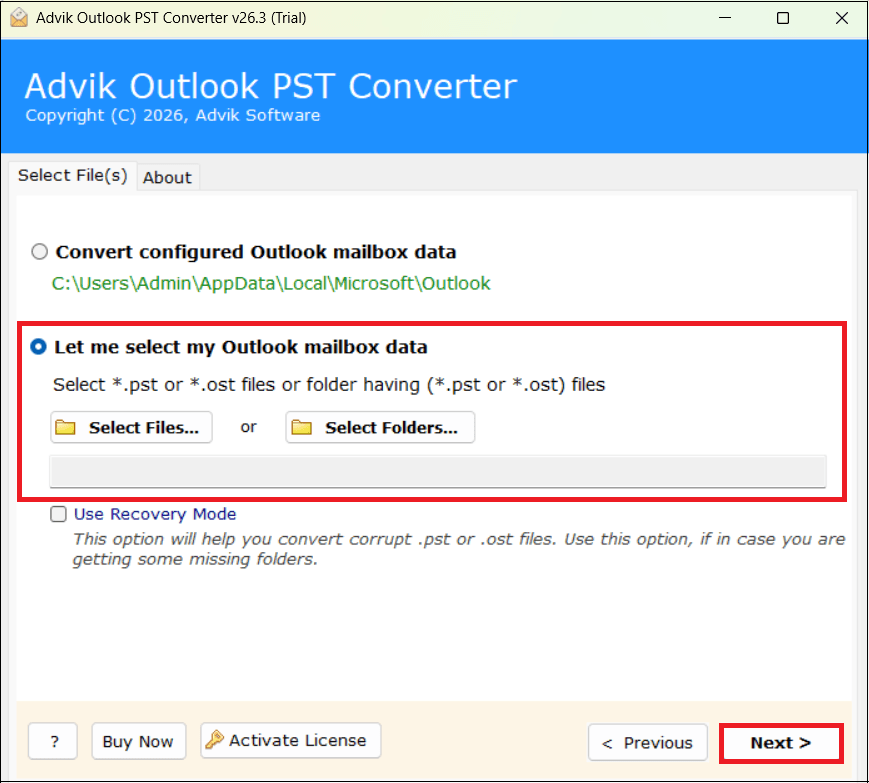
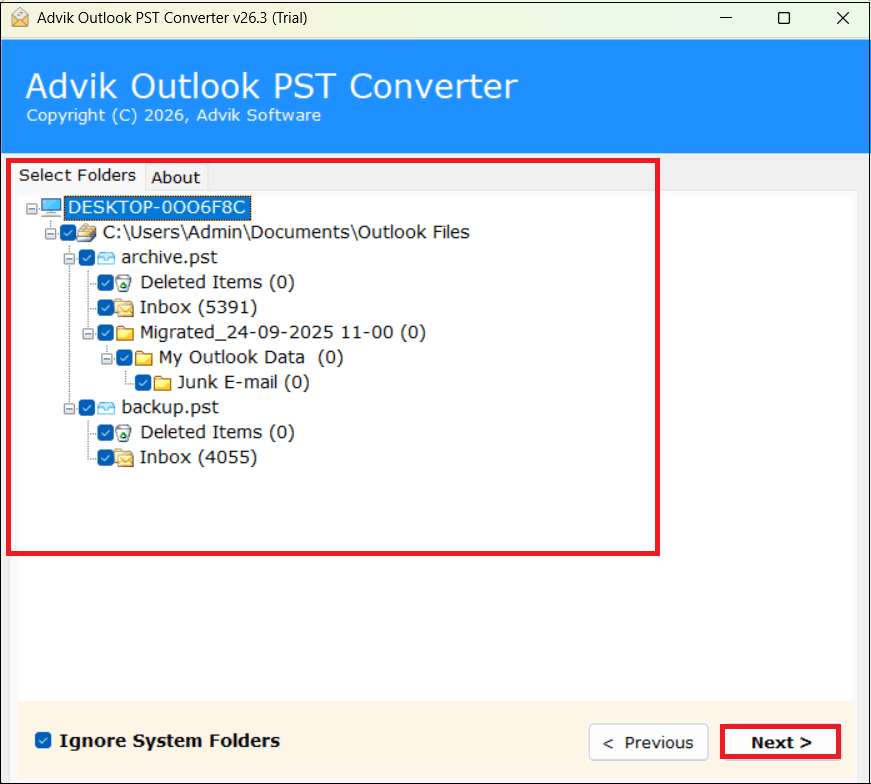
3. Choose the required folders and subfolders to export.
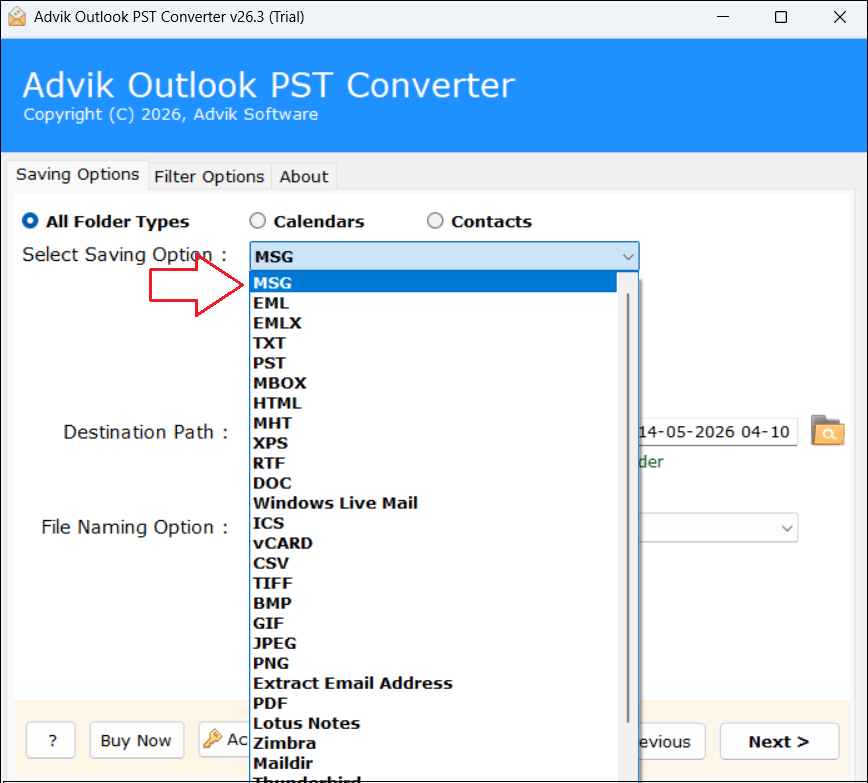
4. Next, select MSG as a saving option.
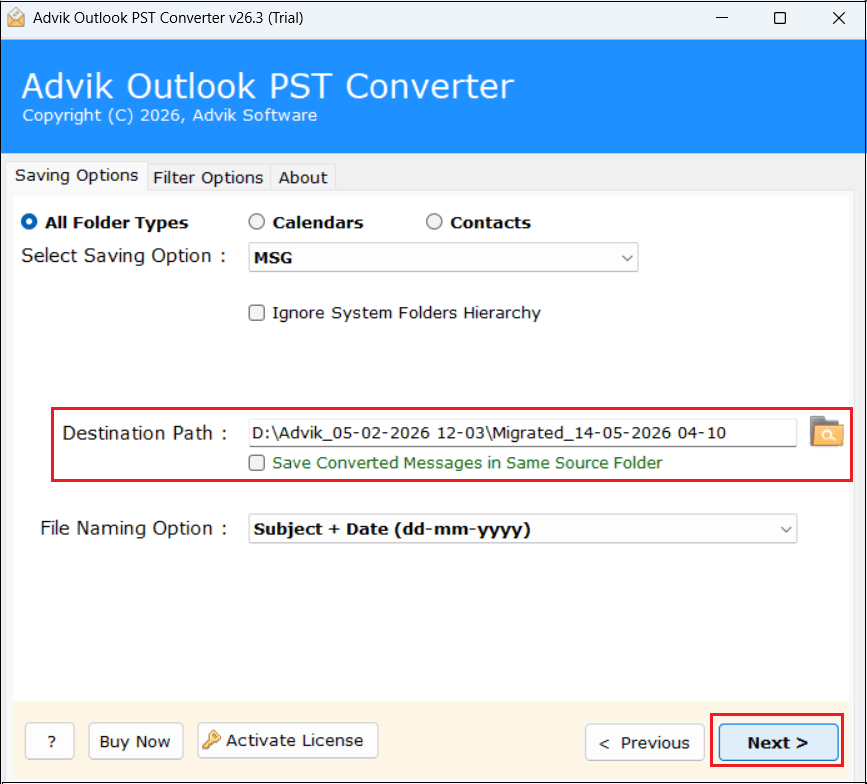
5. Browse the destination path and click Next button.
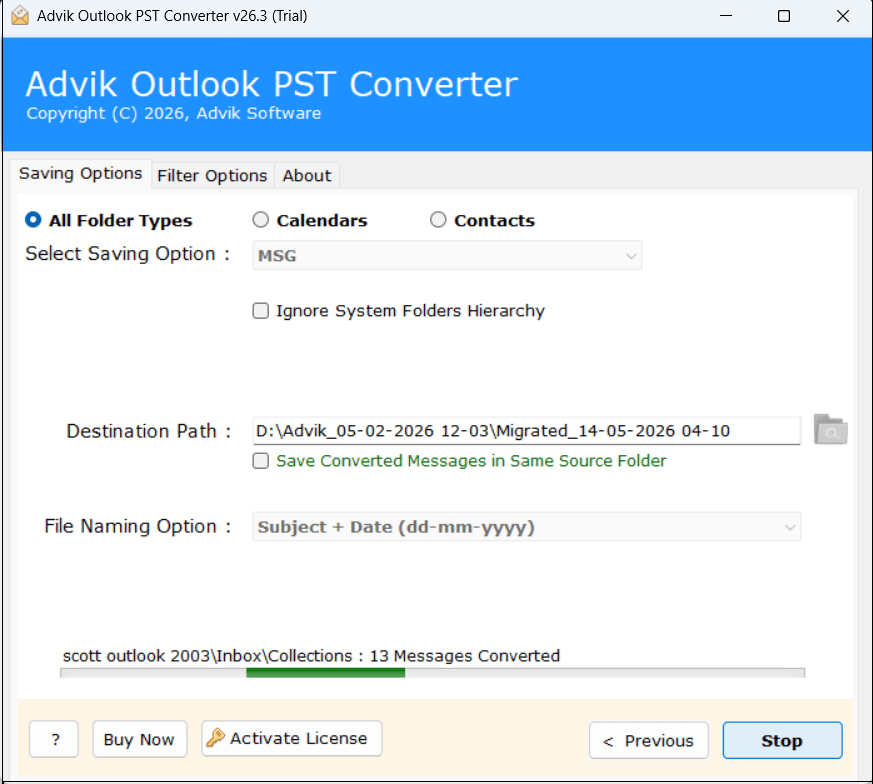
6. Now, the software will start converting PST data into MSG files.
Watch Video Tutorial
Key Features of PST to MSG Converter
Here are some major functionalities and technical advantages of using this utility:
- Standalone Utility: With this top-notch tool, you can easily convert PST files without needing MS Outlook. Just add .pst into the software panel, choose MSG as the saving option, and press convert to begin the conversion process.
- Batch Conversion: The software lets you export PST to MSG files in bulk. You can save your time and reduce repetitive work by including multiple PST folders or files at once. There’s no need to export PST files one by one. You can add a folder that contains multiple files.
- Advanced Email Filter: The software provides several email filter options. Sometimes, users need to export only some specific data from PST file to MSG, then this feature will be beneficial for them. It allows users to convert a select set of emails by specifying a date range, subject, To, From, etc. Simply define a specific email filter to move the PST file to enable the conversion of only the desired emails.
- Folder Selection Option: In case you don’t want to export all PST folders to MSG files, this software helps you do the same. Using this tool, you can select your desired mailbox folder, such as Inbox, Sent, drafts, etc. and convert them to MSG format.
- Preserves Data Integrity: This utility retains all PST email key elements while converting. The software ensures that all email properties, including header information, hyperlinks, images, and formatting, are maintained exactly as they were.
- Convert Corrupted PST File: If you are dealing with corrupted, damaged, or inaccessible PST files. You don’t have to search for a separate tool for that. Take the help of this program and repair PST file by enabling the Recovery Mode option, and get healthy MSG files after conversion.
- Multiple File Naming Options: The PST to MSG Conversion tool offers multiple ways to organize resultant files. Users can rename & save the resultant MSG files based on different combinations like Subject + Date (DD/MM/YYYY) or From + Subject + Date (YYYY/MM/DD).
- Simple GUI: The software comes with a user-friendly interface. Even technical or non-technical users can easily use it. In case you face any issues with the tool, you can contact our support team. They are available 24*7 to solve users’ problems.
Conclusion
In this guide, we have explained how to convert PST to MSG files using both manual and professional methods. Manual techniques like drag-and-drop and Save As are useful only when dealing with a few emails. However, they become inefficient and time-consuming for large PST files.
If your requirement involves bulk conversion, maintaining data integrity, and saving time, opting for a professional method is the best choice. Analyze your needs carefully and select the method that ensures accuracy, efficiency, and ease of use.
Frequently Asked Questions
Q1. Can I export PST file to MSG files for free?
Ans. Yes, using the Outlook Save As option or the Drag and Drop method, you can convert PST to MSG free.
Q2. Is it necessary to have MS Outlook installed for converting PST file into MSG format?
Ans. In the manual solution, Outlook installation is mandatory, while the software can complete the conversion process without Outlook.
Q3. I have a PST file created by MS Outlook 2002. Can I convert it into MSG format?
Ans. In the manual solution, it depends on which Outlook version you are using. Whereas the software supports all PST file exported from any Outlook version.
Q4. What happens to the attachments in PST emails when converting them to MSG format?
Ans. The attachments in PST emails remain unchanged and are preserved when converted to MSG format.
Q5. What should I do if my PST file is corrupted?
Ans. First, you can try the Inbox Repair Tool to fix the PST file corruption. If that doesn’t work, then use the software. It enables you to repair your damaged file. After that, you can export it into healthy MSG files.