How to Convert PST to VCF File? Easy Methods
Ever thought of extracting all contact details from PST file? Well, this query is highly common among IT administrators, corporate users, and individuals who want to convert PST to VCF file to migrate contacts to mobile devices or other email platforms. The formatting of PST files is designed to store complete mailbox data, including contacts, emails, calendars, and more, within a single file.
A PST file stores multiple data items, including contacts, in one place. Whereas, VCF (Virtual Contact File), also known as vCard, is a standard file format used to store contact information such as name, phone number, email address, and address. It is widely supported by smartphones, email clients, and cloud services like Gmail, iPhone, and Android devices.
Benefits of Converting PST to VCF File Format
Compatibility: VCF files are supported by a wide range of devices and applications. Users prefer converting PST to VCF when they want to access Outlook contacts on mobile phones or other platforms.
Flexibility: A PST file cannot be opened without Outlook, whereas VCF files can be easily accessed and imported into multiple applications without any dependency.
Contact Management: VCF files store contacts individually, making it easier to manage, edit, share, and organize specific contacts.
Easy Sharing: VCF files are lightweight and ideal for sharing contacts via email or messaging platforms, unlike PST files, which are bulky.
Hence, if you want to switch this file format, here are a few effective methods to complete your conversion process.
How to Export PST to VCF Using Outlook? (Manual Method)
If you already have access to your PST file in Microsoft Outlook, you can manually export contacts into VCF (vCard) format. This is a built-in option provided by Outlook, but it works only for individual contacts.
Follow the step-by-step instructions below:
Step 1. Launch Microsoft Outlook on your system. Make sure your PST file is already added to Outlook.
Step 2. If not, go to File > Open & Export > Open Outlook Data File and load your PST file.
Step 3. Once Outlook is open, switch to the People (Contacts) section from the bottom navigation panel.
Step 4. Here, you will see all the contacts stored in your PST file.
Step 5. Browse through your contact list and click on the specific contact that you want to export.
Step 6. You can only select one contact at a time using this method.
Step 7. After opening the selected contact, go to the top menu and click on: File >> Save As.
Step 8. This option allows you to save the selected contact in different file formats.
Step 9. In the “Save As” window, select vCard Files (*.vcf) from the “Save as type” dropdown
Step 10. This format ensures that all contact details (name, phone, email, address, etc.) are saved properly.
Step 11. Choose the folder where you want to save the VCF file.
Step 12. Click the Save button to complete the process.
Step 13. Your contact will now be successfully exported as a VCF file.
To export more contacts, you need to repeat the same steps for each contact individually.
Important: Many users find this method inconvenient because Microsoft Outlook does not offer a direct option to export multiple contacts into VCF format at once. This makes the process slow and repetitive.
Important Aspects of the Save As Option
- Outlook supports only a single contact export in VCF format
- There is no built-in bulk PST to VCF conversion feature
- You must have Microsoft Outlook installed and configured
- The process becomes time-consuming for large contact lists
- Not suitable for business users or enterprise-level data
How to Convert PST Contacts into VCF Files in Bulk?
As discussed above, the manual method using Microsoft Outlook is helpful when you only have a few contacts to export. However, if you are dealing with hundreds or thousands of contacts, repeating the same steps again and again can be frustrating, time-consuming, and error-prone. This is where a professional Advik PST Converter becomes a practical choice.
It is specially designed to complete the entire conversion process in a minimum of steps. Instead of exporting contacts one by one, you can convert complete PST contact data into VCF format in just a few clicks. The tool provides dual options to add PST files, such as Select Files or Select Folders. It is easy to use and supports both technical and non-technical users.
With the free version of PST to VCF converter software, users can export a limited number of contacts without any cost. In the meantime, you can upgrade to the full version to convert unlimited contacts in bulk while preserving all contact details.


Steps to Convert PST to vCard File
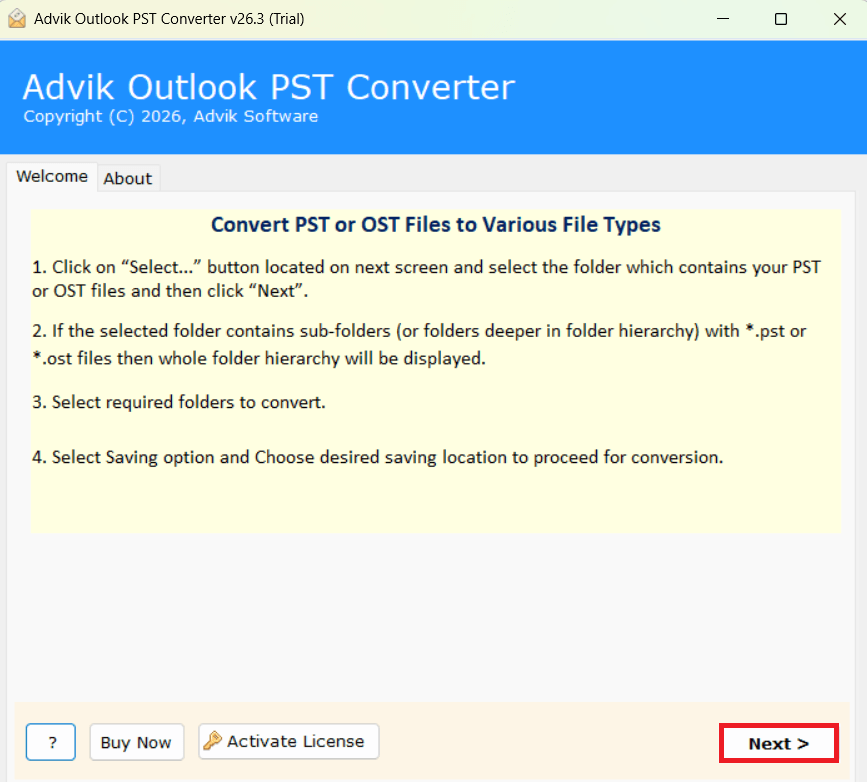
Step 1. Run the software and carefully read the instructions displayed on the screen.
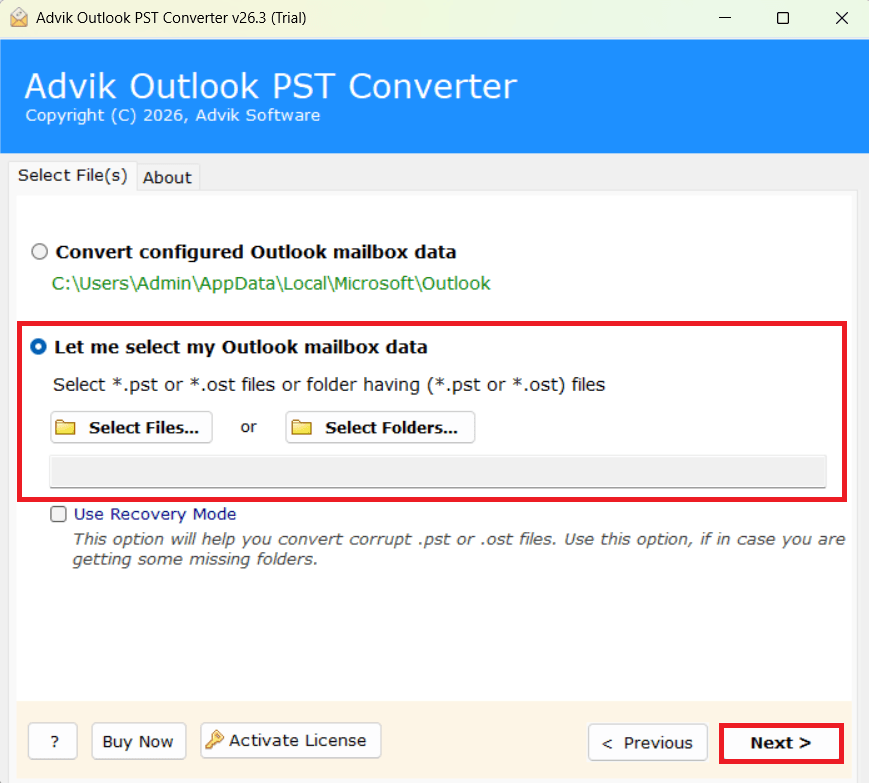
Step 2. Click on the Select Files or Select Folders option to load your PST file(s) into the software panel.
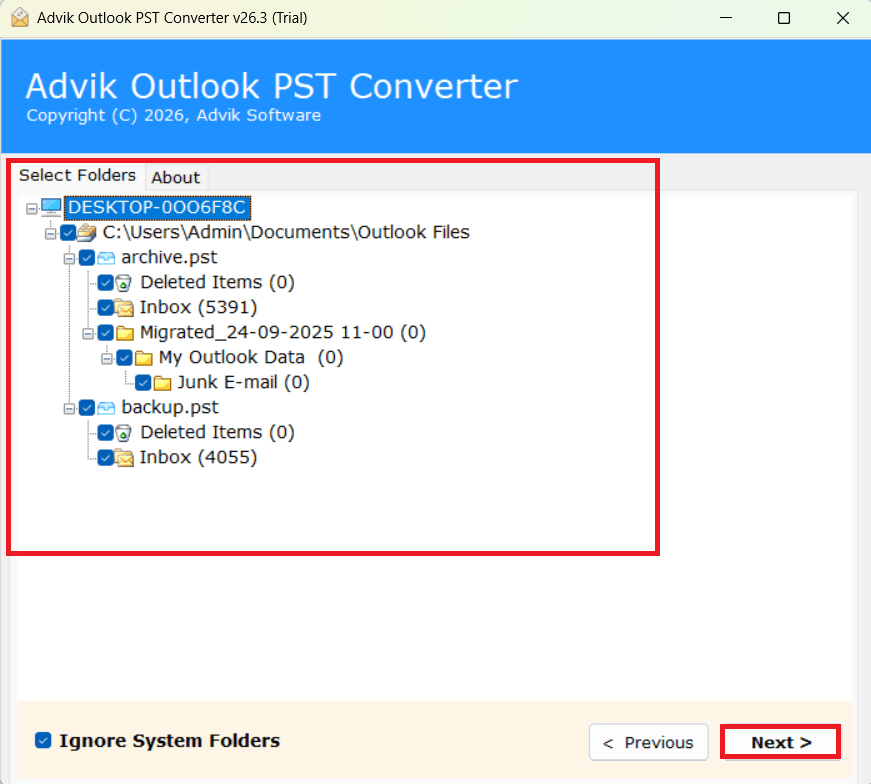
Step 3. Now, choose the required contact folders that you want to convert and click on the Next button.
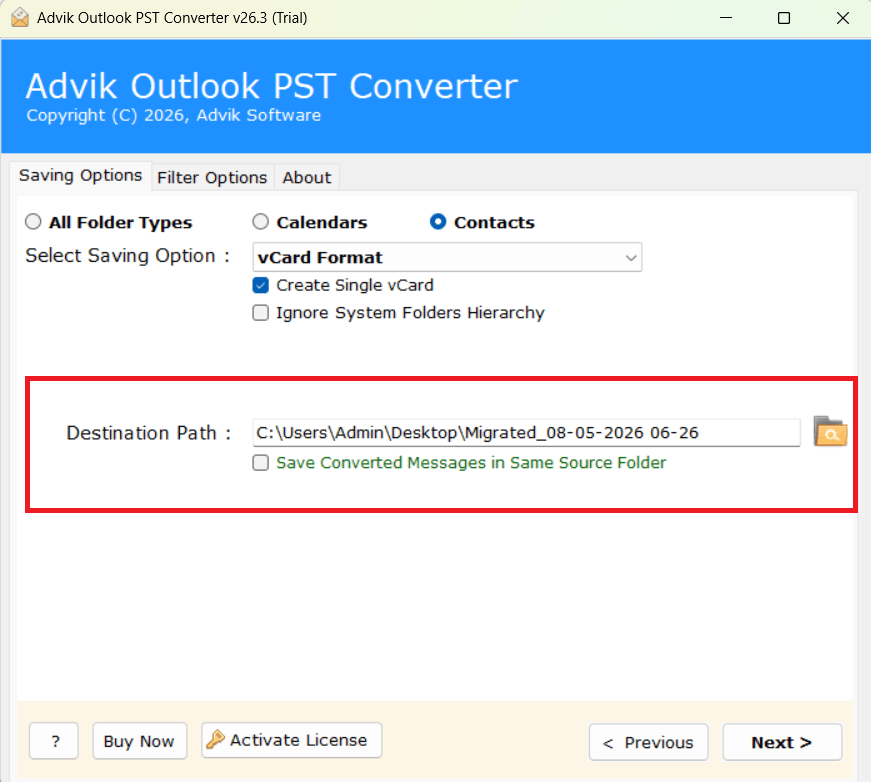
Step 4. After that, select vCard as the saving option from the drop-down list.
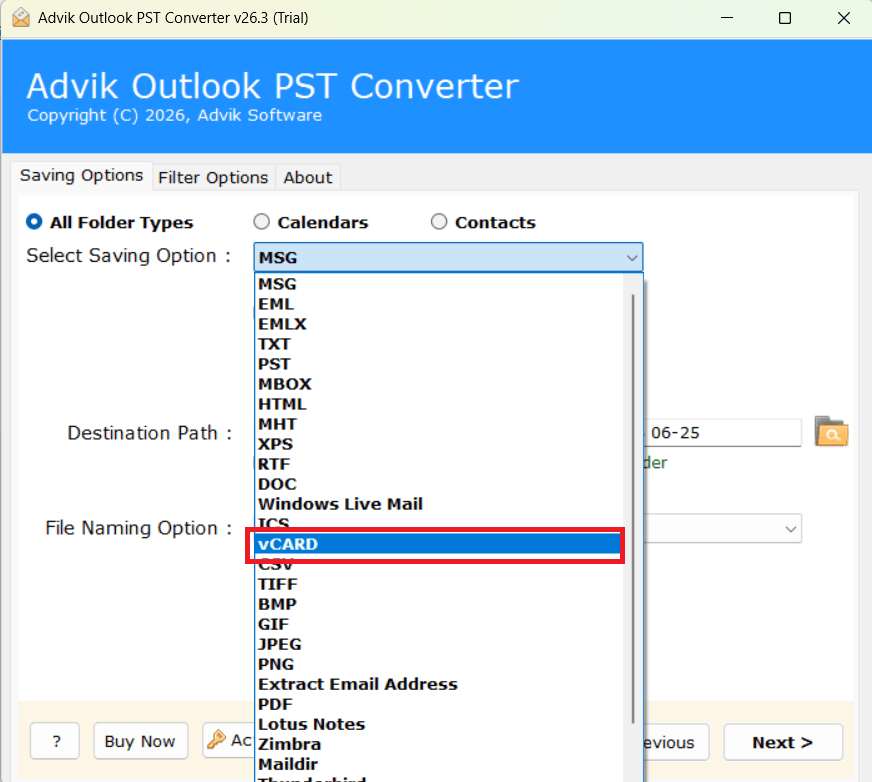
Step 5. Provide the destination path to save the converted VCF files at your desired location.
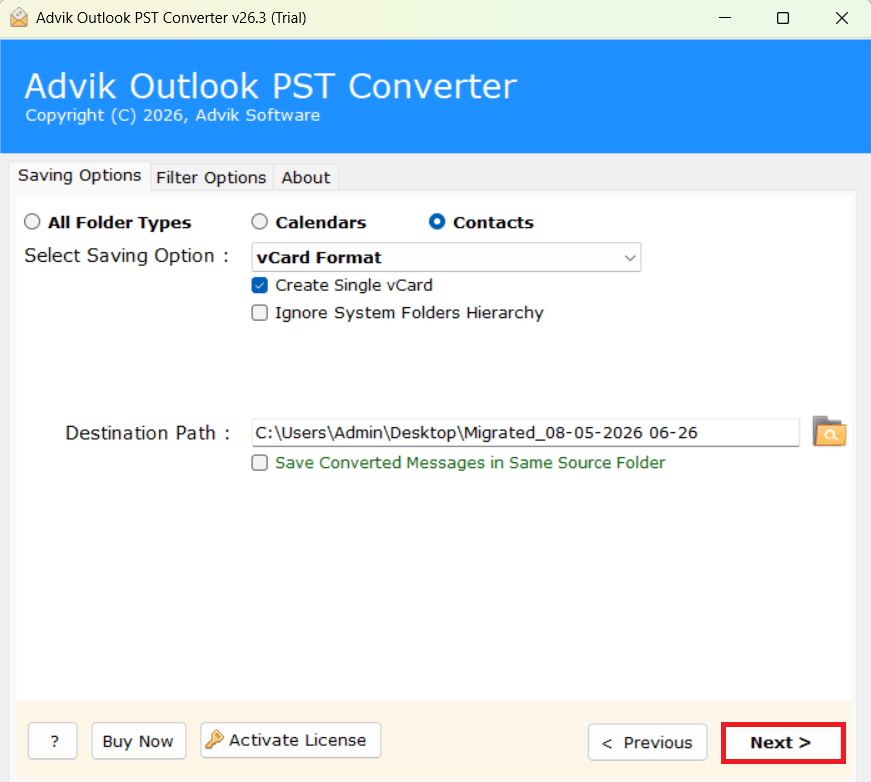
Step 6. Lastly, click on the Next button to start the PST to VCF conversion process.
The conversion process will begin, and within a few moments, you will receive a confirmation through a log report.
Once the process is completed, a pop-up message will appear on your screen. Click OK to continue, and you will be redirected to the selected destination folder.
Here, you can check all your converted PST contacts saved in VCF format, which can be easily accessed and imported into multiple devices and applications.
Why Choose Automated Software over Manual Methods?
- Bulk Conversion Support: Export multiple PST contacts to VCF in a single process.
- Maintains Contact Details: Preserves all fields, including name, phone number, email, address, and more.
- Selective Export Option: Convert only required contacts using advanced filters.
- Supports All PST Files: Works with PST files from all Outlook versions.
- User-Friendly Interface: Simple steps, no technical expertise required.
- Preview Feature: Allows you to view contacts before conversion.
- Standalone Utility: No need to depend on Outlook installation.
- Batch Folder Conversion: Convert entire contact folders without selecting contacts individually.
- Multiple vCard Versions Support: Export contacts into different VCF versions (2.1, 3.0, 4.0).
- Maintains Folder Hierarchy: Keeps original folder structure intact during conversion.
- Fast Processing Speed: Converts large PST files quickly without performance issues.
- No File Size Limitation: Supports conversion of large PST files without restrictions.
- Advanced Naming Options: Save VCF files using different naming patterns (name, date, etc.)
- Secure Conversion Process: Keeps your data safe without uploading it to external servers
- Log Report Generation: Provides a detailed conversion report after completion
Final Words
In this guide, we have explained the complete process to convert PST contacts to VCF format using both manual and professional methods. The manual approach via Outlook is suitable when you only need to export a few contacts. However, it becomes time-consuming and repetitive when dealing with large contact lists.
Therefore, before choosing the method, analyze your requirements carefully. If you are handling bulk data or want a quick and accurate solution, using a professional tool is a smarter choice. Choose the method that best fits your needs and complete your conversion.