How to Save All Emails from Thunderbird Safely?
Jackson Strong | January 9th, 2026 | Data Backup, Mozilla Thunderbird
This write-up will guide you on how to save all emails from Thunderbird. Here, you will find a few easy ways to export all Thunderbird emails to have peace of mind while managing your emails.
Mozilla Thunderbird is a widely used free email application. It allows users to manage their email effectively. At times, users may need to save all Thunderbird emails and attachments for backup purposes, migration to a new email client, and many more. Thus, exporting all emails from Thunderbird is an effective way to keep your data safe, free up storage space, and easily manage emails.
Why Need to Export All Thunderbird Emails?
Here are some reasons why users want to save all emails from Thunderbird:
- Create a secure email backup
- Prevent accidental data loss.
- Migrate emails to another email platform.
- Free up Thunderbird mailbox space
- Secure emails from accidental deletion or profile corruption.
Now the question arises: Does Thunderbird export all emails? Yes, Thunderbird allows users to download all Thunderbird emails to MBOX, EML, HTML, Plain Text, and PDF files with attachments. But you need to install an add-on plugin to do this. Also, you can use an alternate solution to save all Thunderbird mailboxes into multiple file formats.
This article will explain three different solutions to accomplish this task. Let’s get started.
Method 1. How to Save All Emails from Thunderbird?
Step 1. Open Thunderbird and select an email folder.
Step 2. Choose all emails in the folder by pressing (Ctrl + A).
Step 3. Right-click and choose the ‘Save As’ option.
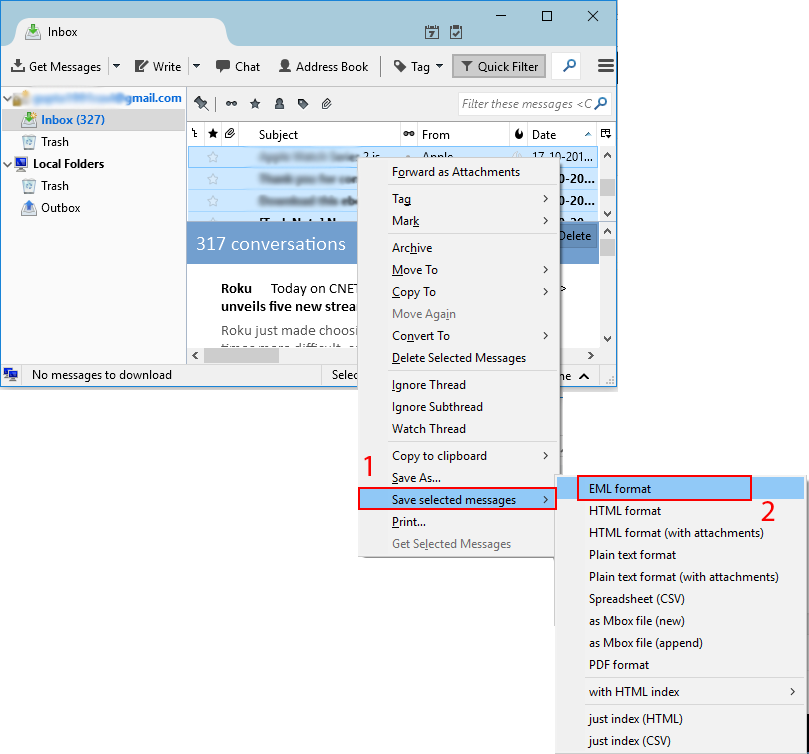
Step 4. Save your emails in EML format.
Step 5. Pick where you want to save these files and click the ‘Save’ button.
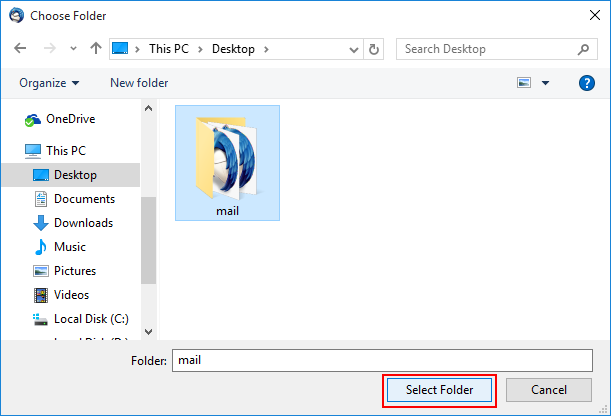
Go to the folder where you saved the files to find your exported EML files.
Method 2. How Thunderbird Export All Emails With Attachments?
Thunderbird doesn’t support exporting all emails until you install an add-on plugin. First, you need to add a plugin and then proceed with the steps to export Thunderbird emails.
Step 1. Open Thunderbird and go to Tools > Add-ons and Themes.
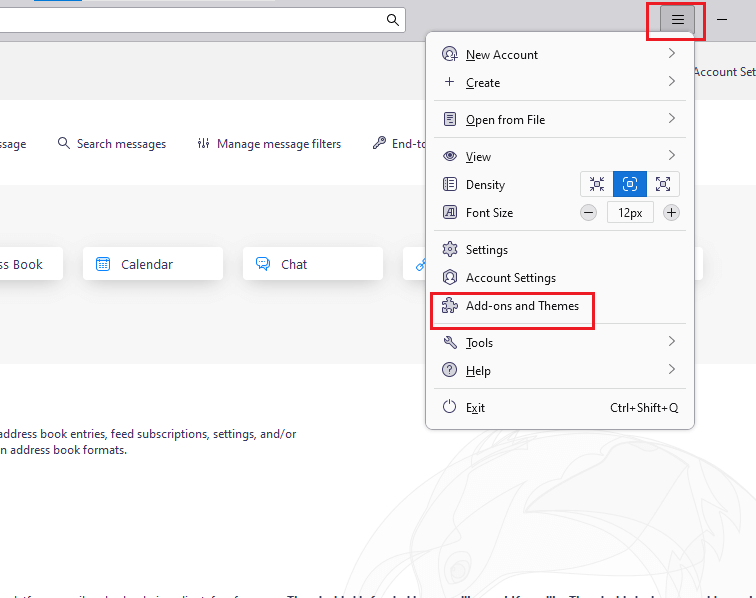
Step 2. In the Add-ons tab, search for ImportExportTools NG.
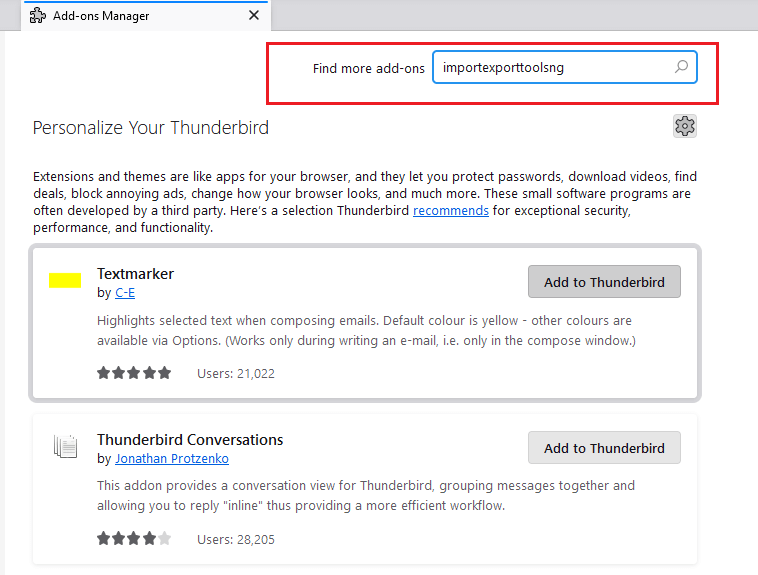
Step 3. Click Add to Thunderbird to install the add-on.
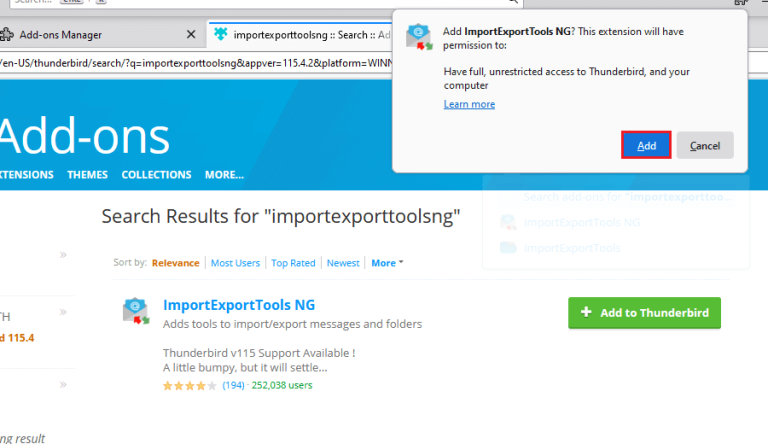
Step 4. Restart Thunderbird to complete the installation.
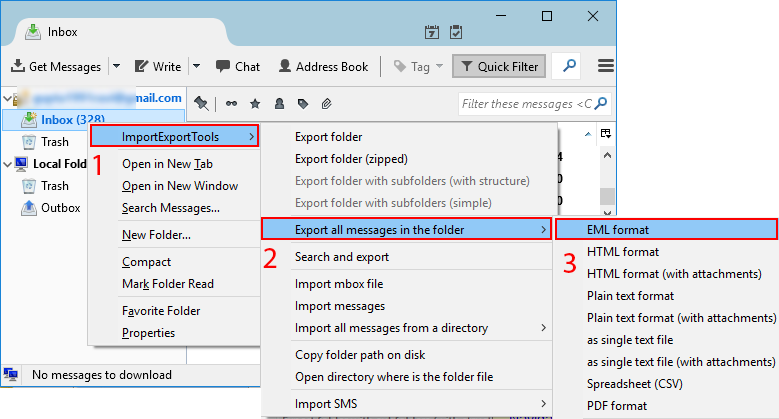
Step 5. Now, choose the email to export and right-click on it.
Step 6. Click ImportExportToolsNG >> Export all messages in the folder >> file format.
Step 7. Browse the location to save the file and click the Select Folder button.
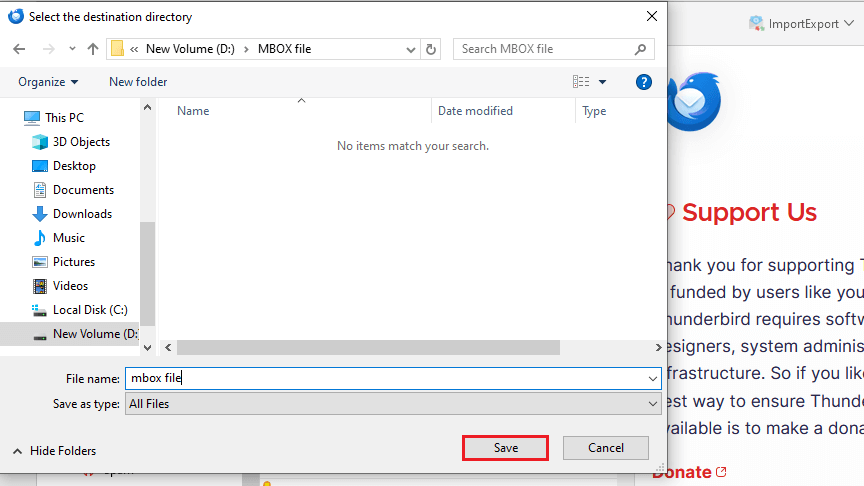
This will start exporting selected Thunderbird emails in the chosen file format.
Note: Choose the file format that includes the “with attachments” option.
Method 3. How to Download All Emails from Thunderbird?
For an alternate solution, you can also try out the Advik Thunderbird Converter. This tool allows you to save all emails from Thunderbird securely. It can easily fetch mailboxes from Thunderbird profiles automatically. Also, it maintains a complete folder hierarchy of Thunderbird emails while exporting. Moreover, you will get 30+ saving options to back up all emails from Thunderbird.
Give a FREE try to this software with a demo version.

Steps to Save All Thunderbird Emails
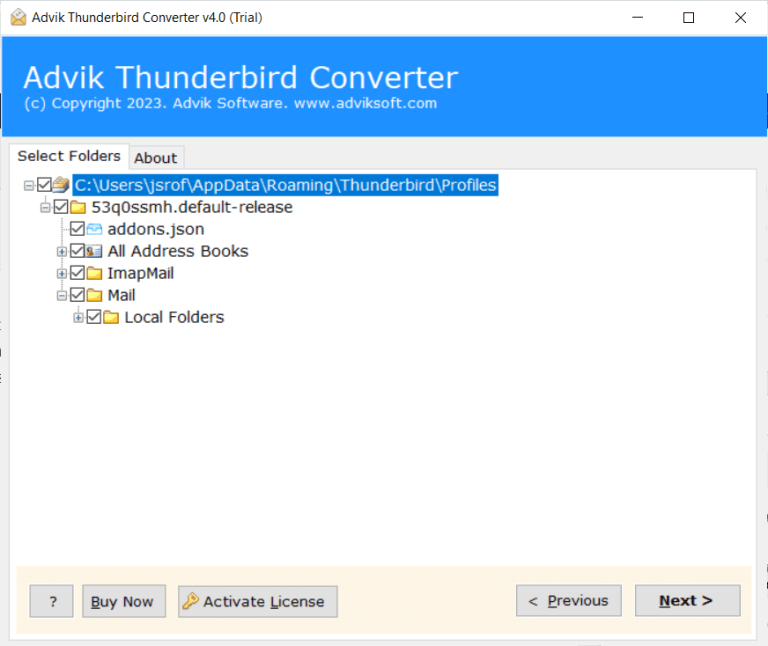
Step 1. Run the software and choose Thunderbird profile.
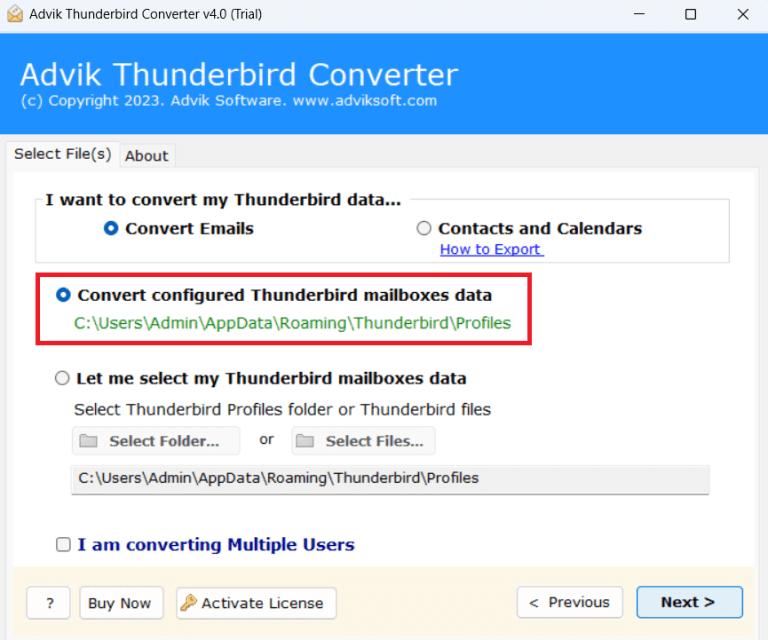
Step 2. Select required mailbox folders/emails.
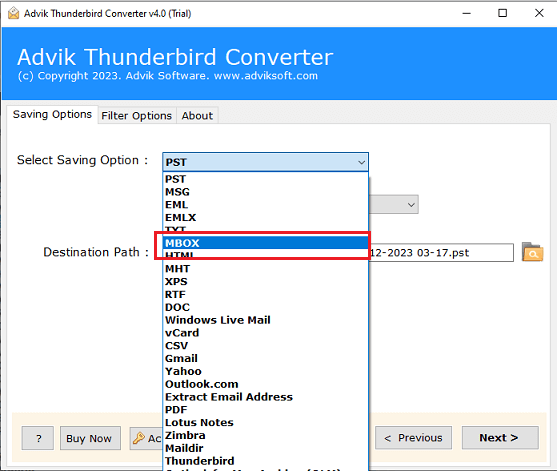
Step 3. Choose any file format from the list.
Step 4. Browse the destination path and click Next.
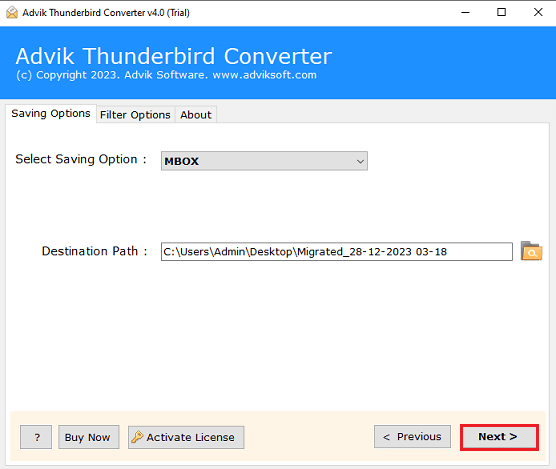
The software will start exporting all Thunderbird emails in the chosen file format.
Once completed, you will automatically be redirected to the targeted location.
Watch How to Export All Emails from Thunderbird
How is an Automated Tool Better than a Manual Approach?
- This tool can save all Thunderbird emails from every profile and folder in one go.
- It offers more than 30+ saving options to export multiple Thunderbird emails.
- Advanced filters to save all Thunderbird emails by date, subject, sender, or receiver.
- Offers multiple file naming options to save emails and documents in various ways.
- Also, it extracts all attachments from Thunderbird in a single attempt.
- Preserve key elements of all Thunderbird emails while exporting.
- Easily download all Thunderbird emails with attachments in just 4 simple steps.
- Supports FREE trial version to check its efficiency and effectiveness first.
Conclusion
Exporting all emails from Thunderbird with attachments is needed to store emails locally. In this article, we have discussed three different methods to save all emails from Thunderbird. All methods are 100% workable. Read all the solutions and choose the one that best suits your needs and requirements.