How to Export Outlook Contacts to MSG Files?
Jenny Lowrence | March 11th, 2026 | Data Backup
If you want to save your Outlook contacts as MSG but don’t know how to do this. Right? Well, no problem! in this article, we’ll show you how to export Outlook contacts to MSG files. Whether you are technical-savvy or not, this post will step-by-step guide you to accomplish this task.
Microsoft Outlook is a popular email client. it allows users to manage emails, contacts, calendars, notes, tasks, etc. in one place. Many users store their important business contacts in Outlook. However, there are times when users need to export Outlook contacts to MSG for backup and sharing purposes. MSG file save individual Outlook contact that is helpful to share specific contacts only. It stores Outlook contact including complete details such as email addresses, phone numbers, and other properties.
How to Export Outlook Contacts to MSG for Free?
You can manually save Outlook contacts as MSG one by one. Follow the below given steps:
- Open Outlook on your system.
- Click on People or Contacts icon at the bottom of the navigation pane.
- Choose the contact that you want to save as .msg.
- Double-click on the contact to open it.
- Now, go to File >> Save As.
- Select Outlook Message Format (.msg) from Save as type.
- Choose the location to save the file and press Save button.
Done! Repeat the process to save other contacts. This is a simple process but it is not suitable if you need to export a large number of contacts.
How to Save Outlook Contacts as MSG Files in Bulk?
Download and install the Advik Outlook OST Converter on your system. The software can export Outlook contacts to MSG in just a few simple clicks. To do it- choose your Outlook profile, select contact folders, choose MSG as a saving option, and click Next to begin the process. Also, it allows you to choose specific contacts for exporting.
Click on the below link to download it for FREE.


Steps to Export Outlook Contacts to MSG
1. Run the tool on your system.
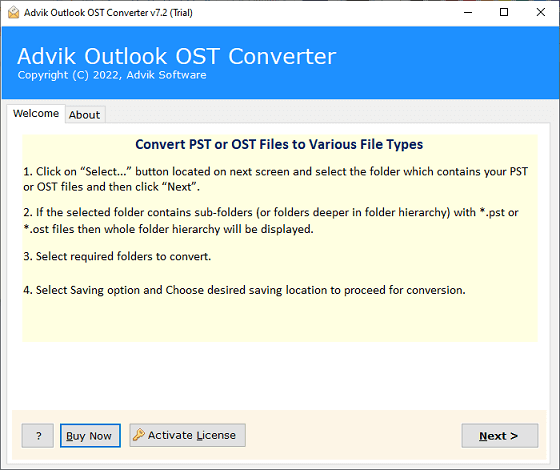
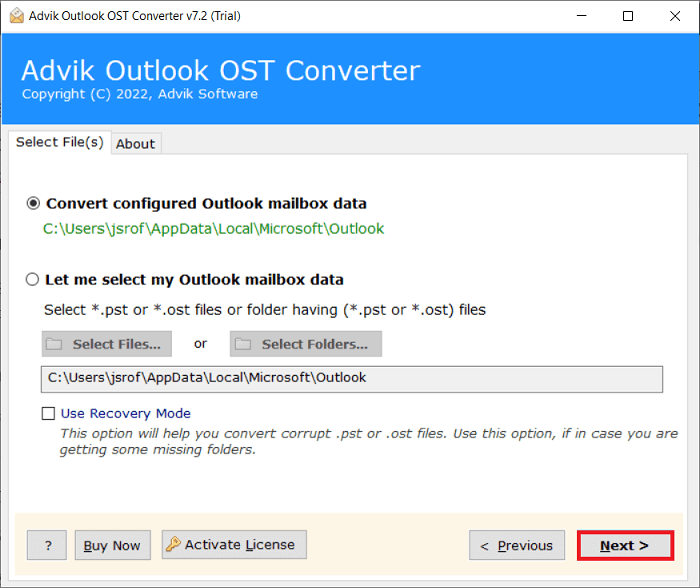
2. Choose your Outlook profile and click Next.
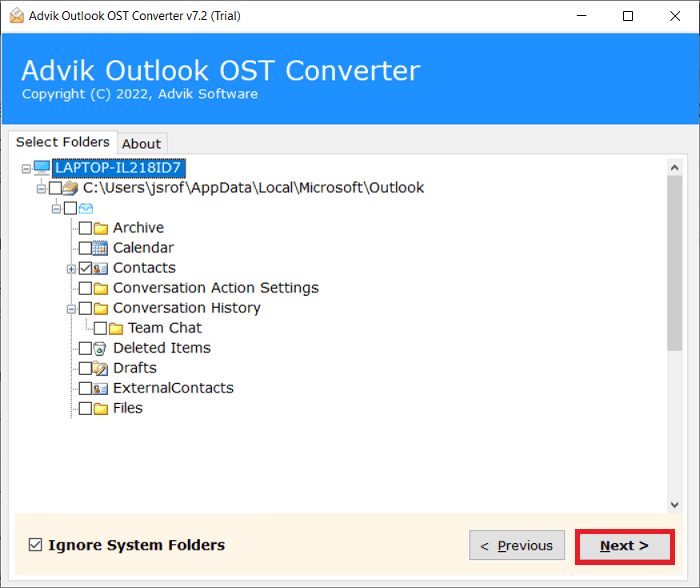
3. Select the Contact folders and press Next.
4. Next, choose MSG as a saving option.
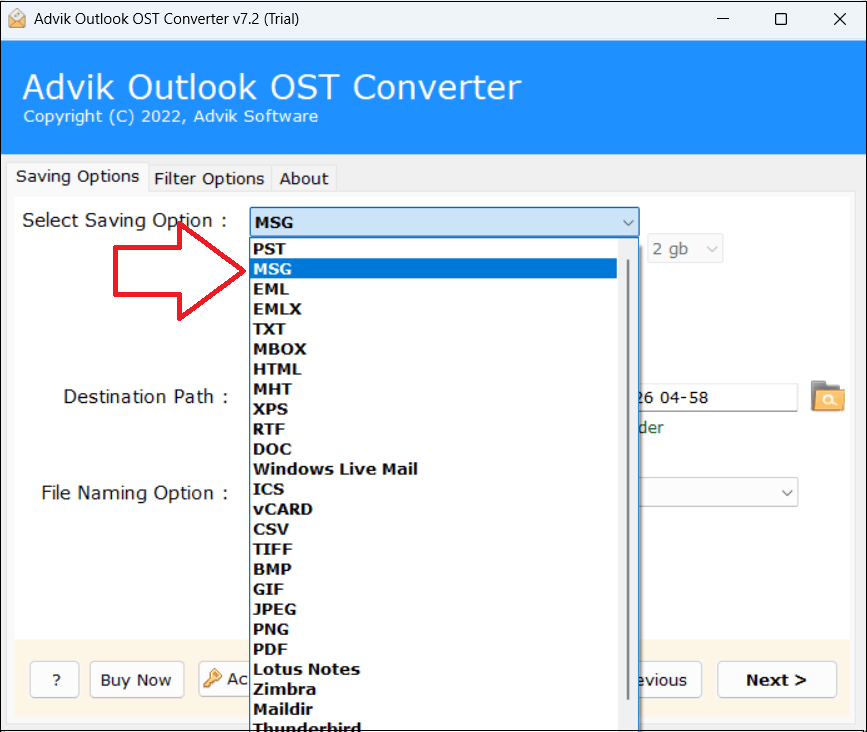
5. Browse the target location and click Convert button.
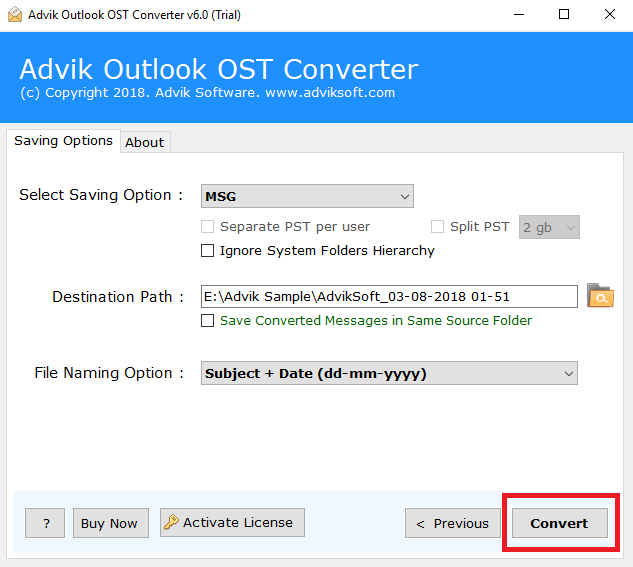
The software will start exporting Outlook contacts to MSG files. Once the process is complete, it will automatically redirect to the destination folder.
Advantages of Using Automated Tool
- Export multiple Outlook contacts to MSG files at once.
- Allows for the selection of specific contacts for exporting.
- Preserves all contact details during the process.
- Also, export Outlook contacts to vCard, CSV, and many more.
- Simple graphical user interface for all types of users.
- Supports all versions of Windows operating systems.
- A free demo version to check its working procedure.
- 24/7 customer support to solve user queries.
Final Words
In this post, we have discussed how to export Outlook contacts to MSG files. Here, we have explained two different methods to save Outlook contacts as .msg format. The manual method is simple, but it is suitable if you need to export a small number of emails. While the automated tool is the best option to convert Outlook contacts to MSG in bulk. You can download its free demo version before purchasing its licensed version.