How to Extract Contacts from PST File?
Jim Backus | May 15th, 2026 | Data Conversion
PST is the file format used by Outlook to store mailbox data such as emails, contacts, calendars, notes, journals, etc. When working with Outlook data, users often need to extract contacts from PST file for data analysis, backup, or migration. However, to access contacts separately or convert them to a more accessible format, it is essential to employ the appropriate method.
This guide walks you through efficient ways to export contacts from Outlook PST file, including manual and pro technique. Each method is explained clearly so they can decide what works best based on their requirements.
Why do Users Need to Extract Outlook PST Contacts?
There are several reasons for exporting contacts from PST file. Some of them are;
- If users need to migrate contacts from one email account to another
- Sometimes, users want to create a backup copy of their contacts to keep them safe.
- To organize and access contacts without Outlook
- Free up space from the PST file by extracting contacts.
How to Export Contacts from PST With Outlook?
You can manually extract Outlook PST contacts using MS Outlook. Follow the below given steps:
Phase 1. Import PST File into Outlook
- Open the Microsoft Outlook desktop client on your system.
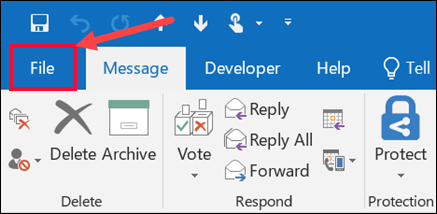
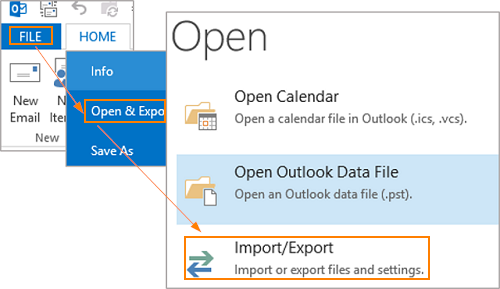
- Click on the File tab.
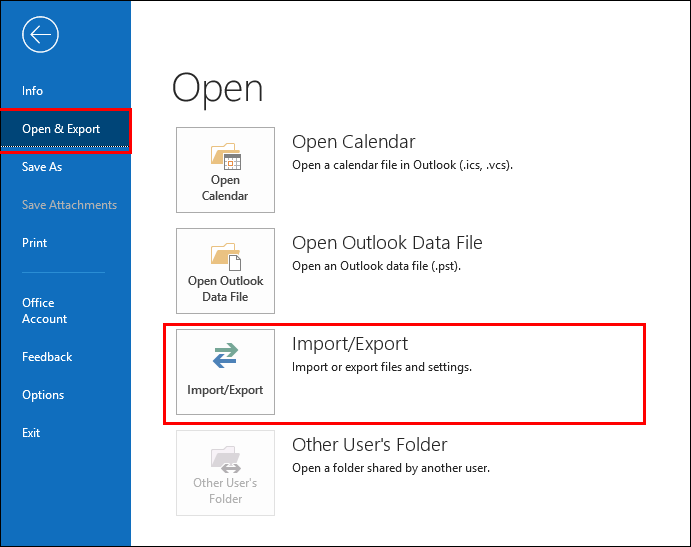
- Now, click on Open & Export and select Import/Export.
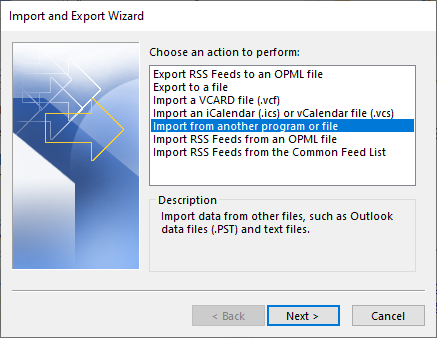
- Select Import from another program or file and press Next.
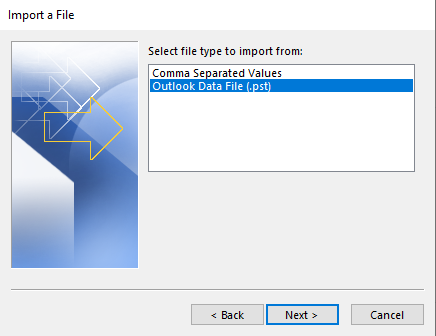
- Choose Outlook Data File (.pst) and click Next.
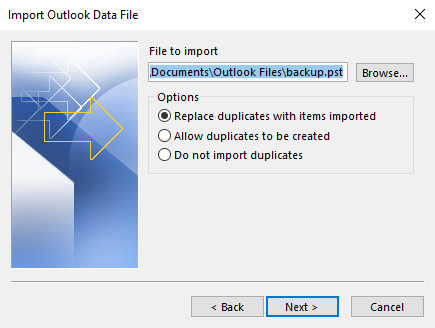
- Click on Browse and choose .pst file from which you want to extract contacts
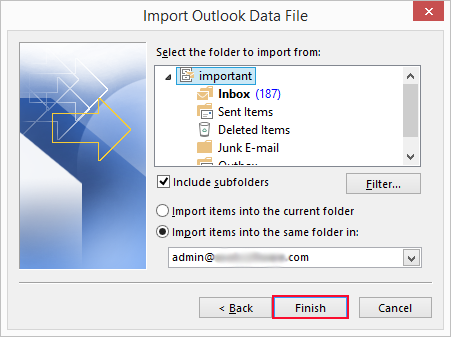
- Choose the folder to import the file and click Finish.
After the completion of the import process, proceed to the next phase.
Phase 2. Extract PST Contacts
- Go to the File tab, click Open & Export, then select Import/Export.
- Select Export to file and then hit Next button.
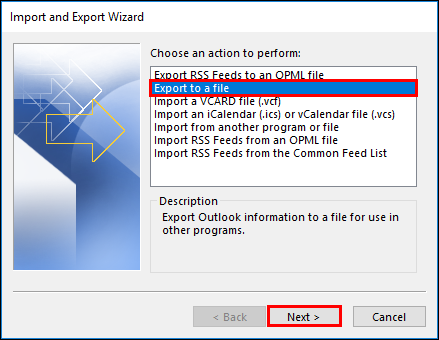
- Make sure Comma Separated Value is selected then click on Next button.
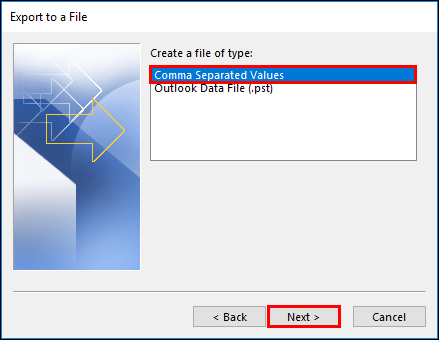
- Select the Contacts folder from the imported PST file and again hit the Next button.
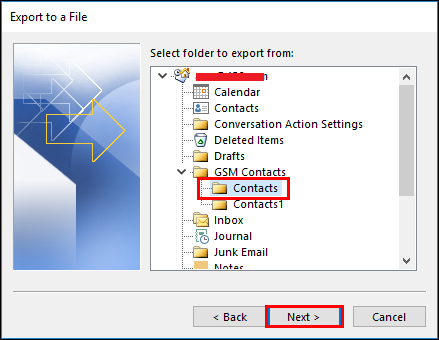
- Click on Browse to select the saving path along with the file name, and then press the Finish button.
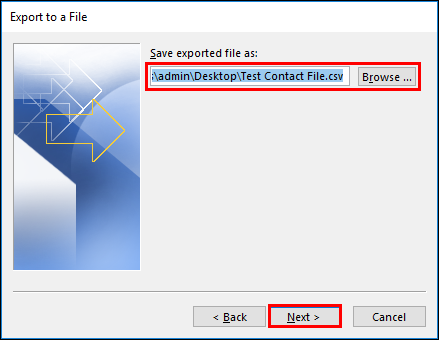
Done, this is how you can export PST Contacts to CSV format.
How to Extract Contacts from PST File Without Outlook?
Advik PST Converter is the most reliable solution The software works with configured Outlook and orphan Outlook data files. This program is also capable of exporting Outlook PST contacts without size limitations. With this tool, you can extract all contacts in a single attempt. Also, it allows you to extraction of selective contacts. The software comes with several useful features that make the task easier.


Important Note: Users are advised to create a backup copy of their PST file before beginning to make use of the software. Because sometimes users may make an error that leads to data loss, and this error may cause the error itself.
Steps to Extract Contacts from Outlook PST file
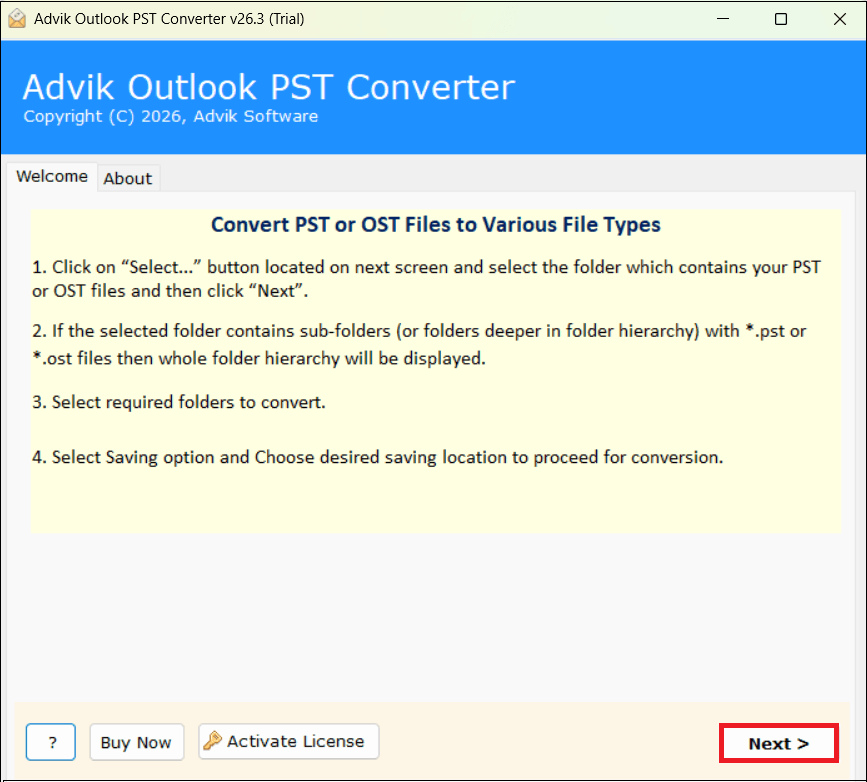
Step 1. Launch the software on your system and click Next button.
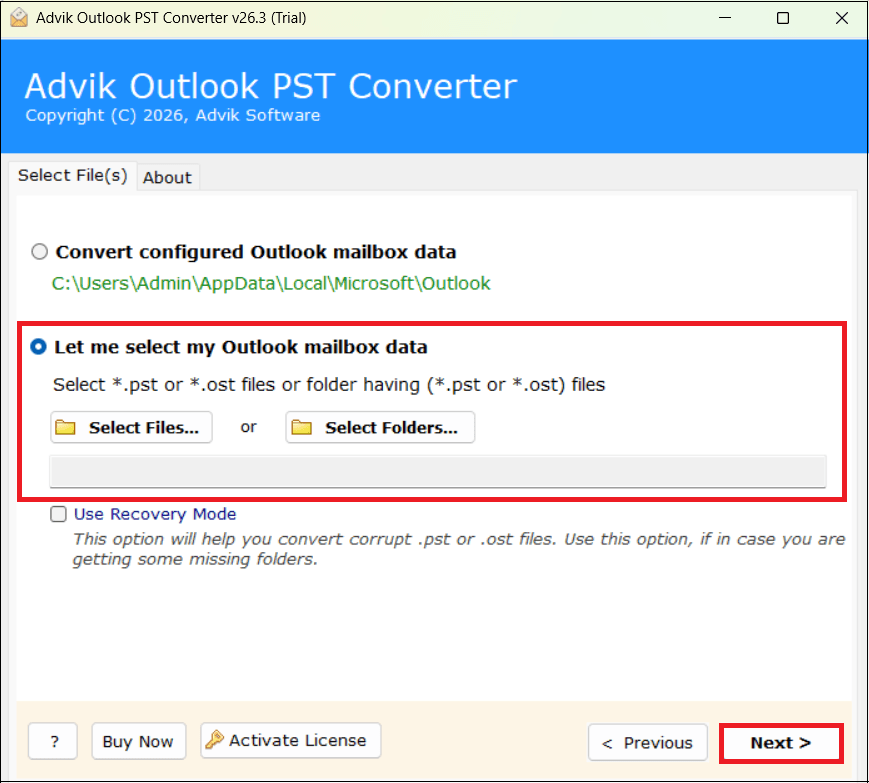
Step 2. Click on Select Files or Select Folders to add the PST file to the software panel.
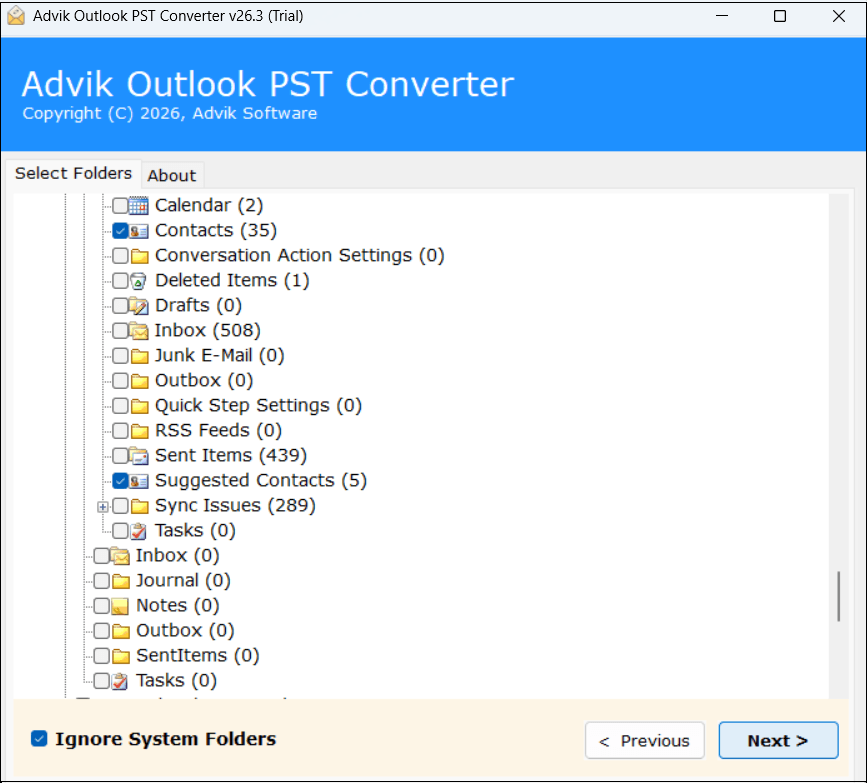
Step 3. Select the Contacts folders that you want to extract and press Next.
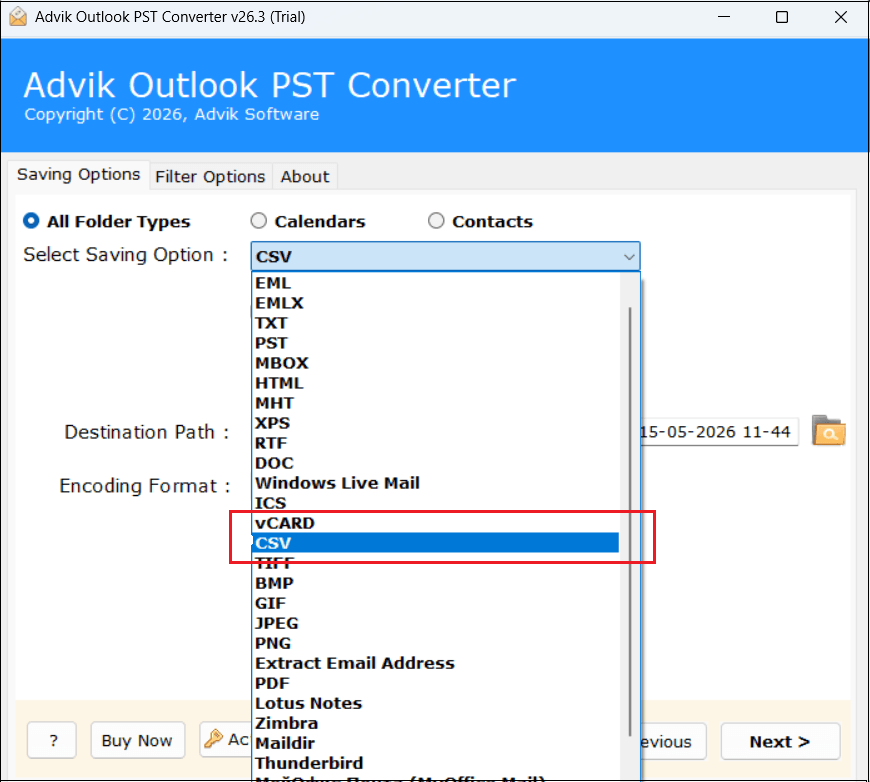
Step 4. Next, choose CSV/vCard as a saving option.
Step 5. Browse target occupation and click the Next button.
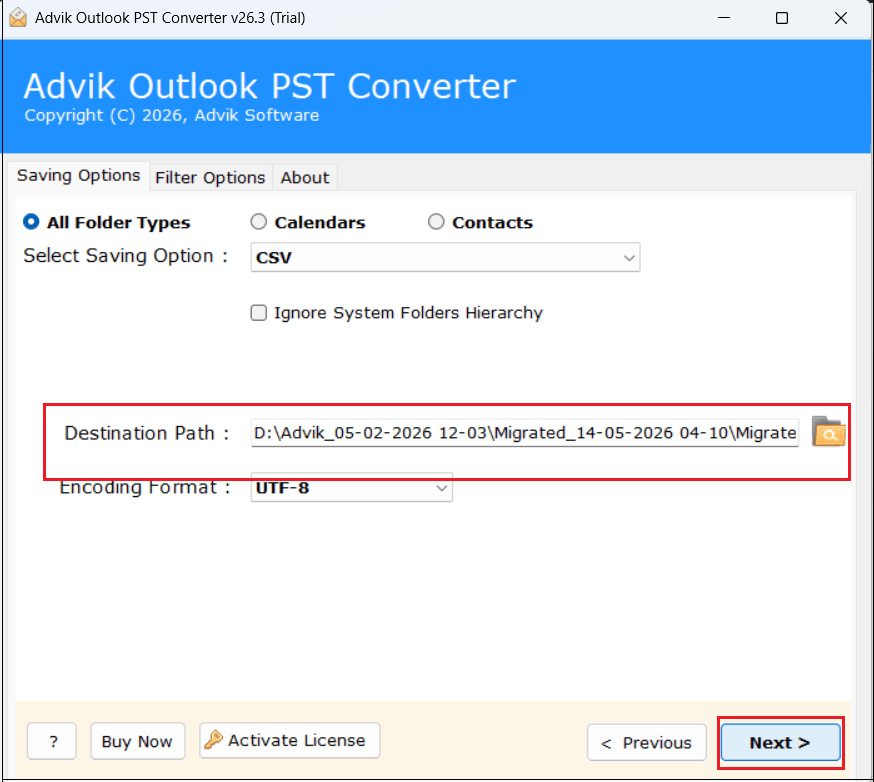
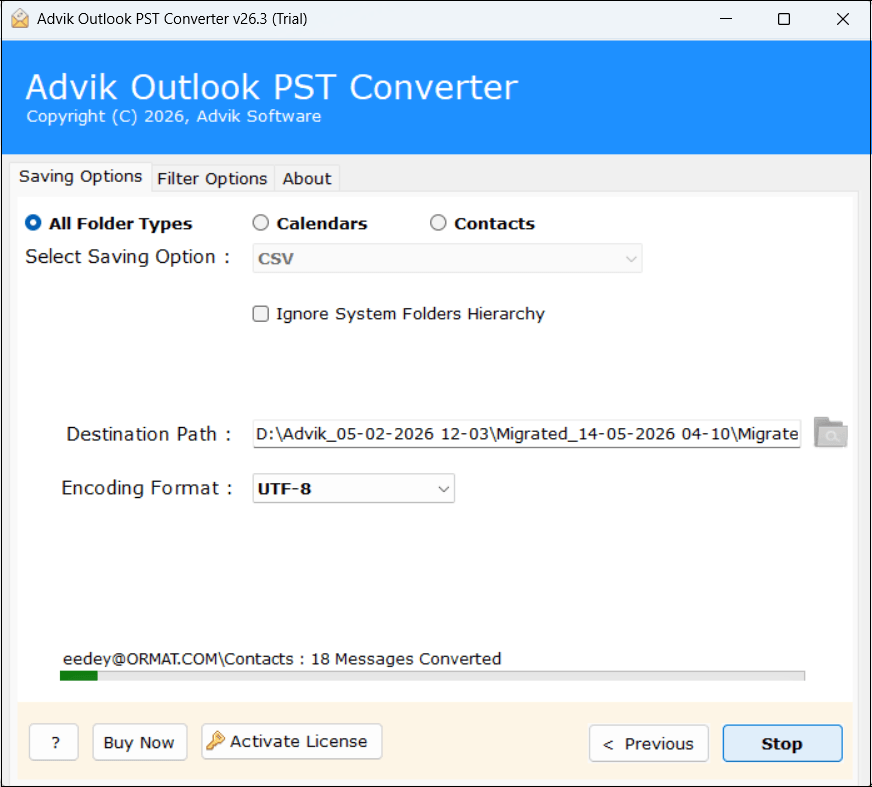
Step 6. Now the software will start extracting contacts from PST file to CSV automatically. Once, the process gets finished, the software will display a successful pop-up notification.
Watch How to Get PST Contacts Without Outlook
Reasons to choose Automated Tool Instead of Manual Solution
There are many reasons to choose this solution. Some of them are as follows;
- Most Accurate Conversion; This software provides the most accurate and quick conversion.
- Multiple Output formats; Apart from contact extraction, you can use this tool to export emails from PST to MBOX, EML, MSG, PDF, XPS, etc.
- Cloud Migration; This software also helps users to migrate emails from PST files to cloud-based email services such as PST to Gmail, Yahoo Mail, Office 365, G Suite, Outlook.com, etc.
- Support Windows OS; This software can easily be installed on almost all versions of Windows OS such as Windows 10, Windows 8, Windows 7, Windows Vista, and Windows XP.
- Free Demo Download: You can download this PST contacts extractor tool for free to check the performance and efficiency of the tool.
- Dedicated Customer Support: In case you are stuck somewhere while using this software, you can contact our customer support for further help.
Case Study
Recently, an administration team needed to extract employee and client contacts from multiple PST files received from former staff members. for record management and future communication purposes. The total data included over 25,000 contacts stored across 60 Outlook PST files.
Initially, the team tried a manual method to get contacts from PST file, but the process became complicated and time-consuming.
After using a PST contact extraction tool:
- All contacts extracted securely
- Contact details exported in CSV/VCF formats
- No need to install MS Outlook
Best Practices Before You Start
Check out the points below before starting to extract PST contacts to ensure a complete and safe process
- Users must always create a backup copy.
- Check PST file size
- Avoid online converters
Conclusion
This blog comes to an end now. Here, we have explained two easy ways to extract contacts from PST file. You may go with any of the methods depending on the size and type of the PST data you are handling. For the free manual method, it is necessary to have an active Outlook installed on your PC. However, the advantage of the automated approach is that it can work with any version of a PST file, regardless of whether Outlook is installed.
Check Out the Most Frequently Asked Questions
Q1. Do I need Outlook installed to perform this task?
Ans. If you choose the manual method, then you need to install MS Outlook on your system. On the other hand, the automated tool can extract contacts from PST file without Outlook.
Q2. Can I extract only specific contacts instead of all of them?
Ans. Yes, during the manual export process, you can select specific folders or use filters in Advik software to extract only selected contacts.
Q3. Is it possible to get contacts if my PST file is corrupted?
Ans. If the PST file is corrupted, you may need to repair it using tools like the Inbox Repair Tool (ScanPST.exe) or use Advik PST Repair Tool to recover and extract the contacts.
Q4. Will the extracted contacts keep all details like phone numbers and email addresses?
Ans. Yes, when you extract contacts from PST file, all details such as names, phone numbers, email addresses, job titles, and company names are preserved in the exported contact file.
Q5. Can this software export contacts from UNICODE PST file?
Ans. Yes, if the contacts are stored in Japanese, Chinese, Korean, Russian or any other UNICODE text. The software easily extracts them without any glitch.