How to Export Thunderbird Address Book to CSV Format?
Jenny Lowrence | March 2nd, 2026 | Data Backup
Thunderbird is an open-source email application that allows users to add multiple accounts and manage their emails. It is not just an email platform but also a personal address book for every user that stores important information. Nowadays, many users need to manage their address book more efficiently. So, they need to export Thunderbird address book to CSV file to save contacts in a universal, compatible format that can be opened easily. Exporting contacts from Thunderbird to CSV is beneficial for several reasons, such as;
- Easily open and edit contacts in Excel
- Save important contact information for backup
- Helpful to transfer the address book to another computer
- Maintain a portable and readable file
- Easily import contacts into Gmail, Outlook, and other platforms
In this article, we’ll discuss manual as well as automated solutions to convert Thunderbird address book to CSV file. Let’s get started without any further delay!
How to Export Thunderbird Address Book to CSV Manually?
1. Open Thunderbird on your system.
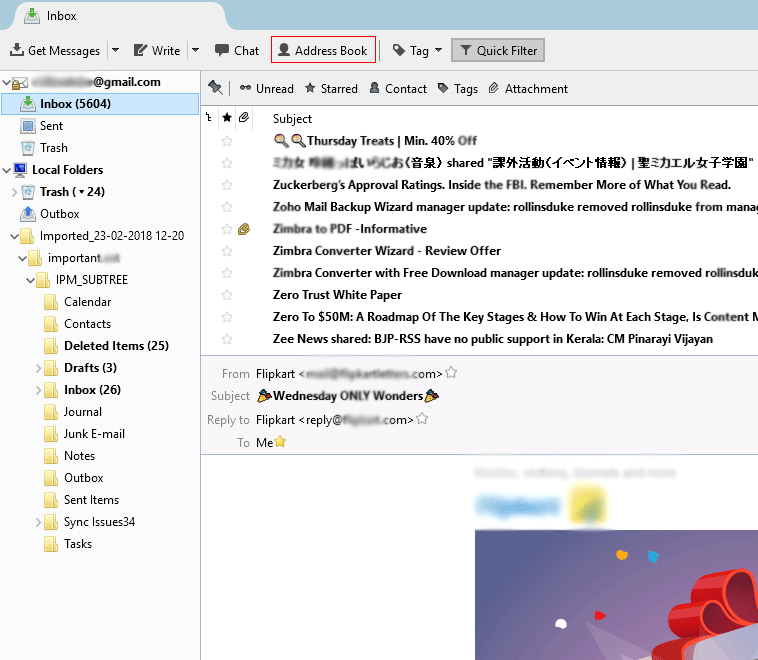
2. Click on the Address Book option.
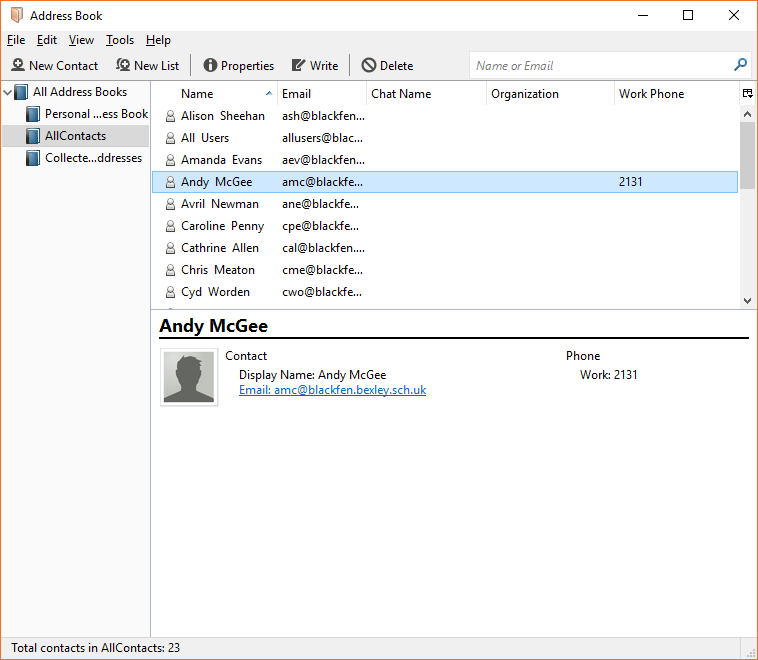
3. Select the address book that you want to export(Personal Address Book, Collected Addresses, etc.).
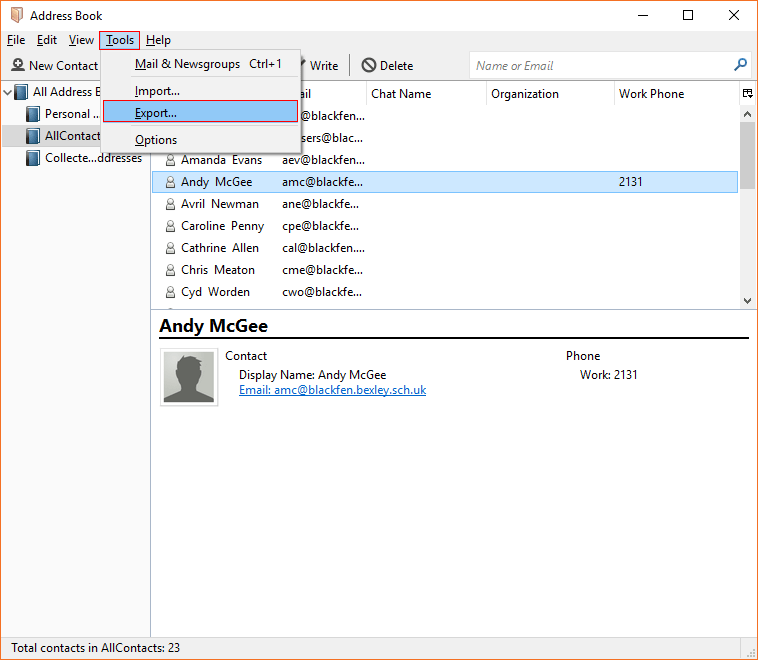
4. Now, go to Tools and choose the Export option.
5. Select the destination folder and choose Comma Separated from the Saving Type.
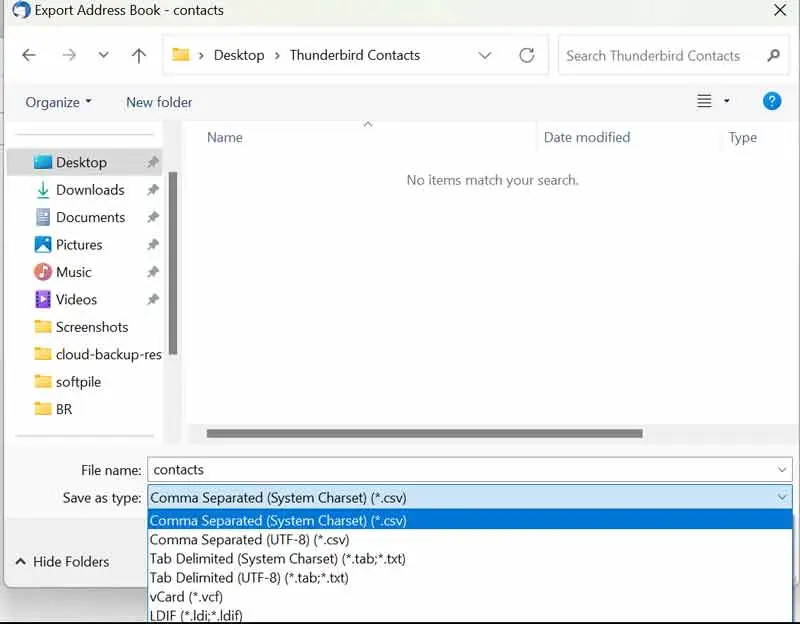
6. Next, click on the Save button.
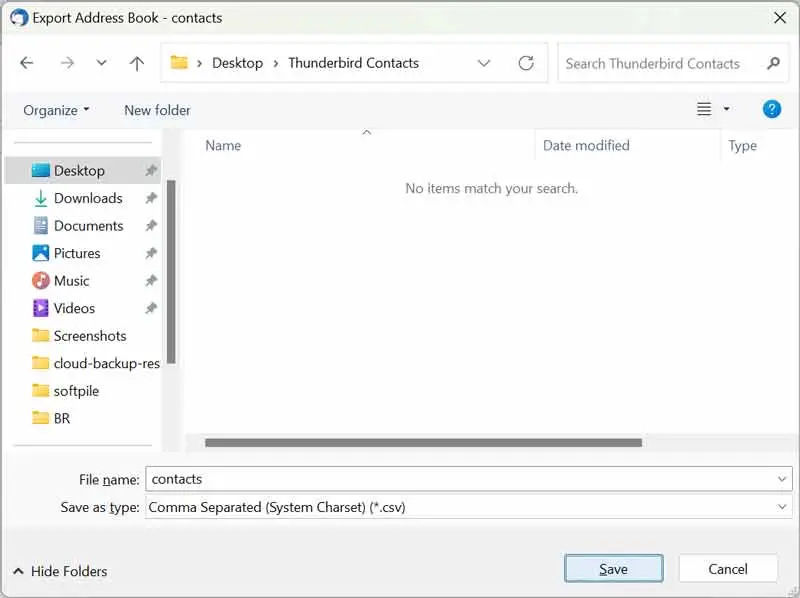
Now, your Thunderbird address book will be exported in CSV format.
Although the manual method is simple, but you requires repeating steps for multiple address books.
How to Export Thunderbird Contacts to CSV Automatically?
Try the Advik Thunderbird Converter to export Thunderbird address book to CSV without hassle. With this tool, you can export multiple address book in a single attempt. It also allows selective conversion, so you can choose which contacts to export. This software is ideal for both small and large address books.
Download the free demo version to analyze its working procedure.


Steps to Export Thunderbird Address Book to CSV
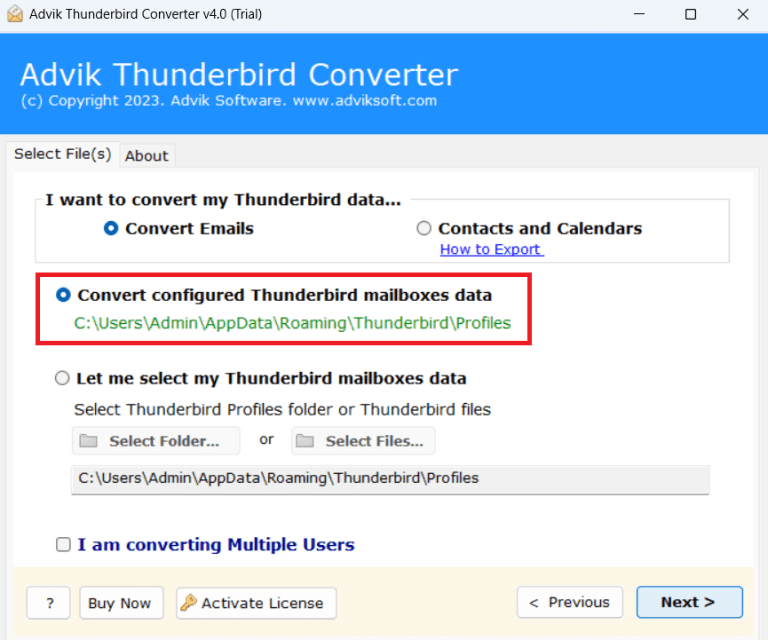
1. Run the tool and choose your Thunderbird profile.
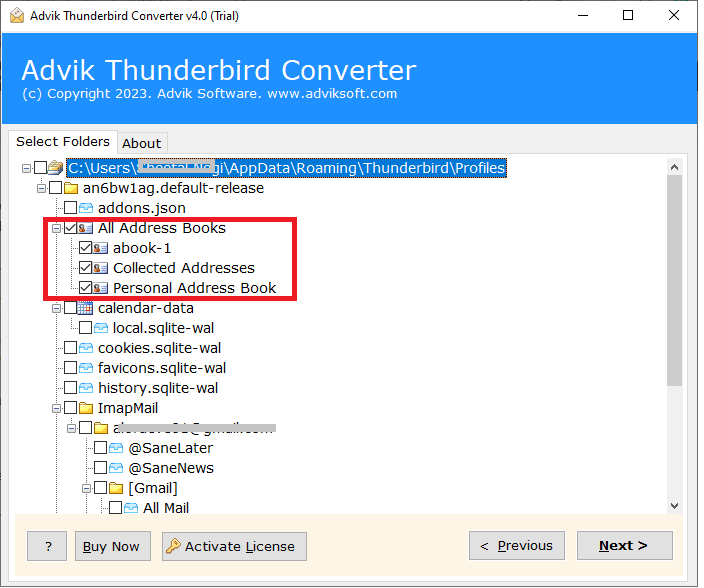
2. Select the Thunderbird address books that you want to export.
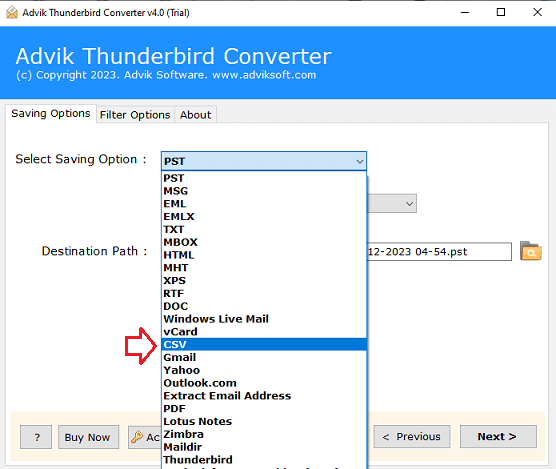
3. Next, choose CSV as a saving option.
4. Browse target location and click Next.
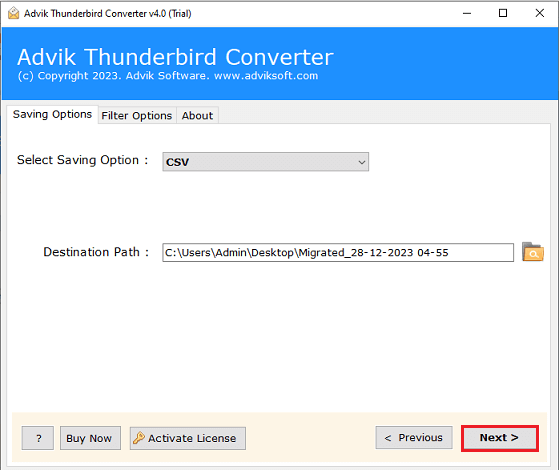
The software will start exporting Thunderbird address books to CSV format. Once the process is complete, it will automatically redirect to the destination folder.
Why Choose an Automated Tool?
Here are some advantages of using this tool. Some of them are;
- The software can convert multiple address books to CSV at once.
- It also allows you to choose a specific address book to export.
- The tool keeps groups, categories, and custom fields intact.
- It can easily handle large address books without any errors.
- Also, it can export Thunderbird address book to Outlook, and many more.
- A offers a simple interface that makes it easy for all types of users.
- It is compatible with all versions of Windows OS, including 11, 10, etc.
Conclusion
We have seen that there are two different ways to export Thunderbird address book to CSV format. Exporting the Thunderbird contacts to CSV is a straightforward process using the built-in export feature. But it is ideal for a limited address book list. However, for quick and bulk exporting, using a professional tool is the better option.