How to Fix “Outlook PST Was Not Cleanly Closed by the Last Program”?
Jenny Lowrence | March 18th, 2026 | Outlook Errors
Have you ever opened Microsoft Outlook and suddenly seen the error “Outlook PST Was Not Cleanly Closed by the last program”? It can be frustrating, especially when you need to access important emails. The good news is that it can be fixed with the right steps. In this article, we’ll provide some effective methods to resolve the error and get your Outlook working smoothly again.
Microsoft Outlook is the most widely used email client for personal or professional purposes. It use PST file to store emails, contacts, calendar, notes, tasks, and other mailbox data locally. Sometimes, users encounter the “Outlook.pst Was Not Cleanly Closed by the Last Program” error when they try to open Outlook. This issue usually occurs when Outlook is not closed properly, such as during a sudden system shutdown, crash, or forced exit. As a result Outlook data file may become corrupted.
Reasons Behind the Outlook PST Was Not Cleanly Closed Error
- Outlook or system not closed properly may result in the occurrence of this error.
- Some add-ins or third-party software can prevent Outlook to close PST file properly.
- Malware or virus attack on Outlook data can cause the occurrence of Outlook.pst was not cleanly closed by the last program error.
- A corrupted or oversized PST file shows the error message.
Methods to Fix “Outlook PST Was Not Cleanly Closed by the Last Program” Error?
Users can follow the below given techniques to solve Outlook.pst was not cleanly closed by the last program that used it.
#1. Use the Inbox Repair Tool to Repair PST File
1. First of all, close Outlook.
2. Locate ScanPST on your system.
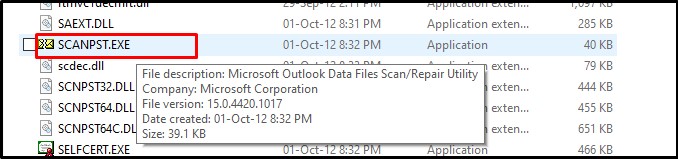
3. Double click on ScanPST.exe to open it.
4. Click on Browse to choose PST file.
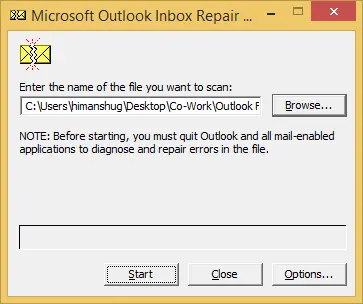
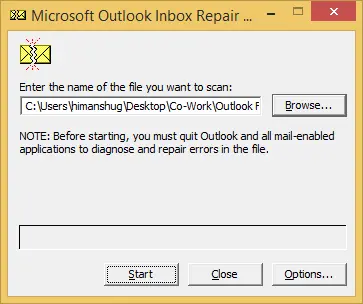
5. Click on Start button to begin the scanning process.
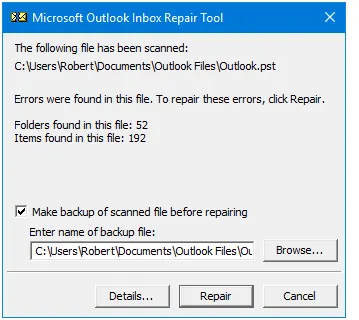
6. If it detects any issue then click on Repair to resolve error.
#2. Disable Faulty Add-ins
Run Outlook in safe mode to identify which add-ins are causing the issue. If yes, then remove faulty add-ins to fix Outlook PST was not cleanly closed by the last program issue
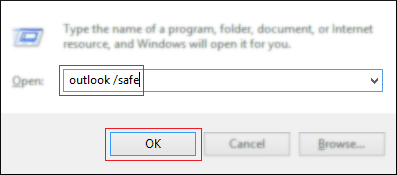
1. Press Windows + R, type outlook.exe /safe, and press Enter.
2. If Outlook opens without any issue then disable add-ins.
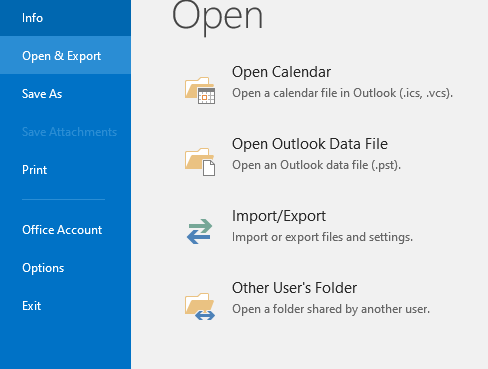
3. Go to File >> Options.
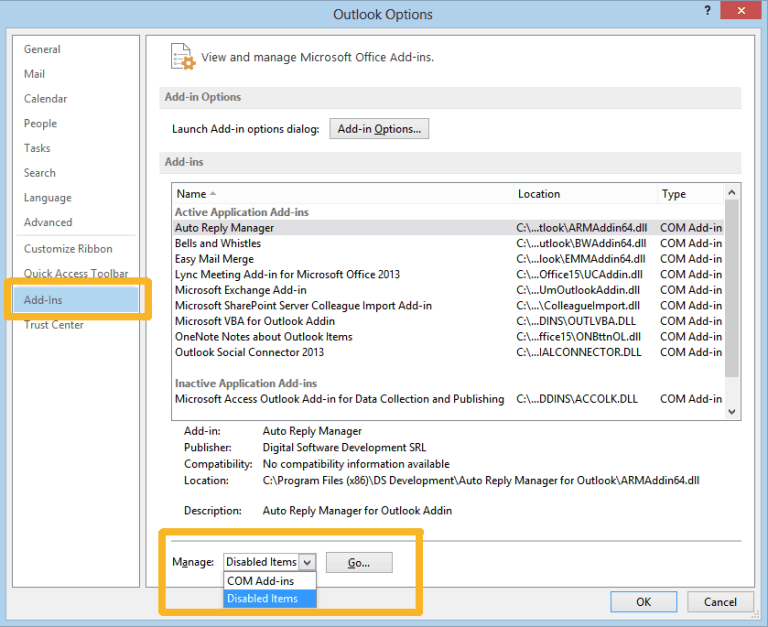
4. Click Add-ins, select Manage COM Add-ins and hit on Go.
5. Uncheck all Add-ins.
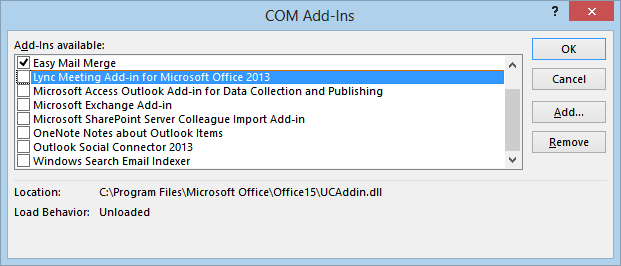
After that, restart Outlook and check error is solved or not.
#3. Reduce PST File Size
Large PST file are more prone to corruption and errors. So, delete unnecessary emails, archive old data and compact PST file to reduce Outlook PST file size.
1. Open Outlook on your system.
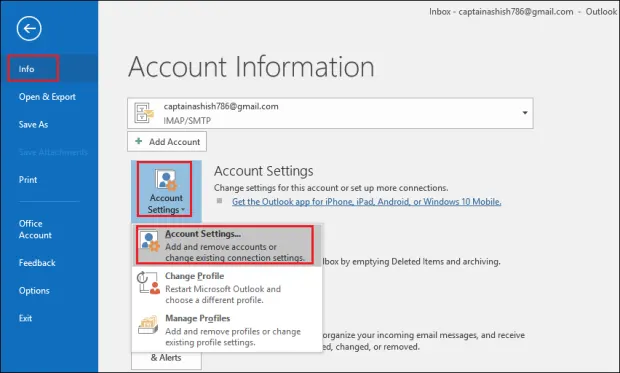
2. Go to File >> Info.
3. Click on Account Settings >> Account Settings.
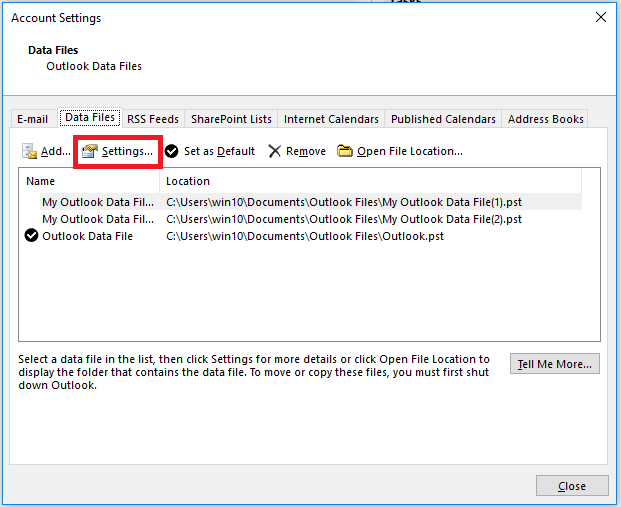
4. Select Data Files option and click on Settings.
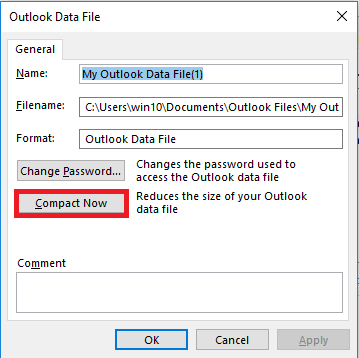
5. Click on Compact Now and press OK.
#4. Create a New Outlook Profile
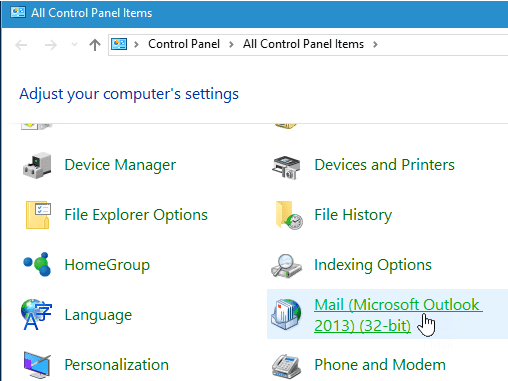
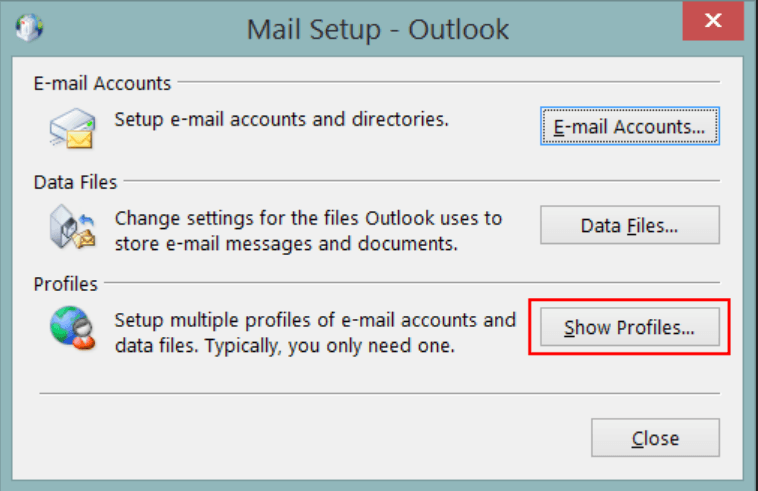
1. Open Control Panel and click on Mail.
2. Click on Show Profiles.
3. Click on Add and give a name to profile and then follow the on-screen instructions.
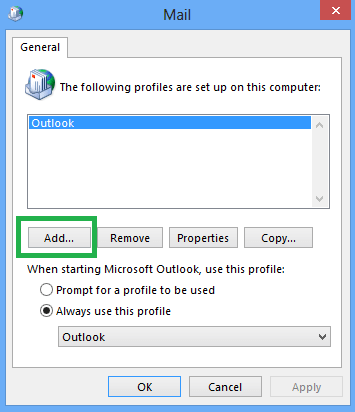
4. After that, open Outlook and set it as the default.
Professional Approach to Solve “Outlook.pst Was Not Cleanly Closed by the Last Program” Error
The manual methods will help you to fix the PST file issue if it is less corrupted. If the Outlook data file is severely damaged, then these methods do not help you. In that situation, you need to use a professional tool. Try the Advik PST Repair Tool to repair PST file to fix “Outlook PST Was Not Cleanly Closed” issue. This utility will help you to recover data from a damaged PST file and create a new healthy PST file.


Steps to Fix Outlook PST Was Not Cleanly Closed by the Last Program
1. Run the tool on your system.
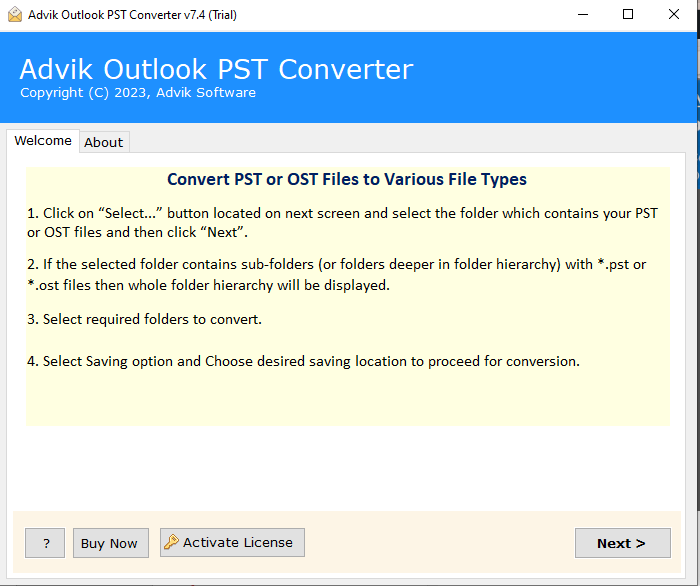
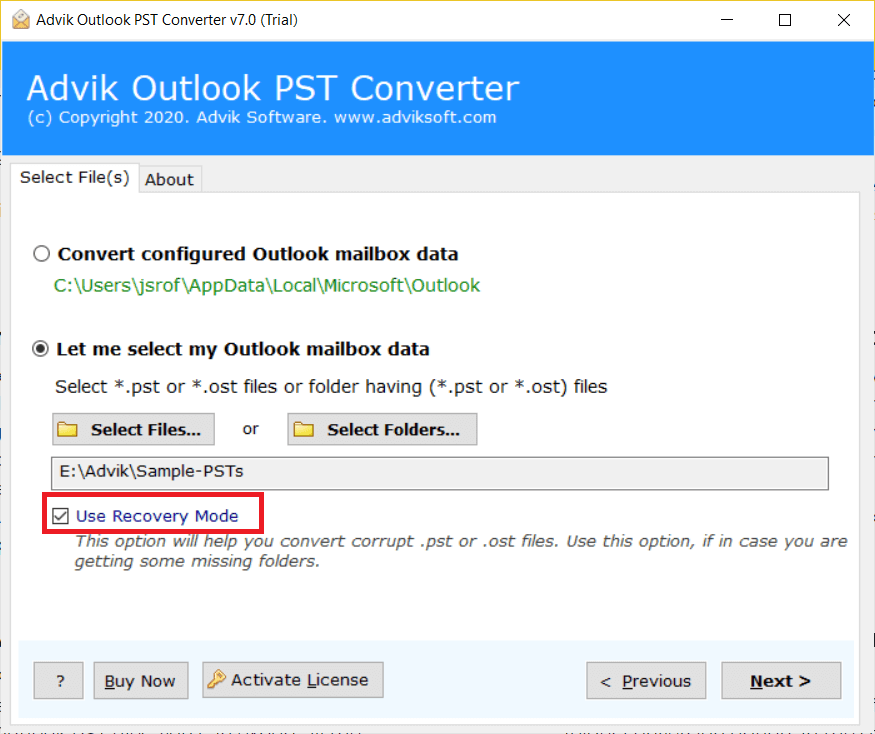
2. Add PST file and enable the Recovery Mode option.
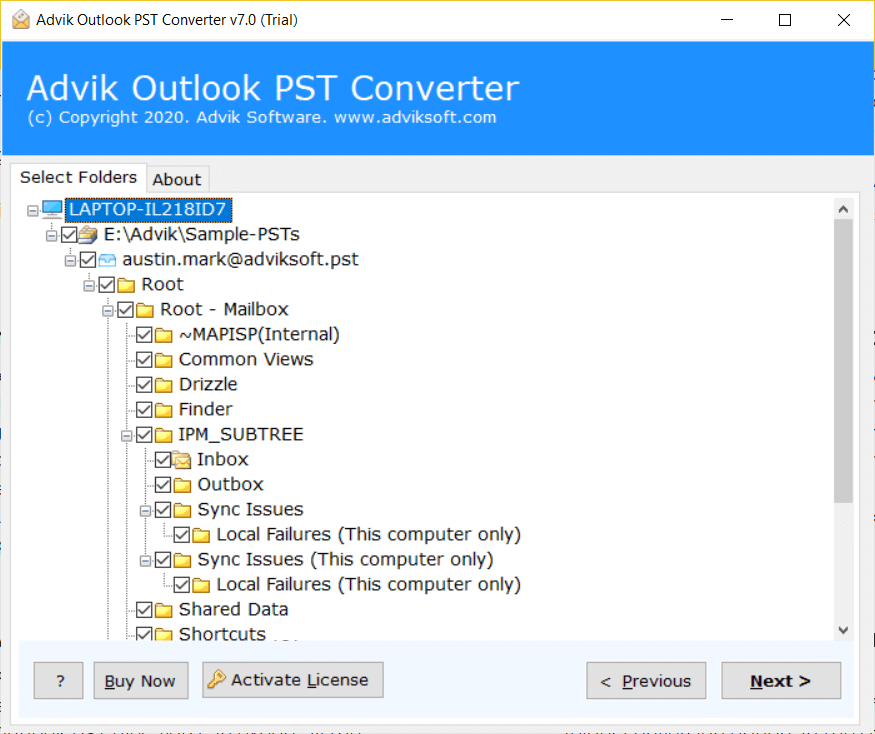
3. Choose the mailbox folders.
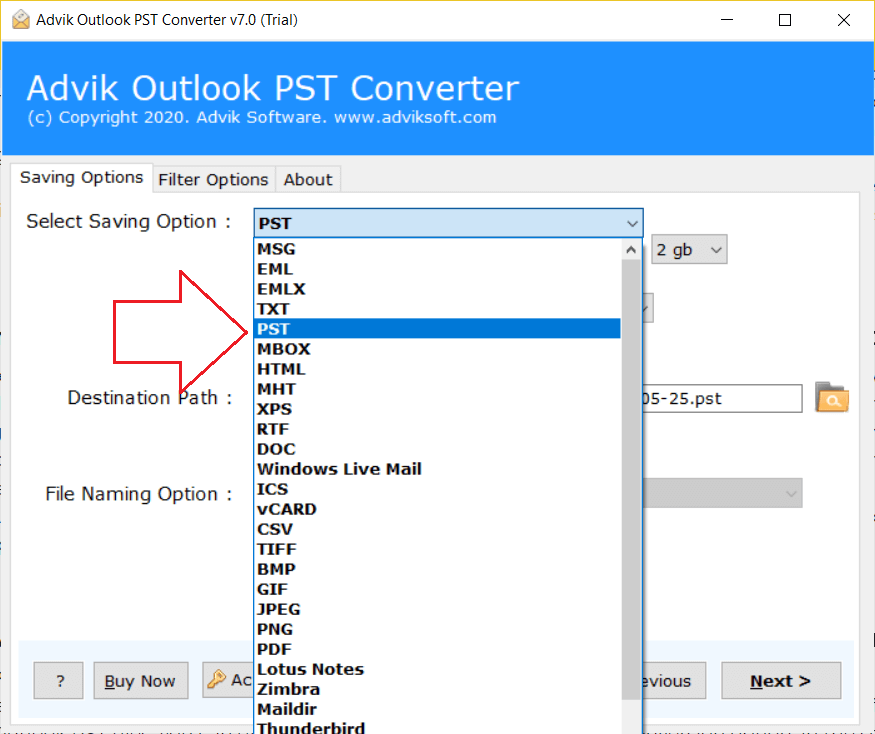
4. Select PST as a saving option.
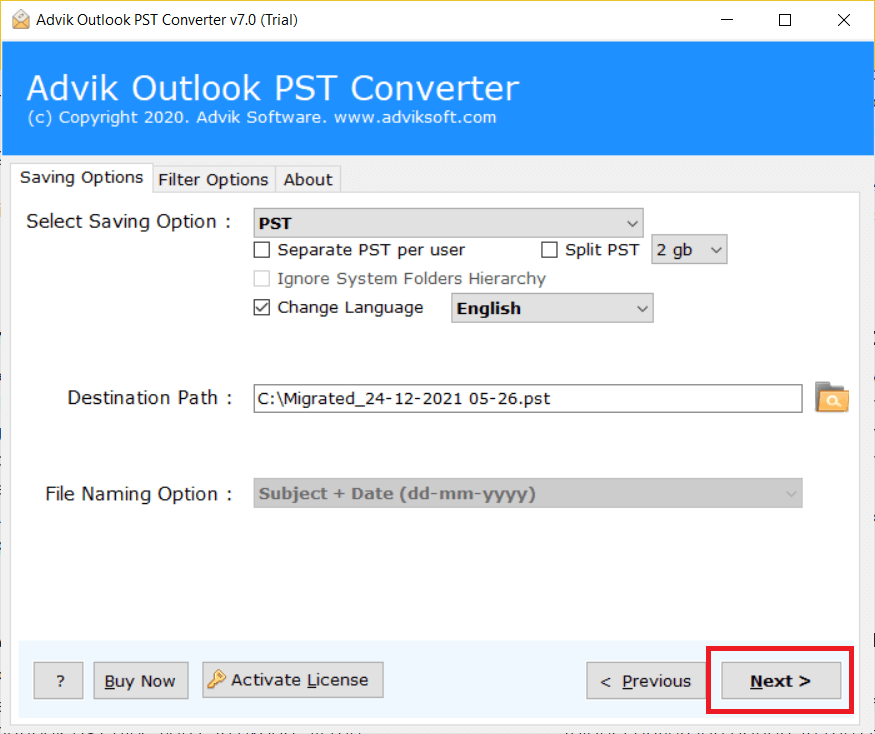
4. Browse target location and click Next.
Final Words
The “Outlook PST Was Not Cleanly Closed by the Last Program” error is a common issue that can interrupt your workflow. While manual methods like disabling add-ins and running ScanPST.exe may solve the error, they are not always reliable. For a faster and more secure solution, we recommend using a professional tool to repair a corrupted PST file to keep your Outlook running smoothly without interruptions.
