How to Fix Outlook Yellow Triangle With Exclamation Mark?
Jackson Strong | April 7th, 2026 | Data Backup, Outlook
Overview: If you’re an Outlook user, you may have encountered a yellow triangle with an exclamation mark in the lower-right corner of the application. This icon indicates a connectivity issue or a problem with syncing your emails. While it can be frustrating, the good news is that the Outlook yellow triangle error with exclamation mark is usually easy to resolve. In this blog, we’ll cover the common causes of the problem and provide practical solutions to fix this issue. So, stay tuned with us and solve the error instantly.
What is the Outlook Yellow Triangle Error?
Microsoft Outlook is a widely used email client, and it’s popularly known for its user-friendly interface and amazing features. However, like any application, Outlook also has various issues from time to time, due to which you may not be able to use Outlook properly. One of the common issues users face is the “Outlook Yellow Triangle Error”. What does the yellow triangle mean on the Outlook icon? The Outlook Yellow Triangle Error typically appears as a yellow triangle with an exclamation mark in the Outlook status bar. It typically appears when Outlook is unable to connect or sync with the mail server.
Let’s understand why this issue occurs in more detail.
Why does Outlook Shows Yellow Triangle Error?
Several factors are responsible for why there is an exclamation mark on my Outlook icon. Here are some of the common reasons that you need to know before fixing the error.
- Internet Connectivity Issues: A weak or unstable internet connection can disrupt the communication between Outlook and your email server.
- Firewall or Antivirus: Sometimes, irrelevant firewall or antivirus settings can block Outlook’s communication with the email server.
- Incorrect Email Settings: Incorrectly configured email account settings, such as server addresses and port numbers, can also cause this error.
- Outdated Outlook Version: Running an outdated version of Outlook can also lead to compatibility issues and errors.
- Faulty Add-Ins: Sometimes, add-ins can interfere with Outlook functionality and cause a yellow exclamation mark.
- Email Account Issues: Problems with your email account, such as a full mailbox or server issues with your email account, can cause synchronization problems with Outlook.
- Corrupted Outlook Profile: If the profile gets corrupted, it could lead to synchronization issues, and we get this warning symbol.
These were the major reasons behind the Outlook yellow triangle error. Now, we will show you some useful solutions to solve this issue with ease.
How to Fix Yellow Triangle With Exclamation Mark on Outlook?
Here are some troubleshooting steps to fix Outlook yellow triangle error. Let’s check all the possible ways and solve the error
1. Check Internet Connectivity
First of all, ensure that your internet connection is stable. Try to open a web browser and load a few websites to confirm whether your internet is working or not.
2. Restart Outlook
Sometimes, a simple restart of Outlook or any other application can resolve temporary issues. Close Outlook and reopen it to see if the error is resolved or not.
3. Review Email Account Settings
Check and verify your email account settings, such as IMAP, SMTP, and POP3 server details, along with their port numbers. These details can be checked from your email provider’s official websites.
1. Open Outlook on your system.
2. Click File >> Account Settings >> Account Settings.
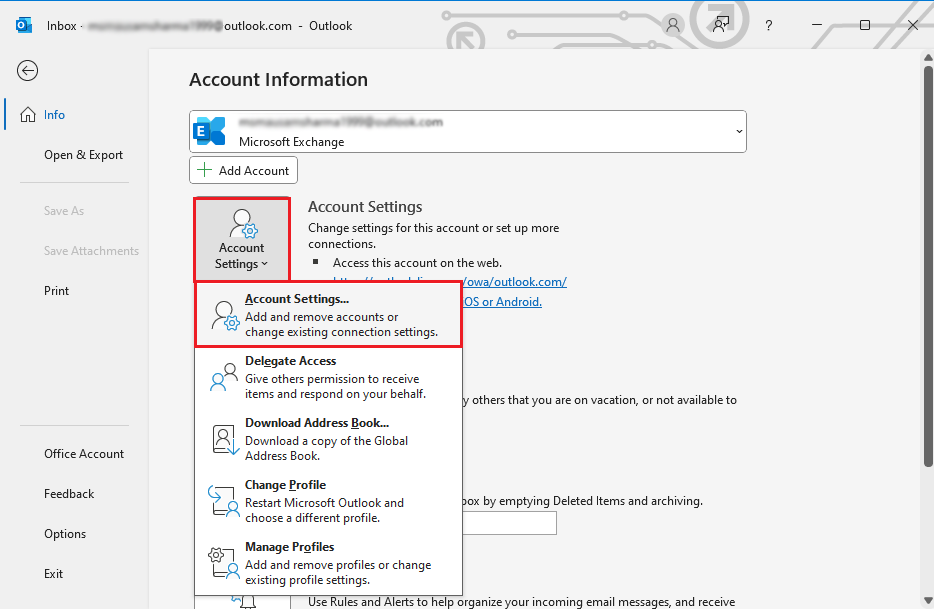
3. Choose your account and click on Change.
4. Check the email address, username, password, incoming & outgoing server details, port number, and encryption method are correct.
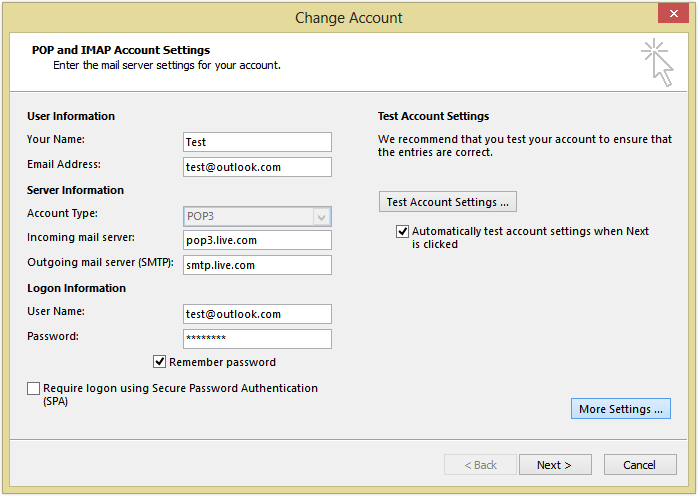
5. If any detail is incorrect, then update it.
After that, restart Outlook and check Outlook yellow triangle error is solved or not.
4. Update Outlook
Make sure you are using the latest version of Microsoft Outlook. Outdated software can have compatibility issues and errors as it’s not getting any updates from Microsoft.
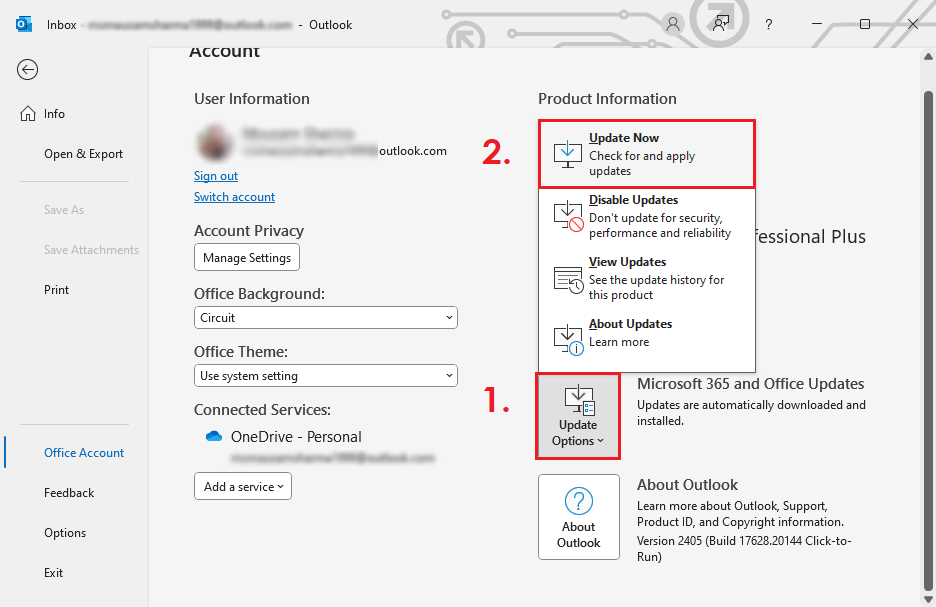
1. Open Outlook and go to the File tab.
2. Click on Office Account.
3. Now, click on Update Options >> Update Now.
5. Remove Faulty Add-ins
Some add-ins may conflict with Outlook functionality and cause various issues.
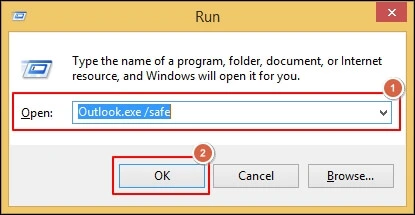
1. Run Outlook in safe mode.
2. Click on File >> Options.
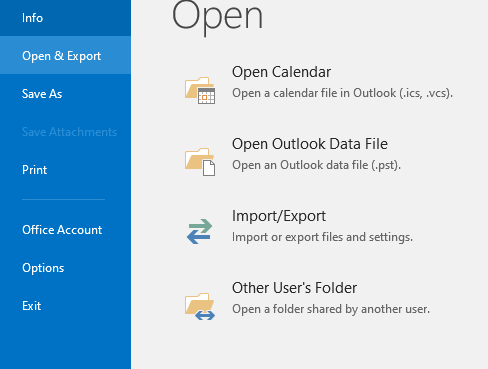
3. Click on Add-ins and choose COM Add-ins and press GO.
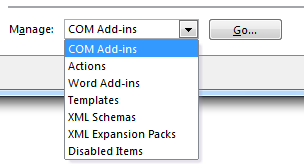
4. Disable all Add-ins and press OK.
6. Disable Firewall or Antivirus
Temporarily disable your firewall or antivirus software to see if they are causing the issue.
- Press Win + R and search for antivirus.
- Right-click on it and Disable for some time.
7. Clear Outlook Cache
Outlook stores data in a cache that can sometimes become corrupted, so it is necessary to clear Outlook cache from time to time.
1. Close Outlook.
2. Navigate to the %localappdata%\Microsoft\Outlook folder.
3. Delete the .ost file associated with your account.
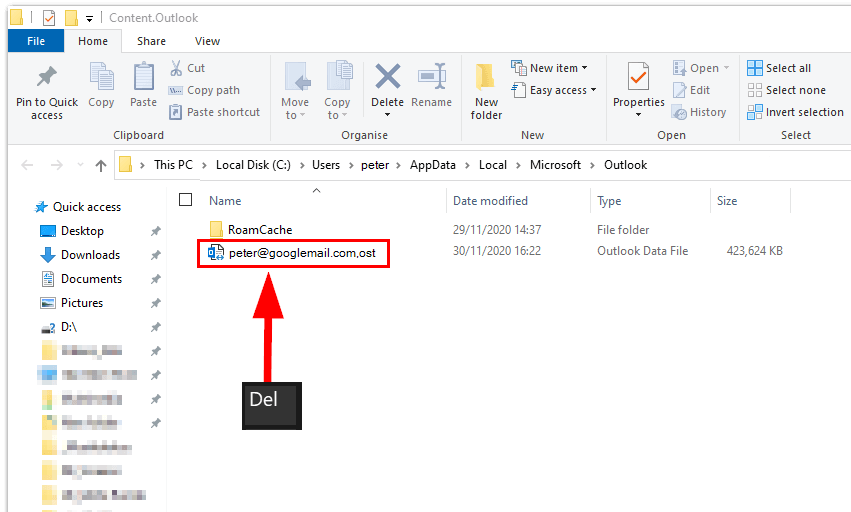
4. Restart Outlook, it will automatically recreate it.
7. Create a New Outlook Profile
If all else fails, try to create a new Outlook profile and reconfigure your email account.
1. Close Outlook.
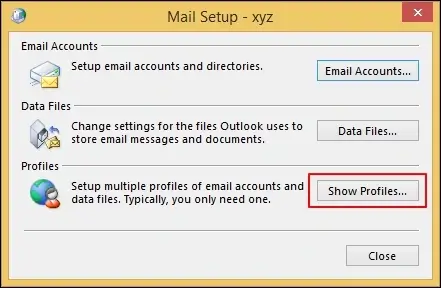
2. Open Control Panel and go to Mail option.
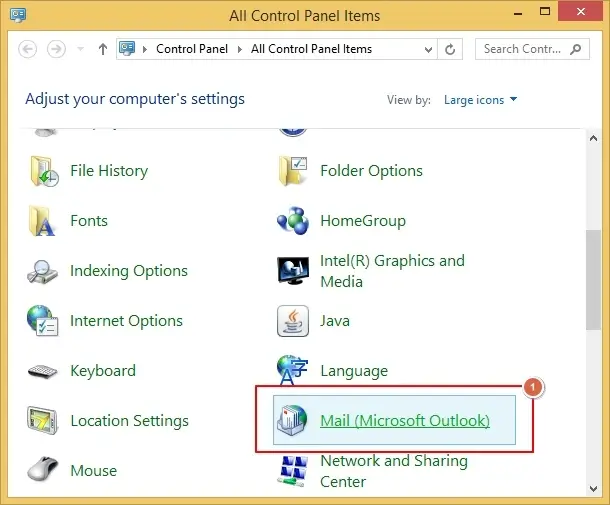
3. Click on Show Profiles.
4. Now, click on Add to create a new profile. Give it a name and click OK.
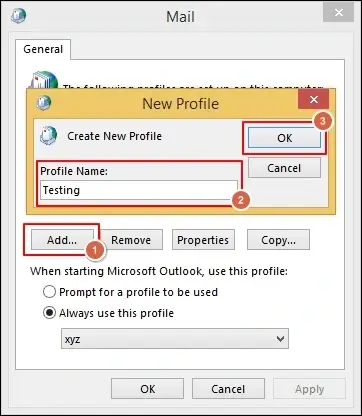
Now, restart Outlook and set it as a default profile and check issue is solved
You can try the above manual fixes to solve the yellow triangle with exclamation mark on Outlook error. However, these can only provide a temporary solution to your problem. If it’s continuous, then you need to take backup of your Outlook email data first to avoid any data loss.
Bonus Tip – Backup Outlook Emails to PC | Hard Drive | Computer
Trying to find a reliable way to backup Outlook emails and don’t have any? Don’t worry!! With the most effective and efficient approach, i.e., Advik Outlook OST Converter, you can download an unlimited number of Outlook emails without any issues. It is a powerful solution to all Outlook email queries as you can also repair Outlook data file. And, if you need to export Outlook emails in various file formats, you can do so. Such as that, you can convert OST to PST, EML, PDF, MSG, DOC, HTML, CSV, OLM, and many more.
It supports all the latest and previous versions of Microsoft Outlook such as Outlook 2021/2019/2016/2010/2007 etc. It is the best way to export Outlook emails to external hard drive, computer, PC, etc. This tool provides 100% safe and secure results with no data modification in the original content.

Final Words
We hope that the solutions mentioned in this blog will help you fix the yellow triangle error in Outlook. You can choose the methods that best suit your needs and requirements. Before that, make a backup copy of your important Outlook emails to avoid any problems even after trying the manual solutions.
Frequently Asked Questions
Q1. What does the yellow triangle with an exclamation mark in Outlook mean?
Ans. The yellow triangle in Outlook indicates a problem with your email connectivity or syncing. It typically signifies that Outlook cannot connect to the server, either due to a network issue, misconfigured settings, or server-related problems.
Q2. Why do I have a yellow triangle on my Outlook icon?
Ans. A yellow triangle on your Outlook icon usually indicates a warning or sync issues. It commonly appears when Outlook is having trouble connecting to the mail server or syncing emails.
Q3. How do I get rid of the exclamation mark in Outlook?
Ans. You can try these quick fixes:
- Check your internet connection.
- Restart Outlook.
- Verify your email account settings.
- Update Outlook to the latest version.
If the issue persists, follow the detailed steps mentioned in the blog.
Q4. Could a server outage cause the yellow triangle issue in Outlook?
Ans. Yes, if your email provider’s server is down or undergoing maintenance, Outlook may display the yellow triangle.
Q5. How do I repair corrupted Outlook data files to fix this issue?
Ans. You can use the Inbox Repair Tool (scanpst.exe) to fix corrupted PST or OST files. Locate the tool on your computer, select the data file to repair, and follow the instructions provided.
Q6. Can I fix the yellow triangle issue without professional help?
Ans. Most of the time, yes. By following the troubleshooting steps provided in this blog, you can resolve the issue on your own. If the problem persists, contacting Microsoft support or your email provider is recommended.
