PDF Preview Handler Not Working in Outlook? 6 Proven Ways to Fix It
If the PDF preview handler is not working in Outlook, then there is not a single reason responsible for it. It can be happen due to many reasons such as an outdated or incompatible PDF reader, Microsoft PowerToys, a recent Windows update, registry issues or changes in the New Outlook experience. In many cases, PDF previews in Outlook will return within a few minute, just by enabling the attachment preview in Outlook, updating Adobe Acrobat Reader, or disabling the PowerToys PDF Preview feature.
If you are struggling with the PDF preview in Outlook, don’t worry. This guide covers the most common causes, step-by-step solutions and some workable methods that work for Outlook 365, Outlook 2021, Outlook 2019, Outlook 2016 and the New Outlook app on Windows.
Quick Fix Checklist
Before you try the advanced methods to fix this error, quickly go through these quick fixes to see if it works for you or not;
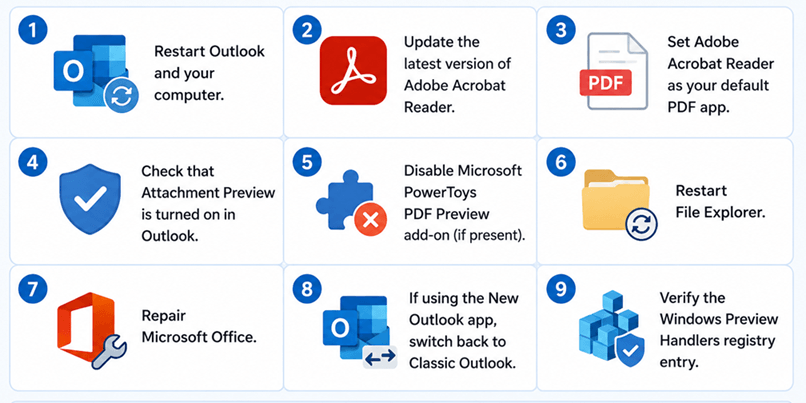
If the above steps don’t work and you are still unable to preview PDFs in Outlook, try the detailed solutions explained in the sections below.
What is an Outlook PDF Preview Handler Error?
Outlook PDF Preview Handler error is an issue that happens when Outlook can’t preview a PDF attachment in it’s reading pane. It usually happens when instead of opening a file, Outlook displays an error message and leave the preview pane blank or continue to load the document without PDF preview.
However, it doesn’t always mean that your PDF file is corrupted or damaged. The problem can be caused due to many factors such as Outlook settings, Adobe Acrobat Reader, Windows update etc.
Also, it’s not always fixed that you will get same type of error message, it may change depending on Outlook version you are using. Thus, you might see messages like:
There is an error with the PDF Preview Handler, so this file cannot be previewed.
Sorry, there was an error loading this file.
No preview available.
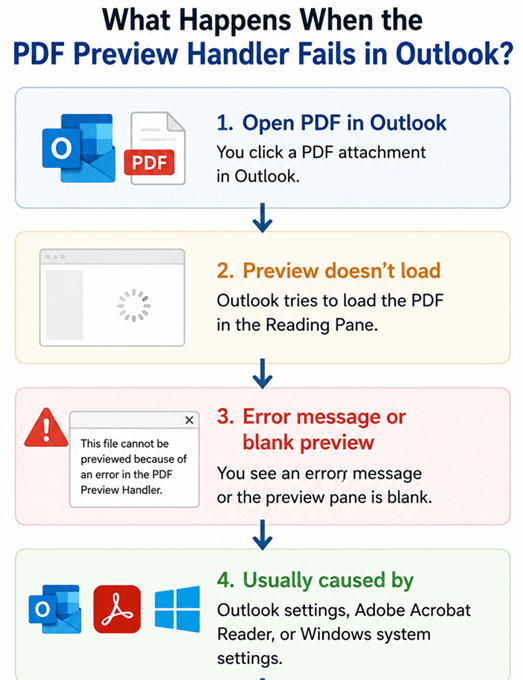
After understanding the meaning of this error and what does this error actually is, let’s now move on to understand the detailed causes of this error.
Why is the PDF Preview Handler Not Working in Outlook?
This problem is not due to a single reason but there are many factors that are responsible for this error. Go through each of them, know your real cause;
- Missing or Faulty PDF Preview Handler: In case the preview component of the PDF application is corrupt or not registered properly, Outlook will not be able to create preview of data.
- Wrong Outlook Preview Settings: You might have accidentally disabled the Attachment Preview settings for Outlook.
- Third-Party Add-ons Issues: Many Outlook add-ons may also create issues with the attachment preview feature.
- Corrupted Outlook Temp Files: The corrupted temporary files of the attachments can also cause Outlook not to show previews well.
- Corrupted Outlook Account Settings: If the settings of your Outlook account are corrupted, it can also affect the handling of attachments.
- Office and PDF Software Compatibility Problems: A frequent and very real cause is the fact that Outlook is not compatible with the PDF software you have loaded. It’s creating issues post Office updates and PDF reader recent updates.
- Incorrect Preview Handler Registration: An invalid or incomplete preview handler registration in Windows can prevent Outlook from loading PDF previews.
How to Fix PDF Preview Handler Not Working in Outlook?
In this section, we will explain how to fix Outlook PDF preview handler error by using some manual tricks. Go through each them one by one and see which works best for you.
Fix 1. Enable Attachment Preview in Outlook
1. Use the Latest Version of Adobe Reader
Errors can occur if Adobe Reader is outdated. To fix this, update to the latest version:
Install from the Web:
- Visit the Adobe Reader download page.
- Click Install Now.
Check for Updates:
Open Adobe Reader or Acrobat.
Go to Help >> Check for Updates.
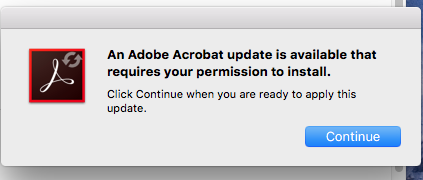
Follow the instructions to install any available updates.
After updating make sure Adobe Reader is set as the default PDF viewer. Restart Outlook to see if the issue is resolved.
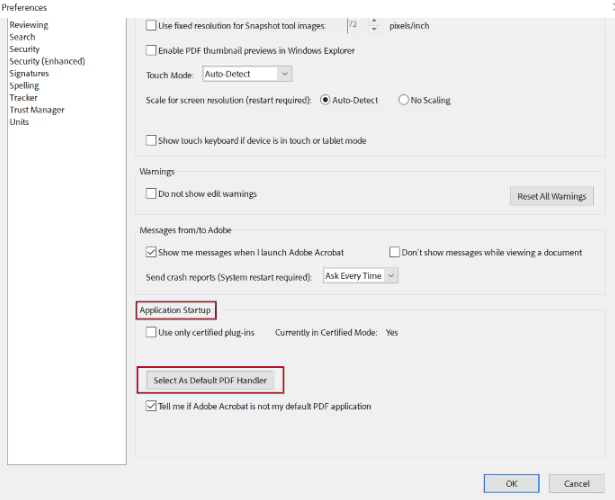
2. Set Adobe Acrobat Reader as Default PDF Previewer
Outlook may struggle to choose a preview handler which can cause issues. Make Adobe Acrobat Reader the default.
1. Open Adobe Acrobat Reader.
2. Click on the Menu and select Preferences.
3. Next, choose General under categories and check Enable PDF thumbnail previews.
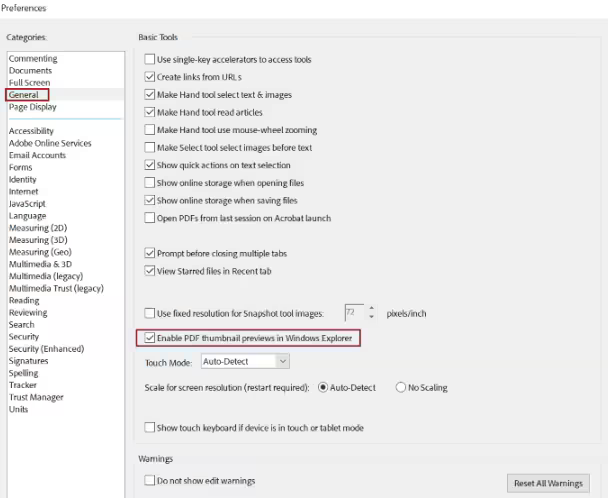
4. Click Application Startup and click Select As Default PDF Handler.
5. Choose Adobe Acrobat as the default PDF opener.
3. Delete Temporary Files
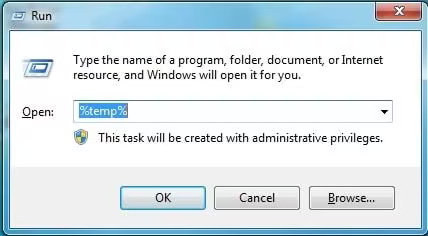
Corrupt temporary files can cause the preview handler error. To get rid of this issue, delete these files.
- Run Outlook and press Windows Key + R.
- Enter the following paths one by one and delete all files in these folders:
%temp%
%userprofile%\AppData\Local\Microsoft\Windows\Temporary Internet Files\Content.Outlook\
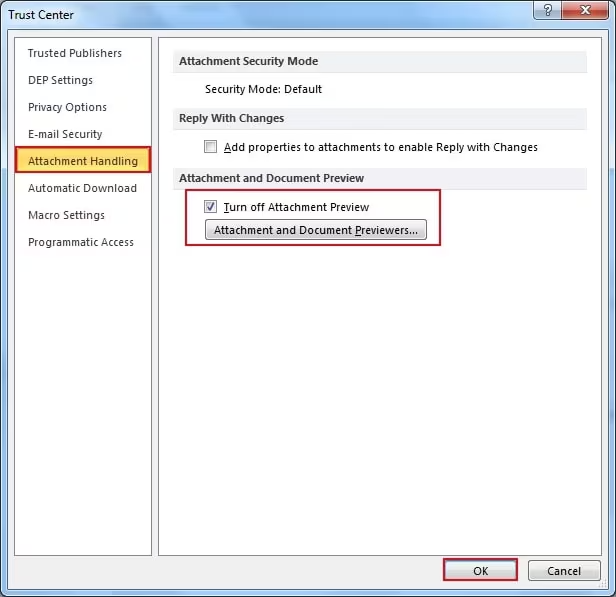
4. Ensure PDF Preview Handler is Enabled
- Open Outlook.
- Go to File >> Options >> Trust Center >> Trust Center Settings > Attachment Handling.
- Next, deselect the turn-off Attachment Preview.
- Click Attachment and Document Previewers and check the PDF Preview Handler.
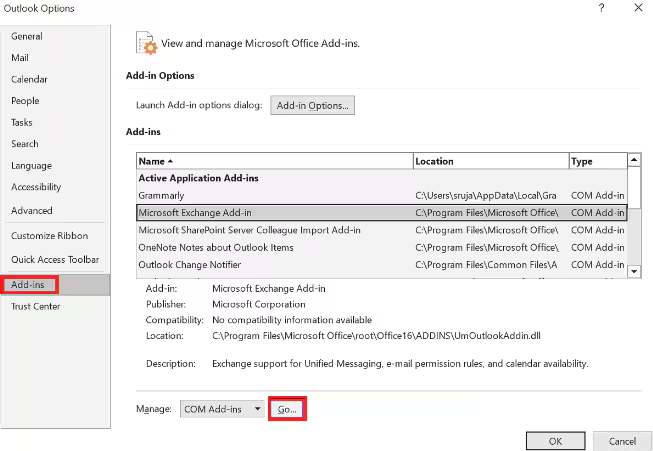
5. Disable Third-party Extensions
Third-party add-ons might cause issues. Disable them to find the problematic one.
- Open Outlook.
- Go to File > Options > Add-ins.
- Click Go next to Manage COM Add-ins.
- Uncheck each add-on one by one and click OK to disable them.
6. Repair Your Outlook Profile
If your Outlook profile is corrupted, it can cause various issues, including problems with PDF previews. Repairing the Outlook profile can fix this.
Steps to repair your Outlook profile:
- Open Control Panel > Mail.
- Click on Show Profiles.
- Select your Outlook profile and click Repair.
- Follow the instructions to repair the profile.
Once the repair is complete, restart Outlook and check if the issue is resolved.
By following these methods, you should be able to fix the PDF Preview Handler issue in Outlook.
If none of the above methods work and Outlook still cannot preview PDF attachments, the problem may have nothing to do with the Preview Handler.Sometimes, a corrupt Outlook profile or a corrupt PST file can also be the reason for attachments not opening or rendering properly. You can also create a new Outlook profile to see if the issue is specific to the profile.If your PST file is corrupted or Outlook is not able to open your mailbox properly then you can try any professional PST recovery solution, such as Advik PST Repair Tool, to access your corrupted PST file data without Outlook. This software allows you to open PST file without Outlook and export emails with attachments to PDF, EML, MBOX, HTML, etc.
Conclusion
If the above situations occur, Outlook may encounter PDF handler error. In this article, we have explained the reasons that cause this problem and how to fix Outlook PDF preview handler not working issues. We recommend that you first understand the cause and then select the appropriate method that you think is best for your situation.
Frequently Asked Questions
Q1. How do I change the PDF preview handler in Outlook?
Ans. Outlook typically uses Adobe Acrobat Reader as the default PDF preview handler. If you’d like to change the PDF preview handler, you may need to configure the default PDF viewer on your system.
To change it, go to Settings > Apps > Default Apps, and set your preferred PDF viewer as the default for .pdf files.
Q2. Why is my PDF preview not working in Outlook?
Ans. The PDF preview in Outlook may not work due to an outdated or corrupted Adobe Acrobat Reader, disabled preview settings, or conflicts with third-party add-ins.
Q3. Can I use another PDF viewer for the Outlook preview handler?
Ans. Outlook generally uses Adobe Acrobat Reader as the default PDF handler, and it doesn’t support using another PDF viewer for the preview feature.