How to Fix Gmail Error 400: Causes, Solutions and Prevention Tips
Have you seen Gmail Error 400 when you were trying to logging into Gmail your account or sending emails? If so, you are not alone. Many Gmail users like you were getting trouble with this issue with no clue what caused it as it is a common query happening nowadays.
The good news is that this error can be solved by some careful prevention and patience to get it resolved automatically. This error is often related to browser, session or connectivity issues, not an issue with your Gmail account itself. Most of the time it’s a matter of a few minutes to find the root cause and fix the error.
In this helpful guide, we will discuss the reasons for Gmail Error 400, how to identify the actual cause of the error and the best ways to fix it.
Quick Answer: Gmail Error 400 is usually happens when Gmail receives invalid or abnoramlly formed request from your browser side then you may receive such type of warning error. The common reasons are damaged cache files, browser cookies, conflicts with extensions, DNS problems, old browsers or session-related problems.
It can be resolved by clearing your browser cache and cookies, disabling unused and irrelevant extensions, updating your outdated browser and try to signing back into your Gmail usually resolves this issue.
Our Testing & Research Methodology
Our team has reviewed common Gmail Error 400 scenarios reported by users and tested the issue in various environments to provide accurate results to you.
We have used;
- Google Chrome
- Microsoft Edge
- Mozilla Firefox
- Android Gmail App
- Mobile Safari on iPhone
While testing all the methods in this article, we have found that the primary causes of Gmail error 400 are damaged cookies, conflicts in the browser session and obsolete cached data. Clearing cookies and signing back into Gmail fixed the problem in a few minutes.
So, let’s understand the complete process to solve this frequently appearing query.
Table of Contents
- Understanding Gmail Error 400 in Detail
- What Does Gmail Error 400 Look Like?
- When and Where Does Gmail Error 400 Occur?
- Step-by-Step Solutions to Fix Gmail Error 400
- How to Fix Gmail Error 400 on Desktop?
- How to Solve Gmail Error 400 on Mobile Devices?
- How to Prevent Gmail Error 400 in the Future
- When to Contact Google Support?
- Final Words
- Frequently Asked Questions
Understanding Gmail Error 400 in More Detail
Before trying to fix Gmail Error 400, it’s helpful to understand what this error actually means.
Gmail Error 400 is an invalid request that happens when Gmail is unable to understand or process a request from your browser. In simple terms, your browser is sending a request to Gmail to open your inbox, log in, or do something, but Gmail is getting something that is invalid or corrupted.
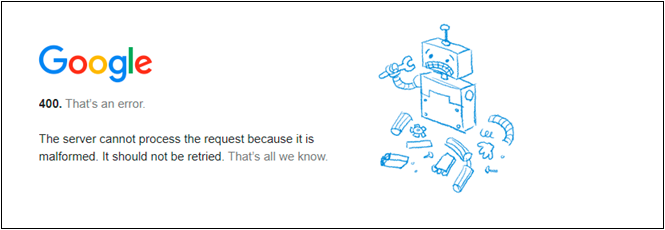
Gmail then displays messages such as:
400. That’s wrong
Bad Request. Error 400
Gmail Error 400 invalid_request
Your client sent a invalid or illegal request
This error may occur when you:
- Sign into your Gmail account
- Check your emails.
- Switch Google accounts
- Send and receive email
- Use Gmail in a web browser
What Does Gmail Error 400 Look Like?
Gmail Error 400 may appear in different ways to users:
400. That is a mistake
Error 400 – Bad Request
Gmail Error 400 invalid_request
Your client sent a request that this server could not understand.
There was an error processing your request
This error may occur during:
- Sign in to Gmail
- Inbox opening
- E-mailing
- Changing Google accounts
- Open Gmail in Chrome, Firefox, Edge or Safari.
When and Where Does Gmail Error 400 Occur?
Gmail error 400 can happen on just about any device connecting to Gmail over a web browser.
Desktop browsers:
- Chrome
- Mozilla Firefox
- Microsoft Edge Safari
Mobile browsers:
- Chrome on Mobile
- Mobile Safari
- Samsung Internet Browser
The error can also be triggered when accessing Gmail via Google Workspace setups where browser sessions and account authentication are the key.
Step-by-Step Solutions to Fix Gmail Error 400
After having an overview of when and where this error occurs, let’s outline some of the steps you can take to solve it. This section will be divided into two big categories that will outline different approaches you can take to solve Gmail error 400 on your desktop or mobile app.
How to Fix Gmail Error 400 on Desktop?
Here are some methods that help to resolve error 400 in Gmail:
1. Refresh your Gmail Dashboard
First try this simple fix.
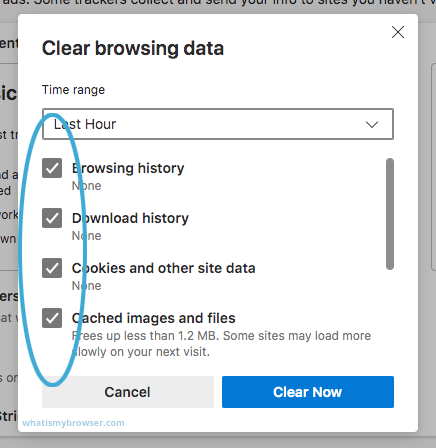
2. Clear Cache & Cookies
A corrupted browser cache can cause many issues.
- Open browser Settings.
- Click on Privacy and Security >> Delete Browsing Data.
- Choose Cookies and other site data, and Cached images and files.
- Next, click Clear Data.
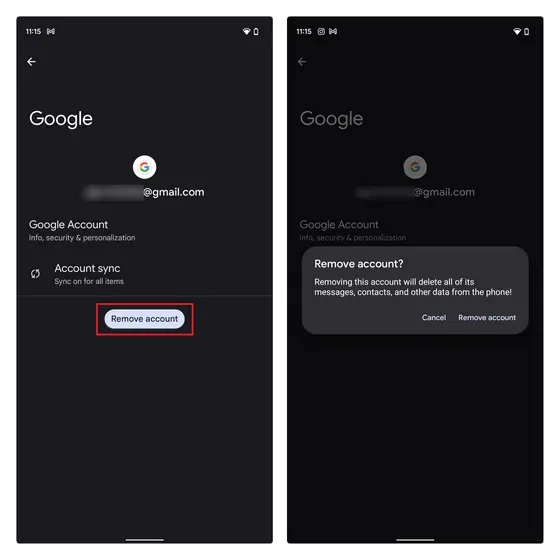
3. Try to Sign Out and Sign in Back
It’s a Gmail specific solution that sometimes work if the issue is related to your login.
4. Use Incognito Mode
If Gmail works okay in Incognito Mode, the problem is probably with your browser extensions , cookies or cached files .
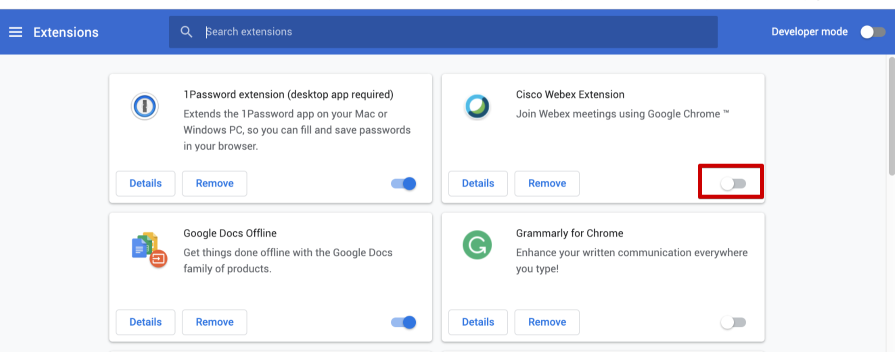
5. Disable Browser Extensions
Extensions may interfere with Gmail functionality. So disable them to solve error 400.
- Go to Settings, click on Extensions and Add-ons.
- Remove all the unnecessary extensions and restart your browser.
6. Update Your Browser
Outdated browser versions may not support Gmail features. As a result, Gmail error 400 invalid_request can occur. Ensure that you are using the latest version of your browser.
5. Check Internet Connection
An unstable internet connection may cause of various issues like Gmail 400 error. Make sure your internet connection is stable or not.
6. Restart Your Device
Sometimes a simple restart can solve many problems. It can clear out any temporary issues that can cause the error.
7. Check the Gmail URL
Ensure you are using the correct Gmail address.
How to Solve Gmail Error 400 on Mobile Devices?
Now, try the following ways on your mobile devices.
1. Close the Gmail App
Sometimes, temporary problems with the Gmail app can interfere with how your device talks to Google’s servers. The app restarts a new session when you restart the app and may fix small bugs that are causing Gmail Error 400.
2. How to Clear Cache of Gmail App (Android)
The Gmail app stores temporary files (cache) to speed up loading of content. Over time these files can become corrupted or outdated, causing login issues, sync problems or Gmail Error 400. When you clear the cache, these temporary files are deleted but your emails will not be affected.
Steps to Reproduce:
- Open settings
- Go to apps and find Gmail.
- Tap on Storage & cache.
- Clear Cache.
- Restart your Gmail.
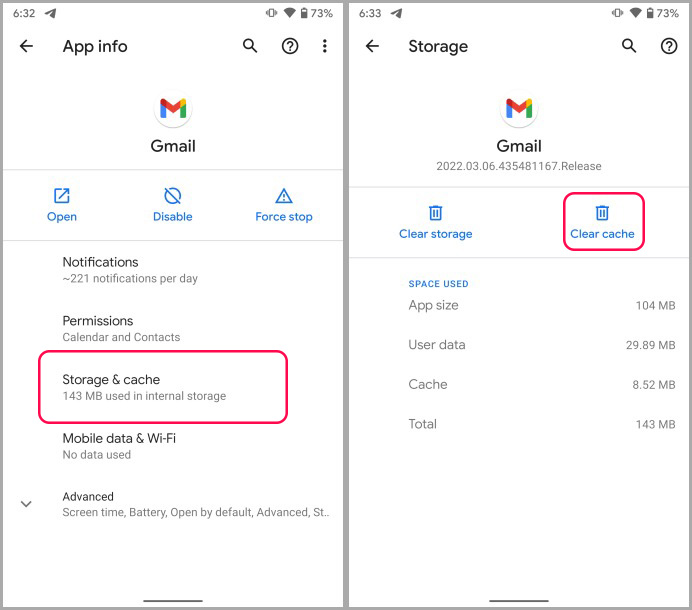
Note: Clearing your cache will not delete your Gmail account or emails.
3. Reinstall the Gmail App
If the application files of Gmail are corrupted or outdated then clearing cache alone may not fix the problem. Reinstalling Gmail installs the latest version of the app with new app files.
Procedure: 1.
- Remove the Gmail app from your device.
- Reboot your phone.
- Re-download Gmail from Play Store or App Store
- Test the application. Sign in.
Usually this method fixes persistent Gmail errors caused by corrupted app installations.
4. Verify Mobile Data Permissions
Gmail needs to be online so that it can reach Google’s servers. Gmail may not be able to process requests properly and display Error 400 when mobile data permissions are disabled or restricted.
Android :
- Open the Settings application.
- Tap Apps > Gmail. Tap Gmail.
- Tap Mobile Data & Wi-Fi.
- Allow mobile data access.
iPhone:
- Open the Settings.
- Scroll down and tap on Gmail.
- Make sure that Mobile Data is switched on.
Turn on access to your data now, then open Gmail again and see if the problem is gone.
5. Check Date and Time Settings
Incorrect date and time settings are an underestimated cause of Gmail login and authentication errors. Gmail uses accurate timestamps to establish secure connections to Google’s servers. If your device has the wrong clock, Gmail will reject the connection, which can generate error 400.
Android:
- Go to Settings.
- Open Settings > System > Date & Time.
- Activate Set time automatically.
- Turn on Set Time Zone Automatically.
iPhone:
- Open Settings.
- Open General > Date & Time.
- Automatically On
Once the correct date and time are set, restart Gmail and try again.
How to Prevent Gmail Error 400 in the Future
Gmail error 400 is easy to fix, but some preventive practices can minimise the chances of happening it again. To prevent it in future, keep the following things in your mind;
- Keep your browser up to date.
- Regular clear caches in your browser.
- Try to avoid unusual extensions.
- Review sessions on your active Google account regularly.
- Use working internet connection.
Protect Important Gmail Data
Gmail Error 400 does not impact on your stored emails in mailbox but temporary access problems can make it difficult to reach important messages when needed.
That’s why, many users keep regular backups of important Gmail data. Advik Gmail Backup Tool is one such tool that helps users to store mailbox data locally and access emails in case of account or browser problems.
When to Contact Google Support?
If the above-mentioned solutions do not work in fixing the Gmail Error 400, then the issue might be because of account specific authentication issues or temporary outages with Google services.
If this is the case, you can get more help from the Google Help Center and Community Forums.
Conclusion
Dealing with Gmail Error 400 can be a very frustrating issue especially when you need to access to your important emails. Thankfully, we have explained most of the things about this error code and plenty methods to solve this error. Now, we know it’s reasons and fixes that we can use if these types of error happens in future.
If you’ve tried all of the fixes discussed above and still face Gmail Error 400, you may want to consider to check Google’s Help Center or contact Google Support for more help.
Frequently Asked Questions
Q1. Why am i getting Gmail error 400 even when Gmail was working fine before?
Ans. Gmail error 400 appears unexpectedly caused by various reasons such as corrupted browser cache, damaged cookies, expired login sessions, browser extensions or temporary connectivity problems. Even if your Gmail was working fine before, these factors can also cause the error to appear.
Q2. Is my Gmail account hacked or suspended because of this i am getting Gmail Error 400?
Ans. Most of the time, Gmail error 400 is not related to any account hack or suspension. It usually happens because Gmail can’t properly process a request sent by your browser or app.
Q3. Will my emails be deleted if I clear my browser cache and cookies?
Ans. No, clearing cache and cookies just deletes temporary browser data. Your emails are safe on Google cloud and you can get once you login to your account again.
Q4. How do I know that Gmail error 400 is caused by Google or my device?
Ans. Try using Gmail on a different browser, in Incognito Mode or on a different device. If Gmail works on other devices, the problem is likely with your device. Gmail is down. If Gmail is not working anywhere, Google may be having a temporary service issue.
Q5. How long does Gmail Error 400 last?
Ans. If the problem is related to cache, cookies or browser sessions then it can often be fixed in a matter of minutes. If it’s a Google services issue, it may take longer until Google fixes it.