How to Convert Outlook Email to Word Document?
Jackson Strong | January 4th, 2026 | Data Backup
Learn how to convert Outlook email to Word Document file format. In this tutorial, we are going to discuss how to save Outlook email as Word Document manually and professionally. So, give it a try to both methods and decide which one suits your needs.
Today, the need for advanced email platforms is growing day by day, and Microsoft Outlook is used by millions of users as it offers a range of features to manage emails effectively. A Word Document file is the best way to archive emails locally. It is the most secure format for saving emails with attachments. Moreover, it is portable, and one can share it from one person to another.
We have received many user queries related to how to export Outlook emails to Word Document. So, we have come up with an article that will describe easy approaches to accomplish this task.
The first method is a manual one, while the other is an automated tool that can convert Outlook emails to Word DOC in bulk.
Let’s move ahead to know the step-by-step process.
How to Save Outlook Email as Word Document Free?
In this method, we will use the “Save as” feature to export Outlook emails to Text and then open them in a Word Document file.
1. Open the Outlook application on your Computer.
2. Go to Outlook mailbox folders and choose the required email that you need to export into Word Document.

3. Now, click on the File tab and choose Save as an option from there.
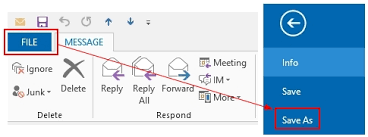
4. Next, select Text Only from the drop-down list.

5. Click on the Save button.

6. Then, open that Text file in any of the Word applications.
7. Again, save this file as Word Document.
Done!! In this way, you can easily export Outlook emails to DOC file, but it only allows one to choose a single email at a time, which can be a time-consuming process.
How to Convert Outlook Email to Word Document Files in Bulk?
Try the Advik PST Converter Tool, which can batch export Outlook emails into Word Document files with attachments at once. The tool provides a direct option to save multiple Outlook emails as Word Document files without any issues. It also offers advanced email filter options to export only selected emails. It preserves all email attributes and folder structure as well throughout the process.
Download the software and try it for free.

Steps to Export Outlook Emails to Word Document
Step 1. Install and run Outlook to DOC Converter on your computer.
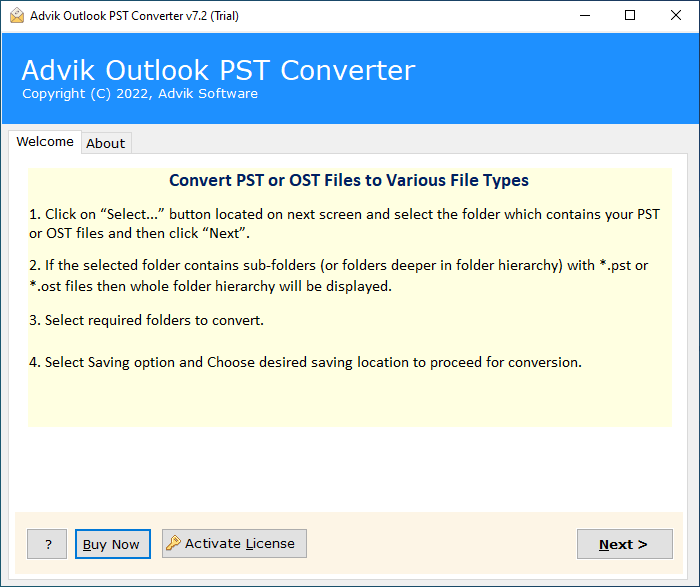
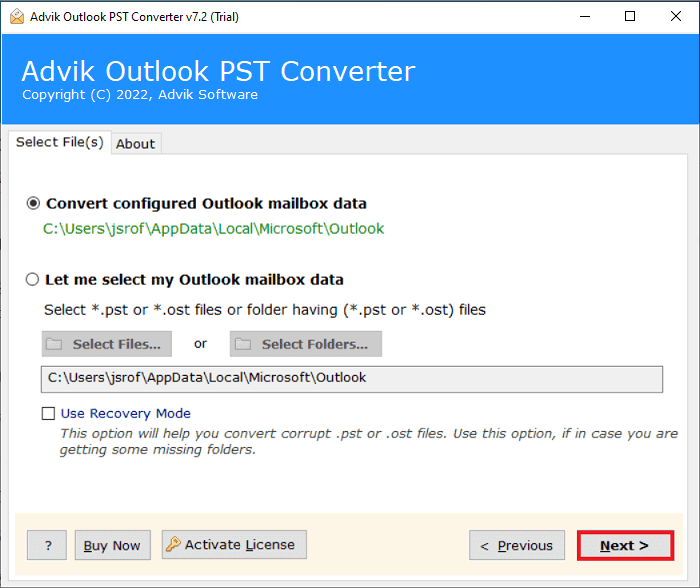
Step 2. Once software detects your Outlook profile, click Next button.
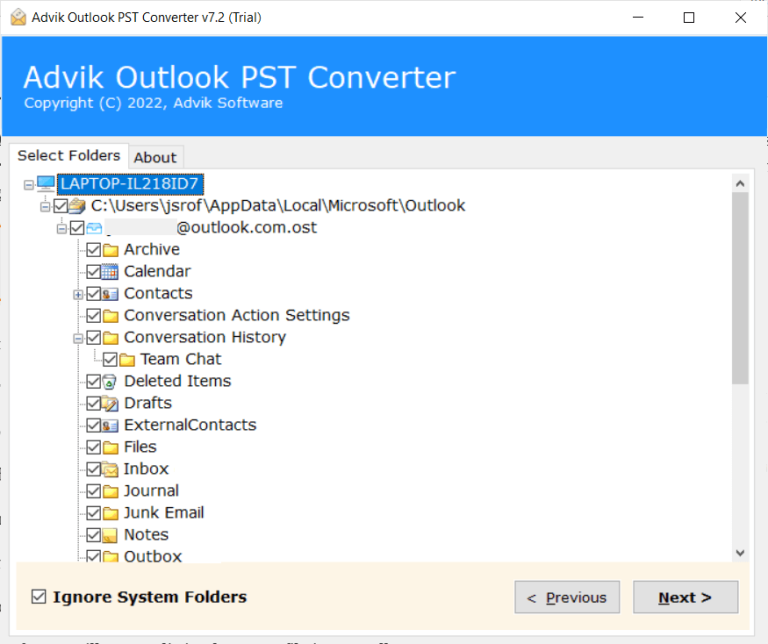
Step 3. Select mailbox folders and click Next button.
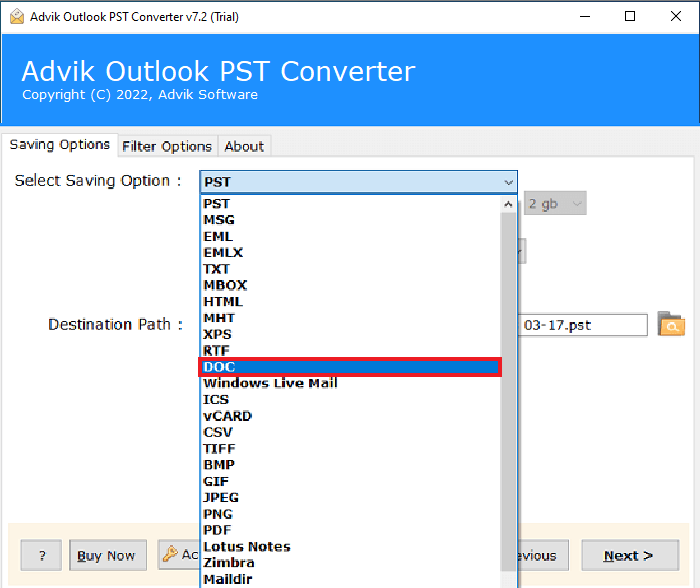
Step 4. Then, choose DOC as a saving option from the list.
Step 5. Click Next button to start exporting Outlook emails to Doc files.
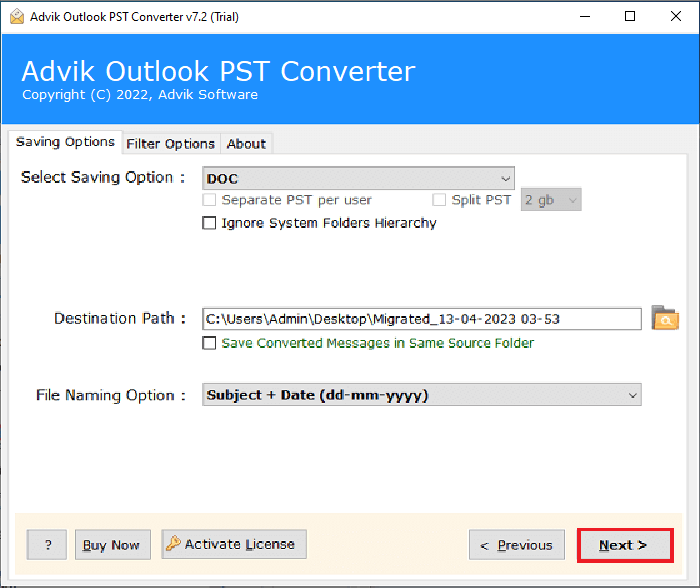
Done!! In a few seconds, you will be redirected to the location you have chosen to save your Word document file.
Watch How to Convert Outlook Emails to Word Documents
Why is Advik Outlook to DOC Converter Recommended?
It is an appropriate and right choice for every user who wants to precisely save Outlook emails to Word Documents. It has a number of amazing features that are listed below;
- Bulk and Selective Data Conversion: The software enables users to effortlessly convert and export unlimited Outlook email data in a single operation, regardless of file size limitations. Additionally, users can preview complete Outlook emails before initiating the conversion process, allowing them to select the required data conveniently.
- Automatic Data Loading: This software possesses the option to automatically load Outlook data directly from the Outlook location itself. By utilizing the “convert configured Outlook mailbox data” option, users can easily export Outlook folders to desktop without any manual effort.
- Multiple Saving Formats: The software offers a wide range of saving formats, empowering users to export and save data in formats such as MBOX, EML, PDF, MSG, TXT, HTML, CSV, vCard, and many others. Moreover, users can convert Outlook emails to various email services like Office 365, G Suite, Yahoo Mail, Outlook.com, and more.
- File Naming Option: When saving data as EML, MSG, TXT, or PDF, users can manage their converted data using the file naming option. This feature allows users to maintain folder hierarchy after the conversion process by organizing files based on attributes like Date, From, To, Subject, and more.
Conclusion
This technical post is all about exporting Outlook email messages to Word Document file. Both possible methods with step-by-step processes will surely help to save Outlook email as word documents. You can either use the manual solution or take the benefit of using an automated tool to securely convert Outlook email to word document as per your needs. It also offers a free demo version that allows you to convert the first 25 Outlook emails from each folder at no cost.
Frequently Asked Questions
Q1. How to copy an email from Outlook into a Word document manually?
Ans. To manually save emails from Outlook to Word documents, first save them as .text format and then open them in Word.
Q2. How do I transfer emails from Outlook to a Word Document in bulk?
Ans. With the automated tool, you can convert Outlook emails to Word document in batch.
Q3. Can I convert Outlook 2024 emails to Word document with this software?
Ans. Yes, this tool can save Outlook 2024 email as word documents.
