How to Import EML Files into Outlook (New, Classic & Web)?
Quick Answer: You can import EML files into Outlook using New Outlook’s built-in import feature. Go to Settings > Files > Import, select the folder containing your EML files, choose the destination account and folder, and start the import. For Classic Outlook, you may need an alternative workflow, such as importing through a compatible email client or converting EML files to PST.
Can Outlook Import EML Files Directly?
Yes. Microsoft has added bulk EML import support to New Outlook for Windows, so you don’t have to necessarily use a third-party converter to move saved email messages. You can choose a folder of EML files and import them into a folder in your Outlook account.
But the way is different on which Outlook you use. New Outlook includes a built-in EML import option, while Classic Outlook does not have the same native bulk-import workflow for EML files. Microsoft also limits the import function built into the New Outlook to EML files up to 14 MB each and only imports files in the folder you select, not EML files in its subfolders.
If you have hundreds EML files in multiple folders, need PST archive, or cannot use New Outlook, choose a method that matches your requirements.
Which Method Should You Use to Import EML to Outlook?
| Situation | Recommended Method | Outlook Required? | Cost |
|---|---|---|---|
| You use New Outlook and have EML files up to 14 MB each | Built-in EML import | Yes | Free |
| You want to open and inspect one EML file | Open the EML file in Outlook | Yes | Free |
| You use Classic Outlook and need to import many EML files | Use a compatible email client or an EML-to-PST converter | Depends on the method | Free or paid |
| Your EML files are in multiple subfolders | Import each folder separately or use a suitable batch conversion tool | Depends on the method | Free or paid |
| You need an Outlook-compatible PST archive | Convert EML files to PST, then import the PST | Classic Outlook is the traditional option | Free or paid |
| You have large EML files or files exceeding New Outlook’s import limit | Use a compatible alternative workflow | Depends on the method | Free or paid |
Few Things You Need to Know Before Importing EML Files
Please check the following before starting an EML to Outlook transfer:
- First of all check which Outlook you are using, whether it is New Outlook, Classic Outlook, or Outlook on the Web.
- Make a backup of your original EML files.
- If you have multiple .eml files then collect them into manageable folders.
- If you want to use the built-in import in New Outlook, check the size of larger EML files.
- Select whether you want individual emails or a complete folder based migration.
- Make sure to check the attachments after completion of migration. Check them after import.
Important: Do not delete the original EML files until you verify that the imported emails and attachments are available in Outlook.
Method 1: Import EML Files into New Outlook for Free
If you’re working with a comparatively small number of EML files and you’re using Classic Outlook for Windows, the old manual method is handy.
Step 1: Make a folder in Classic Outlook
Open Classic Outlook and create a new folder to place the imported EML messages.
By way of example: New Folder >> Inbox >> Imported EML
Step 2: Find your EML files
Launch File Explorer and navigate to the folder that contains your .eml files.
Select the EML messages that you want to import.
Step 3: Move EML files to Outlook folder by drag and drop
Drag and drop the selected EML files from File Explorer into the Outlook folder you created.
Important: Do not drag EML files to the wrong place
One common problem is that EML files are dragged directly into the Inbox or elsewhere – Outlook handles them differently.
Create a new folder in Outlook for a cleaner manual import, and place the EML messages in that folder.
When should you use this method?
- No additional migration software is required.
- For a small number of EML files.
- Easy for users familiar with Classic Outlook.
- Good when you just want to move a couple of messages.
Method 2: Open an Individual EML File in Outlook
The new Outlook for Windows has a built-in option for bulk import of EML files. This is an important difference to older Outlook documentation which states that EML files cannot be imported directly.
Current instructions from Microsoft are:
Settings >> Files >> Import >> Start import.
Steps to import EML to New Outlook
- Open New Outlook for Windows
- Go to Settings.
- Navigate to Files.
- Choose Import.
- Click on Import start
- Browse to the folder where your .eml files are stored.
- Choose the destination account and folder.
- Choose Import.
Microsoft says it only imports the top-level EML files in the selected folder. And it ignores EML files stored in subfolders. All EML files must be within the documented size limit of 14 MB as well.
When to use the built-in import in New Outlook
When is this a good option?
- You’re on the new Outlook for Windows.
- You have EML files with small size.
- Your EML files will be saved directly in the folder you select.
- You are not required to import nested subfolders by default.
If you have a large EML collection beyond supported limits or a complex folder hierarchy, look for another method.
Method 3: Import EML Files into Outlook Web
1. Go to the location where you have stored your EML files.
2. Right-click the EML file you want to import into Outlook.
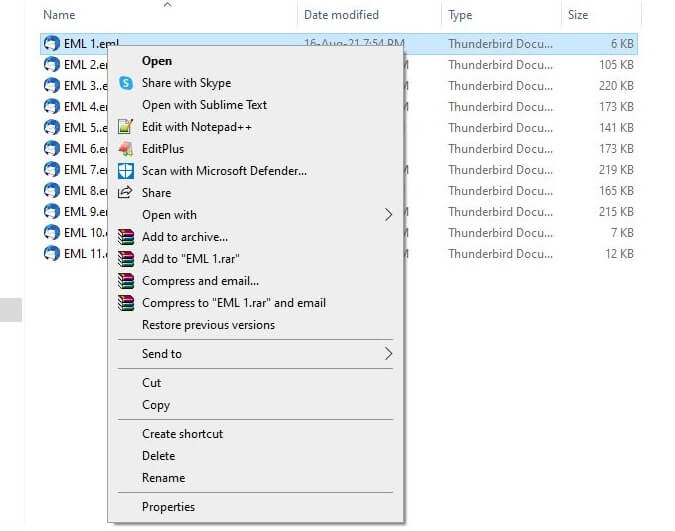
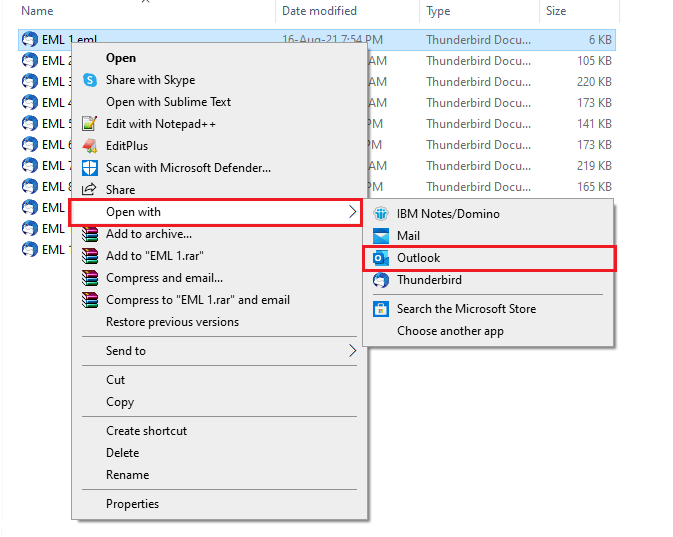
3. Now, choose the Open With option in the Explorer menu and select Outlook to open EML files.
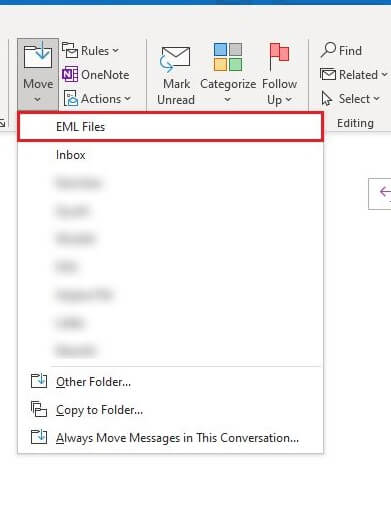
4. Now, Click on Move and select the folder where you want to import the EML file.
Done!! This is how you can manually transfer EML files into Outlook.
However, dealing with manual methods is ineffective with a large number of EML files. It has numerous disadvantages, including:
- Users have to go through numerous steps as you can only import a single EML file at a time.
- When you need to import a large number of EML files to Outlook, the manual method is not feasible.
Method 4: Transfer EML Files to Classic Outlook Using a Converter
The manual method mentioned above is only suitable for importing a few emails, not for bulk EML files. It’s not recommended for this task. Instead, we recommend using trusted third-party software to avoid any data loss. Advik EML Converter is a reliable tool to import multiple EML files into Outlook format. It can easily convert EML to PST which you can use to import to Outlook. Users can easily migrate unlimited EML files to Outlook PST file using this converter.
The tool offers a Select Files or Select Folders option for batch EML to Outlook migration. It maintains the folder hierarchy of the source EML file even after conversion. Besides, this tool is also compatible with all the latest and previous versions of Outlook 2021, 2019, 2016, 2013, 2011, etc.
Now that you have a better understanding of this tool, you will learn about it more practically through the simplest working steps that will surely amaze you while reading EML files in Outlook.


General workflow
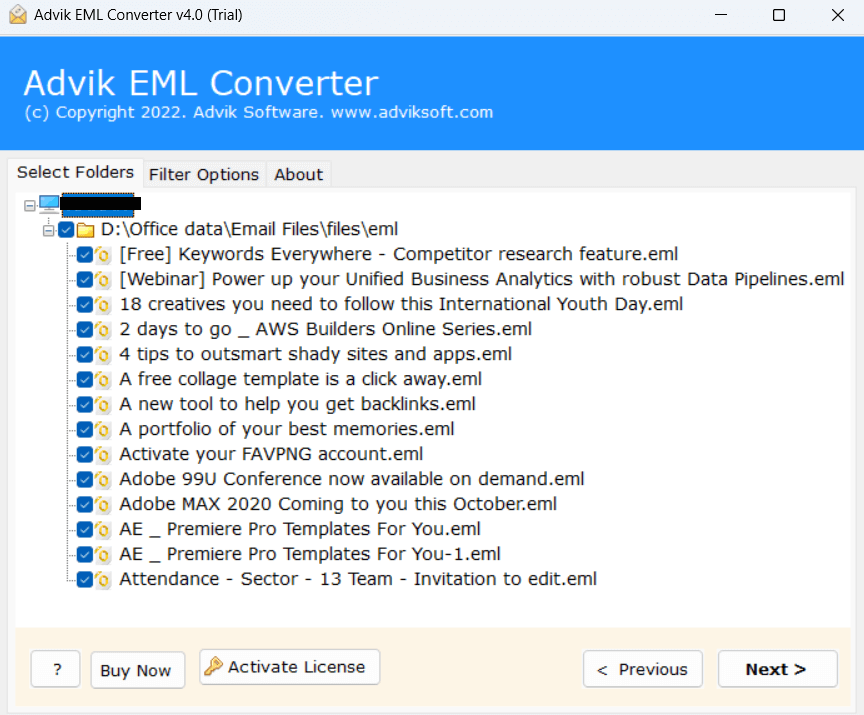
1. Run the software and upload EML files to the software interface.
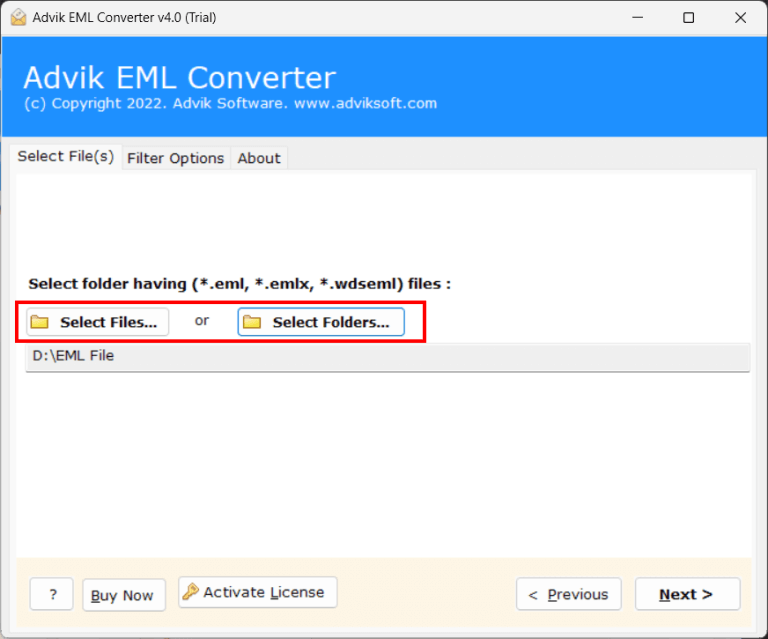
2. Select the required EML files and go to the next step.
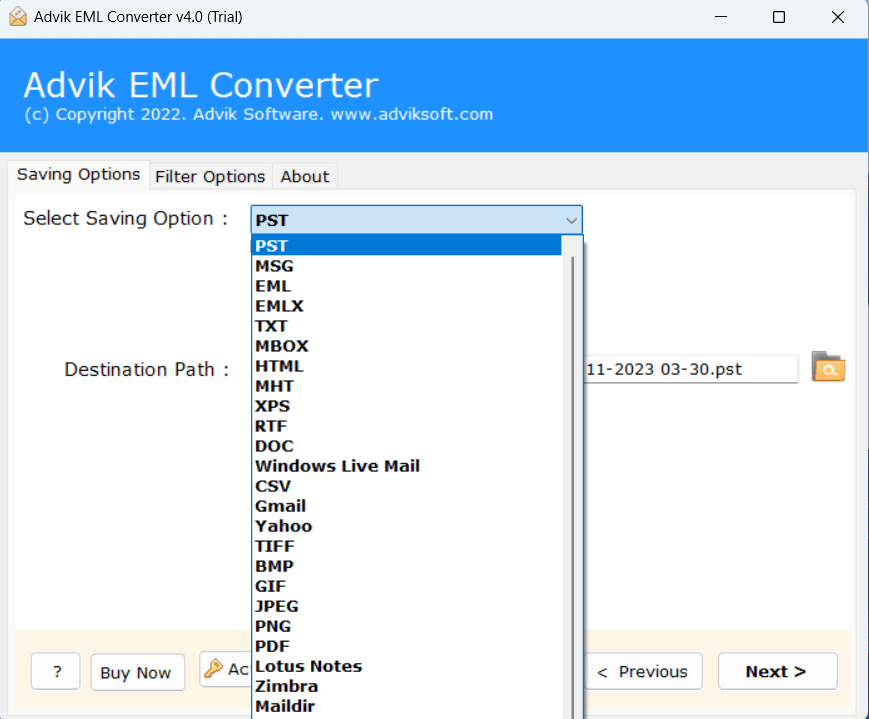
3. Now, select PST as a saving option from the list.
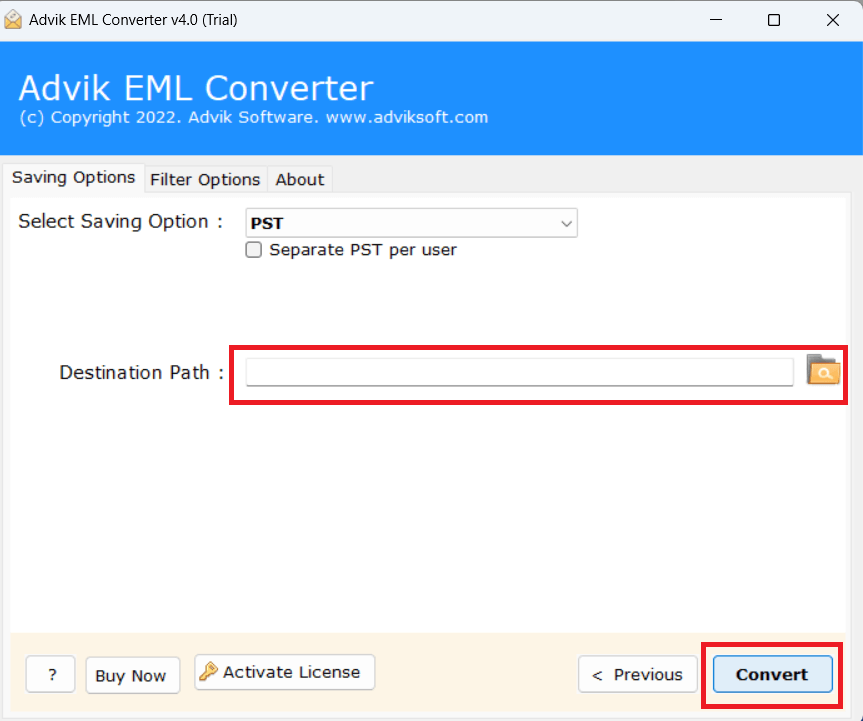
4. Select your desired destination path and click on the Convert button to start.
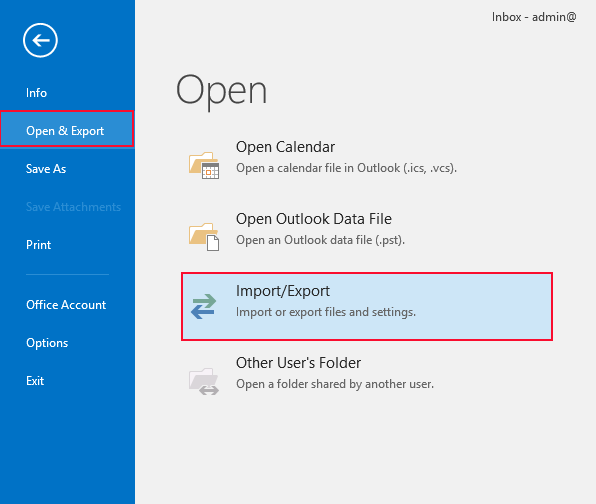
5. Now, open the Outlook Email Client Application.
6. Go to the File tab and click Open & Export >> Import/Export.
Done!! In this way, you can bulk import multiple EML files into Outlook.
Watch How to Import EML File to Outlook in Bulk
Check the Result After Importing EML to Outlook
Do not consider the transfer complete until you have checked the imported messages.
- Message counts: Count the source EML files and compare with the number of messages imported. Search for items that are missing or duplicated.
- Check different types of messages: Open up a plain-text email, an html email, and a message with attachments.
- Verify sender and recipient data: Make sure the From, To, and cc information are correct.
- Verify dates: Check the original message against the date received or sent displayed.
- Open Attachments: Open and try different types of attachments (documents, images, etc.).
- Check Folder Placement: Ensure messages reach the correct mailbox and destination folder.
- Search for a known email: Search by a unique subject or sender to make sure Outlook can find the imported message. Find a known email.
Conclusion
Importing EML files in Outlook 2021, 2019, 2016, and 2013 is the most common query we found and we decided to try our best to solve this query. To do this, we have given two of the best solutions that have proved to be beneficial for everyone, but the manual solutions have some disadvantages that we have also discussed in the previous section. One must be very careful when using these solutions. However, with an automated solution, you can import EML to Outlook in batch without hassle.
Got questions? We have answers!
Q1. Can Outlook directly import EML files?
Ans. No, Outlook does not support importing EML files directly. To transfer EML files to Outlook, you first need to convert them to PST format using a conversion tool or drag and drop them into Outlook one by one.
Q2. What are the free ways to import EML files into Outlook?
Ans. Free methods include using the drag-and-drop feature. You can import EML files into Outlook by IMAP feature to sync emails with an Outlook-configured account.
Q3. Is there a limit to the number of EML files to import in Outlook?
Ans. Most third-party tools don’t restrict the number of EML files you can import, but importing a large number of files may take more time. Also, keep in mind that Outlook PST files have a size limit (50 GB in newer versions), which could affect the amount of data you can import at once.