Import EML Files to Gmail Account Directlty
Quick Answer: Can Gmail open .eml files?No, Gmail can’t import .eml file. Even it provide to save emails as .eml file format, but there is no option to restore or import EML to Gmail. However, you can configure Gmail to Thunderbird client and take the help from Import Export NG Tools to import .eml files into Gmail. Additionally, if you want to open EML file in Gmail without Thunderbird , download and try this EML to Gmail Import tool.

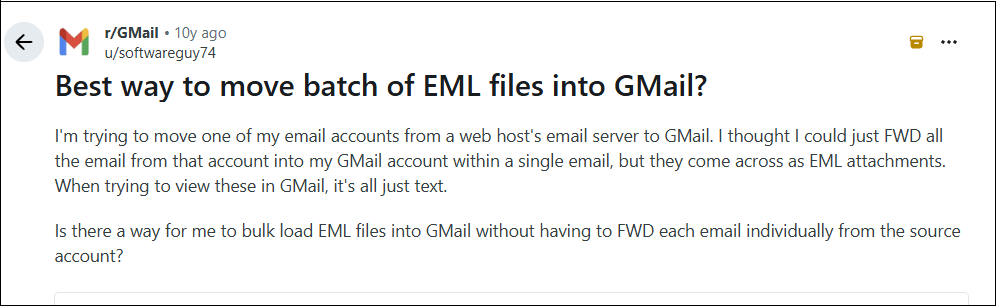
Comparing available methods and user experiences shared on Reddit can help you decide which approach best suits your needs.
Which Method Should You Use to Import EML to Gmail?
There is no single method for every EML import. Choose an option based on the number of files you have need to import.
| Your Requirement | Recommended Method | Best for |
|---|---|---|
| Open one EML file | Send the file to yourself or open it in an email client | Reading an individual email |
| Import a few EML files | Thunderbird/Outlook + IMAP | Moving selected messages |
| Import an entire folder | Dedicated Advik EML to Gmail Tool | Bulk importing |
| Preserve dates, attachments and organization | Thunderbird/Outlook or EML to Gmail Import Tool | Keeping emails organized |
How Do I Open EML File in Gmail as Attachment?
This is just a loophole to read EML file in Gmail.
- Open Gmail in your browser and click Compose.
- Enter your own Gmail address in the To field.
- Click the attachments icon and select the EML file from your system.
- After that, click Send.
- Now, open the email you just received in Gmail and download the attached EML file if needed.
This method is useful when you want to keep an EML file accessible through your Gmail account. However, Gmail treats it as an attachment, not as an individual message in your inbox. You cannot automatically search its original sender, date or subject as though the message had been imported.
How Do I Import EML Files into Gmail as Messages?
If you want EML emails to appear as regular messages in Gmail, you can use an EML-supported email client such as Thunderbird, Outlook, etc. Connect Gmail to Thunderbird or Outlook through IMAP and move files into your Gmail folders.
#1. How to Import EML to Gmail Using Thunderbird?
1. Launch the Thunderbird email client on your system.
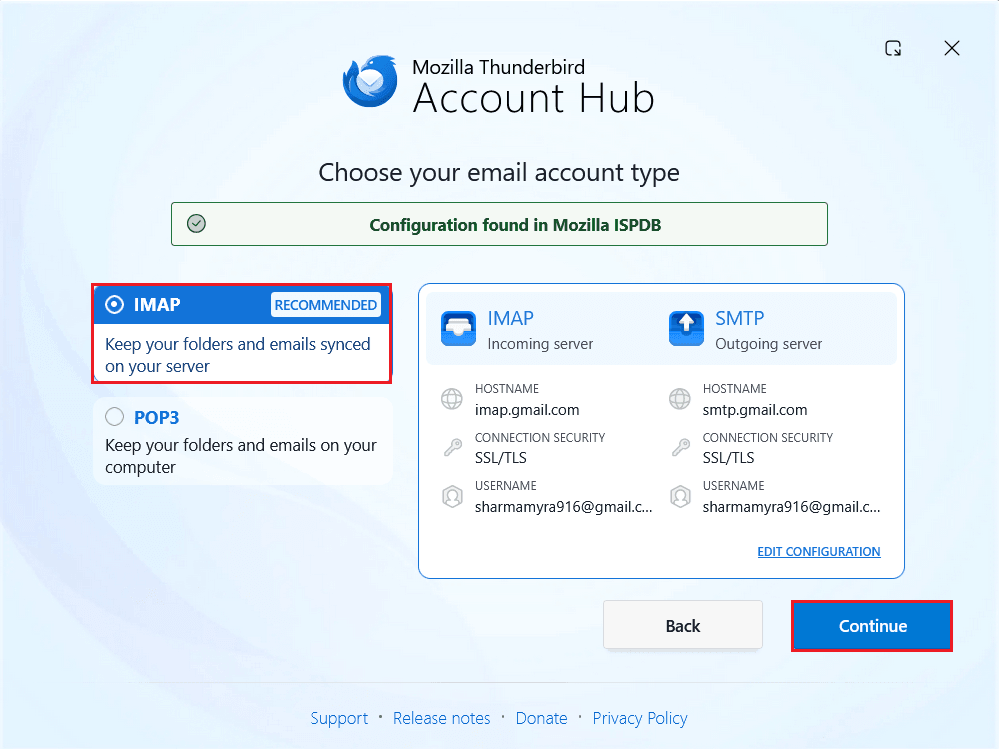
2. Add your Gmail account to Thunderbird.
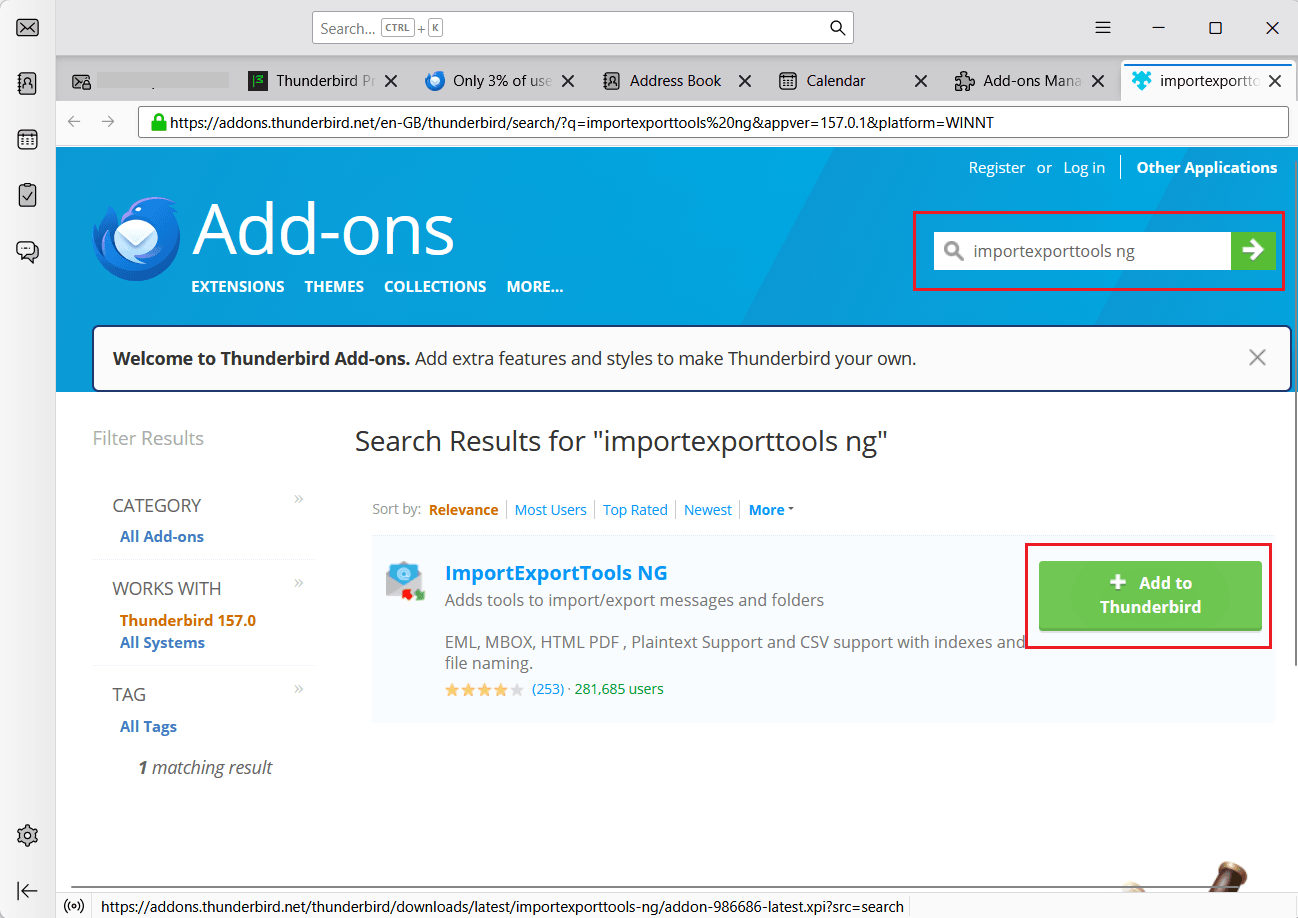
3. Install ImportExportTools NG in Thunderbird.
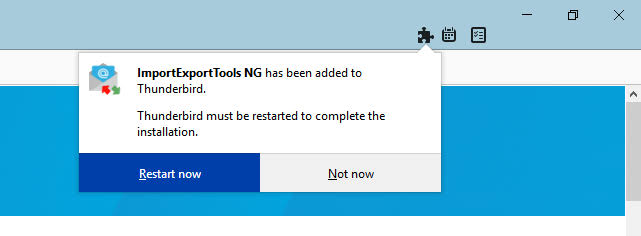
4. Now, restart the Thunderbird application.
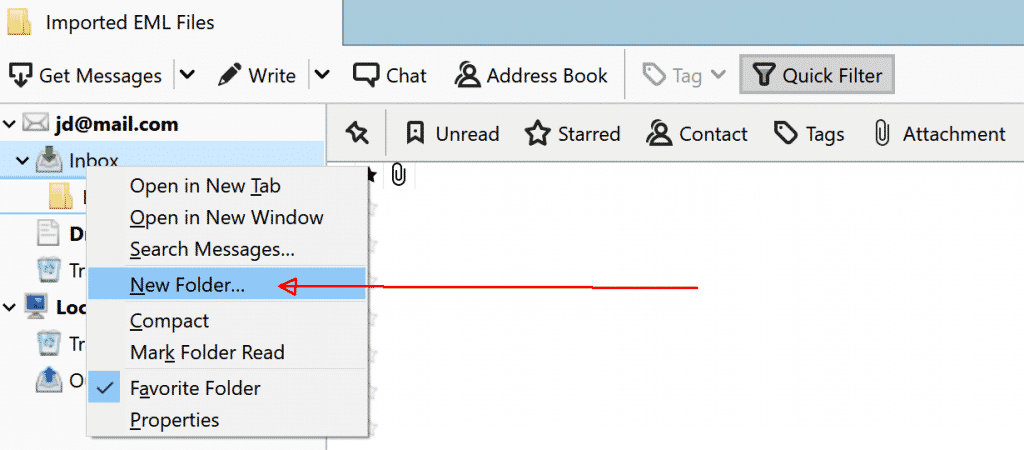
5. Next, create a new folder in the configured Gmail account and right-click on it.
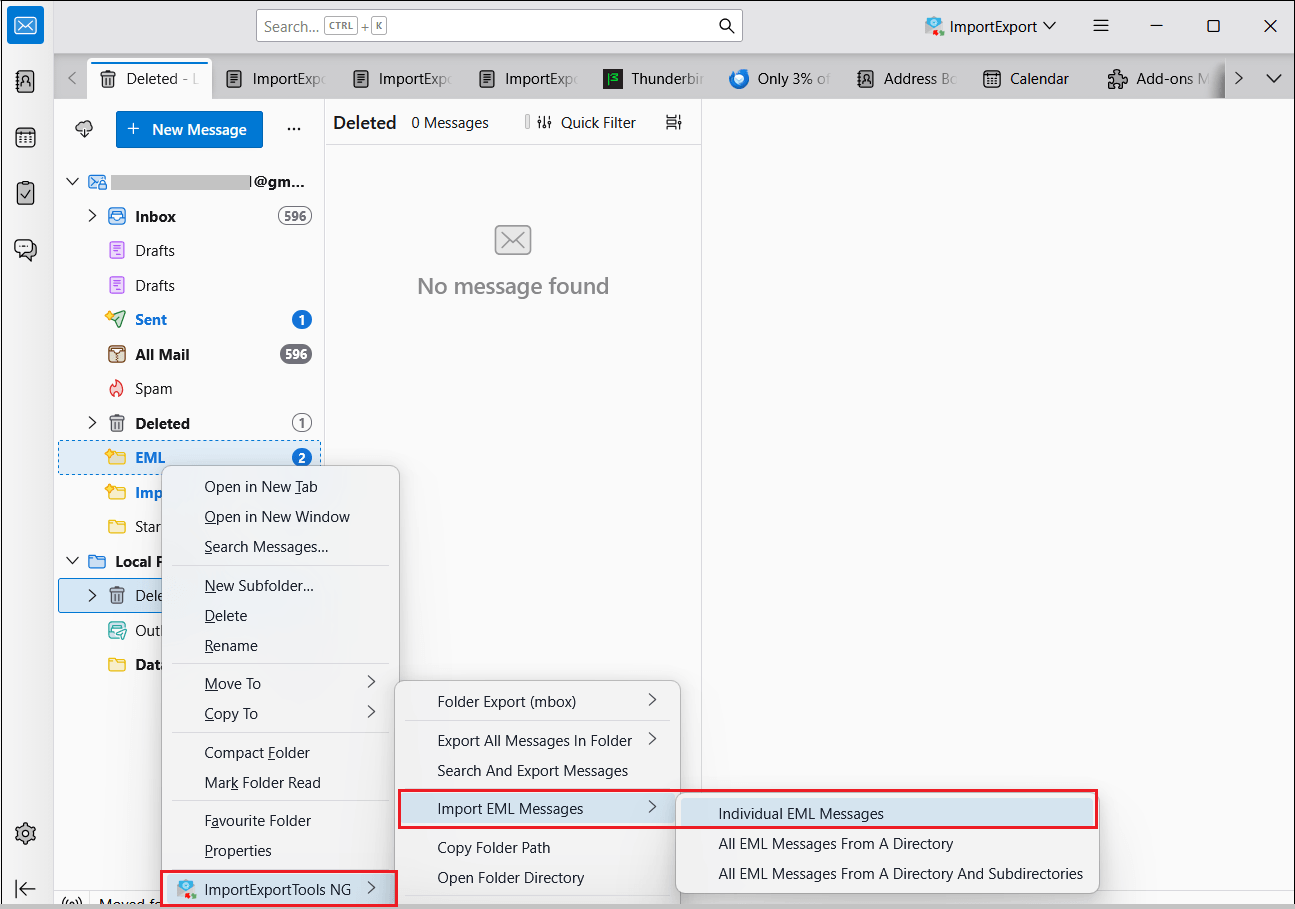
6. Click ImportExportTools NG >> Import EML Messages >> Individual EML Messages.
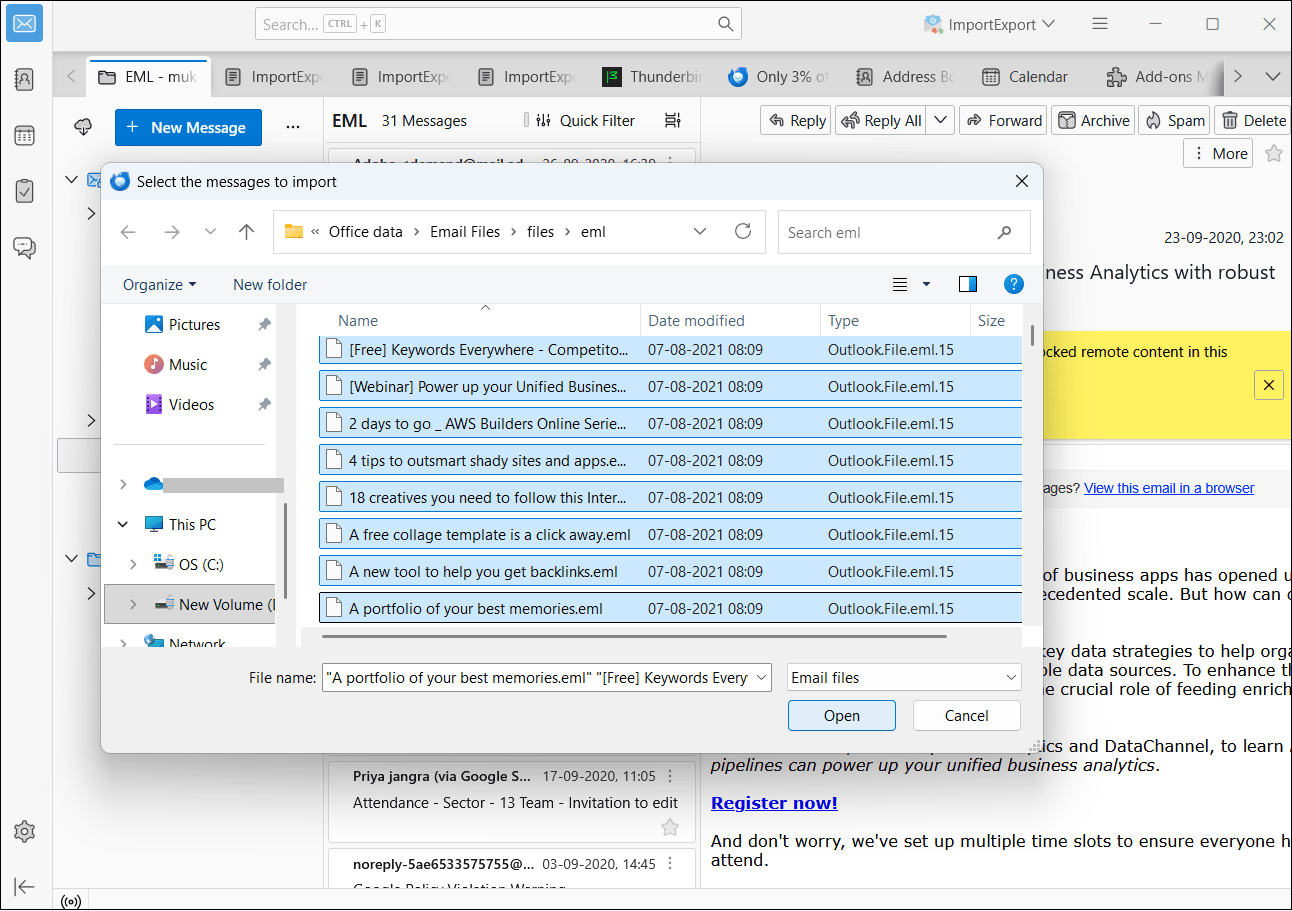
7. Choose the .eml files that you want to import from your system.
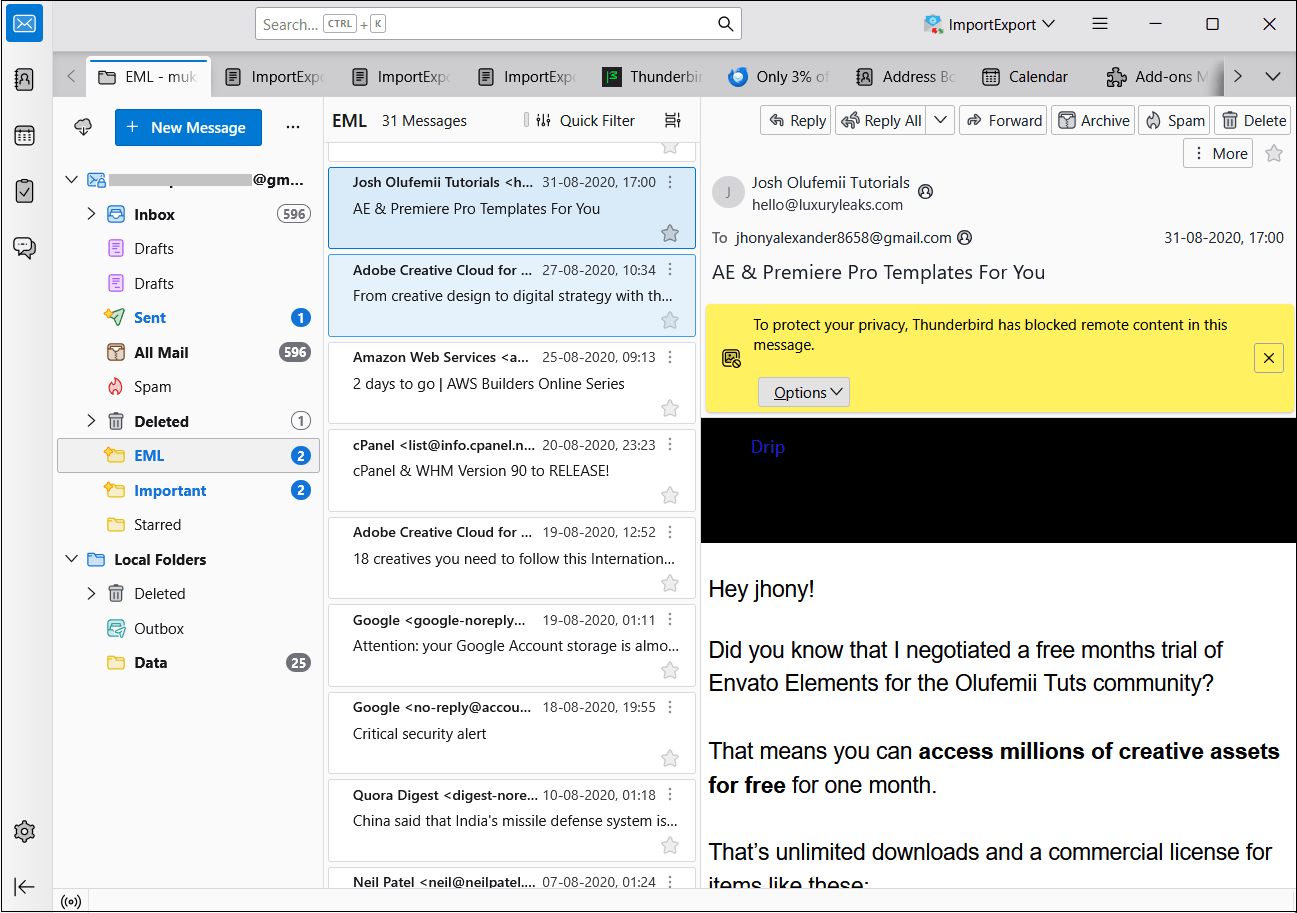
8. Open the imported EML files and check them.
#2. How to Open EML File in Gmail Using Outlook?
If you already have Microsoft Outlook installed, you can use it as an intermediate application. First, import EML files to Outlook and then drag and drop them into the configured Gmail account.
1. Launch the Outlook application on your computer.
2. Create a New Folder in Outlook.
3. Open File Explorer and navigate to the folder that contains your .eml files.
4. Select the EML Files that you want to import.
5. Drag and drop the selected EML files into the Outlook folder you created.
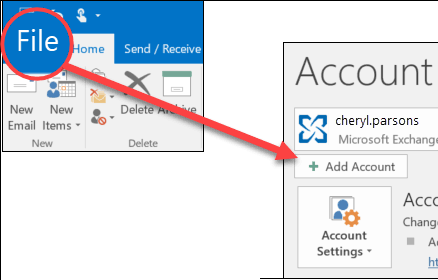
6. Now, go to File tab and click Add Account.
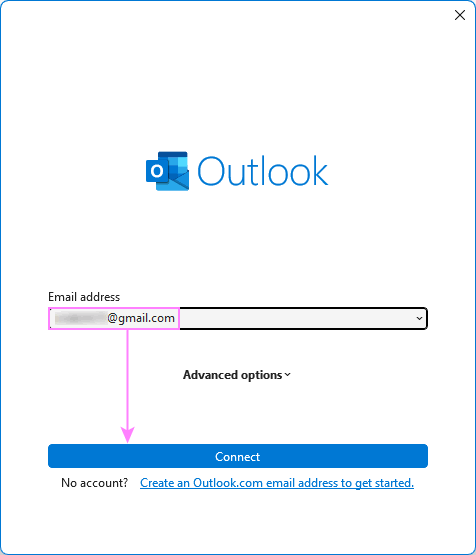
7. Enter your Gmail account details to connect Gmail to Outlook.
8. After that, drag and drop the previously imported EML files into your Gmail account.
Done!! This is how you can import emails to Gmail from EML files using Outlook.
How to Import EML Files to Gmail in Batch Directly – Reddit Recommendation
If the manual process takes too much time, or you need to migrate multiple EML files while preserving email details and attachments, the right method can make it easier. Users exploring EML-to-Gmail migration on Reddit may find discussions of different approaches.
Advik EML Converter is the right way to upload EML files to Gmail directly. Instead of manually opening and transferring individual messages, the software can copy bulk .eml files into Gmail with attachments. If you face any issues importing EML files to Gmail with this utility, you can contact our support team at any time. They are available 24/7 to solve your problem.
Try the free demo version to experience its features before purchasing.


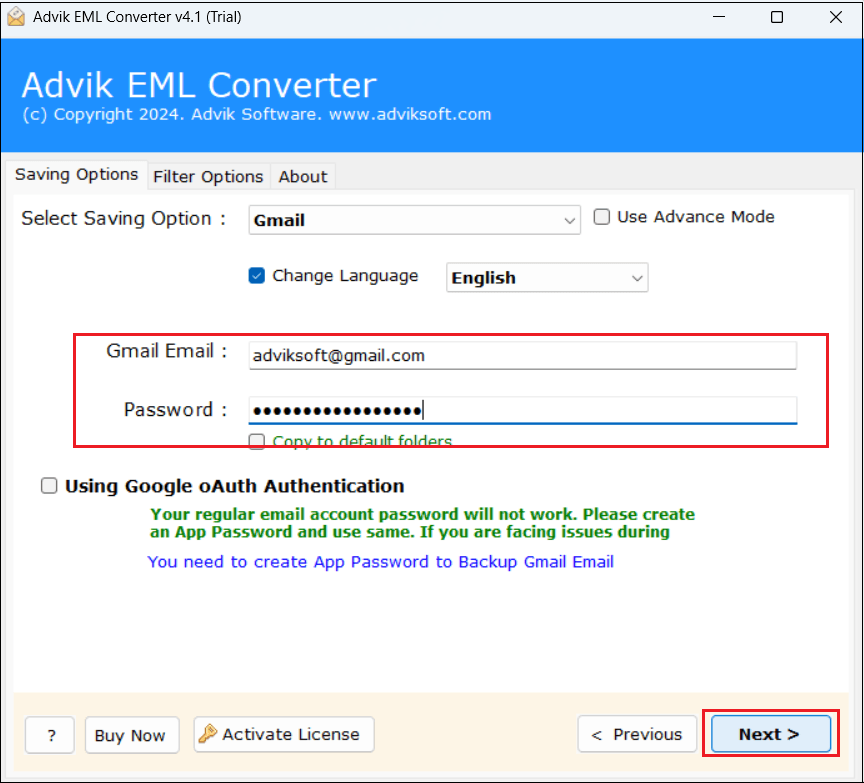
Note: Generate App Password in Gmail to Sign in.
Steps to import EML to Gmail in Batch are follows.
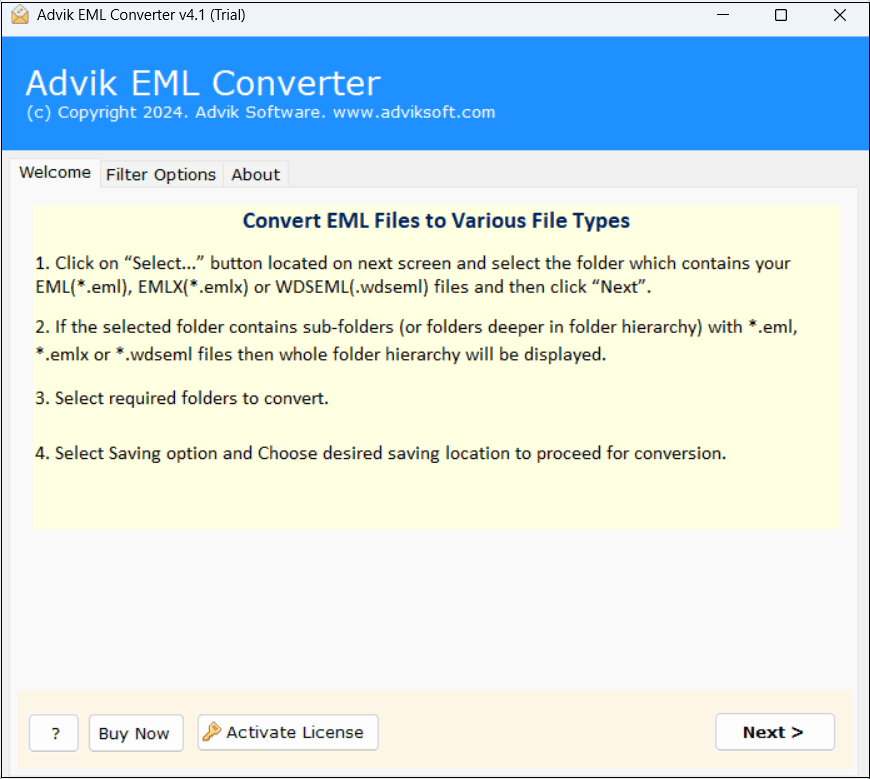
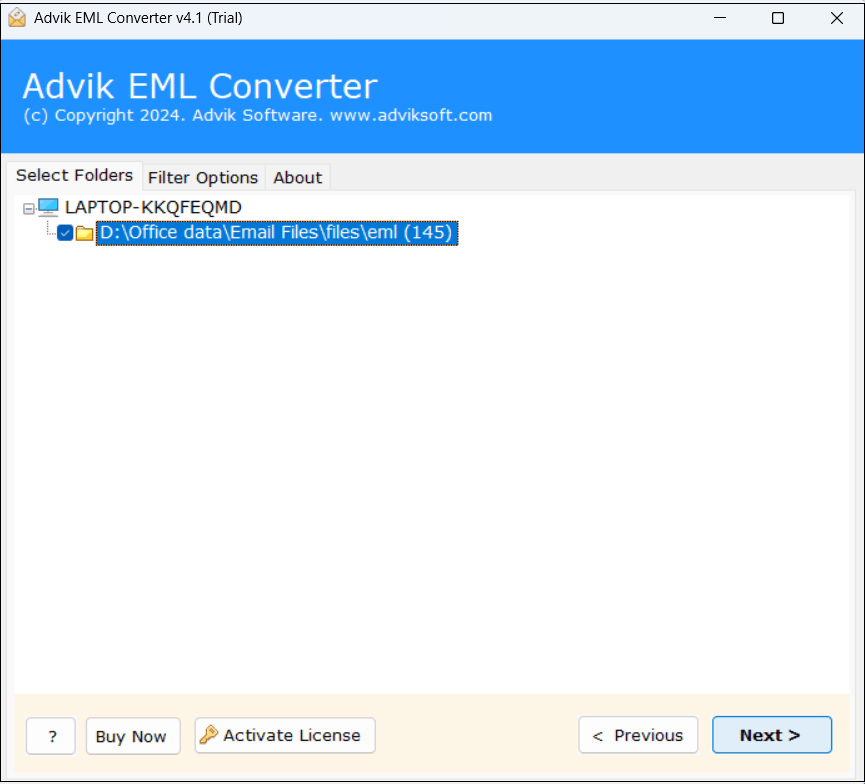
1. Run Advik EML Converter software on your Windows PC.
2. Click Select Files or Folders to load EML files.
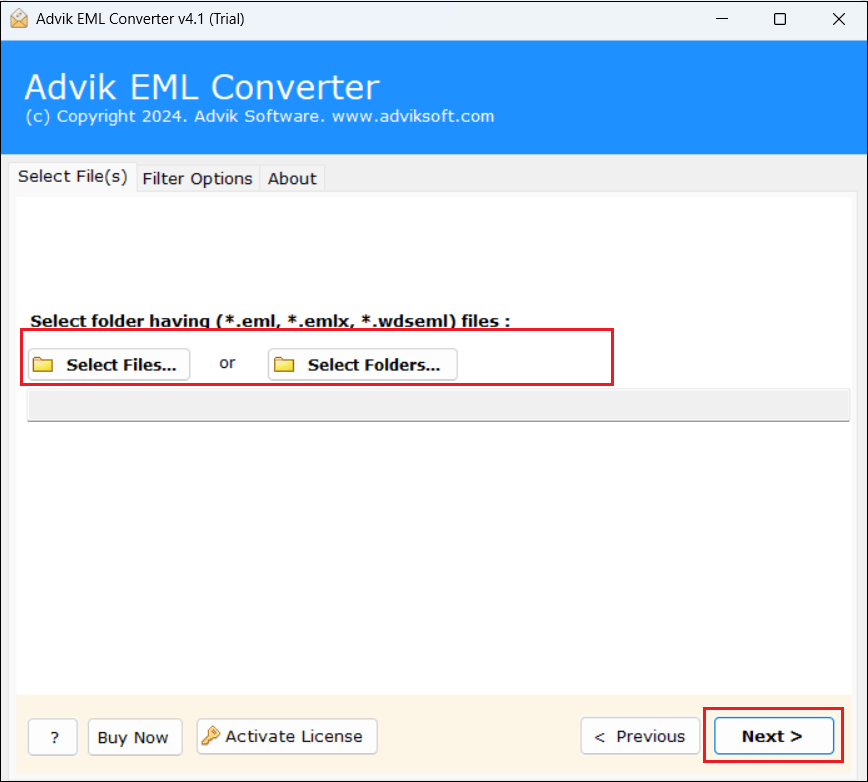
3. Choose the required email folders from preview mode.
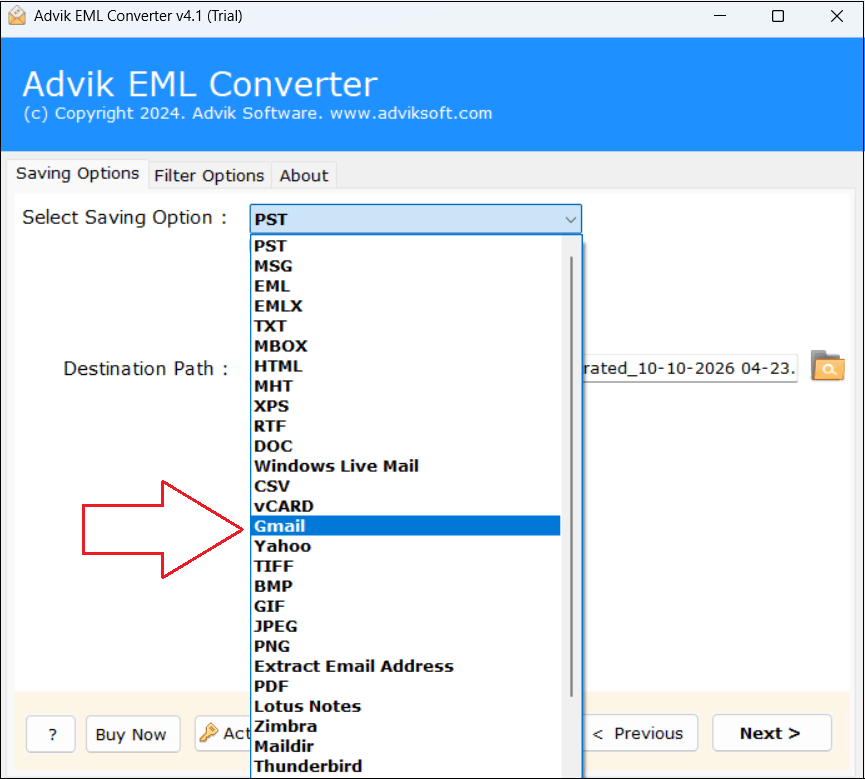
4. Select Gmail as a saving option from the list.
5. Enter Gmail account credentials and press the Next button.
6. The software will start importing EML files to Gmail mailbox.
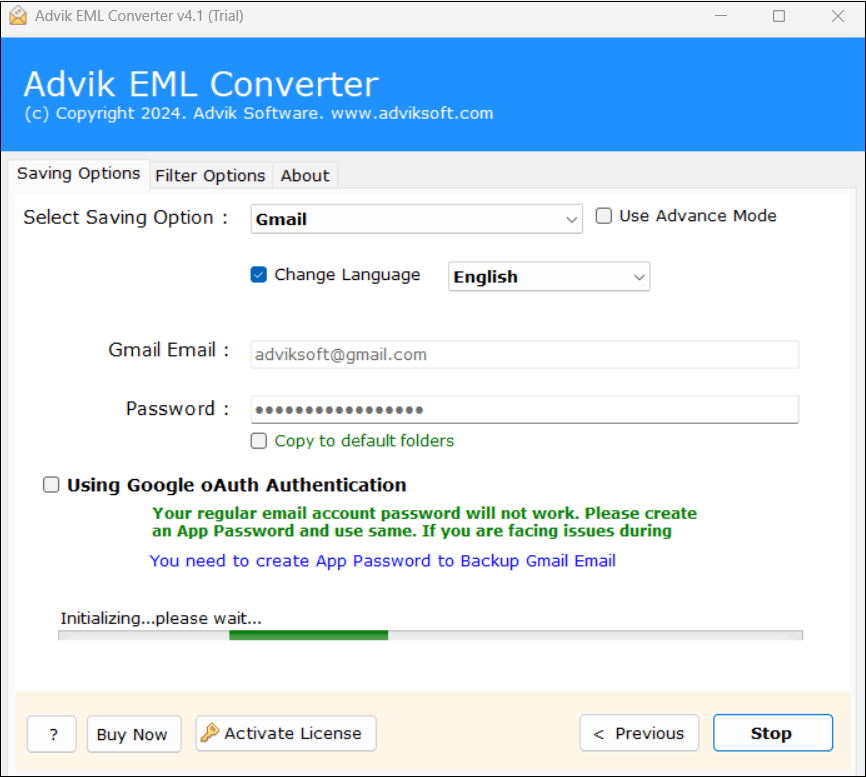
Once the files get transfered , click on OK button.
Check the Result After Importing
An import is not complete just because Thunderbird shows the messages in its Gmail folder. You should confirm that the emails are available in Gmail itself and the important details remain intact.
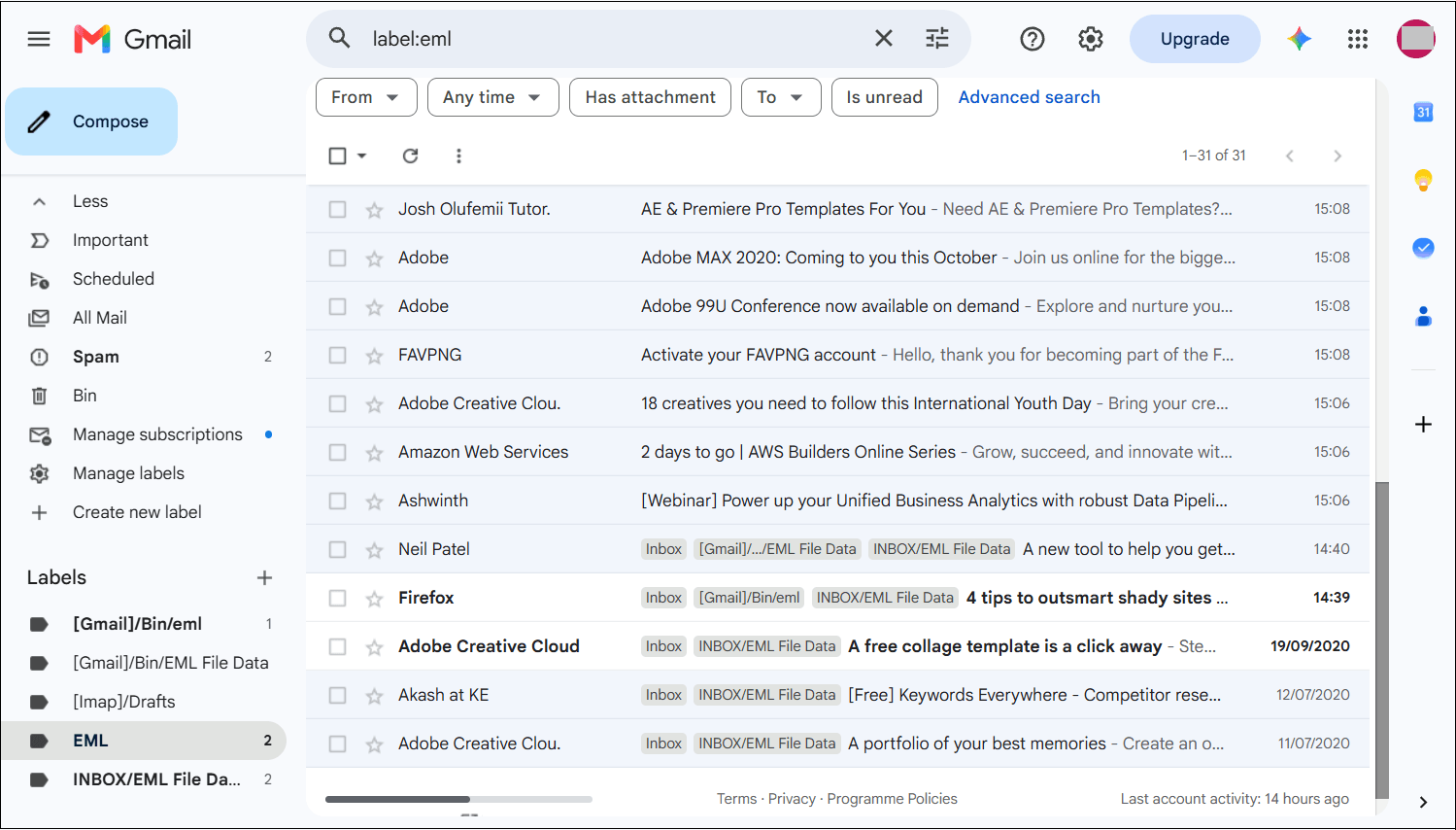
Use the verification checklist after importing your files:
- Message Count: Compare the number of imported EML files with the number of message transferred.
- Original Dates: Open older and newer messages and check their displayed dates.
- Sender and Subject: Confirm that the From, To and Subject fields are correct.
- Attachments: Open a few messages with attachments and check that the files can be downloaded.
- Folder Organization: Check whether the imported messages appear under the intended Gmail labels or folders.
- Cross-Device Access: Open Gmail on another device to verify that the messages have synchronized.
For a practical test, import 5-10 EML files first, including an older message, a recent message and emails with attachments. Record the number of source files, then compare the result in Gmail.
This small test provides useful evidence that the selected method works with your particular EML files. Once the test passes, proceed with the rest of the archive and keep the original files until you have verified the completed transfer.
Final Words
What you should do with EML files in Gmail depends on what you actually want to do.
For just opening a single EML file, the easiest solution is to attach it to a Gmail message and send it to yourself. If you want to import several EML files, Thunderbird or Outlook provides a free manual way. For large EML archives, a specialized solution like Advik EML Converter can help minimize the amount of manual work required for migration.
Most importantly, don’t think of “open EML in Gmail” and “import EML to Gmail” as exactly the same task. Opening one EML file is a viewing requirement, but migrating hundreds or thousands of EML files is a migration requirement. That distinction can be used to select the method, saving a lot of time and unnecessary software or configuration work.
Watch How to Import EML Files to Gmail Account
Frequently Asked Questions
Q1. Can Gmail import EML files?
Ans. No, EML files can’t be directly imported into Gmail. EML files are a single email file and you must have a compatible email client or an automated tool to import emails to Gmail from EML files.
Q2. Is it possible to transfer multiple EML files to Gmail account?
Ans. Yes, you can import EML files to Gmail in bulk using the Thunderbird or Outlook application. Also, the Advik EML to Gmail Migration Tool allows you to migrate multiple EML files at once with attachments.
Q3. Will Gmail preserve the original date of an EML email?
Ans. The original date may be preserved when the importing method correctly handles the source message headers. However, this is not guaranteed for every EML file. Always check the dates of a few imported messages before transferring a large archive.
Q4. I enabled IMAP in Gmail, but my emails are not appearing. What should I do?
Ans. If you have manually imported emails via Thunderbird or Outlook and they are not showing up:
- Try restarting email client and resyncing Gmail.
- Check if you have dragged EML files into the correct Gmail folder.
- If emails still don’t appear, use Advik EML to Gmail Converter for a hassle-free import.