How to Import Google Takeout to Outlook in 2026?
Learn how to import Google Takeout to Outlook without any data loss. This article will step-by-step guide you to export Google Takeout to Outlook 2021, 2019, 2016, 2013.
Google Takeout is a powerful service provided by Google. It allows you to download a copy of your Gmail data. If you recently extracted data from Google Takeout and want to access it in Outlook, then this post will help you. Many users face difficulties transferring emails because the two platforms use different file formats. In this blog, we’ll simplify the process for you. From understanding the process to getting the right solution, this guide will help you complete this process error-free.
Can You Import Google Takeout to Outlook Directly?
No, you cannot transfer Google Takeout to Outlook directly. When you export emails using Google Takeout, you get your mailbox in MBOX format. However, Microsoft Outlook does not support MBOX files, which creates a challenge for users who want to import Google Takeout data to Outlook.
To add Google Takeout data to Outlook, you need to:
- Convert MBOX to PST and then
- Import the PST file into Outlook
This is a lengthy and time-consuming process. So, needs an automated method to access Google Takeout emails in Outlook.
How to Transfer Google Takeout Emails to Outlook Easily?
Try the Advik Google Takeout Converter to import Google Takeout to Outlook in just a few simple steps. The software will convert Google Takeout to PST for Outlook. The tool maintains the folder hierarchy and key elements during the process. No special skills are required to perform this process, as it is designed with an easy-to-use GUI that can be used by both technical and non-technical people.
Also, it comes with a FREE demo version, which will be helpful to make you understand the entire process at no cost.
Click on below link to download it for free.


Steps to Import Google Takeout Data to Outlook Client
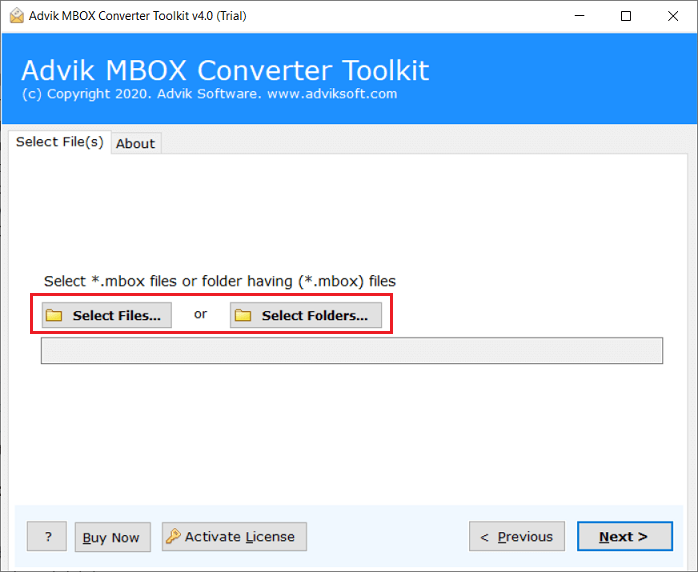
- Install and Run the software and add Google Takeout files.
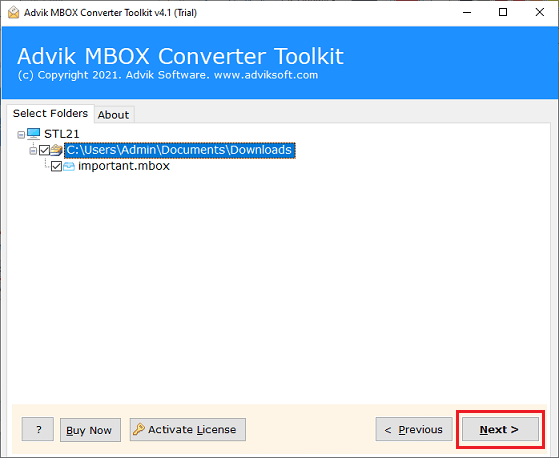
- Choose the required email folders of your choice.
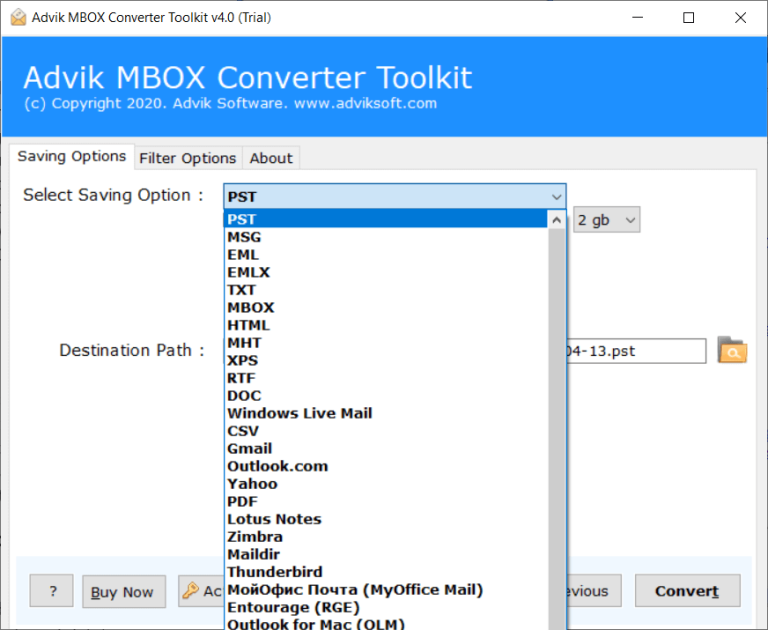
- Select PST as a saving option from the lists.
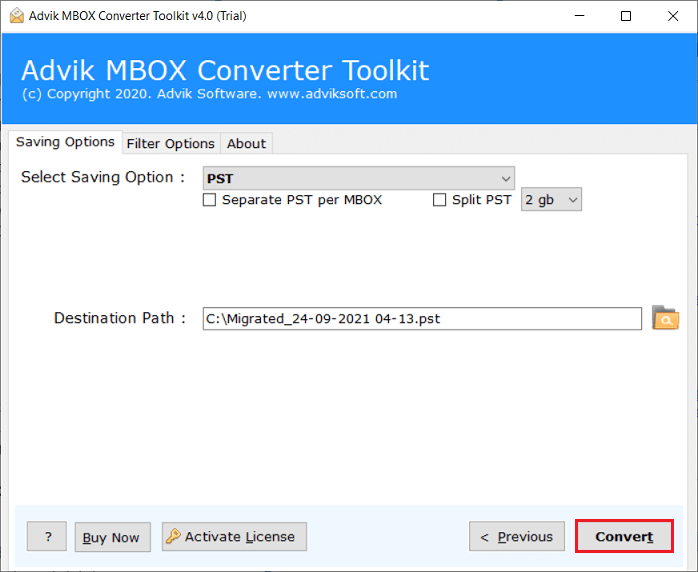
- Browse the destination path and press the Convert button.
- Now, open Outlook >> click the File >> Import & Export and choose the Import/Export option.
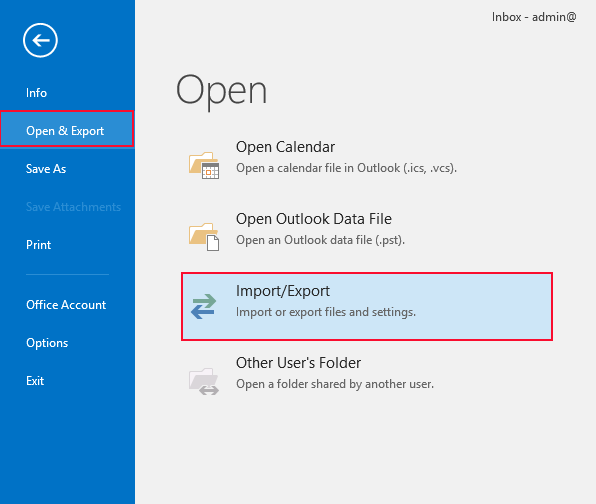
Now, you will be able to move Google Takeout to Outlook.
Done!! By following the above simple steps, users can import Google Takeout to Outlook client.
Helpful Features of Using Automated Solution
- Batch Mode: With this tool, you can import many Google Takeout files all at once. You can add a whole folder of Google Takeout files using the ‘Select Folder’ button which makes it easy to convert them in one go.
- Multiple Saving Options: With this software, users can also export Google Takeout in various other file formats. Such as that, you can export Google Takeout emails to EML, PDF, DOC, HTML, MHT, MBOX, PST, CSV, and many more.
- Simple and Easy Process: This software is designed to be simple. You can import Google Takeout to Outlook in just a few easy steps. load your files, choose how you want to save them, and click ‘Convert’ to get your Outlook PST file within seconds.
- User-Friendly Interface: The tool has an easy-to-use interface so that anyone, whether they are tech-savvy or not, can operate it without the need for expert assistance. Technical and non-technical persons can use it comfortably.
- Import Google Takeout to Cloud Email: With this tool, users can not only import Google Takeout to Outlook but also transfer it to various other cloud-based email services such as that you can import Google Takeout to Gmail, Outlook.com, Zoho Mail, AWS Workmail, Yandex Mail, Roundcube, ProtonMail, GoDaddy, Rediffmail, etc.
- Live Conversion Report: After you click Convert to start the conversion, the tool provides a live conversion report. You can keep an eye on the conversion progress using this feature. So that you can see important details like the total number of items, items converted, and the current status.
Final Words
In this article, we have discussed how to import Google Takeout to Outlook client. Here, we have used an automated solution to transfer emails from Google Takeout to Outlook due to the unavailability of any manual solution. This tool has some advanced features that make this email transfer process even easier for you. Also, try out its free demo version to check its functionality and features.
Frequently Asked Questions
Q1. Are there any limitations in the free trial version of this software?
Ans. Yes, the demo edition allows you to convert only 25 emails per folder. For full functionality, you may need to purchase the licensed version.
Q2. Is it possible to maintain the folder hierarchy when importing emails into Outlook?
Ans. Yes, this software ensures that the folder hierarchy remains intact during the conversion process.
Q3. Can I choose specific emails to export from Google Takeout?
Ans. You can use advanced email filters to select desired emails to transfer from Google Takeout to Outlook.