How to Import MBOX to Gmail (With & Without Thunderbird)
If you have an MBOX file and want to import MBOX to Gmail, then you cannot upload the .mbox file to Gmail account directly. Instead, you can use an email client such as Thunderbird or Apple Mail to open the MBOX file and then transfer the messages to Gmail via IMAP. For large MBOX file or multiple data transfer, a dedicated migration tool can also be used.
In this guide, you will learn how to import MBOX file to Gmail using email clients such as Thunderbird, Apple Mail and by using any dedicated migration tool. We will also analyse all the methods’ usage and it’s drawbacks in different circumstances and help you to choose a reliable solution as per your need and requirements.
Table of Contents
- Can I Import MBOX into Gmail Directly?
- What Are the Benefits of Importing MBOX to Gmail?
- Key Features of MBOX to Gmail Import Tool
- Manual vs Automated Method Comparison
- Final Words
- FAQs
MBOX is a mailbox file format used by some popular email applications and services to store multiple email messages in a single file. It stores each message in a sequence of the mailbox folders.
MBOX files are created by applications and services such as Mozilla Thunderbird, Apple Mail, Eudora and some email services like Gmail etc. Your MBOX file may contain email messages, email headers, sender and receiver information, subjects & dates, attachments, email body text, and other message data encoded in MIME.
Can I Import MBOX into Gmail Directly?
No, it’s because Gmail doesn’t allow you to directly import MBOX files from your computer. It does not have any option to accept a .mbox file as a local upload; it is meant to import messages from another email account. You can migrate MBOX data to Gmail using an email client, such as Thunderbird or Apple Mail or using MBOX-specific conversion software.
Thunderbird is a free option that is helpful for beginners. If you want to avoid the manual IMAP process or have to migrate a large number of MBOX files, a dedicated migration tool can be more convenient.
What Are the Benefits of Importing MBOX to Gmail?
Importing an MBOX file into Gmail is more than just moving emails from one platform to another. The thing which is important here is that there are a few features in Gmail that make long-term email management easier.
1. Access Emails from Anywhere
MBOX files are stored locally and require a compatible email client such as Mozilla Thunderbird, Apple Mail, or SeaMonkey to view it’s content. After you import your mailbox into Gmail, you can access your emails from anywhere as your emails are stored on Google’s cloud infrastructure and can be accessed from any device with an internet connection.
2. Supports IMAP (the industry standard)
Gmail supports both IMAP and POP3, but IMAP is recommended as it syncs emails across all devices rather than downloading them to one computer like POP3. That’s why free methods with Thunderbird or Apple Mail work, both apps connect to Gmail via IMAP and transfer the imported MBOX emails to your mailbox.
3. OAuth 2.0 Secure Authentication
Modern Gmail accounts use OAuth 2.0 authentication which allows applications to access your Gmail data without storing your Gmail password. Rather than sharing your credentials with third-party software it asks you to grant access through Google’s secure sign-in page and you can revoke that access at any time through your Google Account settings.
Note: Google discontinued support for Less Secure Apps in 2022. Most modern email clients and migration tools now use OAuth 2.0 authentication instead of basic username-password authentication.
4. Advanced Email Search for Large Mailbox
Gmail also provides powerful search features that make it much easier to locate emails after you import your MBOX file. With it’s search mode, you can search with filters like To or From, Subject Date Range, File Size, Tags, Keywords etc. These search operators are more helpful if you are working with large email mailboxes that contain thousands of email messages.
5. Integrates with Google Workspace
When you import your emails in Gmail, your mailbox becomes part of the Google ecosystem. You can continue working with services, e.g., Gmail, Google Drive, Google Calendar, Google Meet, Google Contacts etc.
This also helps Google Workspace users to collaborate more easily as it retains old emails and access to shared productivity tools.
Prerequisites for Importing MBOX to Gmail Account
Before you begin the process, make sure you have everything that is required to import MBOX file into Gmail account. A few preparation before starting the process will help you to avoid common issues such as failed synchronization, missing emails, authentication errors etc.
Prerequisites Checklist
- A Gmail Account: Make sure that you have access to that Gmail account you are using to import the MBOX emails.
- MBOX File: Keep your MBOX file readily available and also verify that the file is complete and accessible
- Enable IMAP in Gmail: Check if IMAP is enabled or not. Now, IMAP is enabled by default in your Gmail account.
- Sufficient Gmail storage: Ensure your Gmail account has enough storage to adjust imported mailbox.
- Stable Internet Connection: A good internet connection is required to upload MBOX emails to Gmail via IMAP. And, if you are importing a large mailboxes then slow or unstable internet connection may interrupt the process.
Method 1: Import MBOX to Gmail With Thunderbird
Thunderbird is a free way to import MBOX files into Gmail using IMAP syncing feature. However, it involves various steps, such as that; first you need to set up your Gmail account in Thunderbird using IMAP, then you import the MBOX file into Thunderbird Local Folders using ImportExportTools NG and finally you can copy the imported messages to your Gmail mailboxes.
Steps to Import MBOX into Gmail using Thunderbird
Step 1. First, download Thunderbird and install it on your computer and launch it.
Note: Thunderbird is available for Windows, macOS and Linux. The interface may look different depending on the version you are using.
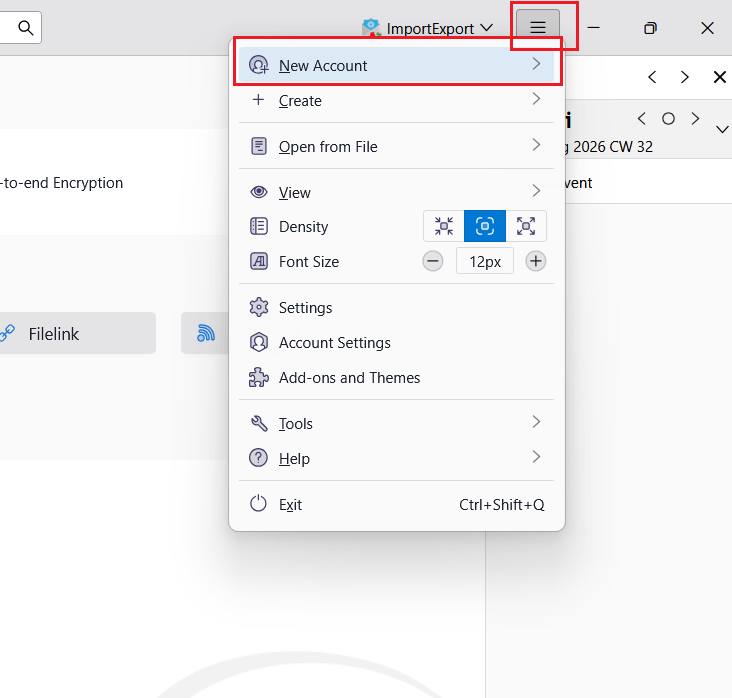
Step 2. If you are using a recent version of Thunderbird with Account Hub, then click the Menu tab >> New Account.
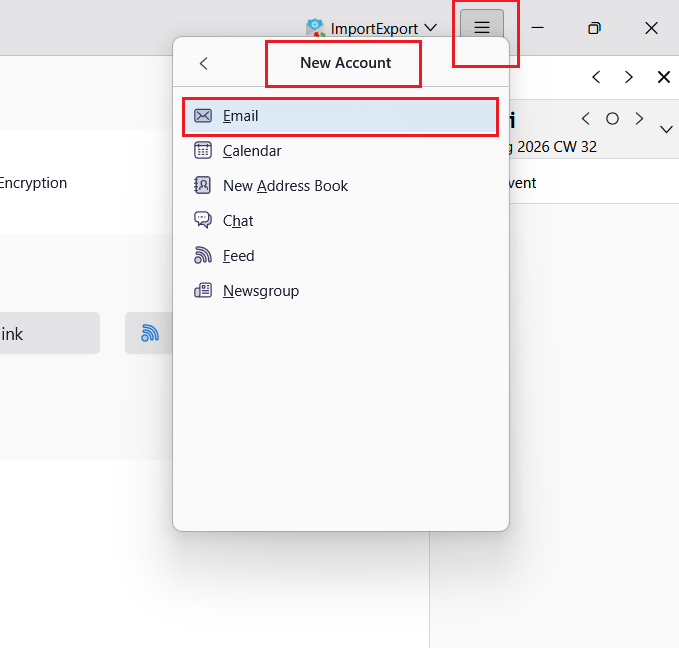
Step 3. Then in New Account, choose Email from the options.
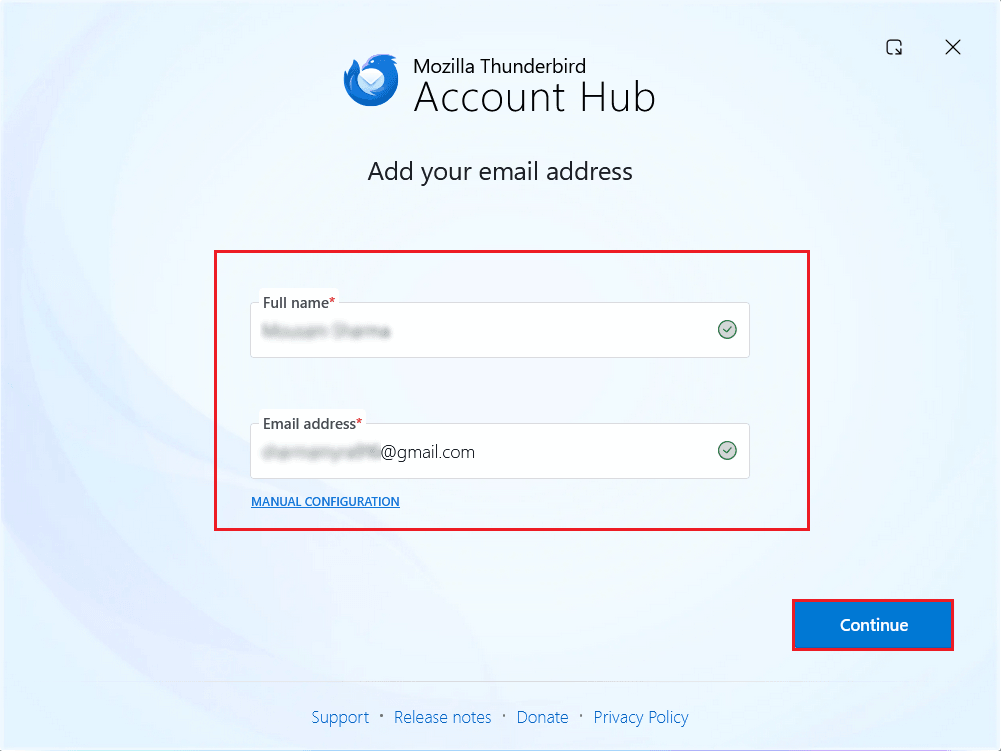
Step 4. In the Account Hub tab, provide your Full Name, email address and click the Continue button.
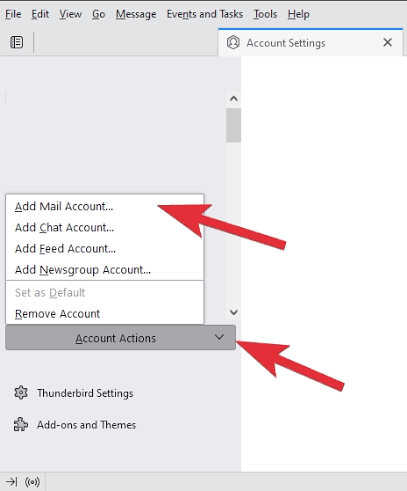
Step 5. In older versions of Thunderbird, you might find this option under:
Menu >> Account Settings >> Account Actions >> Add Mail Account.
Step 6. Thunderbird usually automatically detects server settings for Gmail. Keep IMAP selected because this allows Thunderbird to sync messages with your Gmail account. Click Continue.
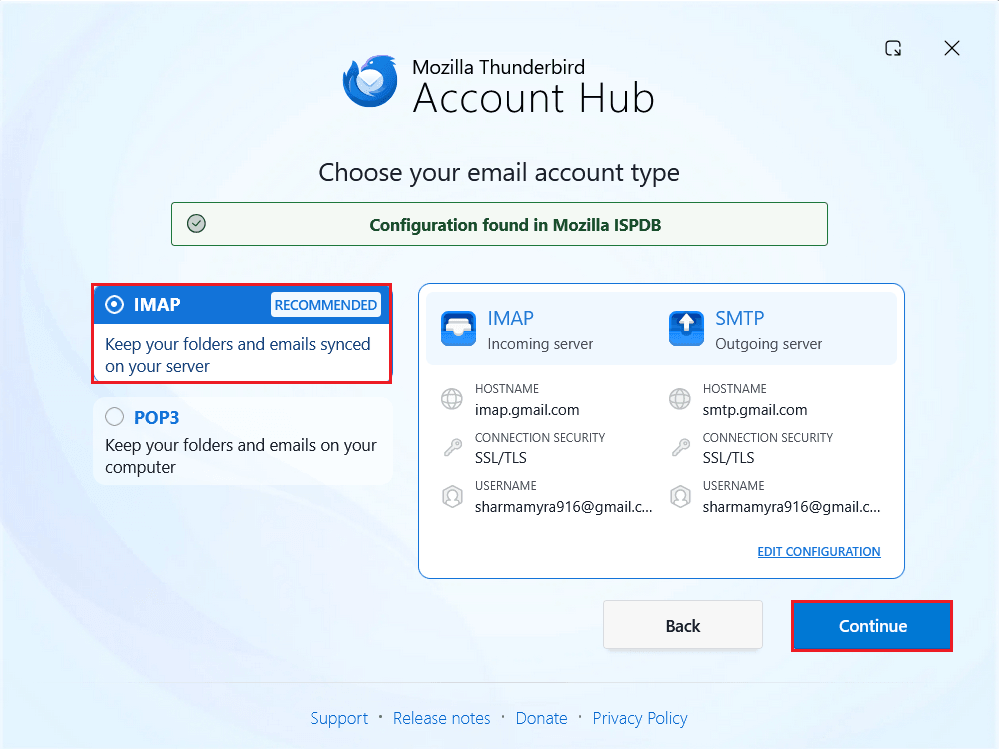
Step 7. Once you added Gmail account details, now Thunderbird will open a window to sign into Google.
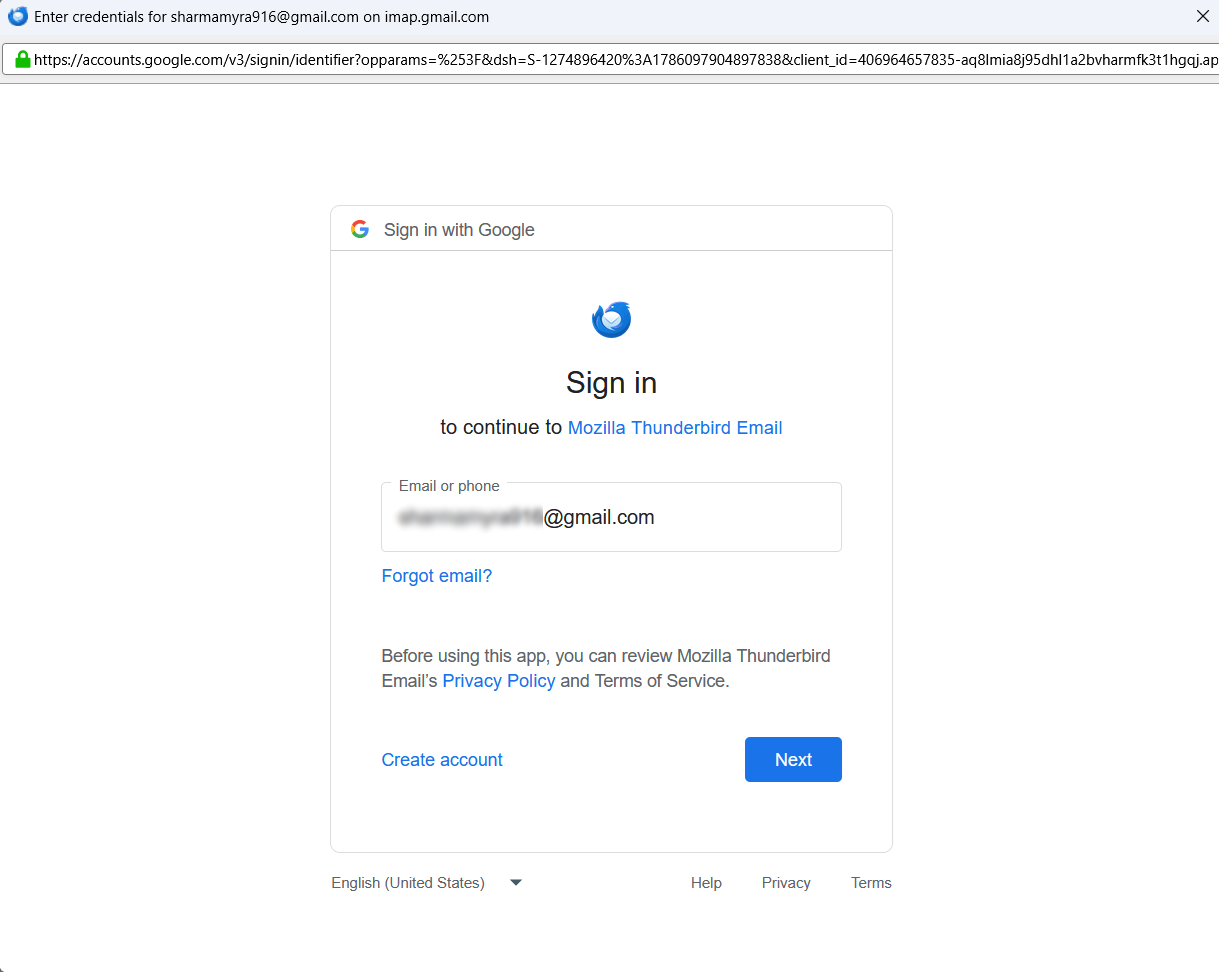
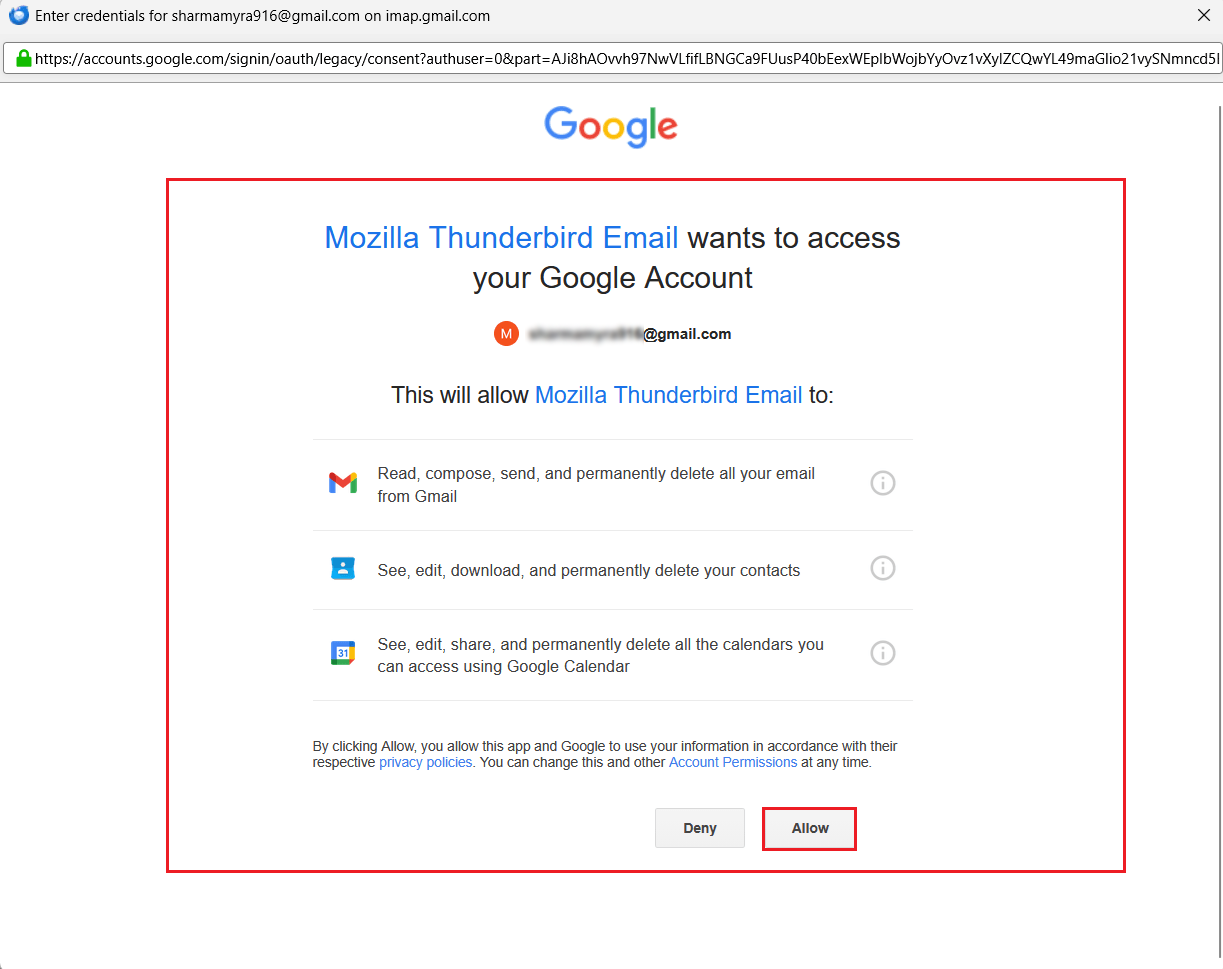
Step 8. Sign in to your Google Account and follow the instructions on your screen. When Google asks for permission to access your account, review the permissions it is requesting and click Allow if you want to continue.
This is the authentication flow for Google OAuth 2.0. Most modern Gmail accounts use OAuth, instead of letting applications connect with a normal Gmail username and password.
Important: If you see an old guide that tells you to turn on Gmail’s “Less Secure Apps” setting, don’t. Google took this auth method away in 2022.
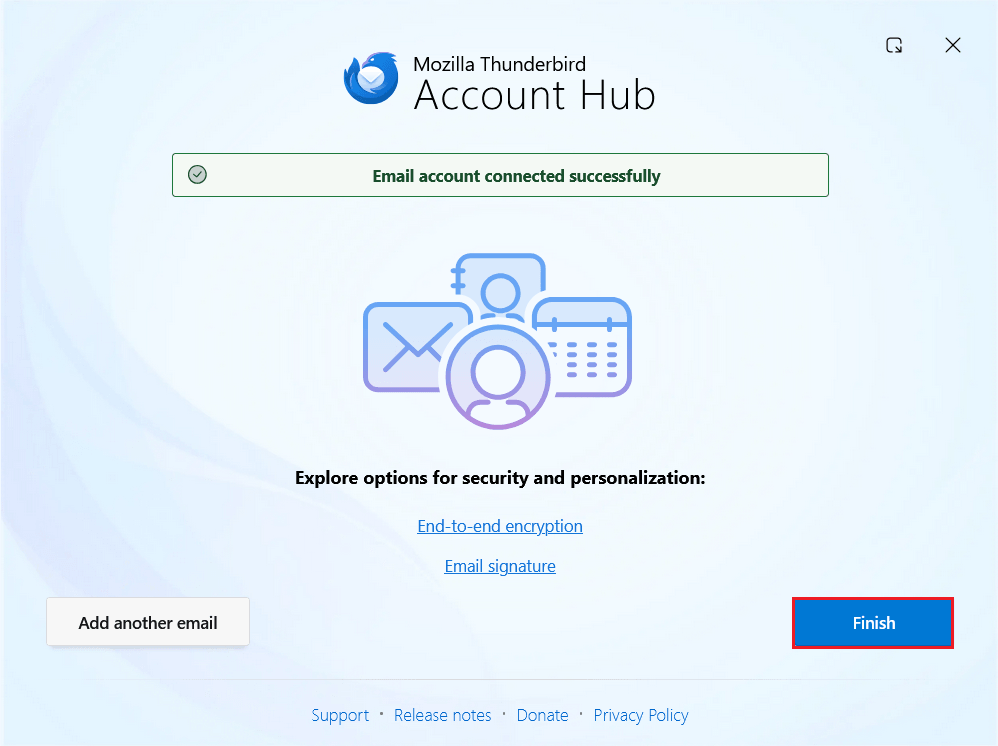
Step 9. When authentication is complete and your Gmail account is added, click Finish to continue.
Step 10. Now, in Thunderbird’s left navigation panel, you will see your Gmail account and folders.
Step 11. If you have a lot of emails in your Gmail account, it might take some time for the first IMAP sync to complete. Let Thunderbird finish loading the account before proceeding.
Step 12. As, Thunderbird does not natively support the MBOX import, you need to install the ImportExportTools NG add-on.
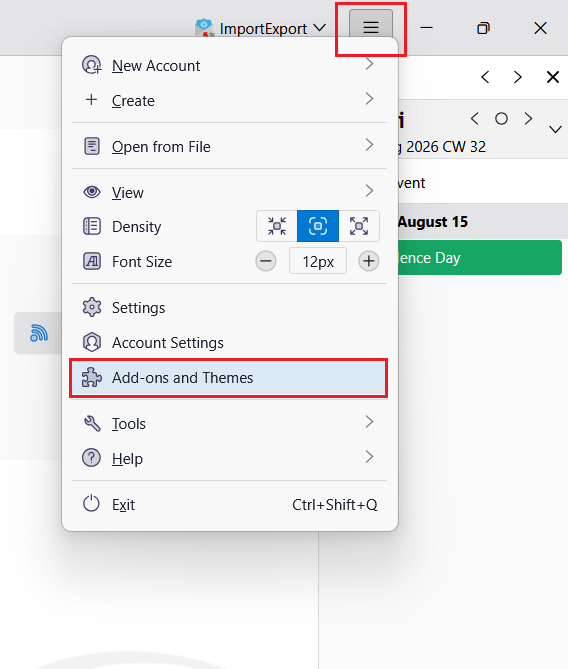
Step 13. In Thunderbird Mail, click the menu bar and choose the Add-ons & Themes option.
Step 14. Next, in the following search bar, enter ImportExportTools NG and find it.
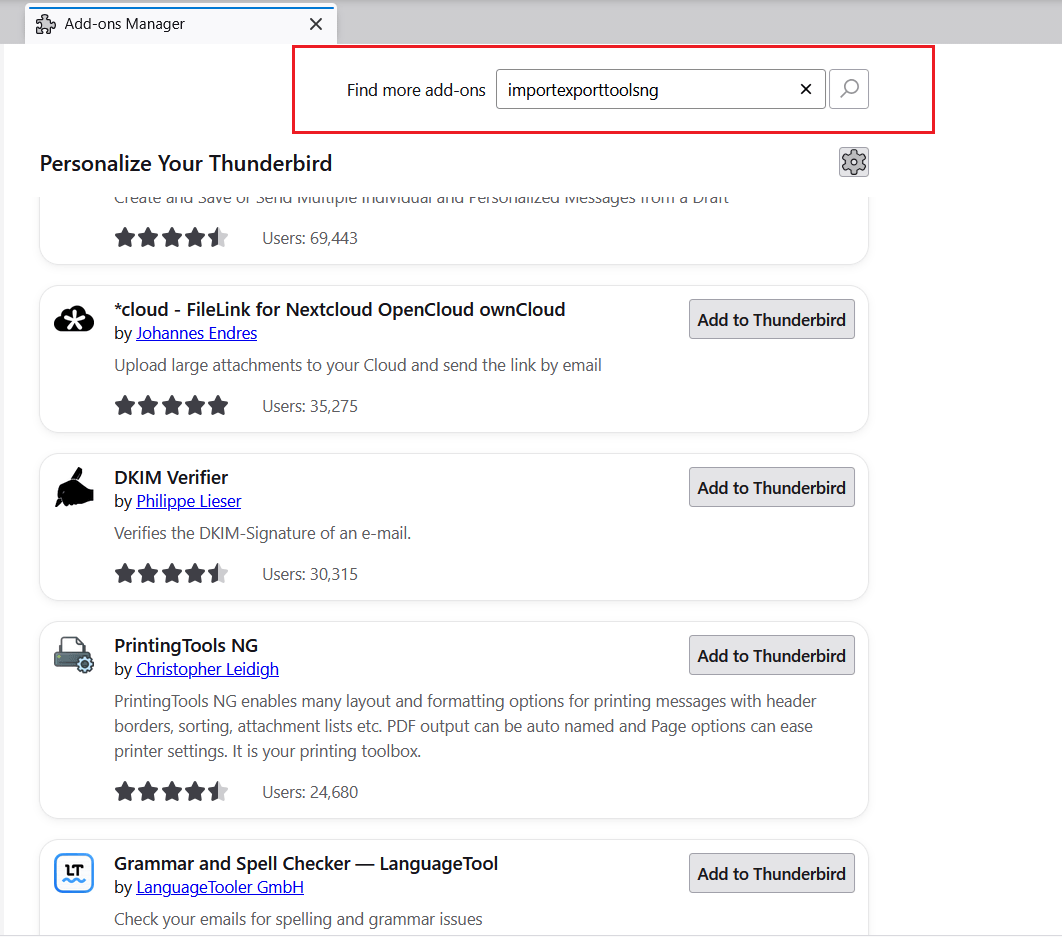
Step 15. Choose the add-on and click Add to Thunderbird. If asked to confirm, do so, and restart Thunderbird to refresh the app.
Note: Make sure that your are using the latest version of ImportExportTools NG compatible with your Thunderbird installation.
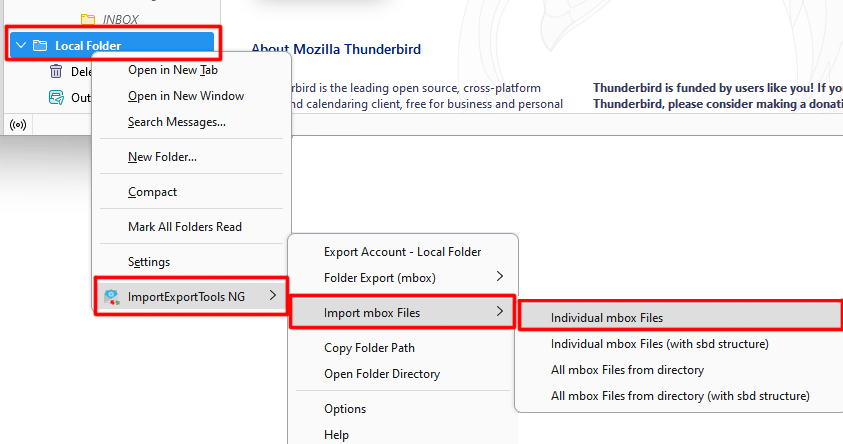
Step 16. Now, right- click on Local Folders in the left panel of Thunderbird.
Step 17. Then, choose ImportExportTools NG >> Import mbox Files >> Individual mbox Files option.
Step 18. You will need to create a local folder first. This is important because ImportExportTools NG imports the MBOX data into Thunderbird’s local mailbox then you can upload the imported messages to Gmail via IMAP.
Step 19. Choose the MBOX file you need and click Open.
Step 20. Thunderbird will import the messages into the chosen local folder.
Step 21. Open the imported folder and check that the messages are displayed correctly.
Step 22. Access the imported MBOX folder and choose the messages to transfer.
Step 23. To select all messages, press Ctrl+A (Windows) or Command+A (macOS).
Step 24. If you have a large mailbox, try moving messages in smaller batches rather than selecting thousands of emails at one time.
Step 25. After selecting the messages, right-click and choose: Copy To >> Your Gmail account >> Folder destination.
Step 26. Select the correct Gmail folder/label, depending on how you’ve configured the account.
Why copy, not move? The imported MBOX data is left in Thunderbird’s Local Folders when the messages are copied.
Thunderbird will upload the selected messages to Gmail using the IMAP connection.
Do not exit Thunderbird until the upload is completed.
Ater the transfer is done, log in to Gmail in your browser and verify that the imported messages are present.
This is how you can import MBOX to Gmail account. However, this is a lengthy and time-consuming process.
Method 2: Migrate MBOX to Gmail through Account Configuration
macOS users can perform this process using their Mac system. In this approach, they need to configure Gmail account with Apple Mail to import MBOX file.
- Open Apple Mail on your Mac system.
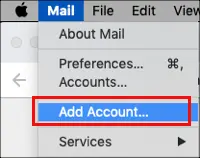
- Click on Mail and select Add Account.
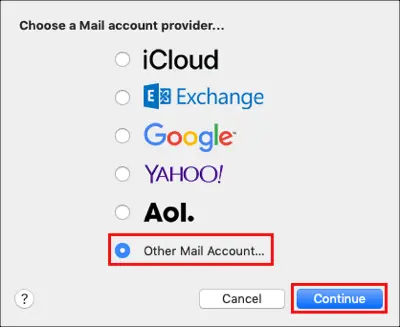
- Select Google from Choose a Mail account provider and click Continue.
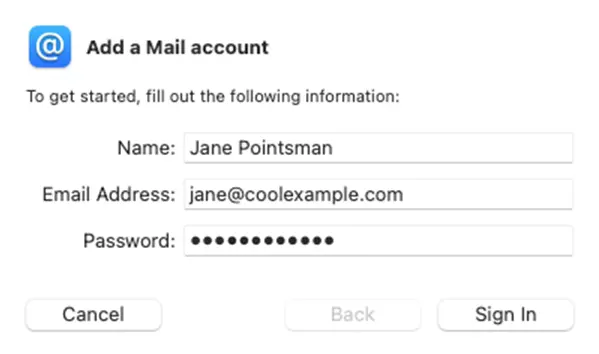
- Enter Gmail account details and click on Sign In.
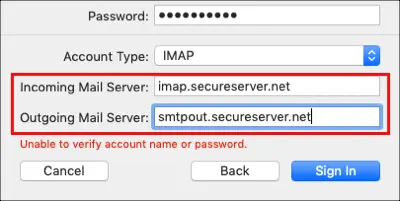
- Provide IMAP settings of Gmail and press Sign In.
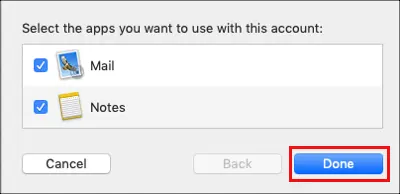
- Select the apps you want to use with this account and click Done.
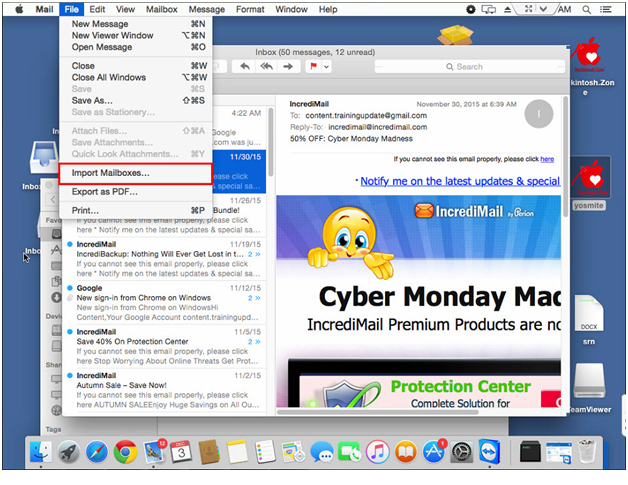
- Click on File option and choose Import Mailboxes.
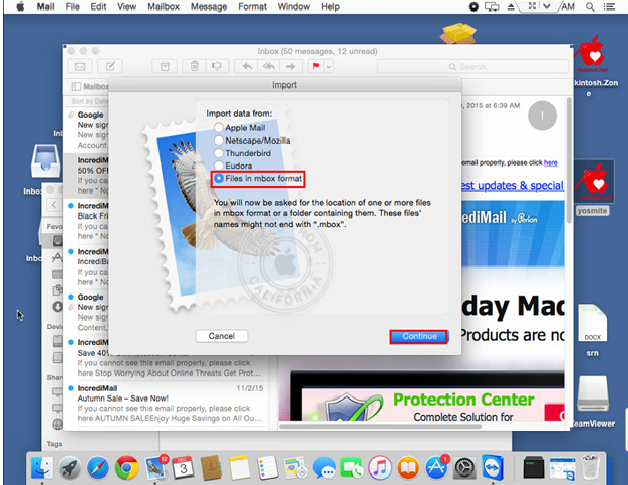
- Choose Files in mbox format option from Import Data From and tap on Continue.
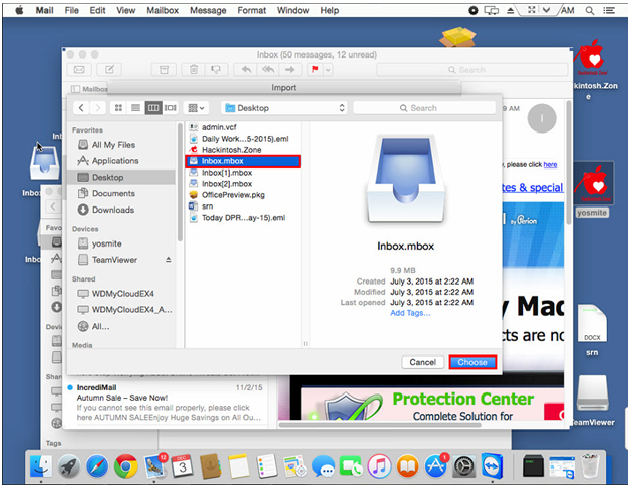
- Select the .mbox file that you want to import and click on Choose.
- Next, drag & drop the imported MBOX to the configured Gmail account.
Now, log into your Gmail account and check the imported file.
Method 3: Specialized Tool to Import MBOX to Gmail without Thunderbird
If you want a direct and quick solution, then you can also try Advik MBOX Converter available for Windows PC. With this tool, you can migrate MBOX to Gmail in just a few simple clicks. Just run the tool, add .mbox files, choose Gmail as a saving option, enter Gmail account login credentials and press Convert to begin the importing process.
The software can import MBOX to Gmail in bulk. Also, it offers advanced email filter options to upload selected emails from MBOX file based on date range, to, from, subject, etc. It preserves data integrity and folder structure while importing.
A free trial is also available to migrate 25 emails per folder. Download the tool today and try it for FREE.
Click the link button and download the free version to check its working steps.


How to Upload MBOX File to Gmail? Step-by-Step Process
Step 1. Run the software on your Windows PC.
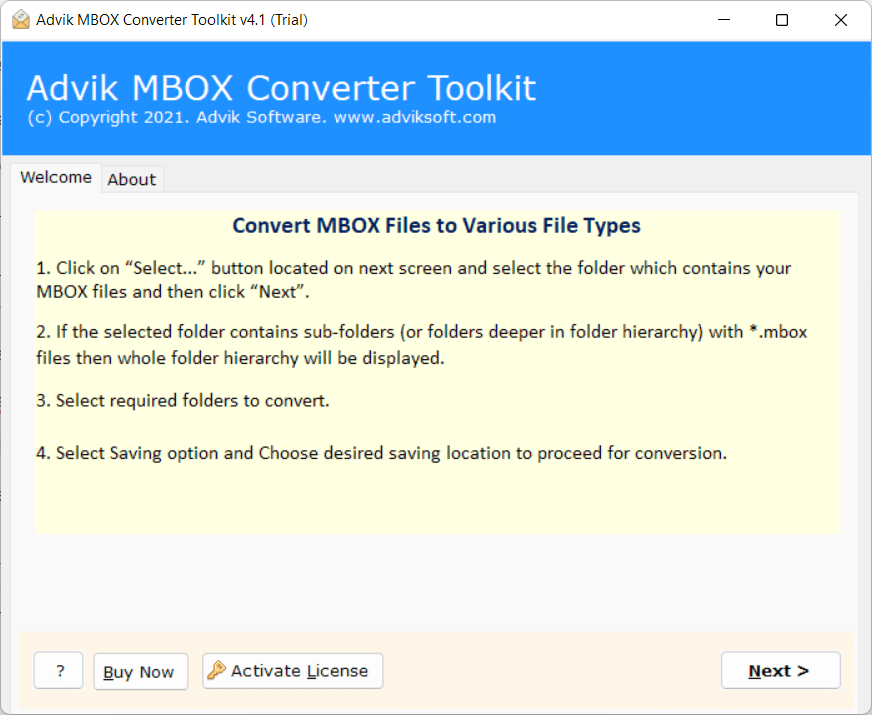
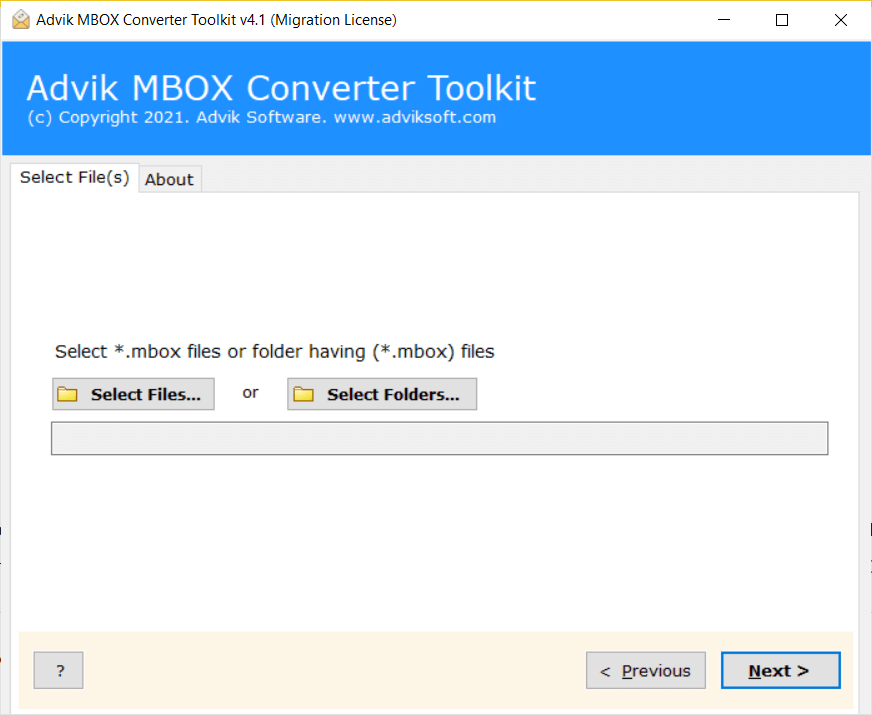
Step 2. Click the Select Files option to add .mbox files.
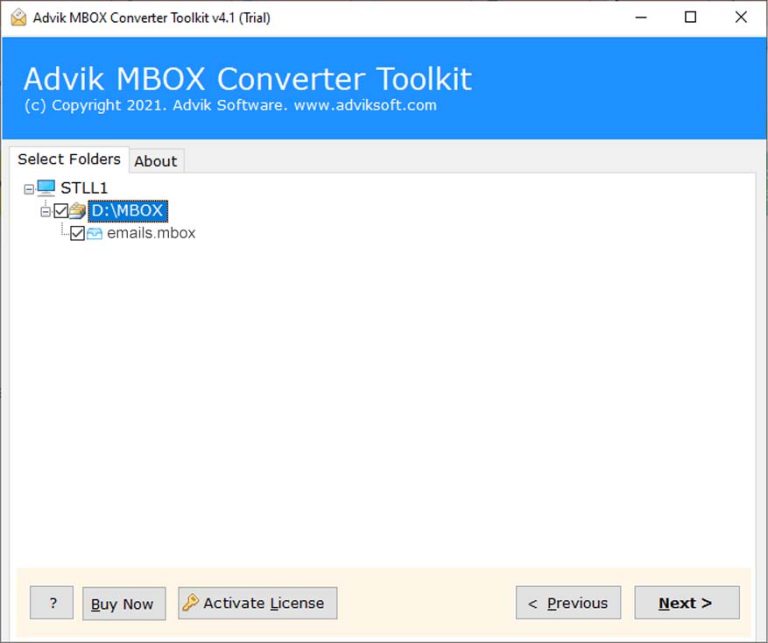
Step 3. Select the email folder you want to import.
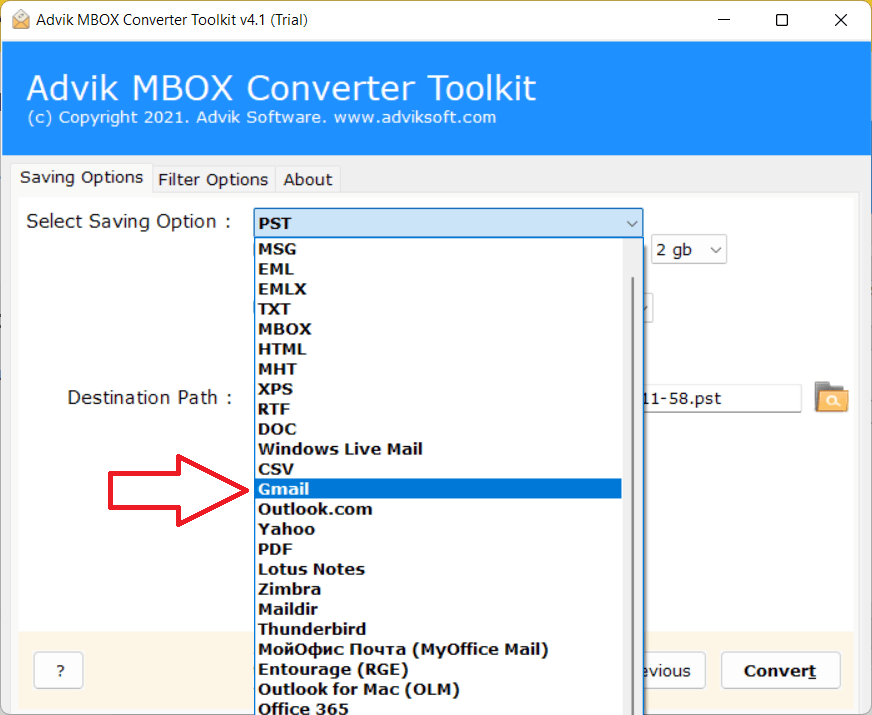
Step 4. Choose Gmail as the target source from the list of various options.
Step 5. Enter your Gmail account login details and click Convert.
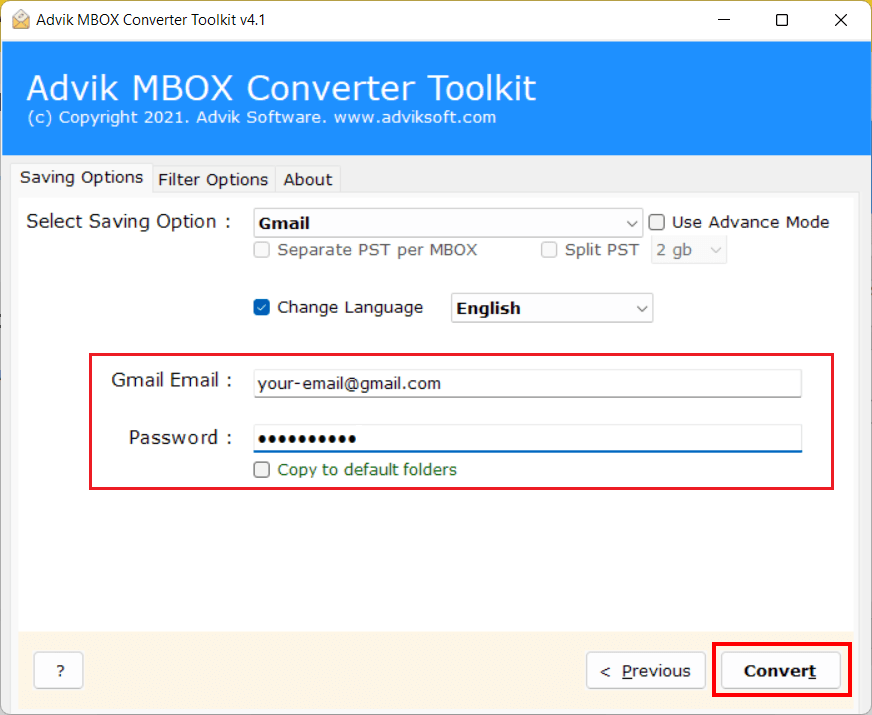
The software will start uploading MBOX emails into Gmail account.
Once the process is completed, open your Gmail account and check the mailbox list. You will see a new folder with your .mbox file emails.
Watch Video Tutorial
Benefits of Using Advik MBOX to Gmail Import Tool
- Direct Solution: The software can directly import MBOX to Gmail without Thunderbird or any external installation.
- Bulk Importing: The tool has a dual mode to import single or multiple MBOX files to Gmail at once.
- Multiple Saving Options: It offers 20+ saving options to export MBOX to several file formats & cloud migration.
- Preserves Data Integrity: It keeps all important email properties like To, Cc, Bcc, from, attachments and many more while importing.
- Maintain Folder Structure: The tool keeps the original structure of MBOX email folders during the process.
- Email Filter Options: This utility provides advanced email filter options to import only selective emails as per user requirement.
- Simple GUI: The software is designed with advanced algorithms and a simple user graphical interface so that any user can easily open MBOX file in Gmail account without any issues.
- Windows Support: It is compatible with all the latest and old versions of Windows operating systems.
Manual vs Automated Methods Comparison
| Feature | Thunderbird | Apple Mail | Gmail Import Mail Option | Advik MBOX Converter |
|---|---|---|---|---|
| Direct MBOX Import | No | No | No | Yes |
| Requires Email Client Setup | Yes | Yes | No | No |
| Multiple MBOX Files | Limited | Limited | No | Yes |
| Suitable for Large Mailboxes | No | No | No | Yes |
| Technical Knowledge Required | Moderate | Moderate | Low | Low |
| Filter Options for Selective Emails | Manually drag & drop | No | No | Yes |
| Preserves Folder Hierarchy | No | No | No | Yes |
| Risk of Errors | Medium | Medium | Low | Low |
| Time Required | High | High | Medium | Low |
| Cost | Free | Free | Free | Paid |
Which Method Should You Choose?
The best method depends on your situation, the number of emails you want to import and the application already available on your system.
- Choose Thunderbird if you only have a few MBOX files and prefer a free solution. It works well for occasional importing and personal use.
- Choose Apple Mail if you use Mac. Apple Mail can import MBOX files and sync them to your Gmail account.
- Select Gmail built-in Import Mail & Contacts option if your MBOX files has already been imported into Thunderbird or another email account. In that case, Gmail can fetch emails directly from that account.
- Choose MBOX to Gmail Import Tool if you need to transfer large mailbox, multiple MBOX files or business data. It reduces manual effort and helps to quickly complete the process without configuration.
Common Problems During MBOX to Gmail Migration
If you have learned all these methods, then next step is to understand some common issues that you may face while transferring MBOX files.
- Stuck in importing emails: It usually happens if you have an unstable or a bad internet connection, if Gmail itself has server or sync issues or your Gmail mailbox size is more than it’s normal size.
- Authentication Issue: Google works with safety and security of it’s user’s data so it may block you from sign-in attempts if it finds any suspicious activity. Also, if your security settings are restricted.
- Duplicate Emails: If you don’t follow the steps carefully, then you may end up with duplicate email data and it will create a big confusion. So, follow the proper syncing rules or it may interrupt your migration.
Final Words
In this post, we have discussed how to import MBOX to Gmail with or without Thunderbird. All methods are very helpful, but each has its own scenario for use. You can choose any solution as per your needs. However, the manual methods can be a bit tricky for a non-tech user, but the automated process is much easier. If you face any issues while using any of these methods explained in this article then you can get help from our support team. They are available 24/7 to solve your queries at the earliest.
Frequently Asked Questions
Q1. How long does it will take to transfer 5GB of MBOX file into Gmail?
Ans. The time to migrate emails from a 5GB MBOX file to Gmail depends on several factors like internet speed, system performance and the method used. So, analyse your needs and choose method accordingly.
If you use Thunderbird, then it will not support transferring MBOX file of more than 4 GB using a importexportToolsNG while a professional tool can complete the process faster and more efficiently.
Q2. Can Gmail import MBOX files directly?
Ans. No, Gmail cannot directly import MBOX files. To do it, you need to use an email client like Thunderbird, Apple mail or a professional MBOX to Gmail converter tool.
Q3. How do I import MBOX file to Gmail without losing attachments?
Ans. The safest way is to use a dedicated MBOX to Gmail import tool which preserves attachments, formatting and folder structure automatically during MBOX to Gmail migration.
Q4. Is it possible to transfer multiple MBOX files to Gmail at once?
Ans. Yes, the tool allows to import multiple MBOX emails into your Gmail account in a sinlge attempt.
Q5. Can I import Apple MBOX file to Gmail with the mentioned tool?
Ans. Yes, you can transfer Apple MBOX file into Gmail without any hassle.