How to Import MBOX to Gmail Account?
Jenny Lowrence | April 7th, 2026 | Import Emails
Want to import MBOX to Gmail for better accessibility? Well, if you know the correct way to do it, it’s easy. Whether you want to import one file or thousands of files, this article will show you how to do it. Here, we’ll show you two relaible methods to open MBOX file in Gmail accounts.
But before this, we’ll discuss the benefits of importing MBOX files to cloud-based email services like Gmail, the biggest benefit is that you can access your emails from anywhere, anytime.
So, let’s start…
Table of Contents
- Why Import MBOX to Gmail?
- Methods to Transfer MBOX to Gmail
2.1. Open MBOX File in Gmail With Thunderbird
2.2. Import MBOX Files to Gmail Without Thunderbird
2.3. Step-by-Step Guide Migrate MBOX to Gmail
2.4. Video Tutorial to Import MBOX to Gmail Without Thunderbird
2.5. Key Features of MBOX to Gmail Converter - Final Words
- FAQs
Why Need to Import MBOX to Gmail?
Here are some reasons why users prefer to upload MBOX to Gmail:
- Ease of Access: Once you import your emails into Gmail, you can access them anytime from any device, such as mobile, tablet, or desktop.
- Enhanced Security: Gmail provides strong security features that reduce the risk of data loss from local files.
- Advanced Search Feature: Gmail has advanced search capabilities, which make accessing and sharing emails quick.
- Integration with Google Services: Gmail is integrated with various Google services. When you import your MBOX emails into Gmail, it becomes part of the entire Google ecosystem.
Methods to Upload MBOX to Gmail Account
Here, we’ll discuss two methods to import MBOX to Gmail, among which you will be able to find your solution as per your needs. The first method is manual, in which you will be able to import emails using MBOX supported email platform. The second one is an automated software that will directly convert MBOX to Gmail.
Now let us know each process in detail, one by one.
Method 1. How to Import MBOX File to Gmail With Thunderbird?
You can manually open MBOX files in Gmail using MBOX supported email client like Thunderbird. Follow the below given instructions to complete the importing process via Thunderbird:
1. Launch the Thunderbird application on your system.
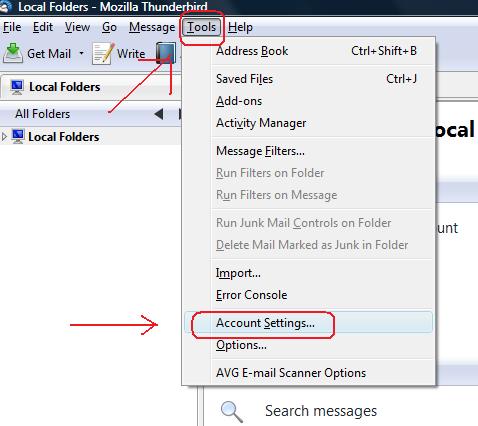
2. Click on Tools and choose Account Settings.
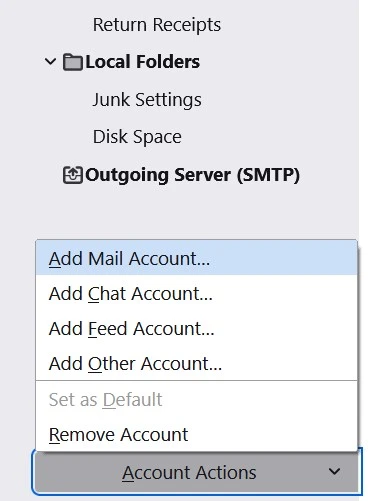
3. Click on Account Actions and select Add Mail Account.
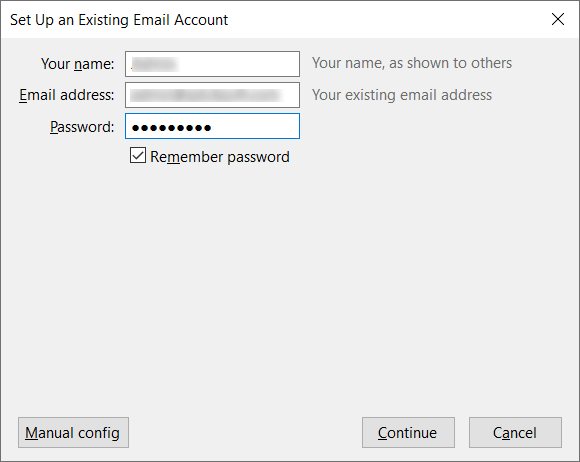
4. Enter Gmail account login details and click Continue.
5. Now, Thunderbird will automatically detect IMAP settings.
6. Click Done to complete the sync process of mail account.
7. After configuration, Gmail appears in the left panel of Thunderbird.
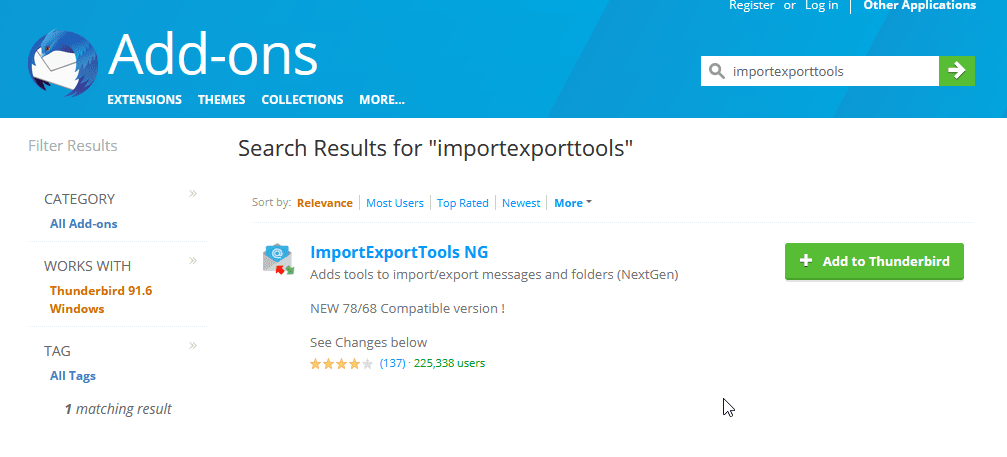
8. Next, install ImportExportTools NG in Thunderbird.
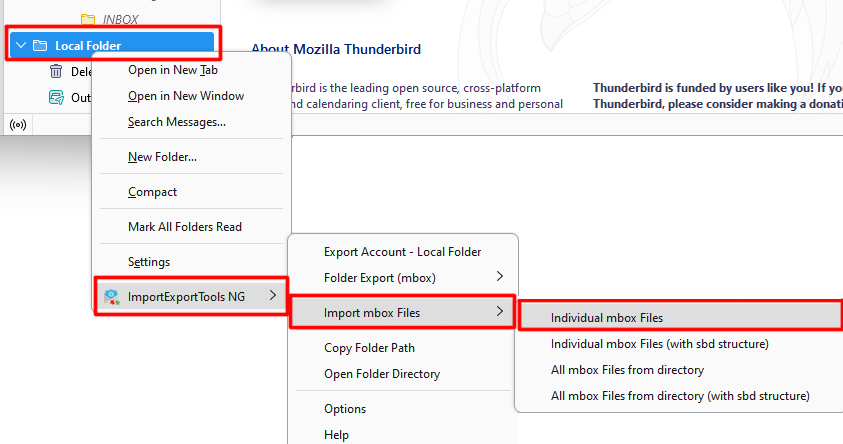
9. Right-click on the Local Folder and choose ImportExportTools NG >> Import MBOX File >> Individual MBOX File.
10. Select the MBOX file that you want to import and click Open.
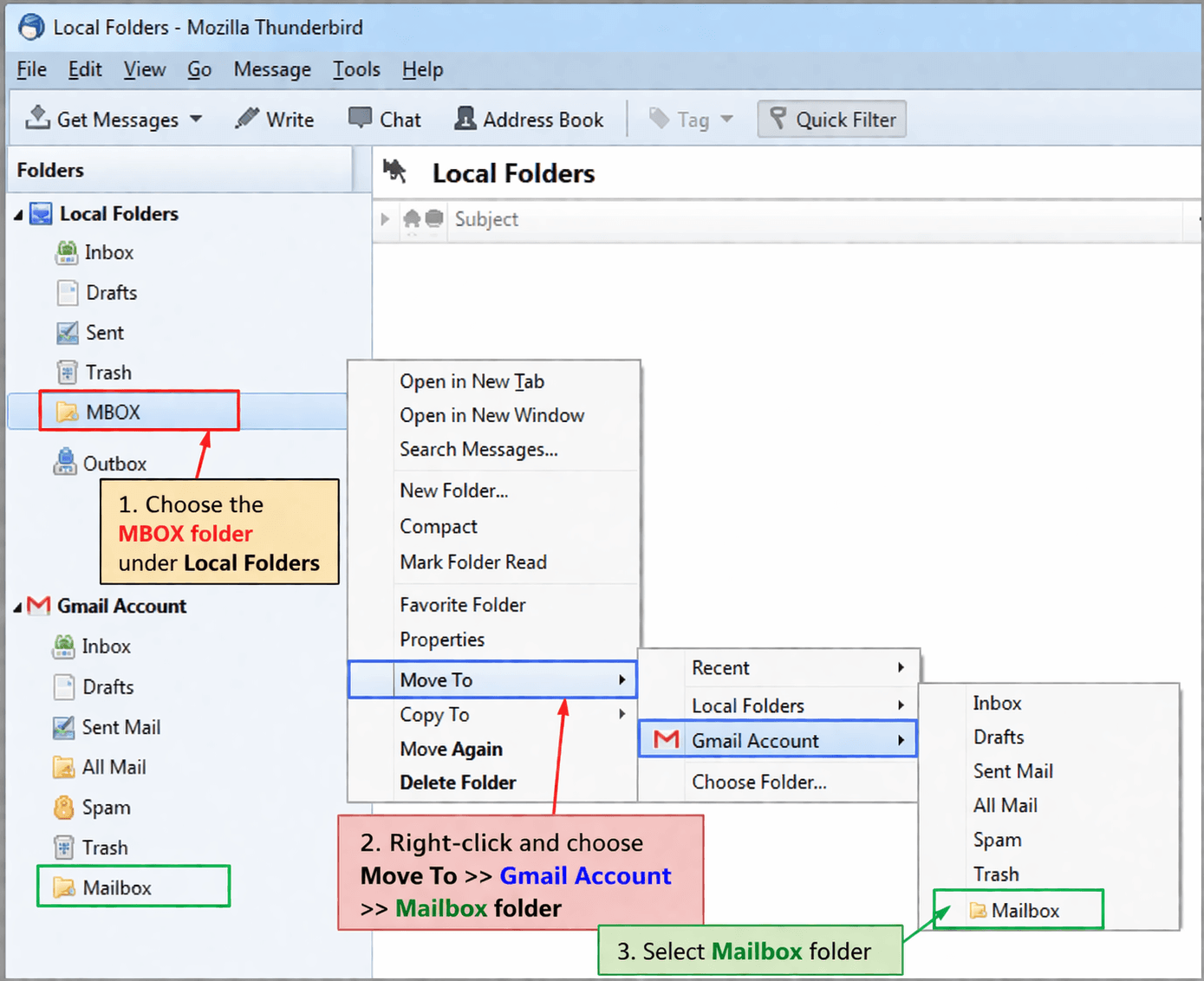
11. After that, choose the MBOX folder under Local folder.
12. Right-click on it and choose Move To >> Gmail Account >> Mailbox folder.
This is how you can import MBOX file to your Gmail account. However, this is a lengthy and time-consuming process.
Method 2. How to Transfer MBOX Files into Gmail Without Thunderbird?
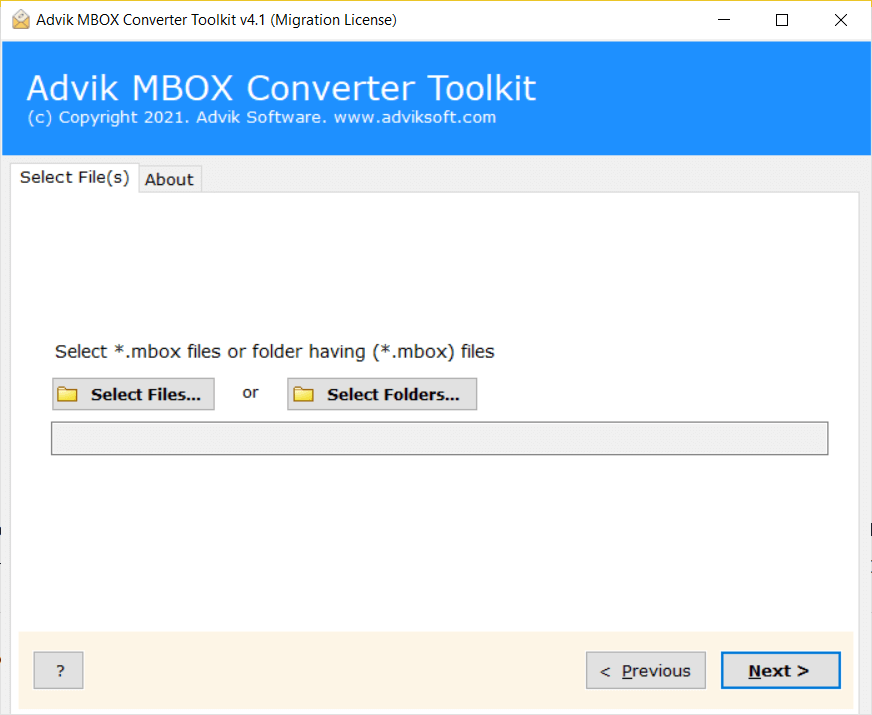
If you want a direct and quick solution, check out the Advik MBOX Converter. With this tool, you can migrate MBOX to Gmail in just a few simple clicks. Just run the tool, add .mbox files, choose Gmail as a saving option, enter Gmail account login credentials, and press Convert to begin the importing process.
The software can import MBOX to Gmail in bulk. Also, it offers advanced email filter options to upload selected emails from MBOX file based on date range, to, from, subject, etc. It preserves data integrity and folder structure while importing.
A free trial is also available to migrate 25 emails per folder. Download the tool today and try it for FREE.
Click on the link button and download the free version to check its working steps.


Steps to Migrate MBOX to Gmail Account
Step 1. Run the software on your Windows PC.
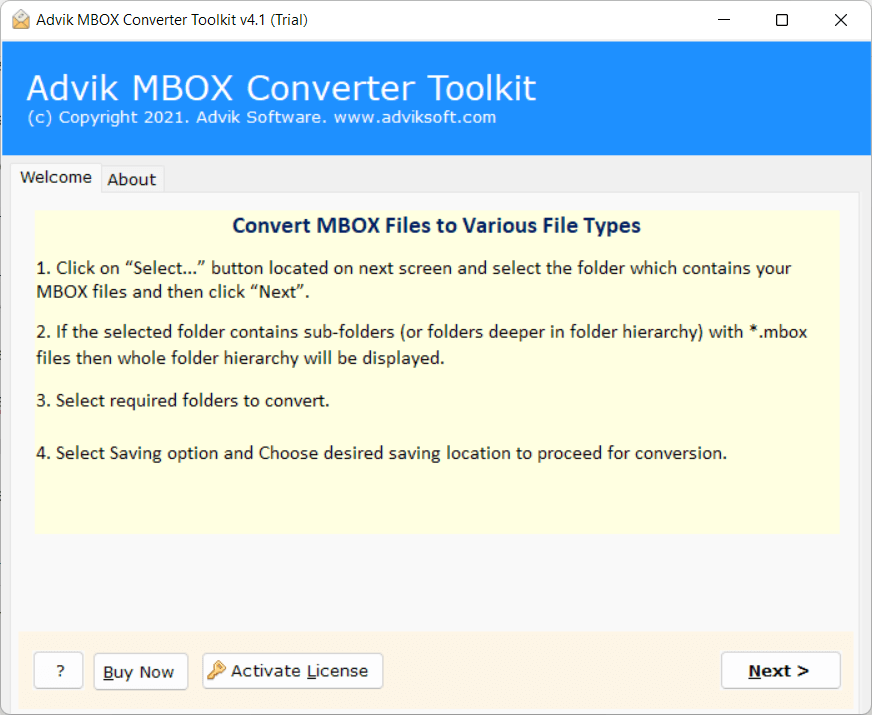
Step 2. Click the Select Files option to add .mbox files.
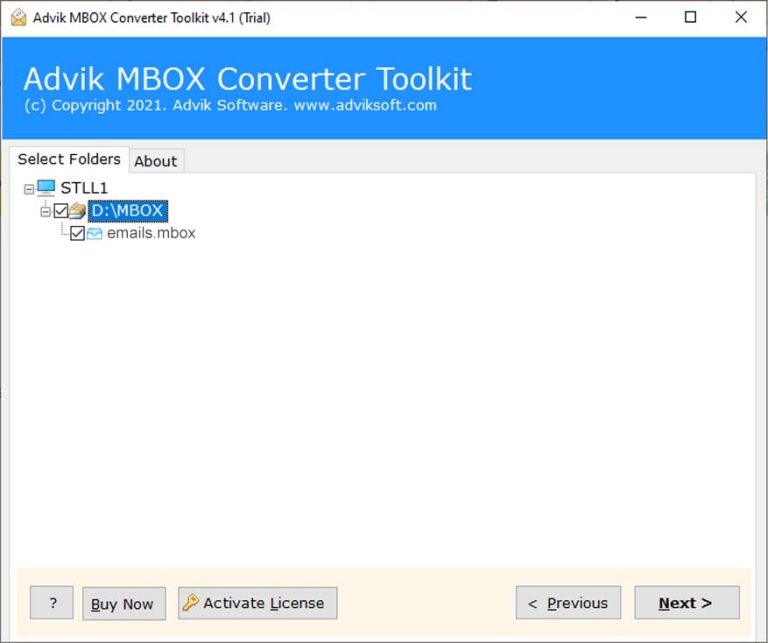
Step 3. Select the email folder you want to import.
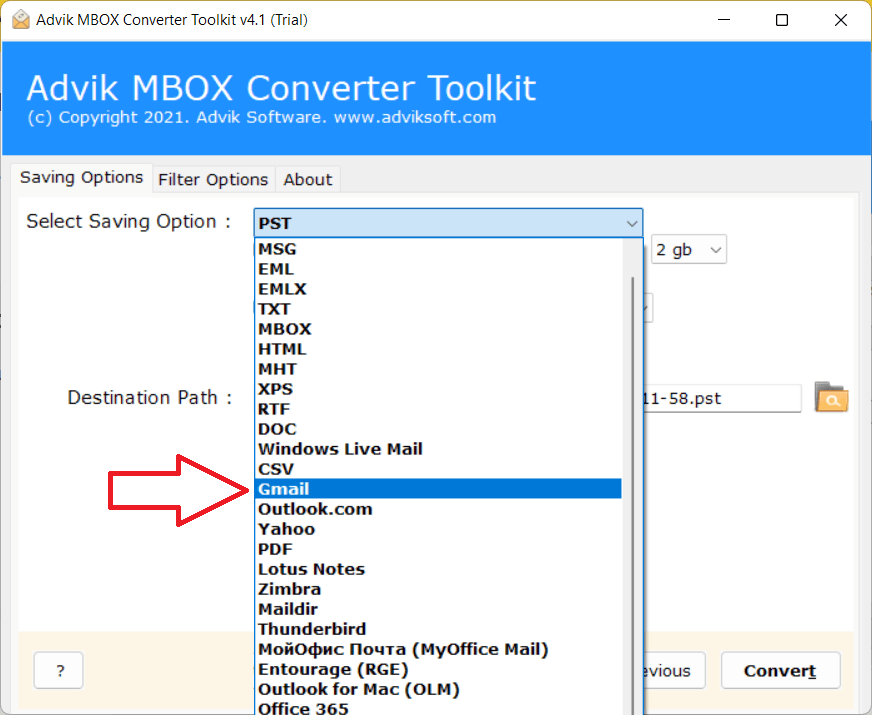
Step 4. Choose Gmail as the target source.
Step 5. Enter your Gmail account login details and click Convert.
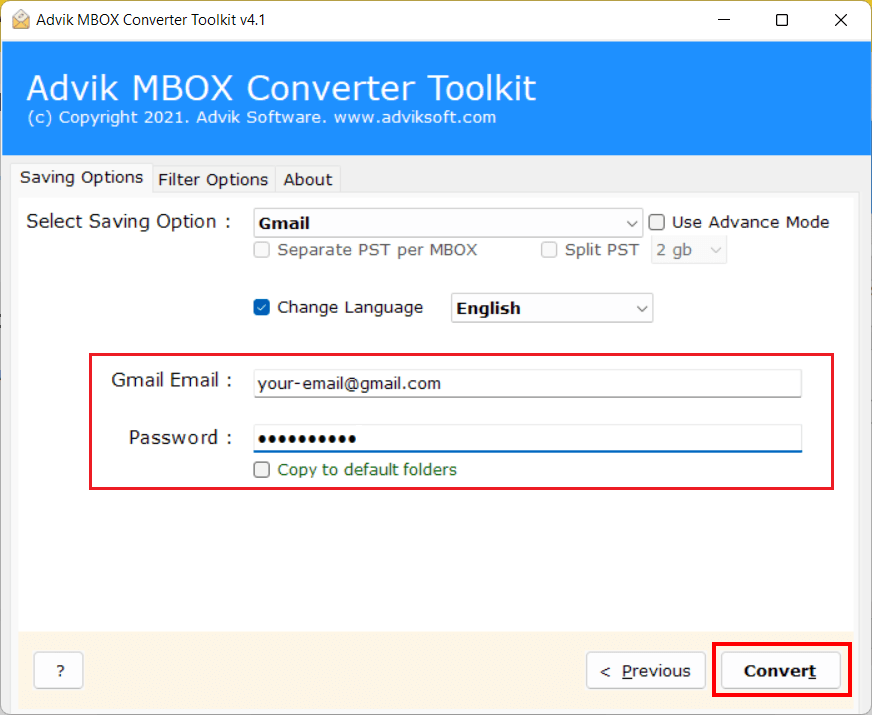
The software will start uploading MBOX emails into Gmail account.
Once the process is completed, open your Gmail account and check the mailbox list. You will see a new folder with your .mbox file emails.
Watch How to Import MBOX to Gmail Without Thunderbird?
Prime Features of Advik MBOX to Gmail Import Tool
- Direct Solution: The software can directly upload MBOX to Gmail without any external installation.
- Bulk Importing: The tool has a dual mode to import single or multiple MBOX files to Gmail at once.
- Multiple Saving Options: It offers 20+ saving options to export MBOX to several file formats & cloud migration.
- Preserves Data Integrity: It maintains all email attributes like attachments, signatures, etc. while importing.
- Retain Folder Structure: The tool keeps the original structure of MBOX email folders during the process.
- Email Filter Options: This utility provides advanced email filter options to import only selective emails.
- Simple GUI: The software is designed with advanced algorithms and a simplified user graphical interface.
- Windows Supportive: It is compatible with all the latest and old versions of Windows operating systems.
Final Words
In this post, we have discussed how to import MBOX to Gmail with or without Thunderbird. Both methods are very helpful, but each has its own scenario for use. You can choose any solution as per your needs. However, if you face any issues while importing, then you can get help from our support team. They are available 24/7 to solve users’ issues.
Frequently Asked Questions
Q1. How long does it take to convert a 5GB MBOX to Gmail?
Ans. The time to migrate a 5GB MBOX file to Gmail depends on several factors like internet speed, system performance, and the method used.
If you use Thunderbird, it may take longer, while a professional tool can complete the process faster and more efficiently.
Q2. Can Gmail import MBOX file?
Ans. No, Gmail cannot directly import MBOX files. To do it, you need to use an email client like Thunderbird or a professional MBOX to Gmail converter tool.
Q3. Will my email attachments be preserved during MBOX to Gmail migration?
Ans. Yes, the software preserves all attachments, formatting, and metadata intact.
Q4. Is it possible to open multiple MBOX files in Gmail at once?
Ans. Yes, the tool allows to import MBOX to Gmail in bulk.
Q5. Can I import Apple MBOX file to Gmail with this tool?
Ans. Yes, you can transfer Apple MBOX file into Gmail without any hassle.