How to Import MBOX to Zoho Mail: 2026 Guide
If you are using Zoho Mail and have email data stored in an MBOX file, you might be wondering how to import MBOX to Zoho Mail easily. If yes, then this post is for you. In this tutorial, we’ll explore the best possible and successful ways to upload MBOX file to Zoho Email Account.
MBOX is a mailbox file format used by many email clients such as Thunderbird, Apple Mail, SeaMonkey, Postbox, etc. It stores all emails in a single file. Sometimes, users need to transfer MBOX file to Zoho Mail. Users often face challenges while importing MBOX into Zoho Mail. To help those users, we have come up with two simple solutions to complete the MBOX to Zoho Mail migration.
Before proceeding with solutions, let’s understand why users prefer to migrate MBOX emails to Zoho Mail.
Reasons to Import MBOX to Zoho Mail
There are several advantages of importing MBOX emails into Zoho Mail account. Some of them are;
- Importing MBOX to Zoho Mail enables you to access data from anywhere.
- Zoho Mail offers a more modern interface and cloud accessibility.
- Zoho Mail is known for its ad-free and security features.
- Importing MBOX files to Zoho Mail ensures long-term storage, safe backups, and protection from system crashes or hardware failure.
Can Zoho Mail Import MBOX File Directly?
Although Zoho Mail doesn’t provide a direct method to import MBOX files. You’ll need to use an email client like Thunderbird to open MBOX file in Zoho Mail account. Let’s see how to do it.
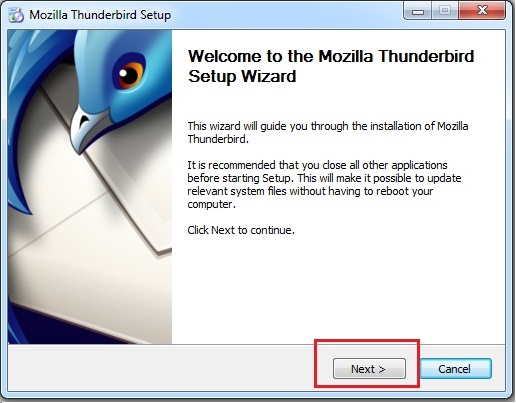
- Install Thunderbird on your computer.
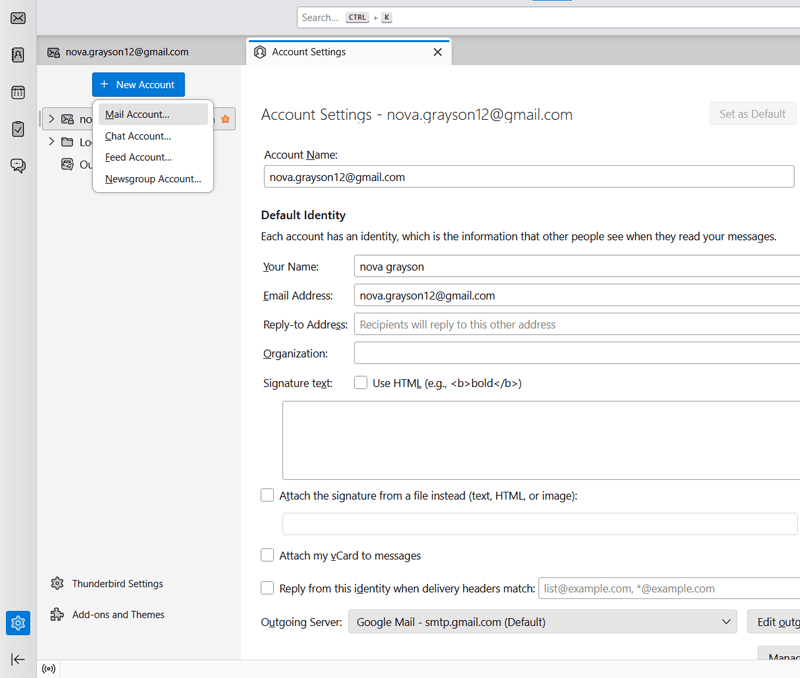
- Open Thunderbird and click New Account >> Mail account.
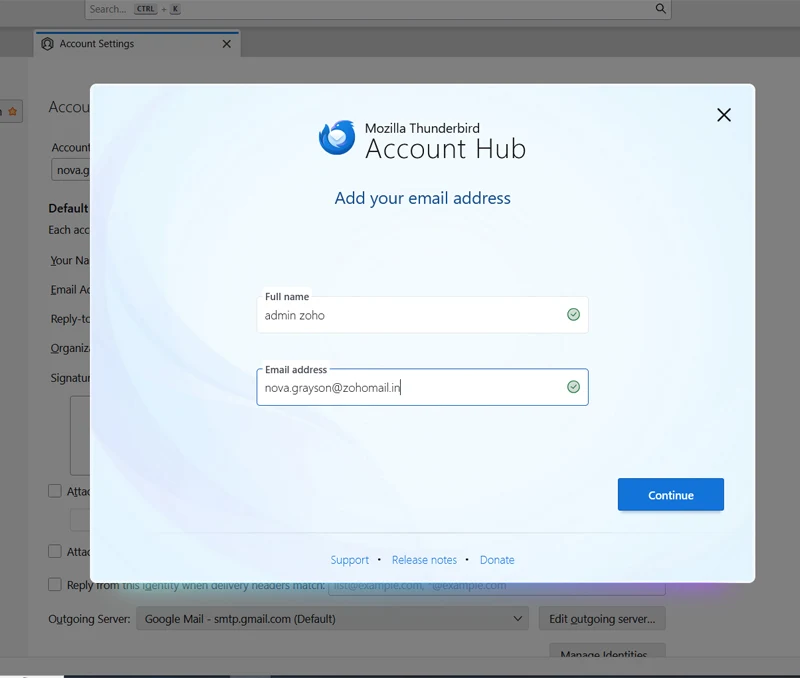
- Enter your Zoho Mail credentials and click Continue.
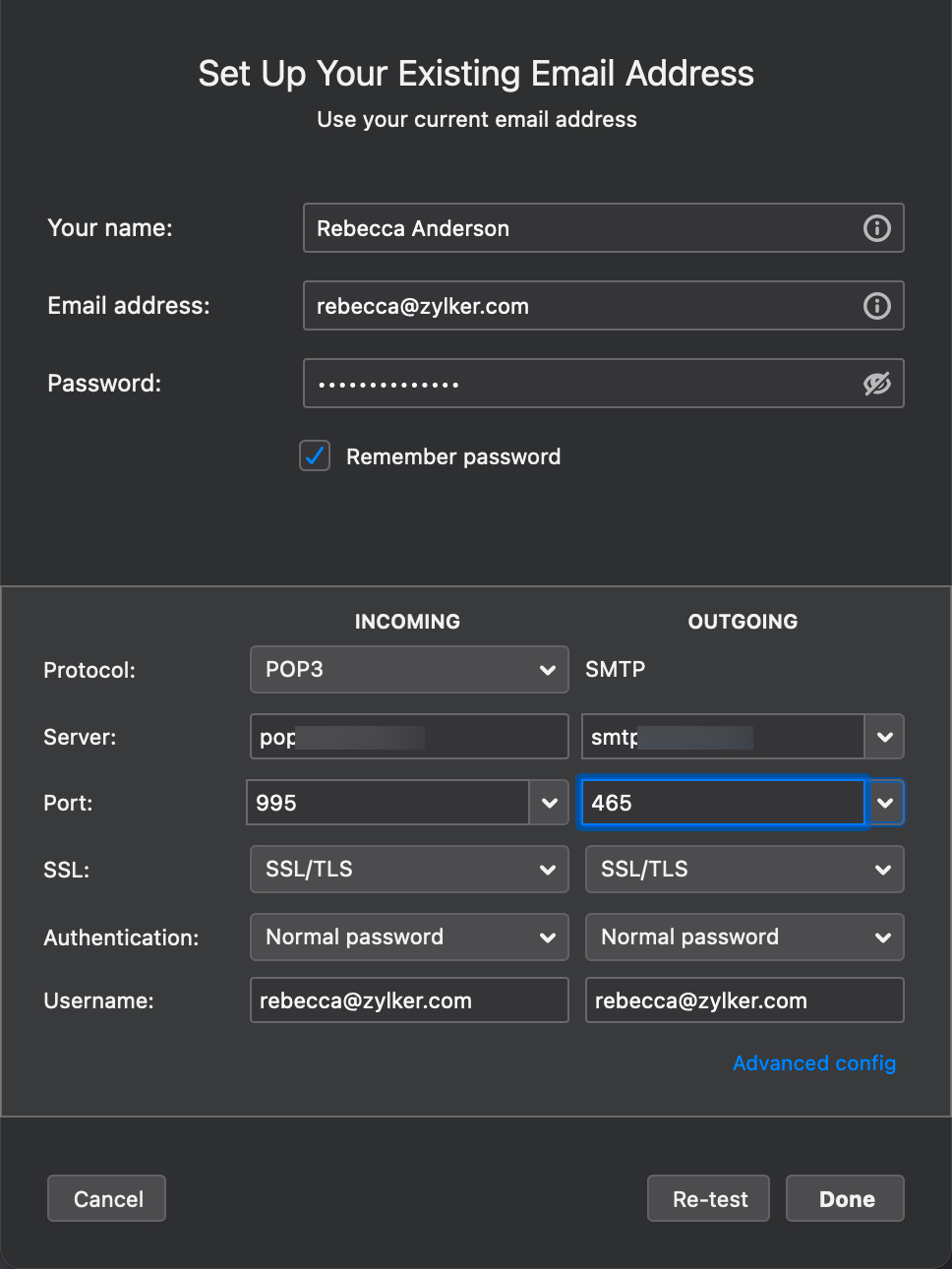
- Thunderbird will automatically configure the Zoho Mail IMAP settings.
- In Thunderbird, go to the Tools menu and select Import.
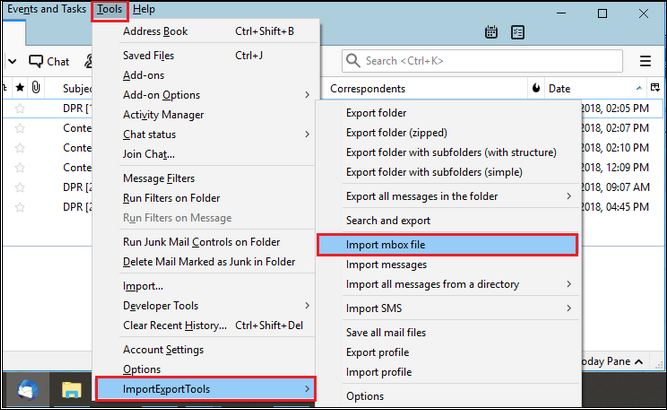
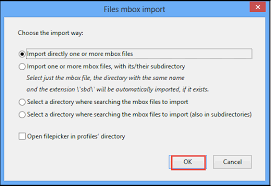
- Choose Import directly one or more MBOX files.
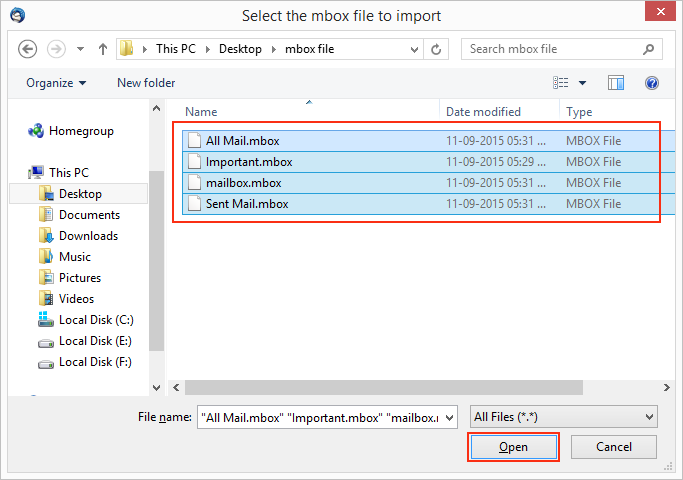
- Browse and select the MBOX file you want to import and click Open.
- The emails will now appear in Thunderbird under the Local Folders section.
- Next, select the emails or folders you want to transfer.
- Right-click and select “Move To” and choose the appropriate folder in your Zoho Mail account.
The emails will be uploaded to your Zoho Mail account via IMAP.
Log in to your Zoho Mail account and check the folders to confirm that all your emails from the MBOX file have been successfully imported.
How to Import MBOX Files into Zoho Mail in Easy Steps?
Now, try Advik MBOX Converter to automate the process of transferring MBOX files into Zoho Mail. It helps reduce the manual effort involved in importing emails through desktop email clients and completes the importing process in just a few simple clicks.
Benefits of Automated Solution:
- Import MBOX to Zoho Mail in bulk.
- Selective email transfer using filters.
- Keeps the original email structure intact.
- Preserves all email attributes while importing.
Download the software for FREE and try your hand at it. The trial edition will upload 25 emails from MBOX for free.


Steps to Import MBOX to Zoho Mail
Step 1. Run MBOX to Zoho Mail Import Tool and click Select files.
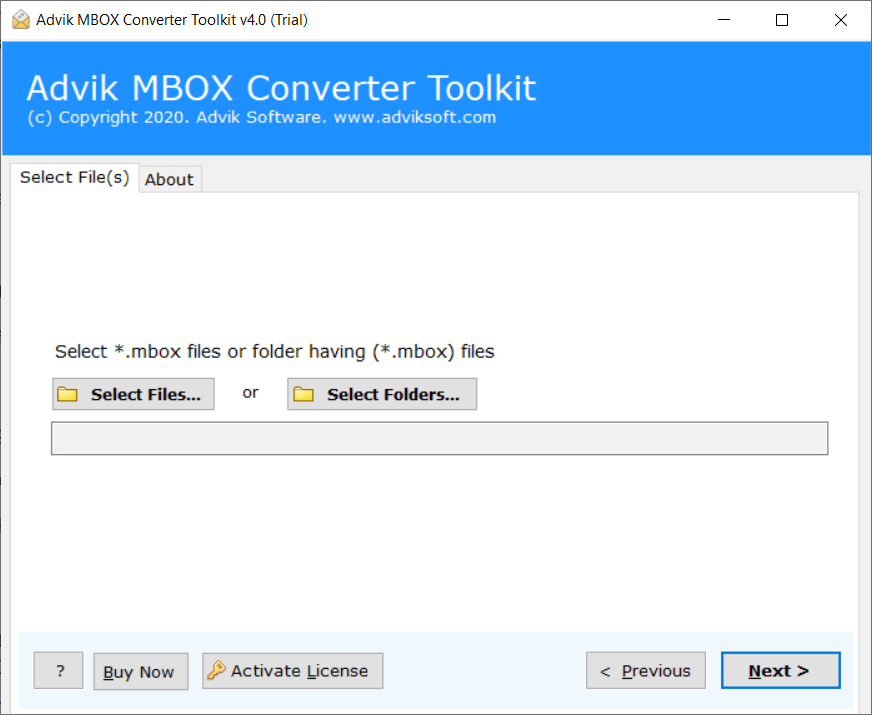
Step 2. Browse and add MBOX file into the software.
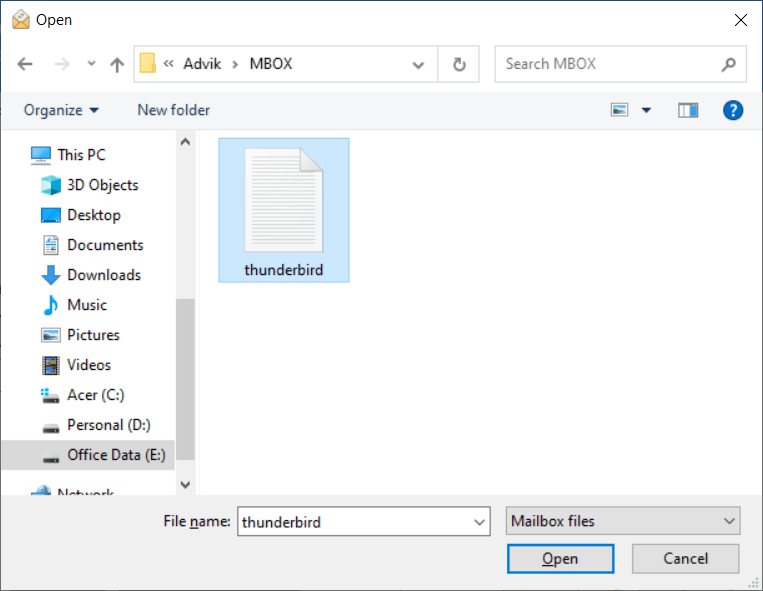
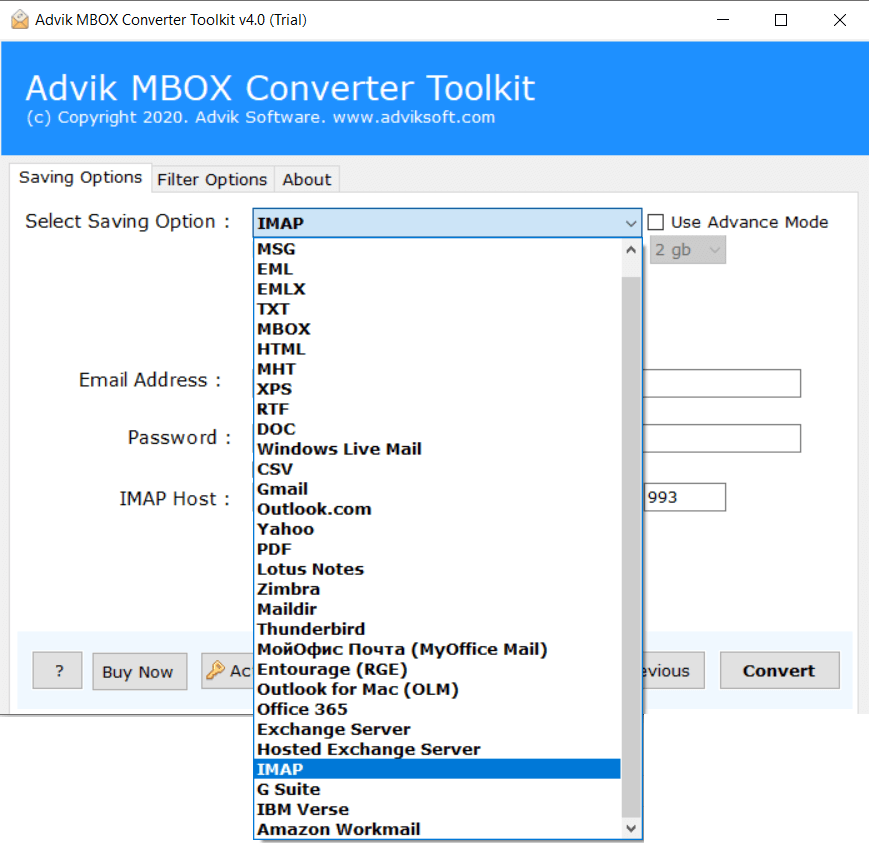
Step 3. Click Select Saving Option and choose the “IMAP” option.
Step 4. Enter your Zoho mail login credentials.
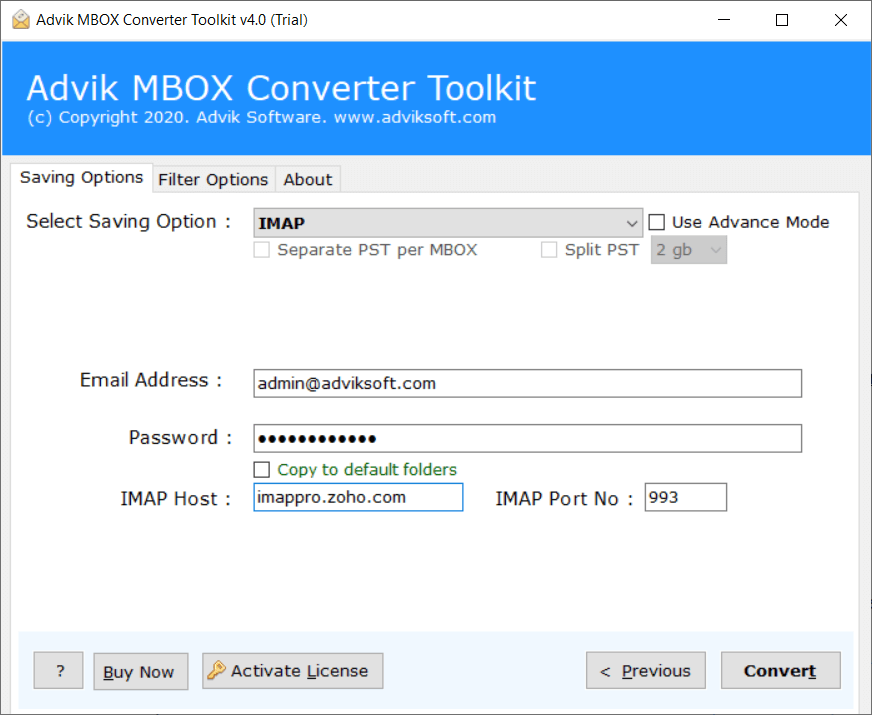
Step 5. Click Convert to start the migration process.
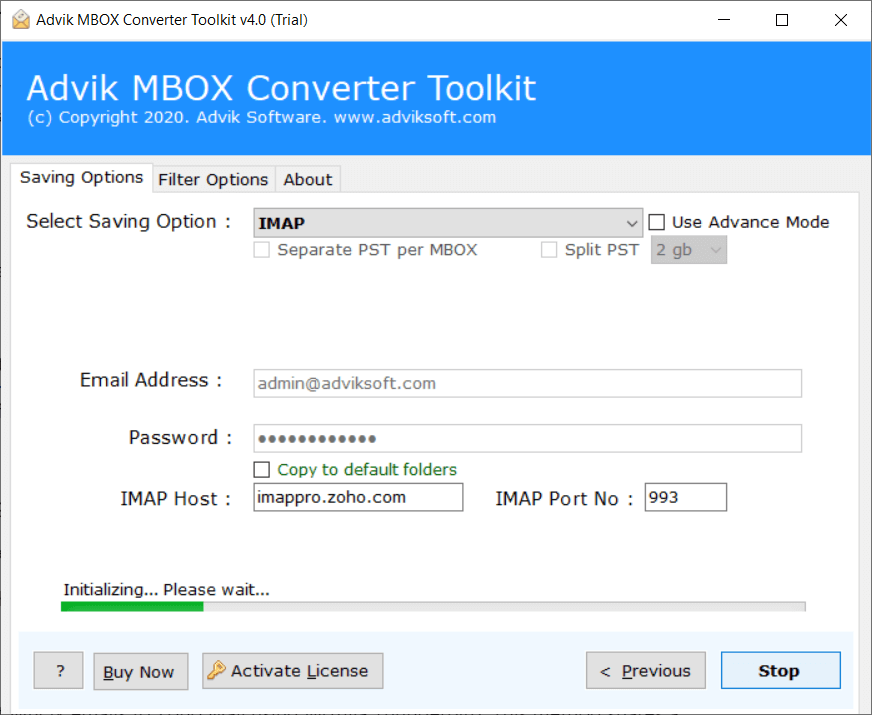
Alas! Now let the software do the rest. It will start converting or migrating emails from MBOX into Zoho Mail account.
Once the process is finished, open Zoho email account and navigate to the Advik folder. The transferred emails are stored in this folder.
Watch How to Open MBOX File in Zoho Mail
When is an Automated Method More Practical?
As we have seen, manual methods work only for a few number of MBOX files. However, it becomes unmanageable to use it in different circumstances. Such as;
Multiple MBOX files: When dealing with multiple MBOX files, a manual solution may not be a useful option. An automated tool can easily handle multiple MBOX files.
Folder Structure: While importing MBOX files into Zoho Mail, users need to maintain folder hierarchy. Automated solutions usually preserve folder layout more than manual methods.
MBOX compatibility: Many clients support MBOX files, which require various manual security checks. While most of the third-party tools handle all standard MBOX formats.
Selective transfer: Manual methods don’t provide the option to choose selective emails. On the other hand, a professional solution is helpful for transferring specific emails.
Final Words
In this post, we have discussed how to import MBOX to Zoho Mail account manually and automatically. Both methods are workable; you can choose any method. However, with an automation solution, you can convert MBOX emails to Zoho Mail account. On the other hand, the free or manual way will lead to little technical difficulties and consume more time to complete the process. Thus, as advised by experts, you should go for Adviksoftware for an instant, and bulk email migration in one click.
Frequently Asked Questions
Q1. Can Zoho Mail import MBOX file manually?
Ans. No, Zoho Mail cannot import MBOX files directly. To upload MBOX files into Zoho Mail, you need to configure your Zoho Mail account in a MBOX-supported desktop client.
Q2. Is it possible to import MBOX files to Zoho Mail in bulk?
Ans. Yes, with the automated tool like AdvikSoftware, you can transfer multiple MBOX files in a single attempt.
Q3. How can I ensure that all attachments and metadata are preserved while importing?
Ans. You don’t need to do anything. The tool will transfer emails along with attachments and other attributes.