How to Import OST to iCloud Mail Account?
Jenny Lowrence | January 30th, 2026 | Import Emails
Are you wondering how to import OST to iCloud Mail account? If yes, then this post is for you. In this article, we are going to discuss two different ways for importing OST emails to iCloud account. Stay tuned with us to know more.
Microsoft Outlook creates OST file when you configure your account with MS Exchange Server. It stores emails, contacts, calendars, tasks, notes, journals, etc. in its database. The OST file allows you to work offline and automatically synchronizes with the Exchange server when internet connectivity is available.
iCloud is a cloud-based service developed by Apple Inc. for all iOS, macOS users. It allows users to store their data, including emails, and sync data across devices.
Importing OST data to iCloud enables you to access your emails, contacts, and calendars across all Apple devices, including iPhone, iPad, and Mac. It reduces the risk of data loss due to system crashes or hardware failure by storing your data on the cloud.
How to Import OST to iCloud Manually?
Unfortunately, there is no direct manual way to upload OST file to iCloud Mail account. OSt files are tied to a specific Outlook profile, which makes them difficult to import directly. However, if you have access to the Outlook profile connected to the OST file, then you need to follow multiple steps to complete the importing process.
Step 1. Convert OST to PST format
Step 2. Add iCloud Account to Outlook
Step 3. Import PST to iCloud mailbox Folders
However, it takes a lot of time to move OST file to iCloud.
If your OST file is orphaned, then this approach does not work. In that situation, you need to use an automated tool to perform the import process.
How to Open OST File in iCloud Mail Automatically?
Download and install the Advik OST Converter on your system. The software can directly import OST to iCloud without any external help. With this utility, you can transfer orphaned or corrupted OST files without any hassle. It can migrate multiple OST files in a single attempt. The tool preserves data integrity and folder hierarchyduring the process. Thus, no data loss will take place
Click on the below link to download it for FREE.


Steps to Import OST File to iCloud Mail
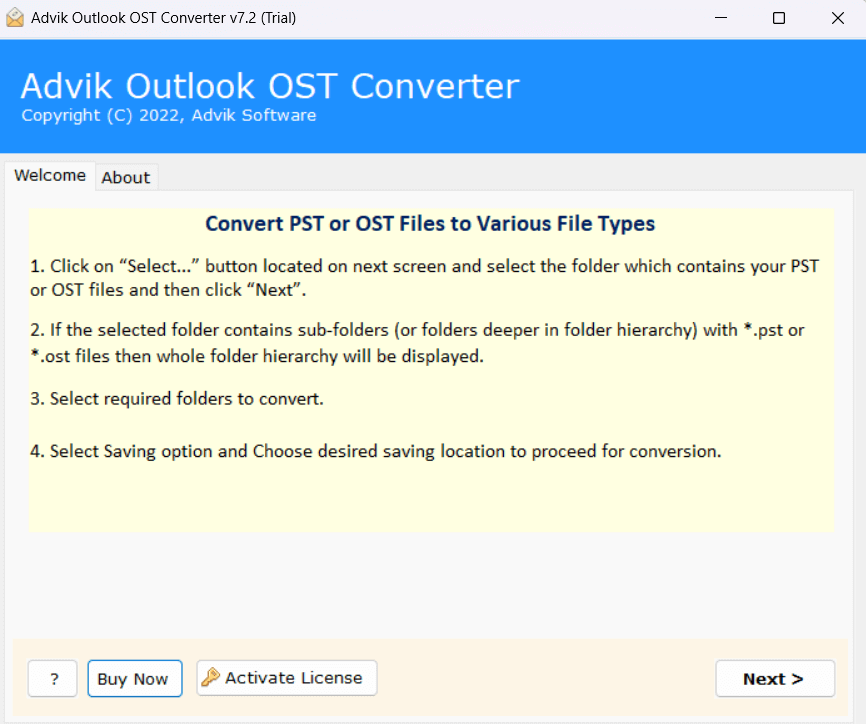
1. Run the tool on your system.
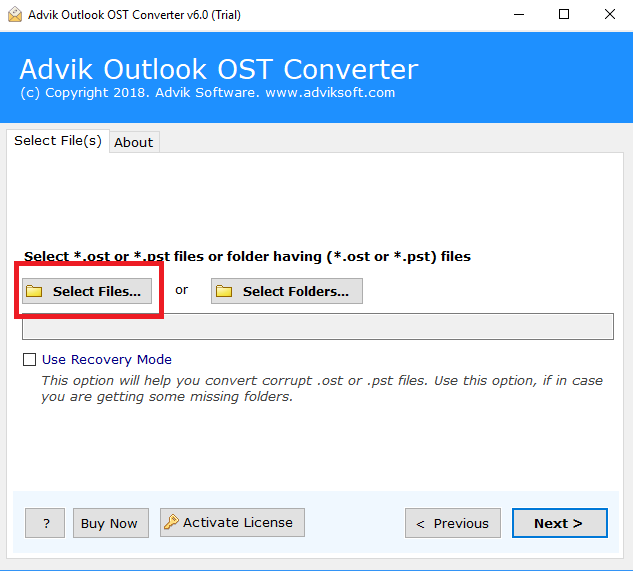
2. Click on Select Files or Folders to add OST file.
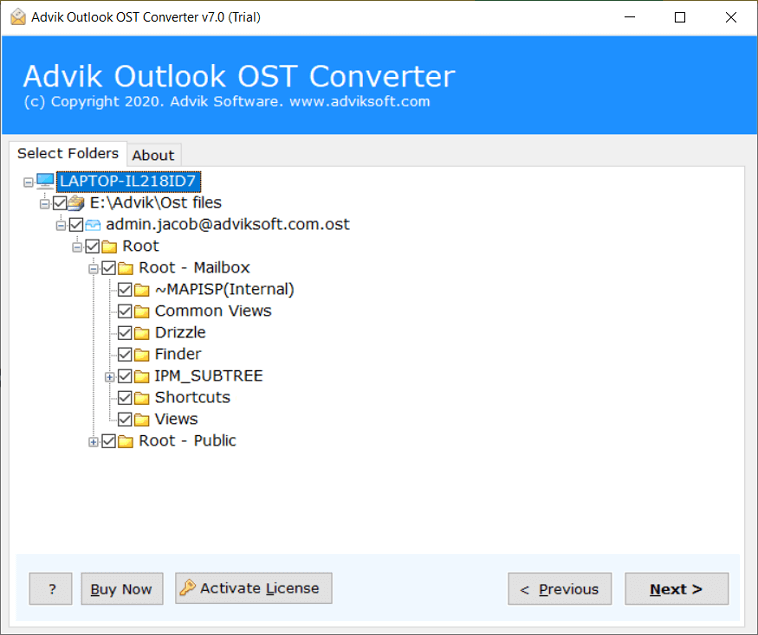
3. Choose the required mailbox folders & subfolders and click Next.
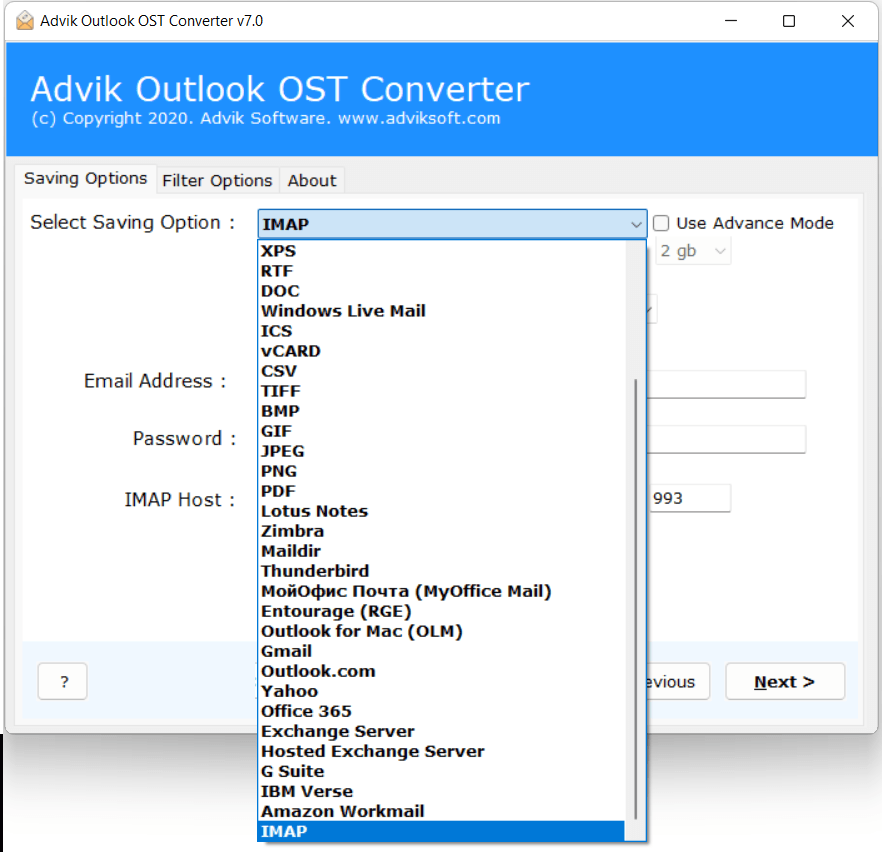
4. Choose IMAP as a saving option.
5. Enter your iCloud Mail account login details and click Next.
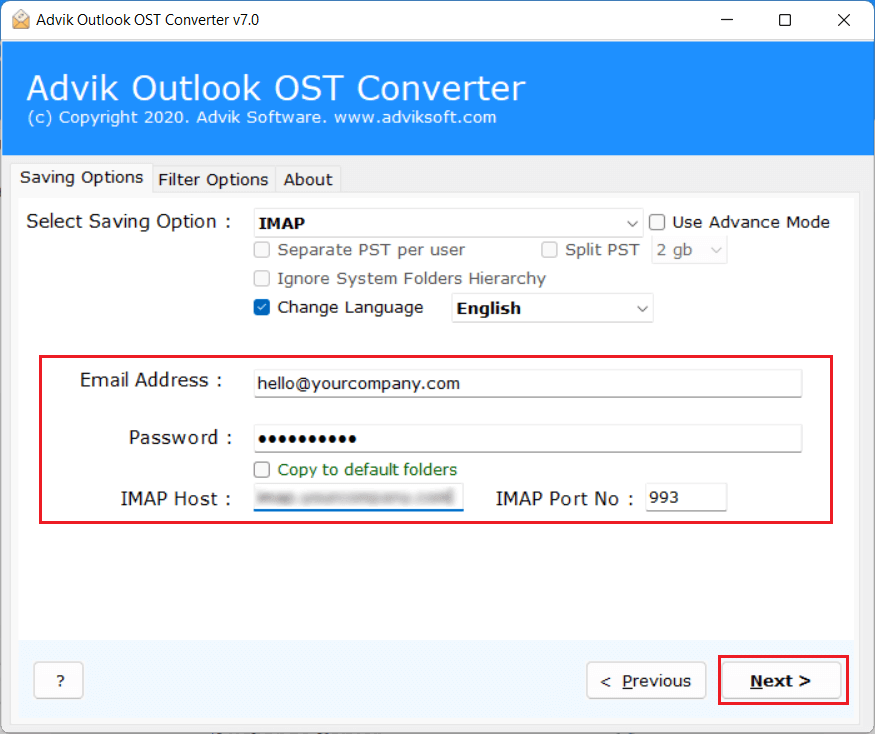
The software will start importing OST emails into iCloud Mail account. Once the process is complete, you will get a pop-up message with a complete log report.
Benefits of Using Automated Tool
- The software can directly transfer OST file to iCloud.
- It can easily import orphaned or corrupted OST files.
- The tool has a dual mode to upload OST files in bulk.
- Advanced filter options to import selective emails.
- This program preserves all email attributes while importing.
- Also, it maintains the original structure of mailbox folders.
- It is designed with a simple graphical user interface.
- The software is compatible with all versions of Windows OS.
Final Words
In this post, we have discussed how to import OST to iCloud Mail account. Here, we have provided both manual and automated solutions to accomplish this task. However, if you still have Outlook access, then you can manually open OST file in iCloud. While choosing the professional solution is the most efficient way to do it.