How to Import Outlook Contacts to WhatsApp?
Jenny Lowrence | March 23rd, 2026 | Outlook
In today’s digital world, managing contacts across multiple platforms has become a common challenge for both personal or professional users. Many users want to import Outlook contacts to WhatsApp for efficient contact management. In this write-up, we’ll discuss the top two methods to sync Outlook contacts with WhatsApp.
Microsoft Outlook is one of the most widely used email clients. It allows users to store emails, calendars, contacts, notes, tasks, etc in an organized way. On the other hand, WhatsApp is a highly popular social media platform used by billions of users around the world. Almost every individual has WhatsApp on their smartphone wheather they are Android or iOS user.
Importing Outlook contacts to WhatsApp helps users quickly access their professional or personal contacts on their mobile device. It improves productivity by allowing users to instantly message, call, or share files with their saved contacts through WhatsApp.
How to Import Outlook Contacts to WhatsApp?
You can’t directly add Outlook contacts to WhatsApp. First, export Outlook contacts to vCard or CSV, then import the exported files into WhatsApp.
Follow these steps:
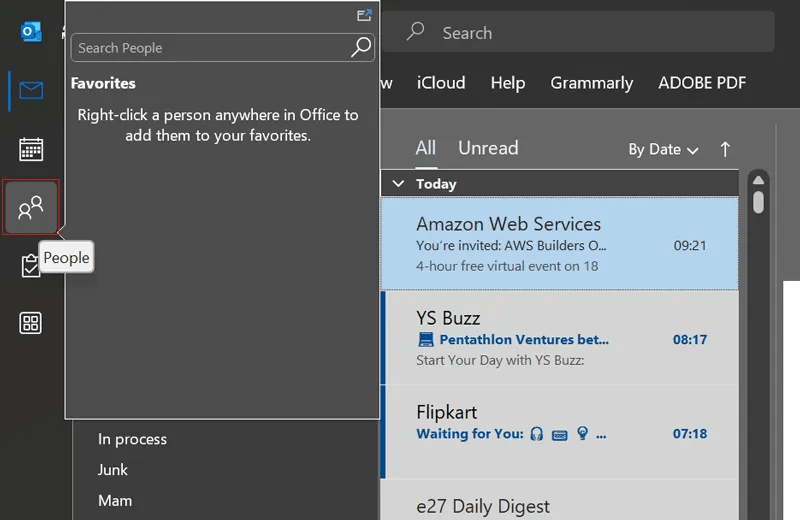
1. Open MS Outlook and click on People.
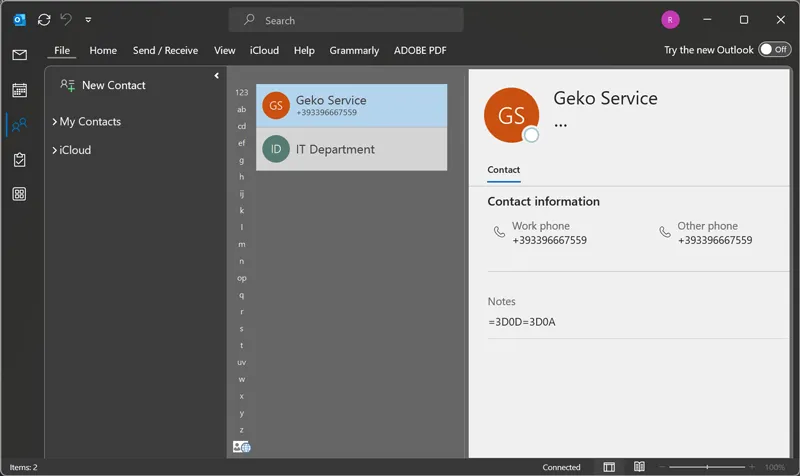
2. Select the contact that you want to import.
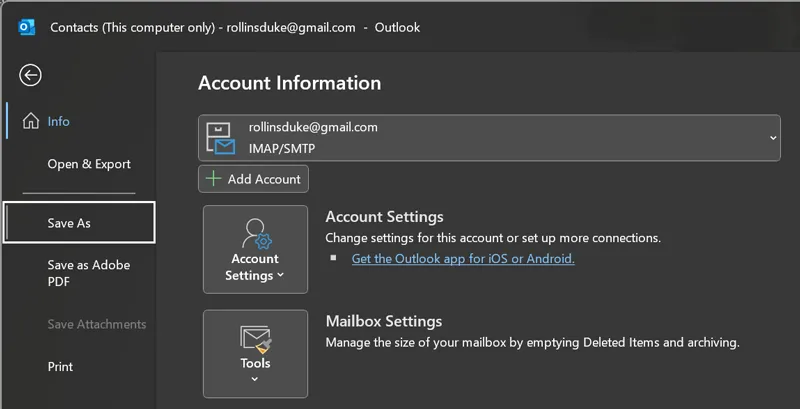
3. Go to File tab and click on Save As.
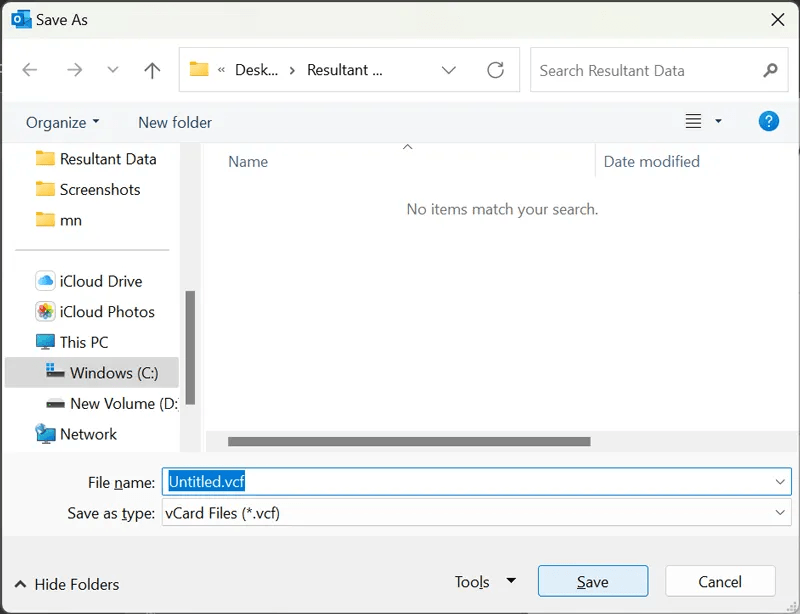
4. Choose the location and click on Save button.
5. Now, copy vCard from your system and paste it into your smartphone.
6. Next, open the Contacts on your smartphone and go to Settings.
7. Select the Import/Export contacts option.
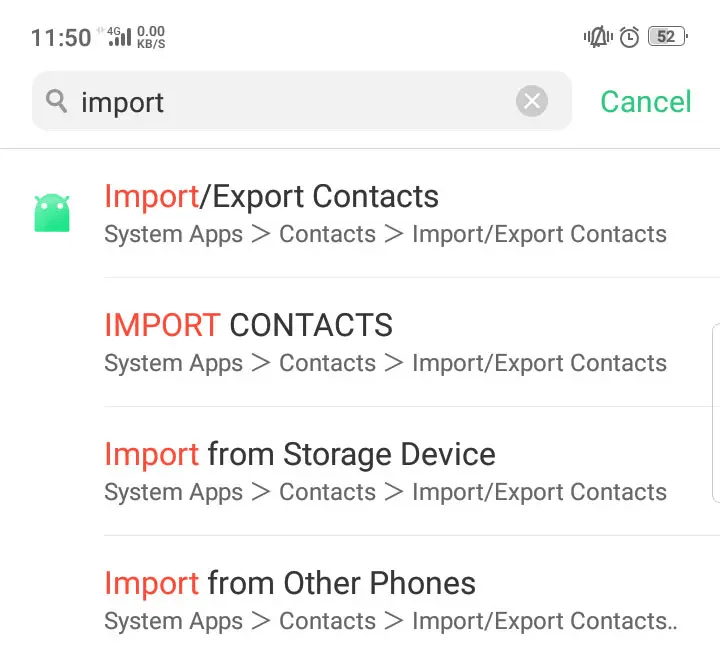
8. Choose the Import from Storage Device option.
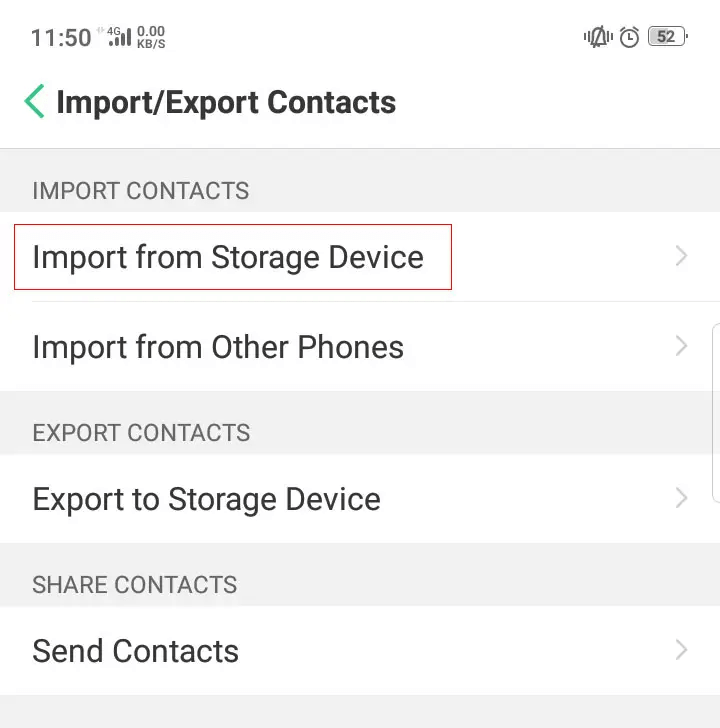
9. Select Outlook exported vCard file and click on Import.
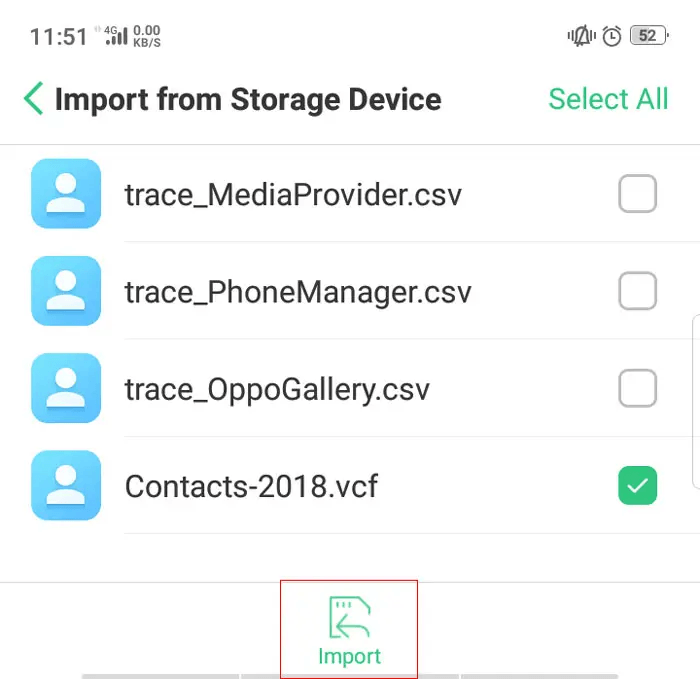
10. Wait some time to complete the importing process.
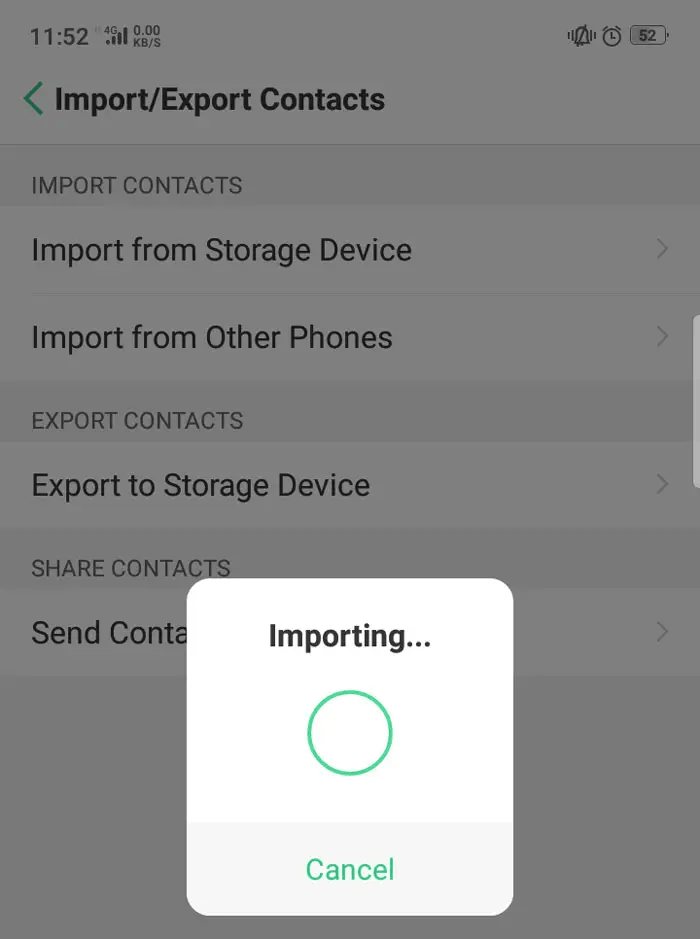
Done! This is how you can import Contacts from Outlook to WhatsApp. But, with this approach, you need to repeat the steps to export each contact. So, this is a lengthy and time-consuming process to import multiple contacts.
How to Sync Outlook Contacts to WhatsApp Automatically?
If you want to import Outlook contacts to WhatsApp in bulk then try the Advik Outlook PST Converter. With this tool, you can export all Outlook contacts in a single attempt. This is a secure and authentic program that preserves all contact details during the process. The software is designed with a simple GUI that can be utilized by any user without any technical knowledge.
Click on the below link to download it for FREE.


Steps to Import Contacts from Outlook to WhatsApp
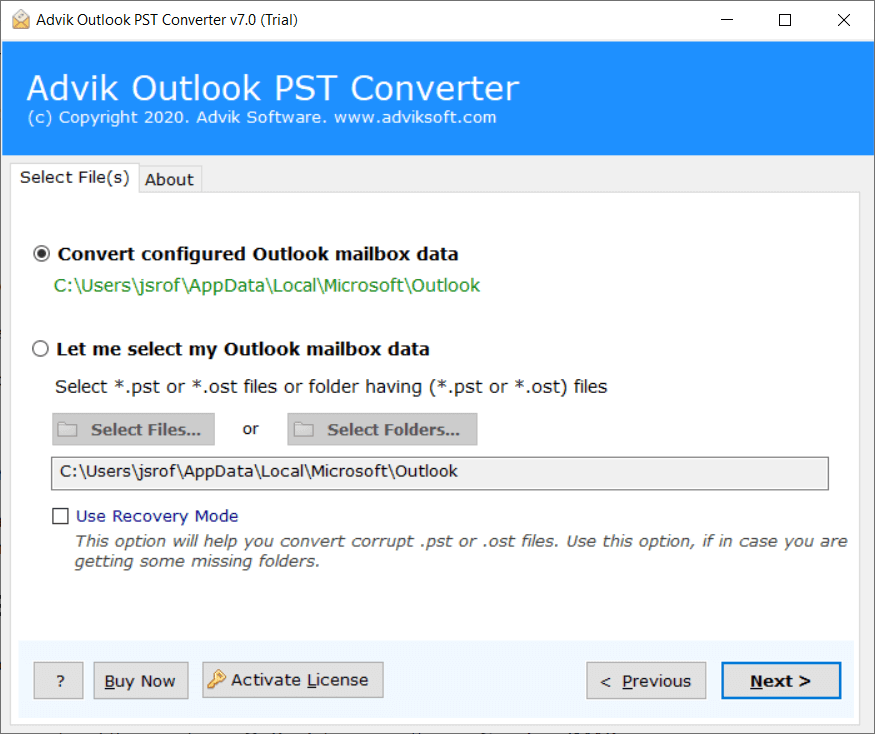
1. Run the tool and choose your Outlook profile.
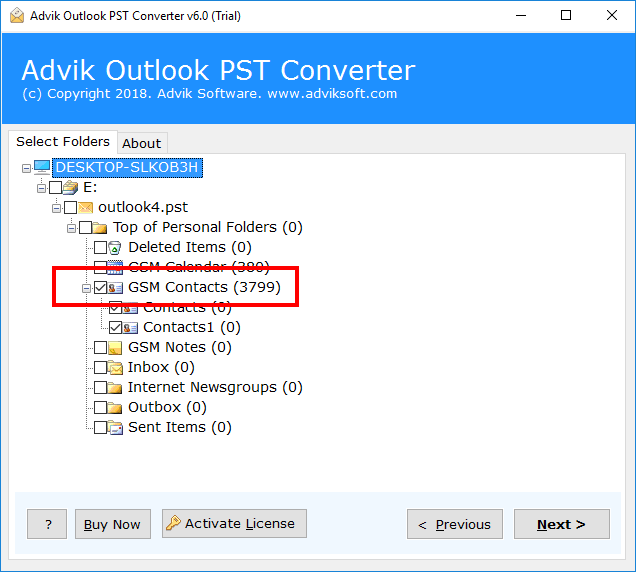
2. Select the Contacts folders that you want to export.
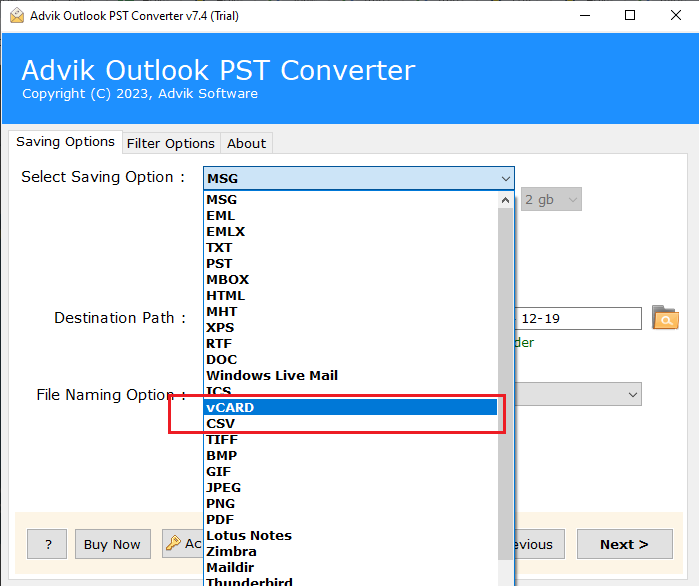
3. Select vCard as a saving option.
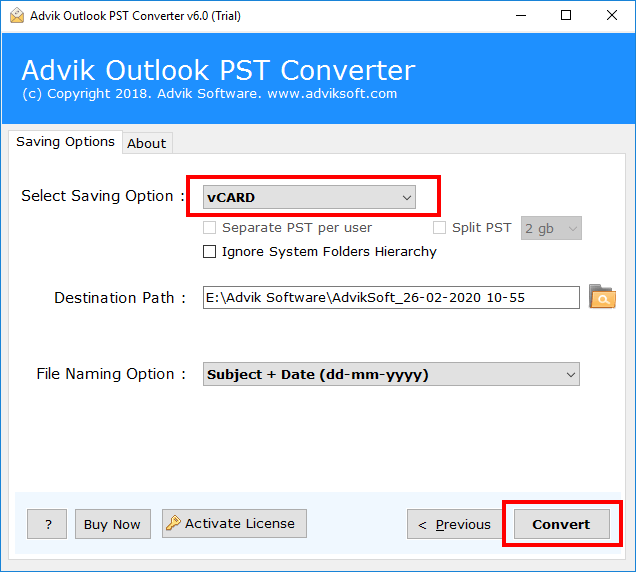
4. Browse target location and click Next.
5. Import the exported VCF files into your smartphone..
Prime Features of Automated Tool
- Import Outlook contacts to WhatsApp in bulk.
- Allows syncing the selected Outlook contact folder.
- Preserves all contact details while importing.
- Also, export Outlook contacts to Gmail, Yahoo, etc.
- Simple graphical user interface for all types of users.
- Compatible with all versions of Outlook & Windows OS.
- 24/7 customer support to solve user issues.
- A free demo version to check working procedure.
Final Words
In this post, we have discussed how to import Outlook contacts to WhatsApp. Here, we have mentioned the two best methods to sync Outlook contacts with WhatsApp. The manual method works well if you have a limited number of contacts. On the other hand, with an automated solution, you can export multiple Outlook contacts to WhatsApp at once. Now, you can decide which method is best suited for you as per your needs.
