How to Import PST File to New Outlook?
Jenny Lowrence | April 1st, 2026 | Import Emails
If you’ve recently switched to the new version of Microsoft Outlook, you might be wondering how to bring your old emails, contacts, and calendar data with you. PST files are used by MS Outlook to store mailbox data locally. You might have years of important emails, attachments, contacts, and business records saved in that file. Importing PST files to New Outlook ensures you don’t lose important information. However, the new version works differently from the traditional Outlook, which makes PST import a bit tricky. That’s why Many users are struggling in importing PST file after upgrading. In this guide, we’ll show you how to import PST file to New Outlook. Whether you’re a tech savvy or not, this article will help you navigate the process with clarity.
Can You Import PST File in New Outlook?
The new version of Microsoft Outlook does not currently support direct importing of PST files. The new Outlook is designed as a cloud-based email client, which means it prioritizes syncing emails, contacts, and calendar data directly from servers like Microsoft 365, Exchange, or IMAP accounts rather than relying on local storage files. As a result, you can not directly open PST file in New Outlook. However, there are alternative workarounds that will help you to accomplish this importing process.
Let’s move ahead and learn how to transfer a PST file to New Outlook.
How to Import PST File to New Outlook Manually?
Here, we’ll discuss two manual approaches to accessing PST file data in New Outlook. You can use them to add your Outlook Classic data file to the new Outlook.
Method 1. Move PST File to New Outlook
- Open the New Outlook application on your system.
- Now, click on gear icon in the top right corner.
- Next, select Files from the menu.
- After that, click on Add File for importing.
- Click on Browse to select PST file that you want to import and click Open.
Method 2. Import PST File into New Outlook Via Toggle Switch
- Start the New Outlook.
- Go to the Help option from the menu.
- Next, click on the Go to Classic Outlook option.
- Follow the on-screen instructions to switch back to Outlook Classic.
- After that, navigate to File >> Open & Export >> Import/Export.
- Choose Import from another program or file and click Next.
- Select Outlook Data File (.pst) and press Next.
- Click on Browse to choose the PST file that want to import.
- Finally, switch back to the new Outlook using the toggle switch.
Limitations of Manual Methods
- Import only one PST file at a time.
- Large PST file takes lot of time to import.
- New Outlook can import PST file if you have a Microsoft 365 subscription.
How to Transfer PST File to New Outlook Professionally?
Download and install the Advik PST Converter on your system. The software can directly import PST to New Outlook. It has a dual mode that enables you to move multiple PST files at once. Also, it offers advanced filter options to migrate selected data. With this utility, you can import all data, including emails, contacts, calendars, and more, from PST file without any data loss. The tool preserves the mailbox folder hierarchy as well while importing.
Click on the below link to download it for FREE.


Steps to Import PST to New Outlook
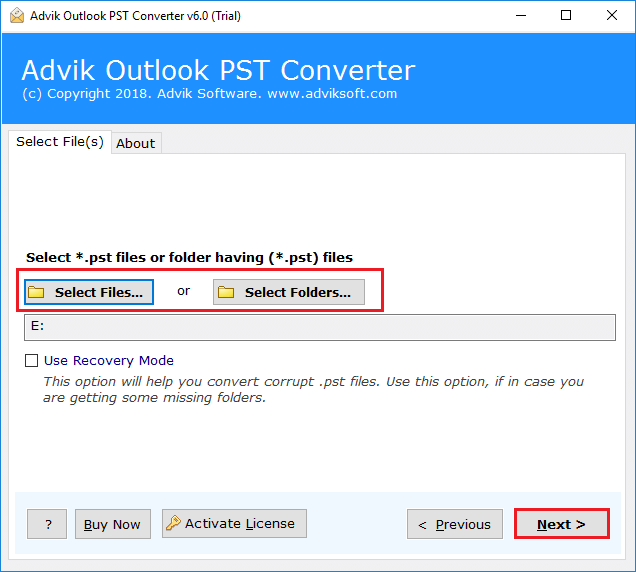
1. Run the tool and add PST file into software.
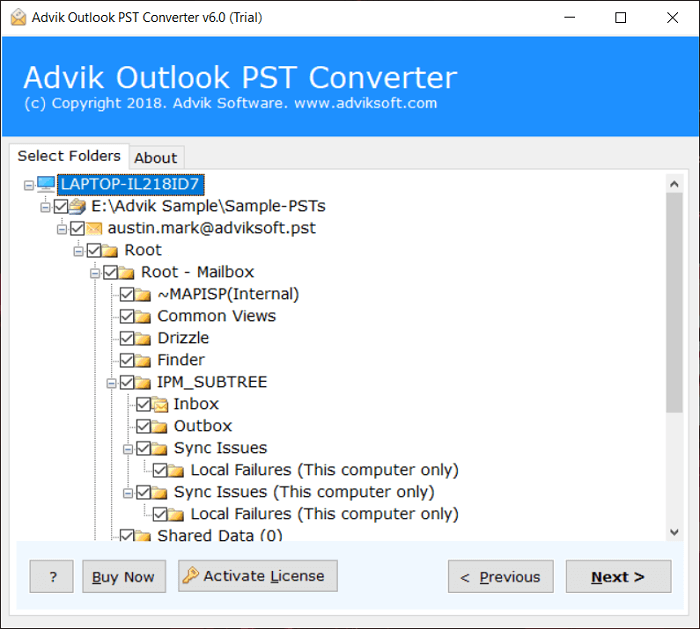
2. Choose the mailbox folders & subfolders.
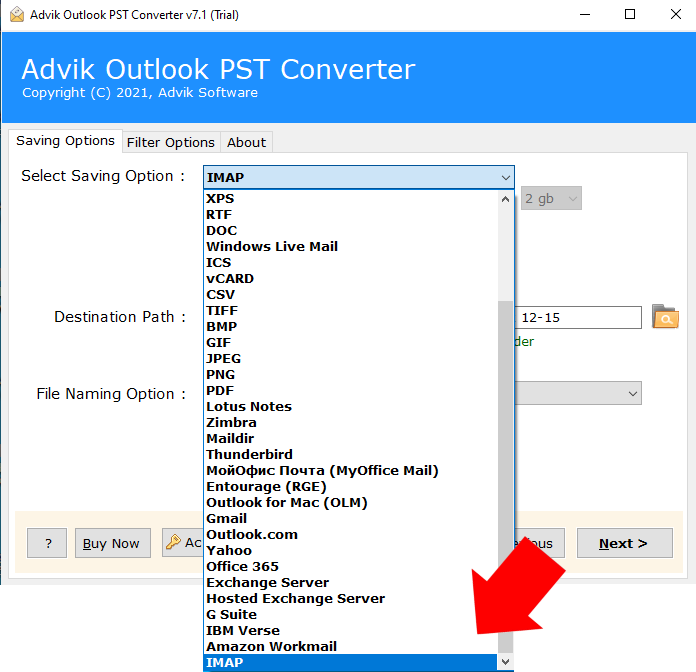
3. Select IMAP as a saving option.
4. Enter the login details of New Outlook configured account and click Next.
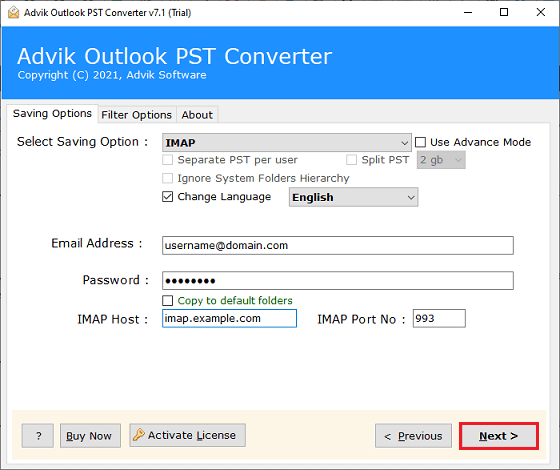
The software will start importing PST file data into New Outlook. Once the process is complete, it will notify with a pop-up message including log reports.
Advantages of Using Automated Tool
- Directly import PST file to New Outlook without switching
- Move single or multiple PST files in a single attempt.
- Advanced email filters to migrate only selected data.
- Preserves all email attributes and properties while importing.
- Retains the original structure of mailbox folders even after the process.
- No file size limitations to import large or multiple PST files.
- A simple graphical user interface helpful for all types of users.
- Compatible with all the latest and old versions of Windows OS.
Final Words
Importing PST file into New Outlook may not be straightforward due to its modern limitations. But, with the help of classic Outlook, users can move PST file. However, using a professional tool, users can directly import PST file to New Outlook. In this post, we have explained manual as well as professional solutions. You can choose any method that is most suitable for you.
