How to Import PST to New Outlook in 2026: Step-by-Step Guide
Quick Answer: Yes, you can import a PST file into New Outlook directly. Microsoft has recently added a built-in import option to access and read your PST file in New Outlook. It lets you to select data from .pst file and import the same into your Outlook mailbox. To do this, go to Settings >> Data Files >> Import, click Get Started , choose your PST file, select the folders and destination and start the import process.
If you only want to import PST file instead of it’s complete content then New Outlook has also provides an option to add the PST as a data file. However, still opening PST file needs additional requirements such as installation of classic Outlook.
Table of Contents
- Can You Import a PST File into New Outlook?
- What You Need Before Importing PST
- Method 1: Import PST Using New Outlook
- Method 2: Import PST Using Classic Outlook
- Method 3: Use PST Converter Software
- Limitations of PST Import in New Outlook
- Why Import PST to New Outlook?
- Common PST Import Problems and Solutions
- New Outlook vs. Classic Outlook for PST
- Native PST Import vs. PST Converter
- Frequently Asked Questions
- Conclusion
Can You Import PST File into New Outlook?
Yes. New Outlook for Windows now supports importing data directly into a mailbox from an Outlook Data File (.pst) file.
This is a huge step up from the older versions of New Outlook. In the past, users had to rely on workarounds or use Classic Outlook, because there was no direct PST import workflow in New Outlook.
Microsoft’s current documentation now includes a dedicated Import Outlook Data File (.pst) workflow for New Outlook. You have the option to select the folders you want to import, how duplicate items should be handled, a destination mailbox and folder, and then you start the import.
New Outlook also differentiates between importing a PST and opening a PST:
Can You Import PST File in New Outlook?
The new version of Microsoft Outlook does not currently support direct importing of PST files. The new Outlook is designed as a cloud-based email client, which means it prioritizes syncing emails, contacts, and calendar data directly from servers like Microsoft 365, Exchange, or IMAP accounts rather than relying on local storage files. As a result, you can not directly open PST file in New Outlook. However, there are alternative workarounds that will help you to accomplish this importing process.
Let’s move ahead and learn how to transfer a PST file to New Outlook.
How to Import PST File to New Outlook Manually?
Here, we’ll discuss two manual approaches to accessing PST file data in New Outlook. You can use them to add your Outlook Classic data file to the new Outlook.
Method 1. Move PST File to New Outlook
- Open the New Outlook application on your system.
- Now, click on gear icon in the top right corner.
- Next, select Files from the menu.
- After that, click on Add File for importing.
- Click on Browse to select PST file that you want to import and click Open.
Method 2. Import PST File into New Outlook Via Toggle Switch
- Start the New Outlook.
- Go to the Help option from the menu.
- Next, click on the Go to Classic Outlook option.
- Follow the on-screen instructions to switch back to Outlook Classic.
- After that, navigate to File >> Open & Export >> Import/Export.
- Choose Import from another program or file and click Next.
- Select Outlook Data File (.pst) and press Next.
- Click on Browse to choose the PST file that want to import.
- Finally, switch back to the new Outlook using the toggle switch.
Limitations of Manual Methods
- Import only one PST file at a time.
- Large PST file takes lot of time to import.
- New Outlook can import PST file if you have a Microsoft 365 subscription.
How to Transfer PST File to New Outlook Professionally?
Download and install the Advik PST Converter on your system. The software can directly import PST to New Outlook. It has a dual mode that enables you to move multiple PST files at once. Also, it offers advanced filter options to migrate selected data. With this utility, you can import all data, including emails, contacts, calendars, and more, from PST file without any data loss. The tool preserves the mailbox folder hierarchy as well while importing.
Click on the below link to download it for FREE.


Steps to Import PST to New Outlook
1. Run the tool and add PST file into software.
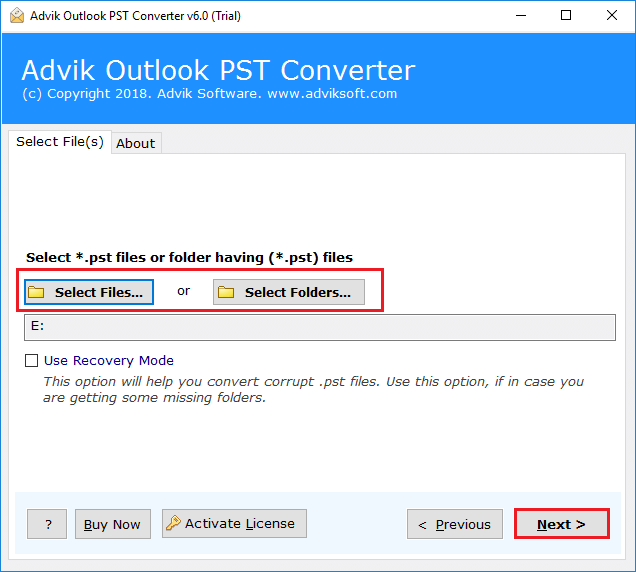
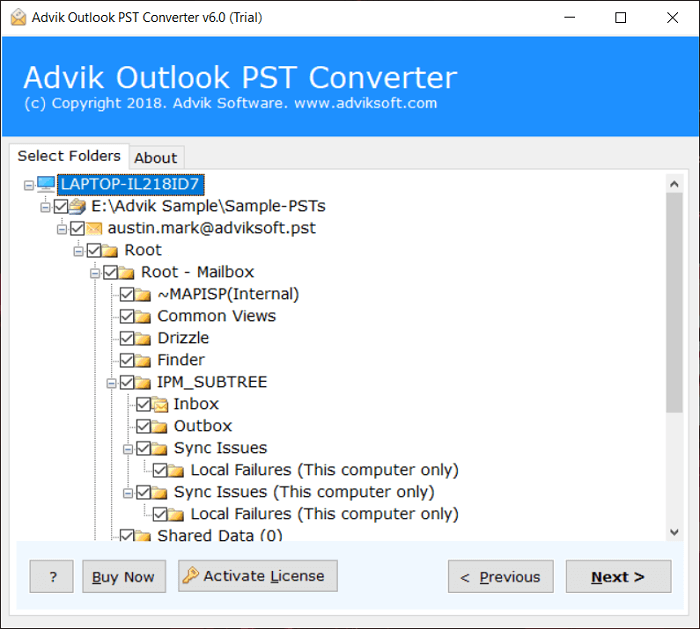
2. Choose the mailbox folders & subfolders.
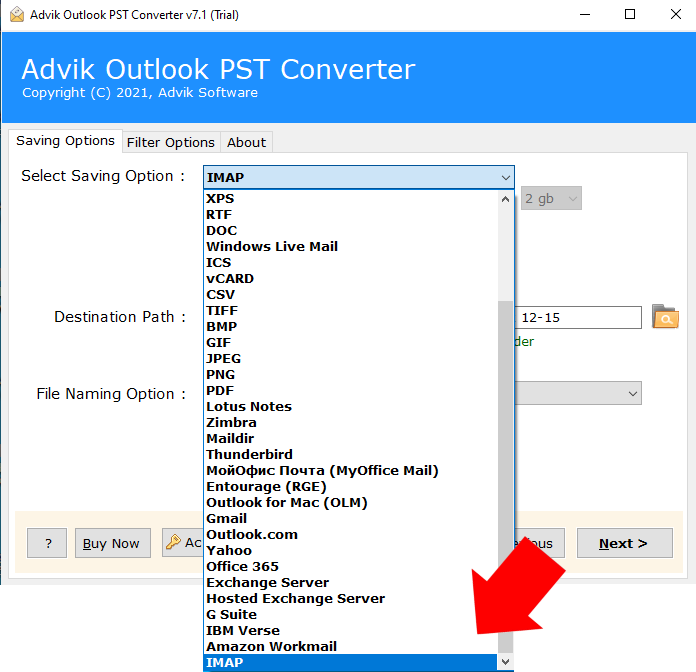
3. Select IMAP as a saving option.
4. Enter the login details of New Outlook configured account and click Next.
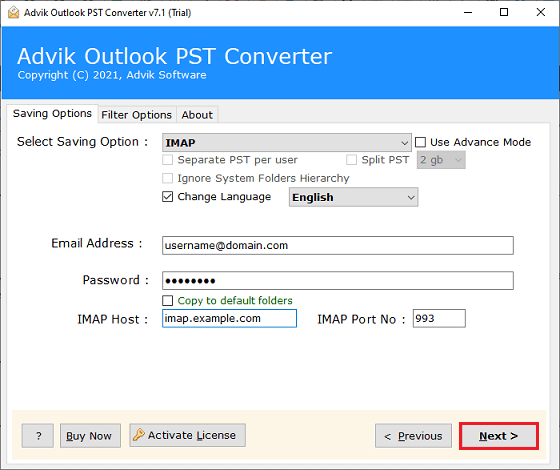
The software will start importing PST file data into New Outlook. Once the process is complete, it will notify with a pop-up message including log reports.
Advantages of Using Automated Tool
- Directly import PST file to New Outlook without switching
- Move single or multiple PST files in a single attempt.
- Advanced email filters to migrate only selected data.
- Preserves all email attributes and properties while importing.
- Retains the original structure of mailbox folders even after the process.
- No file size limitations to import large or multiple PST files.
- A simple graphical user interface helpful for all types of users.
- Compatible with all the latest and old versions of Windows OS.
Final Words
Importing PST file into New Outlook may not be straightforward due to its modern limitations. But, with the help of classic Outlook, users can move PST file. However, using a professional tool, users can directly import PST file to New Outlook. In this post, we have explained manual as well as professional solutions. You can choose any method that is most suitable for you.