How to Import PST to GoDaddy Business Email Account?
Jackson Strong | March 15th, 2026 | Email Migration, GoDaddy, Outlook
GoDaddy is a well-known internet domain registrar and web hosting company. It offers email hosting services to its users with the ability to create domain email addresses. Godaddy Business Email services are being used globally. Many users want to import PST to GoDaddy email account to take its benefits.
Importing PST file to GoDaddy is not simple because GoDaddy does not provide any direct option to import PST file. In this article, we’ll show you two different ways that will help you to open PST file in GoDaddy email account.
Let’s move ahead and learn each process in detail.
How to Import PST to GoDaddy for Free?
You can manually upload PST file to GoDaddy via Outlook. Follow these steps:
1. Launch Outlook and go to File >> Add Account.
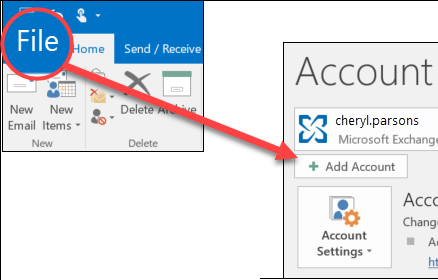
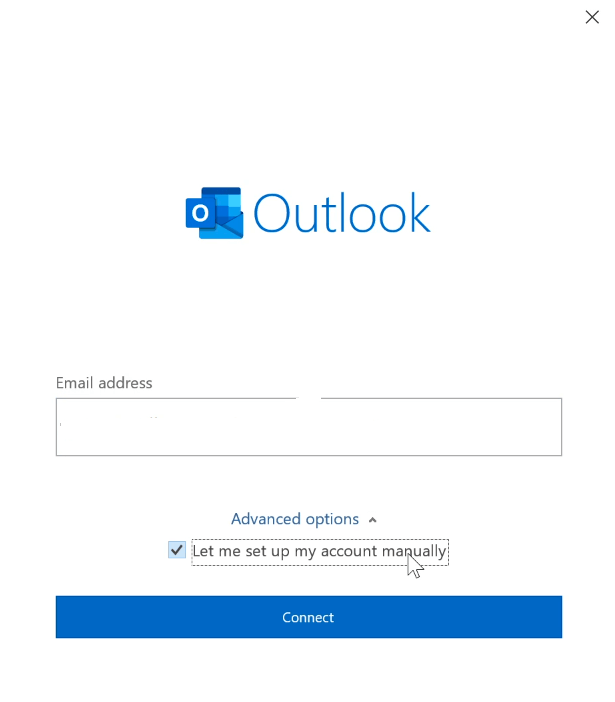
2. Set up your GoDaddy email account in Outlook.
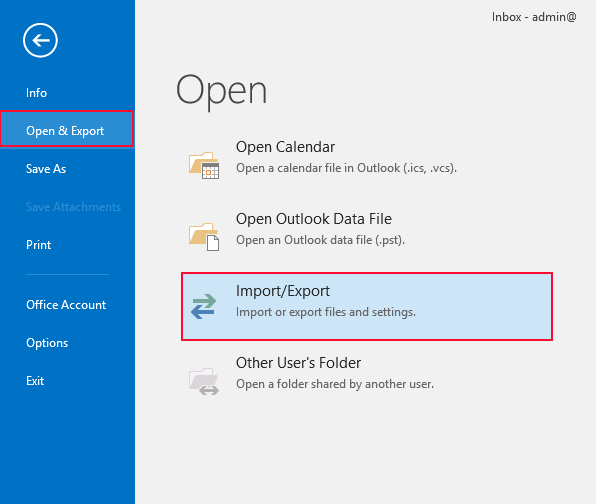
3. After configuration, navigate to File >> Open & Export >> Import/Export.
4. Choose Import from another program or File and click Next.
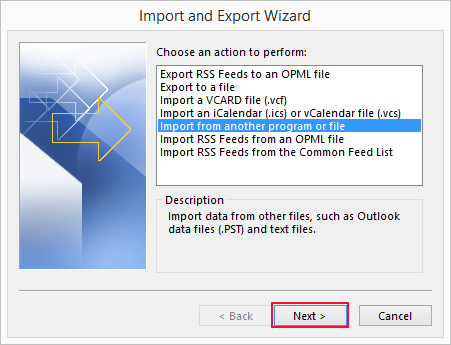
5. Select Outlook Data File (.pst) and press Next.
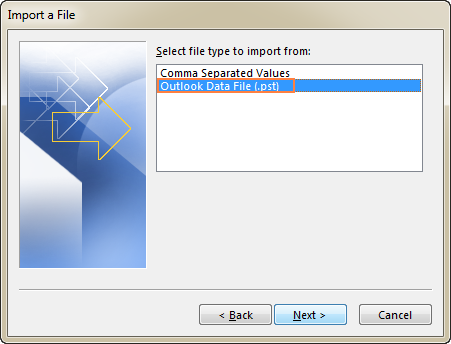
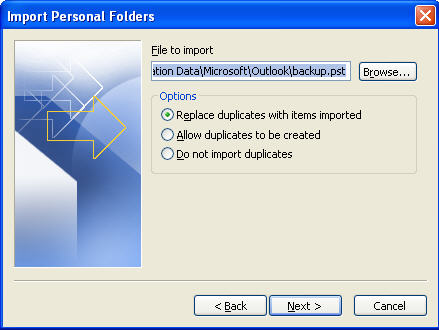
6. Click on Browse and choose PST file that you want to import.
7. Choose GoDadday mailbox folders and click Finish.
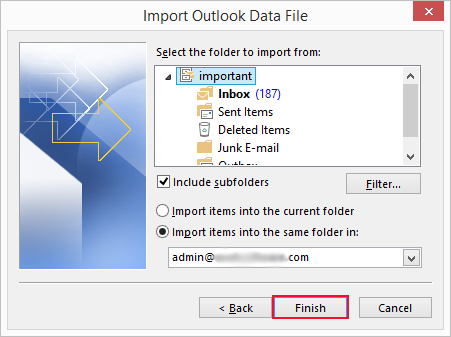
By following above steps, Outlook will import PST emails into GoDaddy email account.
How to Open PST File in GoDaddy Account?
Download and install Advik PST Converter software in your Windows PC. This software is specially designed to transfer emails from PST into GoDaddy Business Email Account. During the transfer process, the software will maintain folder and sub-folder hierarchy. It also preserves and holds email components like cc, bcc, date, time, signature, hyperlinks, images, etc.
You can even upload multiple .pst files to GoDaddy in one single attempt as well. The software allows bulk file transfer.
Click below and download the software to try it for free.


Steps to Import PST to GoDaddy Mail
Step 1. Run the software and click “Select File”.
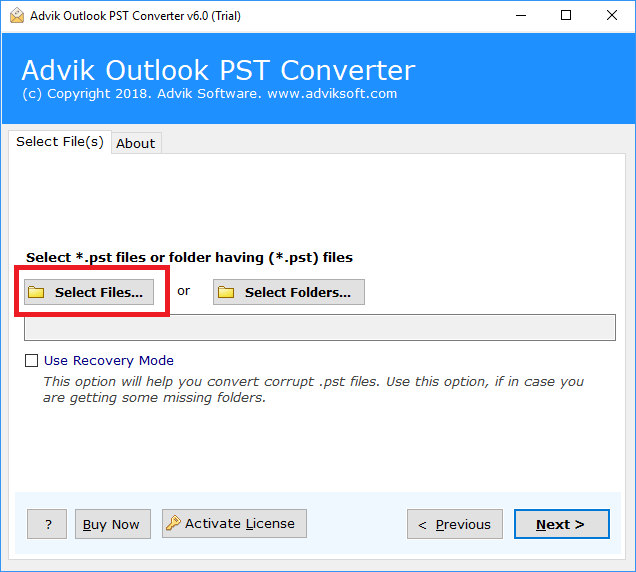
Step 2. After adding PST file, select mailbox folders and click Next.
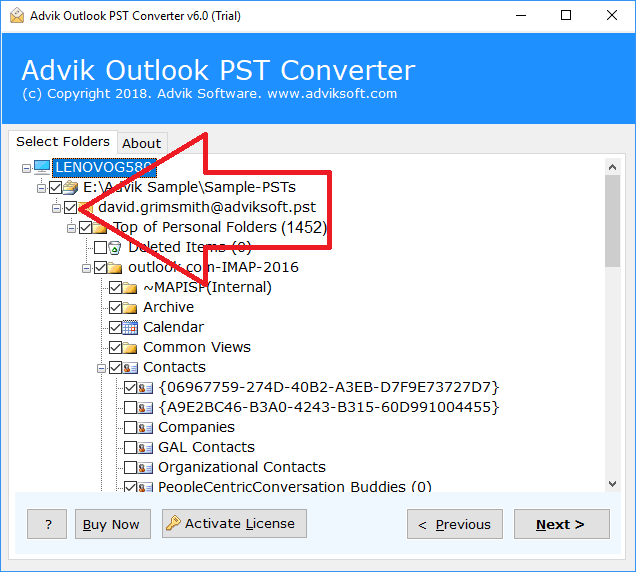
Step 3. Choose “IMAP” as a saving option from the list.
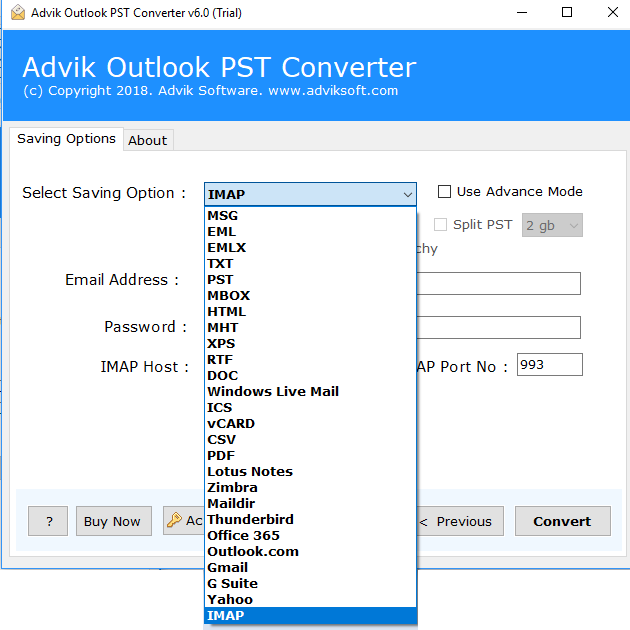
Step 4. Enter your GoDaddy Business Email account details.
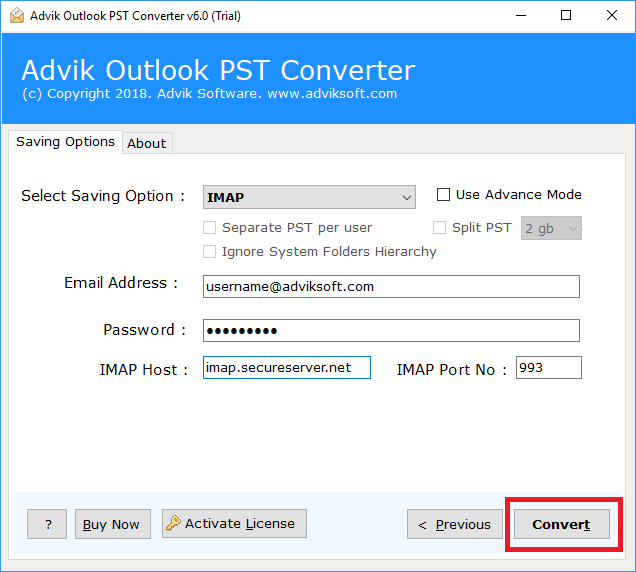
Step 5. Click the Convert button and analyze the live process.
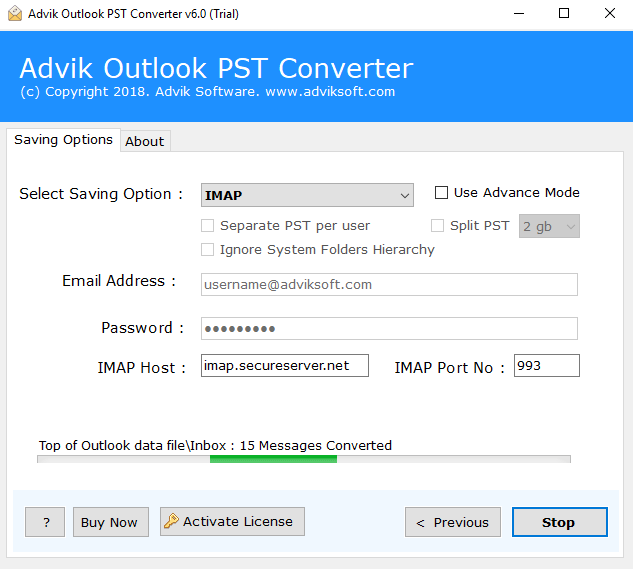
The software will start importing emails from PST to GoDaddy Mail account. Once, the process get finished it will pop up a message with complete log report. After that, you can open your GoDaddy Business Email Account and find your emails under Advik Software folder.
Watch How to Import PST File in GoDaddy Business Mail
Why Choose PST to GoDaddy Import Tool?
Instead of wasting time on manual tricks, take the help of this handy application. The software is loaded with extraordinary features that will make the PST to GoDaddy email transfer process easy and convenient. Some of them are;
- A self-explanatory user interface to migrate PST file to GoDaddy without any assistance.
- Multiple file-saving options to convert PST file into 25+ file formats.
- You can select your Outlook account (if configured) to choose PST files.
- It can transfer PST files to GoDaddy mailbox in bulk without size restrictions.
- It preserves PST email data with all properties, including attachments.
- Maintains the properties and integrity of PST files during import.
- It includes email headers for all messages in your PST files.
- Compatible with all the editions of Windows, both new and old.
Bottom Line
In this post, we have discussed how to import PST to GoDaddy email account. Here, we have mentioned manual as well as automated solutions to migrate Outlook PST file to GoDaddy . Both methods are 100% workable. You can choose any method that is most suitable for you.
