How to Import PST to Yandex Mail? Step-by-Step Guide
Summary: Yandex Mail cannot import a PST file. You can do it using Outlook by opening the PST file in Outlook, add your Yandex Mail account by IMAP and then copy emails to Yandex. If Outlook is not installed or you have multiple PST files then you can use a professional solution to directly upload email into Yandex.
In this guide, we will discuss both methods in detail with step-by-step instructions.
Table of Contents
- Can Yandex Mail import a PST file?
- Before You Import PST to Yandex Mail
- Method 1. Using Classic Outlook
- Method 2. Import PST File to Yandex Mail Without Outlook
- Watch Video Tutorial
- How to Check Whether the PST Import Was Successful
- Common Issues & Their Solutions during PST to Yandex Mail Migration
- Concluding Words
- FAQs
Can Yandex Mail Import a PST File?
No. Yandex Mail does not provide a direct option to upload Outlook PST file.
A PST file is an Outlook data file that can contain emails, attachments, contacts, calendars and other mailbox data. You need an intermediate method to move emails from PST file into your Yandex mailbox.
Yandex Mail does not provide a direct option to import Outlook PST files.
There are two practical approaches to import Outlook PST to Yandex Mail:
- Classic Outlook + IMAP: Open the PST file in Outlook, configure Yandex Mail and copy the required emails or folders to the Yandex account.
- PST to Yandex Migration Tool: Use a dedicated migration application that reads the PST directly and uploads mailbox data to Yandex Mail.
Before You Import PST to Yandex Mail
Before importing PST file to Yandex Mail, make sure that you:
- Create a backup copy of the original PST file before starting the migration.
- Check that the PST file is healthy and accessible and can be opened properly.
- Check your available Yandex Mail storage to ensure there is enough space for the emails and attachments you want to import.
- Enable IMAP in your Yandex Mail account.
- Ensure a stable Internet connection, especially because the emails need to be uploaded to Yandex Mail.
- If you are using classic, Outlook makes sure it is installed and working properly on your Windows computer.
- Create a Yandex app password and use it instead of your regular Yandex password where applicable.
- Keep your Yandex IMAP settings ready: imap.yandex.com, SSL encryption and port 993.
Let’s start the process without any further delay!
Method 1. Import PST File to Yandex Mail Using Classic Outlook
If Microsoft Outlook is already installed on your system, you can use it to import PST to Yandex Mail.
The basic process is:
PST file -> Classic Outlook -> Yandex Mail
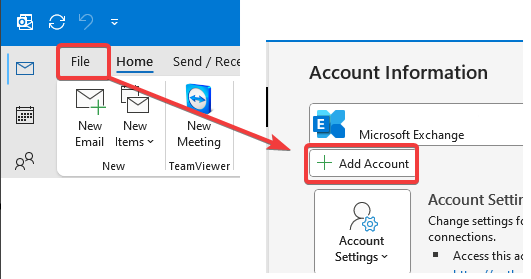
1. Launch the Outlook application and go to File >> Add Account.
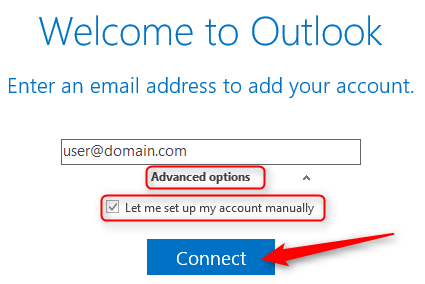
2. Enter your Yandex Mail email address and click Connect.
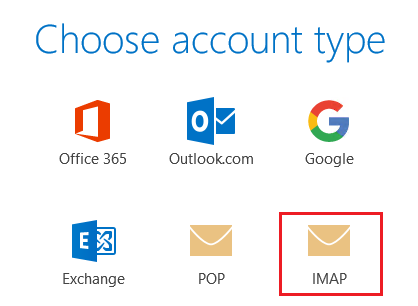
3. Choose IMAP as an account type.
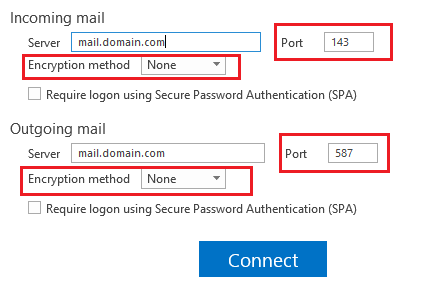
4. Enter Yandex Mail IMAP details:
Incoming Mail Server
- Server: imap.yandex.com
- Port: 993
- Encryption: SSL/TLS
Outgoing Mail Server
- Server: smtp.yandex.com
- Port: 465
- Encryption: SSL/TLS
5. Once you have entered all the asked credentials, wait for Outlook to sync your mailbox data.
6. Now, click on File >> Open & Export.
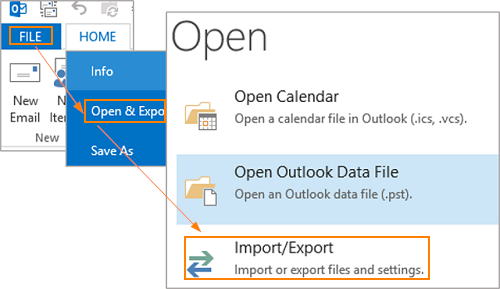
7. Select Import/Export to open the Import and Export Wizard.
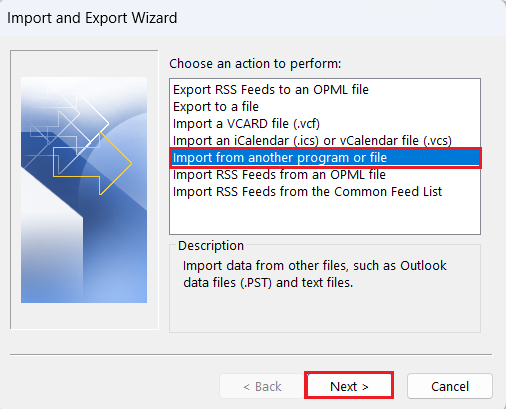
8. Choose “Import from another program or file” and click Next.
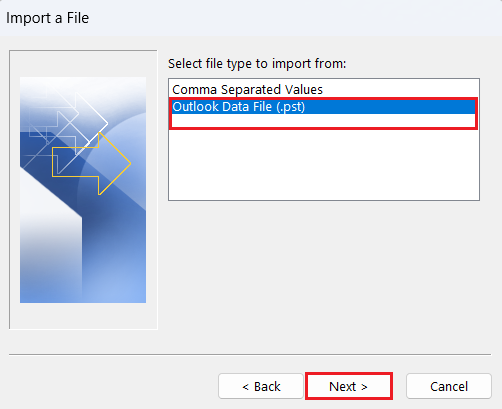
9. Select “Outlook Data File (.pst)” and click Next.
10. Click Browse, choose your PST file.
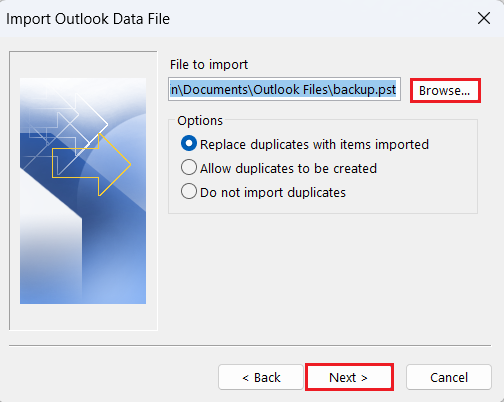
11. Choose the Outlook folder to import and click Finish.
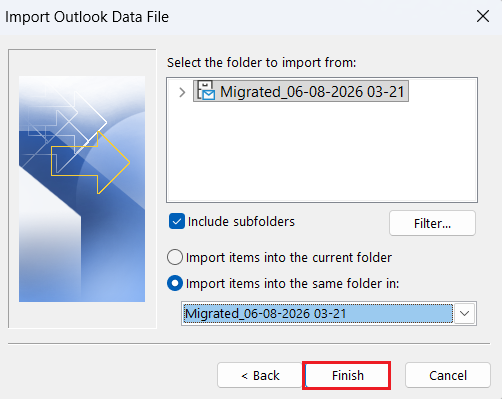
12. After that, drag and drop emails from PST file to Yandex mailbox folders.
Done!! Once you finish these steps, the PST file will be imported into Yandex Mail account.
Drawbacks of the Manual Method
- You need to install Microsoft Outlook, which is a paid program.
- Users must have technical knowledge to configure email account.
- Import only one file at a time.
- No email filter option to migrate selected emails from PST file.
To avoid these limitations, refer to the below method.
Method 2. Migrate PST File to Yandex Mail Without Outlook
Check out the Advik PST Converter for Windows. This tool will help you import PST to Yandex Mail without Outlook. It lets you easily upload PST files to Yandex Mail account in just a few simple clicks. It has a dual mode to import single or multiple .pst files at once.
The program is powerful enough to preserve your mailbox folder hierarchy. In addition, it will maintain the key elements, attachments, metadata, etc. It also offers advanced filter options to import selected emails based on date range, to, from, subject, etc.
Let’s see how to do it. Just download the FREE demo version to check its performance.

Note:
- Enable Third Party Access and Use Yandex.Mail App Password to Sign in.
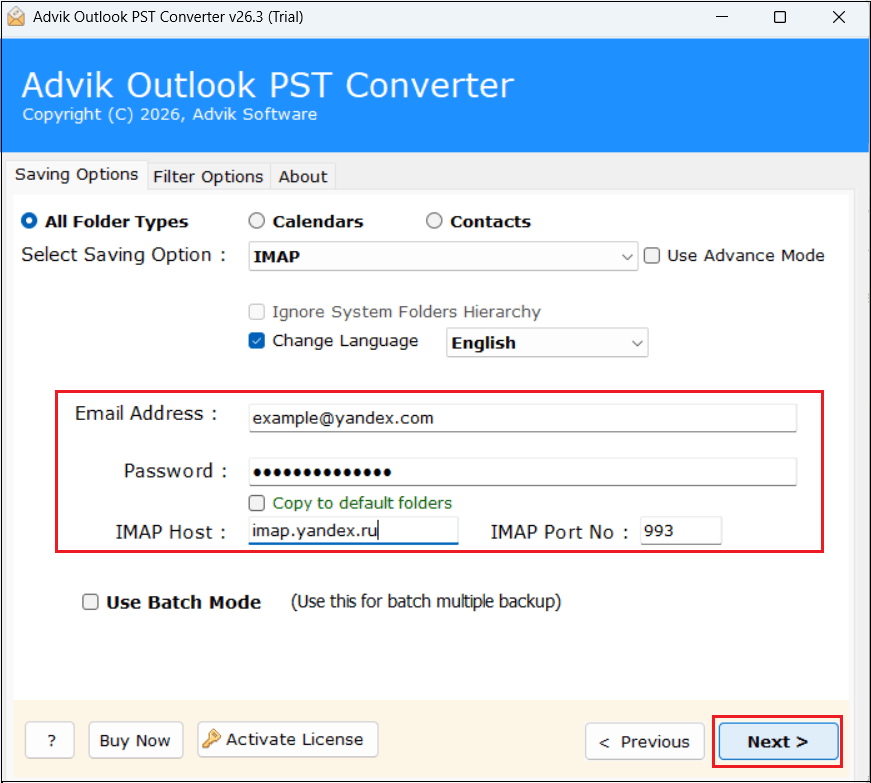
- Use imap.yandex.ru as IMAP Host.
- Enable IMAP and Less Secure Apps of Yandex.Mail account
Steps to Import PST to Yandex Mail
Step 1. Run the tool on your system.
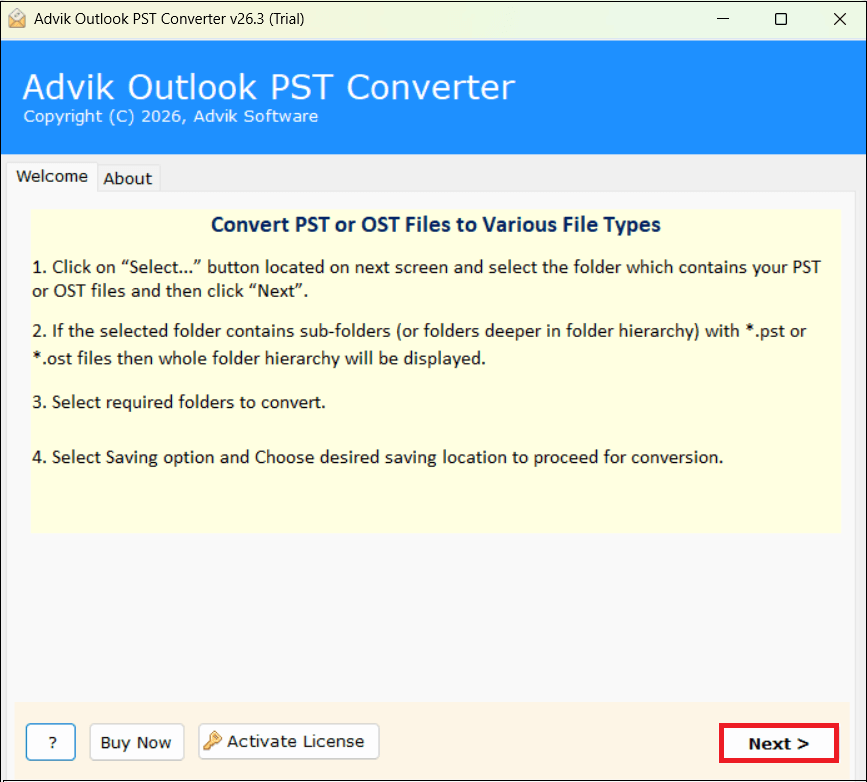
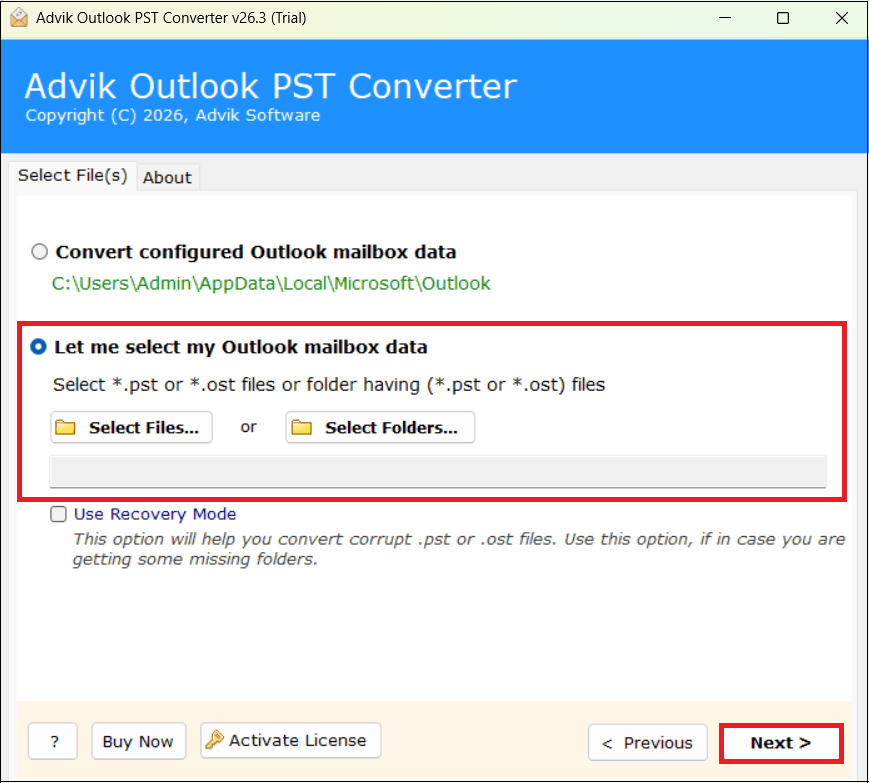
Step 2. Click Select Files or Folders to add .pst file.
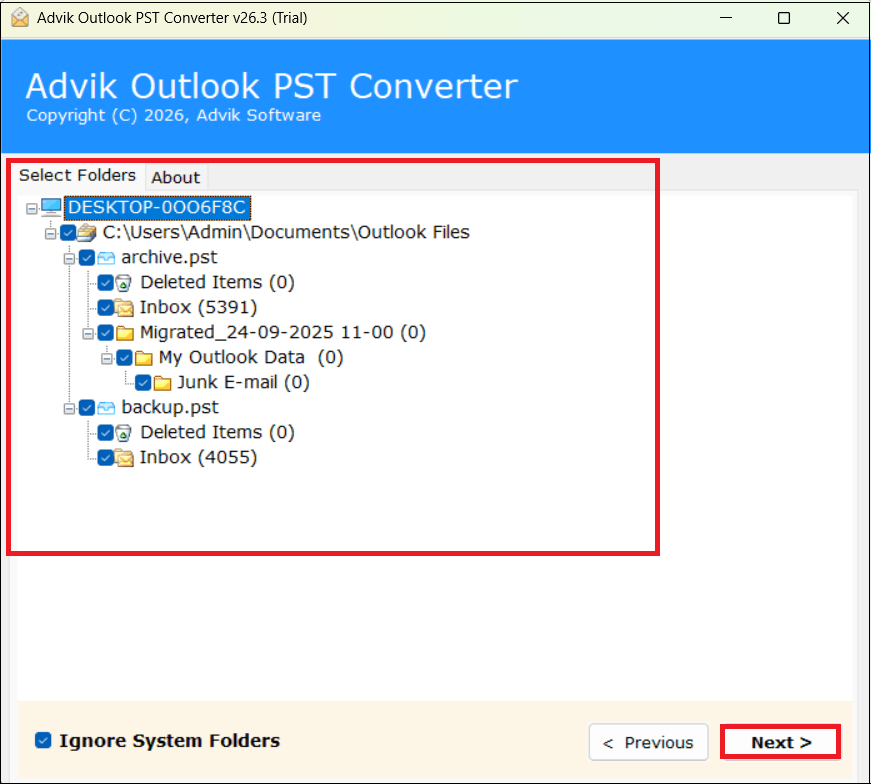
Step 3. Select mailbox folders and click Next.
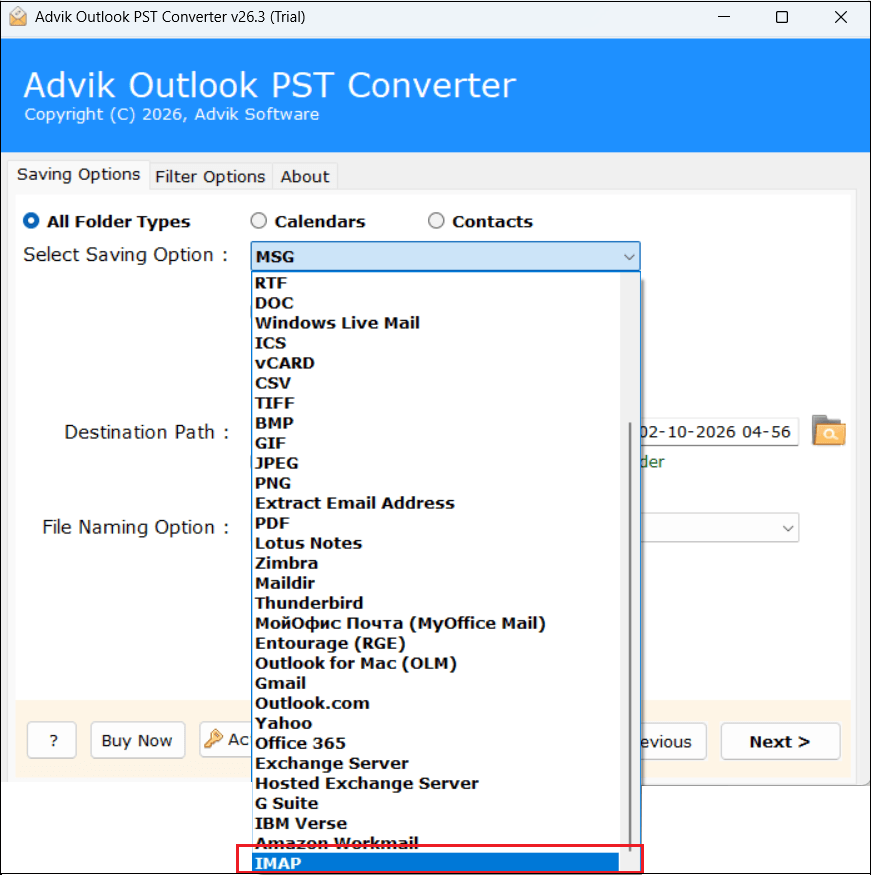
Step 4. Choose IMAP as a saving option from the list.
Step 5. Enter Yandex.Mail IMAP credentials and click Next button.
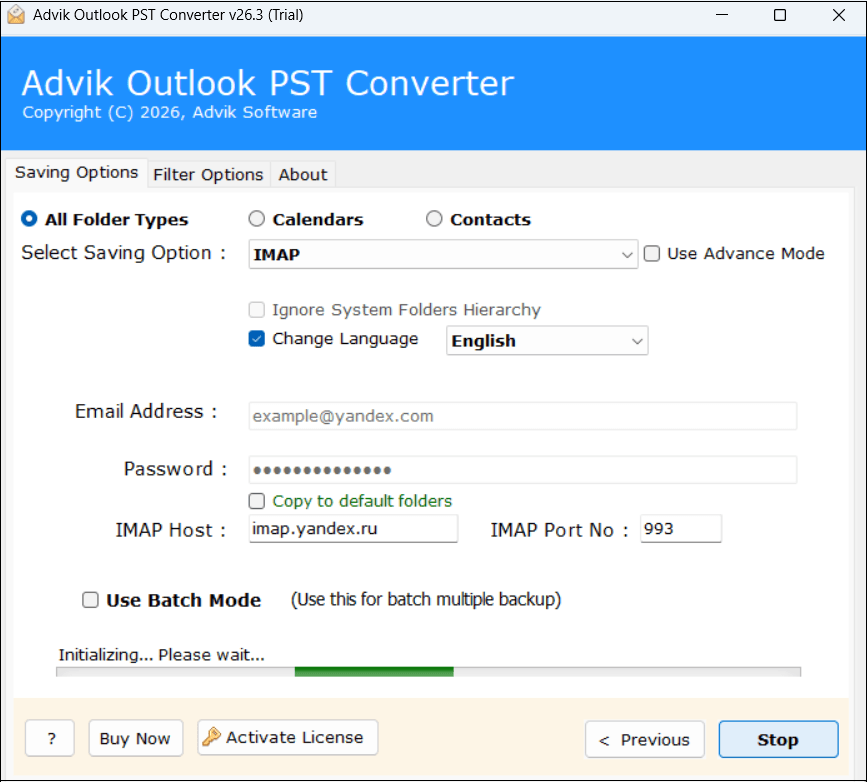
Step 6. The software will start uploading PST file to Yandex Mail account.
Once the process is complete, login to your Yandex Mail account and check all the imported PST files in your mailbox.
Watch Video Tutorial
How to Check Whether the PST Import Was Successful
Do not delete your original PST immediately after importing.
Use the checklist to verify that your emails were imported correctly into Yandex Mail:
1. Compare the number of messages: Check the important folders and compare the number of emails with the original PST where possible.
2. Open old and recent emails: Open emails from different dates to make sure both older and newer messages were transferred correctly.
3. Check attachments: Open multiple emails containing attachments and verify that the files are available and can be opened properly.
4. Check folders: Make sure the required PST folders and subfolders are visible in your Yandex Mail account, and that the emails are in the expected location.
5. Use Yandex Mail search: Search for migrated emails using the sender name, subject keyword or date to confirm that specific messages are available.
Common Issues & Their Solutions During PST to Yandex Mail Migration
Importing PST to Yandex Mail can fail or behave differently depending on Outlook configuration, authentication, PST health or IMAP settings.
Here are some common problems and their solutions:
| Issue | Possible Cause | Solution |
|---|---|---|
| Yandex Mail wo not connect to Outlook | IMAP access is disabled or incorrect server settings | Enable IMAP in Yandex Mail settings and use imap.yandex.com with SSL and port 993 |
| Authentication failed | Regular account password used instead of an app password | Create a Yandex app password and use it |
| PST file won’t open | PST is damaged or inaccessible | Repair the PST with Outlook ScanPST.exe tool or a PST repair tool |
| Import process taking too long to complete | Large PST, many emails, large attachments or slow internet | Keep the connection stable and migrate mailbox in smaller batches if necessary |
Conclusion
In this post, we have learned two easy methods to import PST to Yandex Mail account. Both manual and automated solutions are 100% workable. Users can choose any of the solutions as per their needs. However, if you want a simple, direct, and faster solution, then I would like to recommend that you choose an automated solution to reduce manual effort and time.
Frequently Asked Questions
Q1. I have a 10 GB PST file. How long does it take to import this file into Yandex.Mail?
Ans. Manually, it will take a few days to complete the process. While Advik PST Converter, you can complete the import process in a few seconds.
Q2. Will the folder structure of my PST file remain intact?
Ans. Yes, the tool maintains the original structure of mailbox folders even after the process.
Q3. Can I import PST file exported from Outlook 2019?
Ans. Yes. You can import PST file exported from any Outlook version. Both methods support PST files from Outlook 2019.