How to Import Thunderbird to Windows 10 Mail App?
Jenny Lowrence | March 16th, 2026 | Email Migration, Mozilla Thunderbird
Many users rely on Thunderbird to manage their emails but sometimes they prefer switching to the Windows 10 Mail app for its simplicity and better integration with Windows. However, when making the switch, one common challenge users face is how to import Thunderbird to Windows 10 Mail App. If you are also searching for a solution to migrate emails from Thunderbird to Windows 10 Mail app, this guide will walk you through the two reliable and effective solutions.
Let’s move ahead and discuss each method in detail.
How to Import Thunderbird to Windows 10 Mail App for Free?
Since Windows 11/10 Mail works with IMAP, you can configure an IMAP email account in Outlook and then sync emails with the Mail App.
- Open Thunderbird and go to Tools >> Account Settings.
- Add an email account using IMAP configuration.
- After configuration, select the email folder that you want to transfer.
- Drag & drop emails iinto the IMAp mailbox folder.
- Wait some time until Thunderbird uploads emails to the server.
- Now, Open Windows 10 Mail App.
- Go to Settings >> Manage Accounts >> Add Account.
- Sign in with the same email provider.
Now, Windows 10 Mail syncs emails from the IMAP server. Once the sync is complete, all Thunderbird emails will appear in the Windows 10 Mail app.
However, this is a lengthy and time-consuming process. It is very slow when transferring large mailboxes.
How to Migrate Thunderbird Emails to Windows 10 Mail Automatically?
If you have large mailboxes to import, choosing the professional solution is the best option. Advik Thunderbird Converter is a secure and reliable solution that allows you to import Thunderbird to Windows 10 Mail App. It can migrate all email folders in a single attempt. Also, it offers advanced filter options to export selected emails only. The tool preserves data integrity and mailbox folder hierarchy during the process.
Click on the below link to download it for FREE.


Steps to Import Emails from Thunderbird to Windows 10 Mail App
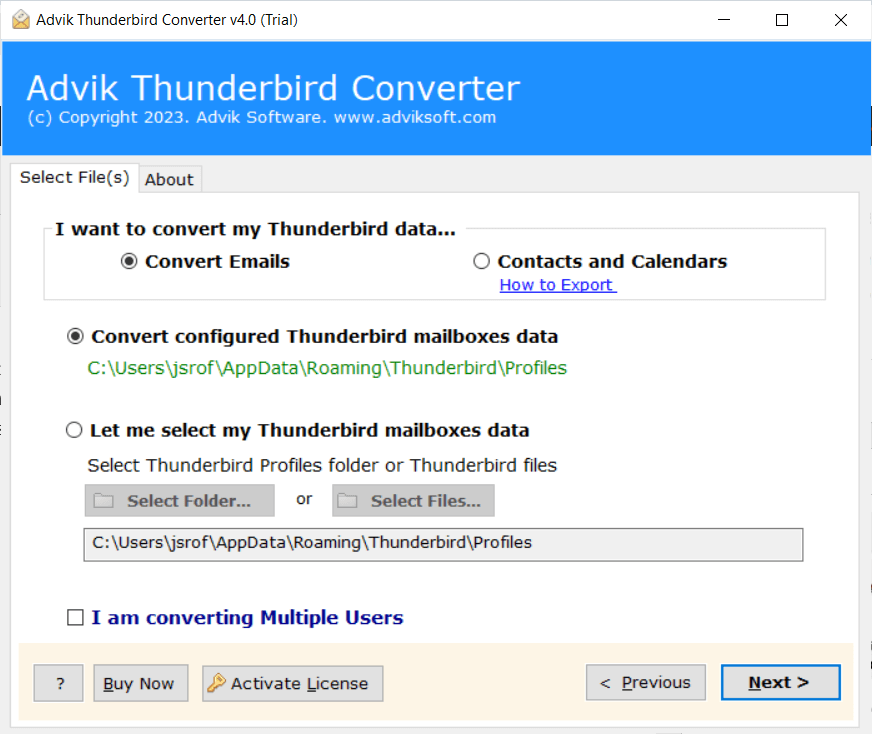
1. Run the tool and choose your Thunderbird profile.
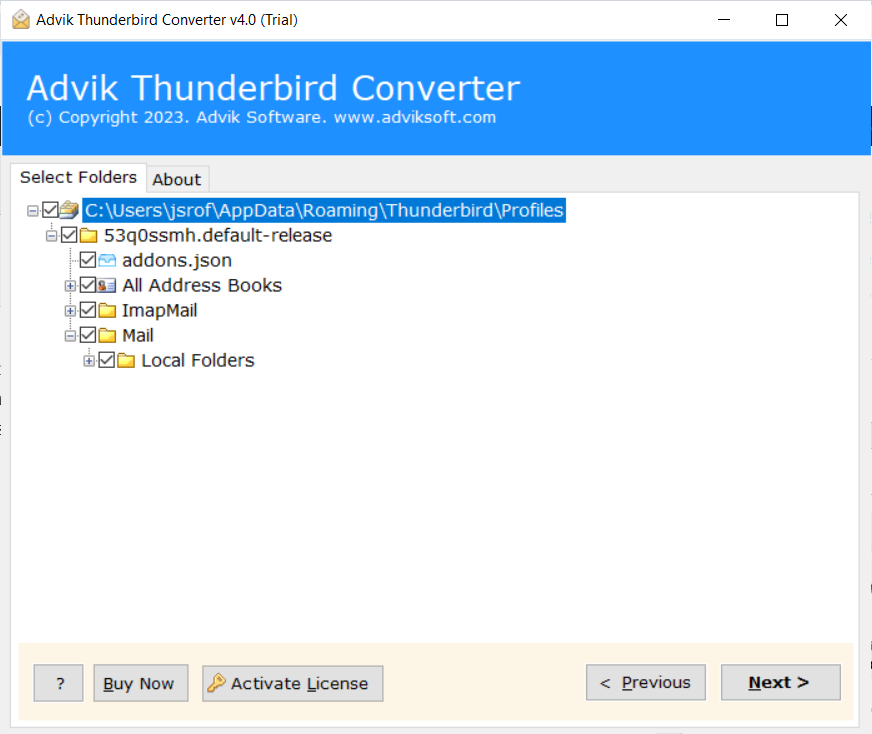
2. Choose the mailbox folders & subfolders.
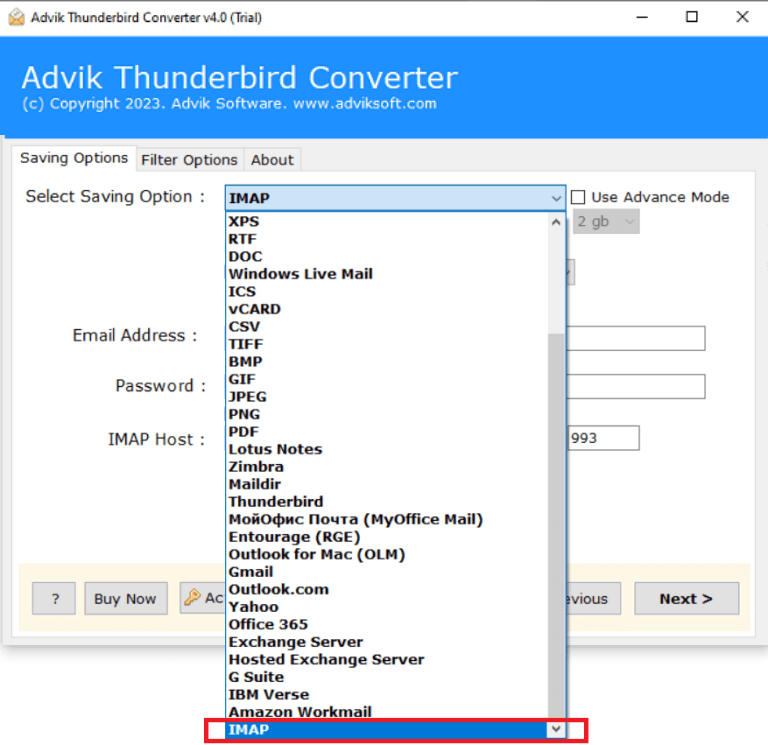
3. Select IMAP as a saving option.
4. Enter Windows 10 Mail configured account login details and click Convert.
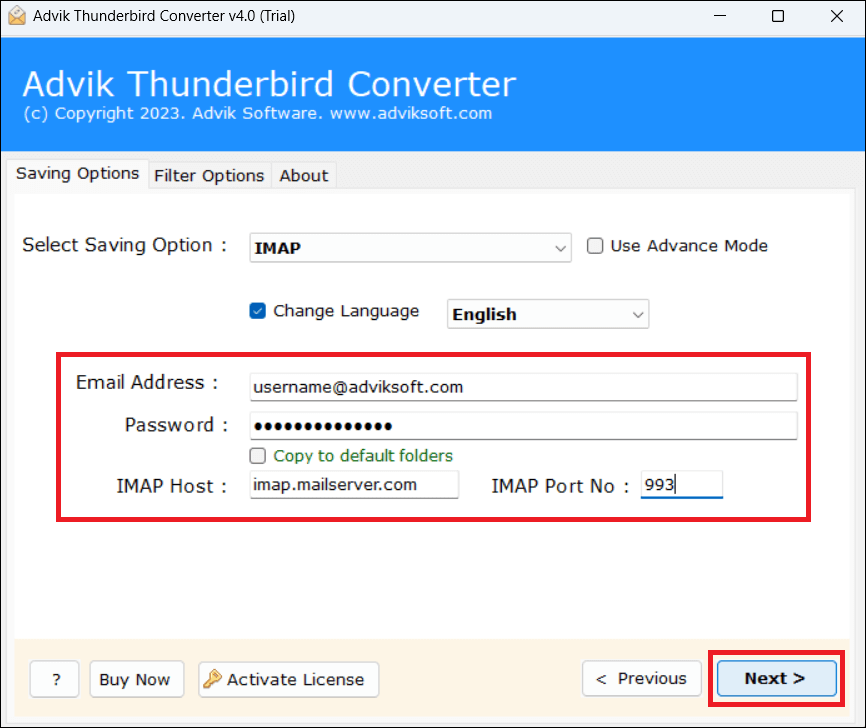
5. The software will start migrating Thunderbird emails to Windows 10 Mail App.
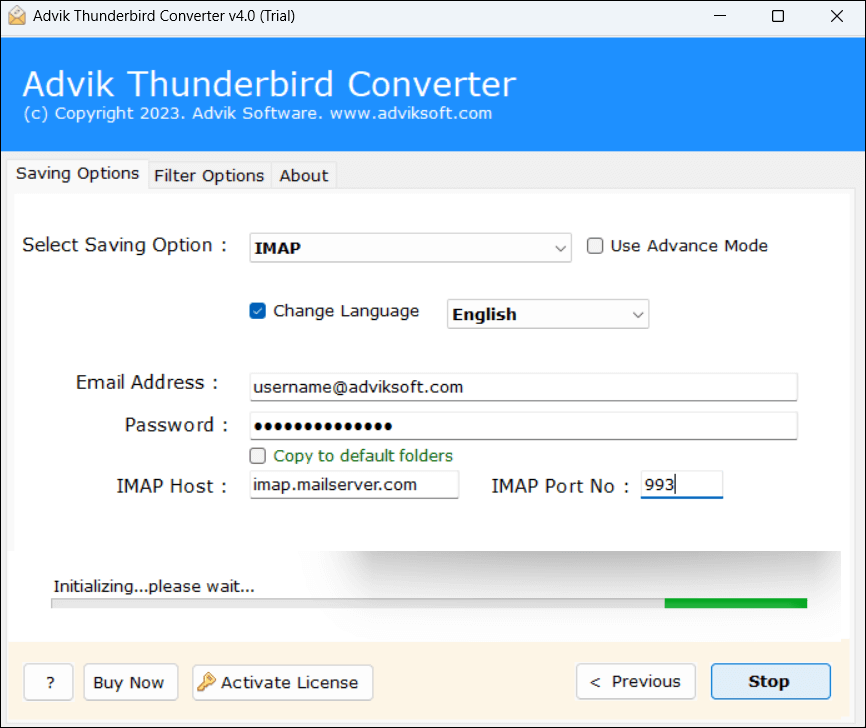
Once the process is complete, open the Windows 10 Mail app on your system. A newly created folder will be shown under mailboxes.
Why Choose Automated Tool Instead of Manual Solution
- Export single or multiple mailbox folders at once.
- Advanced email filter options to import selected emails.
- Preserves all email attributes & properties during the process.
- Maintains mailbox folder hierarchy intact while importing.
- No size limitations or restrictions to import large mailboxes.
- A simple graphical user interface is helpful for all types of users.
Final Words
In this post, we have discussed how to import Thunderbird to Windows 10 Mail App. Here, we have explained both manual and automated solutions to export Thunderbird emails to Windows 10 Mail. If you only have a few emails, the manual method works well. But for large mailboxes and a faster process, using a professional tool can simplify the entire migration. You can download its free demo version to check the working procedure before purchasing its licensed version.