How to Locate PST File in Windows 11/10?
Jenny Lowrence | December 23rd, 2025 | Data Backup
If you are trying to find PST file location but are unable to do it. Don’t panic, this post will help you. This write-up will guide you on how to locate PST file in Windows 11/10. So, keep reading and find your Outlook PST file location easily.
A PST file is a data file used by Microsoft Outlook to store emails, contacts, calendars, and other mailbox data locally on your system. However, many users find it difficult to locate PST file in Windows 11/10. They are confused about where their Outlook data files are stored in Windows 11, 10, and other editions.
Default PST File Location in Windows 11/10
By default, Outlook saves PST files in the following locations:
Windows 11/Windows 10
C:\Users\YourUsername\Documents\Outlook Files
For older Outlook versions or upgraded systems:
C:\Users\Yourname\AppData\Local\Microsoft\Outlook
Why Do Users Need to Find PST File Location?
There are several reasons to locate PST file. Some of them are:
- Backup: Locating the PST file allows users to create a backup of emails, contacts, calendars, etc., to prevent data loss.
- Migration: PST files are required when moving Outlook data to another computer or platform.
- Outlook Troubleshooting: Some Outlook issues require access to the PST file for repair.
- Data Archiving: Users often archive old emails into PST files to reduce mailbox size and improve Outlook performance.
How to Locate PST File in Windows 11/10?
There are some ways to find the Outlook PST location in Windows 11/10. You can try the given solutions and locate your PST file easily.
Method 1. Find PST File Using Outlook Account Settings
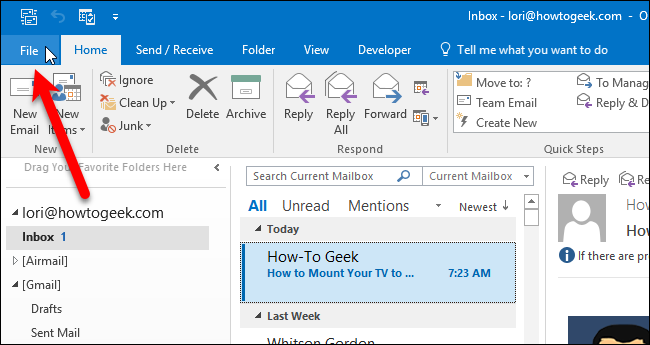
1. Open MS Outlook and click on the File tab.
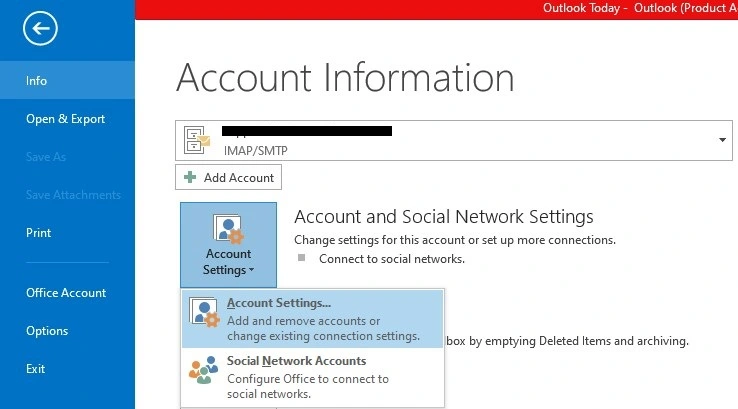
2. Now, click on Account Settings >> Account Settings.
3. Click on Data Files and click on Open File Location.
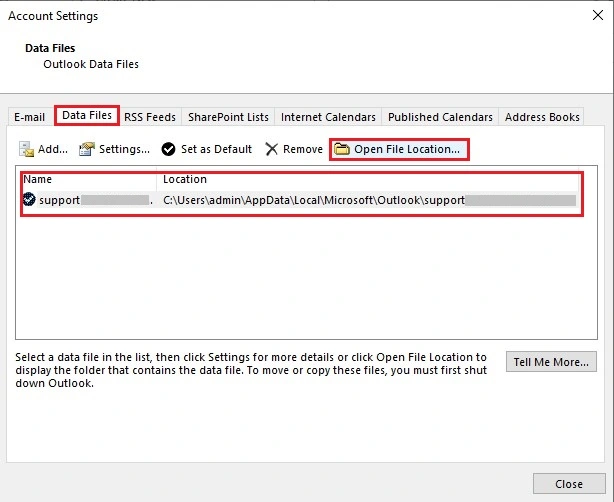
4. Now, Outlook will redirect you to use the PST file location.
Method 2. Locate PST File Using Open File Location
1. Open Outlook on your system.
2. Select the configured mail id from the left pane of Outlook
3. Right-click on it and select Open File Location.
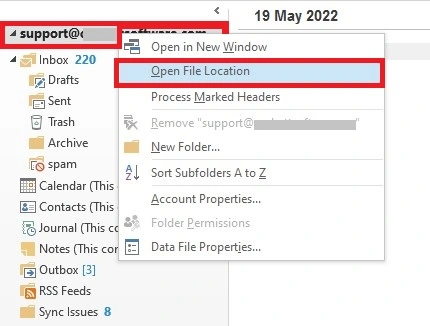
4. Now, your file explorer will start flashing; click on it to see Outlook PST file location.
Method 3. Find Outlook PST File Location Using Control Panel
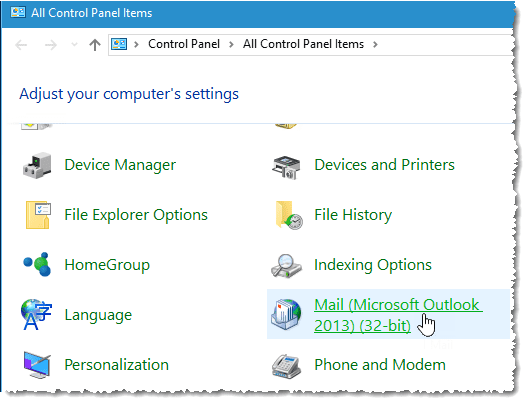
1. Open Control Panel on your Windows 11/10 system.
2. Now, click on the Mail option.
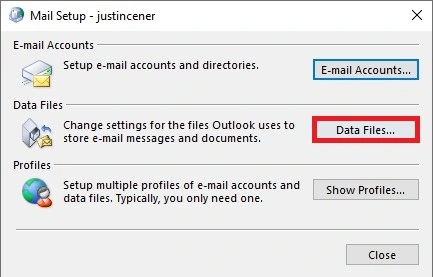
3. Click on Data Files under Mail Setup.
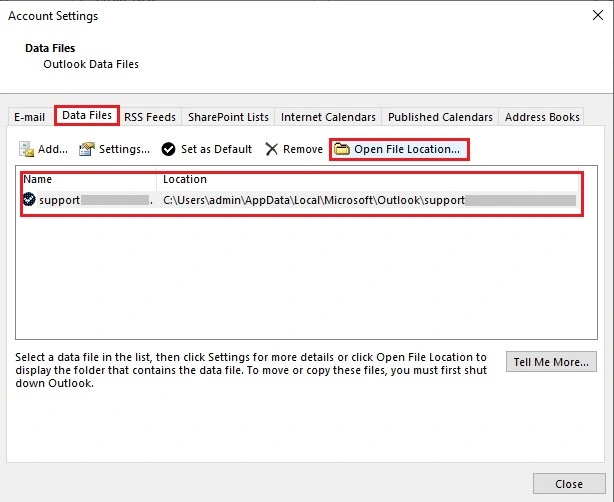
4. Next, click on Data Files menu and then Open File Location.
Conclusion
Finding PST file location in Windows 11, 10, and earlier versions is straightforward if you know the right method. In this post, we have discussed some tried and tested methods to locate PST file in Windows 11/10. Try these solutions and find out where your Outlook PST file is stored.
Frequently Asked Questions
Q 1. Where is the default PST file location?
Ans. C:\Users\%username%\AppData\Local\Microsoft\Outlook on Windows 10 and 11.
Q 2. Where is the .pst file located in Windows 11?
Ans. You can find your .pst file in Windows 11 drive:\Users\<username>\Documents\Outlook files.
Q 3. How can I locate a PST file if Outlook is not opening?
Ans. You can use Control Panel -> Mail -> Data Files or search for .pst using the File Explorer to locate PST file without opening Outlook.
Q 4. Can I change the location of a PST file?
Ans. Yes, you can move a PST file to another location, but you must reconnect it to Outlook afterward.
