How to Migrate Yandex Mail to Office 365?
Migrating emails from one email platform to another is a common task. Nowadays, businesses need strong and efficient email solutions to stay competitive. Yandex Mail is a popular Russian free email service. However, many users want to migrate Yandex Mail to Office 365, which offers several advanced features for businesses.
There are several benefits of transferring Yandex emails to Office 365:
- Office 365 provides powerful collaboration tools that help teams work together seamlessly.
- It ensures high availability and reliability for your email services.
- It offers features like customizable email domains, sorting and filtering of emails, etc.
- With Office 365, you can easily integrate with other Microsoft applications.
- Such as Word, Excel, PowerPoint, Teams, Outlook, and many more.
Now, you know the benefits, let’s explore two reliable methods to perform Yandex Mail to Office 365 migration.
How to Migrate Yandex Mail to Office 365 Free?
You can’t directly transfer emails from Yandex to Office 365. By configuring both email accounts in an email client, you can move emails.
Follow the instructions to move Yandex mailbox to Microsoft 365 using Outlook:
- Sign in to your Yandex Mail account and enable IMAP access.
- Open MS Outlook and go to File >> Add Account.
- Enter your Yandex email address and click Connect.
- Choose IMAP as Account type.
- Enter the IMAP settings of Yandex Mail account.
- Type the password of your Yandex account and complete the setup process.
- Repeat the steps to add Office 365 account.
- After that, drag & drop emails from Yandex mailbox to Office 365 mailbox folders.
Done! That’s how you can move emails from Yandex Mail to Office 365.
Why Manual Solution Not Recommended?
- Lengthy and time-consuming process.
- Outlook must be installed.
- Users must have a technical expert to configure email accounts.
How to Transfer Yandex Emails to Office 365 Automatically?
To get rid of the manual solution, use the Advik Yandex Backup Tool. This software will help you to migrate Yandex Mail to Office 365. It can move the entire mailbox in a single attempt. During the Yandex to Office 365 migration process, it maintains folder and sub-folder hierarchy. It will also preserve email attributes like email header, signature, hyperlinks, attachments, etc.
Click below to download the software for FREE. With the demo version, you can export 25 emails from each folder for free.


Steps to Migrate Yandex to Office 365
Step 1. Run the software on your Windows computer.
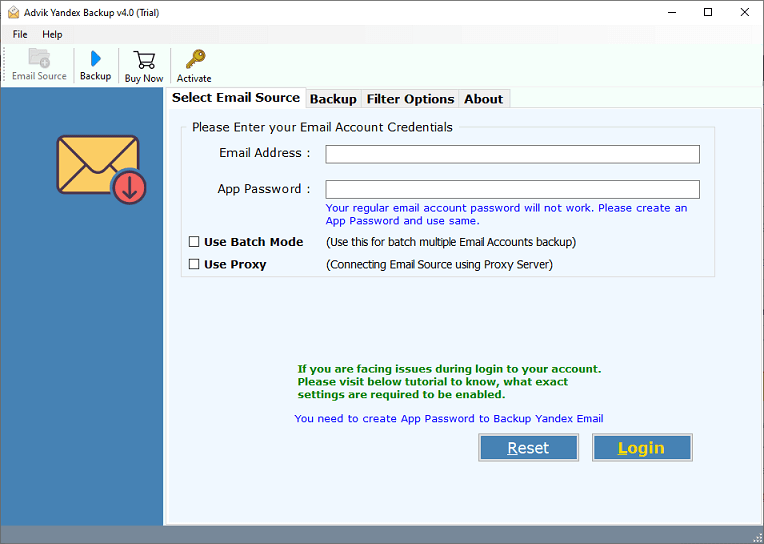
Step 2. Enter your Yandex Mail login credentials and Sign in.
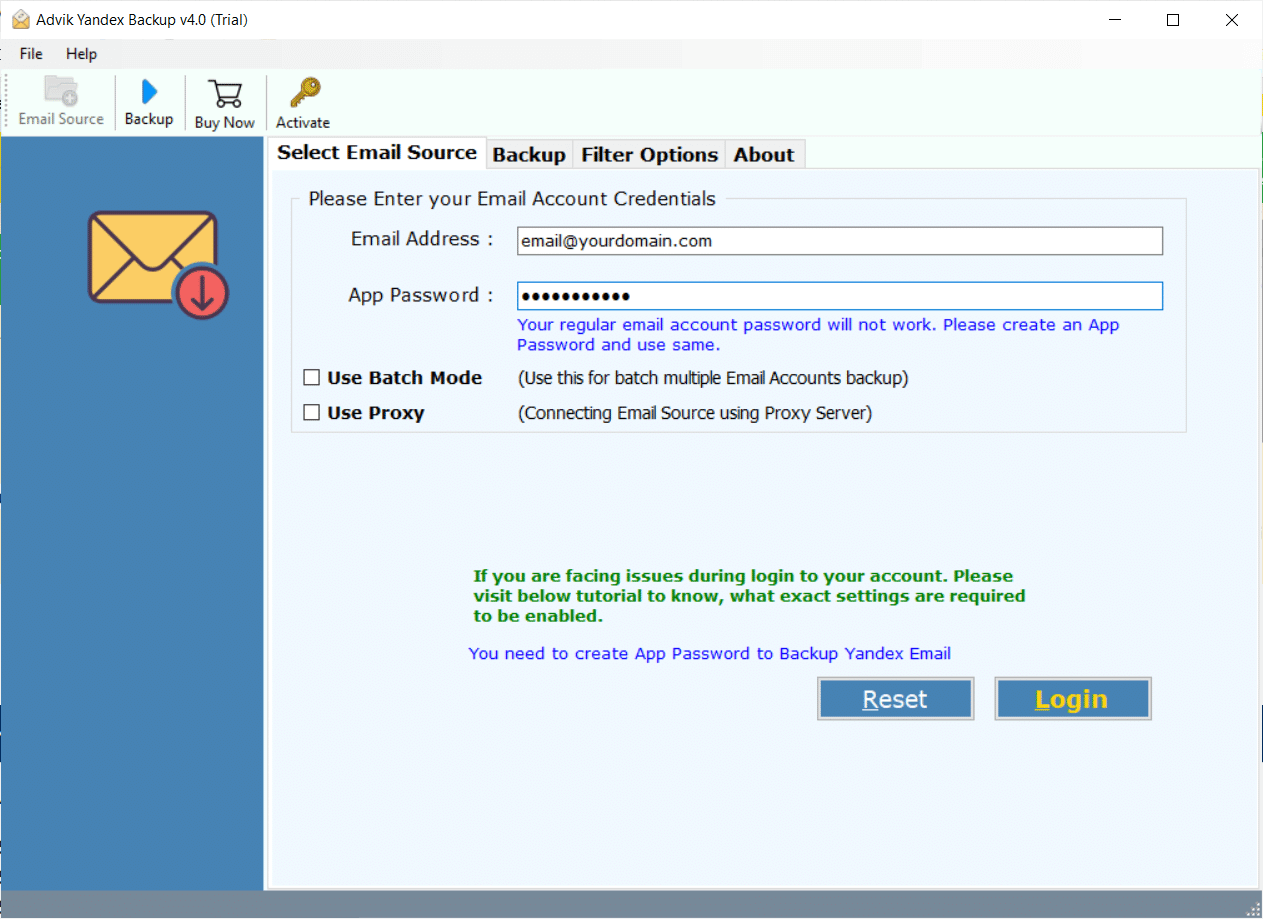
Step 3. Select the email folder(s) to transfer.
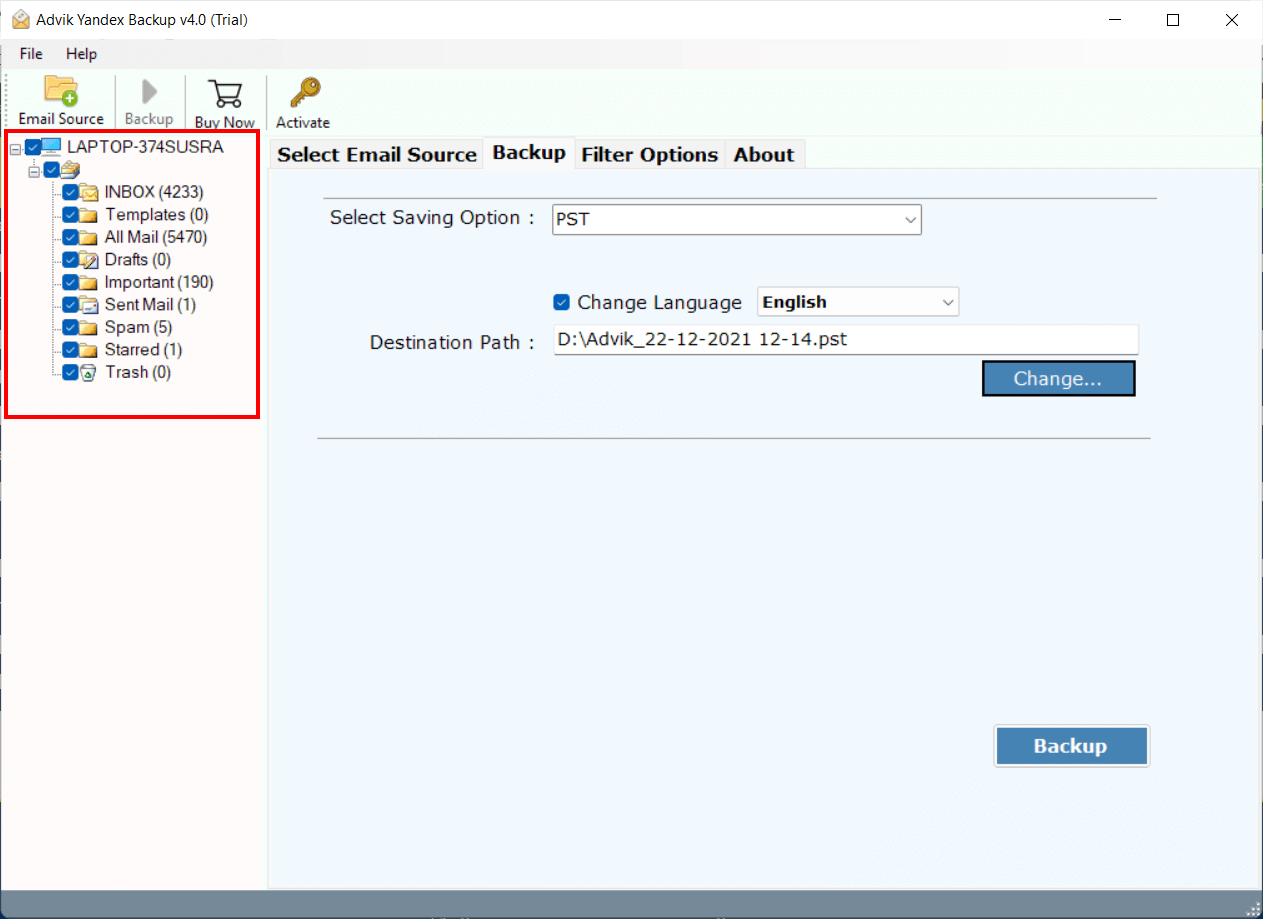
Step 4. Select Office 365 as a saving option.
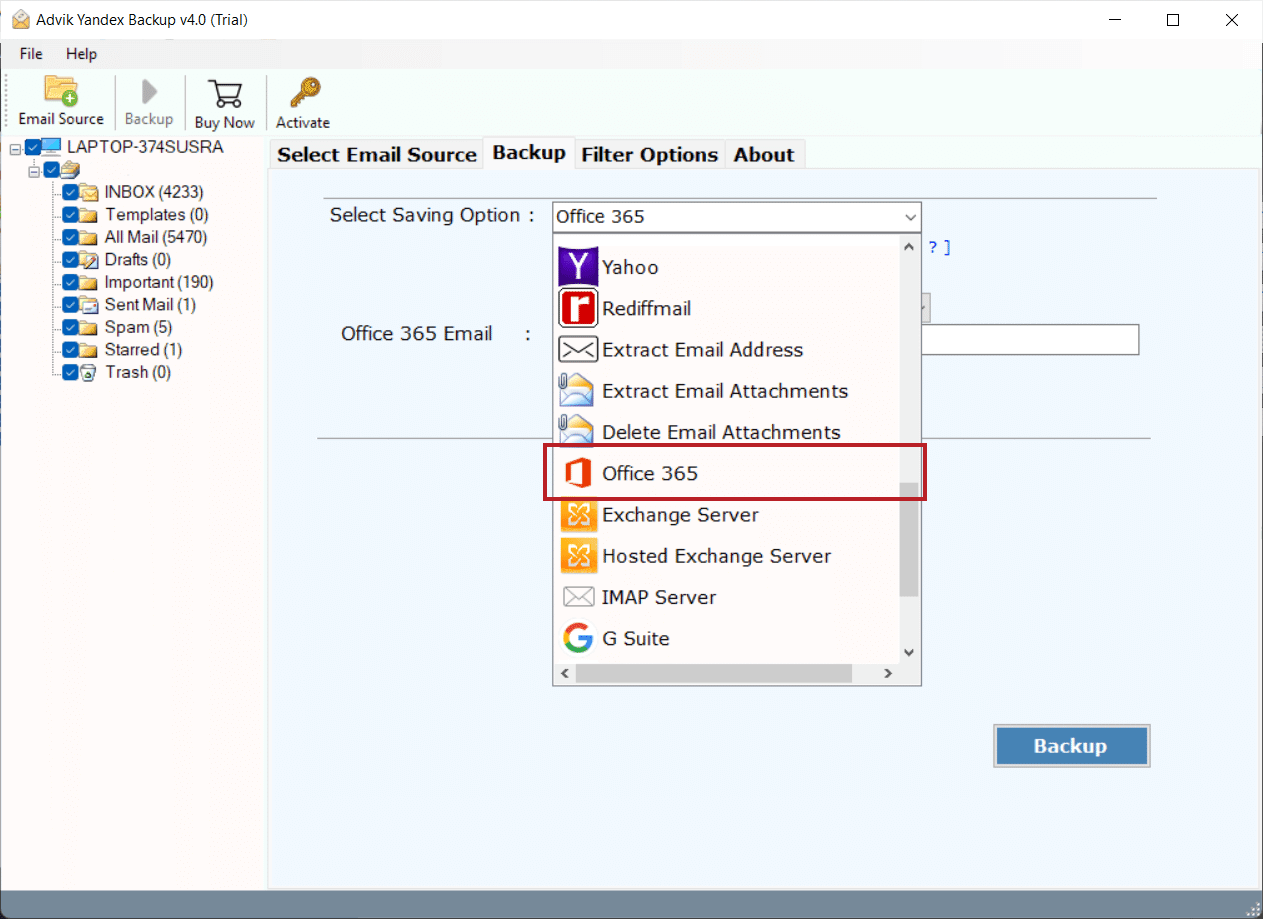
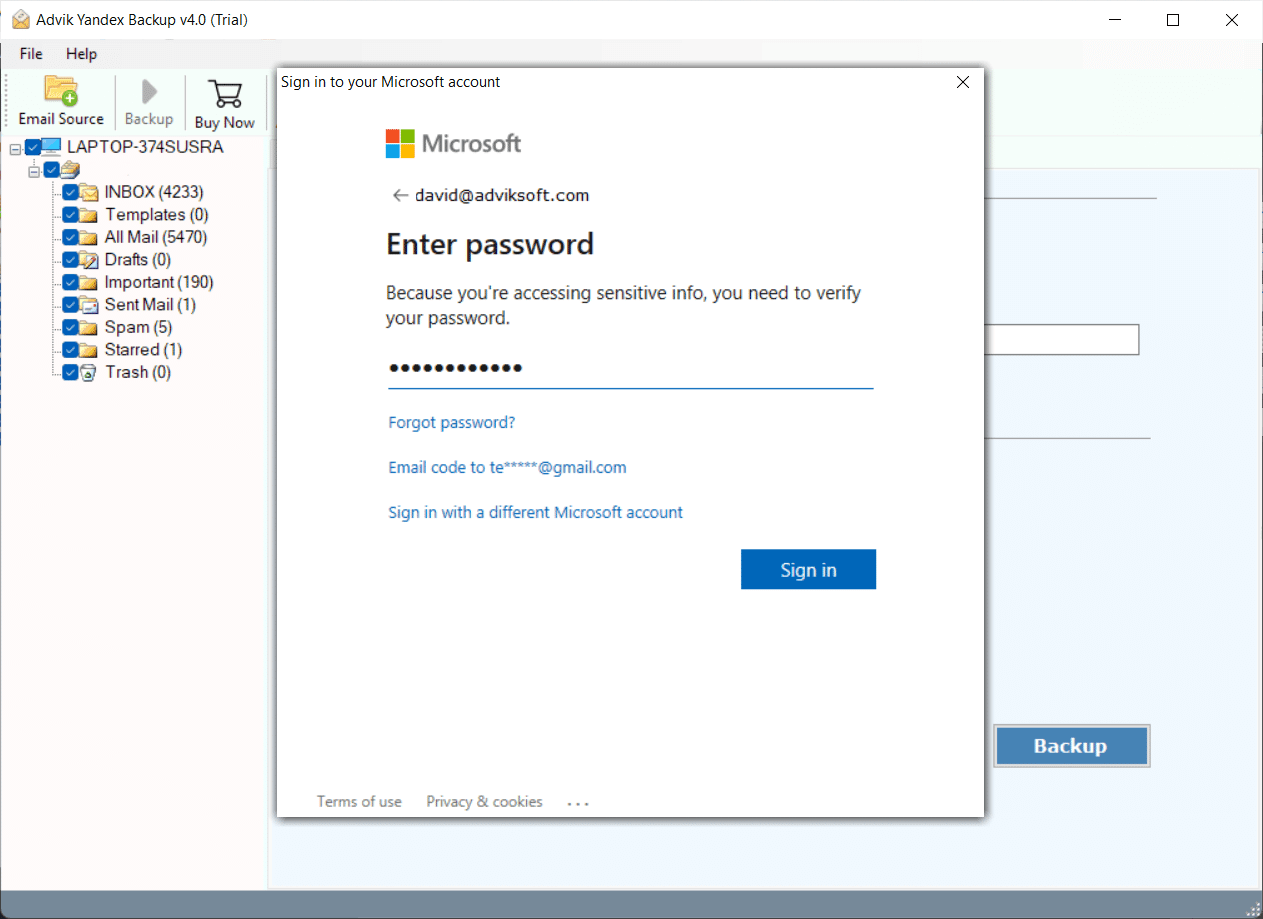
Step 5. Enter your Outlook 365 account credentials and click Sign in.
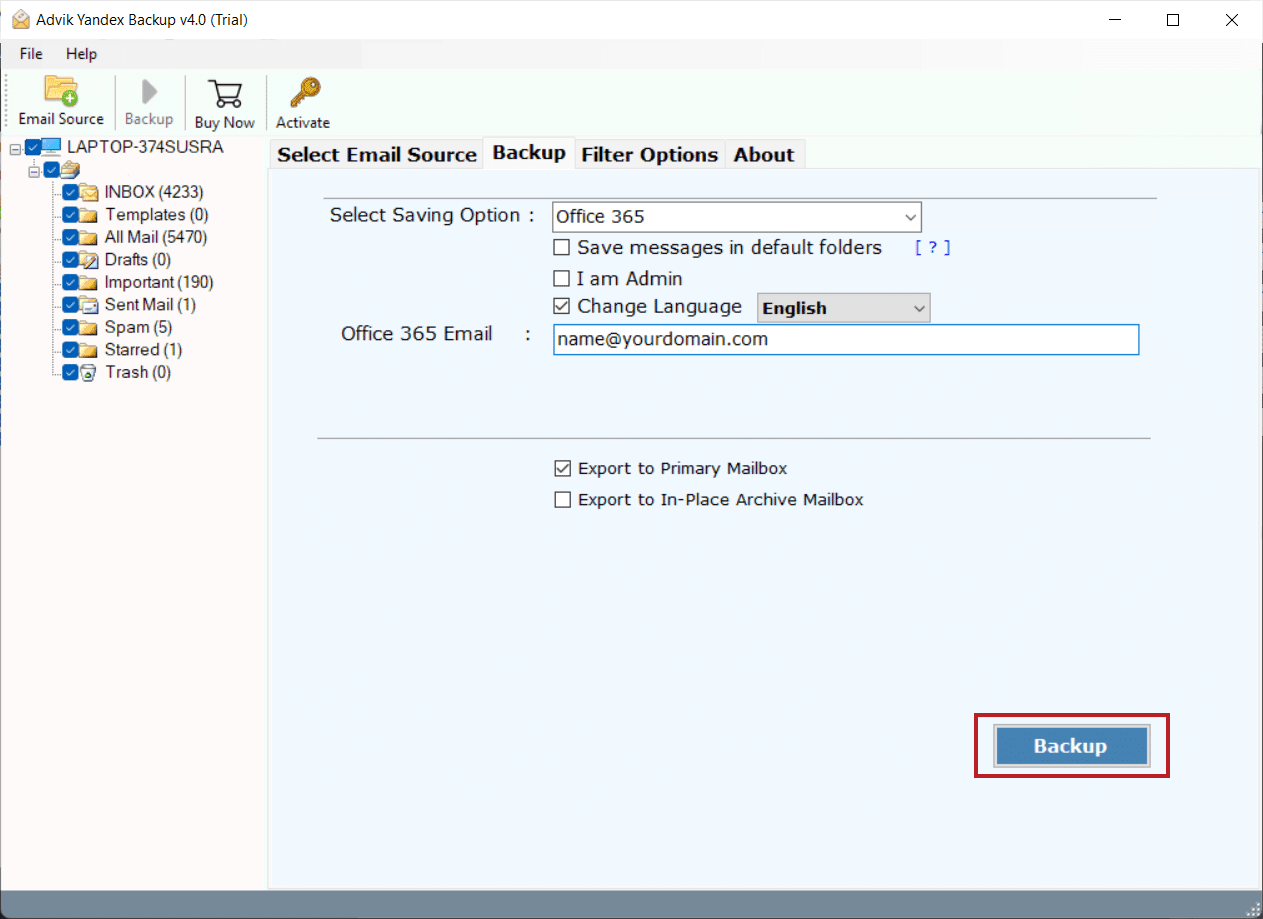
Step 6. Now click the Backup button to start the migration process.
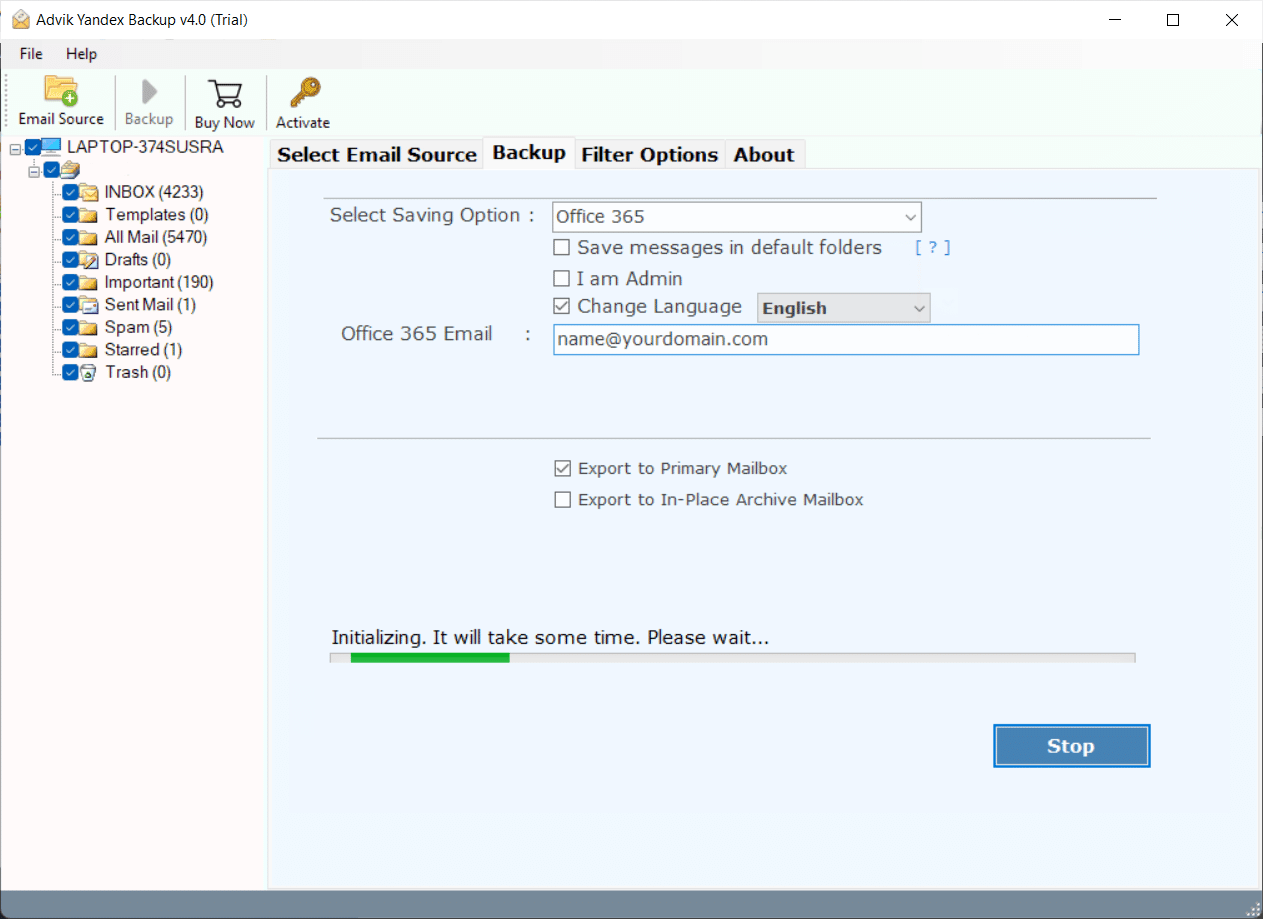
Step 7. The software will start migrating emails from Yandex to Microsoft 365 email account.
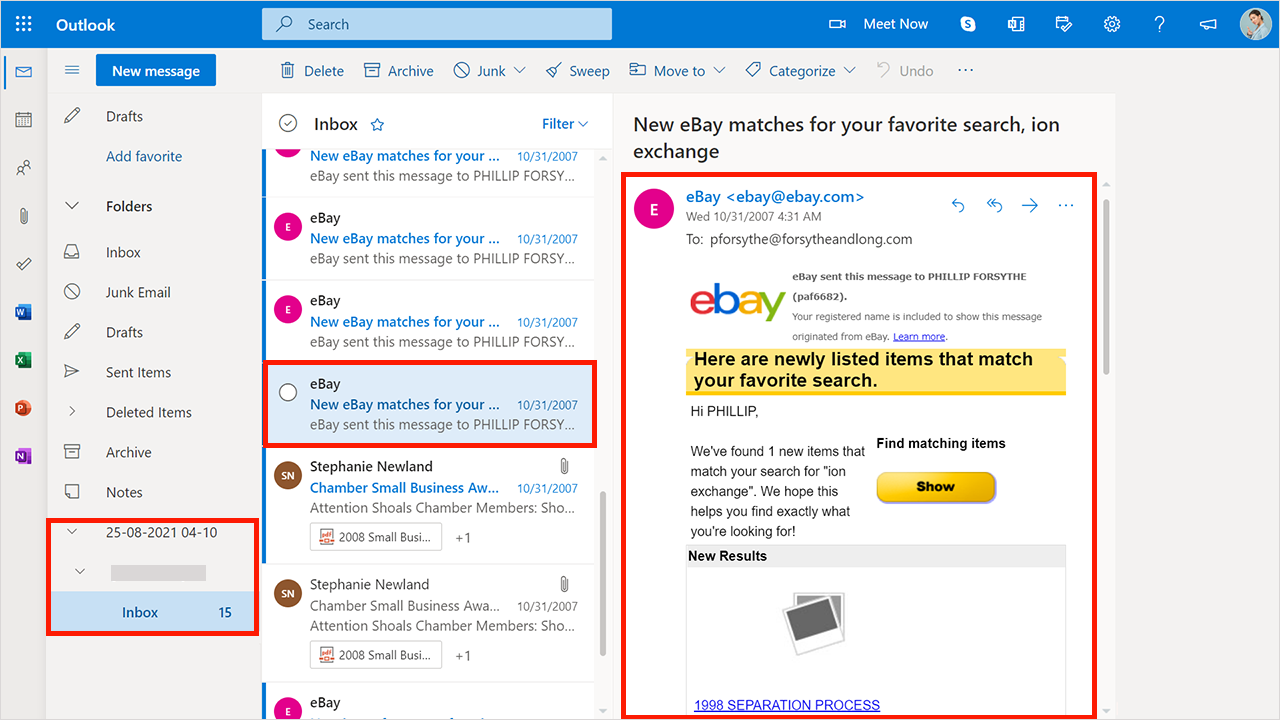
Once the process is finished, the software will display a successful message with a log report. The report includes the number of emails, and folders had been transferred.
Now, log in to your Office 365 email account and check all the transferred emails there.
Watch How to Migrate Yandex Mail to Office 365
Benefits of using Advik Software
- Selective Email Migration: The software offers advanced settings to perform Yandex Mail to Office 365 migration with the option to choose specific emails or folders. With this feature, you no longer need to transfer the complete data folder. You can even choose emails according to date, sub, and email addresses.
- 100% Safe and Secure Solution: You will get a simple and user-friendly interface that provides a safe and secure environment. Your data will be transferred from one email server to another with 100% data security.
- Export Yandex to 30+ Options: You can convert emails in multiple file formats like PDF, EML, MSG, DOC, PST, HTML, MBOX, RTF, EMLX, and many other email formats.
- Transfer Yandex Emails to Another Webmail: This program directly moves emails from Yandex Mail to various cloud-based email services. Such as that you can migrate to Yahoo Mail, G Suite, Exchange Server, Rediffmail, Amazon Workmail, IBM Verse, IceWarp, and all other IMAP-based email services.
- Windows Compatibility: This tool is compatible with all versions of the Windows operating system so you can easily use this software on Windows 11, Windows 10, Windows 8, Windows 7, Windows XP, Windows Vista, etc.
Conclusion
Migrating from Yandex to Office 365 is a simple and easy process if you choose the right solution. Here, we have explained the top two methods to migrate Yandex Mail to Office 365. By using these techniques, you can easily transfer all emails from Yandex Mail to Outlook 365 without any interruption. To manually migrate Outlook installation is required, while the professional tool can directly move emails without any configuration. Now, you can decide which one is best suits your needs.
Frequently Asked Questions
Question 1. How to migrate Yandex to Office 365 with this tool?
Answer. Follow these steps to move emails from Yandex Mail to Office 365:
- Download the Yandex Mail to Office 365 tool.
- Log in with your Yandex.Mail account credentials.
- Select the Yandex Mail folders you want to migrate.
- Choose Office 365 as the destination.
- Enter your Microsoft 365 account details and click the Backup button.
The migration process will start.
Question 2. Can I install this software on a Windows 11 computer?
Answer. Yes, the software is compatible with all recent and older Windows versions, including Windows Server OS editions.
Question 3. Can I migrate emails from Yandex Mail to Office 365 with attachments?
Answer. Yes, this migration software keeps all types of email attachments during the migration.