How to Fix “Office 365 Shared Mailbox Not Showing in Outlook” Issue?
Jenny Lowrence | March 10th, 2026 | Outlook Errors
Are you facing Office 365 shared mailbox not showing in Outlook issue? If yes, then this guide will help you to solve this error. In this article, we are going to explain several techniques to fix Office 365 shared mailbox not being visible in Outlook. So, stay tuned with us to make shared mailboxes visible again.
A shared mailbox is a mailbox in Office 365 that allows multiple users to access and respond to emails through common login credentials. However, sometimes users face the issue where Office 365 shared mailbox is not visible in Outlook. This can make it difficult to access emails and collaborate with team members.
Why is Office 365 Shared Mailbox Not Showing in Outlook?
Here are some common reasons why the shared mailbox does not appear in Outlook:
- If the user does not have proper permission to access the shared mailbox
- Shared mailbox not added correctly
- If the Outlook profile gets corrupted
- Outlook may not synchronize properly with Outlook
- The shared mailbox may not appear due to the disabled auto-mapping feature
- Using an outdated Outlook version
How to Fix “Office 365 Shared Mailbox Not Showing Up in Outlook” Issue?
In this section, we will discuss several workarounds to solve shared mailbox not visible in Outlook issue. Try these techniques and makes the shared mailboxes visible again.
Method 1: Manually Add the Shared Mailbox in Outlook
Sometimes, the shared mailbox does not automatically appear, so you need to add it manually.
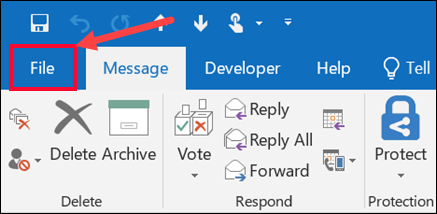
1. Open Outlook and go to File tab.
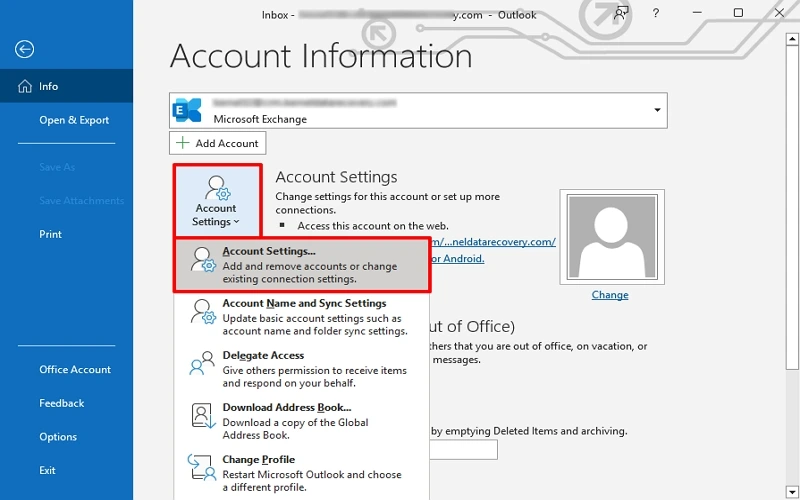
2. Click on Account Settings> Account Settings.
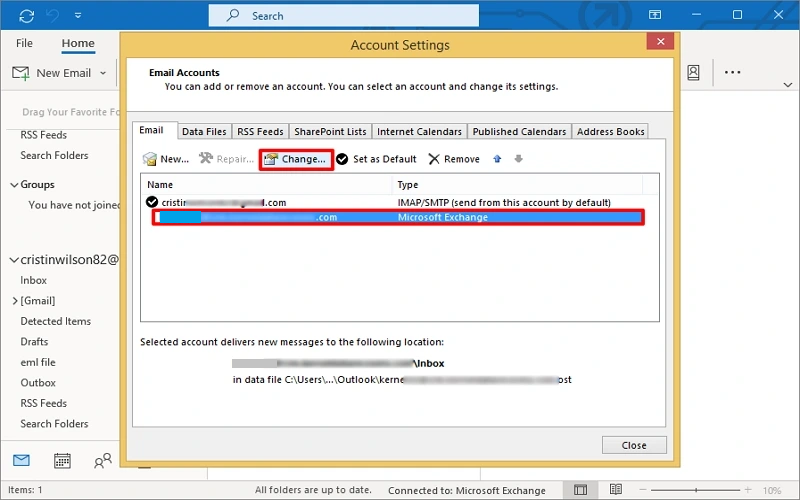
3. Select your email account and click Change.
4. Click on More settings.
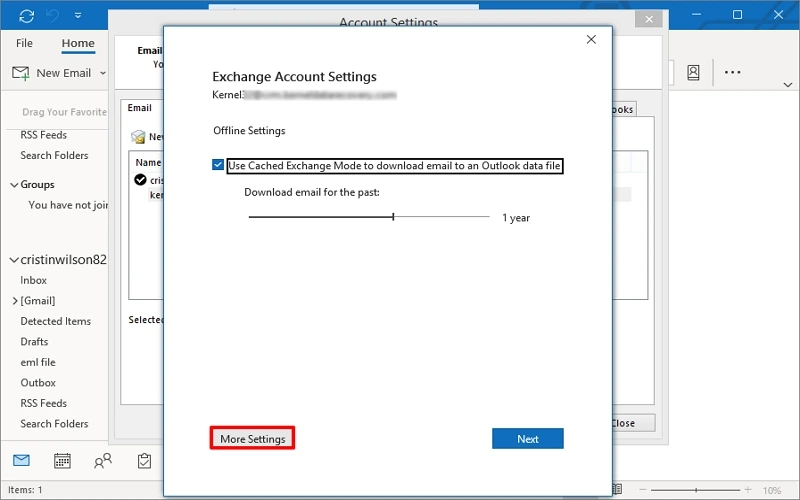
5. Go to the Advanced tab and click on the Add button.
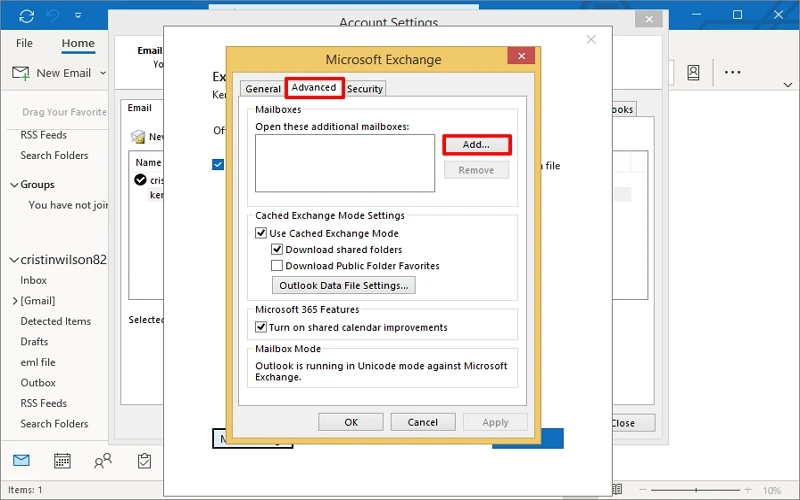
6. Enter the name of the shared mailbox and press OK.
Now, restart Outlook, Shared mailbox will automatically be visible in the left-pane o Outlook.
Method 2. Enable Troubleshooting Logging Option
Sometimes, enabling Troubleshooting Logging can also fix the Office 365 shared mailbox not showing in Outlook issue. Follow these steps to enable the troubleshooting logging option:
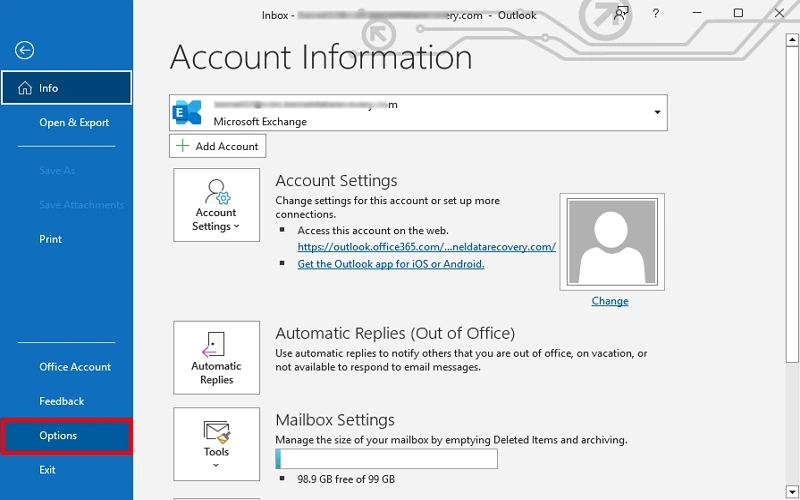
1. Open Outlook and click File >> Options.
2. Go to the Advanced tab and check that Enable Troubleshooting Logging is enabled in the Other section and press OK.
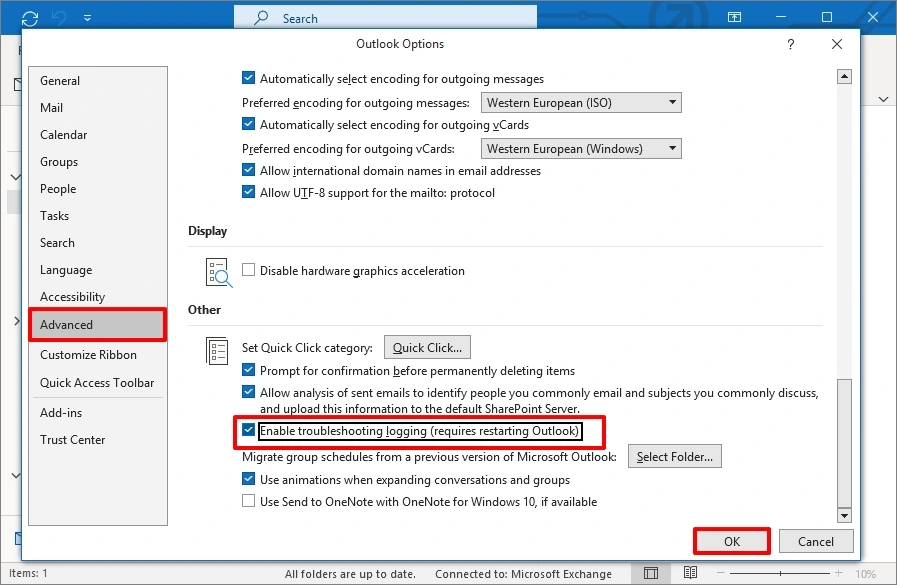
After that, restart Outlook and check the shared mailbox is visible or not.
Method 3. Recreate the Outlook Profile
1. First of all, close Outlook and open Control Panel.
2. Click on Mail and select Show Profiles >> Add.
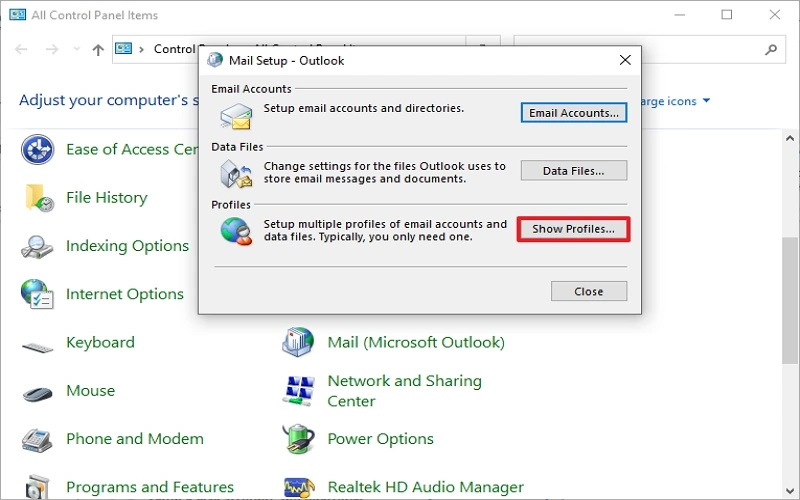
3. Enter the name of your profile and then press OK.
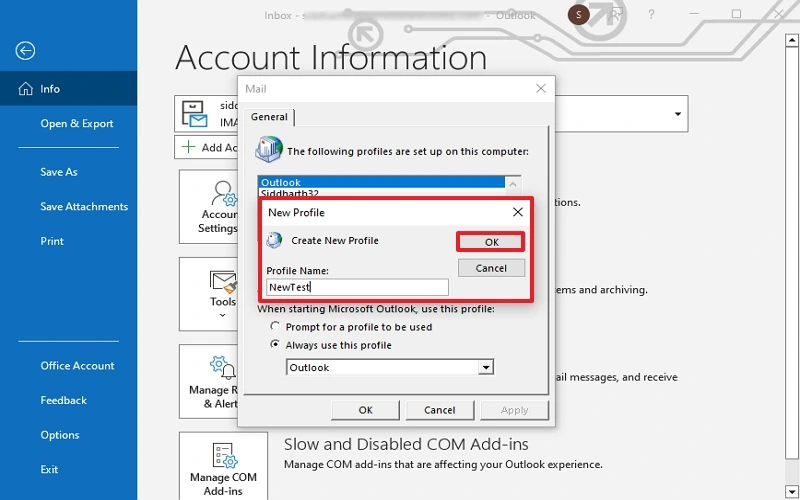
4. Follow the instructions and enter your account details to set up a new Outlook profile.
Now, open Outlook and check the shared mailbox is showing in Outlook.
Method 4. Disable Auto Mapping
1. Open Windows PowerShell and run the command: $Credential = Get-Credential.
2. A prompt will appear where enter Office 365 credentials.
3. Now, run the below command to connect with MS Office 365.

4. Execute the Import-PSSession ExchangeSession command for importing the Exchange online session.
5. Run the below given command to remove the permissions for O365 shared mailboxes.

6. After that, go to Outlook Account Settings and click Remove to exclude the added shared mailbox.
7. Next, reassign the full Access Permissions to the Shared mailbox and run the following command to disable auto-mapping.

8. Now, manually add Shared mailbox in Outlook.
Method 5. Update Outlook
If your Outlook is outdated, then Office 365 shared mailbox may not appear.
1. Open Outlook on your system.
2. Go to File tab and choose Office 365 Account option.
3. Click on Update options and select Update Now.
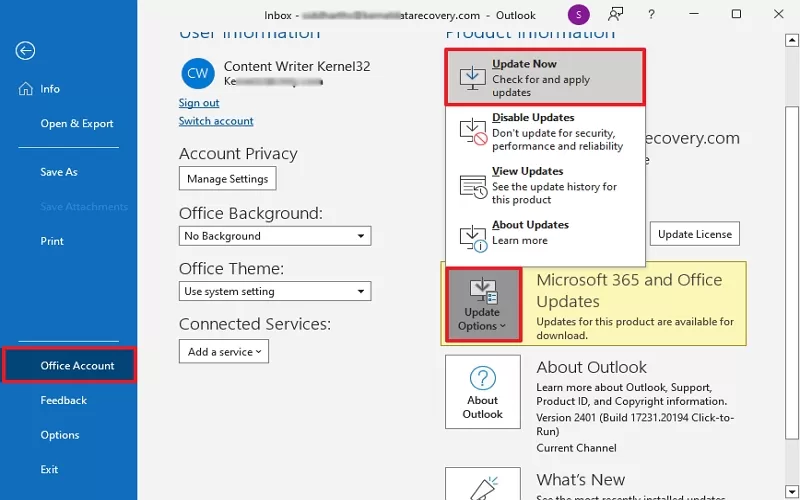
Now, restart Outlook and check shared mailbox is showing or not.
Method 6. Migrate Office 365 Shared Mailbox
If you are still facing Office 365 shared mailbox not showing in Outlook after applying the above manual workaround, then it may be another unknown error behind this issue. In that situation, you can use a professional tool to solve it. One such tool is the Advik Office 365 Backup Tool that will help you to migrate shared mailbox to a user mailbox. With this tool, you can export Office 365 shared mailbox to PST and then import it into Outlook. In this way, you can regain access to your data.

Conclusion
The Office 365 shared mailbox not showing in Outlook is frustrating and it stops users from accessing their important emails. In this post, we have discussed various methods to fix shared mailbox not visible in Outlook issue. We hope that the solutions mentioned in this blog will help you to solve this error.