How to Fix “Outlook Folders Disappeared” Issue?
Jenny Lowrence | March 23rd, 2026 | Outlook Errors
Imagine you opened Microsoft Outlook to check your emails and noticed that your folders had suddenly disappeared. It can be frustrating, especially when you rely on Outlook to manage important emails. Do not panic, the good news is that your folders are usually not deleted- they are just hidden due to settings, sync issues, or minor glitches. You need to follow the right approach to bring them back. In this article, we’ll explore the causes and provide step-by-step solutions to fix “Outlook folders disappeared” issue.
Microsoft Outlook is a popular email client around the world. It has many advanced features that make it worthwhile and the most preferred choice among various email clients. It offers a structured way to organize mailbox data using folders such as Inbox, Sent Items, and custom-created folders for better management. They help users keep their mailboxes clean, sorted, and easy to navigate, especially when dealing with a large amount of data. However, sometimes, users face a common issue where Outlook folders suddenly disappear, making it difficult to find important emails and data.
Why Outlook Folders Disappeared?
Here are some of the most common causes for this issue:
- The folder pane may be collapsed, making folders appear missing even though they are still there.
- Incorrect view settings in Outlook can hide folders from the display.
- Filters may hide certain emails or folders, causing them to disappear from the current view.
- A corrupted Outlook profile can lead to display issues, including missing folders.
- Interrupted synchronization between Outlook and the mail server can prevent folders from showing.
- Corrupted data files can lead to missing folders.
How to Find Disappeared Outlook Folders?
Here we are going to explain some checklists so that you can solve Outlook folders disappeared issue. You can follow the given solutions one by one.
#1. Check Outlook View Settings
1. Open MS Outlook on your system.
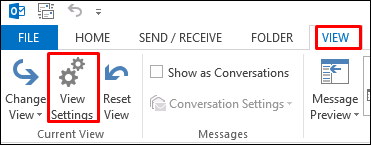
2. Click on View tab and select View Settings.
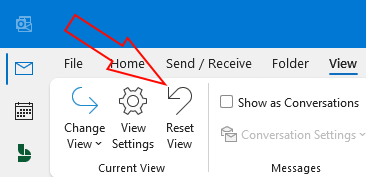
3. Now, click on the Reset View option.
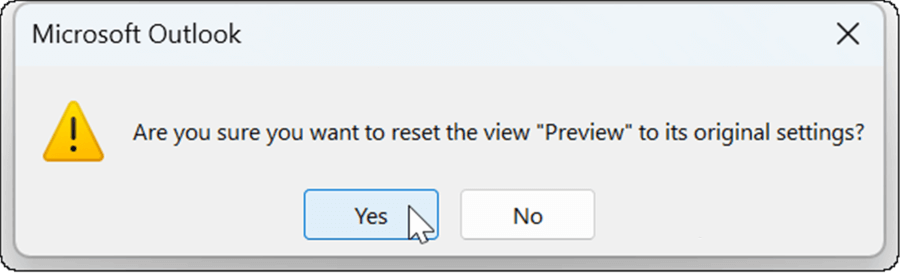
4. You will get a message to confirm, click Yes.
#2. Check Deleted Items Folder
Sometimes, folders may be deleted by mistake, then they move to the Deleted Items or Trash folder.
1. Open Deleted Items.
2. Look for missing folders.
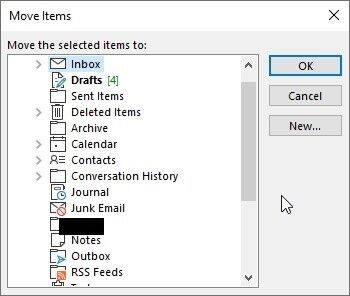
3. If you find then right-click on it and choose Move Folder.
4. Choose the original location to restore folder and click OK.
#3. Restore the Folder from Mail Server
If the disappeared folders are not found in Deleted Items, it may be permanently deleted. In that case, you can recover the folder from the mail server.
1. Open Outlook on your system.
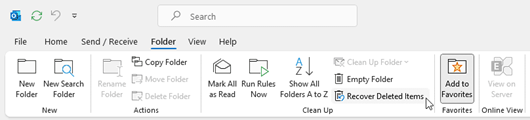
2. Click on Folder >> Recover Deleted Items.
3. If the folder is not found, go to Home and click on Recover Deleted Items from Server.
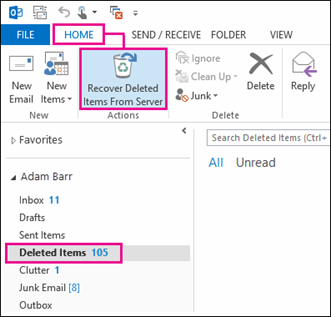
4. Look for the disappeared mail folder in Deleted Items.
5. If found, then click the Restore Seleted Items radio button and press OK.
#4. Repair Outlook Data File
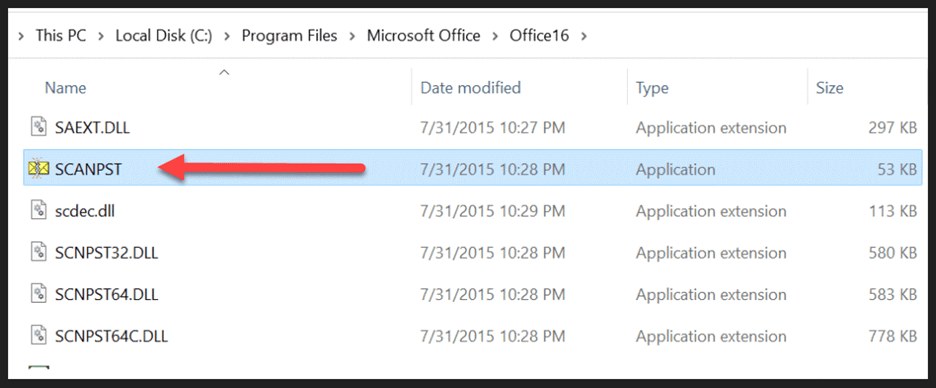
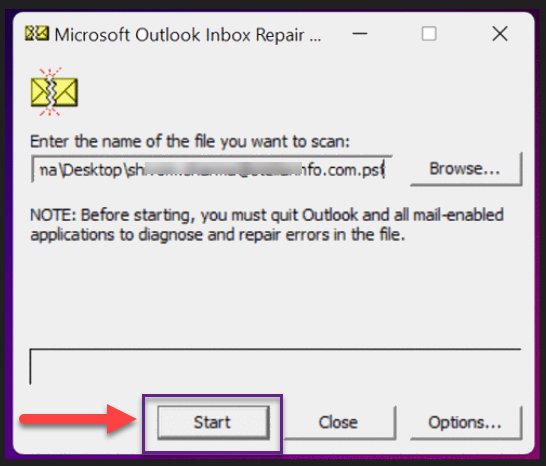
1. Close Outlook and locate SCANPST.exe.
2. Click on Browse to select PST file from its default location.
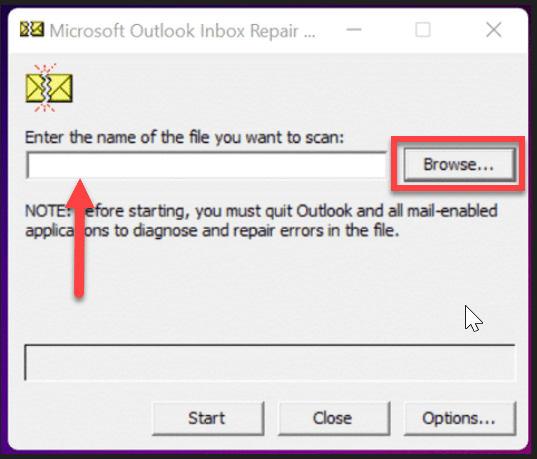
3. Now, click on Start to begin the scanning.
4. If an issue is detected, then click on the Repair button.
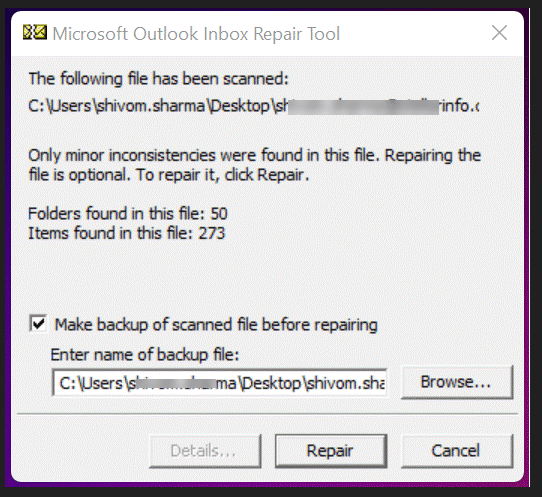
Once the repairing is complete, restart Iutlook and check folders are showing or not.
If the PST file is large or severely corrupted, then the Inbox Repair tool fails to repair the Outlook data file. In that case, you can use a professional PST Repair Tool. One such tool is the Advik PST Repair Tool that can even repair large or highly corrupted files with full accuracy. It recovers data from a damaged file and creates a new healthy PST file quickly. With the help of this best-automated tool, you can quickly fix the email data files or repair the corrupted Outlook data files.


Final Words
There are many users looking for a method to fix Outlook folders disappeared. Therefore, here in this blog, we have discussed several techniques to solve. So, go through the write-up and get rid of this issue.
