Fixed “Outlook is Having Trouble Starting” Issue
Jenny Lowrence | March 13th, 2026 | Outlook Errors
Imagine one day you open your Outlook to check important emails, but instead of loading your inbox, you get an error “Outlook is Having Trouble Starting”. This issue can prevent you from accessing your emails & other data items, and it can disturb your workflow. However, the good news is that there are several ways to fix this issue and get Outlook running again. In this article, we’ll share some practical methods to resolve it.
Let’s first get into the cause and then explore the probable solutions.
Why Outlook Is Having Trouble Starting?
- A corrupted Outlook profile often causes issues and prevents it from starting properly.
- Using an older version of Outlok can create compatibility issues and bugs.
- Installing faulty add-ins and extensions is one of the top reasons Outlook is having trouble starting.
- A corrupted navigation pane can also prevent Outlook from starting.
- If the Outlook data file is corrupted, Outlook can display errors when launched.
How to Fix Outlook is Having Trouble Starting Issue?
In this section, we will discuss some tried and tested solutions to fix having trouble starting Outlook issue. Try these quick solutions and resolve the issue.
1. Run Outlook in Safe Mode
1. Press Win + R and type Outlook.exe/safe and press Enter.
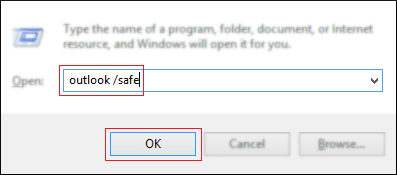
2. If it opens normally then faulty Add-ins may cause of this issue.
2. Disable Faulty Add-ins
1. Open Outlook in Safe Mode.
2. Go to File >> Options.
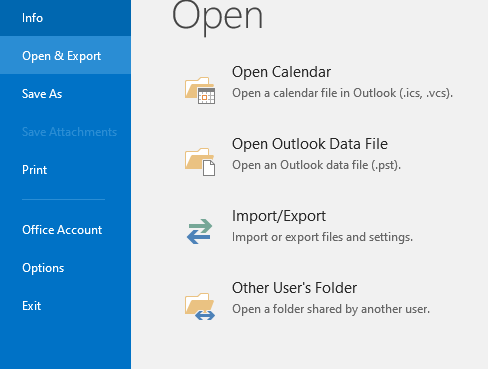
3. Click Add-Ins and choose COM Add-ins from Manage and then click Go.
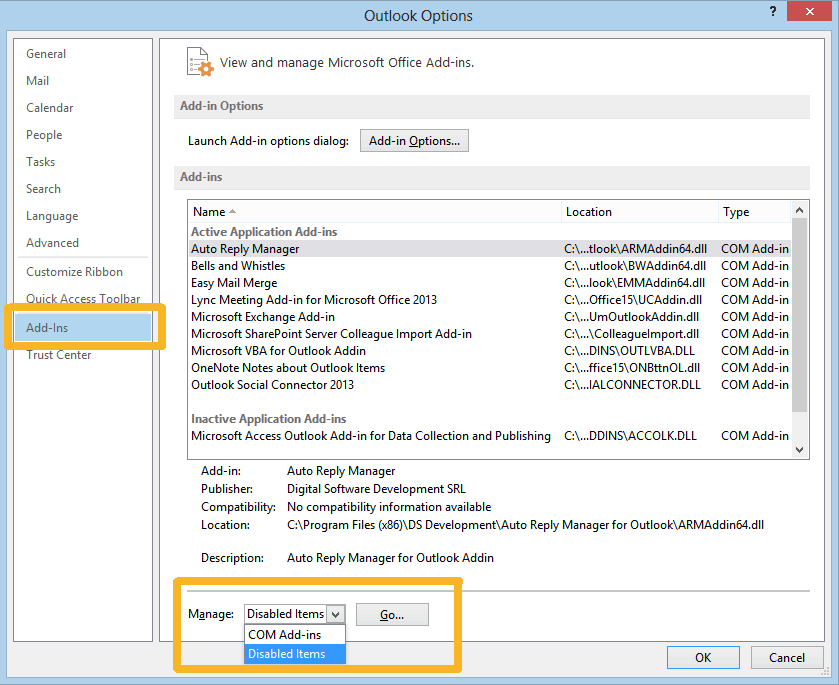
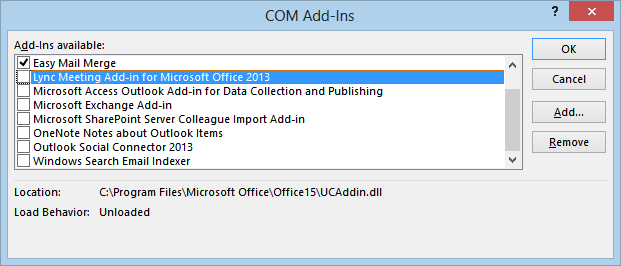
4. Disable faulty Add-ins and restart Outlook to check if it starts normally.
3. Reset the Navigation Pane
- First of all, close Outlook completely.
- Press Win + R and type Outlook.exe/resetnavpane and then click Enter.
By doing this, you can reset the navigation pane settings and resolve startup problems
4. Update Outlook
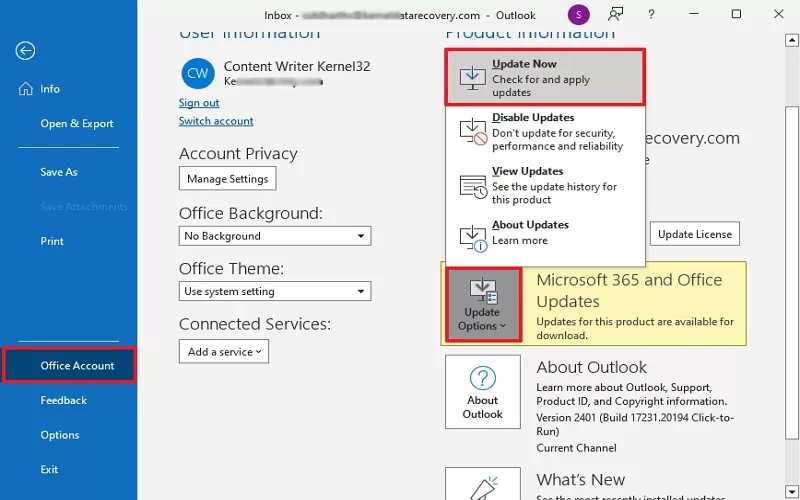
1. Open Outlook and go to File.
2. Select Office Account and Click on Update Options >> Update Now.
5. Create a New Outlook Profile
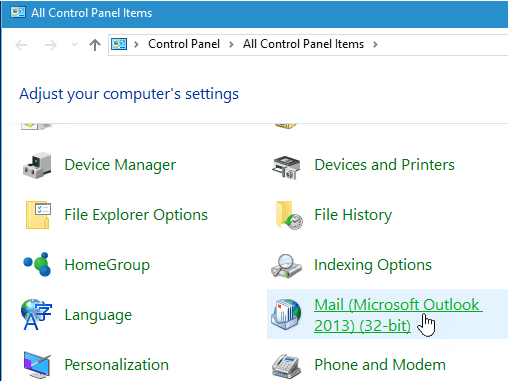
1. Open the Control Panel and click on Mail.
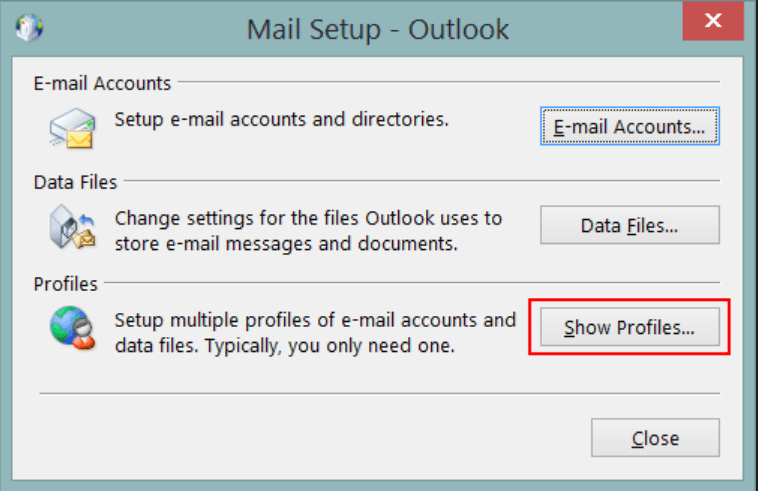
2. Click on Show Profiles.
3. Now, click on Add to create a new profile.
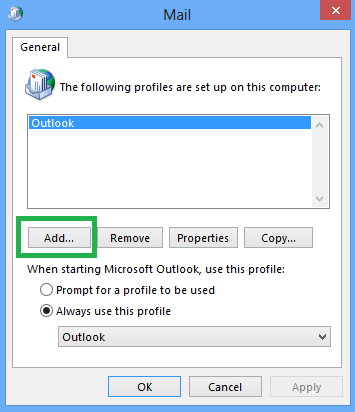
4. After that, open Outlook and set it as the default.
6. Repair Outlook Data File
1. Close Outlook and open ScanPST Tool.
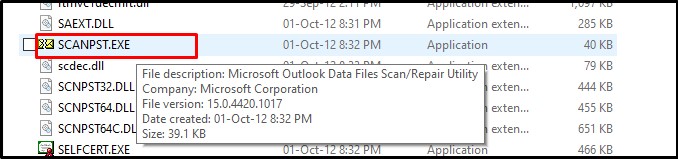
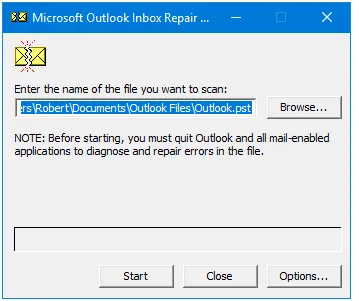
2. Click on Browse to select Outlook data file to repair and click on Start button.
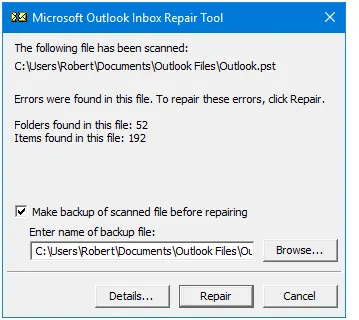
4. Now, click on Repair to resolve error and restart Outlook.
Professional Approach to Solve Outlook is Not Starting Issue
All the methods mentioned above can quickly solve Outlook is having trouble starting. If you are still facing this issue, the problem might be with PST files. Check out the Advik PST Repair Tool to fix PST file errors. This tool first repairs corrupted Outlook data files and then save them in a healthy format. After the successful recovery of the PST file, you can import it into Outlook.


Steps to Fix Outlook is Having Trouble Starting
1. Run the tool on your system.
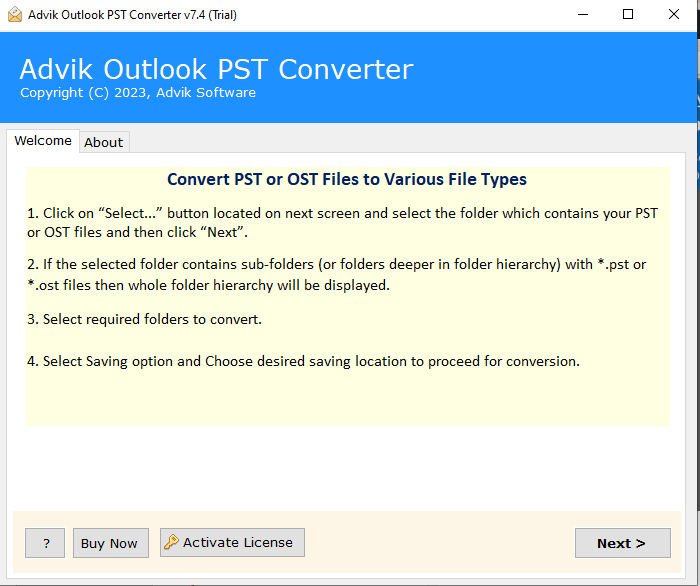
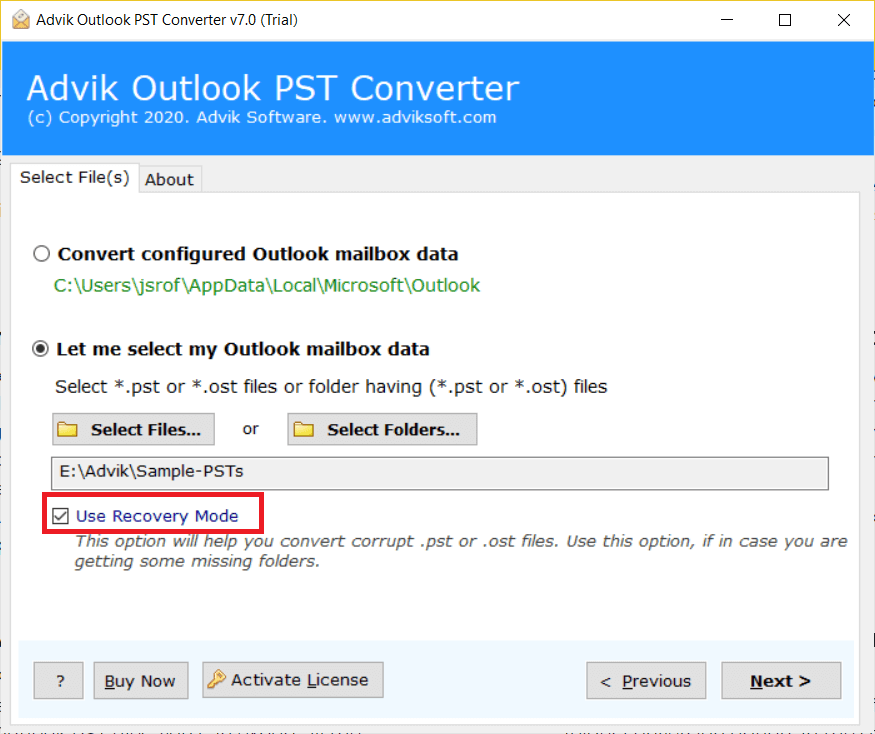
2. Add PST file that you want to repair and enable Use Recovey Mode.
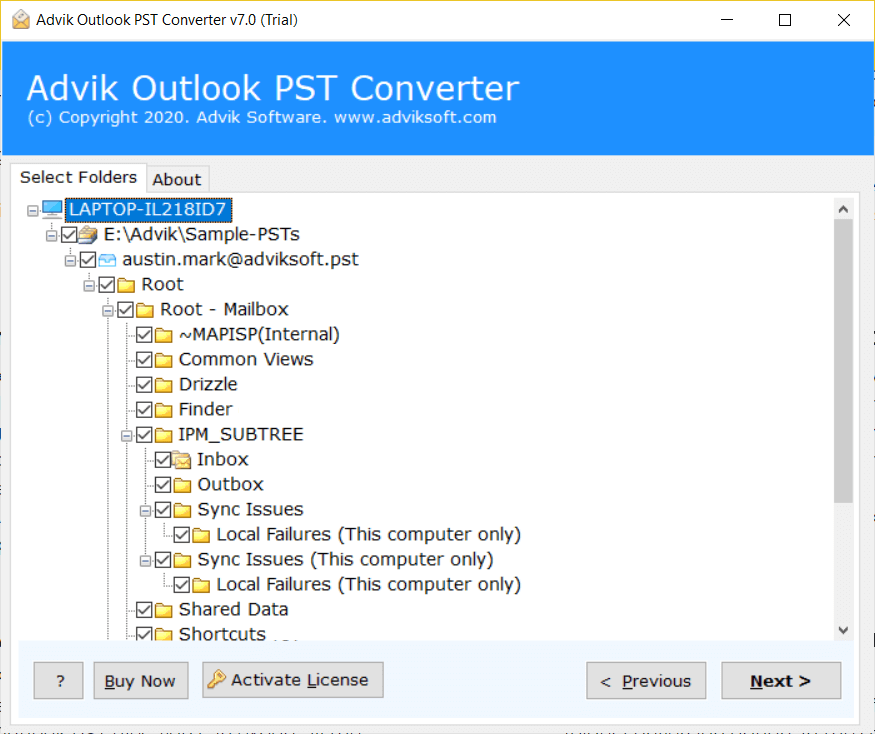
3. Choose the mailbox folders and click Next.
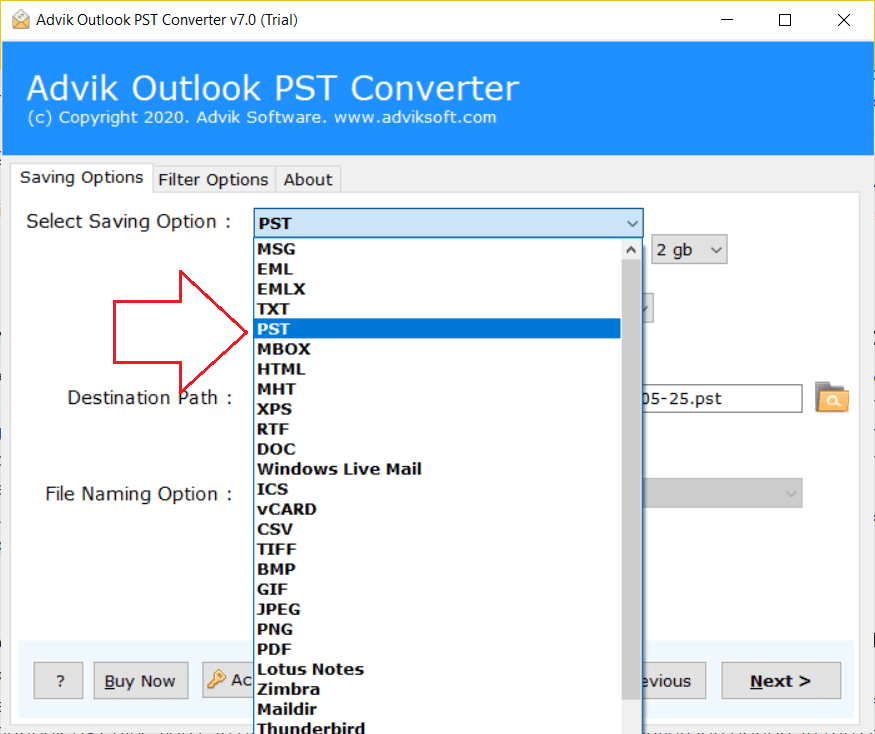
4. Select PST as a saving option.
5. Browse target location and click Next.
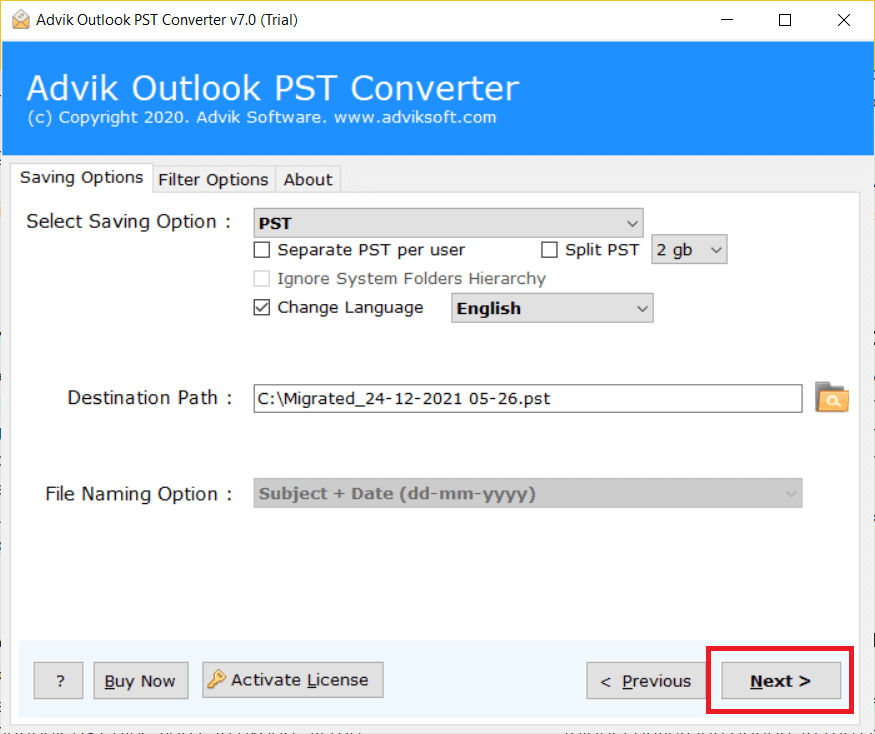
The software will start removing bad sectors of the Outlook PST file. And it will generate a new healthy Outlook PST. You can import the resultant PST file in your Outlook.
Conclusion
Here, we have seen that Outlook is having trouble starting is quite a problematic concern for all of us. In this post, we have explained several troubleshooting steps to quickly solve it. However, when PST file corruption is the main cause, manual fixes may not deliver reliable results. To get rid of these situations, using the above-recommended tool helps to get Outlook running again without any hassle.
