Why Outlook Shared Mailbox Not Updating Automatically?
Jenny Lowrence | March 26th, 2026 | Outlook Errors
A shared mailbox in Outlook is a great way for teams to manage emails collaboratively. However, many users have reported issues with shared mailbox not updating in Outlook. They found missed emails, and folders don’t sync. If you are also facing the Outlook shared mailbox not updating automatically, then do not panic. In this article, we’ll provide several workarounds to fix this issue.
Why Is Shared Mailbox Not Updating in Outlook?
Here are some reasons why Outlook Shared Mailbox is not updating automatically:
- Slow Internet Connection: A poor internet connection can stop Outlook from syncing changes instantly.
- Corrupted OST File: If your OST file gets corrupt, then your Outlook shared mailbox not updating automatocally
- Incorrect Settings: Wrong sync settings of Outlook’s shared mailbox can prevent it from updating automatically.
- Large Mailbox Size: If the Outlook shared mailbox contains a large amount of data, syncing may slow down.
- Permissions Issues: Lack of proper access rights can prevent mailbox updates from being automatically.
How to Fix Outlook Shared Mailbox Not Updating Automatically?
Here are some reliable and effective methods that will help you to resolve the shared mailbox not updating issue.
#1. Check Server Status
Since weak internet connection & server connectivity are the leading causes for the shared mailbox not updating in Outlook issue. So, checking the server status is an important step and you need to establish a stable network connection.
#2. Auto Sync Outlook Shared Mailbox
1. Open Outlook on your system.
2. Click on File tab and select Options.
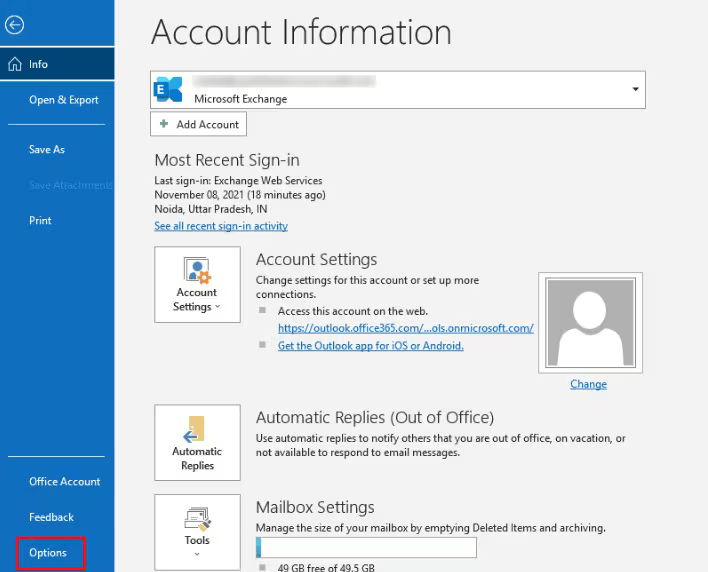
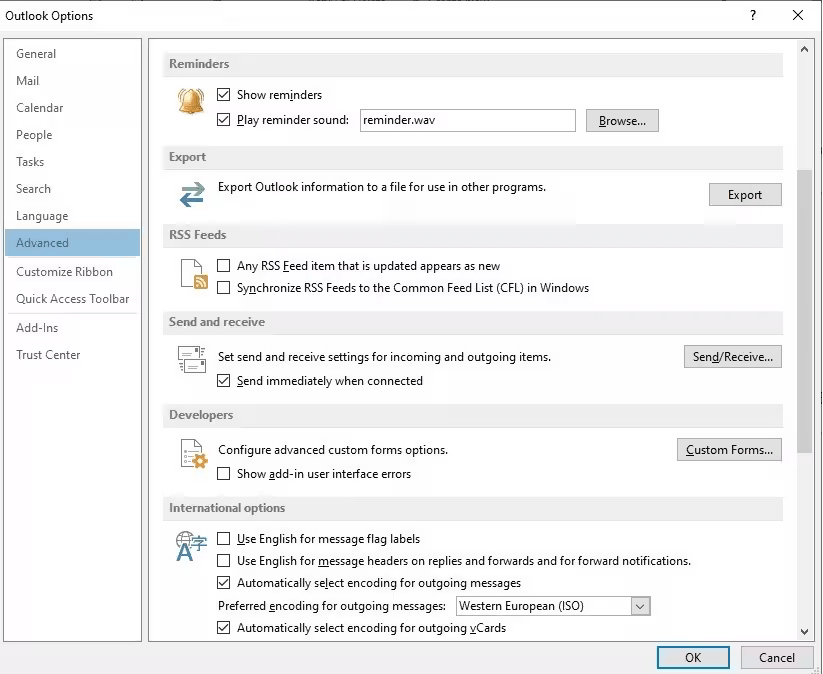
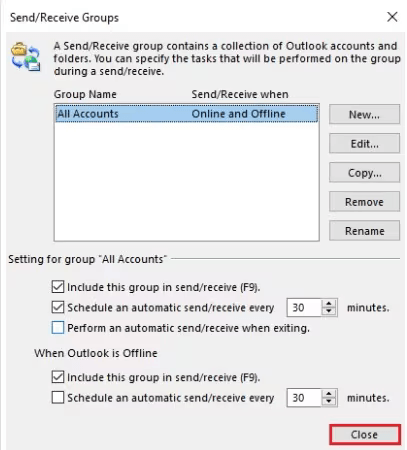
3. Choose the Advanced option and enable “Send Immediately When Connected” and then click on Send/Receive.
4. Now, check the Perform an automatic send/receive when existing option.
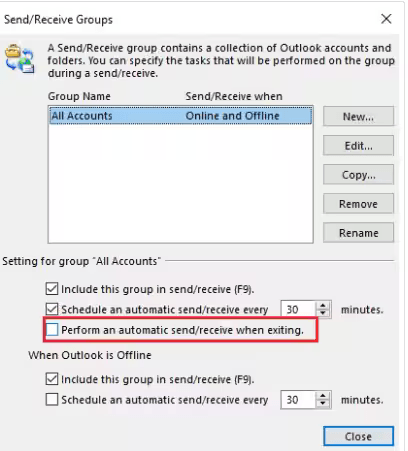
5. Next, click Close and restart Outlook to check Outlook shared mailbox not updating automatically is fixed or not.
#3. Synchronize Shared Mailbox
You can manually update shared mailbox with exchange Server. Follow the steps:
1. Open Outlook on your system.
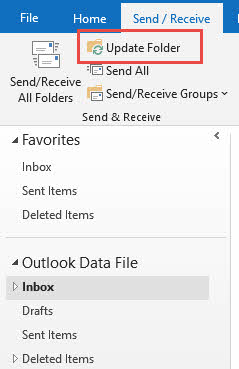
2. Click on Send/Receive tab.
3. Choose the Update folder option.
#4. Disable Download Shared Folders Caching
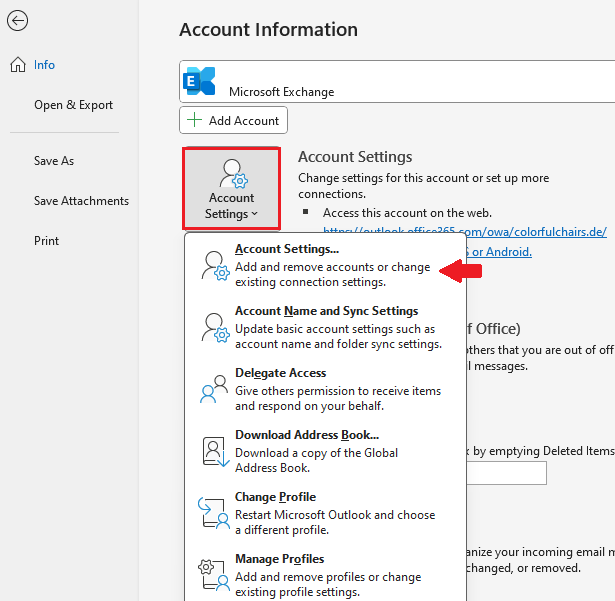
1. Open Outlook and go to File >> Info.
2. Click on Account Settings >> Account Settings.
3. Now, click on Data Files and choose Settings.
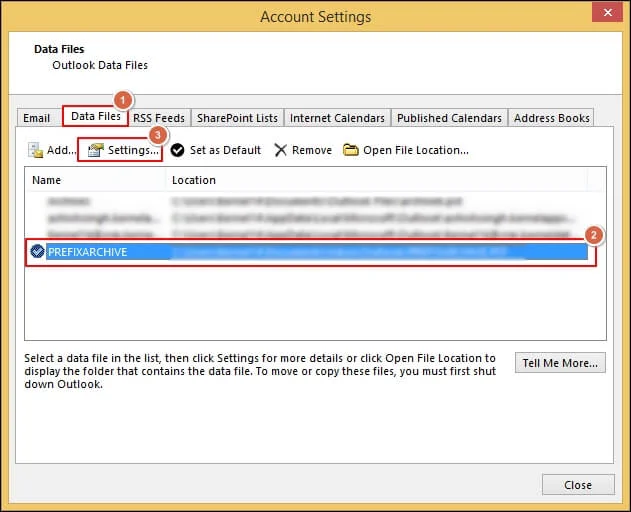
4. Choose the Advanced tab and disable the Download Shared Folder option.
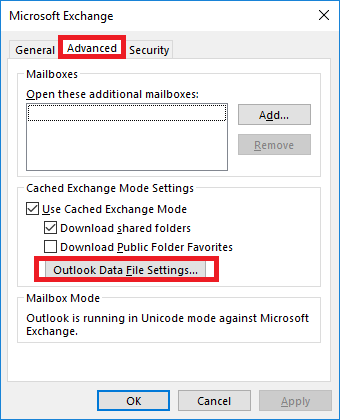
5. Click on Apply and press OK.
#5. Reconnect Shared Mailbox
1. Open Outlook and go to File >> Info.
2. Click on Account Settings >> Account Settings.
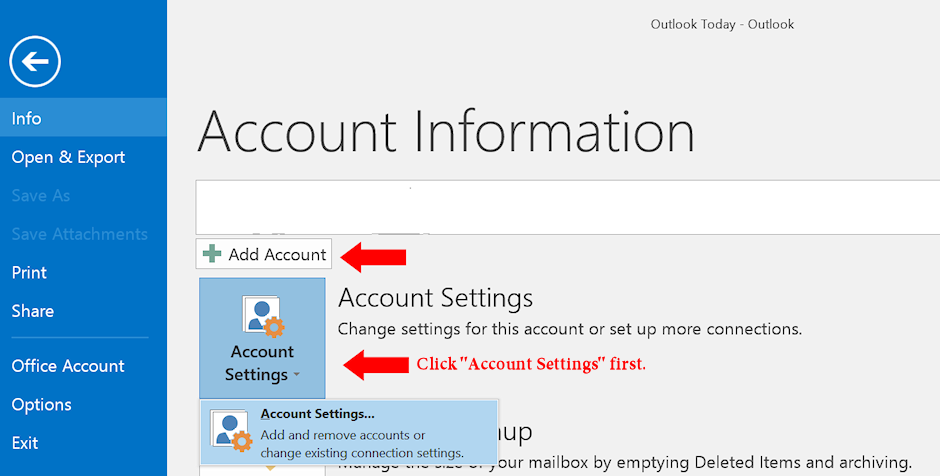
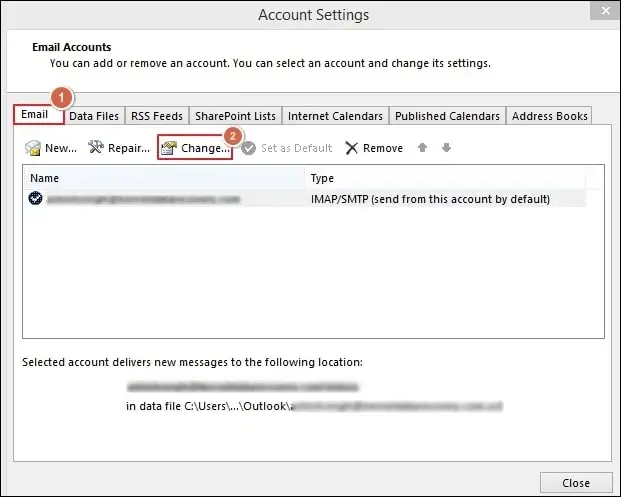
3. Choose the Mail account and click on the Change button.
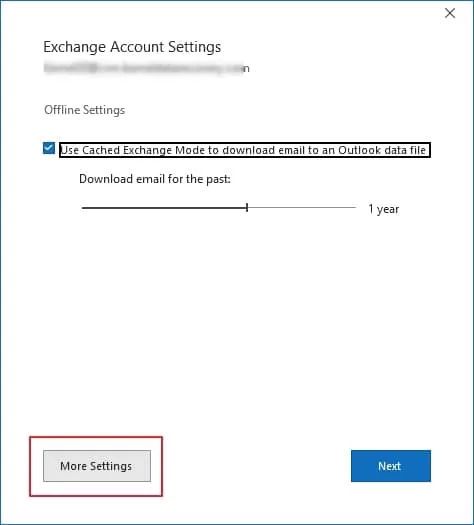
4. Now, click on More Settings in the Exchange account settings wizard.
5. Open the Advanced tab and click the Remove button and then press OK.
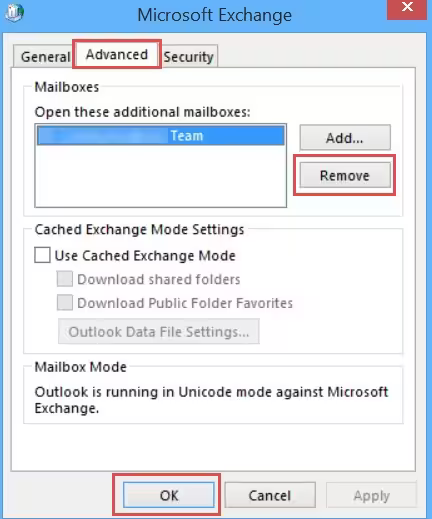
Now, reconnect the shared mailbox to fix Outlook shared mailbox is not updating issue.
1. Restart Outlook and go to File tab.
2. Click on Account Settings >> Account Settings.
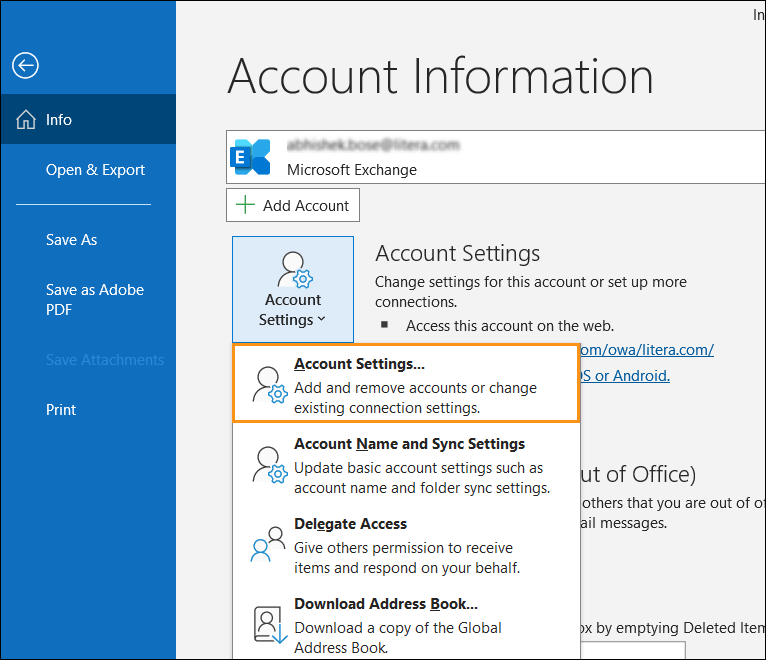
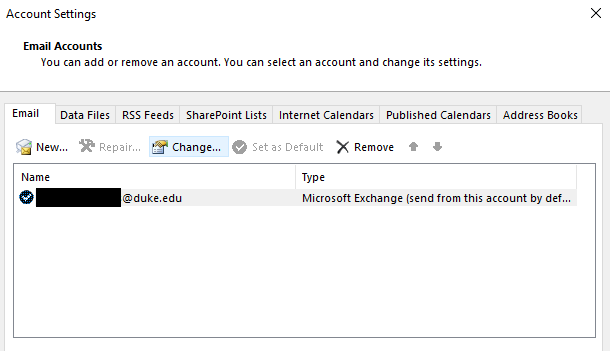
3. Select the Microsoft Exchange account and click Change.
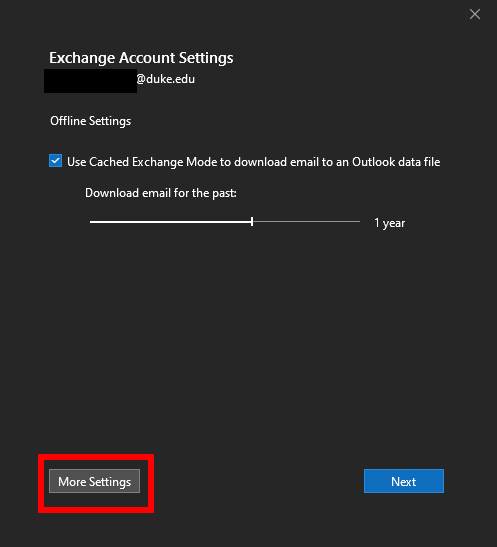
4. Click in More Settings.
5. Go to Advanced tab and click on Add.
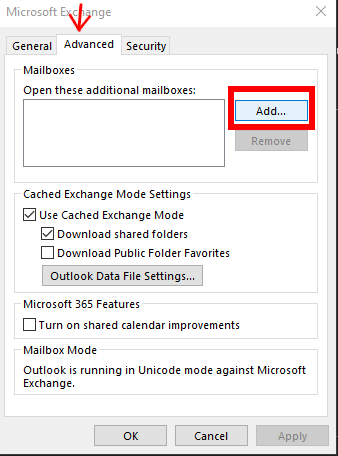
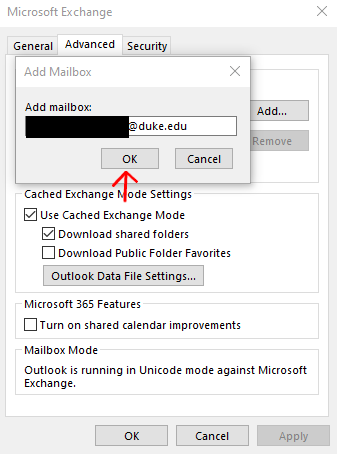
6. Type your Shared mailbox email address and click OK.
#6. Recreate OST File
1. Open Outlook on your system.
2. Go to File >> Info.
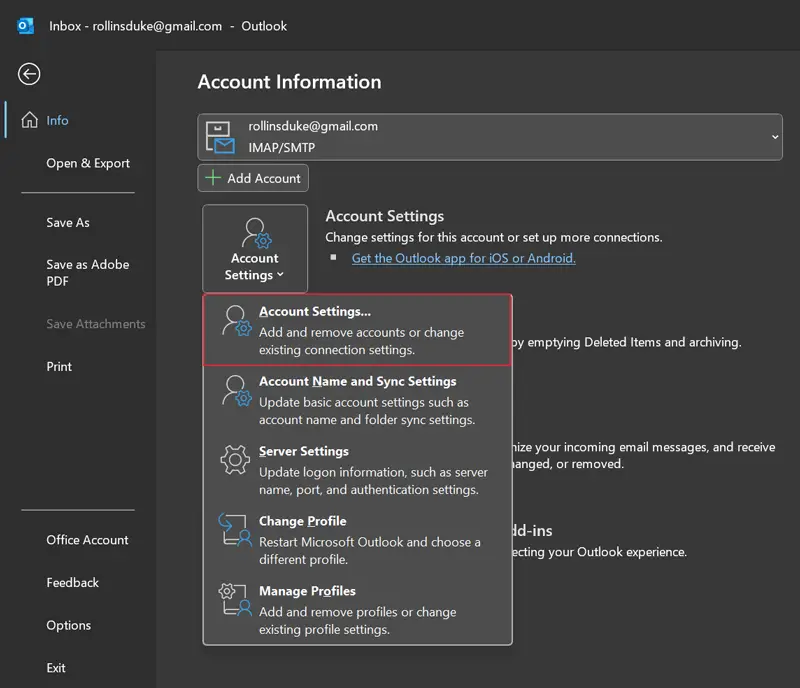
3. Click on Account Settings >> Account Settings.
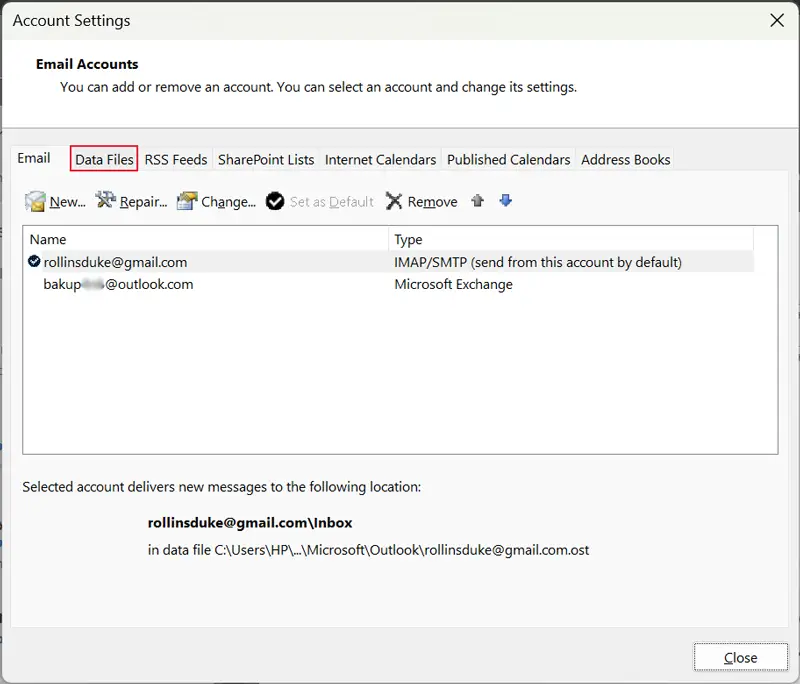
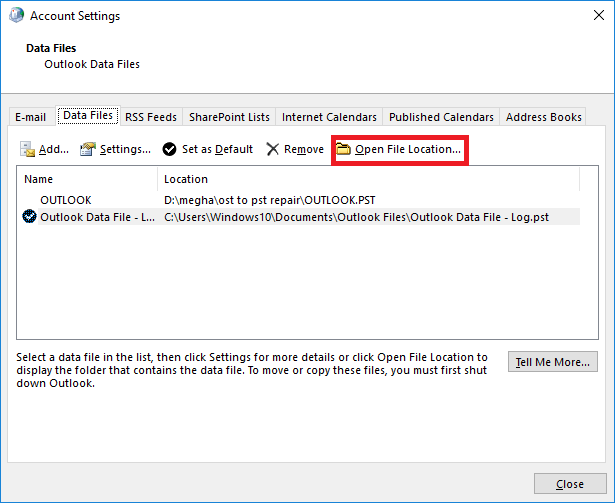
4. Now, click on Data Files and choose the OST file associated with the shared mailbox.
5. Click on the Open File Location and create a backup of your OST file.
6. Close Outlook and delete OST file.
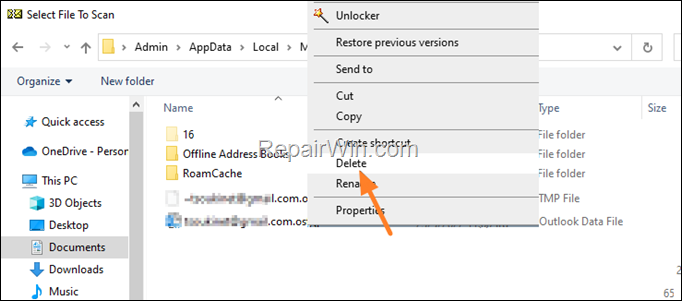
Now, restart Outlook, which will automatically create a new OST file and check whether the shared mailbox not updating in Outlook issue is solved or not.
Professional Approach to Solve Outlook Shared Mailbox Not Updating
By following above manual tricks, you can fix the shared mailbox not updating in Outlook. However, if none of these solutions work to fix the issue, that means your OST file is damaged. To repair it, you can use a professional tool. Advik OST Repair Tool is a quick solution to repair corrupted OST files. The software is designed to fix any issues with OST file caused by corruption. This is a useful solution that recovers data and convert OST to PST while preserving all attributes.

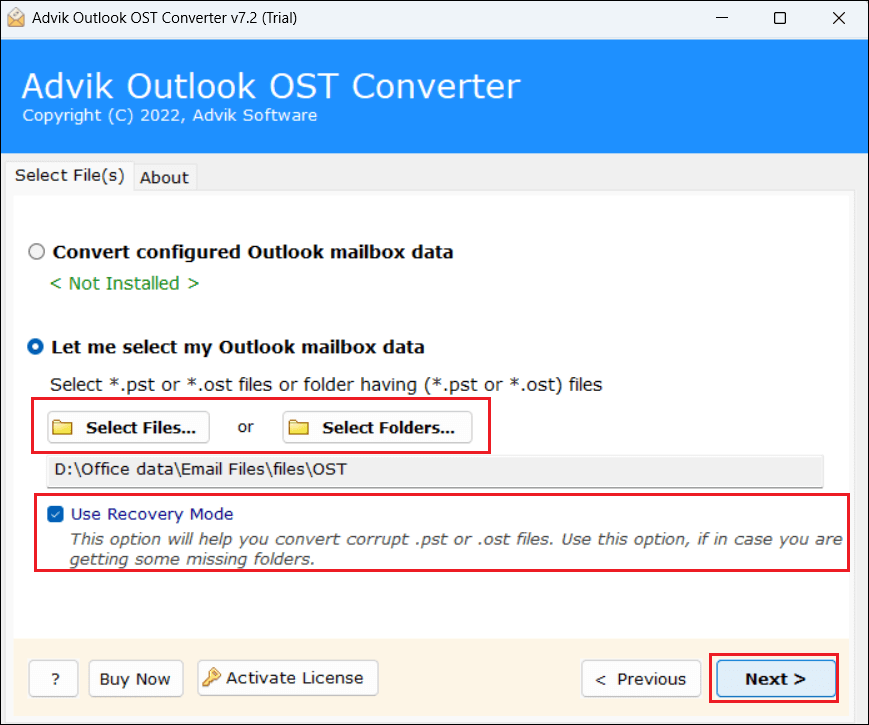
1. Run the tool and add OST file. Enable the Use Recovery Mode Checkbox.
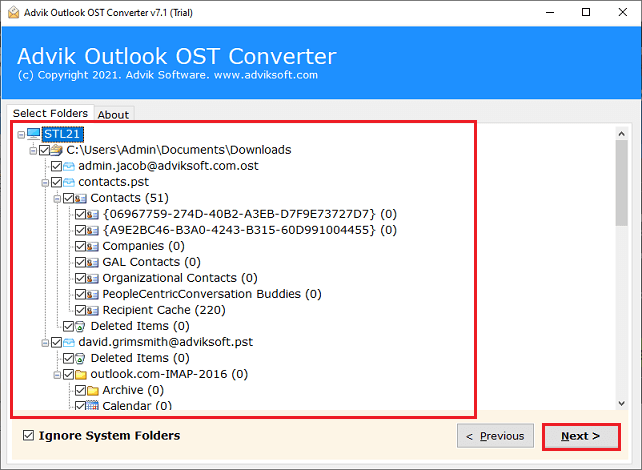
2. Choose the mailbox folders and subfolders.
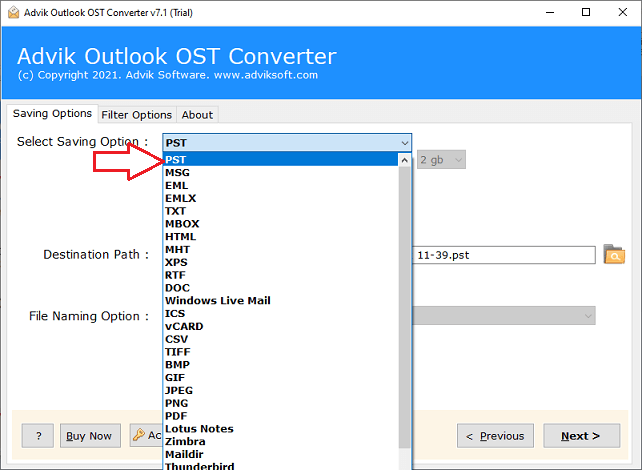
3. Select PST as a saving option.
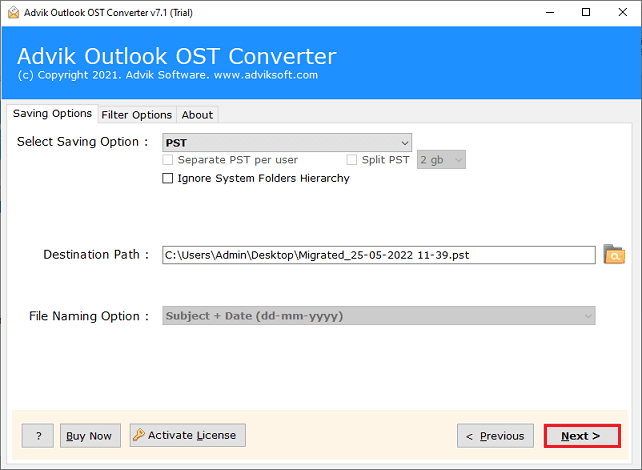
4. Browse target location and click Next.
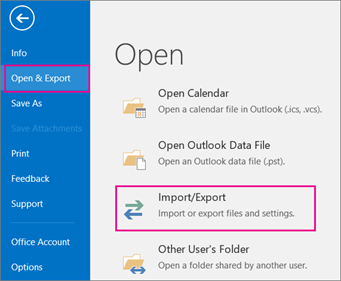
5. After that, open Outlook and import the exported .pst file via Import/Export option.
Final Words
The “Outlook Shared Mailbox Not Updating Automatically” is a common issue that can be easily fixed with the right solutions. In this article, we have explained several techniques to solve Shared Mailbox not updating in Outlook. However, if your Outlook OST files got corrupted, then you can use the above-suggested repairing tool. With this tool, you can fix errors detected in the OST file easily.