Outlook Stopped Working – How to Fix It?
Jenny Lowrence | March 11th, 2026 | Outlook Errors
MS Outlook is one of the most widely used email clients for both personal and professional purposes. However, sometimes when users try to open this application, they get the “Outlook stopped working” error message.
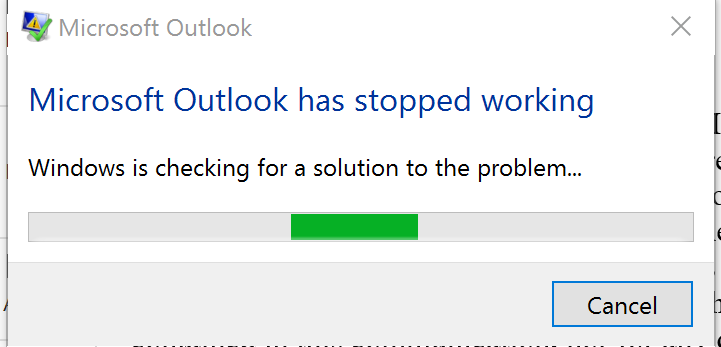
If you are also facing the same issue, then do not panic. In this guide, we’ll provide some troubleshooting steps to resolve it.
Before proceeding with the solutions, it’s important to understand why Microsoft Outlook has stopped working.
Why has Outlook Stopped Working?
- Incompatible or faulty add-ins
- Using an outdated version of Outlook & Windows
- Corrupted Outlook profile
- Damaged Outlook data file
- Conflicts with antivirus software
How to Fix the “Microsoft Outlook has Stopped Working” Issue?
Here are some effective ways to fix Outlook stopped working issue. Follow the below given steps to identify the cause and solve it to make Outlook work normally.
#1. Remove Faulty Add-ins
Sometimes the add-ins installed in your Outlook cause the issue. So, run Outlook in safe mode and check it.
- Press Win + R and type outlook.exe /safe and press Enter.
- If Outlook starts up without any issues, then the add-ins are the main problem.
- Now, go to File >> Options>> Add-ins.
- Choose COM Add-ins >> Go.
- Disable all add-ins and press OK.
After that, restart your Outlook and check issue is solved or not.
#2. Update Outlook
Using an outdated version of Outlook may lead to the Outlook stop working issue. Ensure you are using the latest version of Outlook.
- Open Outlook on your system.
- Go to File >> Office Account.
- Select Update Options and click Update Now.
#3. Repair Outlook Data File
- Press Win + E to open the explorer.
- Search for SCNPST.EXE in the search bar and open it.
- Choose the Outlook Data File (.pst) that you want to repair.
- Click on Start to begin the scanning process.
- If any issues are found, then click Repair to fix them.
If you are unable to repair your corrupted Outlook data file with the ScanPST.exe Tool, then you can use a professional tool like Advik PST Repair Tool. It will recover the corruption without any hassle.
#4. Create Outlook Profile
Creating a new profile in Outlook will help you to fix any issues in your account.
- Open Control Panel and go to Mail.
- Click on the Show Profile.
- Now, click on Add button.
- Enter a name for new profile.
- Follow the on-screen instructions to create the profile.
- After that, open Outlook and set the new profile as the default.
#5. Repair MS Office
- Open Control Panel.
- Go to Programs and Features.
- Choose Microsoft Office and click Change.
- Select Quick Repair and then click Repair to begin the process.
After that, restart your Outlook.
Final Words
The Outlook stopped working issue can interrupt users’ email workflow, but it is easy to fix with the right troubleshooting steps. In this post, we have explained several ways to solve Microsoft Outlook has stopped working issue. You can try them and fix this issue.
