How to Extract Attachments from PST File: Complete Guide
Introduction: Need to extract attachments from PST file? There are two practical ways to do it. If your PST file is already connected with Microsoft Outlook and you need a few attachments then Outlook inbuilt option is enough. But if you have a large mailbox, multiple PST files or an Outlook data file that is not accessible, then a dedicated PST attachment extractor can save you a lot of manual effort.
This guide will cover both approaches in detail. You will learn:
- What is a PST file and how it stores attachments.
- Why users extract attachments from Outlook PST file
- How to manually save attachments using Microsoft Outlook
- How to extract attachments from PST files Without Outlook
- Which method is better for you?
So, no matter you are looking this method to extract your attachments for invoices, legal documents, project files or to free up your mailbox storage because attachments take large space in your mailbox, this guide will help you choose the most appropriate approach.
What is a PST File?
A PST (Personal Storage Table) file is the main data file used by Microsoft Outlook to store mailbox information on your local computer.
A PST file can contain many things based on your Outlook settings, such as email messages, attachments (files), Contacts, Calendars, Tasks, Notes, Journal entries, Custom folders in Outlook etc.
It’s not other file types that consists individual emails, even it contains an entire mailbox all stored in one database. Along with that , any attachment that is sent or received with an email is also stored inside the PST file unless it has been deleted or replaced from a cloud storage.
As everything is stored together, PST files become large after years of email communication.
For example, a business mailbox that has been in use for five or six years might have; thousands emails contracts, PDF invoices , Excel sheets, Presentations, word documents, image files etc.
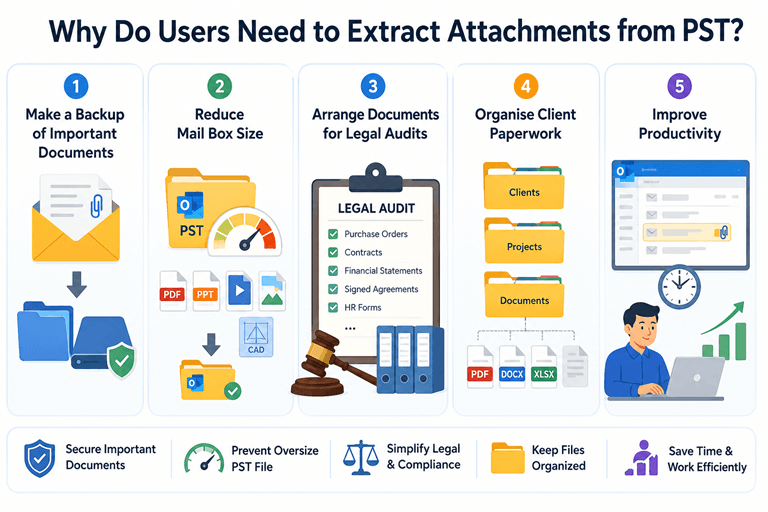
Why Do Users Need to Extract Attachments from PST?
People usually don’t need to extract attachments from PST file unless and untill they have a strong reason behind it. More often, it is connected with a practical, business or personal needs.
Following are some of the most common scenarios;
1. Make a Backup of Important Documents: Many organizations send invoices, contracts, project reports and signed agreements through an email. Instead of storing documents inside Outlook, they save attachments separately so they can access it if the mailbox changes or Outlook is no longer available.
2. Reduce Mail Box Size: Attachments are usually the biggest part of your emails in a PST file. Large PDFs, presentations, CAD drawings, videos and collections of images can quickly increase your Outlook mailbox size. From a practical point of view, reducing unnecessary attachment storage can make managing your mailbox easy and helps to prevent oversize of PST file.
3. Arrange Documents for Legal Audits: Legal teams and compliance departments usually only need the attached documents and not all of the email. Some examples such as purchase orders, contracts, financial statements, signed agreements
Human Resources forms etc. Downloading these attachment files let you review them separately instead of opening them thousands of emails manually.
4. Organise Client Paperwork: People from consultants, accountants, architects, and law firms receive hundreds of files every month. It’s much easier to save attachments in organised folders so that you don’t need to search them for individual emails.
5. Improve Productivity: When you manually extract attachments from your PST file, you need to open an email before you can save any attachments from it. This is not an issue with a small number of emails in the mailbox.
But with large mailboxes with thousands of messages, it is very time-consuming to open each email and click Save All Attachments.
This is one of the main reasons why users look for other ways to extract.
Things To Know Before You Begin
Before picking any solution, it’s important to understand a few things that you must know;
- Manual Method needs outlook
- Not all PST files are associated with Outlook
- Outlook Email-by-Email Saves Attachments
- The Original PST File Remains Intact
How to Export Attachments from PST File Manually?
Using MS Outlook, you can manually do it. So, Microsoft Outlook must be installed on your system to perform this task.
Important Note: Here, we assume you have an orphan PST file outside of your Outlook. So, first you need to transfer PST file into Outlook. On the other hand, if you have a PST file connected with Outlook, you can directly save attachments.
Step 1. Import PST File to Outlook
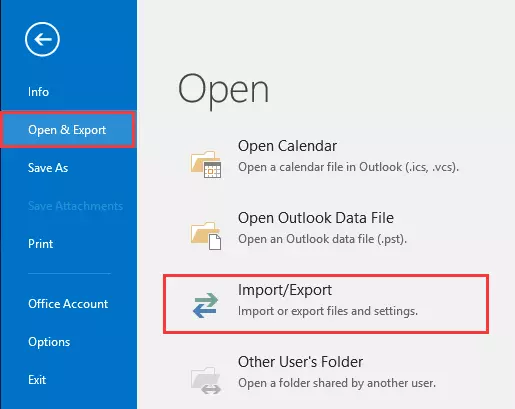
- Launch the Outlook application on your system and click on the File tab.

- Click on Open & Export and choose Import/Export.
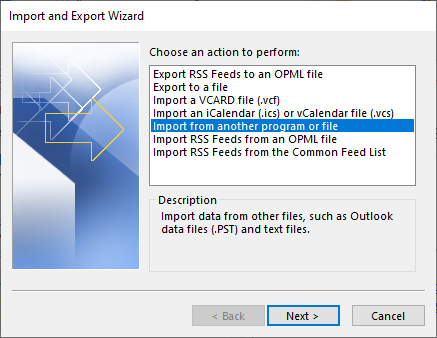
- Select Import from another program or file from Choose an action to perform dragging list
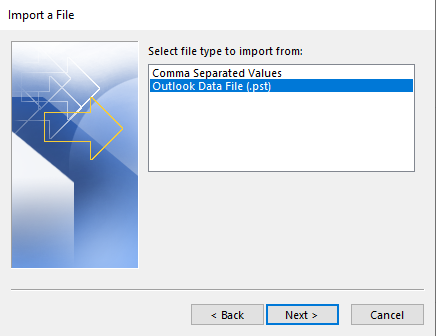
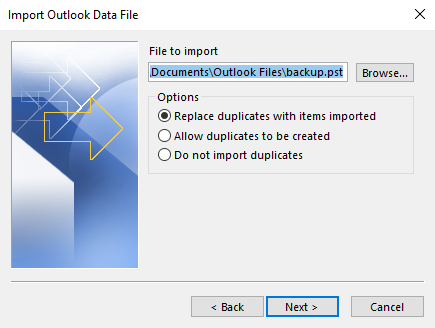
- Choose Outlook Data File (.pst) from Select file type to import and press Next.
- Browse and choose .pst file from your system from which you want to extract attachments.
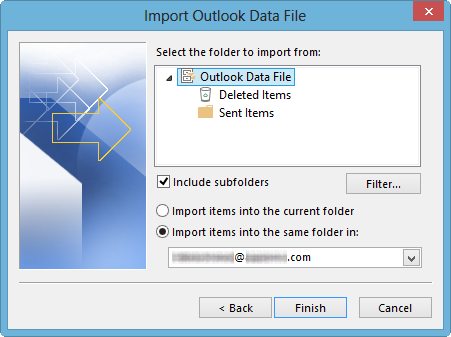
- Select a folder to import and click the Finish button.
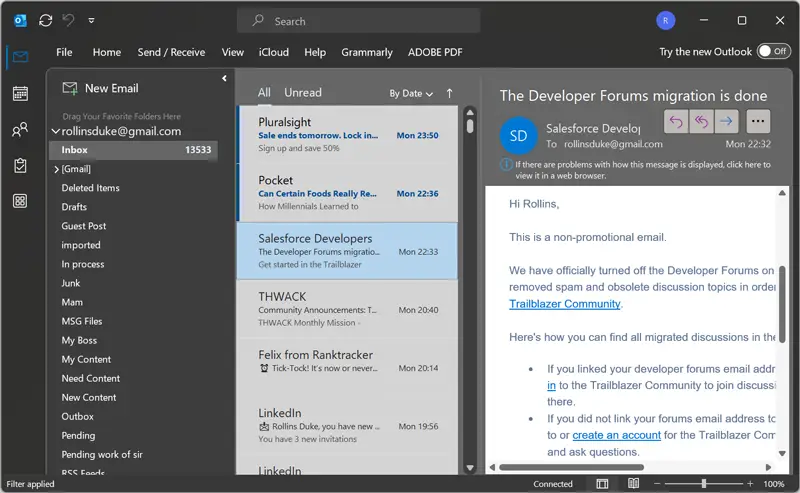
Now, your PST data will show in Outlook.
Step 2. Download Attachments from PST Email
- Now, Open the desired email to export attachments.
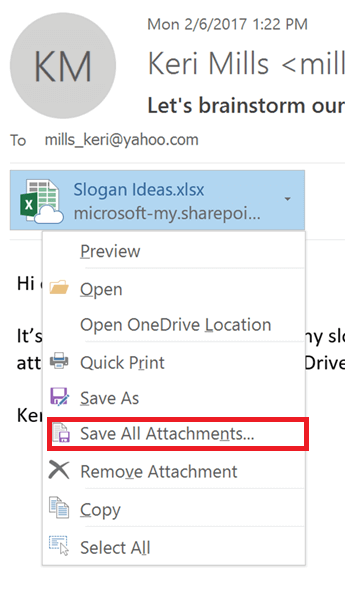
- Thereafter, right click on the email attachments and select Save All Attachments option.
- Provide the location to save the extracted PST attachments and press the Save button.
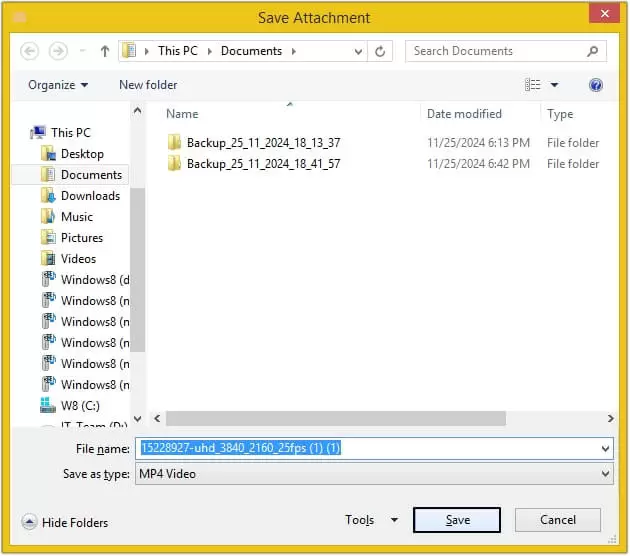
In this way, you can download your PST email attachments.
However, in this method, you need to repeat the steps to save attachments from other emails. So, this is suitable for small mailbox data.
Is the Manual Method For You?
There are some situations when the manual method is still a good choice.
Choose Outlook’s built-in method if:
- You only need attachments from a few emails, Outlook is already installed, you are able to open PST file without any errors.
- Also, you are willing to repeat the same process for every email. However, it’s not practical sometimes to do with the large mailbox and multiple PST files or inaccessible data.
How to Extract Attachments from PST File Without Outlook?
Saving attachments from each email can be a time-consuming process, especially if you have a large number of emails. If you want to save time and export multiple email attachments, then it is better to use a professional tool such as the Advik PST Converter. Using this tool, you can extract attachments from large, corrupted or password-protected PST files without any hassle.
With this utility, you can download all attachments at once. It also offers advanced filter options to select emails based on date range, to, from, subject, etc. to extract selected attachments.
Note: We recommend you to download the free trial version to see how the program works and what it can do at no charge. If you are happy with it then buy it to get unlimited extraction.


Steps to Extract All Attachments from Outlook PST File
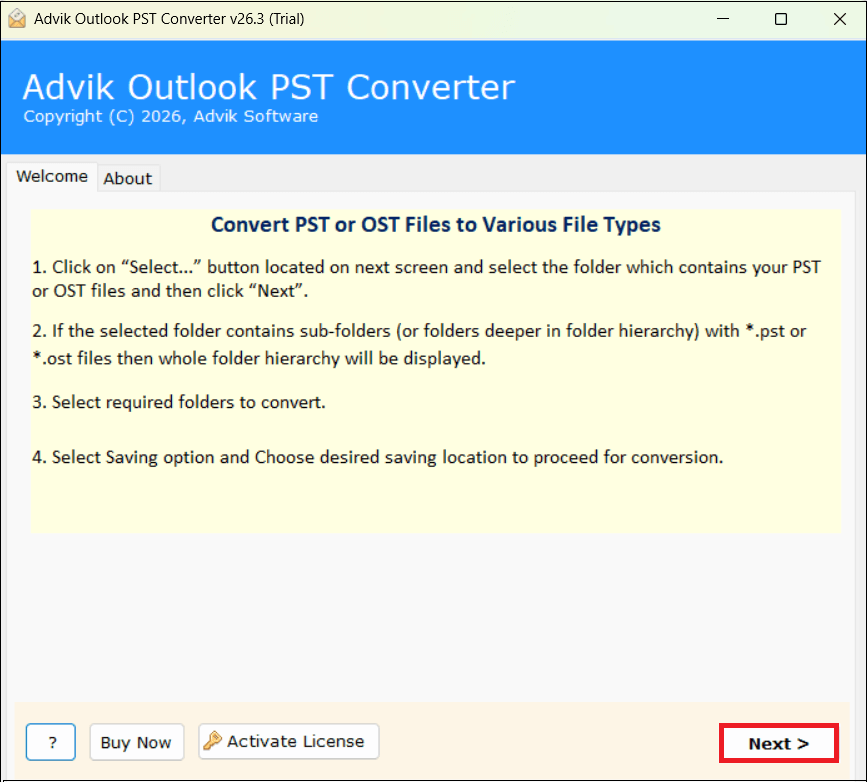
Step 1. Download and launch the PST Attachments Extractor on your Windows computer.
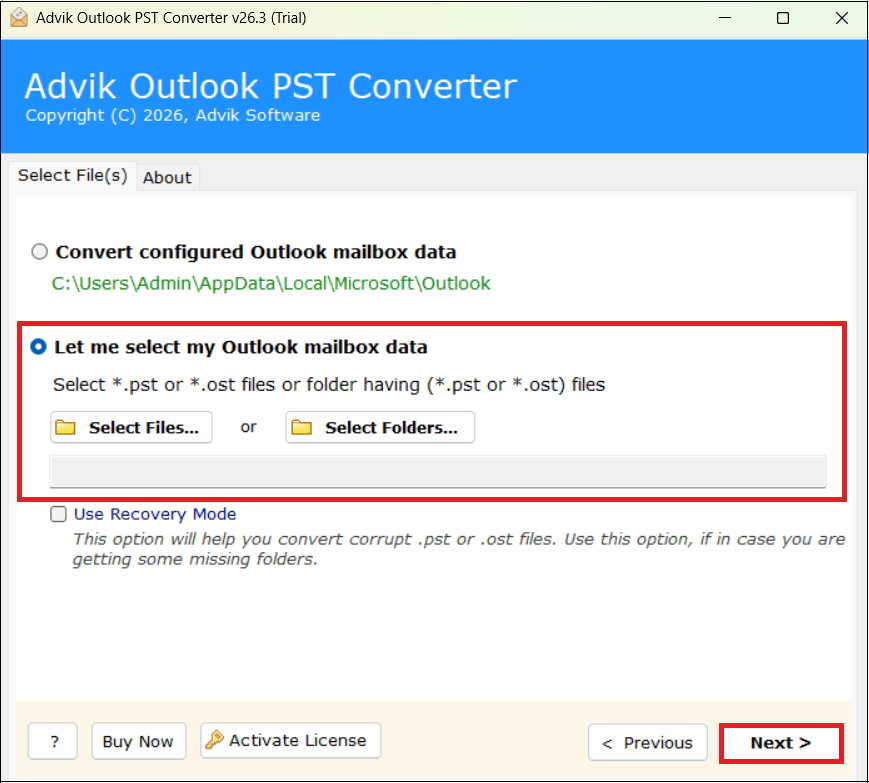
Step 2. Next, click on Select Files or Select Folders to add .pst file into the software panel.
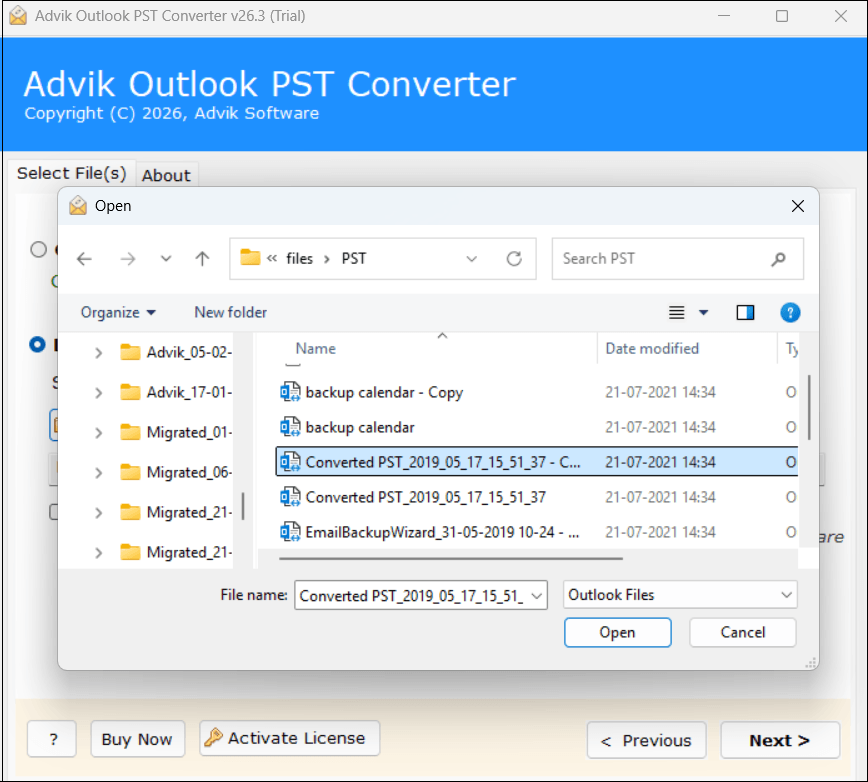
Step 3. Browse and select the PST file from your system.
Step 4. Choose the necessary email folders and click the Next button.
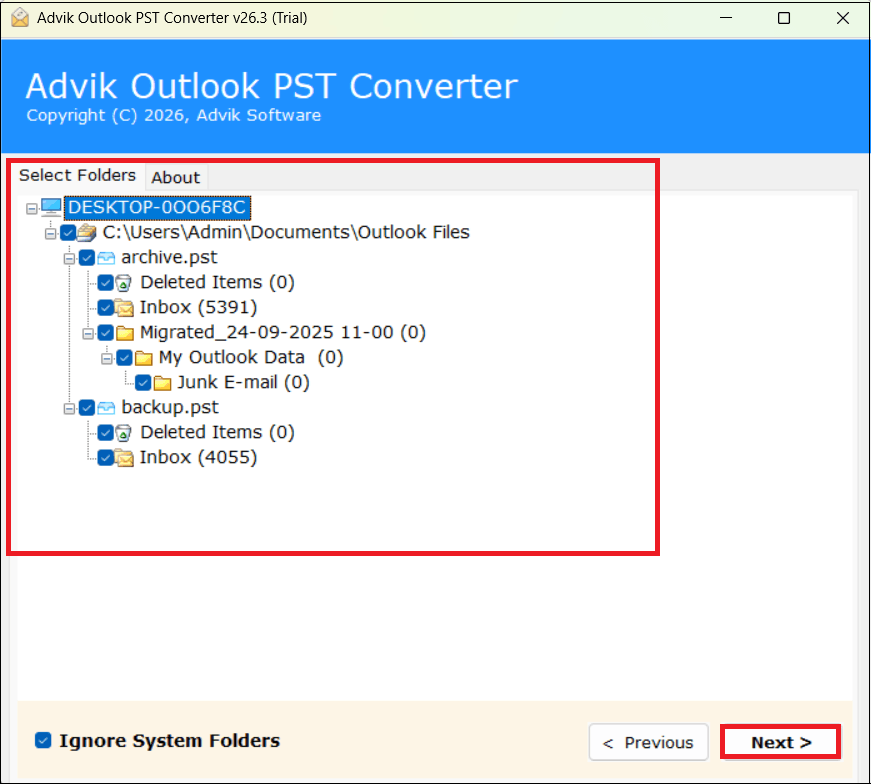
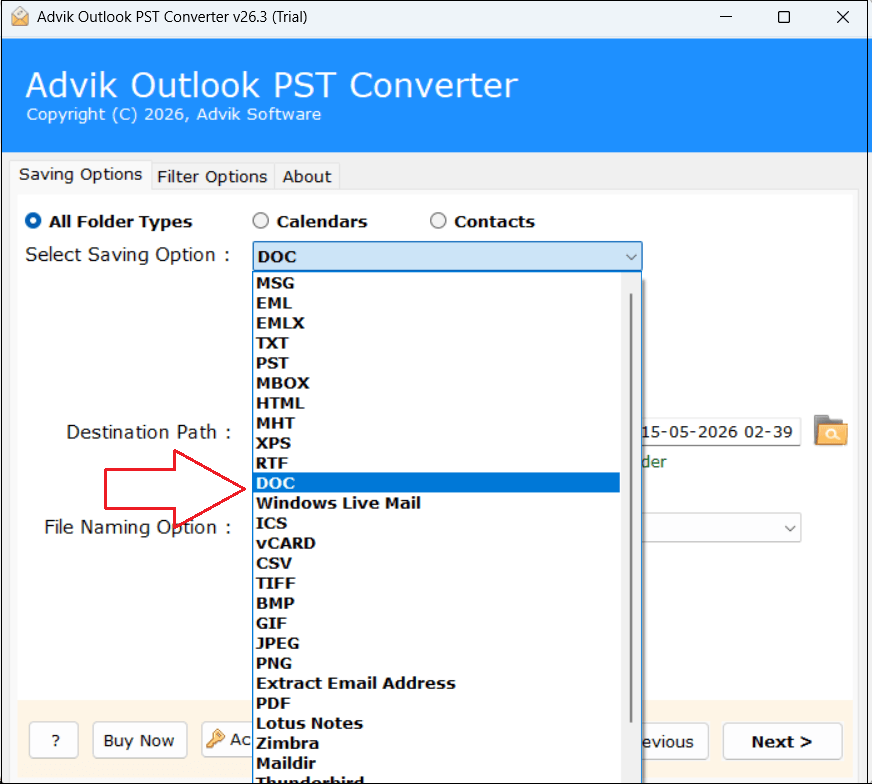
Step 5. Next, in Select Saving Option, choose DOC as a saving option.
Why DOC? This software extracts the email content into DOC format and also saves all the email attachments in a separate folder.
Step 6. Select the folder to save resultant file and press Next button to begin the process.
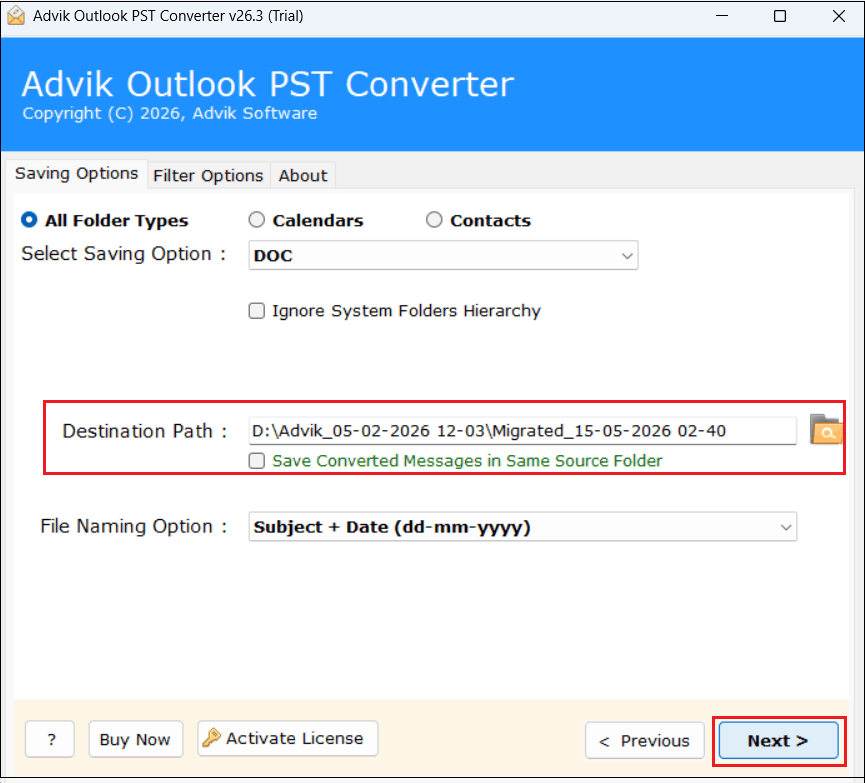
After the process is complete, you will see that the email content of your PST file is exported in DOC files. Attachments are saved separately.
The original PST file is NOT changed during the process.
Key Features Explained with User Benefits
Here, we have explained some helpful features of this tool that will help you to achieve this task in real-life scenarios.
Batch Extract Attachments: The software can extract attachments from multiple PST files in a single steps instead of one email at a time. For example, an IT administrator receives archived mailboxes from a number of ex-employees. With Outlook you will have to open each mailbox separately and to manually save attachments from each email.
Extract Folder Wise: Not every Outlook folder has important attachments. For example, you only want attachments stored in any random email or folder. So, instead of processing the whole mailbox you only want to choose those can choose only the folders that matter.
Selective Attachment Extraction: Sometimes the user does not want all attachments. For instance, such as you have received invoices in last month contracts from a specific client attachments from one department emails sent during an audit period. The software has advanced filters that allow you to choose emails based on criteria such as, subject, date range, from, to etc. This allows you to export only those attachments that are only required.
Keeps attachment properties: When attachments are extracted, users generally want that to be what they were. The software is developed to maintain important properties such as, Original file name, file format, size of the file, contents of internal document. It is helpful when you have to preserve those documents for future reference for legal or compliance reviews.
Supports Large PST Files: In many business environments, PST file size grow large over time. PST files of 10 GB, 20 GB or even more are not very rare. The developer says the software has been tested on large PST files and is designed to work with large mailboxes without the need for users to split them first.
Compatible with ANSI & Unicode PST Files: Microsoft Outlook has had two main PST formats over the years. One is ANSI PST that is supported by legacy versions of Outlook and another one is Unicode PST which comes in newer versions of Outlook. And this solution, supported both the files without any compatibility issue.
Manual Method vs Automated PST Attachment Extractor
| Feature | Manual Outlook Method | Advik PST Converter |
|---|---|---|
| Requires Microsoft Outlook | Yes | No |
| Supports Orphan PST Files | Requires importing first | Yes |
| Extracts Attachments in Bulk | No | Yes |
| Processes Multiple PST Files | No | Yes |
| Folder Selection | Yes | Yes |
| Advanced Email Filters | Limited | Yes |
| Maintains Folder Structure | Manual organization required | Yes |
| Suitable for Large Mailboxes | Time-consuming | Recommended |
| Original PST Remains Unchanged | Yes | Yes |
Concluding Words
Extracting attachments from PST file is not complicated task if you have few attachments to download. The process gets completed when you need to extract multiple attachments. Still, it’s achievable with right approach will depend on your mailbox size and requirements.
If you only need attachments from a few emails, the built-in Save All Attachments feature in Outlook will let you to download attachments from PST file. It is good for small tasks that you can do by hand.
But, if you work with large PST files or you need to extract attachments in bulk, then a dedicated PST attachment extractor provides complete process. It reduces repetitive manual work and allows you to batch process data without any issue.
For more detailed info, compare both methods using comparison table and then decide which works best for you.
Frequently Asked Questions
Q1. Can I download only PDF or Word documents in my attachments?
Ans. No, you can download any attached file to your email. No matter what type of attached file it is, video, music file, image file, document file etc.
Q2. What if my PST file gets corrupted?
Ans. In this case, Outlook may be able to help you open the corrupted PST file and you can’t extract attachment also. If the corruption is minor, you can repair the file by using Microsoft’s Inbox Repair Tool (ScanPST.exe). If you can’t access the PST file, you may have to use specialised PST repair software.
Q3. Is it possible to extract attachments from multiple PST files?
Ans. Manually, it’s not possible to extract attachments from multiple PST files all together. As, PST file is only compatible with Outlook and it processes one mailbox at a time. If you need to process multiple PST files at one time then you will typically need a tool that supports extracting multiple PST files.
Q4. Are inline images extracted as attachments?
Ans. It depends on how the email was created. Files that were attached to the email are generally extracted as attachments. Inline images embedded in the body of the message is treated as a independently and it depends on the email format and the method of extraction.
Q5. Is there a size limit for extracting attachments from PST files?
Ans. There is no hard limit on attachment extraction. However, the time taken depends on the size of PST file, the number of emails, the size of attachments and hardware performance of your computer.