Why Is PST File Not Showing Emails in Outlook? Fix It Now!
Jenny Lowrence | March 24th, 2026 | Outlook Errors
If your PST file not showing emails in Outlook, you’re not alone. Many users encounter this issue while importing or opening PST files. In this article, we’ll explore the common causes and guide you through practical ways to fix Outlook PST file not displaying emails issue.
A PST file is used by MS Outlook to store emails, contacts, calendar events, and other mailbox data locally on the system. If anything happens with your PST file,then you cannot access your data in Outlook. There are many users who reported the error Outlook PST not showing emails. In this post, we will share some troubleshooting steps to solve it.
Why is the PST File Not Showing Emails in Outlook?
Here are some common reasons why Outlook PST file does not show emails:
- If PST file exceeds its size limits, the file gets corrupted and prevents Outlook from displaying emails.
- Improper archiving of PST files can lead to making your email inaccessible.
- Receiving emails from an unauthorized source can corrupt the PST file, preventing emails from being displayed.
- Inappropriate Outlook settings can lead to data visibility issues.
Manual Way to Fix the Outlook PST File Not Showing Emails Issue
In this section, we’ll discuss some manual tricks to resolve PST file not displaying emails. Sometimes, it may happen due to some normal mistakes that can be overcome by doing things the right way. Just go through the methods mentioned below to fix the issue.
#1. Check Outlook View Settings
1. Open MS Outlook on your system.
2. Click on the View tab and select the Change View option.
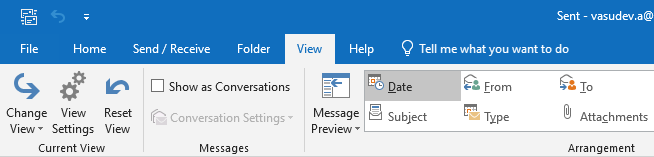
3. Now, click on IMAP Message.
4. Check whether all emails are required to bring back or not.
If yes, then the issue is solved. But if not, then you need to remove the filters.
1. Click on View and choose the Customize Current View.
2. Go to the Filter option and click on Clear All.
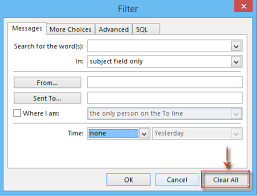
Now, check the Outlook PST file and check whether your emails show up or not. If you do not get your emails, that means PST files are more prone to corruption.
#2. Repair Corrupt Outlook PST File
Microsoft provides a built-in scanpst.exe utility, i.e., Inbox Repair Tool, to repair PST files.
1. Close Outlook and locate ScanPST.exe on your system.
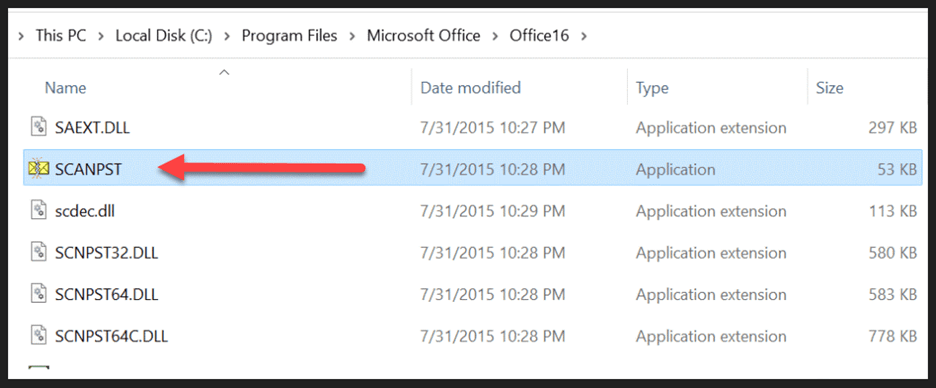
2. Double-click on the Inbox Repair Tool.
3. Click on Browse and select the corrupt PST file.
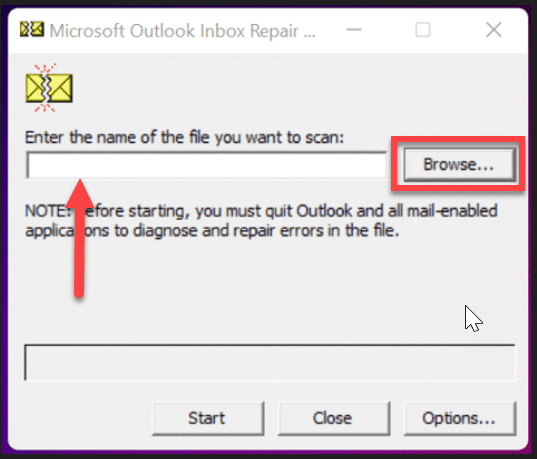
4. Now, click on Start to begin the scanning process.
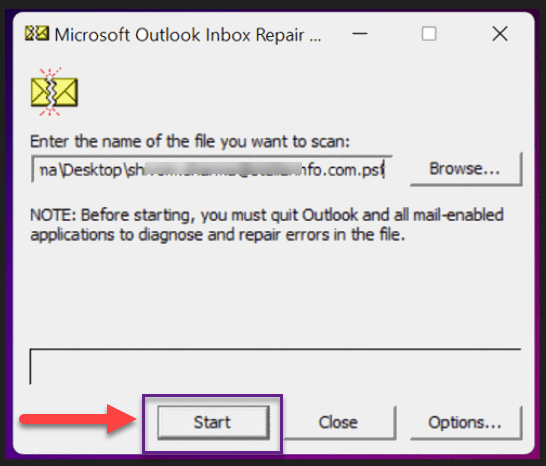
5. If the scan finds errors, click on Repair to fix all the errors.
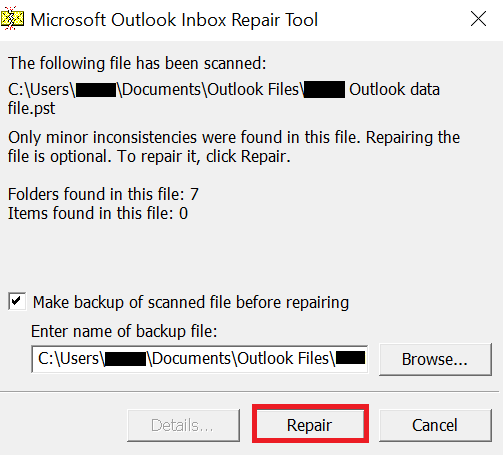
Once the repair is complete, restart Outlook and check if you can see all emails in your PST file.
If your Outlook PST file is still not showing emails after applying the above methods, you can use a third-party tool to resolve the corruption issue.
Automated Tool to Fix PST File Not Showing Emails in Outlook
Advik PST Repair Tool is a secure tool for repairing Outlook PST files. With this tool, you can recover data from inaccessible PST files. It can easily repair a severely corrupted PST file without any size limitation. It works on advanced features that help users to retrieve inaccessible data. It removes all bad sectors of the Outlook data file and creates a new healthy PST file. The tool preserves key elements as they were before the PST files got corrupted.
Click on the below link to download a free demo version to check its efficiency.


Steps to Fix Outlook PST Not Showing Emails
1. Run the tool and add PST file.
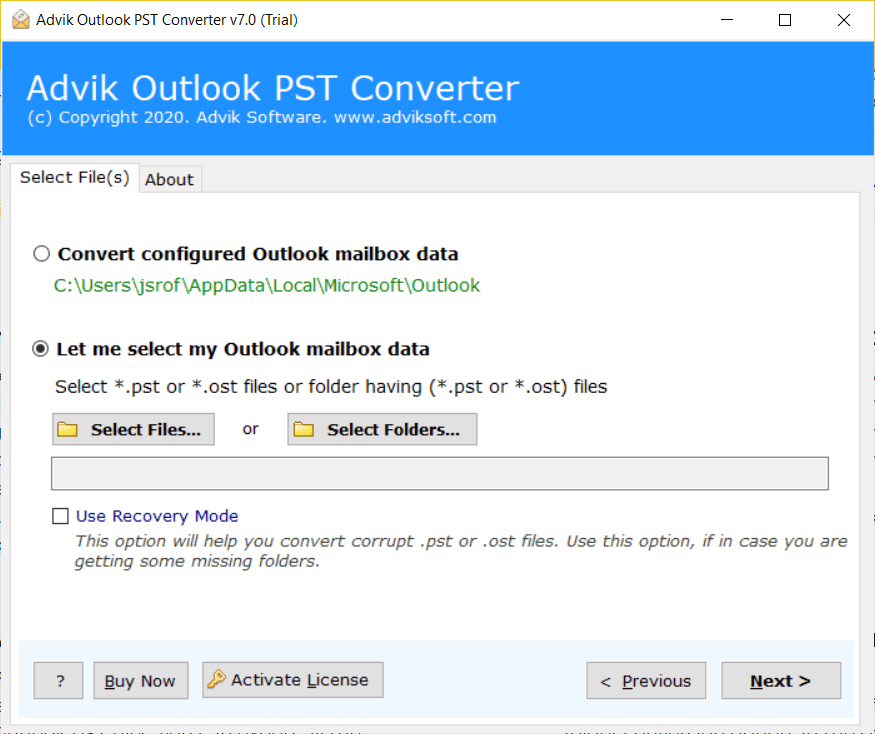
2. Check the Recovery Mode option and click Next.
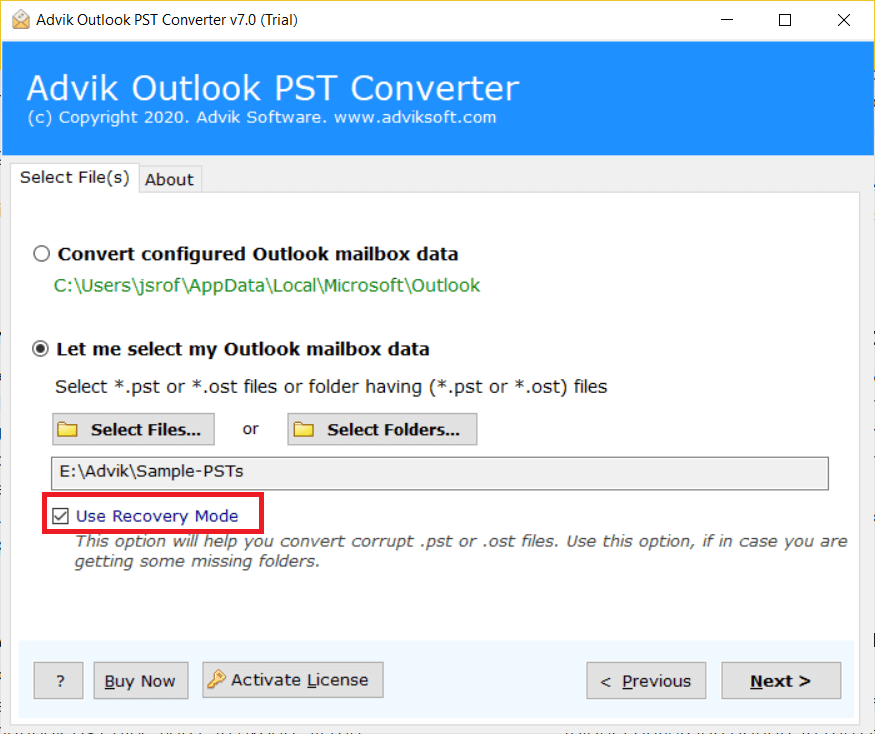
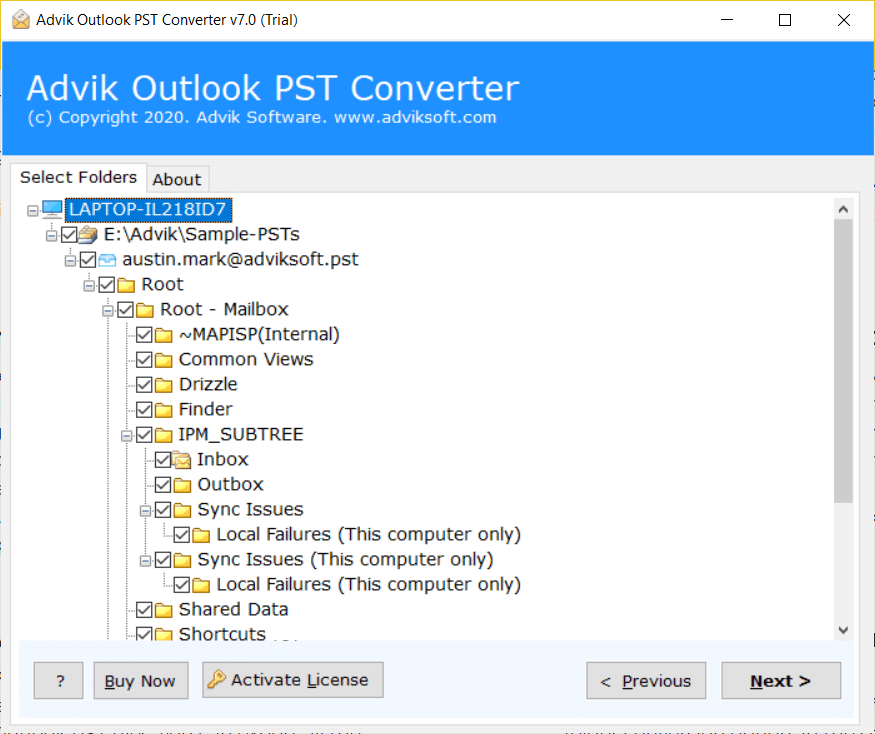
3. Select the mailbox folders & subfolders.
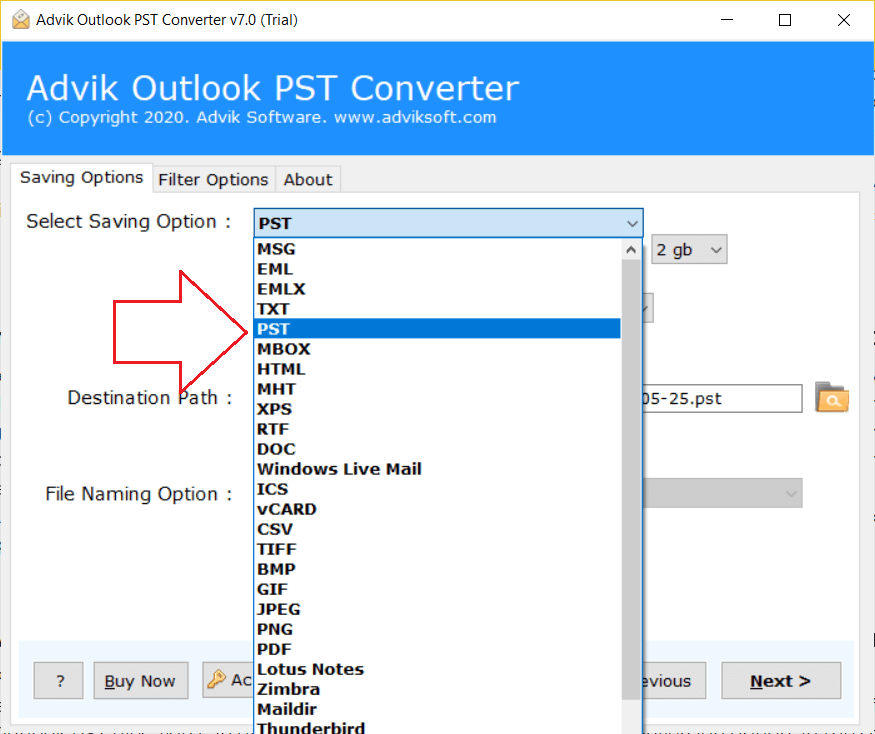
4. Choose PST as a saving option.
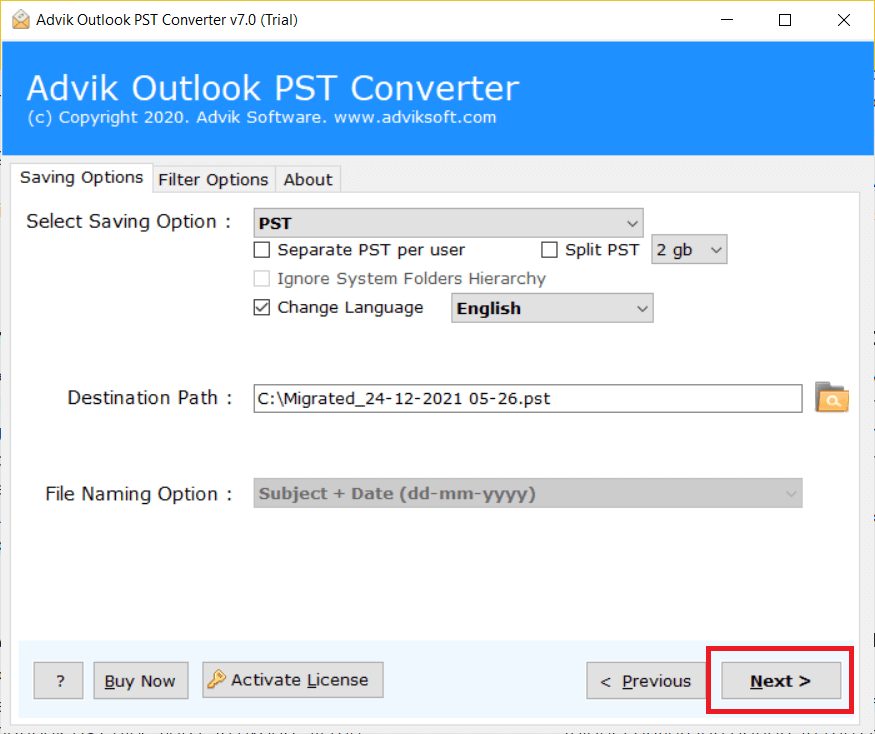
5. Browse target location and click Next.
The software will start recovering data from the damaged PST file.
Conclusion
Many users are reporting an issue that PST file not showing emails in Outlook. In order to resolve Outlook PST file not showing emails error, we have provided some solutions. You can manually fix this issue. However, you can use the above-suggested tool to solve all corruption issues in the Outlook data file.
