How to Recover Deleted Emails from Outlook App?
Deleted an important email from your Outlook app by mistake and also emptied the Deleted items folder? Don’t panic now. Sometimes a message that you think have been permanently deleted may still be recoverable from Outlook’s Recoverable Items area.
The recovery process depends on which version of Outlook you are using and how the message was deleted. In many Microsoft 365 and Exchange environments, admins set the duration for emails so that the deleted items can be recovered. Generally, messages deleted from the Deleted Items folder in Outlook.com can be recover for 30 days.
Table of Contents
- Quick Answer: How to Recover Permanently Deleted Emails in Outlook
- Where Do Permanently Deleted Outlook Emails Go?
- Recover Deleted Emails in the New Outlook App for Windows
- Recover Deleted Emails in Classic Outlook
- Recover Deleted Emails in Outlook on the Web
- Can PST or OST Backups Help Recover Deleted Emails?
- Can Third-Party Software Recover Permanently Deleted Outlook Emails?
- Frequently Asked Questions
- Conclusion
- Launch Outlook and navigate to Deleted Items.
- Choose Recover items deleted from this folder.
- Check the messages in the recovery list.
- Choose the email you wish to restore.
- Lastly, click the Restore button.
This is the recovery path that Microsoft provides in the new Outlook and Outlook on the web (current versions) for messages that have been already deleted from Deleted Items.
Note: “Permanently deleted” doesn’t necessarily mean immediately unrecoverable. However, recovery is limited by the retention period configured for your account or organisation.
Where Do Permanently Deleted Outlook Emails Go?
If you know what happens after you click Delete, Outlook email recovery is much easier.
Deletion generally proceeds in two steps .
Stage 1: Items removed
By default, when you delete an e-mail message, it is moved to the Deleted Items folder.
The message is still there and often can be recovered simply by moving it back to the Inbox or another folder. Microsoft recommends that you check the Deleted Items folder for a missing message.
Stage 2: Items that can be recovered
Empty Deleted Items or Permanently Delete a message can cause the message to move to a hidden Recoverable Items area.
For example, in classic Outlook, if you permanently delete a message using Shift + Delete, empty Deleted Items, or delete an item from Deleted Items, it can end up in Recoverable Items.
That’s why you should check Recoverable Items before concluding an email is permanently gone.
How long can you recover deleted Outlook emails?
The recovery time is not the same for all Outlook accounts.
Microsoft says, for Outlook.com right now:
- Deleted Items are automatically removed after 30 days.
- Deleted Items can be recovered for 30 days.
- Junk Email is also deleted automatically after 30 days.
In classic Outlook, this could be done by Shift + Delete to permanently delete the message, or emptying Deleted Items, or deleting an item from Deleted Items to move it to Recoverable Items.
Method 1: Recover Deleted Emails in the New Outlook App for Windows
If you’re using the new Outlook app for Windows, the recovery interface is different from some older classic Outlook instructions you may find online.
#1. Restore an email from Deleted Items
If the email is still in Deleted Items:
- Open new Outlook for Windows.
- Open the Deleted Items folder.
- Select the email you want to recover.
- Select Move from the Home ribbon.
- Choose Inbox or another folder.
You can also right-click the message and select Restore where available. Microsoft currently documents these options for new Outlook.
#2. Recover an email removed from Deleted Items
If you emptied Deleted Items or permanently deleted the message:
- Open Deleted Items.
- Select Recover items deleted from this folder.
- Find the missing email.
- Select the checkbox beside it.
- Select Restore.
The message will be restored to Deleted Items first, after which you can move it to your Inbox or another folder if necessary.
Can’t find the recovery option?
If these instructions don’t match what you see, check whether you’re actually using classic Outlook rather than new Outlook. Microsoft specifically notes that the recovery interface differs between these versions.
Method 2: Recover Deleted Emails in Outlook on the Web
Outlook on the web and Outlook.com provide another straightforward recovery route.
- Restore an email from Deleted Items
- Sign in to Outlook on the web or Outlook.com.
- Open Deleted Items.
- Select the missing email.
- Select Move.
- Choose Inbox or another folder.
- Recover an email removed from Deleted Items
If the message isn’t there:
- Open Deleted Items.
- Select Recover items deleted from this folder.
- Find the message.
- Select it.
- Select Restore.
Microsoft states that Recoverable Items cannot be accessed through a mobile browser; use a PC or Mac for this recovery process.
Method 3: Recover Deleted Emails in Classic Outlook
Classic Outlook for Windows provides the familiar Recover Deleted Items From Server command for supported accounts.
- If the email is still in Deleted Items
- Open Classic Outlook.
- Select Deleted Items.
- Find the message.
- Right-click it.
- Select Move.
- Choose the Inbox or another destination folder.
- If the email was permanently deleted
If the message is no longer in Deleted Items:
- Make sure Outlook is connected to the mail server.
- Open Deleted Items.
- On the Home tab, select Recover Deleted Items From Server.
- Select the email you want to recover.
- Select Restore Selected Items.
- Select OK.
Microsoft notes that this option is not available for every account type. If you see a Trash folder instead of Deleted Items, or the recovery command is missing, your account may not support this particular server recovery method.
Can PST or OST Backups Help Recover Deleted Emails?
Yes, but only when a usable copy of the message exists in the local Outlook data.
A PST may contain messages that were previously downloaded or exported from Outlook. If the deleted email exists in a backup copy of the PST, you may be able to retrieve it from that copy.
An OST is different. It is primarily a synchronized local cache for supported Exchange/Microsoft 365 accounts, rather than a conventional backup.
Therefore, don’t assume that having an OST automatically means that a permanently deleted cloud message can be recovered from it.
Check for an older PST backup
Look for PST files created before the email disappeared.
Potential locations include:
- Previous computer backups
- Manually exported PST files
- Archived mail
- Old Outlook profiles
- Backup drives
- Cloud backup systems
If you have an important PST but Outlook cannot open or process it normally, specialized PST recovery or conversion software may be useful for local data-file problems.
Can Third-Party Software Recover Permanently Deleted Emails in Outlook?
If the deleted email is no longer available through Outlook’s built-in Recover items deleted from this folder option, you may still have another recovery route when the email exists in a local Outlook data file such as a PST or OST.
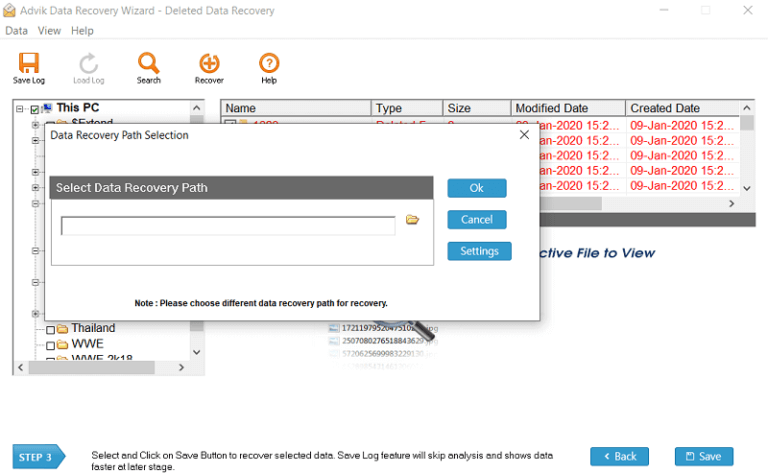
For this situation, Advik Data Recovery Software can be used to scan the computer’s storage drive for deleted Outlook data files, such as PST or OST files. If the deleted email data still exists within a recoverable file or deleted data on the drive, the software can recover that data.

How to Recover Permanently Deleted Outlook Emails Using Advik Software
Step 1. Download and install Advik Data Recovery Software on your Windows computer.
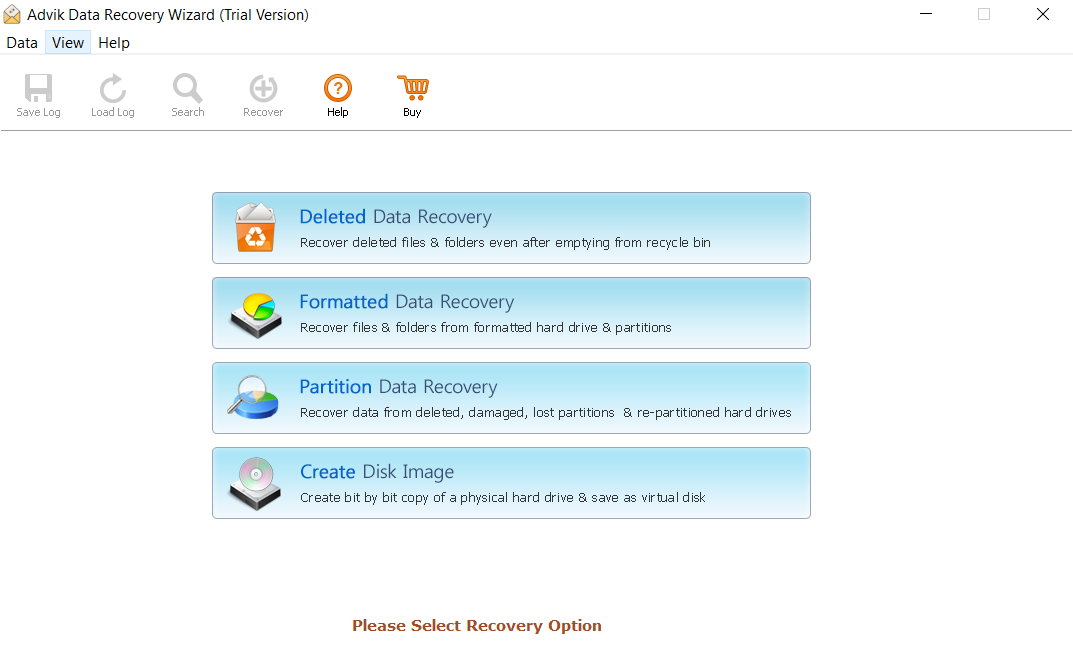
Step 2. Launch the software and select the appropriate recovery option.
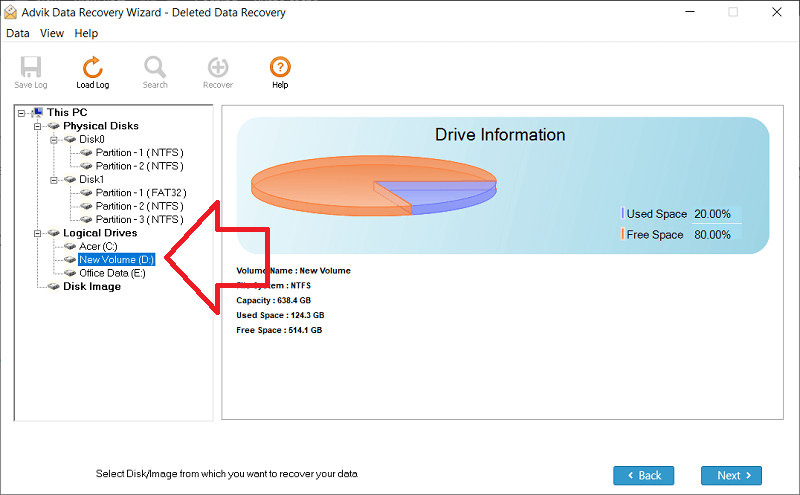
Step 3. Select the drive or storage location where the Outlook data file was located.
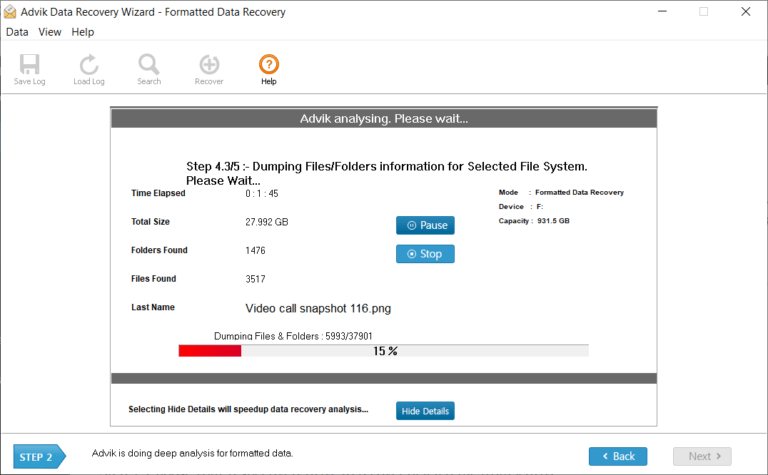
Step 4. Start the scan to search the selected storage for deleted or lost Outlook data files.
Step 5. Preview the scan results and search for the recovered Outlook data.
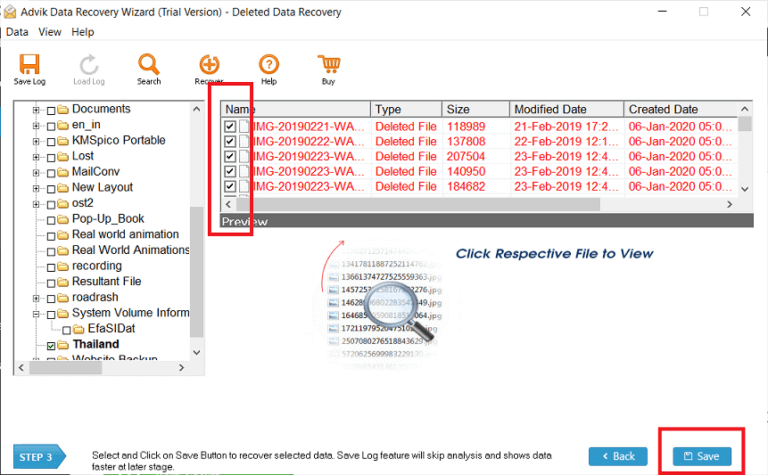
Step 6. Select the required Outlook file and click Save to restore it to another location.
When Should You Use Data Recovery Software?
Third-party recovery software is most useful when the problem involves local Outlook data, rather than an email that Microsoft has already permanently purged from its cloud servers.
For example, it can be worth trying when:
- The Outlook PST file is corrupted or inaccessible.
- Deleted emails are present in an available PST or OST copy.
- Outlook cannot open or properly process the data file.
- You have an older Outlook data-file copy containing the missing messages.
Conclusion
If you are assuming that Outlook emails are permanently deleted without any prior research then begin with Deleted Items first. If you don’t see the message, use Recover items deleted from this folder in new Outlook or Outlook on the web. For Classic Outlook users with supported accounts, look for Recover Deleted Items From Server. If the message is outside the normal recovery window, check the retention policies of your Microsoft 365 administrator, and look for PST or other backups.
The most important distinction is simple:
If the email is still in the cloud it can usually be recovered via Outlook or administrator controls. If a message has been permanently deleted from the cloud then you generally need to have an independent backup or saved copy. That’s why backup of email is ultimately the best source to restore deleted items.