How to Recover Permanently Deleted Files from Secure folder?
Everyone has at some point, accidentally deleted their important files. Photos of family, office documents, videos, PDFs or even confidential files. These are recoverable through any backup copy or recycle bin. However, it becomes more worsen when it is deleted from the secure folder. Losing them can be frustrating especially when you have tried all the manual tricks to recover it.
Many users think that when a file is deleted permanently, it is gone forever and we can’t get them back. Fortunately, that’s not always true. In many cases when files are deleted they still exist on the storage device until new data overwrites them. Which means that if you timely choose the right method and implement it then you may still have a chance of recovery.
But the recovery of files from a secure folder is a bit different than the recovery of normal deleted files. It’s so because Secure Folder protects your private data using encryption and additional security features. So, the process of recovery depends on several factors, such as it includes location of the files, the presence of cloud backups, and if the deleted space has been overwritten.
A Real User Question About Recovering Secure Folder Photos
During our research on this topic we found a frequently asked question posted by a user on a Samsung community forum.
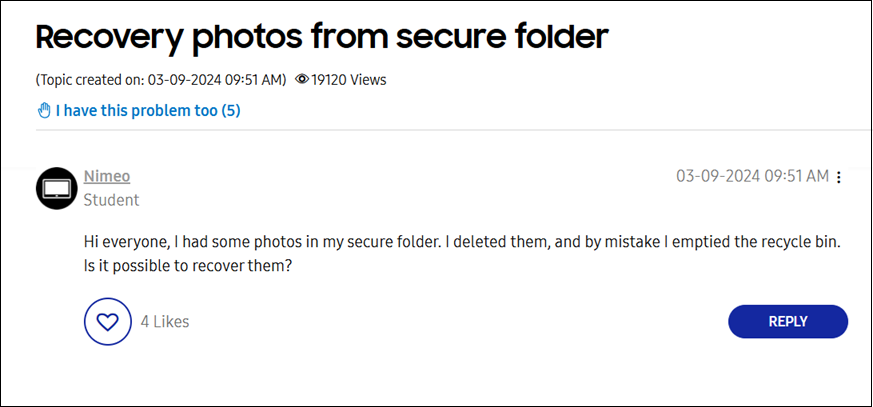
This is one of the most common questions people ask after accidentally deleting personal files.
If you have a similar problem, don’t panic.
The answer depends on many things.
For example:
- Did you back the files up to Google Drive or Onedrive?
- Does the Secure Folder sync with another device?
- Have the new files already been saved after deletion?
- Is the storage encrypted?
- Was the storage space erased?
The good news is that many files that have been permanently deleted can still be recovered if you attempt recovery before they are overwritten with new data.
What is a Secure Folder?
But before you try to restore your deleted files from secure folder, you have to understand how this secure folder works.
Secure Folder is a private place in your system where you can save your personal files separately. It’s also available popularly on Samsung Galaxy devices with Samsung Knox security technology.
Unlike a normal folder, it encrypts the data stored in it. That means an extra layer of security protects your photos, videos, documents, apps and other files. Your phone is secured and even if someone gets into it, they won’t be able to open the Secure Folder without authentication.
People often use Secure Folder to store:
- Personal photographs
- Video Private
- Confidential papers
- Office papers
- Password protected information
- Accounts
- Identity documents
Because these files are encrypted, recovering them is more challenging than recovering ordinary deleted files.
Can I Restore Permanently Deleted Files from Secure Folder?
Yes, but it’s not necessary.
Many experts believe that if you have deleted the file permanently then there is a high chances that it has destroyed the real file.
That’s not how modern storage devices always behave.
When you delete a file then the operating system generally deletes the reference of that file (not the stored data) and marks the space as available for new data.
The storage space is simply called “available” but still the actual file data often remains.
The deleted file can still be found and reconstructed by recovery software until that location is overwritten by new information.
Imagine taking a chapter out of a book.
The table of contents doesn’t rip the pages out, it just takes out its entry. The pages are still there until someone writes over them with new content. Deleted files in your system works in a similar situation.
Now that you understand how secure folder works and what happens after permanent deletion, the next step is to choose the right recovery solution.
In the next section, we’ll guide you through all available recovery methods. Along with that, we will also explain the advantages, limitations and success rate of each method so you can choose the right option as per your situation.
Before You Try Any Recovery Method
Many users don’t know the prior steps they need to take to avoid any data loss issues and unknowingly they reduce their recovery chances.
First thing you need to do when you realize your files have been deleted, follow these steps;
- Stop Using the Device
- Check Available Backup Options
- Don’t Save Recovered Files to the Same Drive
Methods to Restore Files from Secure Folder
In this section, we’ll go through all the available practical methods and we will discuss when it works, it’s usage in different scenarios so you can pick the right approach.
Method 1. How to Restore Permanently Deleted Files from Recycle Bin
Best for: Recently deleted files
Success Rate: High (if the files haven’t been permanently removed)
The first place to look is the Recycle Bin. When you delete a file, Windows moves it to this location temporarily instead of deleting it immediately. If your Secure Folder files were on a Windows drive and were deleted normally, they might still be available.
Steps to Restore Files from Recycle Bin
- If you recently deleted your Secure Folder.
- Open and check your Recycle Bin folder first.
- When you delete your files, they generally move to the recycle bin. Even secure files can end up in the recycle bin.
- Open the Recycle Bin, find your deleted files, and restore them.
Method 2. How to Restore Files from Cloud
If you use cloud services like Google Drive and OneDrive, they most likely back up your files automatically.
They usually store deleted files for a certain period so you can recover them.
Here are some test methods that explain how you can test your cloud backup:
For Google Drive –
Go to the Trash section within Google Drive.
You can restore files in Trash if you haven’t permanently deleted them after 30 days.
For OneDrive –
Open your OneDrive account, go to Recycle Bin, and restore the files.
The cloud backup saves you time if it syncs the deleted files to the cloud.
Important Note: Files usually remain in Google Drive Trash for about 30 days before being permanently removed. After this period, recovery becomes much more difficult.
For more reference: https://knowledge.workspace.google.com/admin/drive/recover-deleted-files-and-folders-for-drive-users
Why Manual Recovery doesn’t Always Work?
Manual methods are the safest methods but there are some limitations.
They will work only:
- There is already a backup.
- The file you deleted is still in the Recycle Bin.
- Cloud sync is turned on.
If none of these conditions are met, Windows doesn’t have a copy to restore.
For example, consider the forum question we discussed above:
“I had a few pictures in my Secure Folder. I deleted them and accidentally deleted my recycle bin. Can you bring them back?”
If there is no cloud backup and you have already emptied the Recycle Bin, the above manual methods will probably not help.
In such cases, your best option is to use a professional data recovery tool that scans the storage device directly for recoverable data.
Method 3. How to Recover Deleted Photos from Secure Folder without Backup
Now, we are already familiar with the manual methods for recovering permanently deleted files from the Secure Folder. However, these manual methods have some disadvantages that further increase the likelihood of permanent data loss. To overcome all these challenges, you can use a professional tool like Advik Data Recovery. This wizard is specifically designed to recover permanently deleted files from secure folders on formatted devices. The software’s scan function thoroughly searches folders on drive and provides a preview of the files. You can then easily select and recover them.
Click the “Free Download” button below and check how it works.


Steps to Recover Permanently Deleted Files from Secure Folder Professionally
- Open and select the deleted data recovery option.
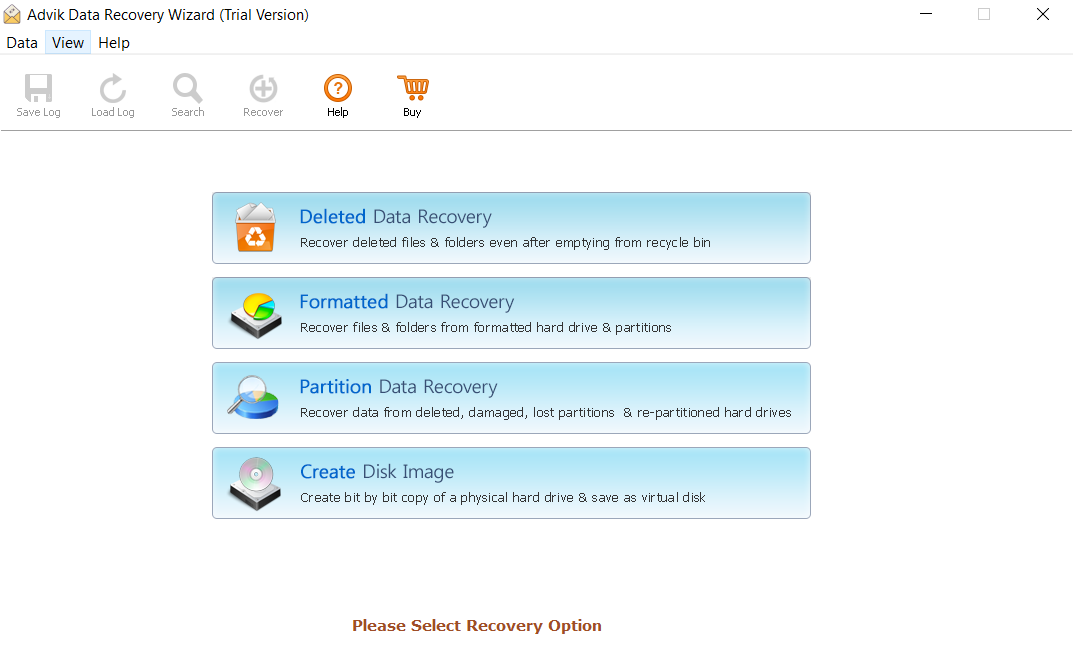
- Select the drive to recover your deleted secure folder files and click Next.
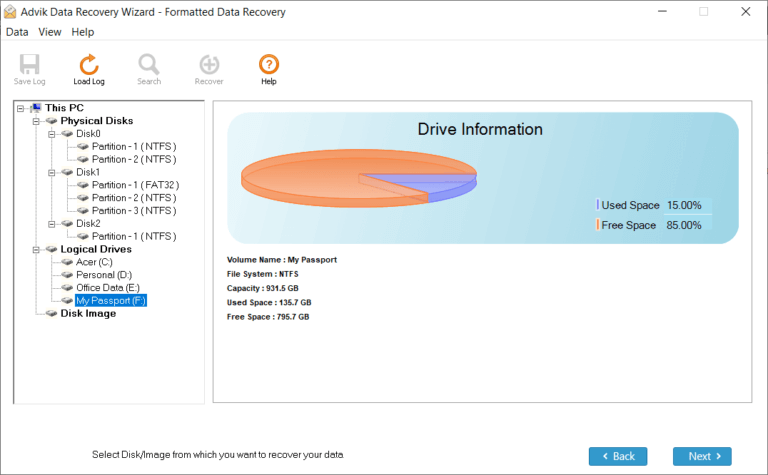
- The tool scans the drive and displays deleted folders.
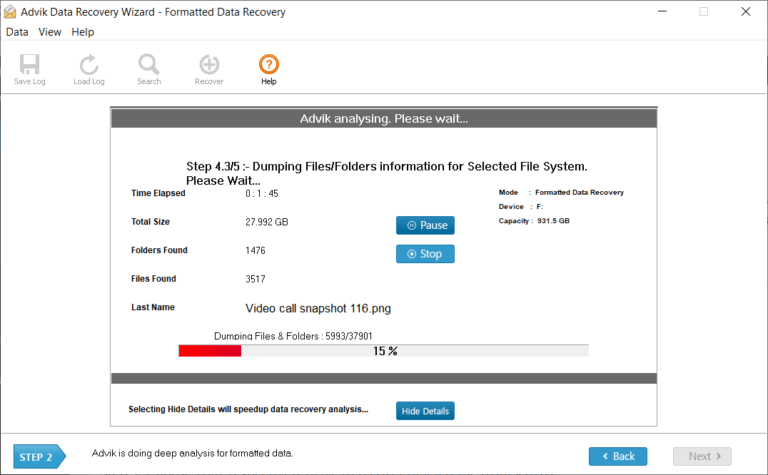
- Select the secure folder you want to restore.
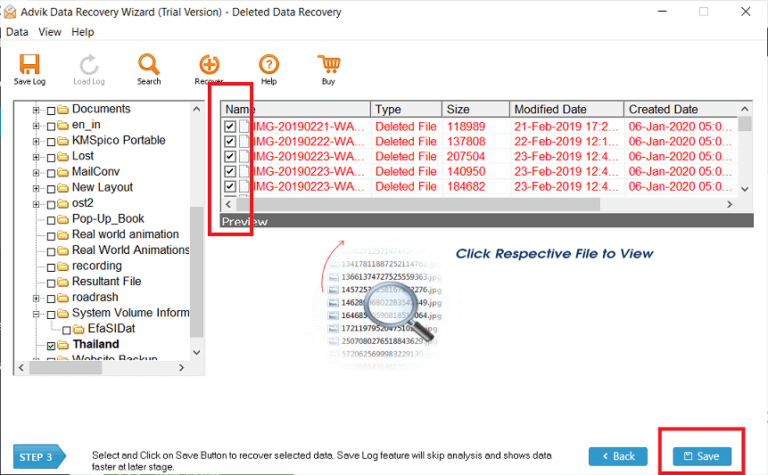
- Select a safe storage location for your recovered deleted files and press OK.
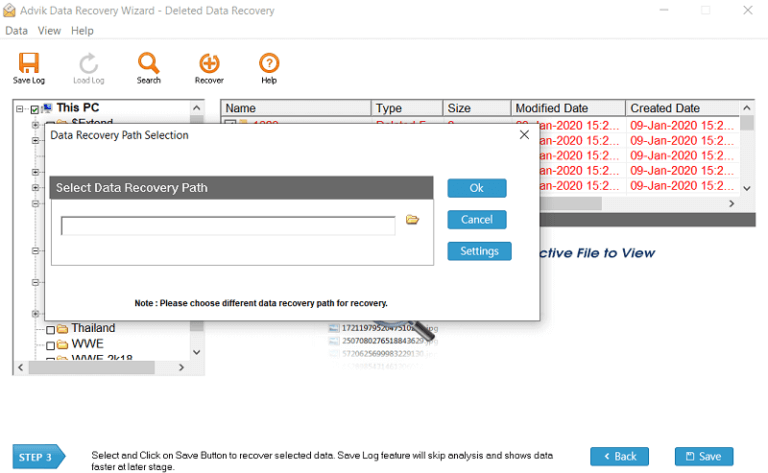
Done! The steps above will guide you to recover permanently deleted files from secure folder of your device.
When to Use Professional Recovery Software?
Consider professional recovery software when you have;
- Emptied Recycle Bin
- There is no cloud backup.
- Windows Backup is not supported.
- File History never started.
- Drive formatted Accidentally
- Deleted key business files.
- There are no longer any family photos or videos.
- You need to recover files from a drive that is damaged or unreadable.
Final Thoughts
In this blog post, we explained how to manually recover permanently deleted files from secure folder, with step by step method. Manual methods are often successful, but only work if the file is in the Recycle Bin or has been backed up to the drive. However, these methods are not always successful. Otherwise, you can recover your files quickly and easily.