How to Repair Corrupt Thunderbird Profile?
Undoubtedly, Thunderbird is a top choice to manage emails as it’s an open source email client. However, sometimes users faces issues when Thunderbird profile corrupted. It can happen if it suddenly refuses to open, crashes on startup, shows some profile errors or missing emails etc. So, if your Thunderbird profile got corrupted due to any reasons, don’t panic. The process is simple and need some attention towards it.
In this guide, i will explain about why Thunderbird profiles get corrupt, how to identify profile issues and the best way to fix the corrupt Thunderbird profile without losing your mailbox data.
Before moving ahead, let’s first understand what your Thunderbird profile actually consists.
What is a Thunderbird Profile?
A Thunderbird profile is a folder where it stores all your personal email data and settings such as that it includes the following items;
- Email messages
- Account setting
- Address book
- Password
- Calendar information
- Local folders
- Extensions & Add-ons
Application settings
Whenever you start Thunderbird, it loads information from the profile folder. If profile files get damaged, Thunderbird may not start correctly or function properly.
Real Thunderbird Profile Corruption Scenario
While testing Thunderbird troubleshooting methods, I came across a scenario where Thunderbird was abruptly closed while syncing mailbox. After restarting the application several folders it didn’t load and Thunderbird gave startup errors.
In another case, a mailbox with years of emails was inaccessible because Windows was abruptly shut down. The profile was there but Thunderbird wasn’t able to load it properly.
In both cases, access to the emails was successfully restored by creating a new profile and transferring the mailbox data.
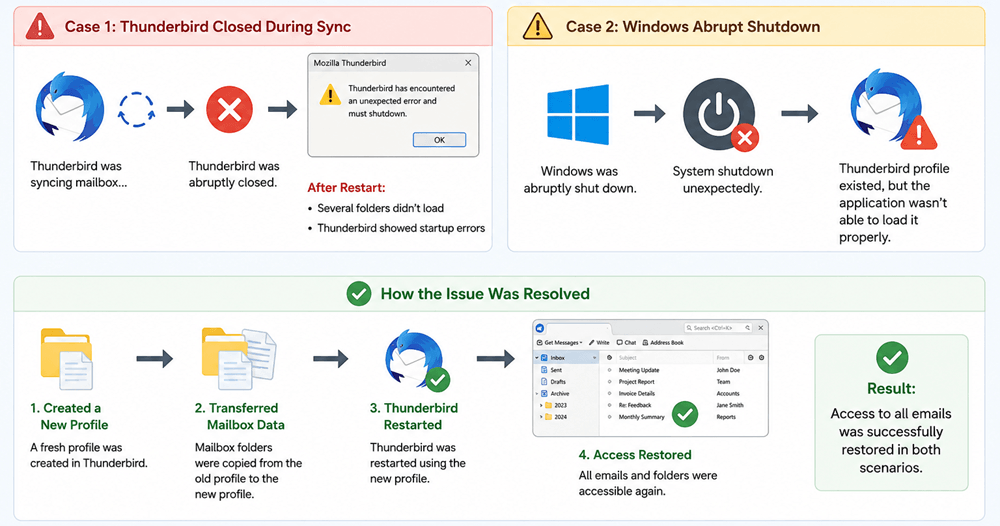
The examples above show that a corrupted profile can often be recovered if the correct repair procedure is followed.
Common Signs of a Corrupted Thunderbird Profile
The following symptoms can be indication that your Thunderbird profile has been corrupted;
- Thunderbird opens and then crashes immediately.
- Cannot load Thunderbird profile.
- Missing email or folders.
- Mailbox folders are empty.
- email counts are wrong.
- Thunderbird freezes constantly.
- Settings disappear instantly.
- Add-ons suddenly stop working.
- Folders are opening with error messages.
If you see one or more of these problems, your next step should be to fix the profile.
Why Thunderbird Profile Gets Corrupted?
There are a number of reasons that can corrupt Thunderbird profile files.
System Shutdown Errors: Thunderbird can be interrupted while writing data to profile files , e . g . by unexpected power failures or forced shutdowns.
Big Post Boxes: When you have large mailboxes with thousands of emails and attachments, chances of profile corruption may be higher.
Corrupted Folder Index File(s): Thunderbird indexes mailbox folders with MSF files. If these files get corrupted , e-mails can disappear or folders can display incorrect information .
Troublesome Add-ons: Outdated or irrelevant extensions can cause issues in Thunderbird working and corrupt profile settings.
Antivirus Interference: Some antivirus will aggressively scan Thunderbird profile folders and lock files while Thunderbird is running.
Hard drive Errors: The Thunderbird Profile data which is stored on your system drive can also corrupt by bad sectors or disc corruption issues.
How to Repair Corrupt Thunderbird Profile in Windows 10/11?
Find out the 5 most successful methods for repairing Thunderbird database. Follow them carefully to get the desired results.
1. Backup Your Profile
Before making any changes, it’s crucial to backup your Thunderbird profile. This ensures you have a copy of your data in case anything goes wrong during the repair process.
Step 1. Close Thunderbird.
Step 2. Locate your profile folder. On Windows, it’s usually found at
C:\Users\<YourUsername>\AppData\Roaming\Thunderbird\Profiles\.
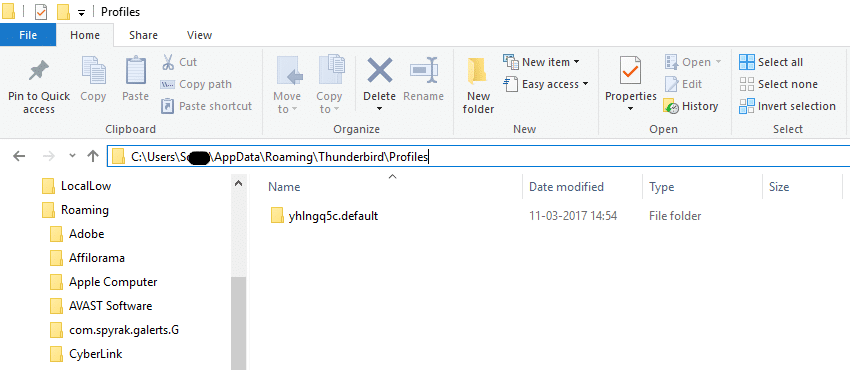
Step 3. Copy the entire profile folder to a safe location.
2. Use Thunderbird’s Built-in Profile Manager
Thunderbird comes with a built-in profile manager that can help you repair profiles.
Step 1. Open the Run dialog by pressing Win + R.
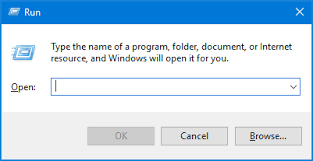
Step 2. Type thunderbird.exe -p and press Enter. This opens the Profile Manager.
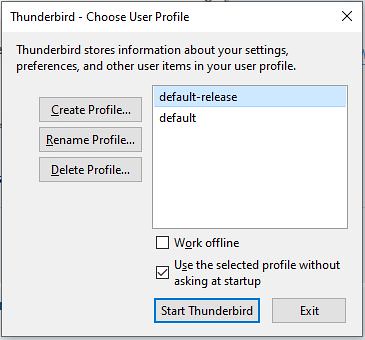
Step 3. Select the corrupted profile and click Rename. Give it a new name.
Step 4. Click Create Profile and follow the prompts to create a new profile.
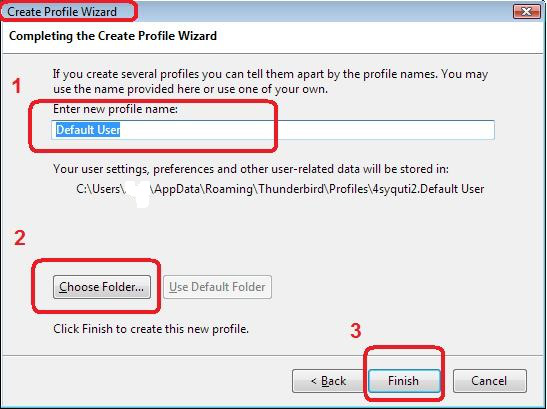
Copy the essential data from the old profile to the new one. This includes folders like Mail, ImapMail, and popstate.dat.
3. Check for Add-ons and Extensions
Step 1. Problematic add-ons or extensions can sometimes cause corruption.
Step 2. Open Thunderbird in Safe Mode by holding Shift while starting the application.
Step 3. If Thunderbird works fine in Safe Mode, the issue is likely due to an add-on.
Step 4. Disable all add-ons and extensions, then enable them one by one to identify the culprit.
4. Repair Thunderbird Profile Folders
- Thunderbird has a built-in tool to repair individual folders.
- Right-click on the folder showing issues.
- Select Properties.
- Click on Repair Folder and let Thunderbird complete the process.
5. Reinstall the App to Repair Thunderbird Profile
If none of the above steps work, try to uninstall Thunderbird from your system. Download the latest version from the official Thunderbird website. Install the new version and set up your profile again.
How to Prevent Future Thunderbird Profile Corruption?
To minimize the risk of profile corruption, consider these tips:
- Regularly backup Thunderbird profile.
- Ensure Thunderbird is properly closed before shutting down your computer.
- Keep Thunderbird and all add-ons updated to the latest versions.
- Use antivirus software to protect against malware.
- Remove irrelevant add-ons from time to time.
Conclusion
The procedure to repair corrupt Thunderbird profile is straightforward with the knowledge of the right solutions. To help you out of this issue, we have explained various tried and tested ways. Read each solution carefully to know which works best for you.
Frequently Asked Questions
Q 1. Why does Thunderbird corrupt frequently?
Ans. Thunderbird may become corrupted due to problematic add-ons, outdated versions, or conflicts with antivirus software.
Q 2. How to fix a corrupted Thunderbird?
A. To fix a corrupted Thunderbird follow the steps below:
- Open Thunderbird and go to the Help menu.
- Select Troubleshooting Information.
- Click on Open Folder next to Profile Folder.
- Close Thunderbird.
It will repair Thunderbird database profile and fix the corruption.
Q 2. Why can’t my Thunderbird profile be located?
A. Your Thunderbird profile might not be located in the profile folder and may have been moved or deleted. Also, there might be a permission issue that prevents you from accessing the folder.
Q 3. How to restore a Thunderbird profile?
A. This can be done through the following steps.
- First, Close Thunderbird.
- Find your profile backup folder.
- Copy the backup folder.
- Open Thunderbird’s profile folder.
- Then, click Help >> Troubleshooting Information >> Open Folder.
- Paste the backup folder into the profile folder location.
- Edit the profile file to point to the restored profile.