Import Export Greyed Out in Outlook – Fixed
Christopher Plummer | April 8th, 2026 | Outlook
Microsoft Outlook is a robust and feature-rich email client trusted by millions of users. Despite its many advantages, users may occasionally encounter technical issues. One of the most common and frustrating issues users face is the “Outlook Import Export Greyed Out”. This issue prevents users from importing and exporting data, which can severely disrupt workflow and data migration processes.
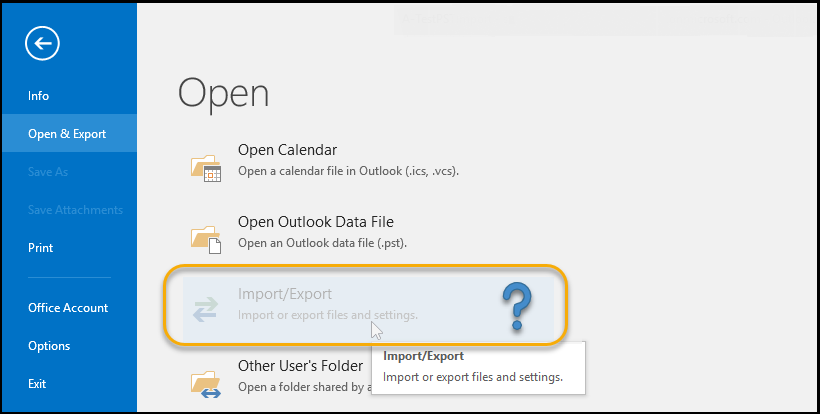
If you are also facing the same problem, then do not panic, this post will help you. In this write-up, we will discuss the reasons behind this issue and solutions to fix it. Continue reading and enable Outlook import export option.
Table of Contents
- Part 1. Why Import Export Greyed Out in Outlook?
- Part 2. Top Ways to Fix Import Export Option is Not Working in Outlook
- 1. Buy Licensed Version of Outlook
- 2. Switch Back to Outlook Classic
- 3. Adjust Language Settings in Outlook
- 4. Ask Your Admin to Enable Import/Export Option
- 5. Repair Outlook Profile
- Part 3. Alternative Way to Export Outlook Data
- Part 4. Video Tutorial to Fix Outlook Import Export Greyed Out
- Part 5. Conclusion
- Part 6. FAQs
Why is Import Export Greyed Out in Outlook?
There can be various reasons for facing the Outlook import export not working issue. Some of them include:
- If you are using New Outlook, which does not support import/export functionality yet.
- A corrupted Outlook profile can disable certain features, including import export.
- The Outlook import/export option may have been disabled by administratir.
- In the trial version of Microsoft Outlook, the import export option is unavailable.
- If the language setting for non-Unicode programs in Windows does not match the language used by Outlook.
- Some add-ins might disable the import/export option in Outlook
How to Fix Outlook Import Export Option Greyed Out Issue?
Here are several ways to solve the greyed-out issue with the Outlook Import/Export option. Let’s discuss all of them in detail:
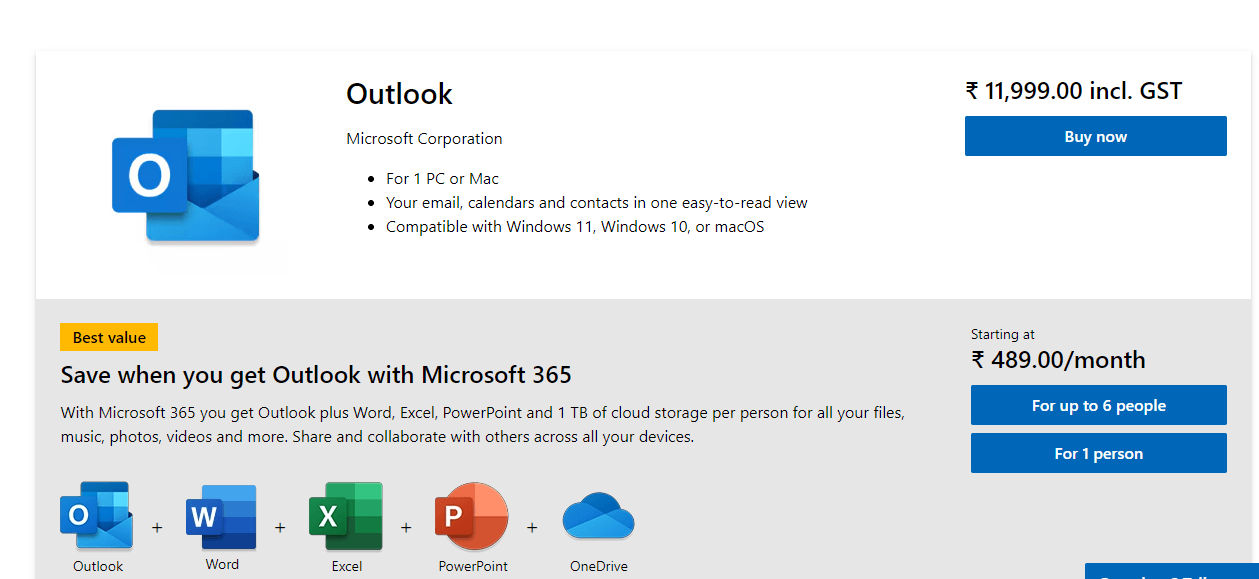
1. Purchase a Licensed Version of Outlook
The trial version of Outlook comes with limited functionality. If you are using the trial version, then you need to purchase the licensed version of Microsoft Outlook to get rid of this issue.
2. Switch Back to Outlook Classic
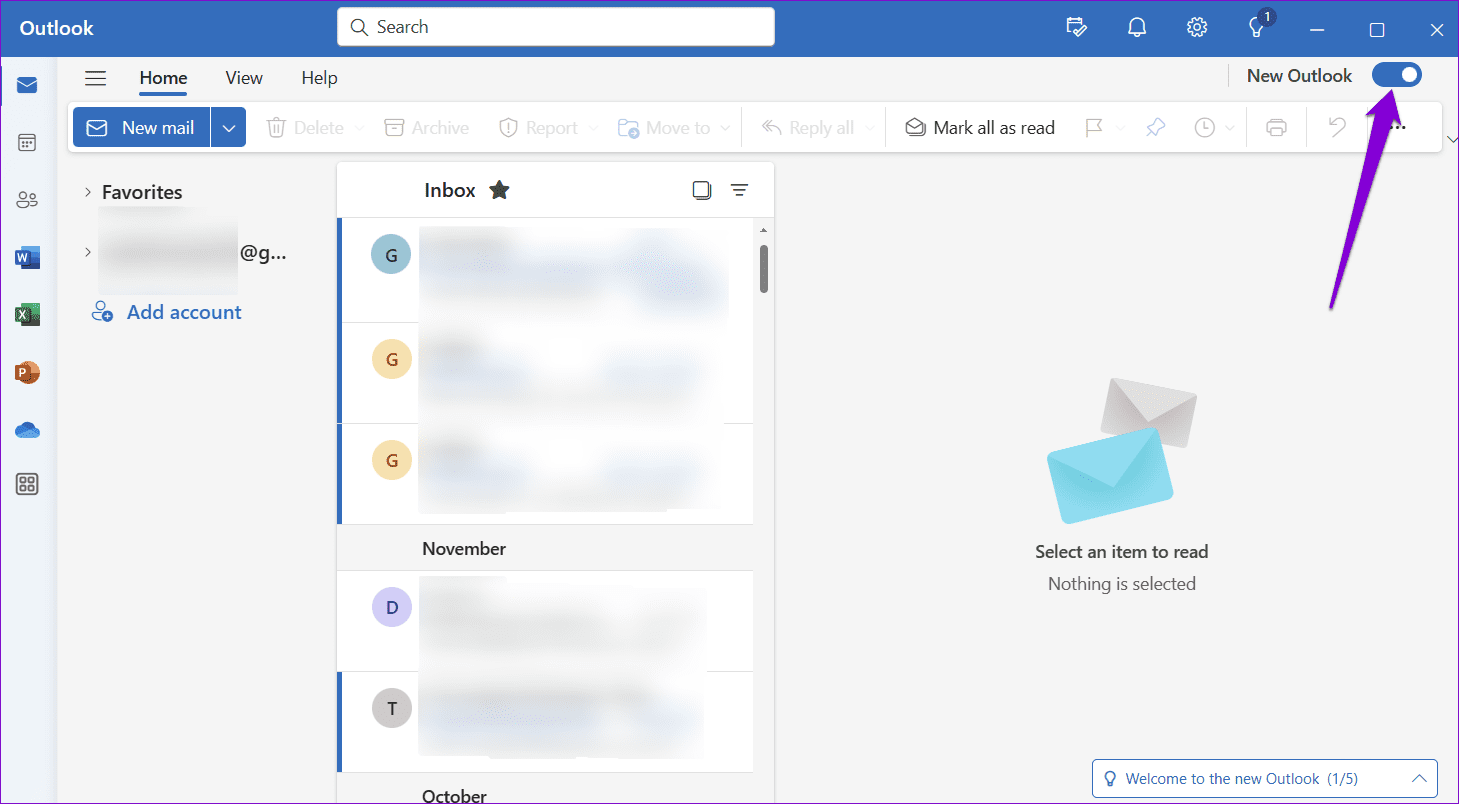
The New version of Outlook does not support import/export. To fix it, you can switch back to the classic version. Follow these steps:
1. Open Outlook on your system.
2. In the top right corner of the window, locate the toggle labeled New Outlook.
3. Click on the toggle to switch it off.
4. A pop-up will appear asking for feedback on the New Outlook. Either fill in or click on Skip feedback.
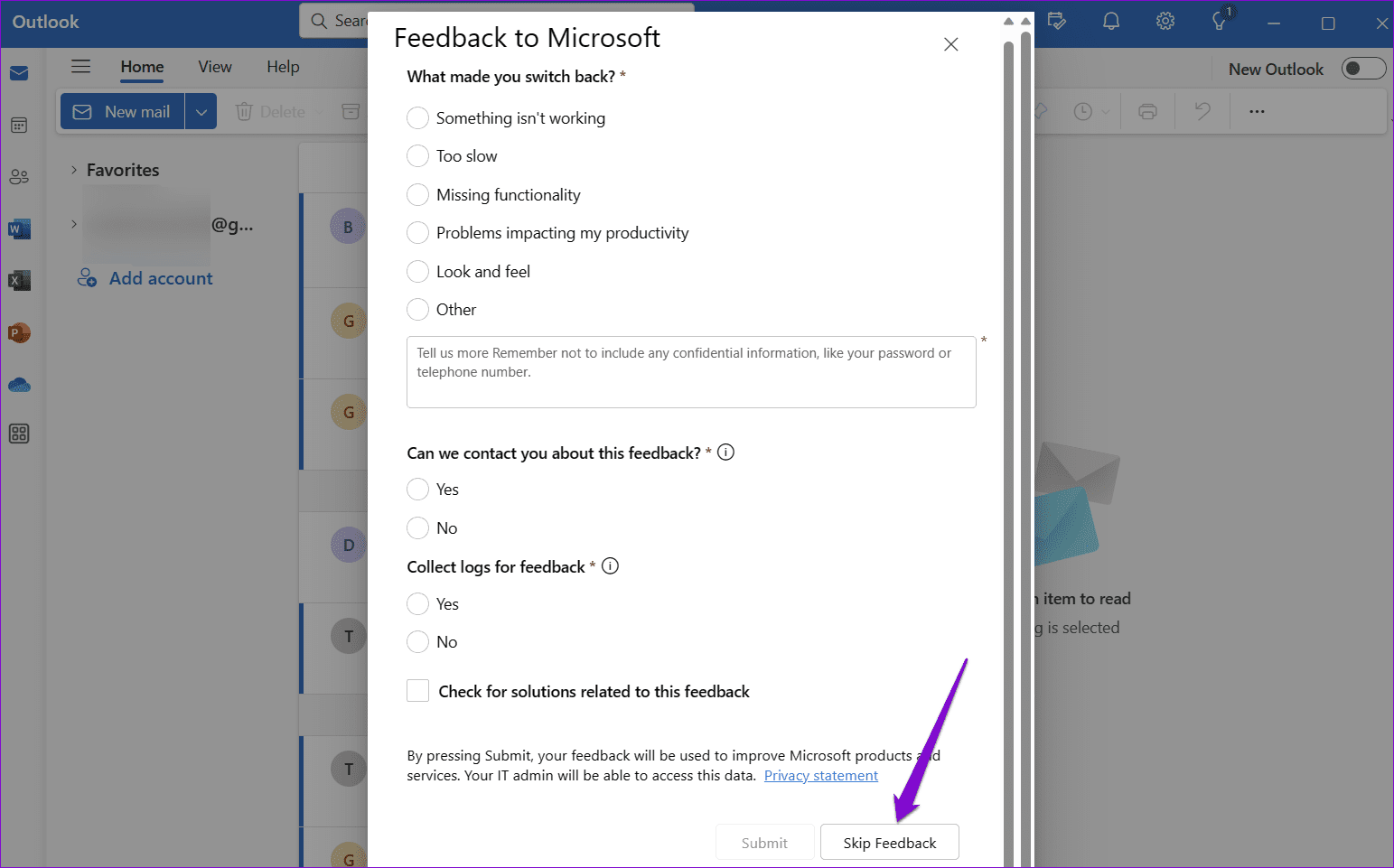
Now, Outlook will close and automatically open the classic version.
3. Adjust Language Settings in Outlook
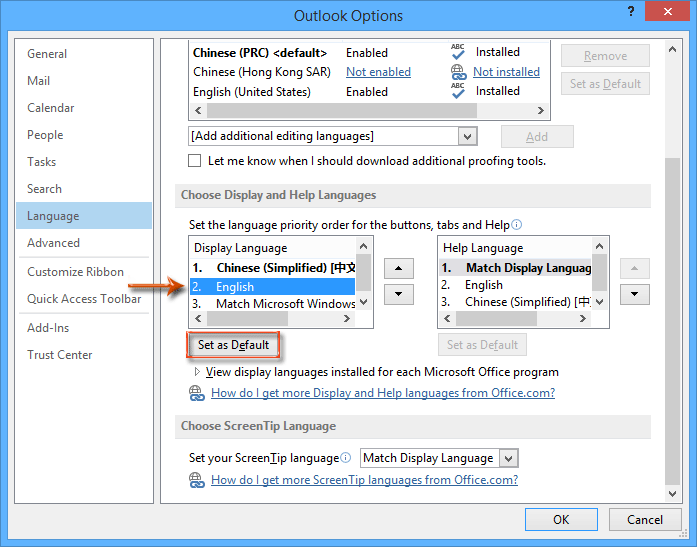
Set the recent language for a non-Unicode program in Windows to the same language as the installed version of Outlook to fix import export greyed out issue.
1. Open Control Panel.
2. Choose Clock, Language, and Regional.
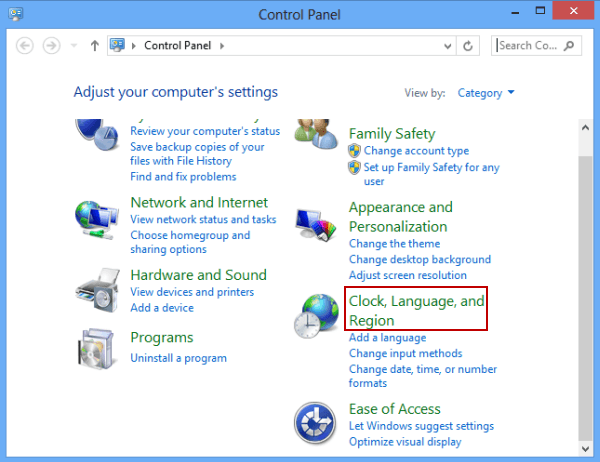
3. Now, click on the Regional and Language.
4. Select an Administrative tab.
5. Under Language for non-Unicode programs, click Change system locale.
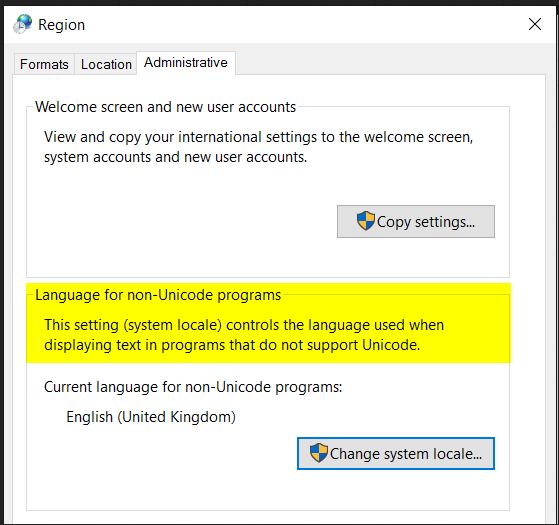
6. Choose the language and click OK.
4. Ask your Admin to Enable Import/Export
If you are using a work or school account in Microsoft Outlook, the Import/Export may be disabled by your organization. In that case, you need to contact your admin and request them to enable import export. Once they allow it in their policies, the option will become available for you.
5. Repair Outlook Profile
A corrupted profile may block the import export feature.
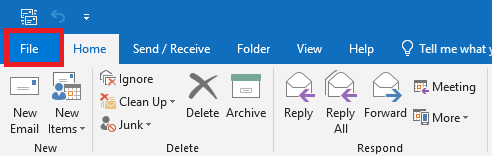
1. Open Outlook and click on File tab.
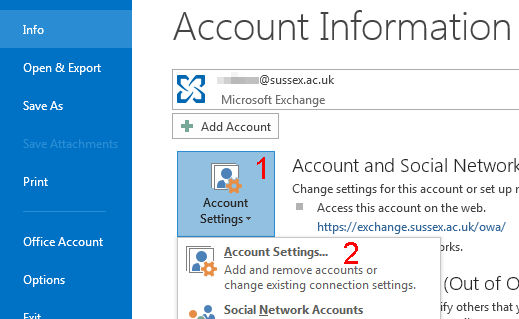
2. Select Account Settings and click Account Settings.
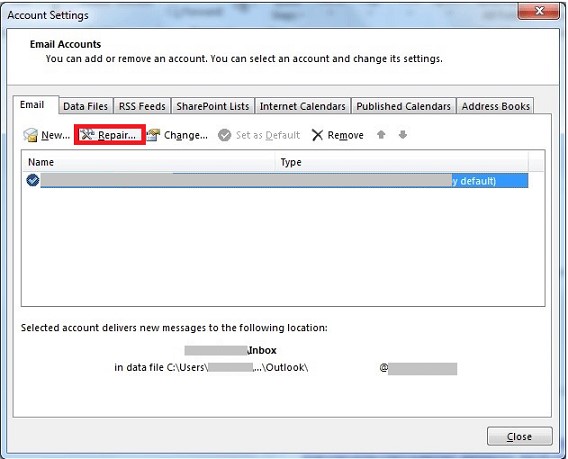
3. Now, click on Email tab and select the Outlook Profile and then click Repair.
4. Follow the prompts to proceed further.
After that, restart Outlook and apply the changes.
How to Export Data When Outlook Import Export is Unavailable?
If your Outlook import export greyed out, then you can take help from Advik Outlook OST Converter. This software is not able to fix the Outlook import export not working issue, but it enables you to export your data. With this program, you can export Outlook emails, contacts, calendars, tasks, and other data from your Outlook profile directly. It will preserve and maintain the complete folder hierarchy of the Outlook mailbox throughout the process. Plus, the software can export Outlook data into 30+ different email and document file formats.
Download the best alternative to Outlook Import Export feature. The software is compatible with all Outlook versions.


Steps to Export Outlook Data When Import Export Greyed Out
- Install and Run this software on your PC.
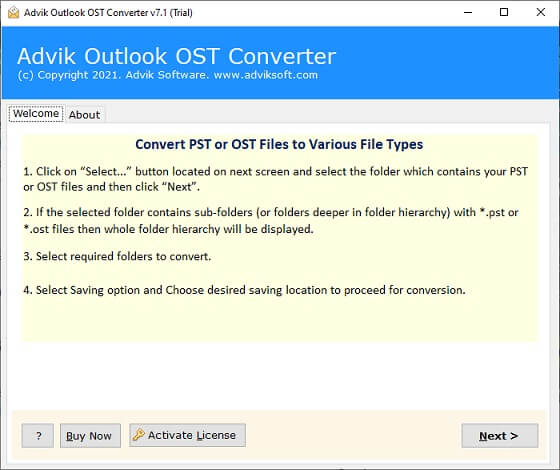
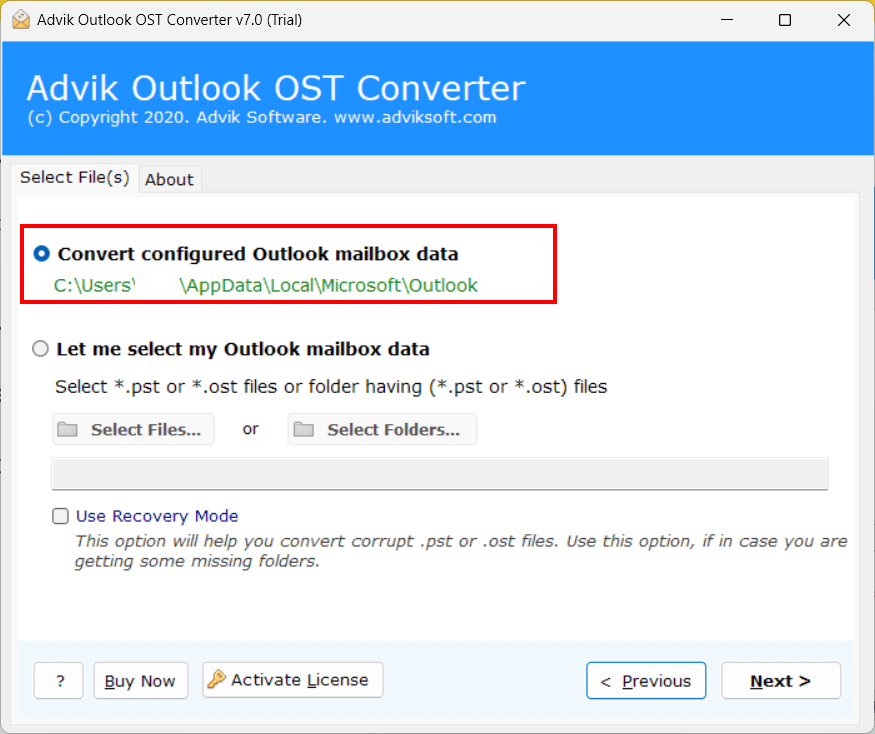
- Select Configured Outlook Account and click on Next button.
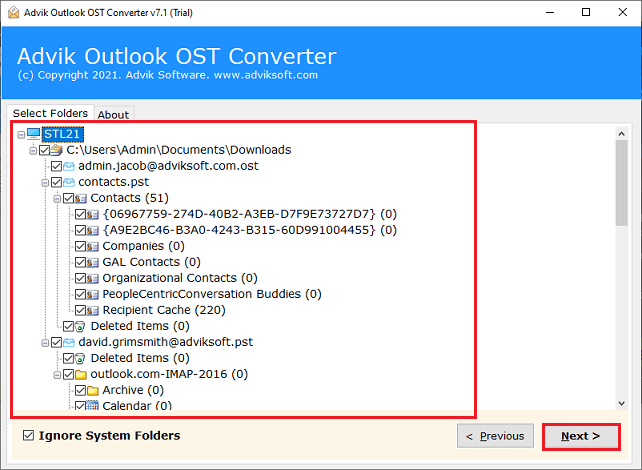
- Now, Choose the mailbox folders that you wish to export.
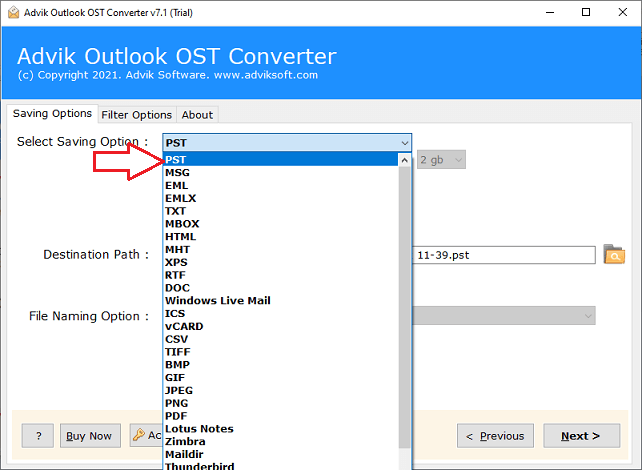
- Select “PST” as a saving option from the list.
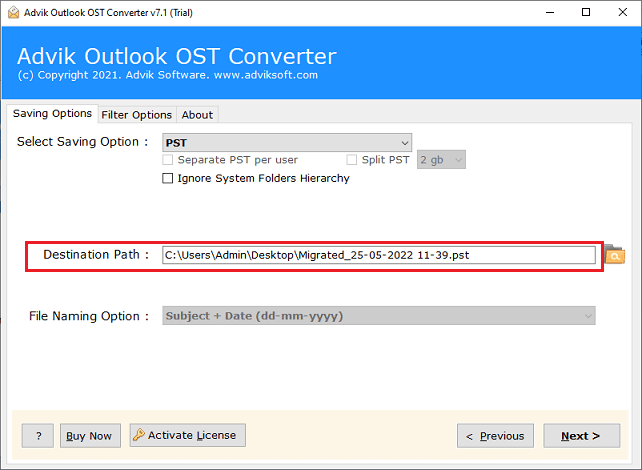
- Choose your desired destination path to save the resultant PST File.
- Click the Next button to start the process.
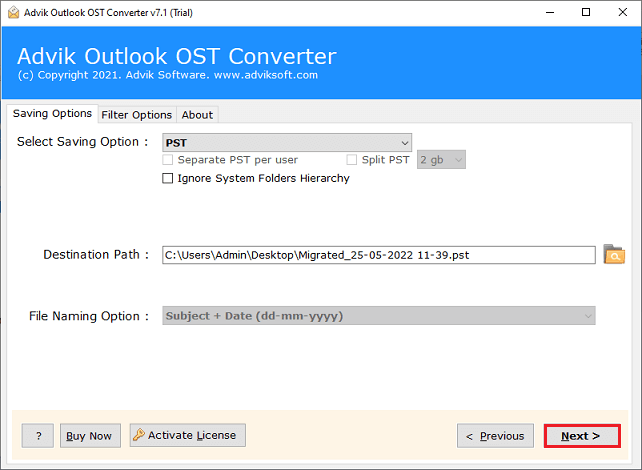
The software will start exporting Outlook data in PST file. You can preview the live export process as well. After completion, the software will provide a log report too. The software exports data even when the Outlook import/export option is unavailable.
Watch How to Fix Outlook Import Export Greyed Out
Final Words
Till now, we have learned why import export greyed out in Outlook and how to enable import/export in Outlook. Here, we have explained several techniques to get rid of Outlook import export greyed out. You can follow these methods to fix this issue. However, even if it doesn’t work, you can choose an alternate solution i.e. software. With that, you easily export all your Outlook mailboxes and other data in multiple file formats.
Frequently Asked Questions (FAQs)
Q1.How can I export data when the export option is unavailable out in Outlook?
Answer: You can use the mentioned software in this blog to easily export Outlook data to various file formats and email accounts if export option is not available in Outlook.
Q2. What should I do if I cannot fix the Import/Export greyed out issue in Outlook on my own?
Answer: If you are unable to fix the issue on your own, you may need to contact your system administrator or IT support for further assistance.
Q3. Can I export data from Outlook 2021 with this utility?
Answer: Yes, the software supports all the latest and old versions of MS Outlook, including 2021.