Why Thunderbird Not Working With Gmail and How to Fix It?
Jenny Lowrence | March 12th, 2026 | Mozilla Thunderbird
There are a lot of users who are experiencing Thunderbird stops syncing with their Gmail account. If you are also facing the Thunderbird not working with Gmail issue, then this is the only blog that can help you to fix this problem.
Mozilla Thunderbird is a popular desktop client used to manage multiple email accounts. However, sometimes users face connection issues where Gmail stops syncing with Thunderbird or fails to authenticate properly. When this happens, users may not be able to access new emails or send messages from Thunderbird. In this post, we’ll provide step-by-step instructions to fix Thunderbird not working with Gmail.
Why Thunderbird Does Not Work With Gmail?
- An incorrect Gmail password or server settings in Thunderbird may cause a connection error.
- If the app password is not used in 2FA, then Thunderbird may not work with Gmail.
- If IMAP is disabled in Gmail settings, then this error also takes place.
- Firewall or antivirus software may also lead to Thunderbird Gmail authentication failure.
- A corrupted or outdated Thunderbird may be refused by Gmail policies.
How to Fix “Thunderbird Not Working With Gmail” Issue?
There are multiple solutions that assist in effortlessly resolving the Thunderbird not working with Gmail issue. So, have a quick look at them and find out which one works for you.
1. Restart Thunderbird
- First of all, close Thunderbird completely.
- Wait a few seconds.
- Open it again and reconnect it.
2. Enable IMAP in Gmail
If IMAP is disabled, then Thunderbird cannot connect to Gmail. So, verify Gmail IMAP settings.
- Log in to your Gmail account.
- Go to the Gear icon and click on See All Settings.
- Click on Forwarding and POP/IMAP >> IMAP Access.
- Enable IMAP and click Save Changes.
3. Update Thunderbird Server Settings
If server settings are misconfigured, then Thunderbird will not work with Gmail. So, check the incoming and outgoing server configuration in Thunderbird.
- Open Thunderbird on your system.
- Go to Tools >> Account Settings >> Server Settings.
- Verify the Incoming & Outgoing Server details for Gmail:
Incoming Mail Server: imap.gmail.com, Port: 993, Connection: SSL/TLS, Authentication: Oauth2
Outgoing Mail Server: smtp.gmail.com, Port: 465, Connection: SSL?TLS, Authentication: OAuth2. - After that, click OK to save the settings.
4. Clear Saved Password
- Open Thunderbird and go to Tools >> Options.
- Choose the Privacy & Security and click on Saved Passwords.
- Now, go to Show Passwords and remove the saved passwords.
- Restart Thunderbird and enter the password to add the Gmail account.
5. Remove and Add the Gmail Account Again
Sometimes the connection configuration becomes corrupted.
- Open Thunderbird on your system.
- Go to Tools and choose Account Settings.
- Select the Gmail account and remove it.
- Click Add Mail account.
- Enter your Gmail credentials and configure the account again.
6. Temporarily Disable Antivirus or Firewall
Sometimes, antivirus and firewall blocks Thunderbird’s access to Gmail servers. So, temporarily disable the antivirus or firewall and then restart Thunderbird to check issue is solved or not.
Professional Solution to Fix Thunderbird Not Working With Gmail
Try Advik Thunderbird Converter to take a backup of Thunderbird files. The software can save Thunderbird data into multiple formats such as PST, PDF, MBOX, EML, etc. With this tool, you can take backup of all or selected folders. It maintains the original structure of mailbox folders during the process.

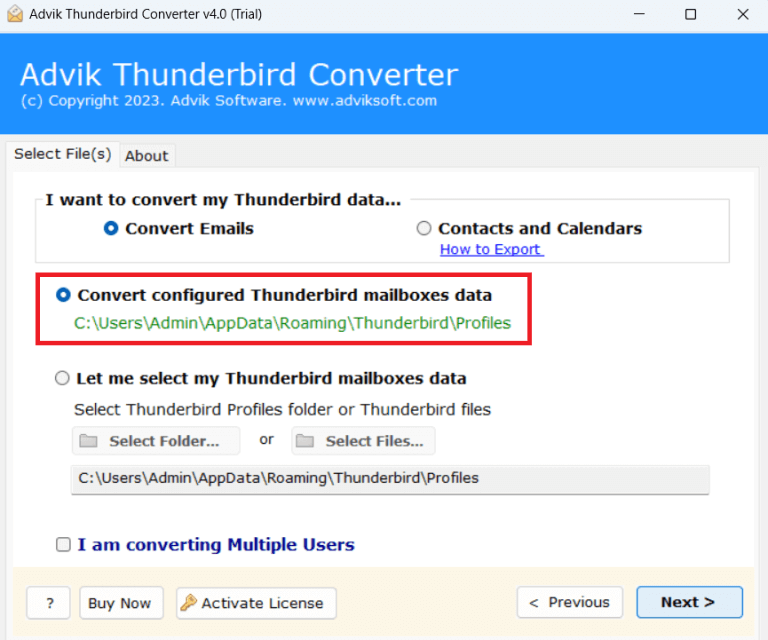
1. Run the tool and choose your Thunderbird profile.
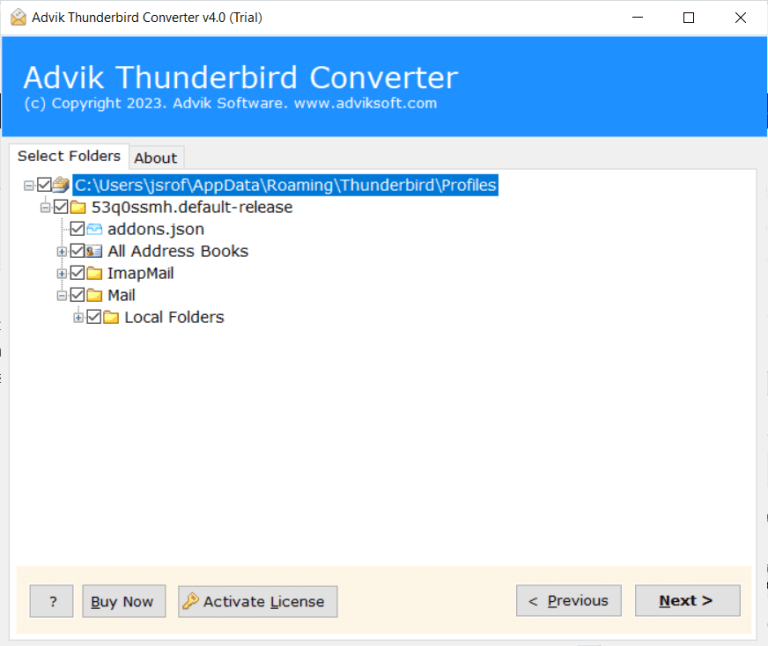
2. Choose the mailbox folders & subfolders.
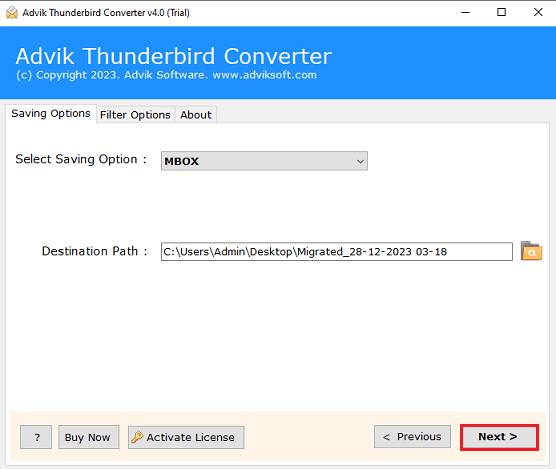
3. Select a saving option from the given list.
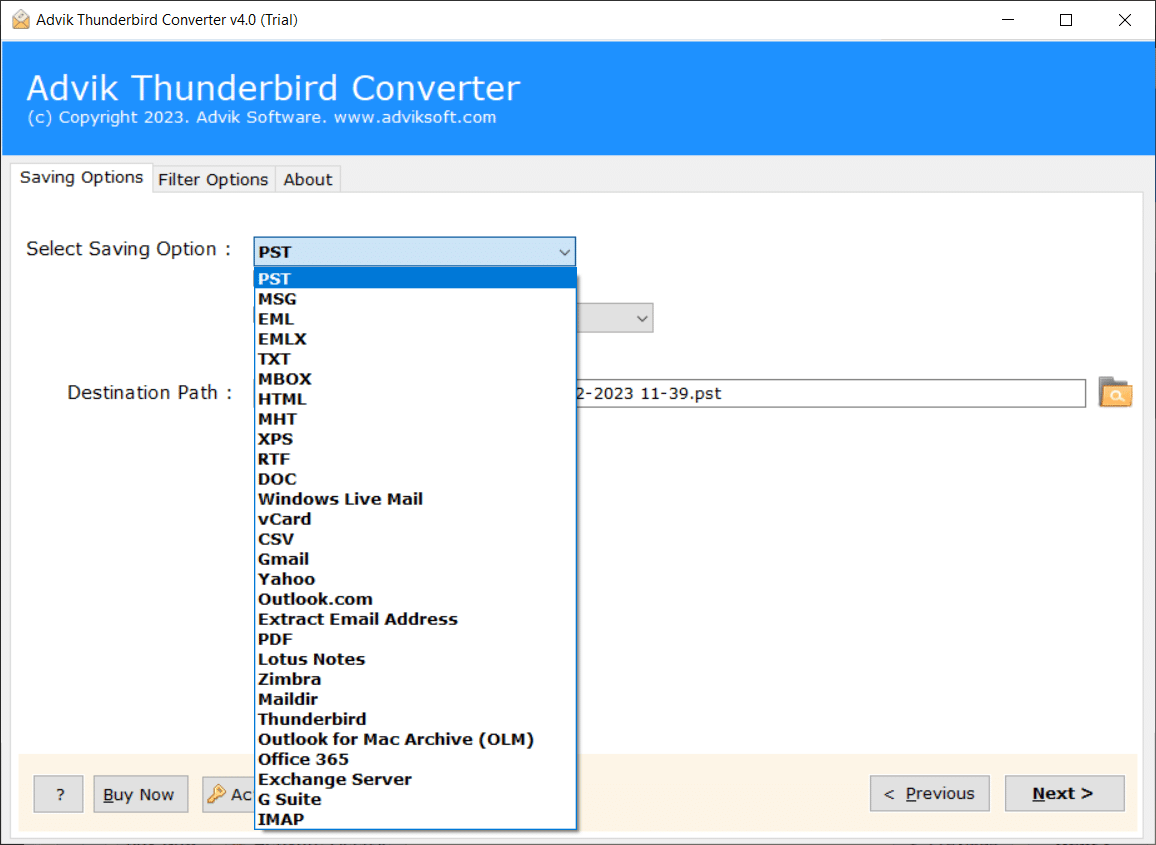
4. Browse target location and click Next to begin the process.
Conclusion
In this post, we have discussed how to fix Thunderbird not working with Gmail issues. Here, we have explained multiple manual methods as well as a professional solution to solve why Thunderbird does not work with Gmail. We also highlighted the expert’s suggestion and the importance of taking a backup of Thunderbird data as a safer side.