Thunderbird Not Working With Office 365 – Fixed
Jenny Lowrence | March 27th, 2026 | Mozilla Thunderbird
Mozilla Thunderbird is a popular open-source email client for its flexibility, security, and ease of use. It allows users to manage multiple email accounts, like Office 365, Gmail, etc. at one platform. Sometimes Thunderbird stops working with Office 365 due to incorrect settings, authentication conflicts, or security updates. If you are also facing the Thunderbird not working with Office 365 issue, then this post is for you. In this article, we’ll explain the cause behind this issue and the methods to fix it.
Why Is Thunderbird Not Working With Office 365?
- Entering incorrect Office 365 login credentials and selecting incorrect settings prevents Thunderbird from configuring the Office 365 account.
- If IMAP and SMTP are disabled in Office 365, then Thunderbird stops working with Office 365.
- If Thunderbird is not using the correct authentication methods, it may fail to connect with Office 365.
- Office 365 policies may refuse older versions of Thunderbird without modern authentication.
How to Fix Thunderbird Not Working With Office 365?
There are several methods to fix Thunderbird stopped syncing with Office 365 account. Have a quick look at each method and practice them carefully to fix the Thunderbird not connecting to Office 365 issue.
#1. Update Thunderbird
- Open Thunderbird on your system.
- Go to Help >> About Thunderbird.
- Install the latest updates
#2. Enable IMAP in Office 365
Thunderbird relies on IMAP and SMTP to sync messages between Office 365 and the client. So, make sure IMAP and SMTP are enabled in the Office 365 account.
- Log into Office 365 account
- Click on Gear icon and choose Settings.
- Choose mail option and click on Sync Email.
- Now, look for IMAP and SMTP
- Make sure IMAP and SMTP are enabled
#3. Choose OAuth2 for Authentication
- Open Thunderbird on your system.
- Click on the three horizontal line and choose Account Settings.
- Choose Office 365 account from left panel and click on Server Settings.
- Select the OAuth2 Authentication method from the dropdown list.
- After that, restart Thunderbird and check issue is solved or not.
#4. Reconfigure Office 365 Account in Thunderbird
- Open Thunderbird on your system.
- Click on Tools and select Account Settings.
- Choose Account Actions and click on Remove.
- Now, restart Thunderbird and click on Email under Set Up Another Account.
- Enter your Office 365 credentials and click Continue.
- Click on Configure manually and enter the following IMAP/POP3 Settings:
- Incoming Server Details (IMAP)
Server: outlook.office365.com
Port: 993
Encryption: SSL/TLS
Authentication: OAuth2 - Outgoing Server Details (SMTP)
Server: smtp.office365.com
Port: 587
Encryption: STARTTLS
Authentication: OAuth2 - For POP3
Server: outlook.office 365.com
Port: 995
Encryption: SSL/TLS
Authentication: OAuth2 - After that, click the Done button to save changes and restart Thunderbird to check issue is solved or not.
Professional Solution to Fix Thunderbird Stopped Working with Office 365
While troubleshooting, you might be completely focused on fixing the issue of Thunderbird not working with Office 365. But what to do if something goes wrong during the process and you lose access to all your emails stored in Thunderbird?
It makes it clear how important it is to have a backup before making any major configuration changes.
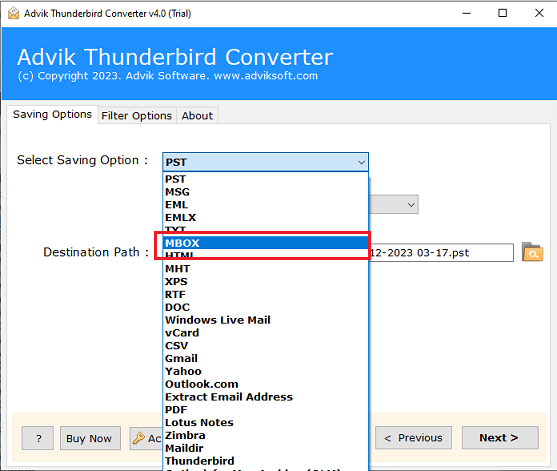
Instead of manually exporting folders one by one, you can choose a simpler approach. Using the Advik Thunderbird Converter allows you to backup Thunderbird emails along with attachments. It offers 25+ saving options to save Thunderbird emails into multiple formats such as PST, MBOX, EML, PDF, HTML, TXT, etc.

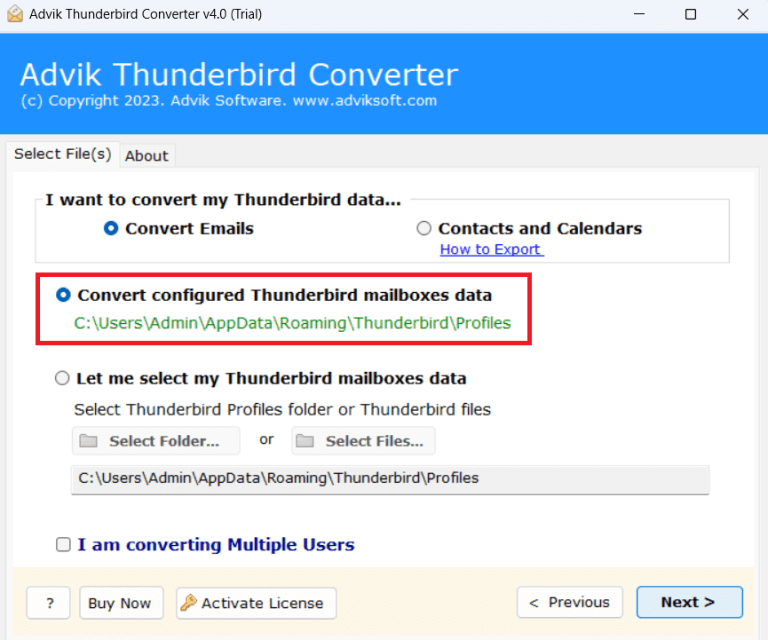
1. Run the tool and choose your Thunderbird profile.
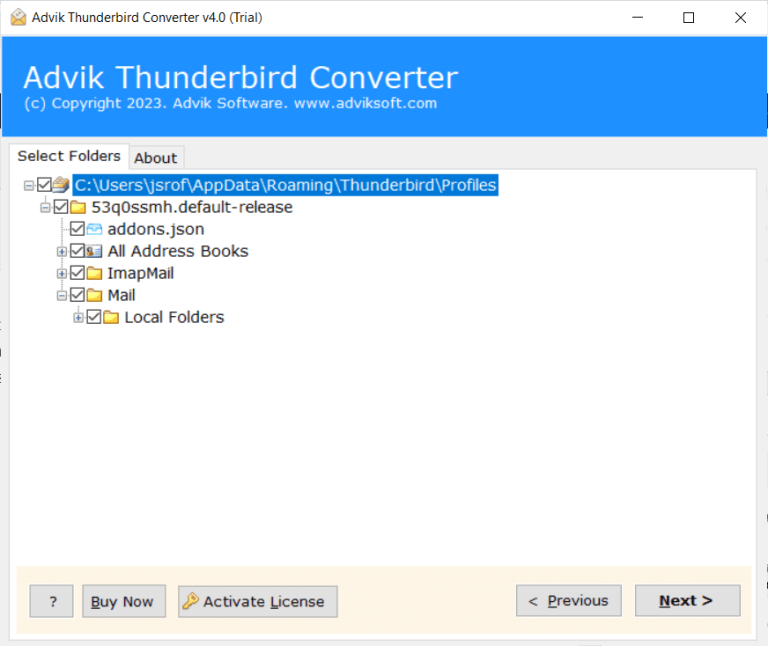
2. Select the mailbox folders & subfolders.
3. Choose a saving option from the given list.
4. Browse destination location and click Next.
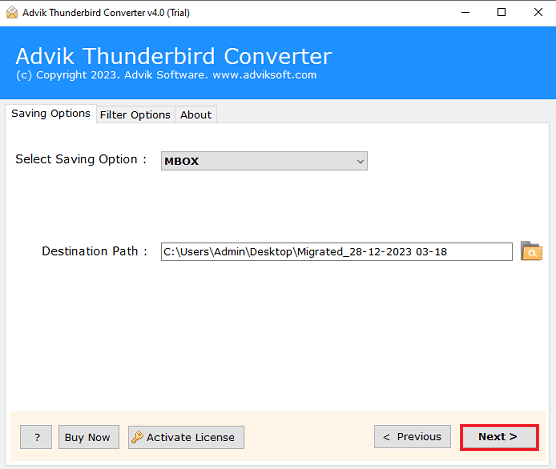
The software will start exporting Thunderbird data in your desired format. If you face any issues with your Thunderbird account, then you can access data from this backup file.
Final Words
In this post, we have explained the multiple solutions to fix Thunderbird not working with Office 365 issue. You can try these solutions to solve Office 365 authentication failure issue. Here, we have also shared the expert’s suggested tool to safeguard Thunderbird data. Hence, make sure to save your Thunderbird files before attempting the manual tricks to solve Thunderbird won’t connect to Office 365.