How to Convert MBOX to TXT with Attachments (Complete Guide)
Jenny Lowrence | May 18th, 2026 | Data Conversion
Summary: Sometimes you may need to save your MBOX emails in a simple text format (TXT) without any formatting, images or attachments. When you convert MBOX to TXT, your email data becomes lightweight, easy to read and accessible on almost any device or platform.
In this guide, we will explain everything in simple words. You will learn:
- What MBOX and TXT files are
- Why is conversion needed
- Manual method (free solution)
- Professional method (bulk conversion)
So, let’s start by understanding both file formats.
Understanding MBOX and TXT Files
MBOX is a file format used to store multiple emails in a single file. It is commonly used by email clients like Thunderbird, Apple Mail, and Eudora.
All emails, including attachments and metadata, are saved together in one file. This makes it useful for backup purposes. However, the problem is that you cannot open or read MBOX files directly without a supported email application.
TXT is a plain text file format that stores simple readable content. It does not include formatting like images, colors, or design elements.
You can open TXT files in:
- Notepad
- WordPad
- Any text editor
TXT files are lightweight and supported on almost all devices.
Why Convert MBOX to TXT Format? Explained in Simple Words
Converting MBOX files into TXT format is useful in many real-life situations. Let’s understand the main reasons in simple words:
- Easy Access Without Email Application: MBOX files require an email client to open. But text files can be opened directly in Notepad. This makes it very easy to read emails anytime without installing any application.
- Lightweight File Size: TXT files are very small compared to MBOX files. If you want to save storage space or keep a lightweight backup, TXT is a good option.
- Useful for Data Analysis: Many users convert emails into Text format to analyze content. TXT files can be easily used in scripts, tools, or data processing systems.
- Quick and Simple Sharing: Sharing an MBOX file is not always practical. But text files can be easily shared with anyone, and they can open it without any issue.
- Long-Term Storage: TXT is one of the most stable formats. You can store it for years without worrying about compatibility issues.
Many users prefer the TXT format when they only need the email content without formatting or attachments.
How to Save MBOX Emails as Plain Text Files (Free Methods)
There are different methods available that claim 100% accuracy and reliability of their methods. But after a lot of research, we found a method that is workable for you. If you are looking for a free solution, you can use Mozilla Thunderbird. This method is useful when you have a small number of emails.
Follow the steps carefully:
Step 1. Install Mozilla Thunderbird and open the application.

Step 2. Install the ImportExportTools NG add-on, then go to Local Folders and import your MBOX file.

Step 3. Browse the imported emails, then select the email you want to convert.
Step 4. Open the email and click on Email >ImportExportToolsNG >> Plain Text Format.
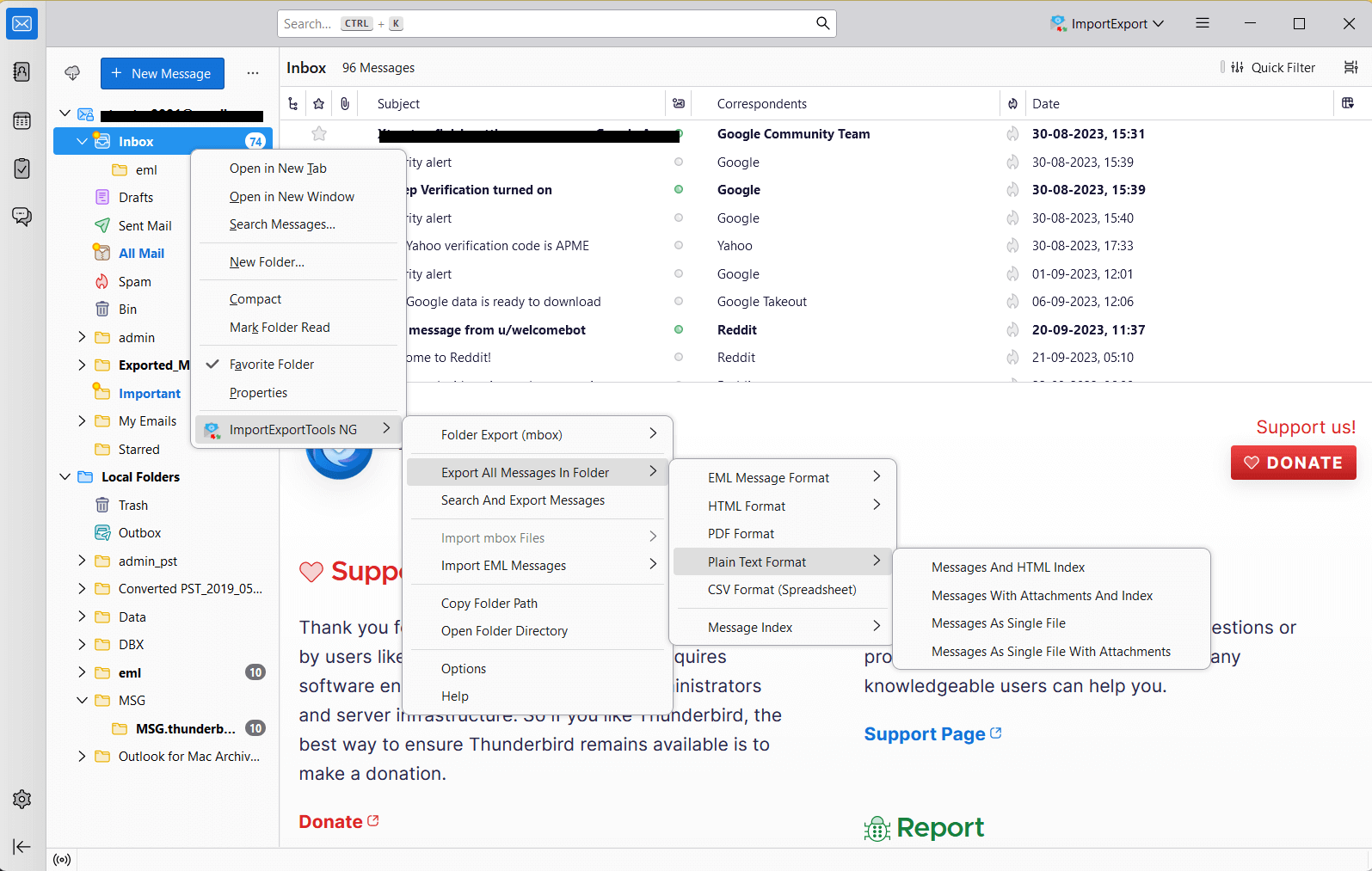
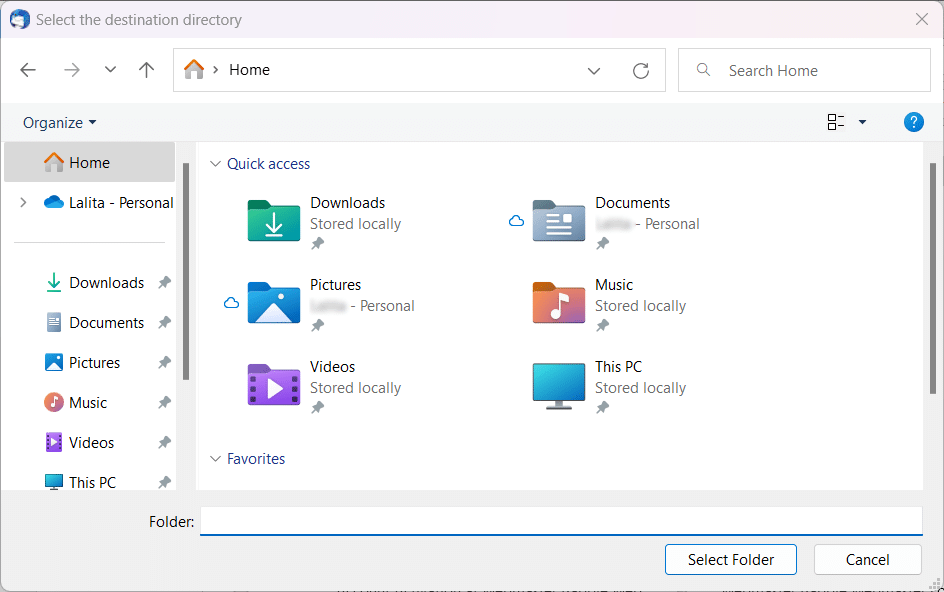
Step 5. Choose a location to save the file on your system.
Note: This manual method is time-consuming and suitable only for small MBOX files, as it requires converting each email one by one without batch conversion support.
How to Convert MBOX to TXT in Bulk Using a Professional Tool
If you want to convert MBOX files to TXT in bulk without going through manual steps, a professional tool is the easiest solution. Advik MBOX Converter allows you to export single or multiple MBOX files at once and convert all emails into plain text format quickly.
The software keeps your email content intact while removing formatting so that the output is lightweight and easy to read. You don’t need Thunderbird or any email client to perform the conversion.
Simply add your MBOX files, preview the data, choose TXT as the output format, and start the conversion. The tool processes all emails in bulk to save your time and effort compared to manual methods.
Download the Free Demo version and explore its functional aspects.


Steps to Export MBOX Emails in Plain Text Format
Step 1. First, launch the recommended tool and choose either Select Files or Select Folders to add your MBOX files.
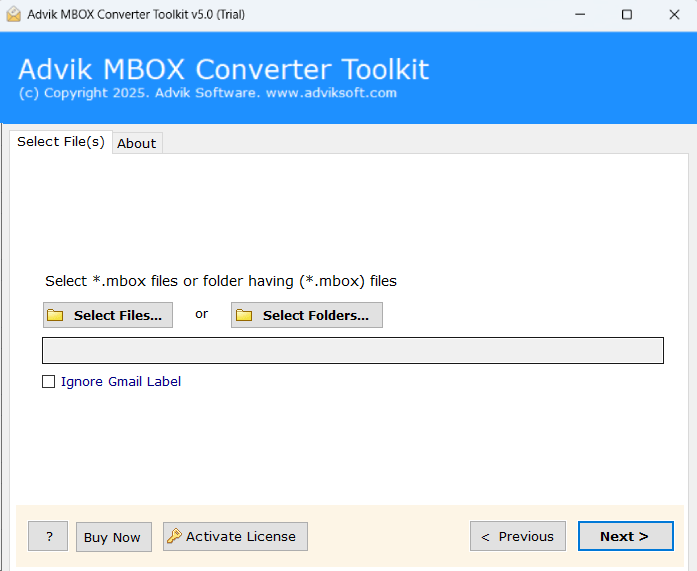
Step 2. After adding files, your MBOX data will appear in the software panel, where you can select the required mailbox folders.
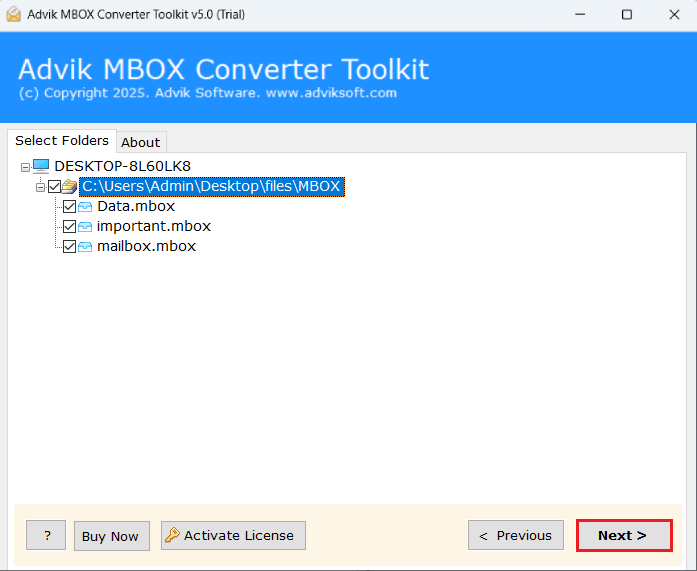
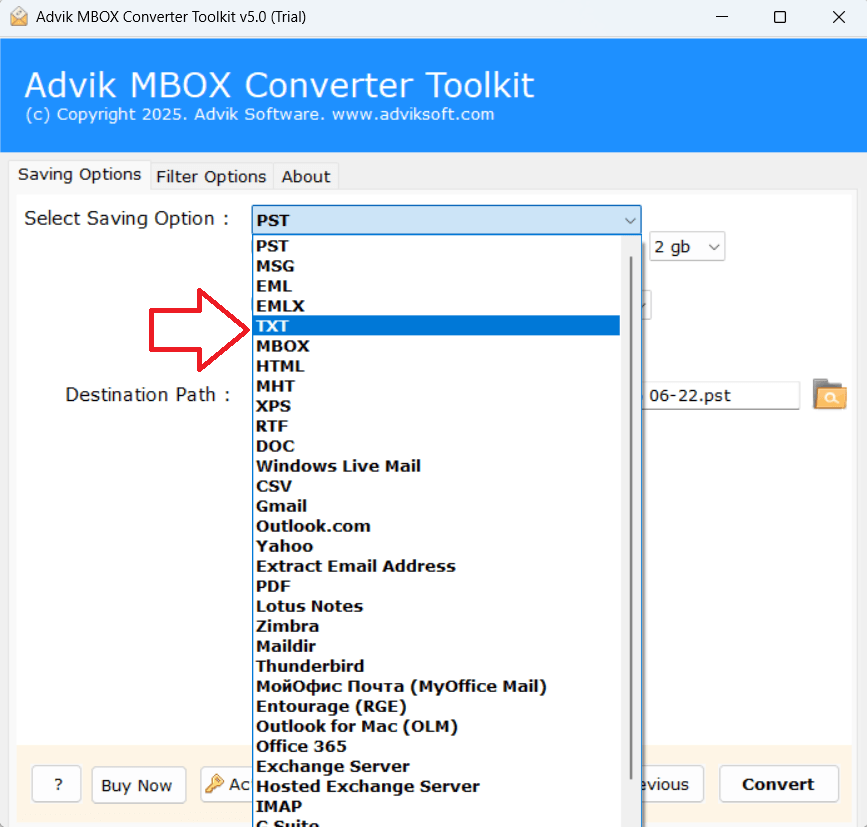
Step 3. Now, from the available saving options, choose TXT as the output file format.
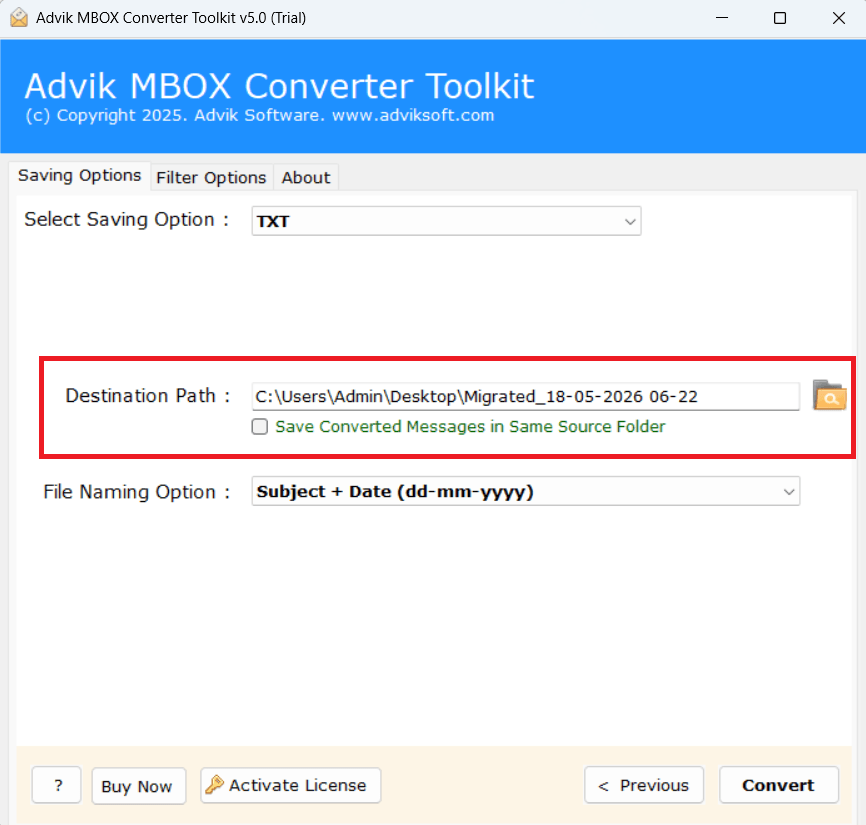
Step 4. Next, select the destination location where you want to save the converted TXT files.
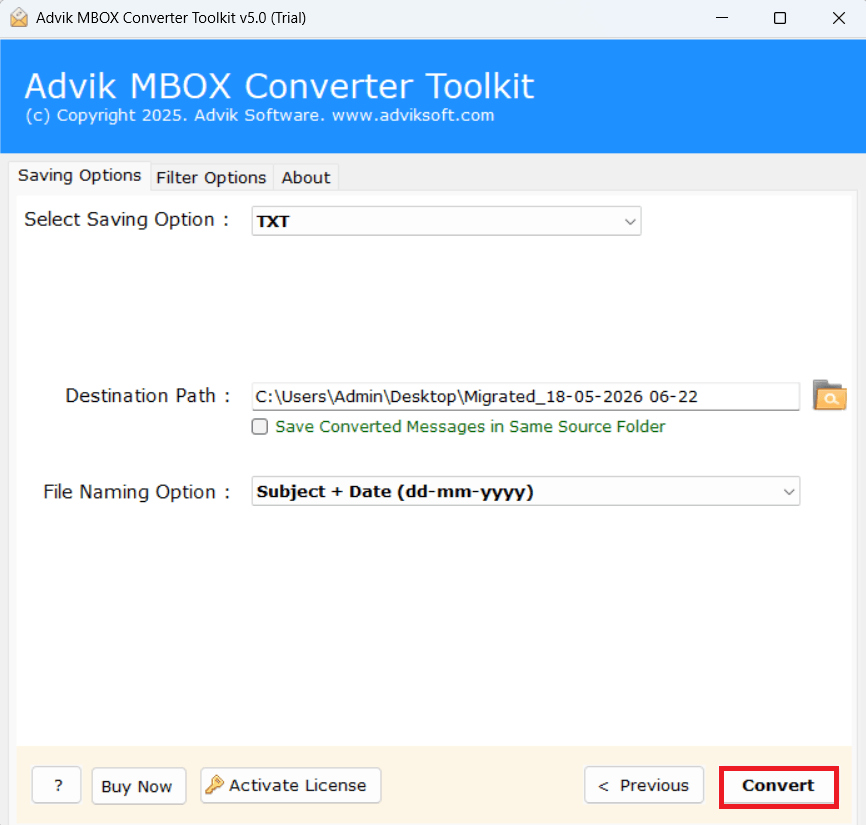
Step 5. Click on the Convert button to start the conversion process.
Once the process is completed, a confirmation message will appear on your screen. Click OK, and you will be automatically redirected to the saved location where you can easily access your converted TXT files.
MBOX to TXT Converter Benefits and Features
- The tool can easily load MBOX files from your system using Select Files or Select Folders option to make conversion simple & easy.
- It supports bulk conversion of multiple MBOX files at once, to help users to save time and effort compared to manual methods.
- The software allows users to convert corrupted or inaccessible MBOX files using an advanced recovery or safe processing mode.
- It keeps email content clean and converts all mailbox data into simple, readable TXT format without formatting loss.
- The tool provides an option to select specific mailbox folders so users can export only required emails instead of full data.
- Users can easily choose the destination location to save the converted TXT files, or the tool can automatically save them in a default folder.
- It also offers advanced filters like date range and selective email conversion for better control over the output.
- The software maintains data accuracy and structure to ensure no email content is missed during the conversion process.
Manual vs Professional Method: Which one to choose?
| Features | Manual Method | Professional Method |
|---|---|---|
| Time Required | Slow, converts emails one by one | Fast, supports bulk conversion in minutes |
| Ease of Use | Complex, needs Thunderbird setup | Simple and user-friendly interface |
| Bulk Conversion | Not supported | Supported for multiple MBOX files |
| Data Safety | Risk of data loss or missing emails | Ensures safe and accurate conversion |
| Efficiency | Less efficient and time-consuming | Highly efficient and time-saving |
The Final Say
MBOX to TXT conversion helps you make your emails simple, lightweight and easy to access on any device. Now you know both manual and professional methods to convert MBOX files into TXT format.
However, the manual method is slow and suitable only for a few emails, as it requires opening and saving each email one by one. It is not a good option for bulk conversion.
On the other hand, if you want a fast and easy solution, you can use a professional MBOX to TXT converter tool. It allows bulk conversion, keeps data safe, and completes the process in just a few clicks without any technical effort.
Frequently Asked Questions by Clients
Q1. Why are my MBOX files not opening in the software?
Ans. This usually happens if the MBOX file is corrupted or not properly exported. Try using the “Select Folder” option or recovery mode if available.
Q2. Can I convert only selected emails from an MBOX file?
Ans. Yes, most professional tools allow you to preview and select specific emails or folders before converting to TXT.
Q3. The TXT file is not showing proper formatting. Is this normal?
Ans. Yes, TXT format removes formatting and images. It only keeps plain text content of the email.
Q4. Why is the conversion taking too long for large MBOX files?
Ans. Large mailbox files take more time due to heavy email data. Using a high-speed professional tool can reduce processing time.
Q5. I accidentally closed the tool during conversion. Will my data be lost?
Ans. In most cases, incomplete conversion files may not be saved properly. It is recommended to restart the process.