How to Add Network Solutions Email to Outlook?
If you are having a Network Solutions email account and want to access your emails through Microsoft Outlook, it’s possible through IMAP syncing feature offered by Outlook. Once setup is complete, Outlook will automatically sync your emails, folders and other mailbox data.
Outlook is a popular mail client with large user base because it offers offline access, better email management, advanced searching feature, calendar integration and stronger security. If you are transferring from Network Solutions or want to manage all it’s emails in one place, this guide will help you add Network Solutions email to Outlook with complete guidance.
In this article you will learn:
- How to configure Network Solutions email in Outlook manually.
- Standard setup requirements & IMAP settings.
- How to fix Outlook can not sync all your emails.
- Another Method to export Network Solutions emails to Outlook PST.
Why Add Add Network Solutions Email to Outlook?
There are a number of reasons why users often link their Network Solutions mailbox to Outlook:
- Open Webmail each time and check your emails.
- Access all your email accounts in one place.
- Use advanced search and filtering in Outlook
- Save copies of important emails locally.
- Access your emails even at low internet bandwidth.
- To arrange information such as contacts, calendars, and tasks.
Before You Begin, make sure that you have;
- Your email address with Network Solutions.
- The password of your email account.
- An internet connection that works properly.
- Microsoft Outlook on your PC.
Network Solutions IMAP and SMTP Settings
| Setting | Value |
|---|---|
| Incoming Server (IMAP) | mail.yourdomain.com |
| IMAP Port | 993 |
| Encryption | SSL/TLS |
| Outgoing Server (SMTP) | mail.yourdomain.com |
| SMTP Port | 587 |
| Encryption | SSL/TLS |
How Do I Set Up Network Solutions Emails to Outlook Manually?
This manual method involves using Microsoft Outlook’s in-built settings to set up Network Solutions to Outlook application. Below, we have offered the steps to execute this solution.
- Open and run the Outlook application on your system.
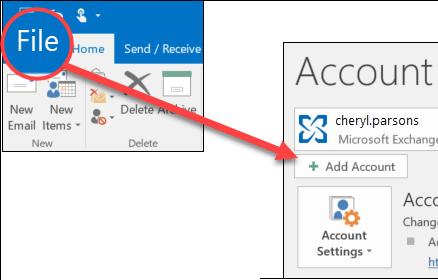
- After that, go to File>>Add Account.
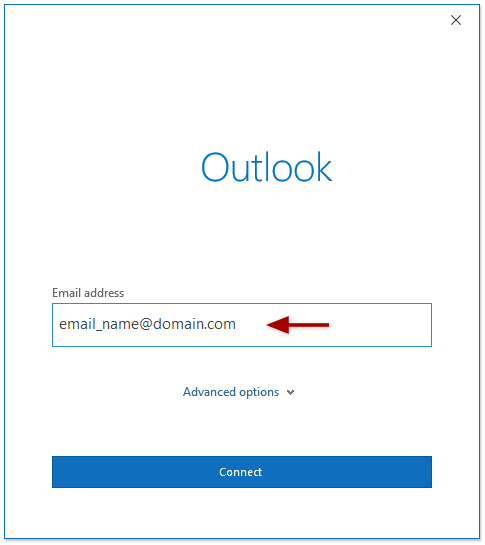
- Then, enter your email address in the respective field.
- Now, click on the “Let me set up my account manually” option and click on Connect.
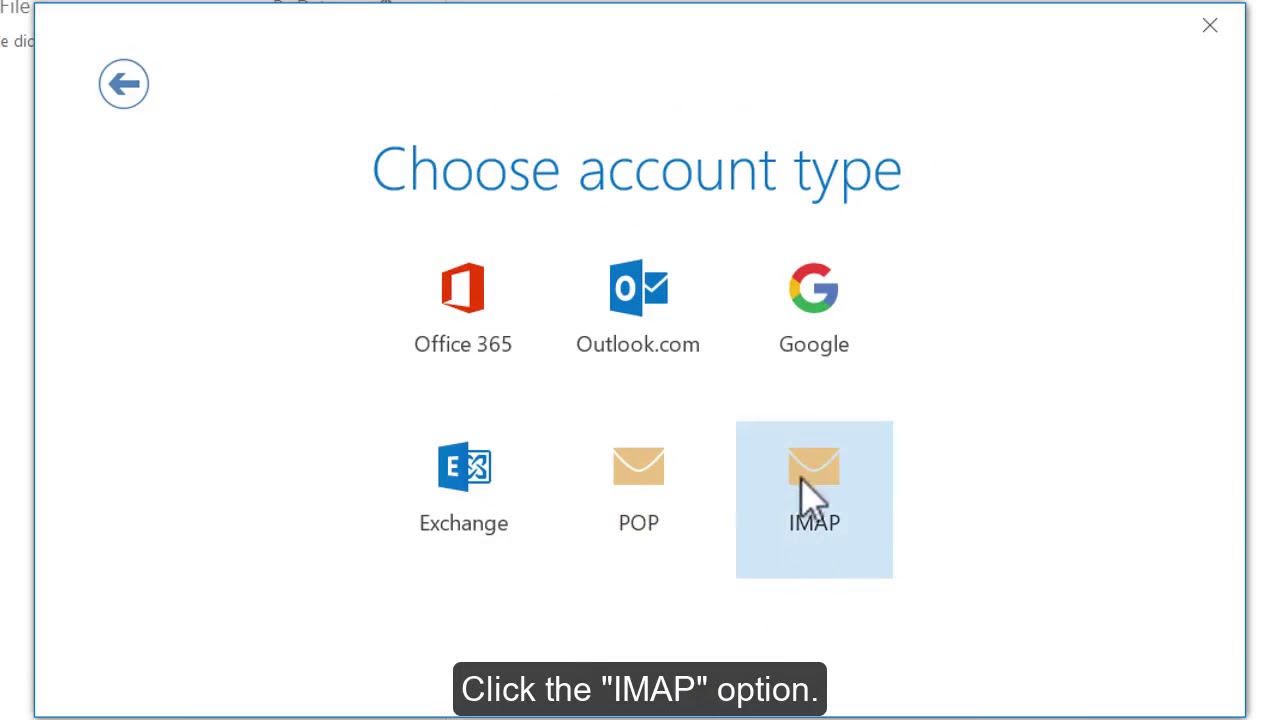
- In the Advance set up, choose the IMAP option and proceed further.
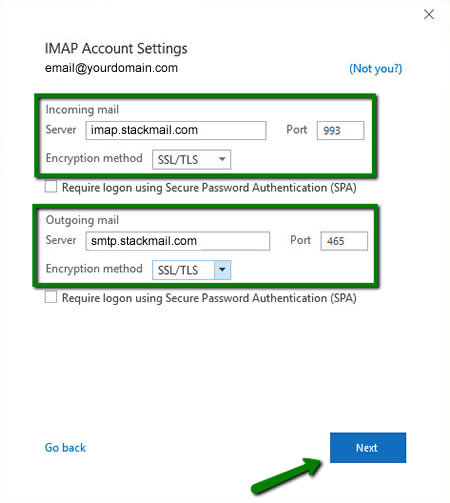
- After that, in the IMAP account settings tab, enter the following details;
- Incoming mail- mail.yourdomain.com
Port- 993
Encryption method- SSL - (If you want to choose SSL then select IMAP port as 993 or else select 143 as the IMAP port number without SSL)
- Outgoing mail- mail.yourdomain.com
Port- 587
Encryption method- SSL - and check the box in two fields such as Require logon using Secure Password Authentication(SPA)
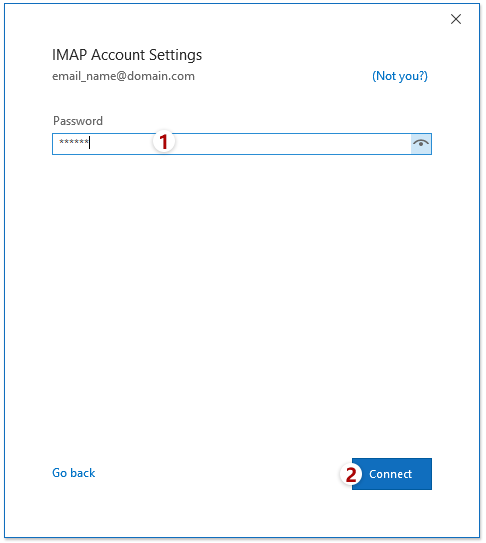
- Now, enter the password of your Network Solutions email account and click on the Connect button.
- After that, Outlook will start adding Network email account to Outlook.
- Done!! you will get a notification that your account has been added successfully in Outlook.
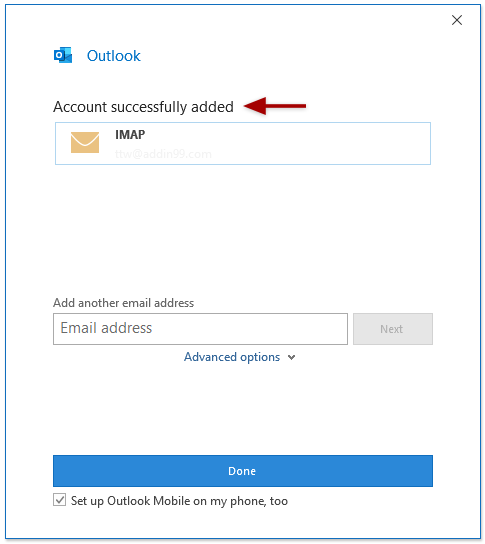
Once completed, your Network Solutions emails will sync with Outlook in a while.
Note: If Outlook fails to sync all emails or you need a backup copy of your mailbox, another approach may be more suitable.
Alternative Method: Export Network Solutions Emails to Outlook PST
Now, if you want to keep a local copy of your Network Solutions emails, transfer large mailboxes and create archive for future use, exporting it’s emails to PST format is a useful option. PST is an Outlook default data file format to store emails, contacts, calendars, and other items in a mailbox. There are many tools available that allow users to export Network Solutions emails directly into PST files. Once the export is done, you may import the PST file to Microsoft Outlook for offline email access.
One such example is Advik Email Backup Software, it can let you save all your Network Solutions emails in .pst files.

Steps to Export Network Solutions Emails to PST
Follow the procedure below to export Network solution emails to Outlook PST.
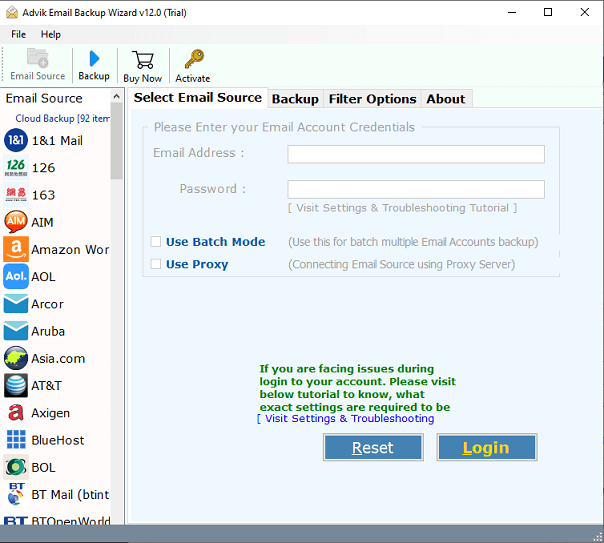
- Install and launch the software on your Windows PC.
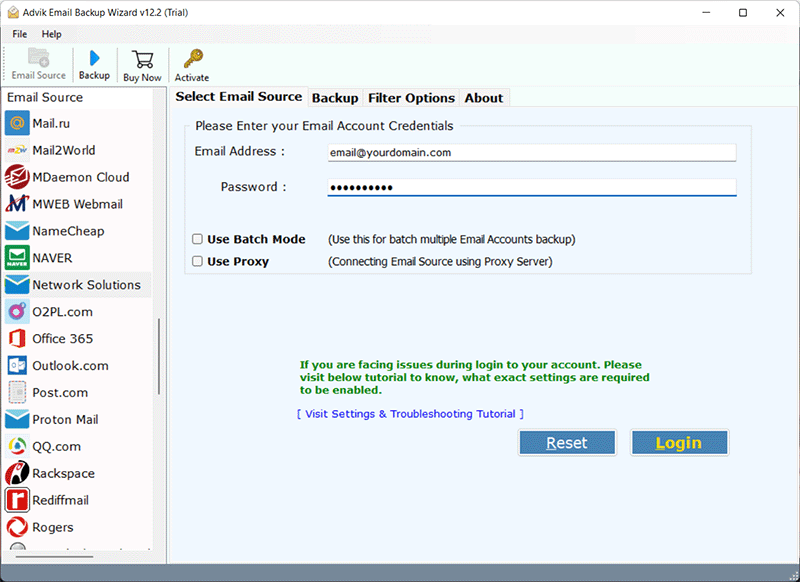
- After that, select Network Solutions email source from the list and enter the email address and password in the software panel. Press the Login button to connect.
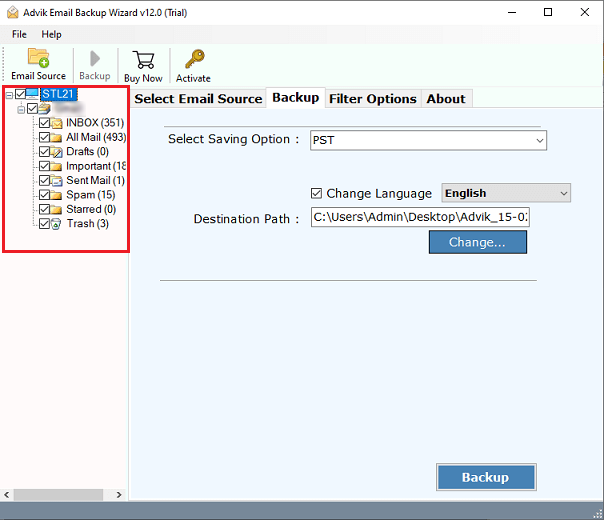
- Once your account has been added, this tool will automatically fetch all the mailbox folders from your Network Solutions email account. Choose the required email folders and move further.
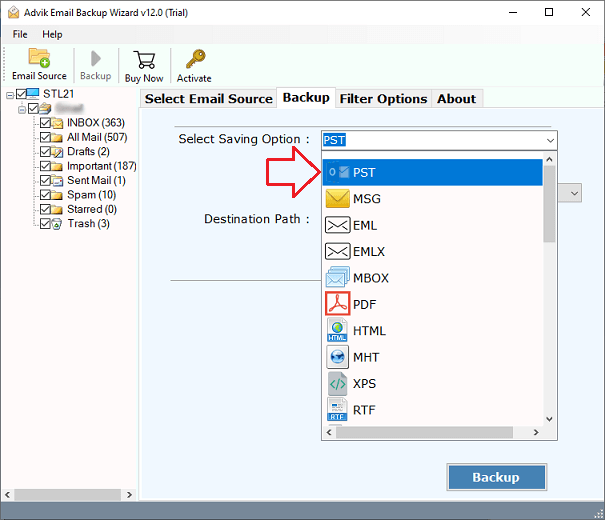
- After that, select PST as a saving option from the list of multiple file formats.
- Now, choose the destination path to save the resultant data file on your system.
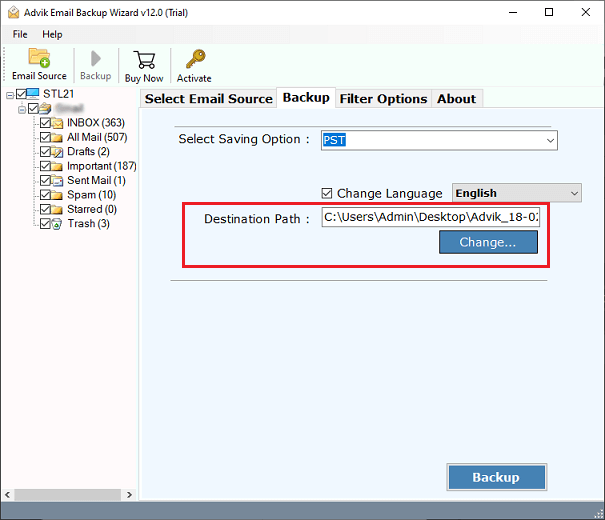
- Finally, tap on the Backup button to start exporting Network emails to Outlook PST file.
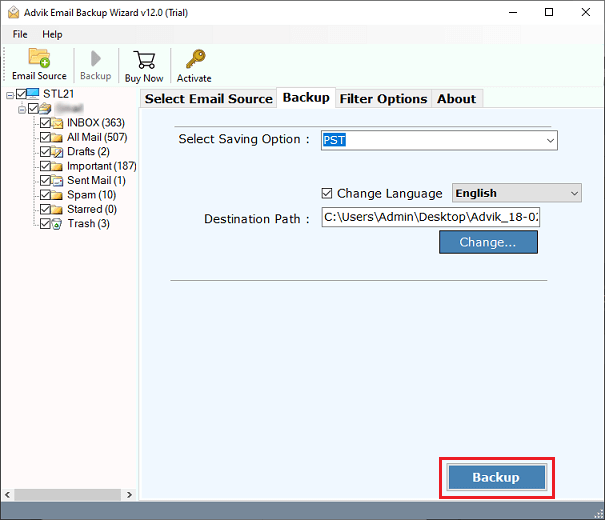
Now, the process of adding Network solutions to Outlook is over now, just import PST file in MS Outlook to access its data.
Common Problems While Adding Network Solutions Email to Outlook
Outlook Keeps Asking for Password
- Confirm your password.
- Re-enter account credentials
- Verify IMAP & SMTP settings.
Emails Not Synchronising
- Verify your Internet connection.
- Look at the server settings.
- Restart Outlook.
Can’t connect to server
- Check server names.
- Verify encryption settings and ports are correct.
- Disable firewall or antivirus for a time when you are testing.
Older Emails Missing
Sometimes Outlook will download only recent mail at first. Please allow more time for the mailbox to fully synchronise.
Final Thoughts
You can easily add Network Solutions email to Outlook by using the proper IMAP settings. The manual method is best for those users who just want to connect their mailbox and synchronise emails with Outlook.
However, if you need to create a PST file or any other need to backup or migrate Network Solutions emails, then you can use an alternate method explained in this article.
Select the method that suits your needs and the size of your mailbox.
Frequently Asked Questions
Q1. Can I setup Network Solutions email using IMAP in Outlook?
Ans. Yes. Network Solutions supports IMAP, so you can sync emails between your mailbox and Outlook.
Q2. Which Outlook versions work with Network Solutions email?
Ans. Most of the latest versions of Outlook such as Outlook 2021, Outlook 2019, Outlook 2016, Outlook 2013 and Microsoft 365 Outlook support IMAP email accounts.
Q3. Will I lose my emails after adding Network Solutions email to Outlook?
Ans. No. IMAP linking of your account only synchronises means just adding mailbox data and does not delete emails from the server it will stay there and downloaded the same into Outlook mailbox.
Q4. How to transfer Network Solutions emails to PST?
Ans. You can move emails from Network Solutions to PST using a dedicated email backup or transfer tool and then you can open the PST file in Outlook.
Q5. What if Outlook can’t connect to my Network Solutions account?
Ans. First verify your email credentials, server settings, port numbers, encryption settings, and Internet connectivity. If the problem still contnue then contact your email hosting provider to verify the server settings.

Related Articles