How to Backup Bluehost Email to Computer?
Christopher Plummer | November 17th, 2025 | Data Backup
As technology advances, data security has become a significant concern. However, storing emails on the server is not sufficient, so users want to download all emails from their Bluehost account to their system for various security reasons. In this post, we’l discuss two different techniques to backup Bluehost email to computer.
Bluehost is a web hosting company that provides numerous services to its users, including Webmail access, website hosting, and so on. Bluehost also provides email hosting in addition to these services. Many people utilize Bluehost’s email service to keep track of their tasks. While this platform is reliable, server crashes, accidental deletion, migration needs, or hosting changes can put your important data at risk. So, it becomes crucial to keep a local copy of your Bluehost emails for safety. Here, we will guide you through the step-by-step process of downloading Bluehost emails locally.
Let’s move ahead without any further delay!
How to Backup Bluehost Email to PC?
Follow the given instructions and save your Bluehost emails locally to the system.
1. Open Mozilla Thunderbird on your computer.
2. Press the Alt button and go to File > New > Existing Email Account.
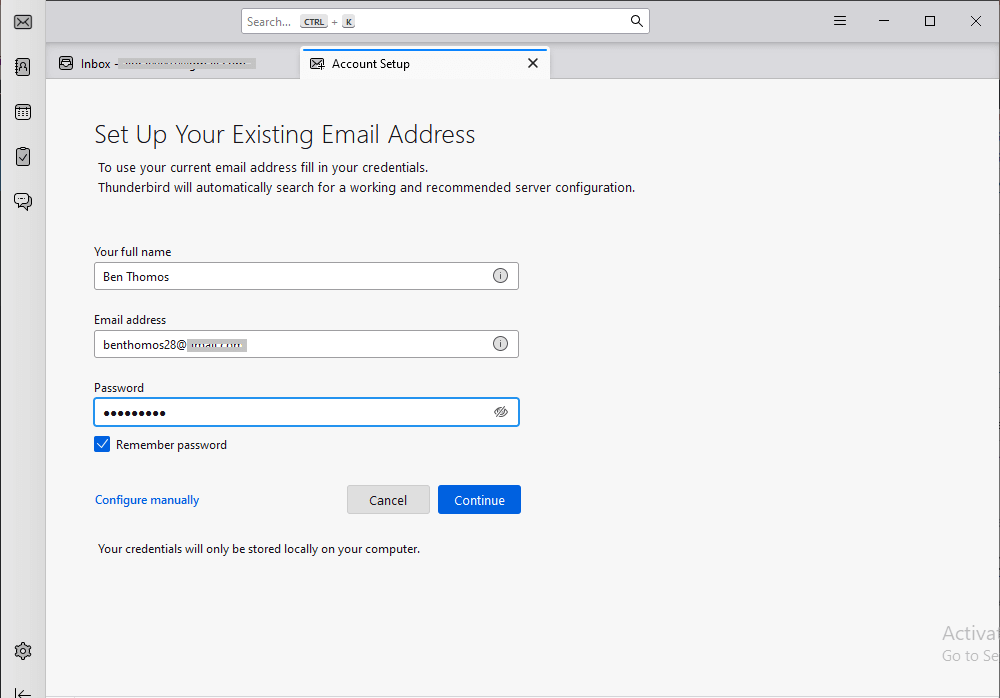
3. During account setup, enter the following information:
Your Name: Your full name as displayed when sending an email
Email Address: Bluehost email address
Password: Bluehost email password
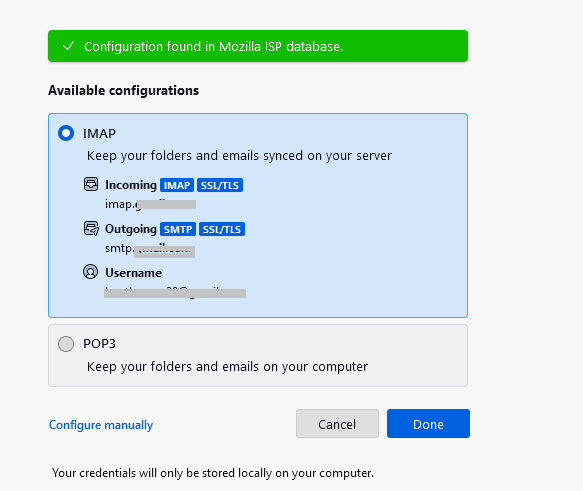
4. After you click on the Done button, your Bluehost login Window will open enter your login details and complete the configuration.
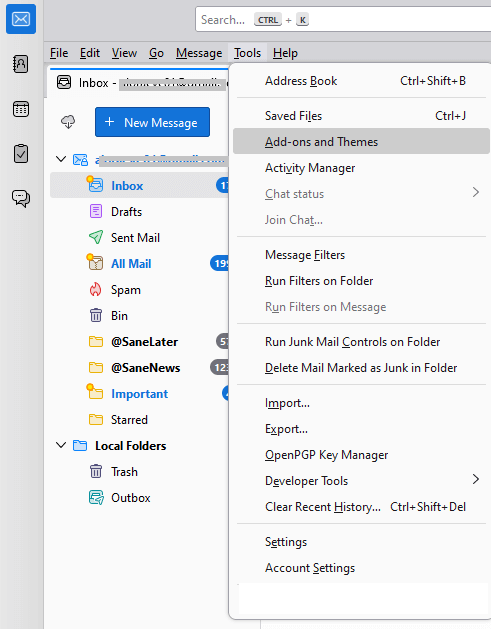
5. Restart your application on your system and press the Alt key from your keyboard.
6. Then select Tools >> Add-ons and Themes.
7. Search for ImportExportTools NG and install it.
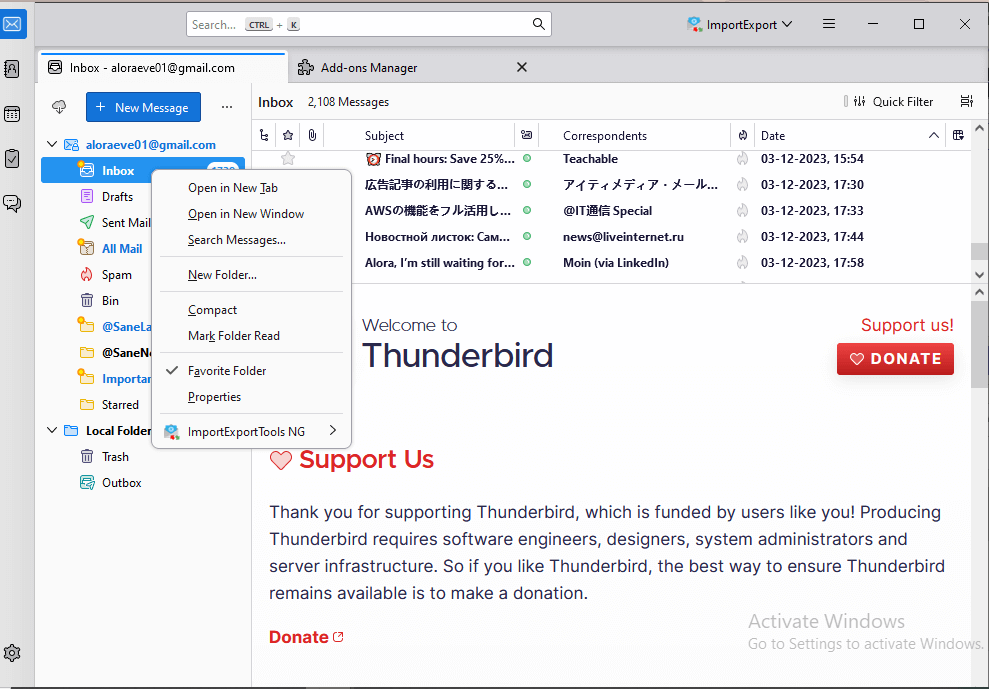
8. Then right-click on the folder you want to export and choose ImportExportTool NG.
9. Click on Folder Export >> Export to MBOX File.
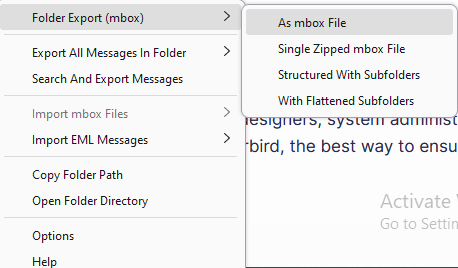
10. Browse the location and click on select Folder option
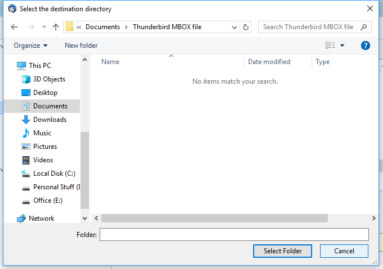
Here complete the process. However, this method will not backup your emails from remote folders. If those are not important for you then you can use this approach to save your Bluehost emails.
How to Download All Emails from Bluehost to PC Effortlessly?
Use the Advik Email Backup Tool to backup Bluehost emails to computer, local PC, or any hard drive in just a few simple clicks. The tool allows you to save your Bluehost emails in bulk. Also, you can choose email folders for selective email backup. It offers various saving options to download Bluehost emails into multiple file formats. The tool keeps the folder structure intact during the process.
Just tap on the below link to download it for FREE.


Steps to Backup Bluehost Emails to Hard Drive
1. Install and run this tool on your computer.
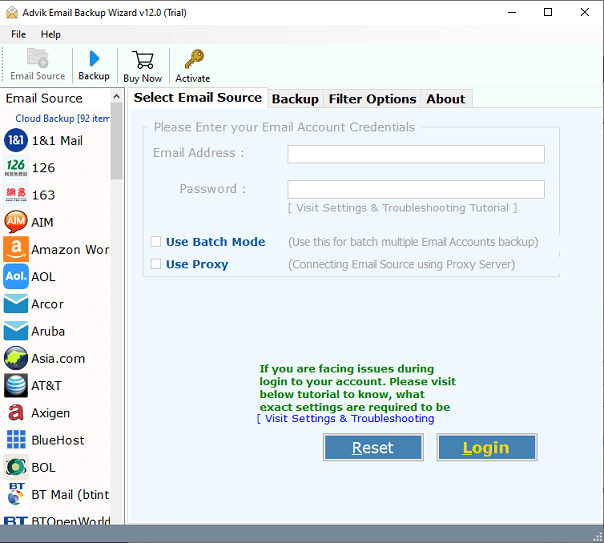
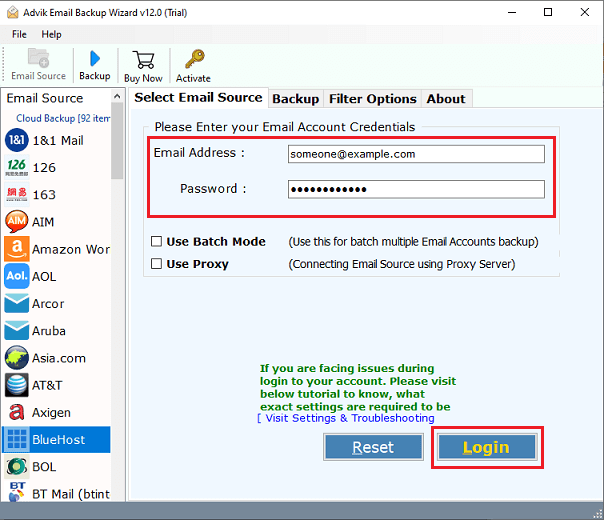
2. Now select “Bluehost” from the given email sources.
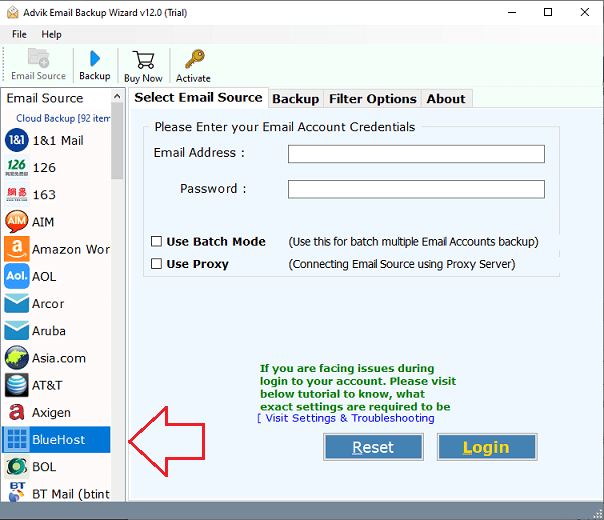
3. Enter your Bluehost email credentials and click the “Login” button.
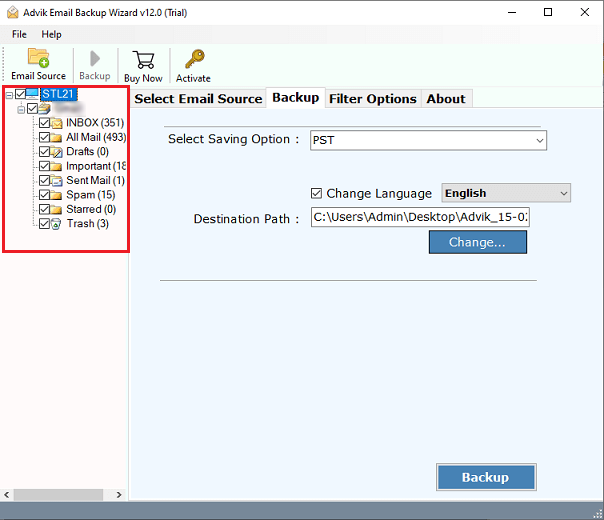
4. This tool will automatically fetch the Bluehost mailbox folder in the software panel. Select the required mailbox folder.
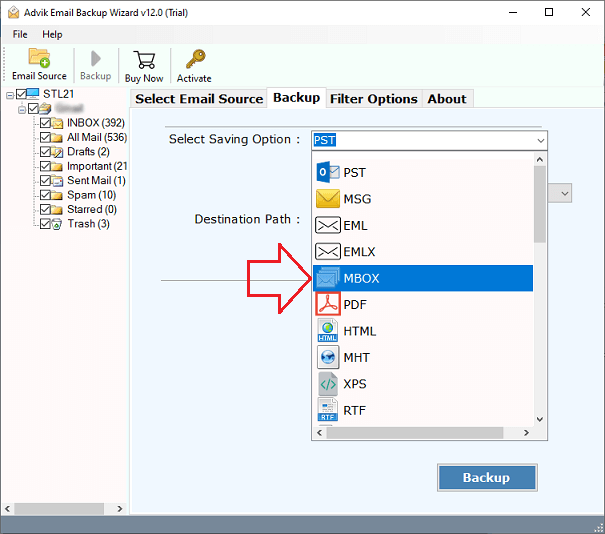
5. Choose a saving option from given list.
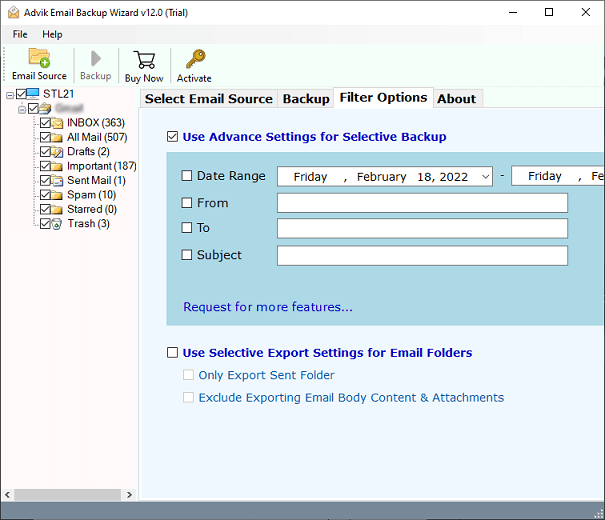
5. Apply the “Advanced Filter” option to export selected Bluehost emails. (Optional)
6. Select your desired “Destination Path” to save your emails.
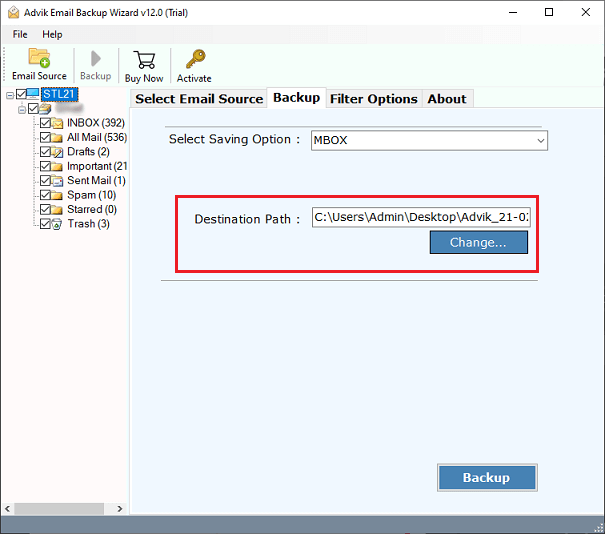
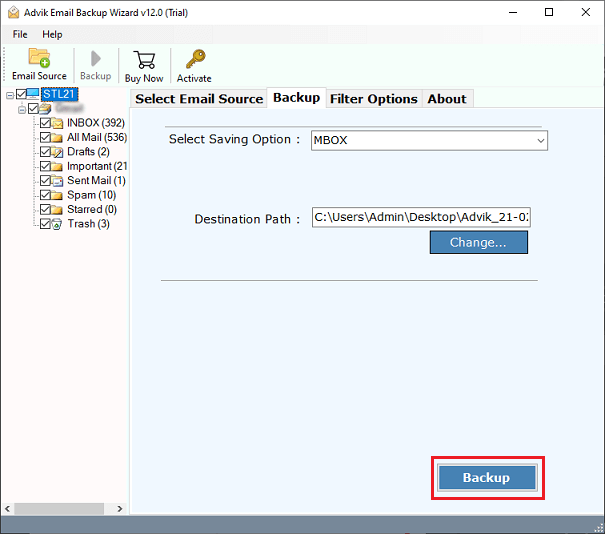
7. Now click on the “Backup” button to start the backup process.
As we can analyze from the above procedure how simple it is to save Bluehost emails to hard drive with this user-friendly tool, a non-technical user can also use this tool without any technical assistance. Some of the highlighted features of this too are –
- Directly backup Bluehost email to PC without any hassle.
- It also migrate Bluehost emails to Office 365 and other accounts.
- Email filters to backup selective emails.
- Retains data integrity and folder hierarchy as well.
- Different options to save Bluehost emails.
- Simple graphical user interface for all types of users.
- Compatible with both Mac and Windows OS.
Watch How to Download BlueHost Emails to PC
Conclusion
Here we discuss the step-by-step process to backup Bluehost email to computer. Since we know that Bluehost doesn’t provide a direct option to backup its mailbox data. However, you can use any email client and download your mailbox data to your system. Here we discover the manual approach to exporting your Dreamhost emails using the Thunderbird application. If you find it difficult to complete the process, then you can opt for the automated tool and complete your task effortlessly.
