How to Backup HostMonster Emails to Computer?
Jackson Strong | January 5th, 2026 | Data Backup
Due to changes in time and technology, everything has changed over time, but the need for a reliable and consistent backup is now more critical than ever. In this guide, we will explore how to backup HostMonster emails using an email client as well as automated third-party solutions. Both methods have their pros and cons, and we will go through the complete procedure.
Let’s start now!
How to Backup HostMonster Emailsto PC Manually?
Using an email client like Outlook, Thunderbird, you can take HostMonster email backup.
Follow the below given steps to save HostMonster emails locally via Outlook.
- Launch Outlook and click File >> Add Account.
- Enter HostMonster account login details and configure with IMAP settings.
- After configuration, click on File >> Open & Export >> Import/Export.
- Select Export to a File and press Next.
- Choose Outlook Data File (.pst) and click Next.
- Now, select HostMonster mailbox folders and hit Next.
- Browse target location and click the Finish button.
Done! That’s how you can export emails from HostMonster to your system.
Why is the Manual Solution Not Recommended?
- Lengthy and time-consuming process.
- Outlook must be installed on your system.
- Technical knowledge is required to configure email account.
- No email filter options for selective email backup.
How to Download Emails from HostMonster to Computer Automatically?
Advik Email Backup Wizard helps users to download all emails from HostMonster in just a few simple steps. With this software, you can save your HostMonster emails into multiple email files, document formats & desktop clients. It can export the entire mailbox in a single attempt. It also offers advanced email filter options to download selected emails.
Moreover, it preserves the original key elements of HostMonster emails while exporting. Also, it maintains the HostMonster mailbox folder hierarchy throughout the process.
Click on the FREE download button and analyze the working process.


Steps to Backup HostMonster Emails & Folders
Step 1. Run HostMonster Email Backup Software on your PC.
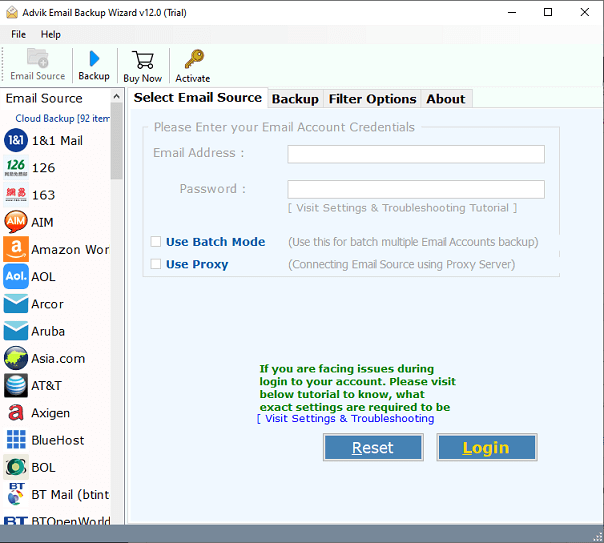
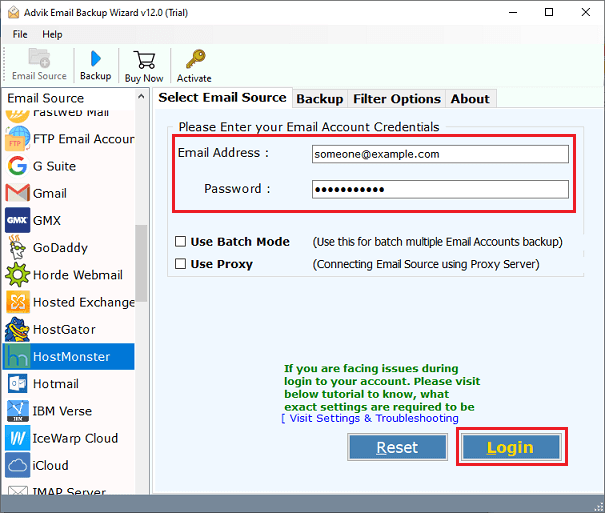
Step 2. Select HostMonster as an email source and sign in.
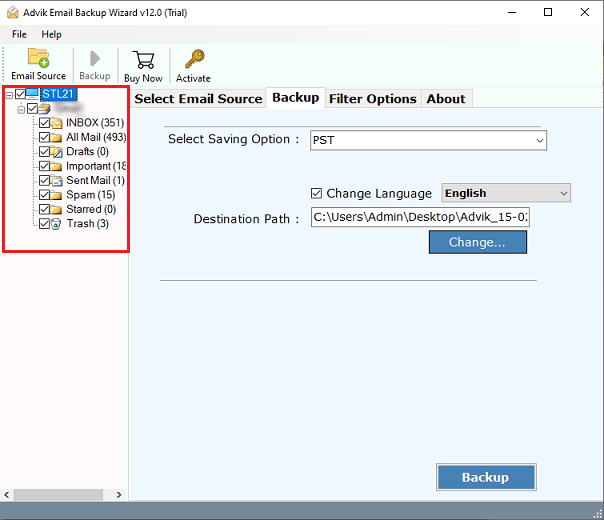
Step 3. Choose mailbox folders to download.
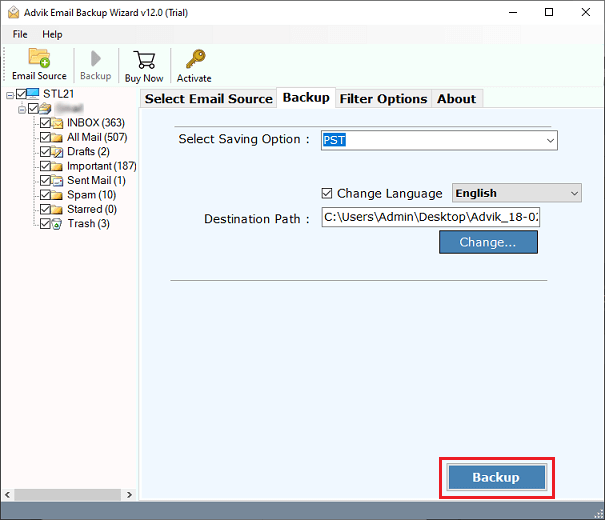
Step 4. Select any file format from the saving option.
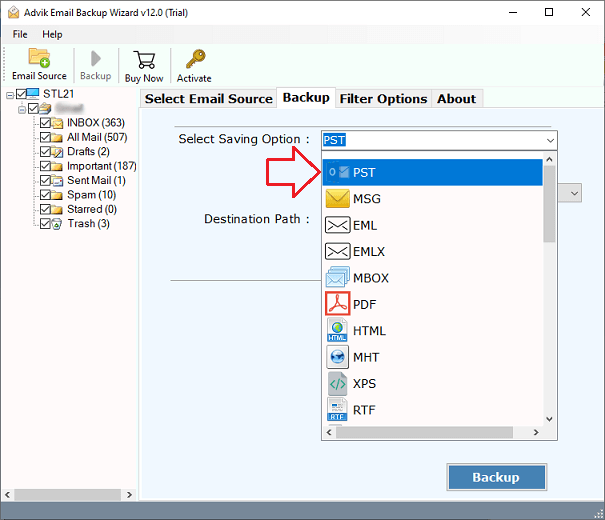
Step 5. Choose the target location and click the Backup button.
The process will begin right away and the tool will show a live report of HostMonster email backup.
Once the process is completed, you’ll see a report on the screen. Then, you can check all the downloaded HostMonset emails there.
Why Choose the Automated Tool Over Manual Solution?
- Easy to Use: It has a simple and user-friendly interface that makes it easy to download emails from HostMonster to your computer. Even beginners can easily back up Telenet Mail to their PC with just a few clicks.
- Maintains Folder Structure: The software preserves the folder and sub-folder hierarchy when creating a backup of your HostMonster emails. This ensures that you can access your emails offline without any issues.
- Preserve Email Properties: It retains all email properties and formatting, including recipients, senders, subject, date, time, hyperlinks, logos, and more, throughout the HostMonster email backup process.
- Bulk Email Backup: You can choose to export multiple HostMonster emails to your hard drive in one go. You can select and download several emails from your HostMonster email accounts at once.
- Desired Target Location: The HostMonster backup software for emails lets you save the HostMonster folder locally at a location of your choice. Simply click the Browse button and select a folder to download emails.
Conclusion
To take HostMonster email backup, we have mentioned two different methods. With the help of which you can easily download HostMonster emails to PC. You can choose any method that is most suitable for you. However, the manual method has some limitations. That’s why we recommend using the automated tool to save HostMonster emails locally without any hassle. you can download the FREE demo version wich allows you to download 25 emails from each folder.
