How to Backup Hotmail Emails in 2026?
In this guide, you’ll learn how to backup Hotmail emails to your computer. Explore both the official manual and secure automated solutions, so you can choose what works best for you.
Hotmail (now part of Outlook.com) is still widely used for personal and professional email communication. It stores important email messages that many users use on a daily basis. It can be risky to store all your emails on a server as anything can happen at any time or any moment. And you may lose access to your emails at that time.
Thus, creating a local backup of your Hotmail emails is a preventive step. A backup lets you access your emails anytime, even without an internet connection.
So, let’s see how to do a safe and secure backup of your complete Hotmail mailbox easily.
How to Backup Hotmail Emails to Hard Drive Manually (Official Method)
Microsoft provides a built-in option to export Outlook.com / Hotmail mailbox data. This method works best for users who want a one-time full backup.
Step 1. Login to your Hotmail.com account.
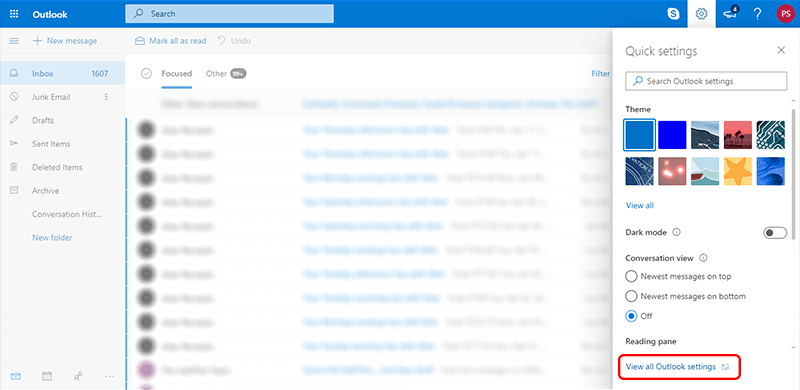
Step 2. Click the gear icon, and click “View all Outlook settings”.
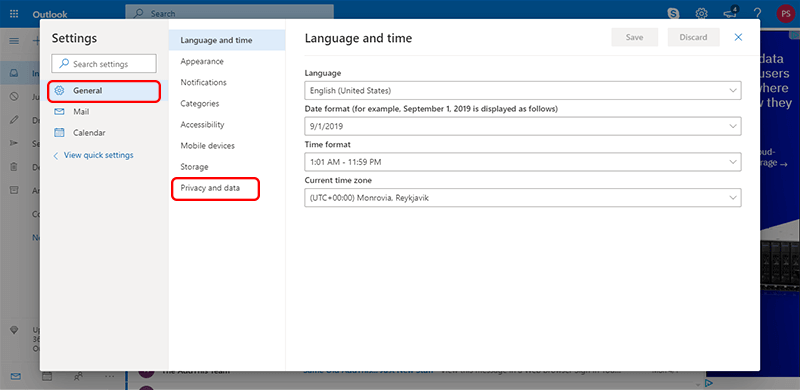
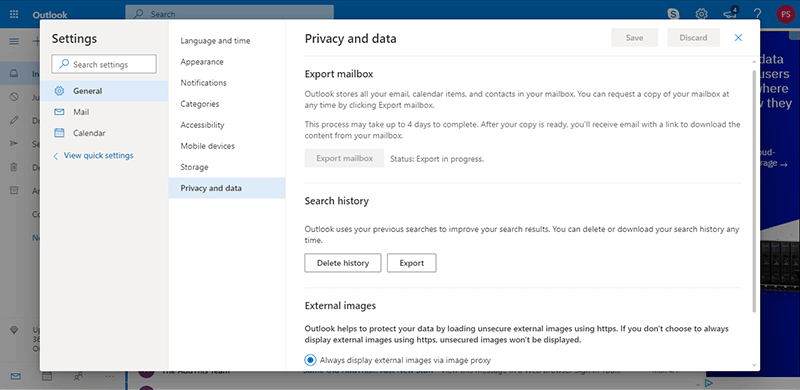
Step 3. Click the Privacy and Data option from the General tab.
Step 4. Click on the Export mailbox button.
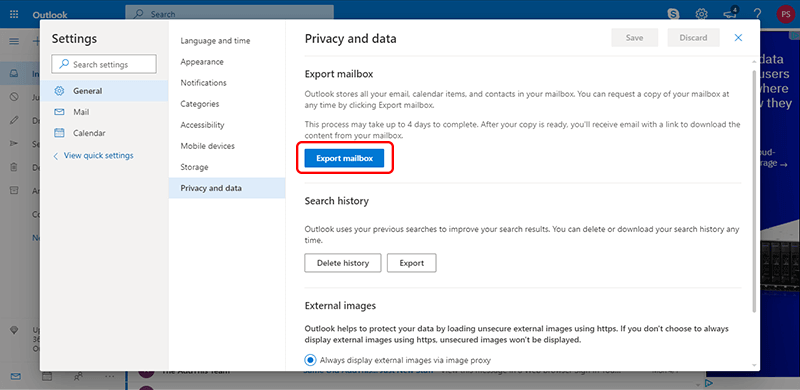
Step 5. The backup process started and will take up to 4 days.
Step 6. After completion, you will receive backup download link from Microsoft.
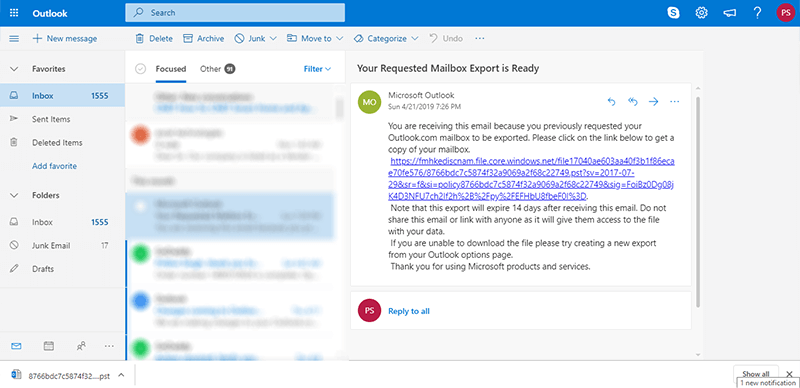
Click on the download link. This is the official way to download Hotmail emails to hard drive.
However, the manual backup process will take time to complete. Alternatively, you can also try an automated tool for quick and efficient backup.
How to Backup Hotmail Emails to Computer Automatically? (Recommended)
The Advik Outlook.com Backup Tool is a secure way to save Hotmail emails in just a few simple clicks. To complete the Hotmail backup, just launch the software and log in with your Hotmail account. After that, choose the saving options to backup your mailbox data. It can download Hotmail emails along with attachments. The tool maintains the email folder and sub-folder hierarchy and structure during the process.
The software is able to backup Hotmail emails in bulk. Moreover, the tool allows you to select email folders, if you want to back up selective email folders only. With this utility, you can save emails from multiple Hotmail accounts at a time without any data loss.
Download the trial version of the software to know the backup process.


Note: Enable IMAP and Less Secure Apps from Hotmail Settings. Click here to find out how.
Steps to Download Hotmail Emails to Hard Drive
Step 1. Run this Hotmail Backup tool and login.
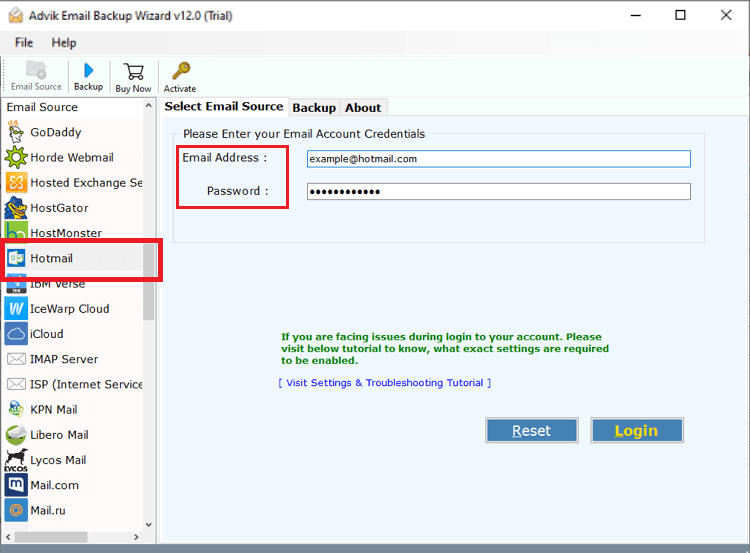
Step 2. Choose mailbox folders to export.
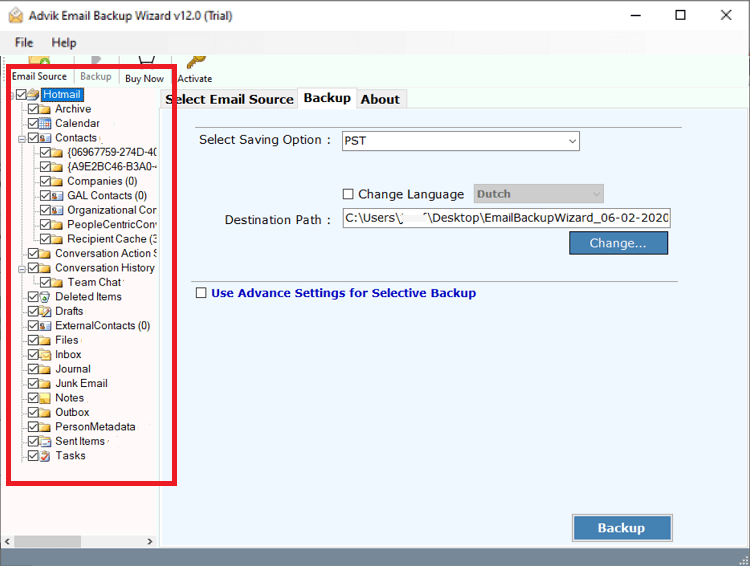
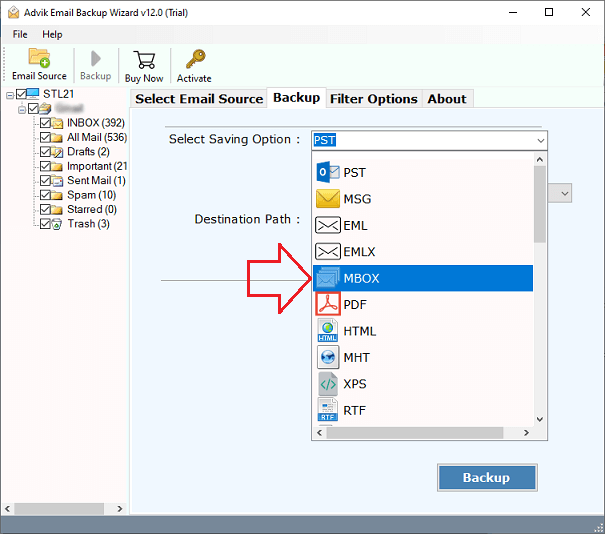
Step 3. Select the backup file format from the list.
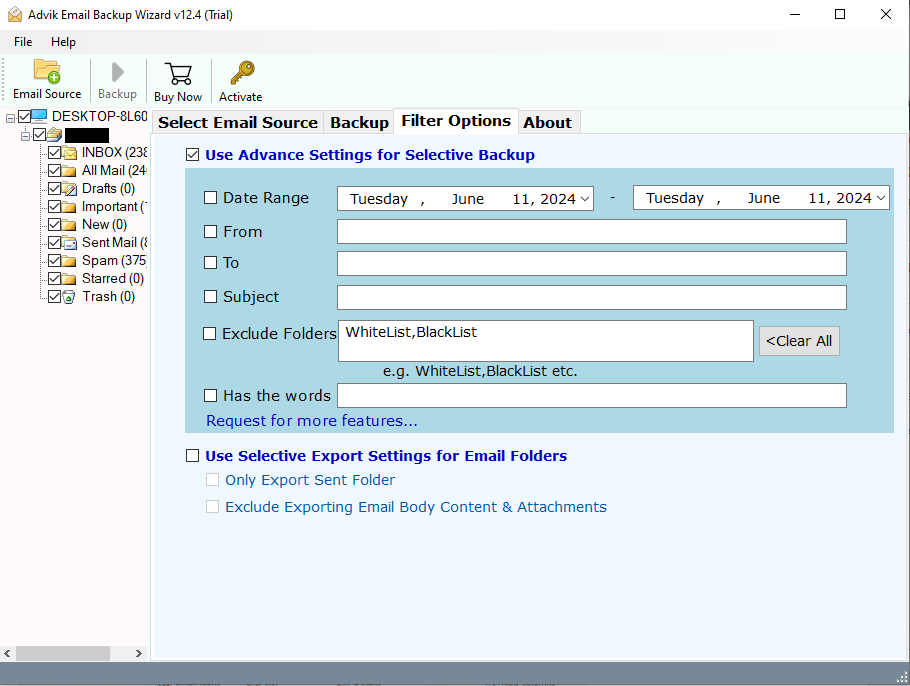
Step 4. Apply email filters for specific email backup.
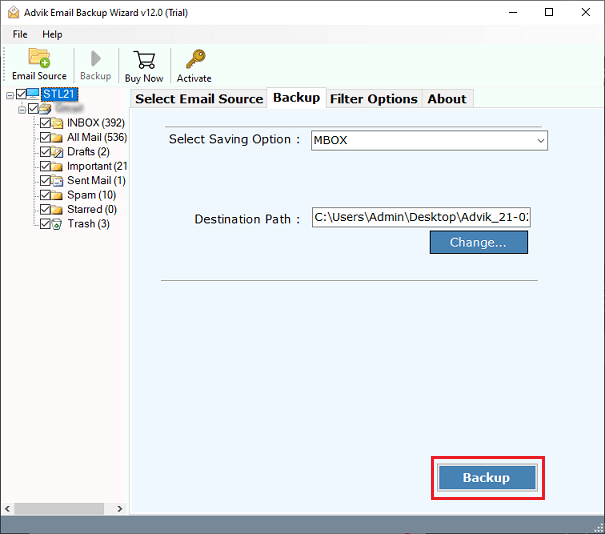
Step 5. Click the Backup button to start the Hotmail backup process.
Finished, the software will create a backup file containing all your Hotmail emails.
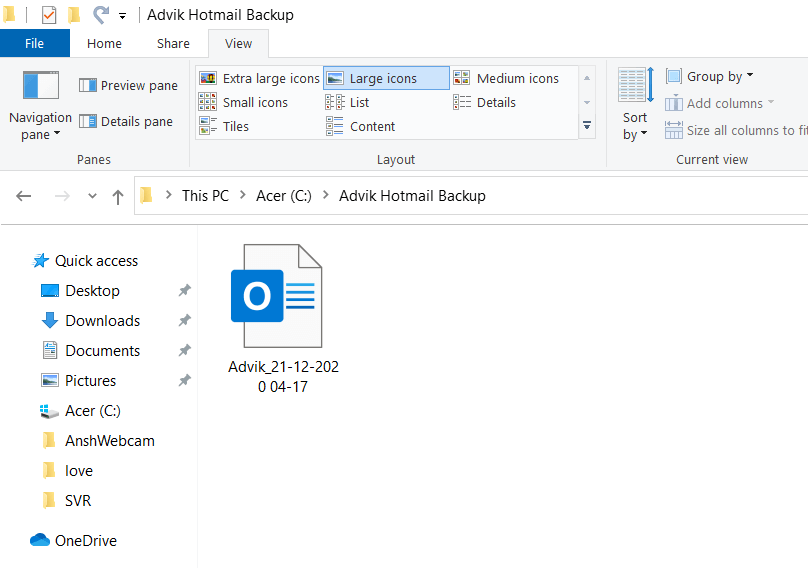
Done!! This is how a user can easily save emails from Hotmail to PC or external hard drive.
Watch How to Backup Hotmail Mailbox to PC
Why Automated Solutions are Better Than Manual Methods
Now, have a look at the more helpful benefits of this utility. Some of them are –
- Email Filters – This software provides different filters to export selective emails from Hotmail based on To, From, Subject, only export sent folder, and exclude email body contents & attachments.
- Multiple Saving Options: The software has multiple saving options to save mailbox data. Using it you can export Hotmail to PST and many other file formats as well.
- Backup Multiple Hotmail Mailboxes – Users can also backup their Hotmail account with any folders. It allows backing up all Hotmail mailbox data such as inbox, sent, drafts, personal labels, etc.
- Transfer Hotmail to Cloud – You can also migrate emails from Hotmail to Gmail, G Suite, Yahoo Mail, Office 365, Rediffmail, and several email service providers.
- Supports all Windows & Mac OS – This Hotmail email backup solution is compatible with all Microsoft Windows and Mac OS systems, including both newer and older versions.
Conclusion
In this guide, we explained both the manual Microsoft method and a professional automated solution to help you backup Hotmail emails to your computer. If you need a one-time Hotail email backup and can want wait longer, the manual method works. But if you want faster results, selective export, and multiple saving options, using a dedicated backup tool is the smarter choice.
Frequently Asked Questions
Q1. How to download Hotmail emails without affecting the folder structure?
Ans. The manual approach does not guarantee to maintain the folder hierarchy. While the software keeps the original structure of Hotmail mailbox folders even after the process.
Q2. Can I backup multiple Hotmail accounts in one go?
Ans. Yes, the software can take backup of multiple Hotmail accounts at once.
Q3. Is it possible to save Hotmail emails between April 2024 to July 2025?
Ans. Yes, the Hotmail Backup tool offers various advanced email filter options to download Hotmail emails based on date range, to, from, subject, etc.