How to Backup Outlook Emails from Browser (Outlook Web)
Christopher Plummer | December 2nd, 2025 | Data Backup, Outlook
This article explains how to backup Outlook emails, contacts, calendars, and other data items from web browser to your PC. It also describes how to do it in bulk and for a few emails. So, read this blog completely and see which method works best for you.
How to Backup Outlook Emails from Web Browser? (Free Option)
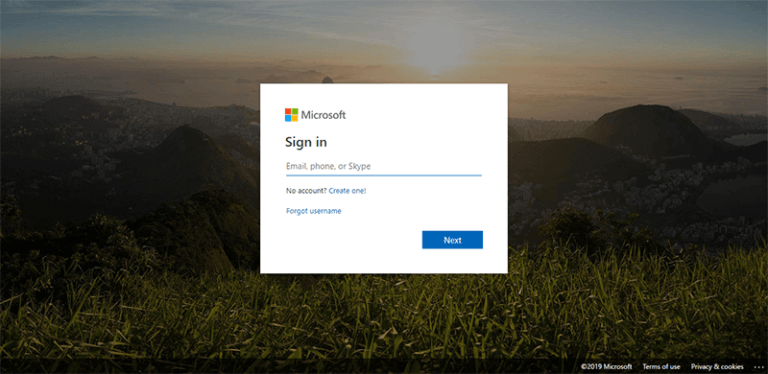
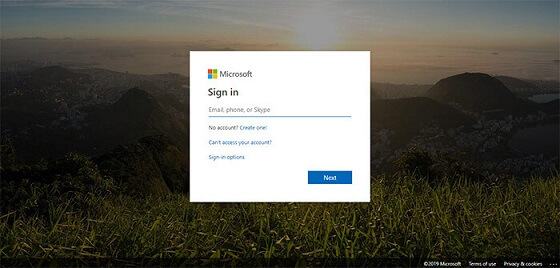
1. Open http://outlook.live.com in your browser and log in to your Outlook.com account using your credentials.
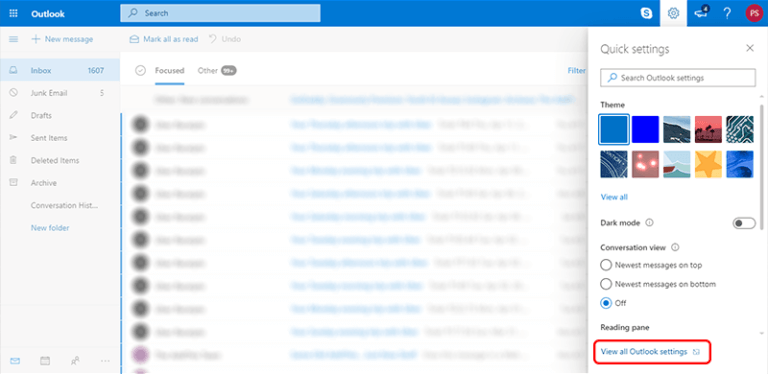
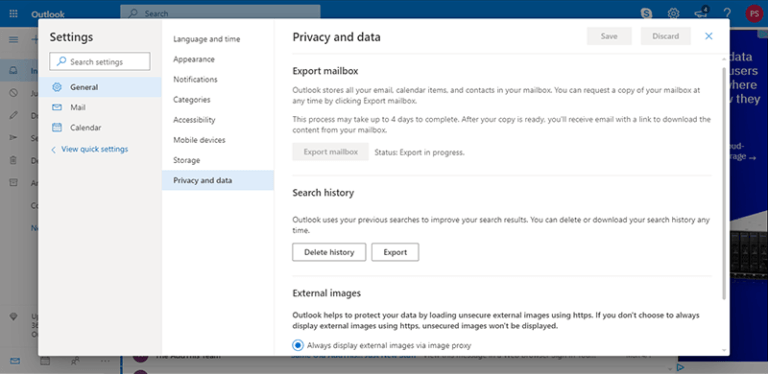
2. Go to the Gear icon and click View All Settings.
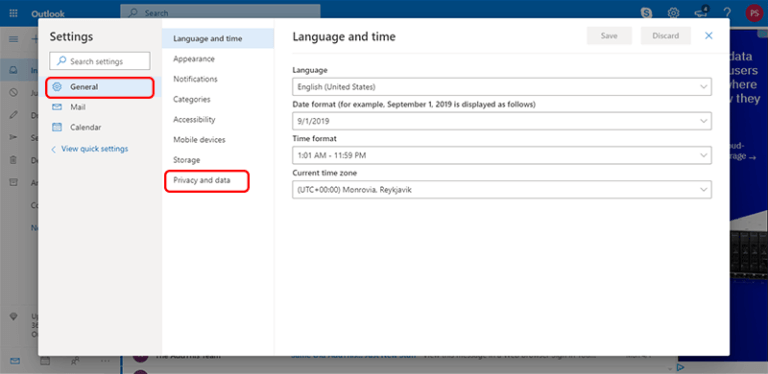
3. Click on General Settings and select Privacy and Data in the new tab.
4. In the Privacy and Data, click Export Mailbox option.
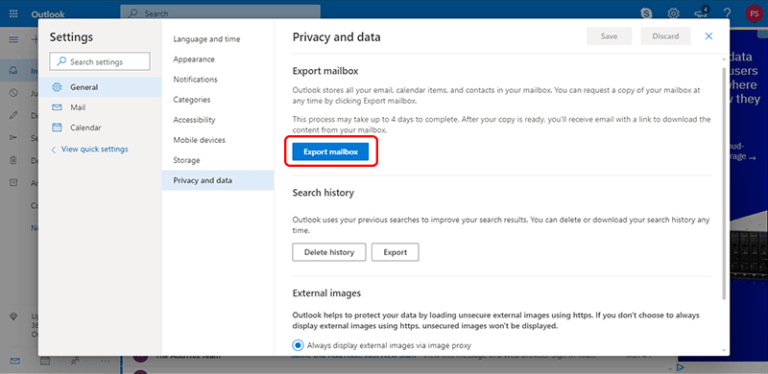
5. The backup process will start and you will be informed that file will be ready in 4 days.
6. Once the process is complete, you will receive an email with a link to download your mailbox.
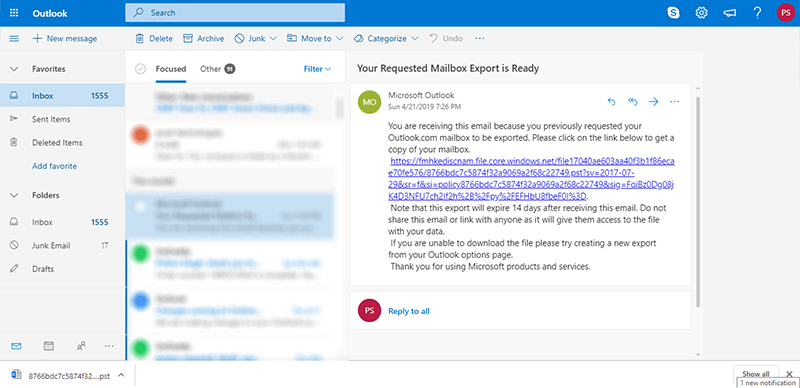
Done! That’s how you can export all emails from Outlook Web browser but this is a time-consuming process. You need to wait 4 days to receive backup files.
How to Save Outlook Emails from Browser? (Free but Limited)
It is possible to save Outlook emails from browser with “Print as a PDF” in no time. This is the correct way to save single or multiple emails by processing them one by one. Follow the steps below to export emails from Outlook web browser.
1. First of all, Go to https://outlook.live.com/ and log in to your account.
2. In your inbox account, choose an email message to download emails to your computer.
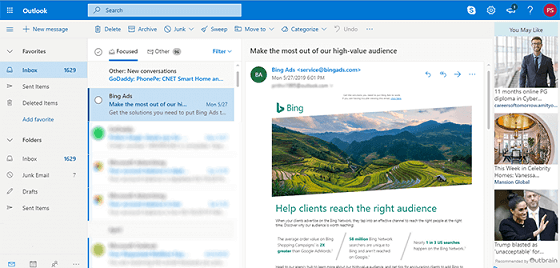
3. Now, tap on the three-dot icon and the top bar and choose “Print” from the drop-down list.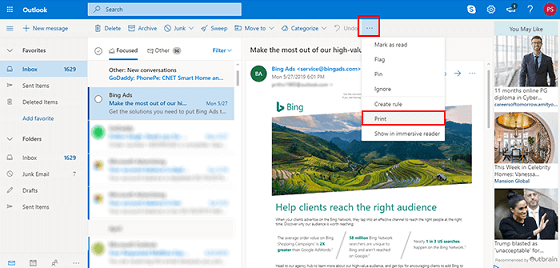
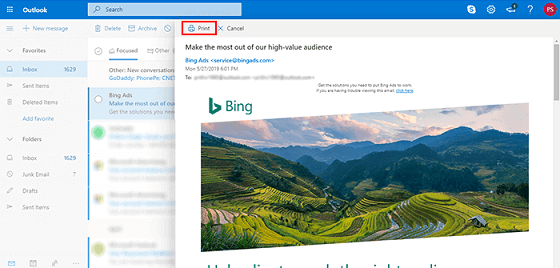
4. After that, click on the “Print” button to save it as a PDF File.
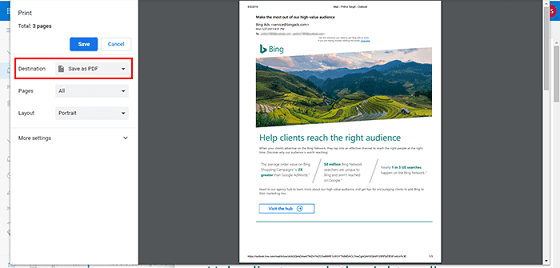
5. Thereafter, choose “Save as PDF” and tap on the “Save” button.
Done!! Repeat the above steps for other emails that you want to download.
Note: This method is useful only for saving a few emails, not full backups.
How to Export All Emails from Outlook Browser Automatically?
If you want a fast, secure, and complete backup, an automated solution is the best choice. Advik Outlook.com Backup Tool is one such option to backup Outlook Web emails directly to your computer without manual effort. It works securely with Outlook.com accounts and preserves email structure and attachments.
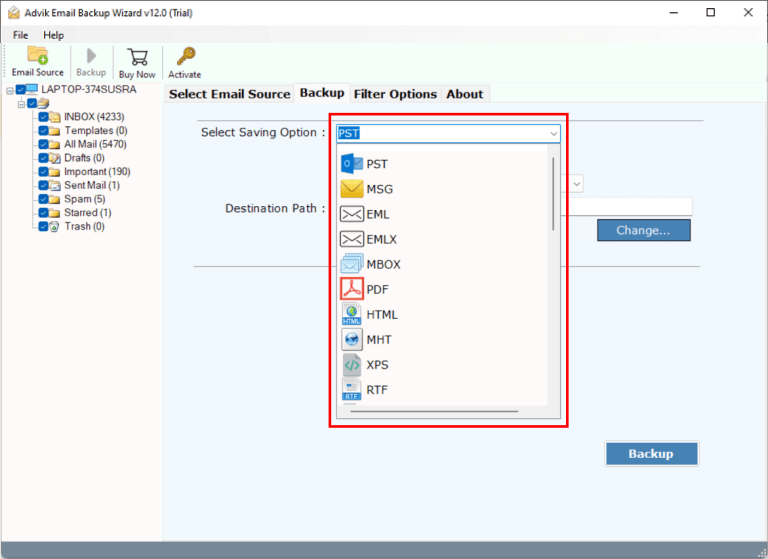
You can export Outlook Web emails to formats like PST, EML, MSG, PDF, DOC, MBOX, and more.
(Trial version available to test functionality.)


Steps to Backup Outlook Emails from Browser
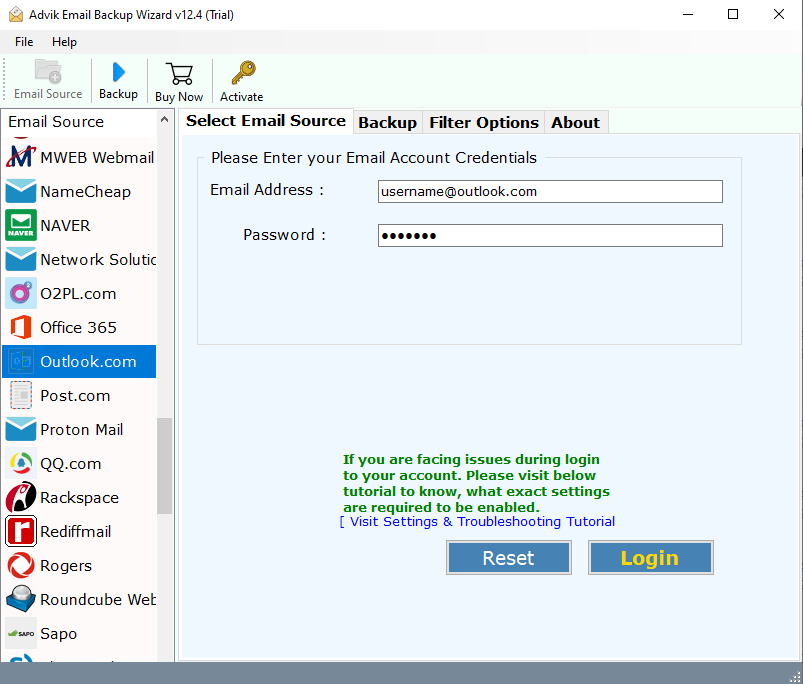
- Run this software on your Windows PC.
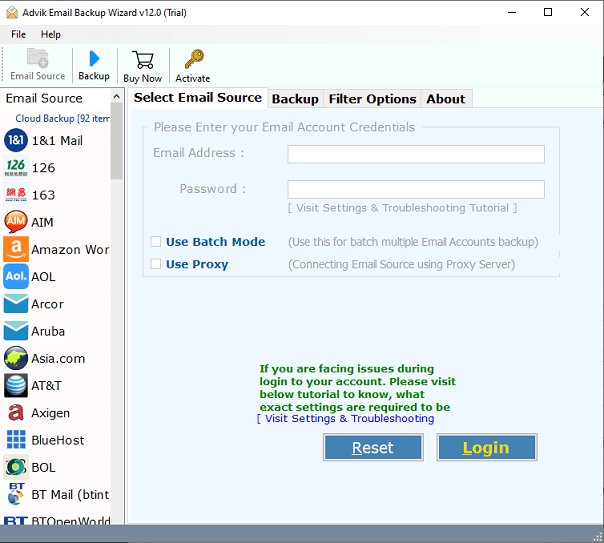
- Enter your Outlook.com email account credentials to sign in.
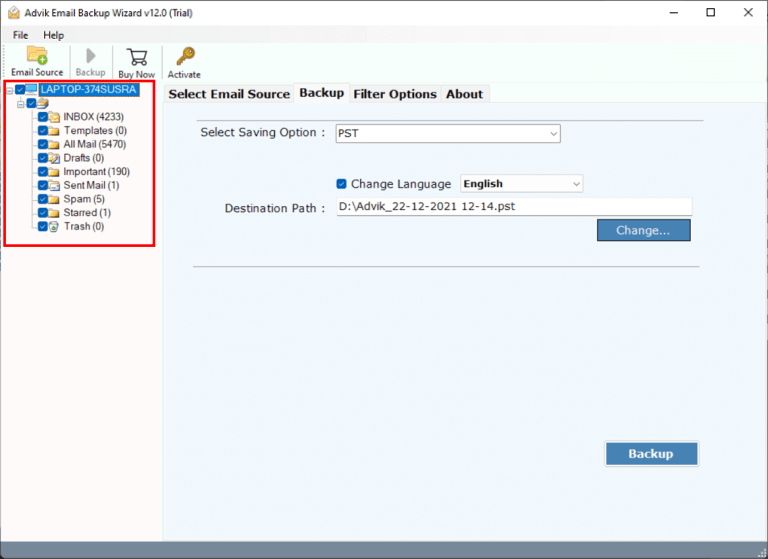
- Select mailbox folders to download emails from.
- Choose any file format from the list.
- After that, select the desired destination path & click Backup.
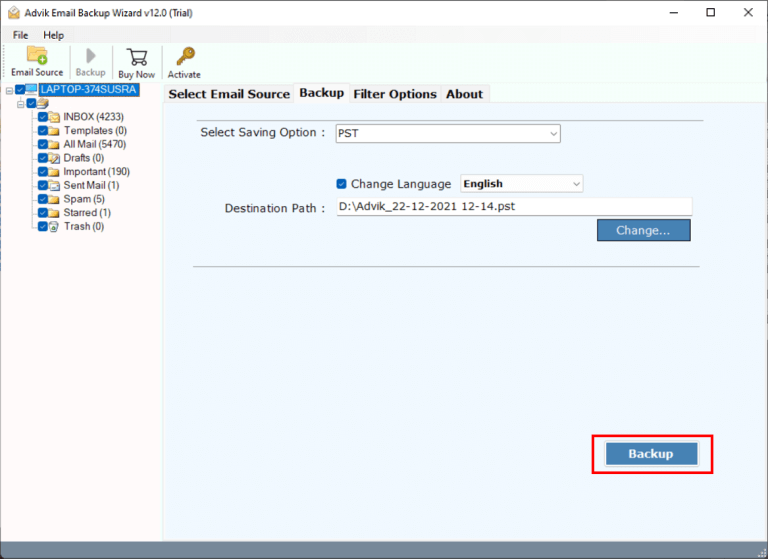
You must wait for a while until the Outlook backup process ends successfully. After the process finishes, you can go to your chosen location to view your backup files. This is the professional way to export Outlook.com emails from browser.
Note: This method is ideal for professionals, businesses, and users with large mailboxes.
Final Words
So you have seen how to backup Outlook emails from browser. But which is the best? There is no one answer to this question, as your needs will differ from the next person. However, we can suggest to you, on general terms, such as what a user actually wants while they are looking to save Outlook emails from a web browser.
If you have a few emails, then, manual method is a free and good one, but for large mailboxes, automated methods are always suggested.
Frequently Asked Questions
Q1. Can I backup emails from Outlook web browser in any format?
Ans. Yes, the Advik Software will let you export Outlook emails from browser in 20+ different file formats. (including email & document file formats)
Q2. How do I save email from Web Outlook without affecting data integrity?
Ans. You can backup Outlook online emails in their original format using the above-suggested tool.
Q 3. How do I export emails from Outlook web browser in bulk?
Ans. You can export all emails from Outlook browser manually or automatically. Refer to the above sections to know the complete procedure.
