How to Backup Qboxmail Emails With Attachments?
Qboxmail is an email hosting service designed for businesses and organizations. It provides secure, scalable, and feature-rich email solutions with advanced tools for communication and collaboration. If you are using Qboxmail webmail, your inbox most probably contains important business emails. Therefore, losing this information could lead to serious data loss. That’s why creating a Qboxmail email backup is necessary. Most of the users search for a reliable way to backup Qboxmail emails to their system. In this article, we will explain manual and professional methods to download Qboxmail emails to
Why Do We Need to Save Qboxmail Emails to Computer?
Backing up Qboxmail emails are several advantages:
- Prevent data loss due to accidental deletion
- Prevent server downtime or failures
- Keep a copy of important emails for legal purposes
- Access emails even without an internet connection.
- Easily migrate emails to another platform
How to Backup Qboxmail Emails to PC Manually?
There are two basic manual techniques to save Qboxmail emails to computer.
Method 1. Backup via Built-in Download Feature
- Log in to your Qboxmail account.
- Click on the email folder.
- Open the email that you want to download.
- Click on the three vertical dot menu and choose Download.
- Repeat the steps to download other emails.
This is how you can save Qboxmail emails in .eml files
Method 2. Save Qboxmail Emails via Print Option
- Log in to your Qboxmail webmail account.
- Open the email that you want to save.
- Go to the three-dot menu icon under the email interface and select Print option.
- Choose Save as PDF in the print preview window and click on the Save button.
- Select the destination folder and click on the Save button.
Saving a single email can be done easily, but what if you have multiple emails to backup? To save Qboxmail emails in batches, let’s move ahead to the below given method.
How to Download All Emails from Qboxmail to PC Automatically?
Download and install the Advik Email Backup Wizard on your system. With the help of this tool, you can easily backup Qboxmail emails to computer in just a few simple clicks. The software can save the entire Qboxmail mailbox in a single attempt. Apart from this, it allows you to download selected folders or emails as per your need. The tool preserves data integrity and mailbox folder hierarchy during the process.
Click on the below link to download it for FREE.


Steps to Backup Qboxmail Emails With Attachments
1. Run the tool and choose IMAP Server as email source.
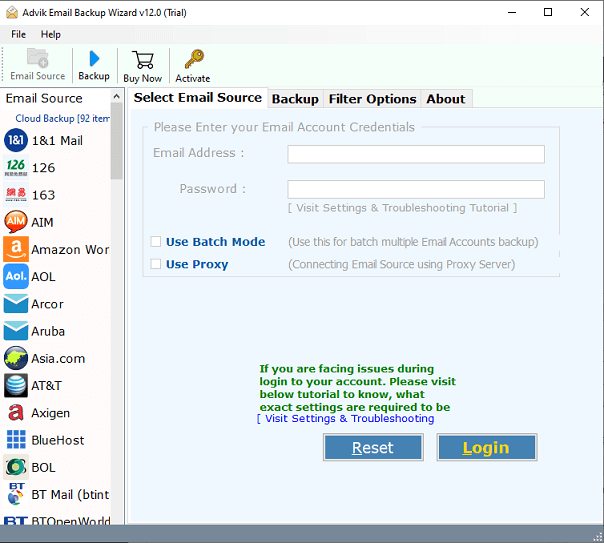
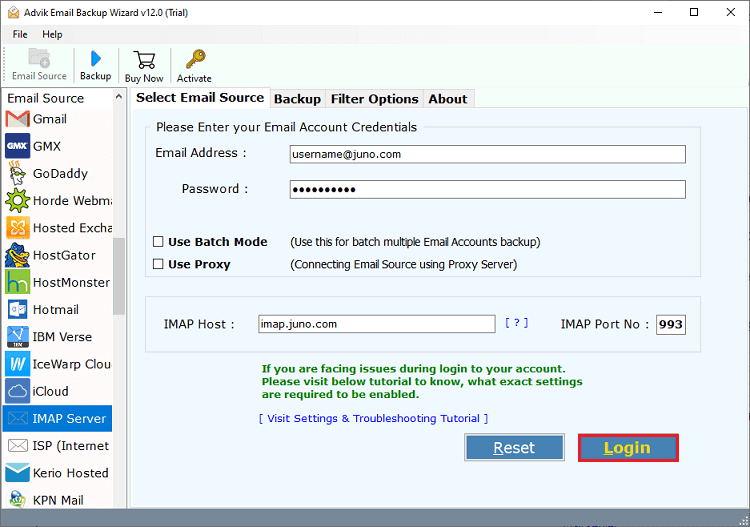
2. Choose IMAP Server from the email source and enter Qboxmail account login details to sign in.
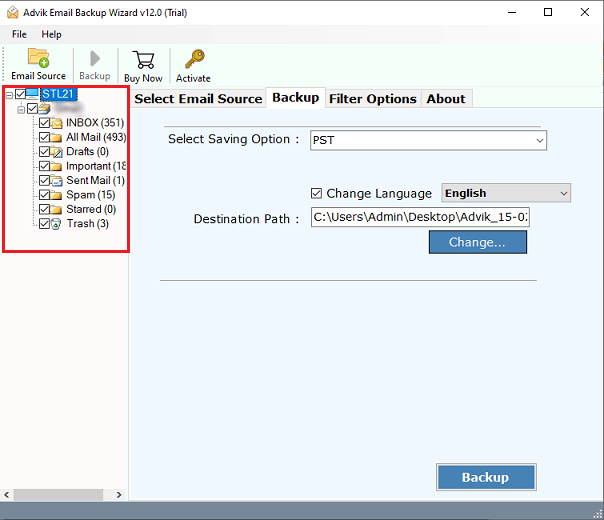
3. Select the required mailbox folders to download.
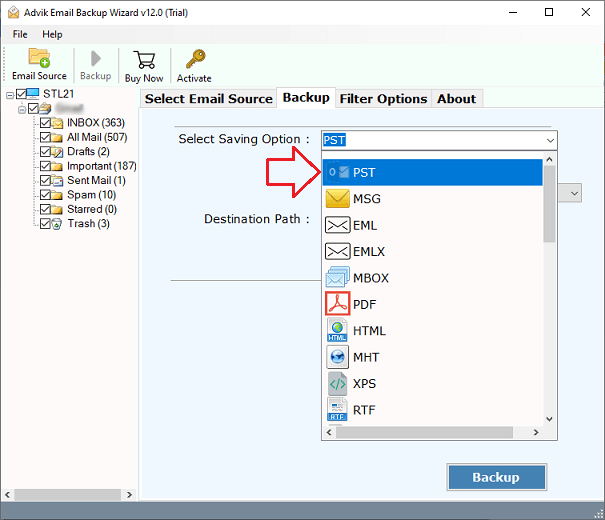
4. Next, choose a saving option from the given list.
5. Browse target location and click Backup button.
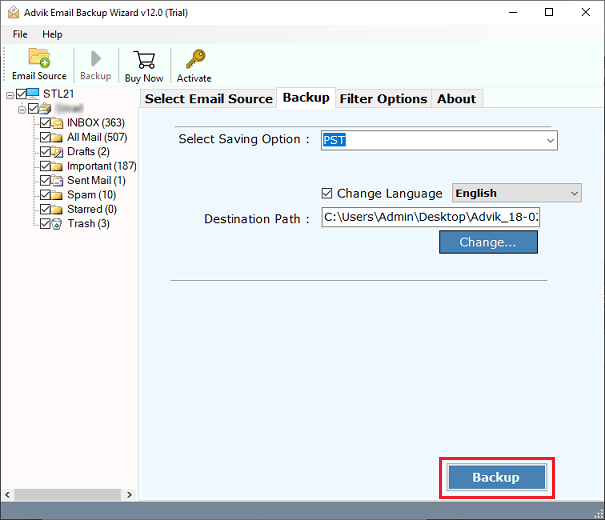
The software will start downloading emails from Qboxmail to your system in your desired format. Once the process is complete, you will get a pop-up message with a complete log report.
Why Choose Automated Tool Instead of Manual Solutions
- The software is able to backup Qboxmail emails in batches.
- The tool allows you to save selected Qboxmail emails using filters.
- It maintains the original structure of Qboxmail mailbox folders.
- It offers 30+ saving options to save emails into multiple formats
- This utility preserves all email attributes & properties during backup.
- A simple graphical user interface helpful for all types of users.
- It is compatible with both Mac and Windows operating systems.
Concluding Words
In this post, we have discussed how to backup Qboxmail emails to computer using various methods. The manual solutions are suitable if you have a limited number of emails to download. The professional tool can download all emails from Qboxmail to PC in one go. The software comes with a free demo edition, which permits to save 25 emails from each folder so that users can evaluate the product without investing money. After getting complete satisfaction, they can purchase the licensed edition.